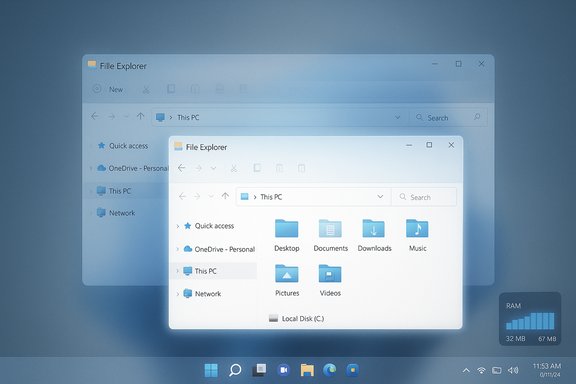
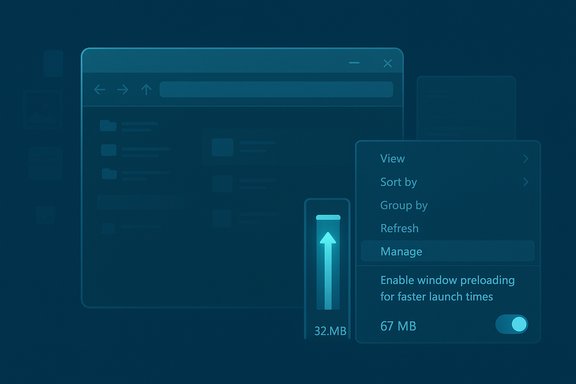
Microsoft has quietly begun testing two deliberate, low‑risk experiments that aim to make File Explorer feel faster and less cluttered: an optional background preloading mechanism that warms parts of Explorer before you open it, and a reworked right‑click context menu that groups seldom‑used commands into a new Manage file submenu and provider‑specific cloud flyouts.
Windows’ File Explorer is the operating system’s most frequently used GUI surface; even tiny frictions — a half‑second “cold start,” a bloated context menu full of cloud and third‑party entries — compound into real productivity loss for millions of users. Microsoft announced these changes as part of Windows 11 Insider Preview Build 26220.7271 (KB5070307), published to the Dev and Beta channels on November 21, 2025. The company frames both moves as explorations that will be tuned using telemetry and Feedback Hub input before any broader release. Community testing and independent coverage confirm the experiments are live for Insiders: testers are seeing a Folder Options toggle labeled Enable window preloading for faster launch times, and a shorter top‑level context menu with a nested Manage file flyout for compress, copy‑as‑path, rotate and similar commands. Early forum reports and reproductions corroborate Microsoft’s release notes.
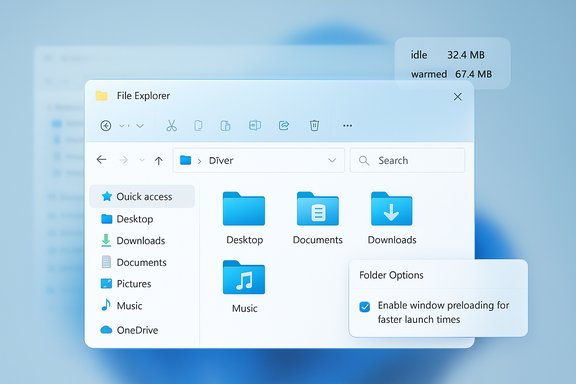
File Explorer → View → Options → Folder Options → View → “Enable window preloading for faster launch times.” The implementation follows a familiar Microsoft pattern: perform predictable initialization during idle time so the interactive path is shorter at the moment the user asks for it. Edge’s Startup Boost and later Office prelaunch tasks used the same trade‑off — a small, controlled background cost in exchange for a faster perceived launch. Microsoft’s notes emphasize the change is intended to improve perceived launch speed rather than dramatically rearchitect file enumeration or network enumeration behavior.
The moves reflect an engineering philosophy favoring telemetry‑backed incrementalism: quick wins that improve perceived performance and clarity without a full shell rewrite. The changes are already visible to Insiders, and a staged rollout to the wider Windows 11 population is expected only after testing — an early‑2026 timeline is possible but not guaranteed. Administrators and users should pilot the change, measure the practical trade‑offs on their hardware, and use the available toggle and Feedback Hub to help shape the final experience.
Source: 247news.com.pk Windows File Explorer to Get Speed and Clarity Update from Microsoft - 247News
 Background
Windows’ File Explorer is the operating system’s most frequently used GUI surface; even tiny frictions — a half‑second “cold start,” a bloated context menu full of cloud and third‑party entries — compound into real productivity loss for millions of users. Microsoft announced these changes as part of Windows 11 Insider Preview Build 26220.7271 (KB5070307), published to the Dev and Beta channels on November 21, 2025. The company frames both moves as explorations that will be tuned using telemetry and Feedback Hub input before any broader release. Community testing and independent coverage confirm the experiments are live for Insiders: testers are seeing a Folder Options toggle labeled Enable window preloading for faster launch times, and a shorter top‑level context menu with a nested Manage file flyout for compress, copy‑as‑path, rotate and similar commands. Early forum reports and reproductions corroborate Microsoft’s release notes. What Microsoft shipped in the Insider build
Preloading: warm start for Explorer
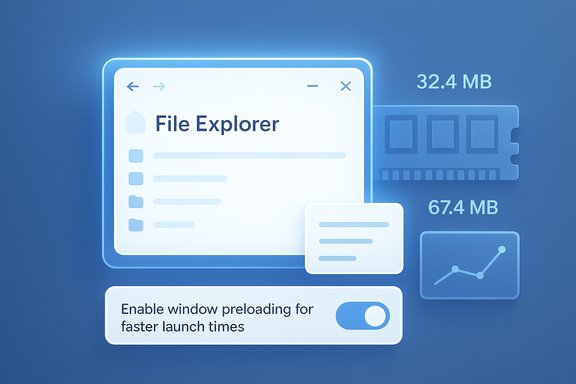
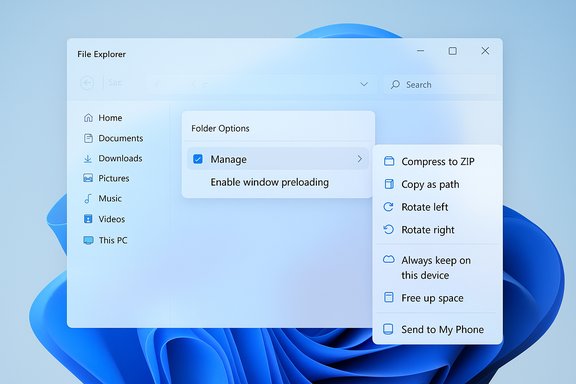
Microsoft is exploring a background preloading approach that keeps a lightweight Explorer skeleton in memory so the first visible window paints almost instantly when invoked. The behavior is optional and exposed with a user toggle at:File Explorer → View → Options → Folder Options → View → “Enable window preloading for faster launch times.” The implementation follows a familiar Microsoft pattern: perform predictable initialization during idle time so the interactive path is shorter at the moment the user asks for it. Edge’s Startup Boost and later Office prelaunch tasks used the same trade‑off — a small, controlled background cost in exchange for a faster perceived launch. Microsoft’s notes emphasize the change is intended to improve perceived launch speed rather than dramatically rearchitect file enumeration or network enumeration behavior.
Context menu reorganization
The right‑click (context) menu inside File Explorer has been shortened at the top level. Infrequently used actions — Compress to ZIP, Copy as path, Set as desktop background, and Rotate left/right — are grouped under a new Manage file flyout. Cloud provider options such as Always keep on this device and Free up space are now surfaced inside their respective cloud provider flyouts, and Send to My Phone has been relocated near those provider entries to improve grouping and scanability. Microsoft explicitly notes that the “Manage file” label may change during testing.Why these two changes matter
- Perceived responsiveness: Warming a tiny portion of Explorer before use reduces the visible delay on first open, which is particularly noticeable on older CPUs, eMMC storage, and handheld Windows devices. On budget hardware, a warmed UI can change the feel of the OS from sluggish to snappy.
- Reduced visual clutter: Grouping infrequent actions into logical flyouts shortens the top‑level context menu, improving scanability and reducing accidental clicks on low‑value items. This is a practical UX trade: expose the common verbs quickly, but keep advanced or rare actions a single extra click away.
- Consistency with prior engineering choices: Microsoft is reusing a proven pattern (background prelaunch) that has been applied successfully to Edge and Office; the risk profile is therefore well‑understood and manageable.
Technical analysis: how preloading likely works (and what it does not)
What preloading is likely doing
Based on Microsoft’s high‑level description and precedent implementations, preloading for Explorer probably:- Instantiates a lightweight Explorer process or UI skeleton in the background (address bar, command bar, and common controls).
- Primes small UI caches and commonly used thumbnail/icon data so the first interactive paint is fully populated.
- Keeps that process in a suspended or low‑activity state to conserve CPU while reserving memory for instant resume.
What preloading will not magically fix
Preloading shortens the time to first paint but does not fundamentally speed up:- Deep enumeration of very large directories (thousands of files), particularly across slow network shares.
- The work done by thumbnail generators, heavy preview handlers, or third‑party shell extensions that run on demand.
- Latency introduced by remote cloud storage or placeholder synchronization when Explorer queries metadata across the network.
Measured trade‑offs and risks
Memory and battery overhead
Preloading trades a modest, predictable memory reservation and occasional CPU activity at idle for faster launch performance. On modern desktops with abundant RAM, the cost is likely imperceptible. On low‑RAM laptops, tablets, or pocketable handhelds, the cumulative memory reserved for additional warmed processes could increase pressure, possibly causing memory trimming or paging earlier in heavy workloads. Battery impact is likely small, but any background work contributes to overall energy use — a legitimate concern for always‑connected, mobile Windows devices. Insiders can opt out with the toggle if they observe unacceptable battery or memory behaviour.Interactions with third‑party shell extensions
Third‑party context menu and shell extensions often execute during Explorer initialization. Preloading can change the timing of when those extensions are invoked and may uncover race conditions or initialization assumptions in poorly designed extensions. The change therefore risks exposing compatibility issues; Microsoft appears to be collecting telemetry to detect such regressions during the staged Insider rollout.Accessibility, discoverability, and muscle memory
Condensing actions into the Manage file flyout shortens the top menu, which improves scanability for many users but imposes one extra click for tasks some users perform frequently (for example, Compress to ZIP). Microsoft is treating this as an iterative change and warns the label and grouping could evolve. Accessibility testing will be crucial: nested menus can be harder to navigate with assistive technologies if not implemented carefully. Early forum feedback suggests the top‑level reduction aids visual scanning, but some power users and screen‑reader users may need the old layout until discoverability is improved.Timeline and rollout expectations
Microsoft shipped the experiments to Insiders on November 21, 2025, but has not committed a firm public date for a general release. Several outlets and community feeds anticipate a staged rollout to stable Windows 11 channels if telemetry and Feedback Hub signal no significant regressions; optimistic public estimates place a broader availability in early 2026. That timeframe depends on internal testing, accessibility verification, and any required fixes. Treat the early‑2026 target as contingent rather than guaranteed.Practical guidance for users and IT administrators
For Windows Insiders and power users
- Install the preview build only on test machines; do not deploy Insider builds in production.
- Evaluate the preloading toggle: monitor memory use, boot times, and battery life with the toggle enabled and disabled to measure the real‑world trade‑off.
- Test common workflows that rely on shell extensions (backup agents, sync clients, encryption tools) because timing changes can expose latent bugs.
- Provide structured feedback via the Feedback Hub under Desktop Environment > Right‑Click Context Menu and Files Folders and Online Storage > File Explorer Performance.
For IT administrators and enterprise teams
- Pilot the build on representative hardware and measure metrics (RAM reserve, boot behavior, battery draw) before wider deployment.
- Wait for administrative controls and Group Policy options (Microsoft historically adds enterprise controls after telemetry confirms behavior).
- Use the opt‑out toggle for early deployments if constrained devices show regression; Microsoft’s staged approach and toggle presence make controlled rollout feasible.
Accessibility and developer considerations
Screen readers and nested flyouts
Nested flyouts can be screen‑reader friendly when they expose proper ARIA semantics and keyboard focus management, but history shows that subtle implementation gaps often appear in early releases. Microsoft’s explicit invitation to collect Feedback Hub input indicates it will iterate on label changes and accessibility behavior. Organizations supporting users with impaired vision should test the new menu structure with their assistive tech stack before a broad deployment.Extension developers
Extension authors should test their context menu and initialization code against the preview builds to ensure no blocking operations assume synchronous Explorer initialization or specific timing. Defensive initialization and asynchronous patterns will reduce the risk of breakage as Explorer’s start‑up timing changes.Wider implications for Windows UX and product strategy
The change is emblematic of Microsoft’s recent approach: incremental, telemetry‑driven improvements that prioritize perceived performance and everyday ergonomics over sweeping rewrites. Rather than attempting a full rearchitecture of Explorer’s file enumeration and preview subsystems — a costly and risky effort — Microsoft chose two surgical moves that improve daily experience for many users while keeping changes reversible and tunable. This approach minimizes disruption and lets the company iterate quickly based on real device telemetry and insider feedback. From a product strategy perspective, the update signals continued emphasis on practical polish and cross‑device parity: the same warmed‑process idea has been applied across Edge and Office, and applying it to Explorer fills one of the most visible user pain points without demanding large behavioral changes from users. The context‑menu cleanup also reflects a desire to make the UI readable and mobile/tablet friendly, where long vertical menus can be particularly problematic.Where reporting and community threads agree (and where to be cautious)
Independent coverage from mainstream outlets and Windows community threads converges on these facts:- The changes are present in Windows 11 Insider Preview Build 26220.7271 and are described as experiments.
- The preloading toggle appears in Folder Options and is opt‑out capable.
- Context menu items such as Compress to ZIP, Copy as path, Rotate, and Set as desktop background are now nested under Manage file; cloud options moved to provider flyouts.
- Microsoft has not committed a firm general‑availability date; early‑2026 rollouts reported in the press reflect expectations rather than official timelines. That timeline remains contingent on Insider telemetry and fixes.
- Some claims about large, measurable speed improvements for all scenarios are overstated: preloading improves first paint and perceived speed, but does not alter deep enumeration or network IO times. Any reporting that implies preloading eliminates network or storage latency should be treated skeptically.
Recommended short checklist before upgrading (summary)
- Confirm the specific build (Windows 11 Insider Preview Build 26220.7271 / KB5070307) is installed on test hardware.
- Measure baseline memory, boot time, and battery metrics before enabling preloading.
- Run representative workflows that use third‑party shell extensions and cloud sync providers to catch timing regressions.
- Test assistive technologies (screen readers, keyboard navigation) against the new context menu layout.
- File structured feedback through Feedback Hub for any accessibility, performance, or compatibility issues.
Conclusion
Microsoft’s Explorer experiments in the November 21, 2025 Insider build are a pragmatic, low‑risk attempt to fix two long‑standing usability problems: the familiar “cold‑start” pause when opening Explorer and cluttered, vertically long context menus. By preloading a small portion of Explorer in the background and grouping seldom‑used actions into a Manage file flyout and cloud provider submenus, Microsoft targets the most visible pain points while preserving opt‑out controls and the ability to iterate.The moves reflect an engineering philosophy favoring telemetry‑backed incrementalism: quick wins that improve perceived performance and clarity without a full shell rewrite. The changes are already visible to Insiders, and a staged rollout to the wider Windows 11 population is expected only after testing — an early‑2026 timeline is possible but not guaranteed. Administrators and users should pilot the change, measure the practical trade‑offs on their hardware, and use the available toggle and Feedback Hub to help shape the final experience.
Source: 247news.com.pk Windows File Explorer to Get Speed and Clarity Update from Microsoft - 247News