

Microsoft’s attempt to make File Explorer feel instant by preloading parts of it in the background has produced a predictable trade‑off: a modest, measurable improvement in first‑open responsiveness paired with a non‑negligible memory cost — and crucially, it doesn’t fix the deeper causes of Explorer sluggishness that users complain about every day.
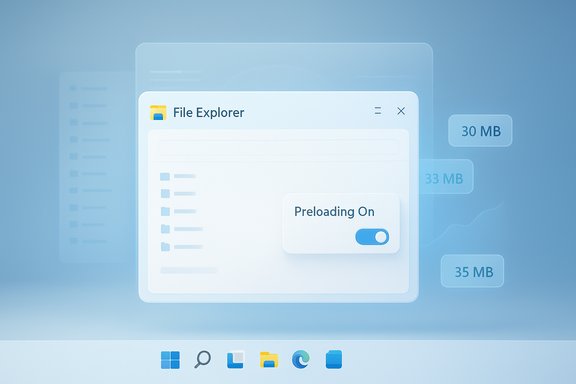
Microsoft began testing an experimental background preloading mechanism for File Explorer in Windows 11 Insider Preview Build 26220.7271 (KB5070307). The change appears as a user-facing toggle labeled “Enable window preloading for faster launch times” in File Explorer → View → Options → Folder Options → View, and is being trialed in the Dev and Beta channels. Microsoft describes the work as an exploration and warns that it will tune behavior based on telemetry and Feedback Hub reports. The official rationale is straightforward: instead of attempting a risky, compatibility‑heavy rewrite of Explorer’s internals, warm a lightweight Explorer state during idle time so the first visible window paints faster. It’s the same pragmatic engineering pattern Microsoft has used before — Edge’s Startup Boost and Office prelaunch mechanisms are close cousins of this approach.
This pattern has advantages: it lets Microsoft ship small wins quickly, gather telemetry, and iterate. But it also underscores the limitations of patching perception without addressing architectural friction points — the mixed Win32/WinUI stack, synchronous third‑party extensions, and cloud integration complexity — that ultimately drive many Explorer complaints. If Microsoft wants a lasting fix, the company will ultimately need to address these deeper architectural and ecosystem issues, which is a longer, higher‑risk project.
For most desktop users the memory cost is negligible and the warmed experience will feel nicer; for administrators and users on constrained hardware the trade‑offs are material and warrant testing. Microsoft’s decision to treat this as an exploration — toggled, telemetered, and reversible — is the right pragmatic route. Whether this incremental approach is sufficient for the many users who feel Windows 11’s Explorer is slower than Windows 10 will depend on follow‑up work: better extension management, provider improvements, and potentially deeper architectural refinements that go beyond warm‑starts.
Source: Пепелац Ньюс https://pepelac.news/en/posts/id13687-early-tests-windows-11-file-explorer-preloading-flops/
 Background
Microsoft began testing an experimental background preloading mechanism for File Explorer in Windows 11 Insider Preview Build 26220.7271 (KB5070307). The change appears as a user-facing toggle labeled “Enable window preloading for faster launch times” in File Explorer → View → Options → Folder Options → View, and is being trialed in the Dev and Beta channels. Microsoft describes the work as an exploration and warns that it will tune behavior based on telemetry and Feedback Hub reports. The official rationale is straightforward: instead of attempting a risky, compatibility‑heavy rewrite of Explorer’s internals, warm a lightweight Explorer state during idle time so the first visible window paints faster. It’s the same pragmatic engineering pattern Microsoft has used before — Edge’s Startup Boost and Office prelaunch mechanisms are close cousins of this approach.What Microsoft shipped (the visible changes)
- Background preload toggle — An opt‑out checkbox in Folder Options labeled “Enable window preloading for faster launch times.” In Insider builds the toggle is enabled by default for recipients of the experiment.
- Context‑menu reorganization — The right‑click menu has been decluttered: less‑used verbs such as Compress to ZIP, Copy as path, and Rotate are grouped under a Manage file flyout, while cloud provider actions are grouped into provider submenus. This aims to reduce menu height and surface common verbs sooner.
Early test results: the numbers and the lived experience
Multiple independent hands‑on tests and community reproductions converge on the same pattern.- Measured memory impact: enabling preloading has been shown to increase Explorer’s idle resident memory by roughly 30–35 MB in repeatable tests (for example, from ~32 MB to ~67 MB in one Windows Latest test). That extra footprint is small on modern desktops but proportionally more significant on machines with 4–8 GB RAM, virtual machines, or tightly provisioned VDI images.
- Launch speed: preloading consistently reduces the cold‑start time — the first visual paint of a new Explorer window — and is clearly visible in slow‑motion comparisons and timed captures. Under load (many tabs/processes) and on slower storage, the warmed Explorer opens noticeably faster than a cold one. But the absolute time saved is modest and highly device‑dependent; on high‑end NVMe machines the difference can be imperceptible.
- What didn’t improve: tests show no meaningful improvement in context‑menu latency, folder enumeration on slow or network shares, preview/thumbnail handler stalls, or the general “jank” that occurs during heavy interactions. Those costs are rooted in on‑demand work (I/O, third‑party shell extensions, cloud provider queries) that preloading does not eliminate. In short: preload helps the first window paint; it does not fix the runtime costs that make Explorer feel sluggish during everyday use.
Why the preload works — and why it’s limited
A pragmatic warm‑start strategy
File Explorer in Windows 11 is a hybrid surface: legacy Win32/COM shell subsystems (explorer.exe, shell32) are layered with modern WinUI/XAML elements from the Windows App SDK. That mix increases initialization and rendering work during a cold launch. Preloading moves predictable initialization (UI skeleton, small caches, common handler registrations) into idle time so the UI paints immediately when requested. This is effective for the cold‑start problem and cheap to deploy.The hard problems remain external
However, many of the worst Explorer slowdowns are caused by components that cannot be prewarmed without broader compatibility risk:- Third‑party shell extensions and preview handlers often execute code synchronously during context‑menu construction or preview generation. These are wildcards: badly written extensions will still block UI threads no matter how Explorer is warmed.
- Cloud provider enumeration (OneDrive placeholders, third‑party sync clients) and network share enumeration are I/O‑bound operations that occur on demand when Explorer enumerates directories. Preloading cannot meaningfully change these latencies without changing when and how enumeration is performed.
- Mixed rendering stack overhead remains: WinUI composition and interop between legacy and modern components add per‑interaction costs that a preload only masks for the first paint.
Strengths of Microsoft’s approach
- Low engineering risk: warming a lightweight state is far less invasive than a full shell rewrite and avoids massive compatibility churn across a huge ecosystem of shell extensions and enterprise overlays.
- User control: exposing the toggle in Folder Options gives testers, power users, and admins a straightforward opt‑out without registry hacks.
- Tangible UX improvement for specific scenarios: constrained devices (old HDDs, low‑spec tablets) and heavily loaded systems benefit most from a warmed Explorer instance — the perceived “instant” first open can feel like a meaningful responsiveness gain.
Risks, costs, and unanswered questions
- Memory and battery trade‑offs: the warmed instance reserves extra RAM (commonly ~30–35 MB in tests) and may trigger occasional background scheduling — both of which are more relevant on lower‑end devices and battery‑sensitive form factors. For fleets with tight memory budgets, the net effect might be negative.
- Enterprise manageability: IT teams will expect explicit device and policy controls if the preload becomes default, plus documentation on expected resource budgets across different hardware tiers. Currently the feature is experimental and lacks broad admin controls.
- Compatibility surface: moving initialization earlier could surface latent bugs in poorly maintained third‑party extensions or vendor overlays. Admins should pilot the change to check for stability and interoperability issues.
- Perception vs reality: because preloading targets perception (first paint) rather than root causes, users will still experience friction in common workflows (right‑clicking, traversing large network shares, previewing large files). There is a risk of disappointment if the change is marketed as a broad performance fix rather than a narrow mitigation.
Cross‑checking and verification
Key claims have been cross‑checked across Microsoft’s official Insider release notes and independent hands‑on testing:- The preload experiment and Folder Options toggle are described in Microsoft’s Insider Blog post for Build 26220.7271 and are visible to Insiders.
- Independent tests (for example, Windows Latest’s VM experiments) measured an idle memory increase from roughly ~32 MB to ~67 MB after enabling preload, and observed modest but visible cold‑start speed gains in slow‑motion comparisons.
- Coverage from outlets including The Verge, Windows Central, TechRadar and Digital Trends all report the same general pattern: preload improves first‑open perceptual speed but does not fix context‑menu or enumeration lag.
Practical advice for users, power users and administrators
If you encounter the preload experiment on an Insider device or if it becomes available on stable channels, consider the following practical steps.For end users
- To disable preloading: open File Explorer → View → Options → Folder Options → View and uncheck Enable window preloading for faster launch times. This is the supported opt‑out route without registry edits.
- If you notice increased idle RAM or unexpected battery drain after the change, toggle the option off and reboot to validate behavior.
- Use the Feedback Hub (Files, Folders and Online Storage → File Explorer Performance) to report regressions. Microsoft is explicitly soliciting Insider feedback for tuning.
For power users
- Audit installed shell extensions and preview handlers. Tools such as ShellExView (or similar diagnostics) can help identify heavy or poorly behaving extensions; removing or updating these will often yield bigger improvements than relying on preloading.
For IT administrators and fleet managers
- Pilot the preload on a representative fleet sample (low‑end laptops, standard desktops, VDI images) and measure:
- Idle RAM delta per device class
- Boot times and application responsiveness
- Battery life on laptops (if applicable)
- If rolling out, request or wait for group policy controls or MDM settings before enabling by default across an enterprise image. Without admin controls, the opt‑out toggle in Folder Options is insufficient for large‑scale provisioning.
Broader implications for Windows 11 performance strategy
Microsoft’s preload experiment is instructive about company strategy: when faced with chronic but multifactorial performance complaints, the firm favors incremental, telemetry‑driven mitigations that minimize compatibility risk while delivering measurable user‑visible improvements.This pattern has advantages: it lets Microsoft ship small wins quickly, gather telemetry, and iterate. But it also underscores the limitations of patching perception without addressing architectural friction points — the mixed Win32/WinUI stack, synchronous third‑party extensions, and cloud integration complexity — that ultimately drive many Explorer complaints. If Microsoft wants a lasting fix, the company will ultimately need to address these deeper architectural and ecosystem issues, which is a longer, higher‑risk project.
Verdict: who benefits, who should be cautious
- Beneficiaries: users on older hardware, disk-bound machines, and heavily loaded systems will notice the clearest benefit from the preloaded Explorer’s quicker first paint. For these users the small memory trade‑off is often acceptable for snappier feel.
- Be cautious: low‑RAM devices (4–8 GB), battery‑sensitive laptops, thin clients, VDI deployments, and managed enterprise fleets should treat the change cautiously. Validate across representative hardware, and insist on admin controls before enabling the preload by default.
- Watch out: users who primarily experience lag during navigation, context‑menu opens, or when interacting with cloud shares should not expect preloading to be a cure‑all. Those issues are orthogonal and require separate fixes: extension vetting, provider updates, or deeper shell work.
Conclusion
The File Explorer preload experiment in Windows 11 is a competent, low‑risk engineering move that addresses one visible symptom of Explorer’s perceived sluggishness: the cold‑start pause. Early tests show it works as advertised for first‑open responsiveness and is simple to control via a user toggle. However, preloading is a targeted band‑aid, not a systemic cure. The heavier, interaction‑time latencies caused by third‑party shell extensions, cloud providers, and the hybrid Win32/WinUI architecture remain unchanged.For most desktop users the memory cost is negligible and the warmed experience will feel nicer; for administrators and users on constrained hardware the trade‑offs are material and warrant testing. Microsoft’s decision to treat this as an exploration — toggled, telemetered, and reversible — is the right pragmatic route. Whether this incremental approach is sufficient for the many users who feel Windows 11’s Explorer is slower than Windows 10 will depend on follow‑up work: better extension management, provider improvements, and potentially deeper architectural refinements that go beyond warm‑starts.
Source: Пепелац Ньюс https://pepelac.news/en/posts/id13687-early-tests-windows-11-file-explorer-preloading-flops/
