

Windows 11’s built‑in Focus Sessions quietly changes how the operating system handles interruptions: it combines a simple timer, automatic Do Not Disturb behavior, and integrations with Microsoft To Do and Spotify to give you a low‑friction way to block distractions and structure work into repeatable sessions.
Windows has long offered notification controls—what used to be called Focus Assist and Quiet Hours—but with Windows 11 Microsoft consolidated those controls into a more user‑friendly “Focus” system and layered a timeboxed workflow into the Clock app called Focus Sessions. That arrangement makes Focus both a system setting (to control notification delivery and taskbar behavior) and a productivity tool (to run timed work blocks with breaks).
The result is an experience aimed at users who want to adopt disciplined work rhythms—think Pomodoro and similar techniques—without installing third‑party timers or running extra services. Because Focus Sessions lives inside the Clock app and taps core OS features like Do Not Disturb, it can be turned on quickly from the taskbar, Settings, or the Clock app itself.
That said, real‑world behaviour has not been perfect for every user. Community reports and Microsoft Q&A threads show that some users have experienced problems linking Spotify—ranging from stalled authentication to service errors—sometimes traced to certificate or OAuth issues. If you can’t link Spotify, checking for Clock app updates, reinstalling the Clock app, and ensuring your Windows build is current are reasonable first steps. If the problem persists, the issue may require vendor support.
If you work in regulated industries, review your organization’s policy on personal account linking and consider disabling Spotify integration across managed images. Focus Sessions itself does not transmit sensitive system telemetry beyond normal OS diagnostics, but every linked service increases the attack surface and the potential for accidental data sharing.
Source: MakeUseOf Windows 11 has a great focus mode that blocks distractions automatically
 Background
Windows has long offered notification controls—what used to be called Focus Assist and Quiet Hours—but with Windows 11 Microsoft consolidated those controls into a more user‑friendly “Focus” system and layered a timeboxed workflow into the Clock app called Focus Sessions. That arrangement makes Focus both a system setting (to control notification delivery and taskbar behavior) and a productivity tool (to run timed work blocks with breaks).The result is an experience aimed at users who want to adopt disciplined work rhythms—think Pomodoro and similar techniques—without installing third‑party timers or running extra services. Because Focus Sessions lives inside the Clock app and taps core OS features like Do Not Disturb, it can be turned on quickly from the taskbar, Settings, or the Clock app itself.
How Focus Sessions works (what the feature actually does)
The basic mechanics
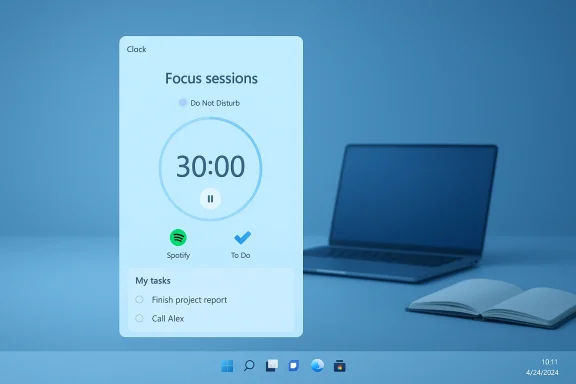
When you start a Focus session, Windows does three primary things automatically:- Shows a session timer (desktop and Clock app appearances).
- Turns on Do Not Disturb so notifications are silenced and delivered to the Notification Center rather than as pop‑ups.
- Temporarily hides or suppresses taskbar badges and flashing to reduce peripheral visual noise.
Where you start sessions
You can launch Focus Sessions from several places in Windows 11:- The Clock app (Focus sessions tab).
- The Notification Center / system tray (click the clock or press Windows key + N).
- The Settings app under System > Focus.
Timer and break controls
Focus Sessions supports configurable focus blocks and break intervals, so you can mimic Pomodoro variants or longer deep‑work windows. The Clock app exposes duration controls and break settings, and the Settings page under System > Focus holds the preferences that apply to future sessions. Exact default presets and the range of durations can vary with Clock app updates, but the feature is explicitly designed to let you tailor session length and break cadence.Integrations: Spotify and Microsoft To Do
Spotify integration
One of the most eye‑catching touches of Focus Sessions is the ability to link a Spotify account and play music or podcasts during a session without switching apps. After you connect Spotify inside the Clock app, the Focus Sessions UI surfaces playlists and recently played items for quick selection. Microsoft documents and Microsoft’s Clock app UI both show this integration.That said, real‑world behaviour has not been perfect for every user. Community reports and Microsoft Q&A threads show that some users have experienced problems linking Spotify—ranging from stalled authentication to service errors—sometimes traced to certificate or OAuth issues. If you can’t link Spotify, checking for Clock app updates, reinstalling the Clock app, and ensuring your Windows build is current are reasonable first steps. If the problem persists, the issue may require vendor support.
Microsoft To Do integration
If you use Microsoft To Do for task management, Focus Sessions can surface your To Do tasks so you can pick the items you’ll work on during a session. This turns Focus Sessions into more than just a timer: it becomes a lightweight session planner that connects timeboxing with your task list. Microsoft’s official documentation highlights this integration and how To Do items appear in the Clock app’s Focus Sessions interface.Configuration and control: what you can tweak
Windows exposes several Focus settings in Settings > System > Focus. The main items you can control are:- Session duration and break intervals (session defaults for future sessions).
- Whether the session timer appears in the Clock app.
- Hide taskbar badges and disable taskbar app flashing during sessions.
- Automatically enable Do Not Disturb when a session starts.
Practical workflows and productivity patterns
Use cases that make sense
- Writers and editors: run 50–60 minute deep work blocks, with 5–10 minute breaks for reading email away from the keyboard.
- Software developers: enforce uninterrupted coding sprints and reduce context switches caused by chat pings.
- Students: structure study sessions and ensure a silent laptop while learning or taking practice exams.
- Video editors and creatives: prevent audio alerts from popping during playback and maintain concentration on timeline work.
Sample routines
- Morning deep work: 90 minutes Focus Session, break 15 minutes, second 90 minutes; set To Do to pick the morning tasks.
- Pomodoro variant: 25 minutes focus, 5 minutes break, four cycles then a 20‑minute longer break.
- Creative sprint: 60 minutes focus with low‑tempo Spotify playlist, break 10 minutes for a short walk.
Strengths: what Windows does well here
- Low‑friction activation: start a Focus session in two clicks or a quick keyboard shortcut; the barrier to entry is minimal.
- System‑level silence: because Focus toggles Do Not Disturb and suppresses taskbar badges, it avoids fragmented behavior where some apps go quiet and others don’t.
- Integrated task and audio support: having Microsoft To Do and Spotify inside the Clock app reduces app‑switching and helps you align tasks, time, and soundscape in one place.
- Built into Windows: no additional downloads required for basic operation; it’s discoverable from Settings and the taskbar.
Limitations and risks: where Focus Sessions falls short
Granularity of notifications
While Windows does allow priority notifications and app‑specific settings in Notifications, Focus Sessions tends to treat the session as a blanket Do Not Disturb state by default. That “all‑or‑nothing” feel is a common complaint: users sometimes want selective exceptions during a session (for a manager’s calls, for example) without manually toggling settings. Microsoft documents the notification controls, but the UI path to combine Focus Sessions with granular exceptions is not always intuitive. If selective exceptions are essential to your workflow, you might need to invest time in Settings > Notifications and create explicit priority rules.Integration fragility and service bugs
Third‑party integrations like Spotify have had intermittent issues—Microsoft community threads and support answers show real cases where linking fails due to authentication problems or expired certificates. That undermines reliability for users who want music as part of their focus routine. Be prepared for troubleshooting steps or temporary workarounds like playing music from the Spotify app directly when the link fails.Limited playlist control
Depending on Clock app updates and the Spotify API behavior, the list of accessible playlists in Focus Sessions can be restricted (for example, default Focus playlists or recently played items). Some power users will miss full playlist browsing or advanced audio features that dedicated music apps offer. This is an important tradeoff: convenience versus depth of control.Potential for missed urgent alerts
Silencing notifications inherently raises the risk of missing time‑sensitive alerts unless you configure priority notifications. For workers on call or users expecting urgent messages, focusing without careful allow‑list setup can create real-world issues. Always test your notification rules before engaging in long sessions if critical alerts must reach you.Troubleshooting common problems
- Spotify won’t connect: try reinstalling the Clock app, ensure Windows is up to date, sign in with the same Microsoft account, and check known issues in Microsoft’s community forums—some cases have been attributed to expired OAuth certificates on the service side.
- Timer not showing: make sure “Show the timer in the Clock app” is enabled under Settings > System > Focus, and verify the Clock app is installed and updated from the Microsoft Store.
- Some notifications still appear: review Settings > System > Notifications and the “Set priority notifications” options to ensure only the apps and people you want can bypass Do Not Disturb. Also check automatic rules for Do Not Disturb that might be active.
- Focus Sessions missing entirely: if the Clock app was uninstalled or you’re on a very old Windows 11 build, reinstall the Clock app from the Microsoft Store and check for OS updates.
Security, privacy, and compliance considerations
Linking services (Spotify) requires OAuth consent and the transfer of certain metadata like recently played lists and playlist identifiers. For most users this presents a low privacy risk, but corporate environments and managed devices should consider whether linking personal media accounts is acceptable under company policy. The Clock app’s To Do integration similarly requires access to a Microsoft account and your task data. Administrators should validate whether these integrations comply with internal data handling rules before enabling them on managed endpoints.If you work in regulated industries, review your organization’s policy on personal account linking and consider disabling Spotify integration across managed images. Focus Sessions itself does not transmit sensitive system telemetry beyond normal OS diagnostics, but every linked service increases the attack surface and the potential for accidental data sharing.
How Focus Sessions compares to third‑party alternatives
Third‑party productivity tools often offer deeper customization:- Dedicated Pomodoro apps provide strict cycle reminders, long‑term analytics, and cloud sync.
- Focus apps built for teams (like RescueTime, Toggl, or Time Doctor) include invoicing, team dashboards, and distraction scoring.
- Apps such as Forest gamify focus with rewards for staying off your device.
Advanced tips and power‑user recipes
- Combine Virtual Desktops with Focus Sessions: put distracting apps on a secondary desktop and start a Focus session on your primary workspace for a cleaner visual plane.
- Use Microsoft To Do tags and My Day: assemble a single “Focus” list and pick the top 1–3 items before starting the timer to reduce decision fatigue during sprints.
- Set automatic Do Not Disturb rules for calendar events: if you often have back‑to‑back meetings that should be quiet, configure automatic Do Not Disturb in Settings > Notifications to trigger during calendar events.
- If Spotify linking fails, create a local “Focus” playlist in your music app of choice and play it manually before starting a session—this preserves the soundscape while avoiding integration bugs.
Recommendations for Microsoft (what could make Focus Sessions better)
- Add an explicit “allowed apps/people for this session” UI in the Focus Sessions start flow so users can pick exceptions on a per‑session basis without digging through Settings.
- Improve cooperation with third‑party audio apps beyond Spotify, and surface clearer error messages when linking fails so users know whether the issue is their device, the Clock app, or the service.
- Offer session templates and shareable presets (e.g., “Deep work 90/15”, “Writer’s sprint 60/10”) so teams and individuals can standardize their focus rhythms quickly.
- Expose a small API or PowerShell cmdlets for enterprise management to allow administrators to govern integrations on managed devices.
Final assessment: who should use Focus Sessions and when
If you want a quick, built‑in way to reduce interruptions, enforce timeboxed work blocks, and tie task selection and background audio to work sessions, Windows 11 Focus Sessions is an excellent place to start. It’s particularly useful for individuals who:- Prefer minimal setup and immediate results.
- Use Microsoft To Do and want to combine task selection with a timer.
- Appreciate OS‑level notification handling instead of piecing together multiple tools.
Conclusion
Windows 11’s Focus Sessions brings a pragmatic, low‑friction approach to blocking distractions by combining a visible timer, automatic Do Not Disturb, and convenient integrations with Microsoft To Do and Spotify. For most users, it will provide immediate gains in attention management with almost no setup cost. The feature’s main weaknesses are a sometimes opaque relationship between Do Not Disturb and per‑app exceptions, occasional integration bugs—especially with Spotify—and less depth than third‑party apps for analytics and team features. Still, as a built‑in productivity companion, Focus Sessions is a smart first step toward more deliberate, distraction‑resistant computing on Windows 11.Source: MakeUseOf Windows 11 has a great focus mode that blocks distractions automatically
