Every fresh Windows 11 installation ships with a grab bag of first‑party apps—some genuinely useful, some quietly redundant, and a handful that feel like marketing dressed up as convenience—and ZDNet’s pragmatic “11 I keep / 11 I ditch” checklist is one of the clearest, user‑centric guides for deciding which built‑ins to pin, which to hide, and which to remove entirely.
Windows has long balanced two conflicting impulses: ship a complete desktop experience out of the box, and use that same box to surface Microsoft services and paid offerings. That tension explains why a clean Windows desktop can still feel cluttered minutes after you finish setup, and why a short, opinionated list of what to keep and what to remove has real value for readers who want a fast, distraction‑free machine. Community guides and editorial roundups now broadly agree on the categories ZDNet highlights—core utilities and productivity tools to keep, promotional or redundant apps to replace, and a set of system components you should not touch without understanding dependencies.
For anyone managing a fleet, building a new PC, or just tired of ads and nags, there are three practical truths to start with:
Use the Settings UI for routine app removal, consult Microsoft’s policy and admin documentation for enterprise‑grade provisioning, and keep a small “restore” script so that reversibility is always one command away. The result is a cleaner, faster, and more personal Windows desktop—exactly what a fresh install should feel like.
Source: ZDNET The 11 Microsoft apps I ditch on every new Windows install - and the 11 I keep
 Background / Overview
Windows has long balanced two conflicting impulses: ship a complete desktop experience out of the box, and use that same box to surface Microsoft services and paid offerings. That tension explains why a clean Windows desktop can still feel cluttered minutes after you finish setup, and why a short, opinionated list of what to keep and what to remove has real value for readers who want a fast, distraction‑free machine. Community guides and editorial roundups now broadly agree on the categories ZDNet highlights—core utilities and productivity tools to keep, promotional or redundant apps to replace, and a set of system components you should not touch without understanding dependencies.For anyone managing a fleet, building a new PC, or just tired of ads and nags, there are three practical truths to start with:
- You can now remove far more preinstalled apps in certain regions thanks to regulatory pressure, but uninstall behavior still varies by app and edition.
- Some built‑in apps are lightweight utilities that cost you nothing while sitting quietly; keeping them makes sense for most users.
- If you do remove apps, use the supported UI methods first and PowerShell/DISM only when you know what you’re doing—Microsoft documents these approaches and warns about potential side effects.
Why this matters: control, privacy, and efficiency
A few minutes of uninstalling or re‑placing defaults can deliver immediate returns: fewer taskbar nags, fewer background tasks, and a Start menu that reflects what you actually use. There are also privacy and subscription nudges to consider—ad‑supported games or portal apps that primarily exist to upsell Microsoft 365 or other services. For some users the priority is minimalism; for others it’s preserving functionality (for example, OneDrive’s Known Folder Move is extremely convenient—until it silently redirects all your Documents and Desktop to the cloud if you aren’t watching). That behavior is well documented and reversible, but needs to be handled deliberately.The apps worth keeping — practical picks and why they matter
ZDNet’s list of what to keep includes small, high‑utility apps that are low friction and, in many cases, better integrated with Windows than third‑party alternatives. Below is a verification and practical analysis of each keeper, including alternatives and precautions.1. Microsoft Store — don’t remove it (unless you’re in EEA and know what you’re doing)
The Microsoft Store still matters because it’s the sanctioned channel Microsoft uses to deliver updates to many in‑box apps and UWP/Win32 packages. Removing it can break automatic updates for those packages; Microsoft’s recent regulatory changes in the EEA let users uninstall the Store there, but Microsoft explicitly warns users about implications. If you rely on Store apps (Teams, PowerToys, Terminal, etc., keep the Store.2. Microsoft Edge — keep as a backup browser
Edge is built on the Chromium engine and therefore offers broad website compatibility and extension support while being tightly integrated into Windows. It’s sensible to keep Edge as a capable fallback even if you make another browser your default. Microsoft documents the Chromium rebase and the practical benefits it brought.3. Snipping Tool — quick capture + OCR/text extraction
The modern Snipping Tool in Windows 11 is no longer just a static screenshot utility. Recent updates have added Text Actions and OCR-like features that let you extract text from screenshots and copy it to the clipboard, plus simple markup and screen recording abilities. That combination of speed and built‑in OCR makes Snipping Tool a daily‑driver for many users. Independent how‑to guides and hands‑on reviews confirm the feature and show the workflow.4. Windows Terminal / PowerShell (and how to install PowerShell 7)
Terminal is the modern host for PowerShell, Command Prompt and other shells. ZDNet recommends installing the newer cross‑platform PowerShell 7 using winget; that command is widely used and documented by community guides and tutorials (for example, winget install --id Microsoft.PowerShell), though some users report upgrade quirks across distributions—installing and testing in your environment is the pragmatic approach. If you automate setups, include a winget step or the official MSI for PowerShell 7.5. Quick Assist — built‑in remote help
Quick Assist is a tidy, built‑in remote‑assistance tool that avoids the need to coach non‑technical friends through a third‑party download. For ad‑hoc troubleshooting and support calls it’s a safe, low‑friction option and thus worth keeping on personal machines used to help others.6. Classic utilities: Notepad, Paint, Calculator, Clock
These four utilities have seen modern updates (Notepad tabs and auto‑save, Paint usability improvements, Calculator graphs and conversions, Focus Sessions in Clock). They’re tiny, well integrated, and useful enough to keep as default tools. If you rely on specialized alternatives, keep them too—but the built‑ins are fine for many workflows.7. OneDrive — keep if you use cloud sync; be careful with backups
OneDrive provides seamless sync and is especially valuable if you have Microsoft 365 storage. But Known Folder Move (OneDrive Backup) can redirect Documents, Pictures and Desktop to the cloud automatically—this is convenient for many but potentially surprising if you aren’t aware of quota limits or Files On‑Demand behavior. Know how to check and undo KFM before you let it run loose. Community guides and Microsoft documentation explain the mechanics and the correct undo sequence.8. Copilot — evolving; keep for experimentation
Copilot is Microsoft’s generative AI assistant for Windows and office productivity. It’s rapidly evolving—recent updates added voice wake words and deeper integration with Edge and other apps—so keeping it for experimentation can pay off. That said, it’s resource‑heavy for some workflows, and advanced users may prefer to disable or uninstall it until the feature set stabilizes. Microsoft’s documentation and Insider blog posts track these changes.9. Sticky Notes — lightweight, cross‑device notes
Sticky Notes provides instant, synchronized short notes between Windows and mobile via your Microsoft account. If you use quick reminders or phone‑to‑PC sync, Sticky Notes is a small, convenient keep.10. Solitaire & Casual Games — optional, but harmless
If you enjoy them, they don’t cost much disk space. If you don’t, uninstalling delivers zero downside other than removing a nostalgic comfort feature. ZDNet notes paying for ad‑free upgrades is an option for players.11. Microsoft Teams (unified) — keep if you get meeting invites
The unified Teams client now supports both work and personal accounts. If your collaboration circle uses Teams, keep it; otherwise consider removing and using the web client only when needed.The apps to replace — better alternatives exist
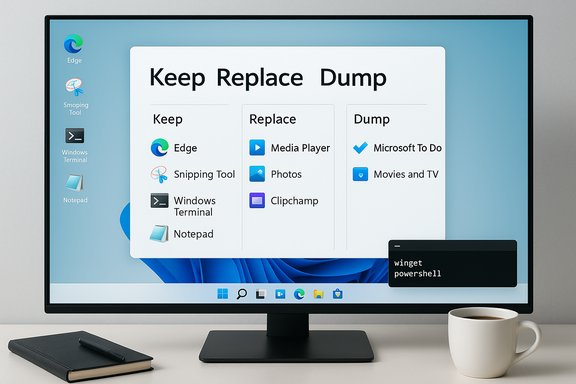
ZDNet’s middle group covers apps worth keeping installed but replacing as your default. The principle is simple: Windows ships a competent but generic app; if you need power, install a specialist.- Media Player, Photos: Both are fine for casual use, but VLC, MPV, or third‑party photo editors are better for advanced tasks. Replace Start shortcuts rather than aggressively uninstalling unless you want to reclaim space.
- Clipchamp: Decent for short edits, but many free alternatives offer different tradeoffs; remove if you never edit video.
- New Outlook (Mail/Calendar replacement): If you prefer Outlook Classic or a different mail client, migrate and remove the new Outlook stub. Community consensus flags the new Outlook as uneven for power users.
The apps I dump — clean uninstall candidates
ZDNet’s “dump” list aligns with community recommendations. These are often promotional or redundant, and for most users they’re safe to remove:- Microsoft To Do (if you don’t use Outlook task sync)
- Microsoft 365 (the portal app that just opens office.com)
- Movies & TV (use VLC)
- Maps, News, Weather (browser alternatives and Widgets cover these)
- Sound Recorder (phone does this better for many people)
These suggestions are consistent with prominent community guides that advocate trimming non‑essential consumer apps to reduce clutter and potential background activity.
The system components you should not touch carelessly
There are a few in‑box apps and system components that look removable but have deeper ties:- System components and Store packages: Microsoft exposes policy mechanisms and warns that removing certain packages can affect provisioning and updates. Use Settings > Apps > Installed apps for safe removals, and consult Microsoft doc guidance before using PowerShell or DISM to deprovision apps.
- Bing integration / Bing app: In many regions this is tightly coupled with the search UX; the EEA changes permit more aggressive removal, but outside those jurisdictions aggressive removal can break search behavior. If you don’t want Bing results, hiding or removing the search icon is safer than uninstalling core components.
- Camera, Feedback Hub: Small tools but useful for diagnostics and reporting; don’t remove them unless you’re sure you’ll never need them.
How to remove apps safely — a practical checklist
Uninstalling built‑ins can be harmless or risky depending on the app. Use this sequence to stay safe.- Back up or create a System Restore point.
- Use Settings > Apps > Installed apps to uninstall first. This is reversible and supported.
- If the Settings UI doesn’t offer Uninstall, use a targeted PowerShell approach: Get‑AppxPackage to list and Remove‑AppxPackage to remove. Microsoft documents this method and cautions about side effects.
- For provisioning removal for all future users on an image, use DISM /Remove‑ProvisionedAppxPackage—but only when you manage imaging or enterprise provisioning. Microsoft’s policy‑based removal guidance explains when to use this.
- Uninstall one app at a time, reboot, confirm no dependent behavior broke, then proceed.
- Keep a short list of reinstallation steps (Store links or winget commands) so you can restore accidentally removed apps.
- For repeatable setups, script installs with winget or use a stable provisioning tool (winget manifests or Ninite for consumer setups).
Verifying key technical claims (cross‑checks)
- Snipping Tool OCR / Text Actions: multiple independent guides and hands‑on writeups show the Snipping Tool can copy text from screenshots (Text Actions) and that Photos and PowerToys also offer OCR workflows. These are confirmed by recent walkthroughs and user documentation. If you don’t see the feature, update Windows and the Snipping Tool from the Store.
- PowerShell 7 via winget: community documents and installation guides show the common winget command used to install PowerShell 7 (e.g., winget install --id Microsoft.PowerShell). Some users report occasional upgrade path issues with winget for PowerShell, so when automating updates allow for reinstall fallback logic. Test before rolling out broadly.
- Uninstallability and DMA/EEA changes: Microsoft’s compliance work tied to the Digital Markets Act has produced region‑specific options to remove Edge, Store, and more; verify your region’s behavior before assuming global availability. The change is real in the EEA, but similar options may not be available elsewhere yet.
- Copilot capabilities and management: Microsoft documents Copilot features and enterprise controls. Copilot is being actively updated (including voice wake word and policy controls), and administrators can block or remove it with policy or PowerShell where needed. Keep an eye on Microsoft’s guidance if you manage multiple devices.
Risks, trade‑offs, and enterprise considerations
- Update and support: Removing Store components or deprovisioning packages can complicate future updates or troubleshooting. Enterprises should use policy‑based removal and test images thoroughly.
- Telemetry and privacy: Some replacements or third‑party alternatives introduce their own telemetry. Always review privacy docs and prefer open‑source or well‑documented options for sensitive workflows.
- Performance myths: Uninstalling a lightweight UWP app rarely moves the performance needle on modern hardware. The bigger gains come from trimming startup apps, disabling unnecessary background services, and adjusting indexing and telemetry. Community testing underscores this nuance: remove clutter for clarity and privacy, but don’t expect dramatic speedups unless you’re also pruning background services and startup entries.
- Regulatory and regional differences: The EEA changes are a significant user‑choice win, but they do not instantly apply worldwide. Before scripting mass removals in mixed‑region deployments, validate expected behavior by Windows SKU and locale.
A recommended day‑one workflow (concise)
- Finish OOBE and create a local restore point.
- Update Windows fully.
- Review Settings > Apps > Installed apps and unpin any promoted shortcuts you don’t want.
- Keep: Microsoft Store (unless you intentionally remove it), Edge (as fallback), Snipping Tool, Terminal/PowerShell (install 7 if you script), OneDrive (but verify Known Folder Move), Snipping Tool + Notepad + Calculator + Clock.
- Replace or install day‑one power tools (VLC, PowerToys, Everything, a preferred browser) via winget or a scripted installer.
- If you remove apps, do so incrementally and keep a restoration list of winget commands or Store links.
Conclusion
ZDNet’s split of “keep”, “replace”, and “dump” is practical and rooted in the same tradeoffs every Windows user faces: integration vs. capability, convenience vs. control. Keep the small utilities that earn their place every day (Snipping Tool, Terminal, Notepad), replace generic defaults with best‑of‑breed alternatives when you need more power, and remove clearly redundant or promotional apps if they bother you—but do it methodically. Microsoft’s evolving policies and regional regulatory changes make it easier to assert control in some places, but they also increase the need for caution: removing the wrong package at the wrong time can complicate updates or provisioning.Use the Settings UI for routine app removal, consult Microsoft’s policy and admin documentation for enterprise‑grade provisioning, and keep a small “restore” script so that reversibility is always one command away. The result is a cleaner, faster, and more personal Windows desktop—exactly what a fresh install should feel like.
Source: ZDNET The 11 Microsoft apps I ditch on every new Windows install - and the 11 I keep