• Thread Author
Every fresh Windows 11 installation ships with a grab bag of first‑party apps—some genuinely useful, some quietly redundant, and a handful that feel like marketing dressed up as convenience—and ZDNet’s pragmatic “11 I keep / 11 I ditch” checklist is one of the clearest, user‑centric guides for deciding which built‑ins to pin, which to hide, and which to remove entirely.

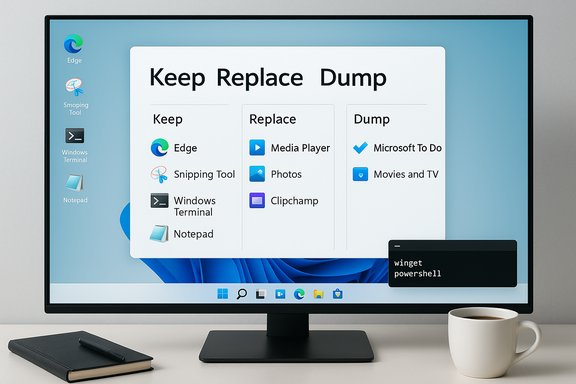
Windows-style desktop with a “Keep Replace Dump” window and a coffee mug on the desk.Background / Overview​

Windows has long balanced two conflicting impulses: ship a complete desktop experience out of the box, and use that same box to surface Microsoft services and paid offerings. That tension explains why a clean Windows desktop can still feel cluttered minutes after you finish setup, and why a short, opinionated list of what to keep and what to remove has real value for readers who want a fast, distraction‑free machine. Community guides and editorial roundups now broadly agree on the categories ZDNet highlights—core utilities and productivity tools to keep, promotional or redundant apps to replace, and a set of system components you should not touch without understanding dependencies.
For anyone managing a fleet, building a new PC, or just tired of ads and nags, there are three practical truths to start with:
  • You can now remove far more preinstalled apps in certain regions thanks to regulatory pressure, but uninstall behavior still varies by app and edition.
  • Some built‑in apps are lightweight utilities that cost you nothing while sitting quietly; keeping them makes sense for most users.
  • If you do remove apps, use the supported UI methods first and PowerShell/DISM only when you know what you’re doing—Microsoft documents these approaches and warns about potential side effects.

Why this matters: control, privacy, and efficiency​

A few minutes of uninstalling or re‑placing defaults can deliver immediate returns: fewer taskbar nags, fewer background tasks, and a Start menu that reflects what you actually use. There are also privacy and subscription nudges to consider—ad‑supported games or portal apps that primarily exist to upsell Microsoft 365 or other services. For some users the priority is minimalism; for others it’s preserving functionality (for example, OneDrive’s Known Folder Move is extremely convenient—until it silently redirects all your Documents and Desktop to the cloud if you aren’t watching). That behavior is well documented and reversible, but needs to be handled deliberately.

The apps worth keeping — practical picks and why they matter​

ZDNet’s list of what to keep includes small, high‑utility apps that are low friction and, in many cases, better integrated with Windows than third‑party alternatives. Below is a verification and practical analysis of each keeper, including alternatives and precautions.

1. Microsoft Store — don’t remove it (unless you’re in EEA and know what you’re doing)​

The Microsoft Store still matters because it’s the sanctioned channel Microsoft uses to deliver updates to many in‑box apps and UWP/Win32 packages. Removing it can break automatic updates for those packages; Microsoft’s recent regulatory changes in the EEA let users uninstall the Store there, but Microsoft explicitly warns users about implications. If you rely on Store apps (Teams, PowerToys, Terminal, etc., keep the Store.

2. Microsoft Edge — keep as a backup browser​

Edge is built on the Chromium engine and therefore offers broad website compatibility and extension support while being tightly integrated into Windows. It’s sensible to keep Edge as a capable fallback even if you make another browser your default. Microsoft documents the Chromium rebase and the practical benefits it brought.

3. Snipping Tool — quick capture + OCR/text extraction​

The modern Snipping Tool in Windows 11 is no longer just a static screenshot utility. Recent updates have added Text Actions and OCR-like features that let you extract text from screenshots and copy it to the clipboard, plus simple markup and screen recording abilities. That combination of speed and built‑in OCR makes Snipping Tool a daily‑driver for many users. Independent how‑to guides and hands‑on reviews confirm the feature and show the workflow.

4. Windows Terminal / PowerShell (and how to install PowerShell 7)​

Terminal is the modern host for PowerShell, Command Prompt and other shells. ZDNet recommends installing the newer cross‑platform PowerShell 7 using winget; that command is widely used and documented by community guides and tutorials (for example, winget install --id Microsoft.PowerShell), though some users report upgrade quirks across distributions—installing and testing in your environment is the pragmatic approach. If you automate setups, include a winget step or the official MSI for PowerShell 7.

5. Quick Assist — built‑in remote help​

Quick Assist is a tidy, built‑in remote‑assistance tool that avoids the need to coach non‑technical friends through a third‑party download. For ad‑hoc troubleshooting and support calls it’s a safe, low‑friction option and thus worth keeping on personal machines used to help others.

6. Classic utilities: Notepad, Paint, Calculator, Clock​

These four utilities have seen modern updates (Notepad tabs and auto‑save, Paint usability improvements, Calculator graphs and conversions, Focus Sessions in Clock). They’re tiny, well integrated, and useful enough to keep as default tools. If you rely on specialized alternatives, keep them too—but the built‑ins are fine for many workflows.

7. OneDrive — keep if you use cloud sync; be careful with backups​

OneDrive provides seamless sync and is especially valuable if you have Microsoft 365 storage. But Known Folder Move (OneDrive Backup) can redirect Documents, Pictures and Desktop to the cloud automatically—this is convenient for many but potentially surprising if you aren’t aware of quota limits or Files On‑Demand behavior. Know how to check and undo KFM before you let it run loose. Community guides and Microsoft documentation explain the mechanics and the correct undo sequence.

8. Copilot — evolving; keep for experimentation​

Copilot is Microsoft’s generative AI assistant for Windows and office productivity. It’s rapidly evolving—recent updates added voice wake words and deeper integration with Edge and other apps—so keeping it for experimentation can pay off. That said, it’s resource‑heavy for some workflows, and advanced users may prefer to disable or uninstall it until the feature set stabilizes. Microsoft’s documentation and Insider blog posts track these changes.

9. Sticky Notes — lightweight, cross‑device notes​

Sticky Notes provides instant, synchronized short notes between Windows and mobile via your Microsoft account. If you use quick reminders or phone‑to‑PC sync, Sticky Notes is a small, convenient keep.

10. Solitaire & Casual Games — optional, but harmless​

If you enjoy them, they don’t cost much disk space. If you don’t, uninstalling delivers zero downside other than removing a nostalgic comfort feature. ZDNet notes paying for ad‑free upgrades is an option for players.

11. Microsoft Teams (unified) — keep if you get meeting invites​

The unified Teams client now supports both work and personal accounts. If your collaboration circle uses Teams, keep it; otherwise consider removing and using the web client only when needed.

The apps to replace — better alternatives exist​

ZDNet’s middle group covers apps worth keeping installed but replacing as your default. The principle is simple: Windows ships a competent but generic app; if you need power, install a specialist.
  • Media Player, Photos: Both are fine for casual use, but VLC, MPV, or third‑party photo editors are better for advanced tasks. Replace Start shortcuts rather than aggressively uninstalling unless you want to reclaim space.
  • Clipchamp: Decent for short edits, but many free alternatives offer different tradeoffs; remove if you never edit video.
  • New Outlook (Mail/Calendar replacement): If you prefer Outlook Classic or a different mail client, migrate and remove the new Outlook stub. Community consensus flags the new Outlook as uneven for power users.

The apps I dump — clean uninstall candidates​

ZDNet’s “dump” list aligns with community recommendations. These are often promotional or redundant, and for most users they’re safe to remove:
  • Microsoft To Do (if you don’t use Outlook task sync)
  • Microsoft 365 (the portal app that just opens office.com)
  • Movies & TV (use VLC)
  • Maps, News, Weather (browser alternatives and Widgets cover these)
  • Sound Recorder (phone does this better for many people)
    These suggestions are consistent with prominent community guides that advocate trimming non‑essential consumer apps to reduce clutter and potential background activity.

The system components you should not touch carelessly​

There are a few in‑box apps and system components that look removable but have deeper ties:
  • System components and Store packages: Microsoft exposes policy mechanisms and warns that removing certain packages can affect provisioning and updates. Use Settings > Apps > Installed apps for safe removals, and consult Microsoft doc guidance before using PowerShell or DISM to deprovision apps.
  • Bing integration / Bing app: In many regions this is tightly coupled with the search UX; the EEA changes permit more aggressive removal, but outside those jurisdictions aggressive removal can break search behavior. If you don’t want Bing results, hiding or removing the search icon is safer than uninstalling core components.
  • Camera, Feedback Hub: Small tools but useful for diagnostics and reporting; don’t remove them unless you’re sure you’ll never need them.

How to remove apps safely — a practical checklist​

Uninstalling built‑ins can be harmless or risky depending on the app. Use this sequence to stay safe.
  • Back up or create a System Restore point.
  • Use Settings > Apps > Installed apps to uninstall first. This is reversible and supported.
  • If the Settings UI doesn’t offer Uninstall, use a targeted PowerShell approach: Get‑AppxPackage to list and Remove‑AppxPackage to remove. Microsoft documents this method and cautions about side effects.
  • For provisioning removal for all future users on an image, use DISM /Remove‑ProvisionedAppxPackage—but only when you manage imaging or enterprise provisioning. Microsoft’s policy‑based removal guidance explains when to use this.
Practical tips:
  • Uninstall one app at a time, reboot, confirm no dependent behavior broke, then proceed.
  • Keep a short list of reinstallation steps (Store links or winget commands) so you can restore accidentally removed apps.
  • For repeatable setups, script installs with winget or use a stable provisioning tool (winget manifests or Ninite for consumer setups).

Verifying key technical claims (cross‑checks)​

  • Snipping Tool OCR / Text Actions: multiple independent guides and hands‑on writeups show the Snipping Tool can copy text from screenshots (Text Actions) and that Photos and PowerToys also offer OCR workflows. These are confirmed by recent walkthroughs and user documentation. If you don’t see the feature, update Windows and the Snipping Tool from the Store.
  • PowerShell 7 via winget: community documents and installation guides show the common winget command used to install PowerShell 7 (e.g., winget install --id Microsoft.PowerShell). Some users report occasional upgrade path issues with winget for PowerShell, so when automating updates allow for reinstall fallback logic. Test before rolling out broadly.
  • Uninstallability and DMA/EEA changes: Microsoft’s compliance work tied to the Digital Markets Act has produced region‑specific options to remove Edge, Store, and more; verify your region’s behavior before assuming global availability. The change is real in the EEA, but similar options may not be available elsewhere yet.
  • Copilot capabilities and management: Microsoft documents Copilot features and enterprise controls. Copilot is being actively updated (including voice wake word and policy controls), and administrators can block or remove it with policy or PowerShell where needed. Keep an eye on Microsoft’s guidance if you manage multiple devices.
If any vendor claim (for example, “this app costs X GB on disk by default”) appears in an editorial, treat it as anecdotal—installed footprint varies by device and edition. Flag such figures as non‑universal and verify on your target hardware before acting.

Risks, trade‑offs, and enterprise considerations​

  • Update and support: Removing Store components or deprovisioning packages can complicate future updates or troubleshooting. Enterprises should use policy‑based removal and test images thoroughly.
  • Telemetry and privacy: Some replacements or third‑party alternatives introduce their own telemetry. Always review privacy docs and prefer open‑source or well‑documented options for sensitive workflows.
  • Performance myths: Uninstalling a lightweight UWP app rarely moves the performance needle on modern hardware. The bigger gains come from trimming startup apps, disabling unnecessary background services, and adjusting indexing and telemetry. Community testing underscores this nuance: remove clutter for clarity and privacy, but don’t expect dramatic speedups unless you’re also pruning background services and startup entries.
  • Regulatory and regional differences: The EEA changes are a significant user‑choice win, but they do not instantly apply worldwide. Before scripting mass removals in mixed‑region deployments, validate expected behavior by Windows SKU and locale.

A recommended day‑one workflow (concise)​

  • Finish OOBE and create a local restore point.
  • Update Windows fully.
  • Review Settings > Apps > Installed apps and unpin any promoted shortcuts you don’t want.
  • Keep: Microsoft Store (unless you intentionally remove it), Edge (as fallback), Snipping Tool, Terminal/PowerShell (install 7 if you script), OneDrive (but verify Known Folder Move), Snipping Tool + Notepad + Calculator + Clock.
  • Replace or install day‑one power tools (VLC, PowerToys, Everything, a preferred browser) via winget or a scripted installer.
  • If you remove apps, do so incrementally and keep a restoration list of winget commands or Store links.

Conclusion​

ZDNet’s split of “keep”, “replace”, and “dump” is practical and rooted in the same tradeoffs every Windows user faces: integration vs. capability, convenience vs. control. Keep the small utilities that earn their place every day (Snipping Tool, Terminal, Notepad), replace generic defaults with best‑of‑breed alternatives when you need more power, and remove clearly redundant or promotional apps if they bother you—but do it methodically. Microsoft’s evolving policies and regional regulatory changes make it easier to assert control in some places, but they also increase the need for caution: removing the wrong package at the wrong time can complicate updates or provisioning.
Use the Settings UI for routine app removal, consult Microsoft’s policy and admin documentation for enterprise‑grade provisioning, and keep a small “restore” script so that reversibility is always one command away. The result is a cleaner, faster, and more personal Windows desktop—exactly what a fresh install should feel like.
Source: ZDNET The 11 Microsoft apps I ditch on every new Windows install - and the 11 I keep
 

Microsoft’s engineers rebuilt the Windows 11 taskbar from the ground up and—by design—left out the old code paths that let users dock it to the top or sides of the screen, and Microsoft’s product team has argued the engineering cost, app “reflow” complexity, and telemetry priorities mean a full, officially supported vertical/top taskbar is not planned today.

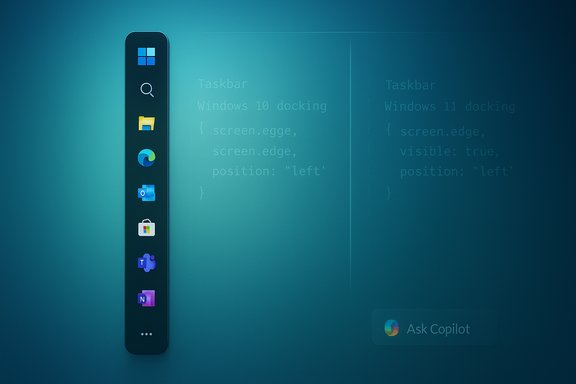
Vertical Windows-style taskbar with app icons on a teal gradient background.Background / overview​

Windows has shipped with a movable taskbar for decades: users could dock the bar to the bottom, top, left or right edge of the screen in Windows 7 and Windows 10. With Windows 11 Microsoft replaced that decades‑old taskbar with a new implementation that changed internal plumbing, behaviors, and animation models. As the Windows product team has explained publicly, that redesign didn’t carry forward every legacy capability—one casualty being official support for moving the taskbar away from the bottom. The conversation around this choice re‑entered the spotlight when Microsoft developers and product managers answered community questions in an Ask Me Anything (AMA). Tali Roth, then a Windows product manager, explained the team’s reasoning: the old taskbar code wasn’t reused; the new taskbar required tradeoffs; and, based on Microsoft’s data, the subset of users who regularly use a vertical or top taskbar is small compared with other taskbar requests. She also raised the technical effort needed to make apps “reflow” correctly around a side‑docked bar. This is the core point of Microsoft’s position: rebuilding the taskbar let them improve many things, but it also meant they had to choose which features to restore first. Where Microsoft saw broad pain (for example, missing drag‑and‑drop workflows and poor touch behavior on small screens), it focused engineering work there; where a feature appeared to have low telemetry weight, it was deprioritized.

What Microsoft actually said — the product team’s explanation​

Rebuilt from scratch, not ported​

Microsoft has confirmed the Windows 11 taskbar is a re‑implementation rather than a carryover of the Windows 10 code base. That matters because the previous design implicitly supported multiple docking edges; the new design did not. Rebuilding the shell gave Microsoft opportunities—better animations, touch optimizations, a modern codebase—but it also meant some legacy affordances were not migrated.

“Reflow” is the technical rationale​

In the AMA, Roth used the word reflow to describe the problem: when the taskbar moves from bottom to left/right, the available window geometry and snap/snapping math change; apps and the Windows shell must adapt to new constraints across DPI variants, multi‑monitor setups, and legacy Win32 vs UWP behaviors. Microsoft’s argument is that ensuring a consistent, glitch‑free experience across that enormous compatibility surface is a big engineering effort—and one they chose not to prioritize immediately.

Data‑driven prioritization​

Microsoft said it used telemetry and feedback to decide which missing features to restore first. According to the product team’s account, scenarios that caused widespread pain (e.g., the removal of taskbar drag‑and‑drop) were fixed sooner than niche customization scenarios like side docking. That focus explains why drag‑and‑drop was restored in later feature updates while vertical docking remained absent.

The technical counterarguments — why critics say Microsoft’s reasoning is thin​

Microsoft’s explanation has not convinced many power users and independent observers. The core counterarguments fall into three clusters:
  • Historical precedent: Windows 10 supported side/top docking without catastrophic app breakage, so critics ask why the reflow problem can’t be solved now that the taskbar is stable.
  • Third‑party proof: External developers and community projects have reintroduced vertical taskbars in Windows 11, demonstrating the capability is technically possible; commercial vendors (Stardock’s Start11, StartAllBack) and community projects (ExplorerPatcher, Taskbar11) ship vertical/top docking features today. That practical evidence challenges the claim that the engineering effort is insurmountable.
  • Transparency: Microsoft has not published the telemetry slices or concrete numbers that led to deprioritization, so the “small user base” claim is difficult for outside observers to verify. That lack of published data invites skepticism.
Those critiques are grounded in observable facts: several well‑known third‑party utilities already provide vertical/top docking and relatively polished experiences for many users. Stardock announced vertical taskbar support in Start11 v2.5 and documented it as shipping, showing a commercial vendor delivering the capability Microsoft declined to prioritize.

What Microsoft did prioritize (and why it matters)​

Microsoft’s product calls on the taskbar show clear, concrete prioritization choices:
  • Drag‑and‑drop recovery: Restoring the ability to drag files and items to the taskbar or taskbar icons was high on the list because it broke longstanding workflows. Microsoft listened and reintroduced taskbar drag‑and‑drop behavior in subsequent updates (notably the 22H2 feature update restored many drag‑and‑drop scenarios, with caveats).
  • Touch and small‑screen optimizations: The team aimed to reduce “wasted space” on smaller screens and improve touch experiences (expanded/collapsible taskbar behaviors), which aligns with Windows 11’s emphasis on modern form factors and tablets.
  • Reliability and modern code: Moving to a new codebase gave Microsoft long‑term benefits—easier visuals, better consistency, and a thinner update surface for some features—even though it meant some short‑term regressions.
Microsoft framed these choices as maximizing benefit for the largest number of users, prioritizing fixes that restored broken workflows over returning customization features enjoyed by a passionate but smaller group.

The reality on the ground: hacks, registry edits, and third‑party workarounds​

For users who need a vertical or top taskbar now, the options fall into three buckets:
  • Registry hacks and unsupported tweaks — brittle and version‑sensitive
  • Early registry edits (StuckRects3) could reposition the taskbar in some builds, but these edits are fragile and have been changed or neutralized by updates. Community documentation warns these methods are unsupported and risky.
  • Community open‑source patches — free but invasive
  • ExplorerPatcher and other community tools re‑expose legacy behaviors, restoring vertical docking and many other Windows 10 affordances. They are actively maintained but patch into Explorer internals, so major Windows updates can temporarily break them.
  • Commercial, supported tools — easiest for mainstream users
  • Stardock’s Start11 (v2.5 and later) shipped explicit vertical taskbar support and multi‑monitor placement as a maintained feature, offering a more polished path for professionals and organizations willing to pay for a supported product. Start11’s release notes and PR announcements document the feature and multi‑monitor support.
Each route has tradeoffs: registry edits are fragile, open‑source solutions may require occasional intervention after updates, and commercial products are safer for many but introduce third‑party dependencies and cost.

Why some of Microsoft’s technical claims deserve healthy skepticism​

Microsoft’s “reflow” argument is technically plausible: changing available screen geometry from bottom‑anchored to side‑anchored affects layout math, snapping coordinates, hit targets, size constraints, and how legacy shell extensions render. But the magnitude of that problem is disputed.
  • Practical counterpoint: Several well‑maintained third‑party projects and commercial products already provide vertical docking in Windows 11. That strongly suggests the reflow and compatibility challenges can be solved in practice, although perhaps not at zero engineering cost. Stardock’s product launch demonstrates a vendor can ship and maintain the feature.
  • Operational question: The real question isn’t whether it’s possible; it’s whether Microsoft chooses to allocate the engineering resources, test coverage, and enterprise validation required to move a core UI affordance back into the official shell. Microsoft appears to have judged that those resources are more valuable elsewhere (for example, to ship Copilot and AI integrations, or to harden other broken workflows). That’s a product‑management decision, not a universal technical impossibility.
  • Transparency gap: Microsoft has not published the telemetry or unit counts that informed its decision—how many users actually dock to the sides, how many enterprise setups rely on the behavior, or what percentage of support incidents stemmed from that configuration. Without that data, the “small user base” rationale is convincing only to the extent readers trust Microsoft’s internal analysis. Outside observers will naturally be skeptical until more detail is provided.
Where Microsoft’s argument is weakest is in explaining why a vertically movable taskbar is a higher‑cost, lower‑return engineering problem today—when third‑party developers already ship functioning implementations. That gap fuels the sentiment that Microsoft’s decision is political (prioritizing a curated experience and a narrower design surface) as much as technical.

The taskbar today: AI, Copilot, and feature creep​

While enthusiasts debate vertical docks, Microsoft has continued to change the taskbar’s role in Windows. The company is integrating Copilot and agent‑style AI features into the taskbar, testing an “Ask Copilot” box that can replace or augment Search and experimenting with AI agents that run from the taskbar and an “agentic workspace” concept. Those changes shift the taskbar from a simple launcher/status area to an active UI surface with AI affordances—and that evolution creates new engineering priorities and compatibility surface area for the company. From the product team’s perspective, investing engineering resources in AI experiences and modern search/Copilot integration may yield larger strategic returns than restoring a vertical docking option used by a minority of users. For many critics, however, adding feature complexity while refusing to restore core customization feels tone‑deaf. The effect is polarizing: mainstream users see regular UI improvements and novel AI features; power users see shrinking control and fewer classic productivity choices.

Practical guidance for Windows users and IT teams​

  • If you want an officially supported, low‑maintenance route to a vertical taskbar, evaluate Start11 (commercial) or StartAllBack; these provide vendor support and regular updates. Stardock’s v2.5 release explicitly advertises vertical taskbars and per‑monitor placement.
  • If you prefer free, community‑driven tools and are comfortable with occasional maintenance after major Windows updates, ExplorerPatcher is a robust option that restores many legacy behaviors, including vertical placement. Be prepared to update the tool after feature updates.
  • Avoid unsupported registry hacks for long‑term use: StuckRects3 edits can work transiently but are fragile and can be reset or broken by Windows updates. Always back up the registry and create a system restore point before experimenting.
  • For organizations: validate any third‑party shell modifications against enterprise policies, anti‑cheat or anti‑tamper systems, and your support model. Shell‑level changes can complicate support and increase the chance of update‑driven regressions.

Final analysis — tradeoffs, priorities, and the likely future​

Microsoft’s explanation for not restoring an officially supported vertical or top taskbar in Windows 11 is coherent as a product strategy: rebuild core systems, fix the most widely broken workflows first, and prioritize features that benefit the majority. From that perspective, the decision to deprioritize vertical docking is defensible.
But the decision is not purely technical; it is a cost allocation and product‑strategy choice. The credible counterpoint—that third parties have already implemented vertical docking—shows the feature is feasible. That gives Microsoft room to choose between competing priorities: invest more engineering effort to restore a long‑cherished power‑user customization, or continue to prioritize the broader, and in Microsoft’s view, higher‑impact items (touch optimizations, drag‑and‑drop fixes, AI/Copilot integration).
What will change this posture? Two likely levers:
  • Clear, sustained telemetry and community pressure demonstrating that vertical docking materially affects retention, productivity, or support costs at scale; or
  • A strategic decision to expose an official, supported “advanced customization” surface for power users—an approach that would let Microsoft keep its modern default while offering a supported opt‑in path for those who need deeper control.
Until either of those happens, the practical reality is this: users who need a vertical taskbar will find reliable third‑party options; users who prefer to stay inside the official Microsoft timeline must accept the bottom‑anchored default and Microsoft’s prioritization logic. The tug‑of‑war between polish and power continues—and the taskbar, once a simple launcher, is now a battleground for design philosophy, platform strategy, and where Microsoft chooses to spend its engineering cycles.
Key takeaways
  • Microsoft rebuilt the taskbar for Windows 11 and did not include the old side/top docking code paths; the product team cites reflow complexity and data‑driven prioritization as reasons for not restoring it.
  • Drag‑and‑drop and touch optimizations were prioritized and addressed; some missing behaviors were later restored (notably in 22H2), showing Microsoft does act on high‑impact regressions.
  • Third‑party vendors and community projects (Start11, ExplorerPatcher, Taskbar11) already offer vertical/top taskbars in Windows 11, which weakens the argument that the change is technically impossible but highlights that Microsoft chose not to invest official resources.
  • For users who need vertical docking now, well‑maintained third‑party tools are the most practical route; for those who prefer official support and minimal risk, Microsoft’s bottom‑anchored default remains the safest option.
The taskbar debate is also a broader debate about Windows’ design philosophy: should Microsoft prioritize a simplified, curated default for the many, or continue to ship and support a deep set of customizations for the power minority? The answer will shape Windows’ usability and community relationship for years to come.
Source: Windows Latest Explained: Why you can't move Windows 11 taskbar like Windows 10, according to Microsoft
 

Wintoys landed on my test rig like many modern utilities do: lightweight, polished, and instantly familiar — an elegant single‑window utility that promises to consolidate cleanup, repair, privacy toggles and small system tweaks into one place. Pocket‑lint’s recent hands‑on captures that feeling plainly: after installing the free Microsoft Store app, the reviewer wrote that the program “looks and feels like a native part of modern Windows” and that it’s “slick, powerful, and pragmatic.”

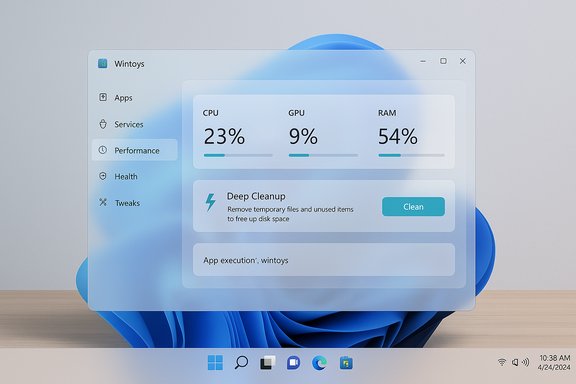
Translucent Windows-style performance dashboard showing CPU, GPU, RAM and a Deep Cleanup option.Background / Overview​

Wintoys is a free Windows utility published to the Microsoft Store and maintained by developer Bogdan Pătrăucean. The app presents a dashboard of system specs and groups features into logical tabs — Apps, Services, Performance, Health and Tweaks — with one‑click and guided operations intended to make routine maintenance approachable for non‑technical users while still offering time‑savings for technicians. That single‑pane, discoverable layout is a central part of the app’s appeal. The project debuted publicly in spring 2023 and has seen rapid iteration, driven by both user feedback and periodic Windows servicing updates. The developer publishes a changelog and distributes Wintoys via the Microsoft Store and community download portals; recent releases upgraded the app to modern runtimes and added small but practical refinements such as an app execution alias to allow launching the tool directly from the command line. This feature unpacks what Wintoys does well, where it may pose risk, how it compares to alternatives like Microsoft PowerToys and Microsoft PC Manager, and how to use it responsibly on production machines.

What Wintoys actually does​

At its heart, Wintoys is a consolidation and UX layer: it pulls common maintenance actions that normally require navigating multiple Settings pages, Sysinternals tools, or PowerShell commands into a single, WinUI‑styled application.

Key capability areas​

  • System dashboard and live stats — quick readouts of CPU, GPU, RAM, Windows version and counts of installed apps and running processes.
  • Storage and cleanup tools — a “Deep Cleanup” and disk analysis that surface temporary files, browser caches (including preview channels like Beta/Dev/Canary), Windows update remnants and other sources of reclaimable space.
  • App and process management — lists of installed apps, a “Deep Uninstall” option to remove stubborn apps, and quick reset/troubleshoot options for misbehaving UWP and Win32 apps.
  • Service and startup controls — identify and disable unnecessary services and toggle startup apps without hunting through Task Manager.
  • Repair and health checks — wrappers for SFC, DISM and other common repair routines, plus network reset tools and driver update shortcuts.
  • Tweaks and privacy controls — switches to disable advertisements, disable or route telemetry, and other convenience tweaks such as extracting Windows Spotlight lock‑screen images.
  • Developer‑friendly extras — an app execution alias (from recent releases) which makes Wintoys callable from the command line for automation.
These components are wrapped in a modern WinUI 3 / Windows App SDK interface with Fluent Design cues — animations, dynamic color accenting and the choice to toggle Mica or Mica Alt backgrounds — producing a UI that does not feel like an afterthought. The developer says it’s built with the Windows App SDK and WinUI 3; the Windows App SDK documentation confirms WinUI 3 is the Microsoft‑recommended framework for this class of desktop apps.

Why many users report immediate “snappier” performance (and what that actually means)​

The popular line — “I downloaded it and in 5 minutes my PC ran smoother” — is shorthand for a real, reproducible set of behaviors, but it needs context. Wintoys speeds up the perceived responsiveness of a machine in the short term by:
  • Removing gigabytes of accumulated temporary files and caches that cause storage to become congested (particularly on near‑full SSDs).
  • Killing or suspending high‑impact background apps and clearing startup bloat that competes for I/O and CPU during active sessions.
  • Providing an accessible way to run SFC/DISM or reset problematic apps that otherwise manifest as freezes or crashes.
These actions create an immediate, visible benefit — fewer background I/O spikes, more free working set memory and fewer competing background tasks — and therefore feel like a speed boost. But that improvement is often transient: caches rebuild and long‑term performance requires structural fixes (more RAM, an NVMe SSD, or driver updates). Treat Wintoys as an efficient convenience front‑end to routine maintenance rather than as a permanent substitute for hardware upgrades or root cause troubleshooting.

Technical foundations and verifiable specs​

Wintoys is implemented using modern Windows desktop frameworks and updated runtimes. The developer’s changelog and third‑party distribution pages list explicit platform details:
  • Built with the Windows App SDK and WinUI 3, consistent with Microsoft’s guidance for modern desktop UX parity.
  • Recent versions were compiled against .NET 9 and Windows App SDK 1.7 (developer changelog and mirrored release notes). That helps with compatibility and performance across newer Windows servicing branches.
  • Minimum supported OS baselines were raised in later updates to align with Windows 11 servicing, with explicit notes to ensure elevation and runtime behaviors work as expected on patched images.
These are verifiable by checking the developer changelog and the Microsoft Store metadata before deploying in larger environments.

Strengths — why Wintoys is worth a spot on a toolbox​

  • Polished native UX: The WinUI 3 implementation and Fluent Design affordances make the app feel integrated and lower the friction for less technical users. Pocket‑lint noted the app “expertly leverages Microsoft’s modern Fluent Design principles” and praised the fit and finish.
  • Consolidation: Instead of jumping between Settings, Task Manager, Disk Cleanup and command prompts, Wintoys places common actions into discoverable tabs. This reduces time‑to‑fix and repeated procedural errors.
  • Conservative defaults and confirmations: Deep cleanup operations typically preview what will be removed and warn users, which is safer than many old “one‑click” cleaners. Community write‑ups corroborate that the app shows review dialogs before destructive actions.
  • Active maintenance and changelog transparency: The developer maintains a public changelog and issues frequent updates to keep compatibility with Windows updates — a strong sign of ongoing support.
  • Free and Store‑distributed: Being a Microsoft Store app reduces the distribution risk vector compared with random unsigned EXEs; Store certification and automatic updates are helpful for non‑expert users. Many editorials highlighted the convenience of Store distribution for discovery and updates.

Risks, caveats and verifications you must perform​

No utility that touches system files and settings is risk‑free. Here are the main concerns and how to mitigate them.

Closed‑source model and planned premium add‑ons​

The developer has stated in public posts that Wintoys is not open‑source and that future add‑ons may be paid. That means you cannot audit the codebase yourself and must trust the developer’s updates and distribution channels. The developer’s Reddit post explicitly referenced plans for premium add‑ons as part of the reason for keeping the source closed. Use caution in enterprise environments and prefer manual testing in VMs before wide deployment.

Antivirus false positives and third‑party flags​

Community threads show isolated reports of certain antivirus engines flagging Wintoys after updates. In at least one case Kaspersky flagged and removed the app until signatures were updated. This is commonly a false‑positive pattern for small, frequently updated apps that change binary signatures; nevertheless, it’s worth testing with your security stack and raising a vendor false‑positive request if needed. Keep logs and prefer Store‑delivered installs to reduce exposure.

Over‑aggressive cleanup​

Despite preview dialogs, inexperienced users can still remove browser profiles, session data, or settings they rely on. Always review the items slated for deletion, and create a Restore Point or disk image when performing broad cleanups on critical machines. The app can assist with quick fixes but cannot replace careful backup procedures.

Not a substitute for enterprise repair tooling​

Wintoys is useful for consumer, small office, or lab use. It is not a replacement for enterprise deployment, imaging, or forensic diagnostics. For severe corruption, driver conflicts, or Group Policy issues, use established commands (SFC, DISM, CHKDSK, Sysinternals), supervised update channels and documented rollback procedures. Wintoys wraps many of those tools for convenience, but the underlying remediation still rests on the same OS primitives.

How Wintoys compares to PowerToys and Microsoft PC Manager​

  • PowerToys (Microsoft) is an open‑source collection focused on productivity enhancements (FancyZones, PowerToys Run, Text Extractor). It’s developer‑backed and community‑audited, making it a go‑to for feature‑based tweaks rather than system maintenance. PowerToys is not primarily a cleanup/repair tool.
  • Microsoft PC Manager (a separate Microsoft‑published maintenance app) takes a very similar approach to Wintoys — consolidation of cleanup, Boost, toolbox and process management — with a first‑party origin and store distribution in select regions. PC Manager, however, has raised privacy‑nudging concerns in some reviews because some “repair” suggestions may recommend Microsoft defaults. Wintoys occupies the same functional niche as PC Manager but from an independent developer with a different feature mix. Use Wintoys if you prefer the specific workflow it exposes; prefer PowerToys when you want productivity affordances rather than housekeeping.

Real‑world testing checklist: how to evaluate Wintoys safely on your PC​

  • Create a backup or system restore point before running Deep Cleanup or critical repairs.
  • Install from Microsoft Store (preferred) to ensure package signing and automatic updates.
  • On first run, review the Home dashboard and identify any startup apps or services the machine doesn’t need.
  • Run a conservative cleanup pass: uncheck anything you don’t recognize and leave browser profiles intact until you’ve manually verified what will be removed.
  • If you rely on AV/endpoint solutions, test Wintoys in a controlled environment and monitor security vendor logs for false positives.
  • Use the built‑in feedback channels and changelog to track updates: validate new builds against the developer changelog before updating production fleets.

Maintenance, versioning and transparency​

Wintoys publishes a granular changelog that documents fixes, new options and platform bumps (for example, explicit notes about upgrading to .NET 9 and Windows App SDK 1.7). The developer also addresses edge cases that commonly affect setup on older images (legacy MSI registry artifacts, missing registry region values and similar installation corner cases). These are real, observable fixes that improve stability on heterogeneous environments. Use the changelog and Store metadata as authoritative sources for build numbers and release dates before pushing large updates across many machines.

Practical tips for everyday Windows 11 optimization (informed by Wintoys and by core OS best practices)​

  • Prioritize hardware: nothing beats adding RAM or switching to an NVMe SSD for consistent gains.
  • Use Wintoys for convenience: quick cleanup, startup tuning and basic repairs reduce friction, but verify results and keep backups.
  • Combine with native tools: Storage Sense, Optimize Drives, Task Manager and Windows Update remain essential; Wintoys complements, it doesn’t replace them.
  • Keep telemetry and privacy choices explicit: tools that change defaults can be useful, but always read a “repair recommendation” prompt before accepting automatic default resets.

Final assessment: strengths balanced with caution​

Wintoys is an impressive example of what a small, focused utility can do when it adheres to modern UI frameworks and maintains practical conservatism in safety prompts. For Windows 11 enthusiasts, technicians, and power users who want a streamlined toolset for routine maintenance, it offers real time‑savings and a comfortable UX. Pocket‑lint’s favorable experience — the author calling it one of the first apps they install on new hardware — lines up with the broader reception in community write‑ups and independent portals.
At the same time, the closed‑source model, the possibility of antivirus false positives (noted in community threads), and the potential for accidental over‑cleanup mean Wintoys should be used with the same discipline applied to any system utility: back up first, prefer Store installs, test in a VM for enterprise rollout and read prompts carefully before destructive actions. For Windows 11 users seeking a pragmatic, well‑designed single window for everyday cleanup and troubleshooting, Wintoys is a strong candidate. For IT administrators and risk‑sensitive environments, it’s a helpful tool for lab and repair desks but not a wholesale replacement for sanctioned enterprise tooling and documented remediation procedures.
Wintoys’ success comes from a simple formula: present useful actions in an interface that feels like part of Windows, keep defaults safe, and iterate visibly. That approach produces immediate, user‑visible benefits — often in minutes — while keeping power and automation within reach for experts. Use it intelligently, and it will likely become one of the easiest ways to keep a Windows 11 machine feeling snappy between major maintenance windows.

Source: Pocket-lint I downloaded this free app and in 5 minutes my PC ran smoother
 

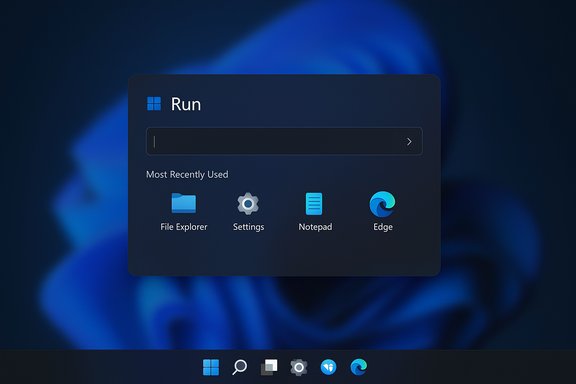
Windows-style Run dialog on a dark desktop, showing recent apps: File Explorer, Settings, Notepad, Edge.
Microsoft is quietly testing a modernized, wider Run dialog for Windows 11 — and if you’re comfortable running Insider builds or toggling hidden feature flags, you can enable it today to replace the three‑decades‑old mini‑dialog with a Fluent‑style overlay that shows recent commands, inline app icons, and a larger text field for easier typing and touch use.

Background​

The Run box summoned by Win+R is one of Windows’ oldest interface primitives: a compact, keyboard‑first conduit for executing apps, Control Panel applets, MMC snap‑ins and UNC paths. It’s been functionally stable for decades, but its tiny Win32 dialog has stood out visually in Windows 11. Microsoft’s recent work to bring legacy surfaces into the Windows App SDK/WinUI ecosystem has touched many small elements across the OS; the new “Modern Run” is a continuation of that effort. Why modernize Run? The reasons are pragmatic. A larger input area improves discoverability and touch/pen targeting on tablets and high‑DPI screens. A small MRU (most‑recently‑used) list speeds repeated commands. Inline icons reduce ambiguity when similarly‑named items exist. Taken together, these are modest usability wins that remove a long‑standing visual mismatch between legacy dialogs and Fluent/WinUI surfaces. That said, the change is deliberately cautious: Microsoft is gating the feature in Insider builds and exposing it behind a toggle in an “Advanced” section of Settings so testers and administrators can opt in without forcing the new experience on every device.

What’s new in the Modern Run dialog​

  • Larger overlay, not a tiny modal. The Modern Run appears as a roomier overlay with more generous spacing and Fluent visual treatments (rounded corners, softened shadows, Mica/tone‑aware backgrounds). This is a clear visual update to match Windows 11.
  • Most‑Recently‑Used list. A short MRU history appears above the input, letting you click or arrow‑navigate to a recent command instead of retyping it.
  • Inline app icons and richer match feedback. When your typed input resolves to a known program, store app, or executable, the Modern Run shows an icon alongside the text to reduce guessing.
  • Dark mode and theming parity. The overlay adheres to theme rules so it no longer flashes a stark Win32 box in dark sessions.
  • Opt‑in toggle. The experience is controlled from Settings → System → Advanced (a toggle labeled for the Run dialog). If the toggle isn’t present on your PC, the feature may still be hidden by a server‑side gate.
A practical side effect observed in early screenshots: the Modern Run overlay can overlap parts of the taskbar when the Start menu is left‑aligned, which differs from the classic Run dialog that typically appears above the taskbar. That overlap appears to be a function of the overlay’s positioning and is one reason Microsoft is testing the behavior with Insiders. Treat taskbar overlap as an early‑preview artifact until Microsoft finalizes placement and z‑order.

How to enable the Modern Run dialog (safe, supported path)​

If you prefer a conservative approach, use the official Insider route:
  1. Enroll the test device in the Windows Insider Program and pick Beta or Dev channel, depending on availability and guidance from Microsoft.
  2. Update Windows via Settings → Windows Update and install the latest preview build provided to that channel.
  3. Reboot, then open Settings → System → Advanced and look for a toggle named Run dialog or Modern Run.
  4. Toggle the setting to On and press Win+R to try the new overlay.
This path keeps you on Microsoft’s supported update chain and avoids third‑party tools. Because Microsoft sometimes gates features server‑side, being on a suitable Insider build does not guarantee immediate exposure; the Settings toggle will appear only after Microsoft enables the feature on your device.

How to enable the Modern Run dialog (community method using ViVeTool)​

For enthusiasts who accept the risks, community tools like ViVeTool can flip hidden feature flags already present in preview builds. ViVeTool is an open‑source utility maintained in community repositories and used widely by Insiders to opt in to server‑gated features. Use it only on non‑production machines or VMs, and always verify checksums when downloading. Step‑by‑step (as reported by multiple community how‑tos):
  1. Download ViVeTool from its official repository/releases page and extract it to a local folder (example: C:\vive). Choose the release matching your CPU architecture.
  2. Open an elevated Command Prompt (right‑click cmd → Run as administrator).
  3. Change to the ViVeTool folder:
    1. cd C:\vive
  4. Run the enable command that toggles the Modern Run feature IDs. Community reports list the same four IDs used in different orders; one common command is:
    1. vivetool /enable /id:58381341,58527096,57156807,57259990
      Some guides and screenshots use the same four IDs arranged as: 57156807,57259990,58527096,58381341 — the set is the same; order does not typically matter. Always double‑check the IDs for your specific build before enabling them.
  5. Reboot the PC.
  6. Open Settings → System → Advanced and enable Run dialog if it appears.
  7. Press Win+R to see the Modern Run overlay.
Important safety tips:
  • Run vivetool with administrator privileges and from a trustworthy ViVeTool release.
  • If you don’t see the toggle after enabling flags and rebooting, the feature may still be server‑gated for your machine.
  • To verify the state of a flag before toggling, use ViVeTool’s query syntax (vivetool /query /id:<id>) — it reports whether a feature is active and helps avoid blind changes.

The exact feature IDs and build numbers — what’s reliable and what’s provisional​

Community coverage and enthusiast posts repeatedly point to the same quartet of feature IDs enabling the Modern Run overlay: 57156807, 57259990, 58527096, 58381341. Authoritative, cross‑checked community lists (collected by tracking preview artifacts and ViVeTool feature dictionaries) show those IDs associated with the Modern Run toggle in builds that carry the bits. Pureinfotech’s recent guide and a ViVeTool community feature list both include the same IDs and explicitly reference Build 26220.7523 as a relevant package where the Modern Run bits are present. Caveats and verification:
  • Build attributions in early reporting are fragile. Microsoft commonly stages UI changes across multiple builds and uses server‑side gating; different outlets and forum posts have referenced different build numbers. Confirm your exact build with winver before attempting any toggle, and cross‑check the IDs against a current ViVeTool feature dictionary for that build. If an ID doesn’t exist on your build ViVeTool will return an error.
  • Treat any specific build number as provisional until Microsoft publishes official Insider release notes or an authoritative changelog.

What to test after enabling (a checklist for power users and admins)​

After enabling Modern Run, verify these behaviors to ensure the update doesn’t regress your workflows:
  • Keyboard latency: press Win+R repeatedly and measure perceived time until the dialog is ready for input. Power users are sensitive to even tiny delays.
  • Focus behavior: ensure Win+R puts immediate keyboard focus into the input field (no extra clicks required).
  • MRU behavior and privacy: check whether recent entries are stored persistently, how to clear history, and whether history is tied to any cloud‑scoped signals (early reporting suggests local MRU only, but verify).
  • Elevation and automation: confirm that elevation flow (Ctrl+Shift+Enter or using Run to trigger UAC) still works and that scripts or automation that rely on the classic Run dialog (via UI Automation or programmatic hooks) still function. A change of UI framework (WinUI vs Win32) can change automation identifiers.
  • Accessibility: test with screen readers (Narrator, NVDA, JAWS) and high‑contrast settings to ensure roles, announcements and logical focus order are preserved. Accessibility regressions are among the highest‑impact change failures for system dialogs.
  • Taskbar overlap: if your Start menu is left‑aligned, verify whether the Modern Run overlay overlaps the Start button or taskbar icons and whether that impacts discoverability or accidental clicks. Report unexpected placement issues through the Insider Feedback Hub.

Enterprise considerations and risk assessment​

The Modern Run’s UI changes are conservative but not risk‑free for managed fleets. Key areas for IT teams:
  • Policy controls and manageability. At preview time no dedicated Group Policy or MDM ADMX templates target the Modern Run option specifically. Existing controls (like disabling Run entirely via NoRun policies) still apply, but administrators should watch Microsoft’s official documentation and ADMX updates as the feature approaches broader distribution.
  • Fragmentation during staged rollout. Server‑side gating can create inconsistent device experiences across identical builds, complicating documentation and support. Standardize test rings and update channels before wider adoption.
  • Privacy and MRU leakage. The surfaced MRU is useful but can expose sensitive administrative commands or UNC paths on shared machines. Test retention behavior and whether a central clear-history control or policy is available before enabling on shared endpoints.
  • Compatibility with enterprise tooling. Verify that third‑party security agents, endpoint detection and response (EDR), and automation tooling continue to detect launches invoked through the Modern Run. Any change in how the Run UI resolves commands could affect logging and telemetry.
Practical recommendation: test the Modern Run aggressively in a controlled pilot ring, and hold off on broad deployment until Microsoft documents enterprise‑level controls and confirms accessibility parity.

Alternatives if you don’t want to toggle preview flags​

If you’re not ready to run Insider builds or use ViVeTool, there are modern launcher alternatives that deliver similar productivity gains:
  • PowerToys Run (Microsoft PowerToys): a keyboard launcher offering fuzzy search, plug‑ins and fast app/file launching.
  • Raycast / Flow Launcher / Wox: third‑party launchers with plugin ecosystems, clipboard history, and extended actions.
    These tools are mature, supported, and configurable — and for many power users they already replace the need to modernize the built‑in Run box. Microsoft’s Modern Run appears intentionally lightweight compared to these extensible launchers, but it closes the gap for users who only needed a bit more polish and history.

How to revert or disable changes​

If you enabled flags with ViVeTool and want to revert:
  1. Run ViVeTool with the disable switch for the same IDs:
    1. vivetool /disable /id:58381341,58527096,57156807,57259990
  2. Reboot the device.
  3. If you enabled the Run dialog in Settings, toggle it off via Settings → System → Advanced.
If you used ViVeTool and need an emergency reset of feature states, ViVeTool supports /reset to restore flags to Microsoft defaults for a given ID; consult ViVeTool documentation and always reboot after changes.

Final analysis: strength, risk, and the likely path forward​

Strengths
  • Visual and UX parity. Eliminates a jarring legacy flash and makes Win+R feel integrated with Windows 11’s Fluent design, improving coherence for daily users.
  • Small, targeted productivity gains. MRU and inline icons speed repeat usage and reduce errors without replacing power‑user semantics.
  • Opt‑in rollout reduces immediate risk. The Settings toggle and Insider gating show Microsoft intends to collect feedback and preserve classic behavior by default.
Risks
  • Potential accessibility regressions. Any UI rewrite must preserve UI Automation names/roles and focus behavior; otherwise assistive technology users can be negatively affected.
  • Automation/compatibility fragility. Scripts or tools that rely on the classic dialog’s behavior or UI tree could break if the underlying framework or automation IDs change.
  • Privacy surface with MRU. On shared machines MRU entries can expose sensitive commands; enterprises should seek policies to clear or disable history.
  • Fragmentation during staged rollouts. Server gating can complicate support for identical builds that behave differently across devices.
Likely path forward
  • Microsoft will iterate on the Modern Run in Insider channels, refine accessibility behaviors and placement, and eventually ship it more broadly — likely behind administrative controls for managed environments. If accessibility or automation issues surface, expect Microsoft to prioritize fixes before enabling the feature by default. Meanwhile, third‑party launchers remain a stronger option for users who need advanced workflows today.

Quick reference: commands and checklist​

  • Verify your Windows build:
    1. Press Win+R → type winver → Enter.
  • Safe path to try Modern Run:
    1. Enroll a non‑production device in Windows Insider Dev/Beta.
    2. Update to the latest preview build and check Settings → System → Advanced.
  • ViVeTool community method (use only on test machines):
    1. Download ViVeTool from its GitHub Releases page and extract to C:\vive.
    2. Open elevated cmd, cd C:\vive.
    3. Run: vivetool /enable /id:58381341,58527096,57156807,57259990 (IDs reported by community lists).
    4. Reboot, open Settings → System → Advanced, toggle Run dialog on.
  • Revert:
    1. vivetool /disable /id:<same ids> → reboot.
    2. Or toggle Run dialog off in Settings.

Microsoft’s Modern Run is a small but telling signal: the company is methodically modernizing legacy UI surfaces, one reflexive interaction at a time. For most users the change will be a modest polish that makes Win+R feel less like a relic and more like part of Windows 11; for power users and administrators the key questions are about latency, automation compatibility and privacy. Test on a non‑production device, back up your image, and verify everything that matters to your workflow before flipping flags on machines you rely on.

Source: theregister.com How to enable Windows’ new, wider Run dialog box
 

Back
Top