

Windows 11 manages most everyday PC hardware through Settings, Device Manager, Windows Update, and a shrinking collection of legacy control panels, with Bluetooth devices, USB storage, printers, scanners, touch, pens, keyboards, mice, and RGB peripherals split across modern and old interfaces. That sounds mundane until you notice the pattern: Microsoft has not finished moving Windows hardware management into one coherent place. The result is an operating system that is often excellent at making devices work automatically, but still oddly evasive when users need to understand, repair, or control them. Hardware support in Windows 11 is less a solved problem than a living museum of every era of PC compatibility.
The great triumph of modern Windows hardware support is that most users never think about it. Plug in a keyboard, pair a mouse, connect a headset, attach a USB drive, and Windows 11 usually does the right thing before the user has time to open a browser tab. Class drivers, Windows Update, and decades of compatibility work make the PC feel calmer than it used to.
But the calm is conditional. When Windows knows what a device is, the experience is almost appliance-like; when it does not, the user is thrown back into the older Windows world of Device Manager, yellow exclamation marks, vendor driver downloads, and software utilities that may or may not be current. This is the split personality at the heart of Windows 11 hardware management.
Microsoft’s stated direction is obvious: more hardware configuration belongs in Settings, not Control Panel, not obscure utilities, and not vendor tray apps. Yet the practical reality is that Settings is still more of a front door than a full house. It introduces the user to Bluetooth, printers, mouse options, touchpad gestures, touch input, pen settings, AutoPlay, and Dynamic Lighting, but the path often ends in a legacy dialog or a manufacturer utility.
That does not make Windows 11 bad at hardware. In many ways, it makes Windows 11 uniquely good at hardware, because it still supports a wild range of old and new devices. But it does mean the user experience is shaped by compromise: Microsoft wants the simplicity of a phone and the compatibility of a 30-year PC ecosystem, and those ambitions do not always fit in the same Settings page.
The second instinct is Windows Update. That is where Windows 11 may find newer or more specific drivers after the initial connection. For ordinary users, this is a reasonable model: the OS supplies enough functionality to begin, then silently improves the experience if a better package exists.
The trouble starts when the driver supply chain fails. Device Manager remains the place users go when something is wrong, even though it looks and feels like a utility from another administrative age. The yellow bang beside a device is still one of Windows’ most enduring symbols: a tiny warning that the dream of seamless computing has been interrupted by the reality of hardware specificity.
There is a reason Microsoft has never fully hidden Device Manager. Settings can simplify common tasks, but it cannot yet replace the diagnostic density of the older tool. Device Manager exposes the machinery. It shows users and technicians what Windows thinks exists, what it cannot identify, and where the driver stack has failed.
That matters for IT pros because hardware failures rarely present themselves in polite consumer language. A camera stops working after an update. A USB audio interface appears as an unknown device. A printer vanishes from an app but remains visible to the system. The first useful answer often lives not in the friendly Settings app, but in the old administrative layer Microsoft keeps trying not to foreground.
That advice may feel old-fashioned in an era of faster flash storage and more resilient file systems, but it remains good practice. USB storage devices often contain the files users care about most, precisely because they are used for transfers, backups, installers, recovery media, and quick handoffs. The “Safely Remove Hardware” ritual is less about nostalgia than about making sure write operations are finished before the device disappears.
AutoPlay is another reminder that Windows has to accommodate both convenience and risk. When a removable drive appears, Windows can ask what to do, remember a default action, or stay quiet. That small prompt reflects a long history of removable media being useful, annoying, and occasionally dangerous.
The strange part is that Windows 11 still sometimes exposes these flows through interfaces that feel visually inconsistent. A modern notification can lead to an old-looking menu. File Explorer and the system tray both offer ways to eject a drive. Settings controls the defaults, but the daily behavior is distributed across shell surfaces. It works, but it does not always feel designed as one experience.
But Bluetooth is also where the boundary between Windows and the device maker becomes unavoidable. Pairing is only the first step. Configuration may live in a separate Settings page, a vendor utility, a firmware updater, a Store app, or nowhere at all.
This split is especially visible with mice, keyboards, and headsets. Windows can pair the device and expose basic options, but advanced features often belong to Logitech, Razer, Dell, HP, Microsoft, Lenovo, or whoever made the hardware. Button remapping, DPI profiles, headset equalizers, battery behavior, lighting effects, and firmware updates often require software outside Windows.
That is not entirely Microsoft’s fault. Hardware makers use their software to differentiate products, collect telemetry, push account systems, and manage ecosystems of accessories. But the user experiences the fragmentation as Windows fragmentation. They connected the device to Windows, so Windows feels responsible when the remaining controls are scattered.
The PC ecosystem benefits from that openness. It also pays for it with configuration sprawl.
Microsoft’s decision to put a dedicated Copilot key on new Windows PCs was a revealing moment. The company treated the keyboard not merely as an input device, but as a strategic surface. In the same way the Windows key once announced a new era of Start-menu-centric computing, the Copilot key was meant to announce an AI-first PC era.
The problem is that users do not experience keys as marketing claims. They experience them as muscle memory. If a new key replaces or crowds out Right Ctrl or the context menu key, it does not matter that Microsoft sees a platform opportunity. For users who rely on those keys for shortcuts, accessibility tools, terminal workflows, international layouts, or long-trained habits, the change can feel like a regression disguised as progress.
Windows 11’s ability to customize the Copilot key is therefore more than a nice option. It is a tacit admission that hardware-level AI promotion has to yield to actual user workflows. The ability to send the key to Search, launch a compatible app, do nothing, or eventually behave more like displaced legacy keys is the difference between a feature and an imposition.
There is a broader lesson here. Microsoft can ship AI features into Windows at software speed, but keyboards move at hardware speed. A bad software default can be patched next month. A bad key layout can sit under a user’s finger for five years.
But again, the issue is not whether the new behavior is defensible. It is whether Windows respects the user’s accumulated habits. The fact that the old behavior can be restored matters because keys are promises. When an operating system changes what a key does, it edits the user’s body memory.
This is where Windows 11 is at its best when it offers a toggle and at its worst when it hides the toggle. The modern Settings app can make such changes discoverable, but only if the option lives where users expect it. Keyboard behavior under Bluetooth & devices makes sense. Copilot key behavior under text input or keyboard settings may make sense architecturally. For a frustrated user, the difference is academic.
The PC is not a blank-slate device. It is a continuity machine. Windows 11’s challenge is to modernize without constantly taxing users for already knowing how to use Windows.
Touchpads in particular show how far Windows has come. Precision touchpads and standardized gestures made the Windows laptop experience less dependent on vendor-specific drivers and control panels. Three-finger and four-finger gestures, desktop switching, Task View, and tap customization give Windows laptops a modern interaction vocabulary that no longer feels like a poor imitation of the Mac.
Yet even here, the old Windows remains nearby. “Additional mouse settings” still opens a legacy control panel. Hardware makers still extend or replace parts of the experience. Gaming mice still need vendor tools for serious configuration. Touchpad quality still varies by device.
That is the practical Windows compromise in miniature. Settings covers the 80 percent case, legacy dialogs preserve the remaining 20 percent, and vendor software handles the profitable edge cases. It is not elegant, but it is durable.
The accessibility angle is also important. Mouse pointer visibility, click lock, pointer hiding while typing, and mouse-key alternatives are not cosmetic extras. For many users, they are the difference between tolerating a PC and comfortably using it. Moving more of those controls into Settings is one of the least flashy but most meaningful parts of Windows modernization.
But Windows touch still carries the memory of earlier compromises. It is good enough to be useful, especially on Surface-style devices and convertibles, but it does not erase the fact that much of the Windows desktop ecosystem was built for pointer precision. Touch works best when apps respect it. Many do. Some still do not.
The automatic tablet experience is an attempt to smooth that transition. Remove a keyboard or fold a convertible, and Windows adapts spacing, taskbar behavior, and touch affordances. The collapsing taskbar is a sensible design for small screens, giving users space until they need controls again.
Pen support is more specialized, and arguably more successful because expectations are clearer. A smartpen is for writing, drawing, annotating, selecting, and navigating with precision. Windows Ink, the Pen menu, shortcut button customization, haptics, handwriting settings, and app launch options create a coherent enough environment for people who know they need pen input.
The weakness is discoverability. Pen & Windows Ink appears whether or not a given PC fully supports the relevant hardware, and features depend heavily on the device and pen. Pressure levels, tilt, erasers, haptics, and shortcut buttons vary widely. Windows can expose the framework, but the real experience is still purchased from the hardware maker.
Windows protected print mode is the most important development here. The idea is to shift printing toward Microsoft’s modern print stack and away from the historical mess of vendor-supplied printer drivers. That is a security story as much as a usability story, because print drivers have long been a privileged and messy part of Windows environments.
For home users, the promise is simpler: fewer sketchy drivers, fewer bundled utilities, fewer mysterious update agents, and less software installed just to print a shipping label. For enterprise IT, the promise is more complicated but potentially more valuable: a smaller attack surface and a more controlled driver model.
The cost is compatibility. Older printers and advanced printer features may depend on vendor drivers. Enabling protected print mode can remove third-party drivers and reduce functionality, which is why Microsoft has been cautious about making it the default. Security improvements that break office printing are not experienced as security improvements by the people standing next to the printer.
This is the same Windows story again, only with higher stakes. Microsoft wants the platform to be safer and more modern, but the installed base is vast, old, and unevenly maintained. Printing is where the future meets a 12-year-old multifunction device in a small office that absolutely must scan invoices today.
That matters because PDF is the escape hatch from physical printing. Receipts, forms, confirmations, tickets, web pages, invoices, and records can be saved without involving paper or a printer vendor’s software. In a world where printers remain troublesome, the best printer is often no printer at all.
The oddity is that Windows still presents PDF creation through the metaphor of printing. That is historically understandable and practically useful, but it also shows how much old computing language survives inside modern workflows. Users are not printing; they are exporting. Windows calls it printing because every app already understands that verb.
There is a lesson for Microsoft in that success. The best compatibility layers are the ones users do not have to think about. Microsoft Print to PDF works because it uses an old abstraction to solve a modern need without asking the user to learn a new system.
That is defensible. Scanner hardware varies, and vendor tools can expose features Windows Scan does not: duplex options, OCR, document cleanup, feeder controls, color profiles, destination workflows, and cloud integrations. A basic Microsoft app can cover simple cases, but it will not satisfy every office.
Still, the gap is noticeable. Printing gets a universal dialog and a built-in PDF route. Scanning feels more like an app hunt. If a user has to visit the Store or a manufacturer website before scanning a document, Windows has not fully closed the loop.
For IT departments, this is another support wrinkle. Printer deployment is already enough trouble; scanning adds another layer of software standardization. The more Windows relies on vendor utilities, the more endpoint management inherits vendor inconsistency.
The problem it addresses is familiar to anyone with gaming accessories. Every hardware maker has an app. Every app wants to run at startup. Every app wants to control lighting, firmware, macros, profiles, and sometimes an account. Mix brands and the desktop becomes a negotiation among utilities.
Dynamic Lighting says Windows should be the neutral broker, at least for lighting. Compatible devices appear in Settings, and users can apply brightness, effects, and colors without installing a separate control suite. Foreground and background precedence options decide whether Windows or a vendor app controls the lights.
That may sound trivial, but the model matters. If Windows can centralize RGB lighting, it can potentially centralize other classes of peripheral behavior over time. The obstacle is not just technical; it is political. Hardware makers like owning the user relationship through their apps.
Dynamic Lighting therefore represents a modest assertion of platform authority. Microsoft is not banning vendor utilities. It is saying that some device functions are common enough, and annoying enough, that Windows should manage them directly.
That explains why the experience feels uneven. Bluetooth pairing is modern. Device Manager is old. Touchpad gestures are modern. Additional mouse settings are old. Printers & scanners is modern. Printing preferences may be a vendor dialog. Dynamic Lighting is modern. RGB control may still belong to Razer, ASUS, Corsair, Logitech, or another app.
This is frustrating if you judge Windows 11 by the standards of a phone or tablet OS. It is more understandable if you judge it as the operating system that has to support a generic USB barcode scanner, a premium OLED laptop, a 15-year-old laser printer, a Bluetooth hearing device, a Surface Pen, a gaming keyboard, and a corporate docking station.
The question is not whether Microsoft can make Settings cleaner. It can. The question is how much compatibility pain users and organizations will tolerate as Microsoft removes older paths. Every retired dialog has a constituency. Every modernized driver model has a printer or peripheral that falls out of the happy path.
That is why Windows modernization is slow. The platform’s greatest asset is also its drag coefficient.
The more skeptical reading is that Windows still hides too much of the actual machinery until something breaks. When a device works, the system feels modern. When a device fails, the user may need to know about Device Manager, Windows Update optional drivers, manufacturer downloads, legacy control panels, firmware tools, and app-specific configuration.
Both readings are true. Windows 11 has made hardware easier for ordinary use, but not simpler in any absolute sense. It has moved the front door, not rebuilt the entire building.
For enthusiasts and IT pros, the practical advice is to treat Settings as the starting point, not the authority of last resort. If a device is basic, Settings may be enough. If a device is expensive, specialized, old, or mission-critical, the vendor’s driver and utility ecosystem still matters.
For Microsoft, the challenge is to keep moving common device controls into Windows without flattening the flexibility that made the PC useful in the first place. Users want fewer utilities, fewer drivers, fewer tray icons, and fewer surprises. They do not want their old scanner or printer sacrificed casually on the altar of cleanliness.
The next phase of Windows hardware management will be decided by how aggressively Microsoft standardizes the messy edges: print drivers, RGB lighting, keyboard remapping, accessibility input, pen behavior, and device utilities that currently live outside the OS. If it moves too slowly, Windows keeps feeling like a patchwork. If it moves too quickly, compatibility breaks in the places people notice most. The best version of Windows 11 will not be the one that hides every old tool; it will be the one that makes the modern path reliable enough that most users no longer need to go looking for them.
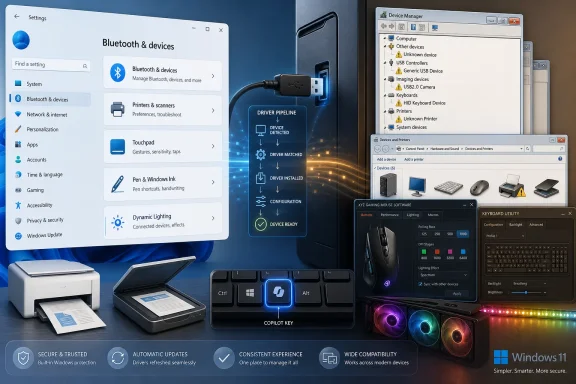 Plug-and-Play Won, but the Settings App Inherited the Mess
The great triumph of modern Windows hardware support is that most users never think about it. Plug in a keyboard, pair a mouse, connect a headset, attach a USB drive, and Windows 11 usually does the right thing before the user has time to open a browser tab. Class drivers, Windows Update, and decades of compatibility work make the PC feel calmer than it used to.But the calm is conditional. When Windows knows what a device is, the experience is almost appliance-like; when it does not, the user is thrown back into the older Windows world of Device Manager, yellow exclamation marks, vendor driver downloads, and software utilities that may or may not be current. This is the split personality at the heart of Windows 11 hardware management.
Microsoft’s stated direction is obvious: more hardware configuration belongs in Settings, not Control Panel, not obscure utilities, and not vendor tray apps. Yet the practical reality is that Settings is still more of a front door than a full house. It introduces the user to Bluetooth, printers, mouse options, touchpad gestures, touch input, pen settings, AutoPlay, and Dynamic Lighting, but the path often ends in a legacy dialog or a manufacturer utility.
That does not make Windows 11 bad at hardware. In many ways, it makes Windows 11 uniquely good at hardware, because it still supports a wild range of old and new devices. But it does mean the user experience is shaped by compromise: Microsoft wants the simplicity of a phone and the compatibility of a 30-year PC ecosystem, and those ambitions do not always fit in the same Settings page.
The Driver Story Is Still Windows’ Greatest Strength and Its Oldest Liability
The most important sentence in any Windows hardware guide is still some version of: plug it in and Windows will try. That automatic driver path is why Windows remains the default operating system for an enormous spread of peripherals, from cheap USB keyboards to professional scanners and niche industrial accessories. The operating system’s first instinct is to identify a device, install a basic driver, and get out of the way.The second instinct is Windows Update. That is where Windows 11 may find newer or more specific drivers after the initial connection. For ordinary users, this is a reasonable model: the OS supplies enough functionality to begin, then silently improves the experience if a better package exists.
The trouble starts when the driver supply chain fails. Device Manager remains the place users go when something is wrong, even though it looks and feels like a utility from another administrative age. The yellow bang beside a device is still one of Windows’ most enduring symbols: a tiny warning that the dream of seamless computing has been interrupted by the reality of hardware specificity.
There is a reason Microsoft has never fully hidden Device Manager. Settings can simplify common tasks, but it cannot yet replace the diagnostic density of the older tool. Device Manager exposes the machinery. It shows users and technicians what Windows thinks exists, what it cannot identify, and where the driver stack has failed.
That matters for IT pros because hardware failures rarely present themselves in polite consumer language. A camera stops working after an update. A USB audio interface appears as an unknown device. A printer vanishes from an app but remains visible to the system. The first useful answer often lives not in the friendly Settings app, but in the old administrative layer Microsoft keeps trying not to foreground.
USB Remains the PC’s Most Honest Interface
USB is the purest expression of the PC bargain: almost anything can connect, but not everything is equally safe to yank out. Windows 11 handles removable devices with far more grace than older versions of Windows, but the basic distinction still matters. A keyboard can usually be unplugged without ceremony; a storage device deserves a proper eject.That advice may feel old-fashioned in an era of faster flash storage and more resilient file systems, but it remains good practice. USB storage devices often contain the files users care about most, precisely because they are used for transfers, backups, installers, recovery media, and quick handoffs. The “Safely Remove Hardware” ritual is less about nostalgia than about making sure write operations are finished before the device disappears.
AutoPlay is another reminder that Windows has to accommodate both convenience and risk. When a removable drive appears, Windows can ask what to do, remember a default action, or stay quiet. That small prompt reflects a long history of removable media being useful, annoying, and occasionally dangerous.
The strange part is that Windows 11 still sometimes exposes these flows through interfaces that feel visually inconsistent. A modern notification can lead to an old-looking menu. File Explorer and the system tray both offer ways to eject a drive. Settings controls the defaults, but the daily behavior is distributed across shell surfaces. It works, but it does not always feel designed as one experience.
Bluetooth Is Easy Until It Becomes a Vendor Problem
Bluetooth in Windows 11 is better than it used to be. Pairing a keyboard, mouse, headset, phone, or controller is usually a short trip through Bluetooth & devices, and Swift Pair can make supported devices feel almost as effortless as pairing accessories to a phone. The “Add device” tile is one of the more successful pieces of modern Settings design because it matches what the user wants to do.But Bluetooth is also where the boundary between Windows and the device maker becomes unavoidable. Pairing is only the first step. Configuration may live in a separate Settings page, a vendor utility, a firmware updater, a Store app, or nowhere at all.
This split is especially visible with mice, keyboards, and headsets. Windows can pair the device and expose basic options, but advanced features often belong to Logitech, Razer, Dell, HP, Microsoft, Lenovo, or whoever made the hardware. Button remapping, DPI profiles, headset equalizers, battery behavior, lighting effects, and firmware updates often require software outside Windows.
That is not entirely Microsoft’s fault. Hardware makers use their software to differentiate products, collect telemetry, push account systems, and manage ecosystems of accessories. But the user experiences the fragmentation as Windows fragmentation. They connected the device to Windows, so Windows feels responsible when the remaining controls are scattered.
The PC ecosystem benefits from that openness. It also pays for it with configuration sprawl.
The Keyboard Has Become Microsoft’s AI Billboard
The most politically loaded hardware device in Windows 11 is not the printer, the headset, or the USB dock. It is the keyboard. Specifically, it is the Copilot key.Microsoft’s decision to put a dedicated Copilot key on new Windows PCs was a revealing moment. The company treated the keyboard not merely as an input device, but as a strategic surface. In the same way the Windows key once announced a new era of Start-menu-centric computing, the Copilot key was meant to announce an AI-first PC era.
The problem is that users do not experience keys as marketing claims. They experience them as muscle memory. If a new key replaces or crowds out Right Ctrl or the context menu key, it does not matter that Microsoft sees a platform opportunity. For users who rely on those keys for shortcuts, accessibility tools, terminal workflows, international layouts, or long-trained habits, the change can feel like a regression disguised as progress.
Windows 11’s ability to customize the Copilot key is therefore more than a nice option. It is a tacit admission that hardware-level AI promotion has to yield to actual user workflows. The ability to send the key to Search, launch a compatible app, do nothing, or eventually behave more like displaced legacy keys is the difference between a feature and an imposition.
There is a broader lesson here. Microsoft can ship AI features into Windows at software speed, but keyboards move at hardware speed. A bad software default can be patched next month. A bad key layout can sit under a user’s finger for five years.
Print Screen, Snipping Tool, and the Slow Rewriting of Muscle Memory
The Print Screen key tells a smaller but similar story. For decades, pressing it meant copying the screen to the clipboard. Windows 11’s newer behavior, which routes the key to Snipping Tool by default, is arguably better for many users. It exposes cropping, selection, annotation, and modern capture workflows that are more useful than a silent full-screen clipboard action.But again, the issue is not whether the new behavior is defensible. It is whether Windows respects the user’s accumulated habits. The fact that the old behavior can be restored matters because keys are promises. When an operating system changes what a key does, it edits the user’s body memory.
This is where Windows 11 is at its best when it offers a toggle and at its worst when it hides the toggle. The modern Settings app can make such changes discoverable, but only if the option lives where users expect it. Keyboard behavior under Bluetooth & devices makes sense. Copilot key behavior under text input or keyboard settings may make sense architecturally. For a frustrated user, the difference is academic.
The PC is not a blank-slate device. It is a continuity machine. Windows 11’s challenge is to modernize without constantly taxing users for already knowing how to use Windows.
Mice and Touchpads Show the Best Version of the Settings Migration
Mouse and touchpad settings are among the clearer successes in Windows 11’s hardware interface. Pointer speed, scrolling direction, tap behavior, multi-finger gestures, and accessibility options are mostly where ordinary users can find them. The pages are understandable, and the settings reflect how people actually interact with laptops and desktops.Touchpads in particular show how far Windows has come. Precision touchpads and standardized gestures made the Windows laptop experience less dependent on vendor-specific drivers and control panels. Three-finger and four-finger gestures, desktop switching, Task View, and tap customization give Windows laptops a modern interaction vocabulary that no longer feels like a poor imitation of the Mac.
Yet even here, the old Windows remains nearby. “Additional mouse settings” still opens a legacy control panel. Hardware makers still extend or replace parts of the experience. Gaming mice still need vendor tools for serious configuration. Touchpad quality still varies by device.
That is the practical Windows compromise in miniature. Settings covers the 80 percent case, legacy dialogs preserve the remaining 20 percent, and vendor software handles the profitable edge cases. It is not elegant, but it is durable.
The accessibility angle is also important. Mouse pointer visibility, click lock, pointer hiding while typing, and mouse-key alternatives are not cosmetic extras. For many users, they are the difference between tolerating a PC and comfortably using it. Moving more of those controls into Settings is one of the least flashy but most meaningful parts of Windows modernization.
Touch and Pen Input Are No Longer Experiments, but They Still Feel Conditional
Windows has been chasing touch for more than a decade, and Windows 11 finally treats it less like a separate mode and more like a natural input layer. Tapping, holding, dragging, pinching, and edge gestures are now ordinary parts of the system. The touch keyboard is customizable, resizable, themeable, and integrated enough that a tablet or 2-in-1 can be used without immediate panic.But Windows touch still carries the memory of earlier compromises. It is good enough to be useful, especially on Surface-style devices and convertibles, but it does not erase the fact that much of the Windows desktop ecosystem was built for pointer precision. Touch works best when apps respect it. Many do. Some still do not.
The automatic tablet experience is an attempt to smooth that transition. Remove a keyboard or fold a convertible, and Windows adapts spacing, taskbar behavior, and touch affordances. The collapsing taskbar is a sensible design for small screens, giving users space until they need controls again.
Pen support is more specialized, and arguably more successful because expectations are clearer. A smartpen is for writing, drawing, annotating, selecting, and navigating with precision. Windows Ink, the Pen menu, shortcut button customization, haptics, handwriting settings, and app launch options create a coherent enough environment for people who know they need pen input.
The weakness is discoverability. Pen & Windows Ink appears whether or not a given PC fully supports the relevant hardware, and features depend heavily on the device and pen. Pressure levels, tilt, erasers, haptics, and shortcut buttons vary widely. Windows can expose the framework, but the real experience is still purchased from the hardware maker.
Printers Remain the Place Where Windows Trusts Less and Users Notice More
Printers are the oldest joke in PC support because they deserve it. They combine drivers, firmware, networks, paper, ink, vendor utilities, permissions, queues, and user impatience into one deceptively boring device category. Windows 11 has not made printing glamorous, but Microsoft is clearly trying to make it less dangerous and less dependent on third-party drivers.Windows protected print mode is the most important development here. The idea is to shift printing toward Microsoft’s modern print stack and away from the historical mess of vendor-supplied printer drivers. That is a security story as much as a usability story, because print drivers have long been a privileged and messy part of Windows environments.
For home users, the promise is simpler: fewer sketchy drivers, fewer bundled utilities, fewer mysterious update agents, and less software installed just to print a shipping label. For enterprise IT, the promise is more complicated but potentially more valuable: a smaller attack surface and a more controlled driver model.
The cost is compatibility. Older printers and advanced printer features may depend on vendor drivers. Enabling protected print mode can remove third-party drivers and reduce functionality, which is why Microsoft has been cautious about making it the default. Security improvements that break office printing are not experienced as security improvements by the people standing next to the printer.
This is the same Windows story again, only with higher stakes. Microsoft wants the platform to be safer and more modern, but the installed base is vast, old, and unevenly maintained. Printing is where the future meets a 12-year-old multifunction device in a small office that absolutely must scan invoices today.
Microsoft Print to PDF Is the Quiet Feature That Actually Changed Printing
If protected print mode is the security story, Microsoft Print to PDF is the everyday usability story. The virtual printer has become one of those features that fades into the background because it works the way users expect. Any app that can print can usually produce a PDF.That matters because PDF is the escape hatch from physical printing. Receipts, forms, confirmations, tickets, web pages, invoices, and records can be saved without involving paper or a printer vendor’s software. In a world where printers remain troublesome, the best printer is often no printer at all.
The oddity is that Windows still presents PDF creation through the metaphor of printing. That is historically understandable and practically useful, but it also shows how much old computing language survives inside modern workflows. Users are not printing; they are exporting. Windows calls it printing because every app already understands that verb.
There is a lesson for Microsoft in that success. The best compatibility layers are the ones users do not have to think about. Microsoft Print to PDF works because it uses an old abstraction to solve a modern need without asking the user to learn a new system.
Scanning Shows What Happens When Microsoft Steps Back
Scanning is more awkward. Windows 11 supports scanners and all-in-one devices, but the operating system no longer presents scanning as a deeply integrated, first-class capability in the same way users might expect. Instead, users are pushed toward Microsoft’s Windows Scan app or, more often, the device maker’s own utility.That is defensible. Scanner hardware varies, and vendor tools can expose features Windows Scan does not: duplex options, OCR, document cleanup, feeder controls, color profiles, destination workflows, and cloud integrations. A basic Microsoft app can cover simple cases, but it will not satisfy every office.
Still, the gap is noticeable. Printing gets a universal dialog and a built-in PDF route. Scanning feels more like an app hunt. If a user has to visit the Store or a manufacturer website before scanning a document, Windows has not fully closed the loop.
For IT departments, this is another support wrinkle. Printer deployment is already enough trouble; scanning adds another layer of software standardization. The more Windows relies on vendor utilities, the more endpoint management inherits vendor inconsistency.
Dynamic Lighting Is Small, but It Points Toward a Bigger Hardware Policy
Dynamic Lighting may look like a gamer feature, and in the narrow sense it is. RGB keyboards, mice, headsets, controllers, and case lighting are not the core of enterprise computing. But the feature is strategically interesting because it shows Microsoft trying to absorb a fragmented peripheral software category into Windows itself.The problem it addresses is familiar to anyone with gaming accessories. Every hardware maker has an app. Every app wants to run at startup. Every app wants to control lighting, firmware, macros, profiles, and sometimes an account. Mix brands and the desktop becomes a negotiation among utilities.
Dynamic Lighting says Windows should be the neutral broker, at least for lighting. Compatible devices appear in Settings, and users can apply brightness, effects, and colors without installing a separate control suite. Foreground and background precedence options decide whether Windows or a vendor app controls the lights.
That may sound trivial, but the model matters. If Windows can centralize RGB lighting, it can potentially centralize other classes of peripheral behavior over time. The obstacle is not just technical; it is political. Hardware makers like owning the user relationship through their apps.
Dynamic Lighting therefore represents a modest assertion of platform authority. Microsoft is not banning vendor utilities. It is saying that some device functions are common enough, and annoying enough, that Windows should manage them directly.
The Settings App Is Becoming a Treaty, Not a Control Panel
The deeper theme across all these device categories is that Windows Settings has become a treaty between Microsoft, hardware makers, legacy Windows components, and users. It is not simply a modern replacement for Control Panel. It is a negotiated surface that exposes what Microsoft can standardize and links away from what it cannot.That explains why the experience feels uneven. Bluetooth pairing is modern. Device Manager is old. Touchpad gestures are modern. Additional mouse settings are old. Printers & scanners is modern. Printing preferences may be a vendor dialog. Dynamic Lighting is modern. RGB control may still belong to Razer, ASUS, Corsair, Logitech, or another app.
This is frustrating if you judge Windows 11 by the standards of a phone or tablet OS. It is more understandable if you judge it as the operating system that has to support a generic USB barcode scanner, a premium OLED laptop, a 15-year-old laser printer, a Bluetooth hearing device, a Surface Pen, a gaming keyboard, and a corporate docking station.
The question is not whether Microsoft can make Settings cleaner. It can. The question is how much compatibility pain users and organizations will tolerate as Microsoft removes older paths. Every retired dialog has a constituency. Every modernized driver model has a printer or peripheral that falls out of the happy path.
That is why Windows modernization is slow. The platform’s greatest asset is also its drag coefficient.
The Real Upgrade Is Control, Not Automation
The optimistic reading of Windows 11 hardware support is that automation has become good enough that users can focus on exceptions. Most devices install themselves. Most settings are searchable. Most common peripherals appear in Bluetooth & devices, Printers & scanners, Mouse, Touchpad, Keyboard, Touch, Pen & Windows Ink, or Dynamic Lighting.The more skeptical reading is that Windows still hides too much of the actual machinery until something breaks. When a device works, the system feels modern. When a device fails, the user may need to know about Device Manager, Windows Update optional drivers, manufacturer downloads, legacy control panels, firmware tools, and app-specific configuration.
Both readings are true. Windows 11 has made hardware easier for ordinary use, but not simpler in any absolute sense. It has moved the front door, not rebuilt the entire building.
For enthusiasts and IT pros, the practical advice is to treat Settings as the starting point, not the authority of last resort. If a device is basic, Settings may be enough. If a device is expensive, specialized, old, or mission-critical, the vendor’s driver and utility ecosystem still matters.
For Microsoft, the challenge is to keep moving common device controls into Windows without flattening the flexibility that made the PC useful in the first place. Users want fewer utilities, fewer drivers, fewer tray icons, and fewer surprises. They do not want their old scanner or printer sacrificed casually on the altar of cleanliness.
The Windows Hardware Map for 2026 Is Drawn in Compromises
The practical shape of Windows 11 hardware management is now clear enough to summarize. It is not one interface, and it is not chaos. It is a layered system where Settings handles the common path, Windows Update supplies many drivers, Device Manager diagnoses the failures, and vendor software fills in the features Microsoft has not standardized.- Windows 11 usually gets common USB, Bluetooth, keyboard, mouse, touchpad, printer, and storage devices running automatically, but Device Manager remains essential when automatic detection fails.
- The Settings app is the right first stop for most hardware configuration, but legacy dialogs and manufacturer utilities still provide important controls for advanced devices.
- The Copilot key and Print Screen changes show that Microsoft is willing to rewrite keyboard behavior, but user backlash has made remapping and opt-out controls increasingly important.
- Windows protected print mode is a meaningful security shift, but older printers and vendor-specific features may make it risky to enable without testing.
- Dynamic Lighting is more than RGB decoration; it is Microsoft’s clearest recent attempt to pull fragmented peripheral controls back into Windows.
The next phase of Windows hardware management will be decided by how aggressively Microsoft standardizes the messy edges: print drivers, RGB lighting, keyboard remapping, accessibility input, pen behavior, and device utilities that currently live outside the OS. If it moves too slowly, Windows keeps feeling like a patchwork. If it moves too quickly, compatibility breaks in the places people notice most. The best version of Windows 11 will not be the one that hides every old tool; it will be the one that makes the modern path reliable enough that most users no longer need to go looking for them.
References
- Primary source: thurrott.com
Published: Mon, 22 Jun 2026 22:10:55 GMT
Hardware Device Basics - Thurrott.com
This chapter covers hardware basics, USB, Bluetooth, keyboards, mice, touchpads, multitouch, smart pens, tablets, printers, scanners, and more.www.thurrott.com - Official source: support.microsoft.com
Use a screen reader to manage Copilot settings in Windows | Microsoft Support
Learn how to manage Copilot settings in Windows.support.microsoft.com - Official source: learn.microsoft.com
Windows Protected Print Mode | Microsoft Learn
Describes Windows protected print mode.learn.microsoft.com - Official source: microsoft.com
Copilot on Windows: Your Built-In AI Assistant | Microsoft Windows
Discover how Copilot on Windows transforms productivity with AI-powered assistance built right into your computer. Launch Copilot on Windows today.www.microsoft.com - Related coverage: windowscentral.com
Windows 11 25H2: Settings app redesign and new features explained | Windows Central
Windows 11's Settings app in 2025 introduced a slew of changes, including a new "Advanced" page and an AI agent for search. Key additions include Quick Machine Recovery, the ability to show the clock in the Notification Center, more Recall controls, and more.www.windowscentral.com - Related coverage: techradar.com
Microsoft's finally letting you change the Copilot key back to what it was before Windows 11's AI assistant existed | TechRadar
Taking back Right Controlwww.techradar.com
- Related coverage: dell.com
How to launch Microsoft Copilot in Windows | Dell US
This is how to launch Microsoft Copilot in Windows, using the keyboard, short-cut keys, or button within Windows and Microsoft Edge.www.dell.com - Official source: intowindows.com
How To Change What Happens When You Press The Copilot Key On Keyboard In Windows 11
Many new PCs shipped over the last year or so have a dedicated Copilot key on the keyboard. The dedicated Copilot key replaces the menu key, or right Ctrlwww.intowindows.com - Related coverage: tomshardware.com
Microsoft clarifies Windows 11 printer driver policy — support for legacy printers is not ending | Tom's Hardware
Your old printer lives to print another day.www.tomshardware.com - Related coverage: tomsguide.com
Microsoft admits Windows users 'experienced some challenges' with the forced CoPilot key — now it's finally doing something about it | Tom's Guide
Microsoft has acknowledged the dedicated Copilot key on Windows hasn't been universally loved, and a future Windows 11 update will allow users to remap it.www.tomsguide.com - Official source: cdn-dynmedia-1.microsoft.com
- Related coverage: emazzanti.net
- Related coverage: citizen-systems.co.jp
