

Windows 11 contains dozens of underused tools for customization, multitasking, security, backup, accessibility, gaming, phone integration, file management, and AI-assisted work, and a recent PCMag Australia roundup highlights 32 features that many everyday users and IT pros still overlook. The list is useful not because every item is obscure, but because it exposes Microsoft’s larger problem: Windows 11 has become powerful in ways that are often hidden behind Settings pages, optional apps, staged rollouts, and hardware gates. The operating system is no longer just a shell and a Start menu; it is a patchwork of productivity shortcuts, cloud services, security plumbing, and AI experiments. That makes knowing where the good bits live less of a hobbyist exercise and more of a survival skill.
The strangest thing about many of Windows 11’s “hidden” features is that Microsoft has spent years advertising the platform as simpler, calmer, and more modern. Yet some of its most useful capabilities remain discoverable only if users right-click the right surface, hover over the right button, or wander through Settings long enough to find a toggle whose name does not quite explain its value. This is not a new Windows problem, but Windows 11 intensifies it.
Take the Start button. Moving it back to the left is a tiny preference, but it matters because it shows how much of Windows 11’s early controversy was really about muscle memory. Microsoft centered the taskbar to modernize the visual identity of Windows, but millions of users learned over decades that the lower-left corner is where computing begins. The fix is simple: Taskbar Settings, Taskbar behaviors, alignment left. The fact that this still appears in “hidden features” lists says more about Microsoft’s onboarding than about user curiosity.
That same dynamic runs through the rest of the PCMag list. Snap Layouts are not secret, but many users still drag windows around as if it were 2009. Virtual desktops are visible from the taskbar, but plenty of people treat them like a novelty rather than a serious way to separate workspaces. File Explorer tabs have existed long enough that they should feel ordinary, yet they remain underused because Windows trained users for decades to open another window.
The larger story is that Windows 11 has accumulated a second operating system inside itself: one made of gestures, shortcuts, panels, and micro-workflows. The old Windows was mostly about finding programs and files. The modern Windows experience is increasingly about controlling context.
PowerToys includes tools that should probably be part of Windows proper by now. Bulk Rename is a lifesaver for anyone who handles logs, photos, exports, or project files. Image Resizer saves repetitive trips through heavier editing tools. FancyZones remains one of the best arguments that Microsoft’s built-in Snap Layouts are only the beginner version of window management.
Then there are utilities that feel designed for people who live at their keyboards: Run, Always on Top, Mouse Without Borders, Keyboard Manager, Text Extractor, and the growing collection of helpers that close gaps Windows leaves open. These are not gimmicks. They are the kinds of features that make a PC feel like a workstation rather than an appliance.
The irony is that Microsoft understands the demand perfectly. PowerToys is maintained, expanded, and distributed through official channels. Yet Windows still ships without many of its best ideas enabled by default. For IT departments, that split creates a familiar calculation: PowerToys can improve productivity, but it also introduces another managed component, another update path, and another set of features users may ask support desks to explain.
For power users, the answer is easy: install it. For Microsoft, the harder question is why so much of Windows’ best productivity thinking still lives in an optional download.
Quick Settings is the obvious example. Wi-Fi, Bluetooth, brightness, volume, battery saver, projection, accessibility, and audio output now live in a compact flyout that behaves more like a mobile control center than a traditional PC dialog. The PCMag article notes that Windows 11 version 24H2 changed how this panel is customized, replacing the older add-or-remove model with a scrolling panel users can rearrange. That sounds minor until you realize it reflects a broader design philosophy: Microsoft would rather expose more controls in one predictable surface than make users curate a tiny set of buttons.
Widgets are the other side of that bet. Weather, calendar, tasks, news, traffic, sports, stocks, and third-party widgets are meant to make Windows glanceable. The problem is that “glanceable” can quickly become “distracting,” especially when the feed side of the experience feels more like Microsoft Start than a neutral system utility. Still, the underlying idea is sound. A desktop operating system should be able to surface useful ambient information without requiring a browser tab.
Virtual desktops also fit this pattern. They are not new in computing, but Windows 11 makes them easier to see, rename, rearrange, and visually distinguish. Different wallpapers per desktop may sound cosmetic, but it gives the feature a spatial cue that helps users build habits around it. A desktop for work, one for communication, one for personal browsing, and one for a project is often cleaner than one giant mess of windows.
This is where Windows 11 is at its best: when it admits that the desktop is not a single place. It is a set of contexts the user moves through.
The old snap behavior from Windows 7 was already valuable. Dragging windows to screen edges made half-screen multitasking feel natural. Windows 11 builds on that by recognizing that modern screens are larger, wider, and more varied. A 13-inch laptop, a 27-inch monitor, and an ultrawide display should not all be treated as if they have the same layout needs.
For administrators and support teams, Snap Layouts are also a quiet training opportunity. Many users who ask for a second monitor are not always asking for more pixels; they are asking for less friction. Teaching Snap Layouts, virtual desktops, and keyboard shortcuts can produce some of the same productivity gains without adding hardware, cables, docks, and help desk complexity.
That does not mean Microsoft has solved window management. Power users will still prefer FancyZones for custom layouts, and multi-monitor behavior can still get messy after sleep, docking, or display changes. But the native experience is finally good enough that the average user has a reason to stop manually resizing every window like a ritual.
This matters because window management is not glamorous. It is one of those small frictions that compounds across years. Every second spent hunting for a buried app or resizing a browser is a tax. Windows 11 gives users several ways to reduce that tax, but only if they know the controls exist.
Tabs are the headline improvement. The ability to open folders in tabs, drag files between them, and keep related locations inside one window finally brings Explorer closer to how people already work in browsers and code editors. It is not perfect, and longtime keyboard shortcut expectations still collide with Explorer’s implementation, but it reduces desktop clutter in a way that ordinary users can immediately understand.
The simplified command bar is more divisive. Microsoft removed the old ribbon density in favor of clearer icons and context-sensitive actions. Some users miss the visible sprawl of commands; others appreciate that common actions such as copy, paste, rename, share, delete, sort, and view are easier to parse. The tradeoff is classic Windows 11: cleaner at first glance, occasionally slower for experts who knew exactly where everything used to be.
The newer archive support is more consequential than it sounds. Native compression to ZIP, 7z, and TAR formats in File Explorer reduces dependence on third-party utilities for routine packaging tasks. IT pros will still use dedicated tools for advanced archive work, encryption choices, scripting, and edge cases, but built-in support changes the baseline. A user who only needs to send a 7z archive no longer has to install something from the web and hope they clicked the right download button.
AI Actions in File Explorer are the next turn of the screw. Right-clicking an image or document and seeing options such as background removal or summarization points to a future where Explorer is not just a file browser but an action surface. That could be useful. It could also become cluttered fast. The challenge will be keeping context menus from turning into another battleground between utility and promotion.
That matters because passwords have failed ordinary users for years. They are reused, phished, leaked, forgotten, reset, and stored in places they should not be. Multifactor authentication improved the situation, but it also added fatigue and new attack patterns. Passkeys are not magic, but they reduce the value of stealing a password because there may be no reusable password to steal.
Windows Hello is central to this shift. Face recognition, fingerprint authentication, and PIN-based local authentication let the device mediate access in ways that are both more secure and often easier for users. The PIN in Windows Hello is frequently misunderstood as weaker than a password, but it is tied to the device rather than functioning as a roaming credential in the same way a traditional password does.
For enterprises, the important part is not simply that passkeys exist. It is whether organizations can manage them coherently across browsers, identity providers, device policies, recovery processes, and user training. A feature that is secure but confusing can produce support tickets and workarounds. A feature that is secure and invisible becomes infrastructure.
Windows 11 is clearly moving toward that second model. The question is how quickly the web, enterprise apps, and internal IT processes follow.
For users, that creates confusion. One Windows 11 PC may have the Copilot app but not Copilot+ features. Another may have an NPU capable of local AI tasks but receive features through staged rollout. A managed enterprise device may suppress or disable capabilities that a consumer laptop advertises. Regional rules and account types can further change what appears.
This is why AI in Windows feels simultaneously ambitious and slippery. The promise is clear enough: summarize documents, help with settings, generate images, explain what is on screen, search using natural language, and return users to things they previously saw. The implementation is more fragmented. Some AI features run locally, some depend on cloud services, some require Copilot+ hardware, and some remain in preview-style rollout patterns even when the marketing sounds definitive.
Recall remains the most sensitive example. The concept of a searchable memory for your PC is powerful, especially for users who lose track of documents, webpages, chats, or workflows. But the idea of periodic snapshots also raises obvious privacy and security questions. Microsoft has responded with controls, encryption, Windows Hello requirements, and administrative policy options, but the trust problem cannot be solved by settings alone.
The useful way to think about Copilot in Windows 11 is not as a single assistant that will transform computing overnight. It is a set of experiments testing where AI belongs in an operating system. Some will stick. Some will be renamed. Some will be restricted by compliance teams. The winners will be the ones that save time without making users wonder what was captured, uploaded, indexed, or inferred.
But Phone Link also exposes Microsoft’s structural disadvantage. Apple controls the iPhone, macOS, iCloud, Messages, FaceTime, and hardware continuity features from end to end. Microsoft must build across Android vendors, carrier quirks, Bluetooth behavior, Windows versions, account requirements, and varying device capabilities. The result can be useful without feeling seamless.
The feature has improved enough that Windows users should at least try it. The Start menu phone panel and Settings toggles for cross-device functions suggest Microsoft is trying to make phone integration feel less like a separate app and more like a system capability. That is the right direction.
Still, “resume app activities between devices” is a harder promise than it sounds. Moving a notification or photo is one thing. Preserving state, intent, identity, and context across devices is another. Microsoft can get closer, particularly with Android partners, but it is unlikely to fully match Apple’s continuity model without deeper control over the mobile side.
For IT, Phone Link is also a governance question. Personal phones connected to work PCs can improve productivity, but they also blur boundaries around data, notifications, photos, messaging, and device trust. The feature is convenient. Convenience always arrives before policy catches up.
The Settings path is straightforward: Apps, Startup, then toggle off what does not need to run. Task Manager provides another route and exposes startup impact. The point is not to obsessively disable everything. It is to stop treating every vendor updater, chat client, launcher, tray helper, and background resident as if it deserves a permanent seat at boot.
Battery usage reporting is another practical improvement. Windows 11 gives users a clearer view of which apps are consuming power over recent hours or days. That matters on laptops, where the difference between a machine that lasts through a meeting block and one that dies at 3 p.m. may come down to a misbehaving app, an overactive browser, or a background sync tool.
Sound settings have also become more coherent. Pairing input and output devices, choosing microphones, enabling mono audio, and using enhanced audio options are no longer buried quite as deeply as they once were. Bluetooth LE Audio support, particularly for hearing devices and newer audio hardware, is one of those improvements that may be invisible to many users but significant to those who need it.
Title Bar Shake, Sound Recorder, Media Player, Game Bar, keyboard shortcuts, touch gestures, cursor visibility, and projection features all fall into the same category. They are not platform-defining on their own. But together they make Windows more adaptable to the messy variety of real users, real hardware, and real work.
The mouse pointer setting highlighted in the PCMag list is a good example. A larger pointer or one that adapts against the background is not only useful for users with low vision. It helps on high-resolution displays, multi-monitor setups, screen sharing sessions, classrooms, remote support calls, and presentation environments. Finding the cursor should not be a game.
Mono audio is similar. It is essential for some users with hearing differences, but it is also useful when one earbud is dead, one speaker is missing, or a temporary setup makes stereo separation annoying. Touch gestures, voice tools, captions, contrast themes, and hearing-device support all sit somewhere on the line between accessibility and general usability.
This is one of Windows 11’s more encouraging trends. The more Microsoft treats accessibility as a normal part of system design, the less users have to self-identify as needing accommodation to benefit from better controls. A good operating system does not make people justify why they want the pointer bigger, the audio combined, or the interface calmer.
The risk is fragmentation. Accessibility features are spread across Settings pages, app-specific menus, hardware capabilities, and update-dependent features. Microsoft has improved discoverability, but there is still work to do before users can easily understand which options solve which problems.
The consumer PC market has long tolerated terrible migration experiences. Users buy a new laptop and then spend days rebuilding their environment from memory. Browser sync helps. Microsoft account sync helps. OneDrive helps. But the operating system itself needed a clearer story, and Windows Backup is part of that.
There are caveats. Cloud storage capacity matters. Not every app restores gracefully. Enterprise environments may use different tooling entirely. Local-only users may dislike the Microsoft account and OneDrive assumptions built into the experience. Backup is also not the same as a full system image, and users should not confuse convenience restoration with a complete disaster recovery strategy.
Still, the direction is right. The best backup is the one normal people actually use. If Windows can make migration and partial recovery feel ordinary, fewer users will learn about backups only after a dead SSD, stolen laptop, or botched reset.
For administrators, the lesson is parallel. Device replacement is not an exception; it is a lifecycle event. The more settings, identity, app deployment, and data recovery are standardized, the less each PC feels like a handcrafted snowflake.
The Quick Settings customization change in 24H2 is a small example. Users learn one behavior, then Microsoft revises the model. File Explorer context menus were simplified, then gradually expanded. Copilot changed form more than once. Recall was announced, delayed, revised, previewed, and gated. Even the Start menu’s app list behavior can vary depending on update status and rollout timing.
None of that means Microsoft should stop improving Windows. But it does mean the company has to be careful about treating the live service model as an excuse for churn. Operating systems are not social media apps. People build work habits around them. Administrators write documentation, train staff, capture screenshots, and enforce policies around them.
This is why the best Windows 11 features are the ones that become predictable. Windows-V for clipboard history. Windows-Shift-S for screenshots. Windows-Z for Snap Layouts. Task Manager startup controls. File Explorer tabs. These features win because they can be taught, remembered, and trusted.
The AI features will have to earn that same status. They cannot remain perpetually halfway between demo and infrastructure. If Copilot, Recall, Click to Do, semantic search, and AI Actions are going to become part of Windows muscle memory, Microsoft must make their availability, privacy model, admin controls, and failure modes boringly clear.
Startup apps, taskbar alignment, Start menu folders, default apps, battery usage, sound devices, Bluetooth pairing, projection, themes, accessibility, multitasking, Windows Backup, and many privacy-adjacent controls are all routed through Settings. Even when legacy dialogs remain underneath, the user-facing path is now Settings first. That is the reality.
Default apps remain a pain point. Windows 11’s file-type-specific model gives granular control, but it can feel hostile when a user simply wants one browser, media player, or image editor to handle everything it reasonably can. Microsoft has improved parts of the experience since Windows 11’s launch, but the philosophical tension remains: user choice is easiest when it is broad, while Windows’ associations are built from many small mappings.
The Start menu is another example of Settings becoming the negotiation layer between Microsoft’s preferences and the user’s. Recommended items, recently opened files, frequently used apps, newly installed apps, folders, and suggestions all live there. Users who dislike Microsoft’s idea of helpfulness can turn much of it down. Users who like a more adaptive Start menu can leave it on.
This is modern Windows in miniature. The system is more configurable than critics often admit, but the controls are scattered enough that many users never find them. The Settings app is improving, but discoverability remains one of Microsoft’s oldest unsolved problems.
For most users, the first wave should be Snap Layouts, clipboard history, screenshot shortcuts, startup app cleanup, File Explorer tabs, Phone Link, Windows Backup, and passkeys. Those features address common pain: window chaos, repetitive copying, messy screenshots, slow boot, file clutter, device switching, migration anxiety, and password risk. They are not flashy, but they compound.
The second wave is personalization and focus. Taskbar alignment, Start menu tuning, themes, virtual desktops, Focus Sessions, widgets, cursor visibility, and sound settings make the PC feel less like a default installation and more like a working environment. This is where Windows 11 can become calmer without becoming less capable.
The third wave is experimental or situational. Copilot, Recall, Click to Do, AI image tools, AI Actions, advanced Bluetooth audio, projection to this PC, Game Bar recording, touch gestures, and PowerToys utilities can be excellent, but their value depends more on user role, hardware, policy, and appetite for change. Enthusiasts will dive in immediately. Enterprises will move slower, and they should.
The important thing is to resist the idea that hidden features are just tricks. In Windows 11, they are often the difference between using the OS as Microsoft configured it and using it as a machine shaped around your own work.
Source: PCMag Australia 32 Hidden Windows 11 Features You're Probably Not Using (But Should Be)
 Windows 11’s Best Features Are Hiding in Plain Sight
The strangest thing about many of Windows 11’s “hidden” features is that Microsoft has spent years advertising the platform as simpler, calmer, and more modern. Yet some of its most useful capabilities remain discoverable only if users right-click the right surface, hover over the right button, or wander through Settings long enough to find a toggle whose name does not quite explain its value. This is not a new Windows problem, but Windows 11 intensifies it.Take the Start button. Moving it back to the left is a tiny preference, but it matters because it shows how much of Windows 11’s early controversy was really about muscle memory. Microsoft centered the taskbar to modernize the visual identity of Windows, but millions of users learned over decades that the lower-left corner is where computing begins. The fix is simple: Taskbar Settings, Taskbar behaviors, alignment left. The fact that this still appears in “hidden features” lists says more about Microsoft’s onboarding than about user curiosity.
That same dynamic runs through the rest of the PCMag list. Snap Layouts are not secret, but many users still drag windows around as if it were 2009. Virtual desktops are visible from the taskbar, but plenty of people treat them like a novelty rather than a serious way to separate workspaces. File Explorer tabs have existed long enough that they should feel ordinary, yet they remain underused because Windows trained users for decades to open another window.
The larger story is that Windows 11 has accumulated a second operating system inside itself: one made of gestures, shortcuts, panels, and micro-workflows. The old Windows was mostly about finding programs and files. The modern Windows experience is increasingly about controlling context.
PowerToys Is Still the Unofficial Pro Edition of Windows
If there is one item on the list that deserves top billing for enthusiasts and administrators, it is PowerToys. Microsoft’s free utility suite has become the place where Windows experiments with features that are too powerful, too niche, or too unfinished to live in the default shell. That makes it both wonderful and faintly absurd.PowerToys includes tools that should probably be part of Windows proper by now. Bulk Rename is a lifesaver for anyone who handles logs, photos, exports, or project files. Image Resizer saves repetitive trips through heavier editing tools. FancyZones remains one of the best arguments that Microsoft’s built-in Snap Layouts are only the beginner version of window management.
Then there are utilities that feel designed for people who live at their keyboards: Run, Always on Top, Mouse Without Borders, Keyboard Manager, Text Extractor, and the growing collection of helpers that close gaps Windows leaves open. These are not gimmicks. They are the kinds of features that make a PC feel like a workstation rather than an appliance.
The irony is that Microsoft understands the demand perfectly. PowerToys is maintained, expanded, and distributed through official channels. Yet Windows still ships without many of its best ideas enabled by default. For IT departments, that split creates a familiar calculation: PowerToys can improve productivity, but it also introduces another managed component, another update path, and another set of features users may ask support desks to explain.
For power users, the answer is easy: install it. For Microsoft, the harder question is why so much of Windows’ best productivity thinking still lives in an optional download.
The Taskbar Is No Longer the Whole Interface
Windows 11’s interface changes are often reduced to aesthetics: rounded corners, centered icons, simplified menus, translucent panels. That misses the more consequential shift. Microsoft has been moving more day-to-day control away from classic windows and into lightweight surfaces.Quick Settings is the obvious example. Wi-Fi, Bluetooth, brightness, volume, battery saver, projection, accessibility, and audio output now live in a compact flyout that behaves more like a mobile control center than a traditional PC dialog. The PCMag article notes that Windows 11 version 24H2 changed how this panel is customized, replacing the older add-or-remove model with a scrolling panel users can rearrange. That sounds minor until you realize it reflects a broader design philosophy: Microsoft would rather expose more controls in one predictable surface than make users curate a tiny set of buttons.
Widgets are the other side of that bet. Weather, calendar, tasks, news, traffic, sports, stocks, and third-party widgets are meant to make Windows glanceable. The problem is that “glanceable” can quickly become “distracting,” especially when the feed side of the experience feels more like Microsoft Start than a neutral system utility. Still, the underlying idea is sound. A desktop operating system should be able to surface useful ambient information without requiring a browser tab.
Virtual desktops also fit this pattern. They are not new in computing, but Windows 11 makes them easier to see, rename, rearrange, and visually distinguish. Different wallpapers per desktop may sound cosmetic, but it gives the feature a spatial cue that helps users build habits around it. A desktop for work, one for communication, one for personal browsing, and one for a project is often cleaner than one giant mess of windows.
This is where Windows 11 is at its best: when it admits that the desktop is not a single place. It is a set of contexts the user moves through.
Snap Layouts Turn Window Management Into Muscle Memory
Snap Layouts may be the most important mainstream productivity feature in Windows 11, because they make a formerly manual skill obvious. Hover over a maximize button, choose a layout, and Windows guides the rest. Once users learn the Windows-Z shortcut, the feature stops feeling like decoration and starts feeling like a workflow.The old snap behavior from Windows 7 was already valuable. Dragging windows to screen edges made half-screen multitasking feel natural. Windows 11 builds on that by recognizing that modern screens are larger, wider, and more varied. A 13-inch laptop, a 27-inch monitor, and an ultrawide display should not all be treated as if they have the same layout needs.
For administrators and support teams, Snap Layouts are also a quiet training opportunity. Many users who ask for a second monitor are not always asking for more pixels; they are asking for less friction. Teaching Snap Layouts, virtual desktops, and keyboard shortcuts can produce some of the same productivity gains without adding hardware, cables, docks, and help desk complexity.
That does not mean Microsoft has solved window management. Power users will still prefer FancyZones for custom layouts, and multi-monitor behavior can still get messy after sleep, docking, or display changes. But the native experience is finally good enough that the average user has a reason to stop manually resizing every window like a ritual.
This matters because window management is not glamorous. It is one of those small frictions that compounds across years. Every second spent hunting for a buried app or resizing a browser is a tax. Windows 11 gives users several ways to reduce that tax, but only if they know the controls exist.
File Explorer Is Quietly Becoming a Real Workbench Again
File Explorer has long been the most emotionally charged boring app in Windows. Everyone uses it, everyone complains about it, and every redesign risks angering people who have developed deeply personal file-management habits. Windows 11’s File Explorer changes are uneven, but the direction is right.Tabs are the headline improvement. The ability to open folders in tabs, drag files between them, and keep related locations inside one window finally brings Explorer closer to how people already work in browsers and code editors. It is not perfect, and longtime keyboard shortcut expectations still collide with Explorer’s implementation, but it reduces desktop clutter in a way that ordinary users can immediately understand.
The simplified command bar is more divisive. Microsoft removed the old ribbon density in favor of clearer icons and context-sensitive actions. Some users miss the visible sprawl of commands; others appreciate that common actions such as copy, paste, rename, share, delete, sort, and view are easier to parse. The tradeoff is classic Windows 11: cleaner at first glance, occasionally slower for experts who knew exactly where everything used to be.
The newer archive support is more consequential than it sounds. Native compression to ZIP, 7z, and TAR formats in File Explorer reduces dependence on third-party utilities for routine packaging tasks. IT pros will still use dedicated tools for advanced archive work, encryption choices, scripting, and edge cases, but built-in support changes the baseline. A user who only needs to send a 7z archive no longer has to install something from the web and hope they clicked the right download button.
AI Actions in File Explorer are the next turn of the screw. Right-clicking an image or document and seeing options such as background removal or summarization points to a future where Explorer is not just a file browser but an action surface. That could be useful. It could also become cluttered fast. The challenge will be keeping context menus from turning into another battleground between utility and promotion.
Security Is Moving From Passwords to Presence
The passkey item in PCMag’s list deserves more attention than it usually gets. Passkeys are not as visually exciting as Copilot or as immediately satisfying as Snap Layouts, but they represent one of the most important changes in everyday computing security. Windows 11’s ability to store and use passkeys with Windows Hello moves authentication away from the memorized secret and toward device-bound proof.That matters because passwords have failed ordinary users for years. They are reused, phished, leaked, forgotten, reset, and stored in places they should not be. Multifactor authentication improved the situation, but it also added fatigue and new attack patterns. Passkeys are not magic, but they reduce the value of stealing a password because there may be no reusable password to steal.
Windows Hello is central to this shift. Face recognition, fingerprint authentication, and PIN-based local authentication let the device mediate access in ways that are both more secure and often easier for users. The PIN in Windows Hello is frequently misunderstood as weaker than a password, but it is tied to the device rather than functioning as a roaming credential in the same way a traditional password does.
For enterprises, the important part is not simply that passkeys exist. It is whether organizations can manage them coherently across browsers, identity providers, device policies, recovery processes, and user training. A feature that is secure but confusing can produce support tickets and workarounds. A feature that is secure and invisible becomes infrastructure.
Windows 11 is clearly moving toward that second model. The question is how quickly the web, enterprise apps, and internal IT processes follow.
Copilot Is Both a Feature and a Moving Target
The PCMag article includes Copilot, Copilot Vision, Copilot Daily, file search, shared conversations, and Copilot+ PC features such as Recall, Click to Do, Settings agents, image tools, and semantic search. That breadth is revealing. Copilot is no longer one thing in Windows. It is a brand, an app, a button, a sidebar memory, a voice interface, a cloud service, and a hardware upsell.For users, that creates confusion. One Windows 11 PC may have the Copilot app but not Copilot+ features. Another may have an NPU capable of local AI tasks but receive features through staged rollout. A managed enterprise device may suppress or disable capabilities that a consumer laptop advertises. Regional rules and account types can further change what appears.
This is why AI in Windows feels simultaneously ambitious and slippery. The promise is clear enough: summarize documents, help with settings, generate images, explain what is on screen, search using natural language, and return users to things they previously saw. The implementation is more fragmented. Some AI features run locally, some depend on cloud services, some require Copilot+ hardware, and some remain in preview-style rollout patterns even when the marketing sounds definitive.
Recall remains the most sensitive example. The concept of a searchable memory for your PC is powerful, especially for users who lose track of documents, webpages, chats, or workflows. But the idea of periodic snapshots also raises obvious privacy and security questions. Microsoft has responded with controls, encryption, Windows Hello requirements, and administrative policy options, but the trust problem cannot be solved by settings alone.
The useful way to think about Copilot in Windows 11 is not as a single assistant that will transform computing overnight. It is a set of experiments testing where AI belongs in an operating system. Some will stick. Some will be renamed. Some will be restricted by compliance teams. The winners will be the ones that save time without making users wonder what was captured, uploaded, indexed, or inferred.
Phone Link Shows Microsoft’s Ecosystem Problem in Miniature
Phone Link is one of Windows 11’s most practical underused features, especially for Android users. Texting from a PC, seeing notifications, making calls, using a phone as a webcam, accessing photos, and in some cases running mobile apps on the desktop are exactly the sorts of integrations that make a computer feel less isolated. It is the Windows answer to the ecosystem glue Apple users take for granted.But Phone Link also exposes Microsoft’s structural disadvantage. Apple controls the iPhone, macOS, iCloud, Messages, FaceTime, and hardware continuity features from end to end. Microsoft must build across Android vendors, carrier quirks, Bluetooth behavior, Windows versions, account requirements, and varying device capabilities. The result can be useful without feeling seamless.
The feature has improved enough that Windows users should at least try it. The Start menu phone panel and Settings toggles for cross-device functions suggest Microsoft is trying to make phone integration feel less like a separate app and more like a system capability. That is the right direction.
Still, “resume app activities between devices” is a harder promise than it sounds. Moving a notification or photo is one thing. Preserving state, intent, identity, and context across devices is another. Microsoft can get closer, particularly with Android partners, but it is unlikely to fully match Apple’s continuity model without deeper control over the mobile side.
For IT, Phone Link is also a governance question. Personal phones connected to work PCs can improve productivity, but they also blur boundaries around data, notifications, photos, messaging, and device trust. The feature is convenient. Convenience always arrives before policy catches up.
The Old Utilities Still Matter Because Work Is Still Messy
Not every valuable Windows 11 feature is part of Microsoft’s AI story. Some are humble, almost old-fashioned utilities that solve problems users actually have. Startup app management is one of them. Disabling unnecessary launch-at-sign-in apps remains one of the fastest ways to make a sluggish PC feel less burdened.The Settings path is straightforward: Apps, Startup, then toggle off what does not need to run. Task Manager provides another route and exposes startup impact. The point is not to obsessively disable everything. It is to stop treating every vendor updater, chat client, launcher, tray helper, and background resident as if it deserves a permanent seat at boot.
Battery usage reporting is another practical improvement. Windows 11 gives users a clearer view of which apps are consuming power over recent hours or days. That matters on laptops, where the difference between a machine that lasts through a meeting block and one that dies at 3 p.m. may come down to a misbehaving app, an overactive browser, or a background sync tool.
Sound settings have also become more coherent. Pairing input and output devices, choosing microphones, enabling mono audio, and using enhanced audio options are no longer buried quite as deeply as they once were. Bluetooth LE Audio support, particularly for hearing devices and newer audio hardware, is one of those improvements that may be invisible to many users but significant to those who need it.
Title Bar Shake, Sound Recorder, Media Player, Game Bar, keyboard shortcuts, touch gestures, cursor visibility, and projection features all fall into the same category. They are not platform-defining on their own. But together they make Windows more adaptable to the messy variety of real users, real hardware, and real work.
Accessibility Is Becoming a Mainstream Productivity Layer
Windows accessibility settings used to be treated as a specialized corner of the operating system. That was always too narrow. Many accessibility features are simply better interface options for anyone working under imperfect conditions.The mouse pointer setting highlighted in the PCMag list is a good example. A larger pointer or one that adapts against the background is not only useful for users with low vision. It helps on high-resolution displays, multi-monitor setups, screen sharing sessions, classrooms, remote support calls, and presentation environments. Finding the cursor should not be a game.
Mono audio is similar. It is essential for some users with hearing differences, but it is also useful when one earbud is dead, one speaker is missing, or a temporary setup makes stereo separation annoying. Touch gestures, voice tools, captions, contrast themes, and hearing-device support all sit somewhere on the line between accessibility and general usability.
This is one of Windows 11’s more encouraging trends. The more Microsoft treats accessibility as a normal part of system design, the less users have to self-identify as needing accommodation to benefit from better controls. A good operating system does not make people justify why they want the pointer bigger, the audio combined, or the interface calmer.
The risk is fragmentation. Accessibility features are spread across Settings pages, app-specific menus, hardware capabilities, and update-dependent features. Microsoft has improved discoverability, but there is still work to do before users can easily understand which options solve which problems.
Backup Is Finally Being Treated as a Setup Problem, Not a Disaster Problem
Windows Backup is one of those features that sounds boring until the day it saves someone hours. The newer Windows Backup app can preserve files, settings, apps, credentials, and Wi-Fi information through OneDrive-backed sync so that moving to a new PC feels less like starting from zero. That is the correct place to fight data loss: before the old machine fails.The consumer PC market has long tolerated terrible migration experiences. Users buy a new laptop and then spend days rebuilding their environment from memory. Browser sync helps. Microsoft account sync helps. OneDrive helps. But the operating system itself needed a clearer story, and Windows Backup is part of that.
There are caveats. Cloud storage capacity matters. Not every app restores gracefully. Enterprise environments may use different tooling entirely. Local-only users may dislike the Microsoft account and OneDrive assumptions built into the experience. Backup is also not the same as a full system image, and users should not confuse convenience restoration with a complete disaster recovery strategy.
Still, the direction is right. The best backup is the one normal people actually use. If Windows can make migration and partial recovery feel ordinary, fewer users will learn about backups only after a dead SSD, stolen laptop, or botched reset.
For administrators, the lesson is parallel. Device replacement is not an exception; it is a lifecycle event. The more settings, identity, app deployment, and data recovery are standardized, the less each PC feels like a handcrafted snowflake.
Microsoft’s Hidden-Feature Problem Is Really a Trust Problem
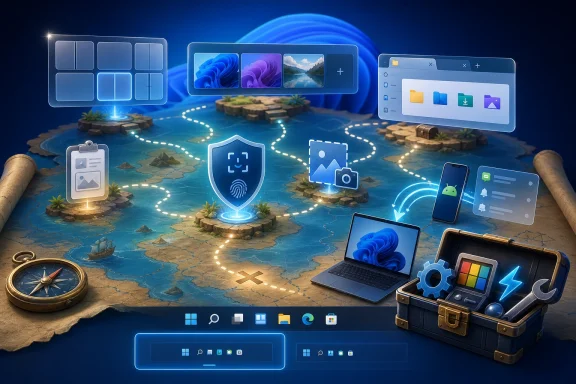
A list of 32 features can feel like a treasure map, but it also reveals a product management tension. Windows 11 is full of useful ideas, yet many users do not know which features are stable, which are rolling out, which require specific hardware, which are consumer-only, and which might change in the next annual update. That uncertainty affects trust.The Quick Settings customization change in 24H2 is a small example. Users learn one behavior, then Microsoft revises the model. File Explorer context menus were simplified, then gradually expanded. Copilot changed form more than once. Recall was announced, delayed, revised, previewed, and gated. Even the Start menu’s app list behavior can vary depending on update status and rollout timing.
None of that means Microsoft should stop improving Windows. But it does mean the company has to be careful about treating the live service model as an excuse for churn. Operating systems are not social media apps. People build work habits around them. Administrators write documentation, train staff, capture screenshots, and enforce policies around them.
This is why the best Windows 11 features are the ones that become predictable. Windows-V for clipboard history. Windows-Shift-S for screenshots. Windows-Z for Snap Layouts. Task Manager startup controls. File Explorer tabs. These features win because they can be taught, remembered, and trusted.
The AI features will have to earn that same status. They cannot remain perpetually halfway between demo and infrastructure. If Copilot, Recall, Click to Do, semantic search, and AI Actions are going to become part of Windows muscle memory, Microsoft must make their availability, privacy model, admin controls, and failure modes boringly clear.
The Settings App Is Now the Real Control Panel, Whether Veterans Like It or Not
Many longtime Windows users still distrust the Settings app, sometimes with reason. Control Panel was dense, ugly, inconsistent, and powerful. Settings has often been cleaner but shallower. Windows 11 continues the migration, and the features in PCMag’s list make clear that modern Windows administration increasingly begins in Settings.Startup apps, taskbar alignment, Start menu folders, default apps, battery usage, sound devices, Bluetooth pairing, projection, themes, accessibility, multitasking, Windows Backup, and many privacy-adjacent controls are all routed through Settings. Even when legacy dialogs remain underneath, the user-facing path is now Settings first. That is the reality.
Default apps remain a pain point. Windows 11’s file-type-specific model gives granular control, but it can feel hostile when a user simply wants one browser, media player, or image editor to handle everything it reasonably can. Microsoft has improved parts of the experience since Windows 11’s launch, but the philosophical tension remains: user choice is easiest when it is broad, while Windows’ associations are built from many small mappings.
The Start menu is another example of Settings becoming the negotiation layer between Microsoft’s preferences and the user’s. Recommended items, recently opened files, frequently used apps, newly installed apps, folders, and suggestions all live there. Users who dislike Microsoft’s idea of helpfulness can turn much of it down. Users who like a more adaptive Start menu can leave it on.
This is modern Windows in miniature. The system is more configurable than critics often admit, but the controls are scattered enough that many users never find them. The Settings app is improving, but discoverability remains one of Microsoft’s oldest unsolved problems.
The Features Worth Teaching First Are the Ones That Reduce Daily Friction
Not all 32 features deserve equal priority. Some are genuinely transformative; others are quality-of-life tweaks; a few depend heavily on hardware, region, account type, or personal preference. The practical approach is to start with the features that save time every day and then layer in the specialized ones.For most users, the first wave should be Snap Layouts, clipboard history, screenshot shortcuts, startup app cleanup, File Explorer tabs, Phone Link, Windows Backup, and passkeys. Those features address common pain: window chaos, repetitive copying, messy screenshots, slow boot, file clutter, device switching, migration anxiety, and password risk. They are not flashy, but they compound.
The second wave is personalization and focus. Taskbar alignment, Start menu tuning, themes, virtual desktops, Focus Sessions, widgets, cursor visibility, and sound settings make the PC feel less like a default installation and more like a working environment. This is where Windows 11 can become calmer without becoming less capable.
The third wave is experimental or situational. Copilot, Recall, Click to Do, AI image tools, AI Actions, advanced Bluetooth audio, projection to this PC, Game Bar recording, touch gestures, and PowerToys utilities can be excellent, but their value depends more on user role, hardware, policy, and appetite for change. Enthusiasts will dive in immediately. Enterprises will move slower, and they should.
The important thing is to resist the idea that hidden features are just tricks. In Windows 11, they are often the difference between using the OS as Microsoft configured it and using it as a machine shaped around your own work.
The Windows 11 Features That Deserve a Place in Your First-Hour Setup
The fastest way to make Windows 11 better is not to chase every new feature. It is to spend the first hour after setup turning the operating system into something that matches how you actually work.- Move the Start button left if decades of muscle memory make the centered taskbar feel slower rather than cleaner.
- Install PowerToys if you regularly rename files, manage many windows, resize images, remap keys, or work across multiple PCs.
- Turn off unnecessary startup apps before they turn a new PC into a slow one.
- Learn Windows-Z, Windows-V, Windows-Shift-S, and Windows-A because those shortcuts pay back the time immediately.
- Set up Windows Backup, passkeys, and Windows Hello before a lost password, failed drive, or new-device migration makes them urgent.
- Treat Copilot and Copilot+ features as useful experiments, but check their privacy, hardware, and workplace policy implications before relying on them.
Source: PCMag Australia 32 Hidden Windows 11 Features You're Probably Not Using (But Should Be)
