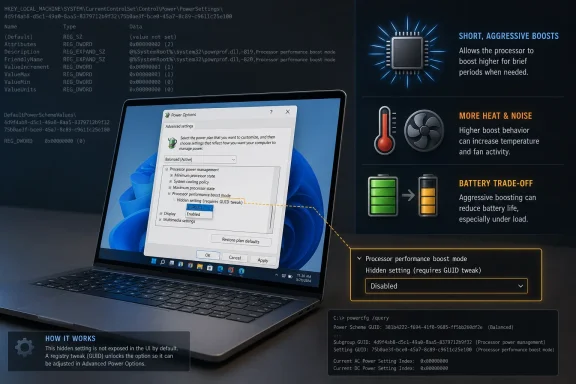
Windows 11 exposes a hidden “Processor performance boost mode” power setting when users change the registry value
The setting at the center of the latest round of coverage is called Processor performance boost mode, also known by Microsoft’s
Changing the
The available values sound dramatic: Disabled, Enabled, Aggressive, Efficient Enabled, Efficient Aggressive, Aggressive at Guaranteed, and Efficient Aggressive at Guaranteed. In plain English, these tell Windows how eagerly it should request boost performance when the processor and platform firmware say extra headroom is available. On systems using Collaborative Processor Performance Control, or CPPC, Windows and the processor cooperate over desired performance levels rather than treating frequency as a simple fixed ladder.
That makes the setting powerful enough to matter, but not magical enough to suspend physics. A CPU still has thermal limits, power limits, firmware rules, motherboard behavior, laptop vendor tuning, and silicon-level boosting algorithms. Windows can ask differently; it cannot repeal the cooling solution.
That is why the word boost is doing more than one job here. Intel Turbo Boost, AMD Precision Boost, CPPC preferred cores, Windows power plans, and OEM thermal profiles all intersect in the same user-visible symptom: the CPU clock rises or falls. But they are not the same control plane. A registry-exposed Windows power setting sits above firmware and silicon constraints, not beneath them.
For desktop users with strong cooling, the aggressive modes may help workloads ramp faster or hold elevated performance requests more readily. For laptop users, the same setting may mostly change fan noise, skin temperature, short-burst responsiveness, and battery drain. On some machines the practical difference may be obvious; on others it may disappear beneath firmware defaults or vendor utilities.
This is why the best reading of the tweak is conservative. It is a legitimate Windows power-policy setting that Microsoft hides by default, and exposing it can give technically confident users more control. It is not a universal “free performance” setting, and anyone promising that it will improve every benchmark on every Windows 11 PC is selling the registry-editing equivalent of a gym supplement.
That duality is not accidental. Microsoft has to serve two audiences that want opposite things from the same operating system. Consumers want fewer confusing choices and fewer ways to ruin battery life. IT pros, OEMs, and performance-sensitive users want knobs that can be measured, automated, and tuned.
The
That design keeps the default interface manageable, but it also creates a recurring news cycle. Someone rediscovers a hidden GUID, posts the path, screenshots the dropdown, and a real but nuanced configuration option becomes a “secret Windows performance hack.” The cycle repeats because Windows is full of these buried seams.
On recent AMD, Intel, and Arm systems, the operating system is not simply choosing a frequency and ordering the CPU to obey. It is participating in a negotiation. Windows can request more performance, request it more aggressively, or try to balance that request against efficiency. The silicon then acts within the limits exposed by firmware and hardware telemetry.
That makes the wording of these modes important. “Aggressive” does not mean “ignore temperature.” “Efficient Aggressive” does not mean “high performance with no battery cost.” “At Guaranteed” refers to behavior above a guaranteed performance level, not a promise that every workload will run faster in a way users can feel.
The practical impact will also vary by workload. A lightly threaded application that benefits from quick frequency ramping may feel snappier. A sustained all-core render may already be locked against package power or thermal limits, leaving little room for a Windows policy change to help. A laptop on battery may show a very different result from the same laptop plugged in.
Anyone who has used a thin gaming laptop, ultrabook, or compact mini PC knows the pattern. A browser tab wakes up, the CPU spikes, fans surge, temperature jumps, and the system spends the next minute audibly recovering from work that did not feel important. Disabling or softening boost behavior can make such machines quieter and more predictable, even if peak benchmark numbers fall.
That is where this hidden setting becomes genuinely practical. A user who mostly writes, browses, streams, remotes into servers, or works in Office may prefer cooler operation over maximum burst speed. A laptop owner troubleshooting fan noise may find that efficient modes preserve enough responsiveness while avoiding constant high-frequency excursions.
The enthusiast framing focuses on “unlocking” performance, but the administrator framing is broader. Power policy is about choosing a curve, not just chasing the top of it. Sometimes the better configuration is the one that makes a fleet less annoying, less hot, and more consistent.
The registry path being passed around is long, opaque, and hostile to ordinary users. A single mistaken edit elsewhere in the registry can create unrelated problems. Even when the edit is correct, users may not understand whether they are changing the current power plan, exposing a UI option, or modifying behavior across AC and DC power states.
There is also the issue of reversibility. Technically, changing
For IT departments, the right tool is not a viral registry walk-through. It is documentation,
Microsoft has been modernizing Windows power UX for years, but the result still feels split-brained. The friendly surface is too simple for power users, while the deep controls are too obscure for anyone who is not already comfortable spelunking through GUIDs.
This is how Windows performance myths compound. One article says a hidden registry setting exposes boost modes. Another says a Windows update improves low-latency responsiveness. A third folds both into a general “Windows 11 CPU boost” narrative. By the time the story reaches social media, distinctions between power policy, app-triggered responsiveness, and firmware boost behavior have blurred.
For readers, the useful separation is simple. Processor performance boost mode is a long-standing Windows power setting that can be made visible and adjusted per power policy. Low Latency Profile is a newer Windows behavior aimed at making certain experiences respond faster. They may both affect what monitoring tools show in the moment, but they are not one master switch.
That distinction matters because troubleshooting requires knowing which layer changed. If a system feels hotter after a cumulative update, if fans behave differently after an OEM utility update, or if a benchmark changes after exposing hidden power settings, those are three different investigative paths. Treating all of them as “the Windows boost feature” makes diagnosis worse.
That is especially true on laptops. A vendor may expose “Silent,” “Balanced,” and “Performance” modes that alter fan curves, platform power limits, GPU behavior, and CPU boost policy together. In that environment, changing Processor performance boost mode inside Control Panel may interact with the vendor profile rather than replace it.
Desktop systems are usually more transparent, but they are not immune. Motherboard firmware settings, Windows power plans, chipset packages, and vendor utilities can all influence how a CPU boosts. Enthusiasts running monitoring tools may see the effect quickly; casual users may only notice that the room fan kicks on more often.
This is why one user’s “huge improvement” can coexist with another user’s “nothing changed.” Both may be telling the truth. Windows power settings are not applied into a vacuum; they are added to an already opinionated platform stack.
When users make undocumented local changes, help desks inherit machines whose behavior no longer matches the expected baseline. A laptop may run hotter, drain faster, or throttle differently from the same model in the same department. A power plan exported from one machine may not produce the same result on another. A well-intentioned registry edit becomes one more hidden variable.
For individual enthusiasts, that is part of the fun. For administrators, it is a support tax. Any organization considering this setting should treat it as a policy change, not a tip. Test it on representative hardware, record baseline values, compare AC and battery behavior, and decide whether the gain is worth the variance.
There is also a warranty-adjacent concern, though not in the dramatic sense. Adjusting Windows boost policy should not by itself be equivalent to overclocking, but pushing a laptop into more aggressive boost behavior can increase heat and fan wear within normal operating limits. The CPU is still protecting itself, but comfort, acoustics, and battery longevity are user-visible costs.
The viral framing is less careful because “hidden setting allows fine-tune CPU performance” is more clickable than “documented hidden power policy changes boost request behavior on supported systems.” The first version suggests a broadly useful secret. The second version is what IT pros actually need to know.
The truth sits between them. This is not snake oil. The setting exists, the values are meaningful, and users have reported practical differences for years, particularly when disabling boost to reduce heat. But it is not a newly discovered Windows 11 feature, and it is not a guaranteed performance upgrade.
That nuance is worth defending because Windows power management is already confusing enough. If every legitimate low-level setting is marketed as a hack, users will either overtrust tweaks they do not understand or dismiss real controls as folklore. Neither outcome helps.
For a gaming laptop, that may mean testing a game, a launcher, a browser, and the desktop idle state. For a developer workstation, it may mean compiling code, running containers, and observing responsiveness during background indexing. For a home theater PC, it may mean checking whether a quieter mode still handles playback without stutter.
The old Windows power-plan UI also separates plugged-in and battery behavior on mobile systems. That is not a detail. A profile that makes sense on AC power can be obnoxious on battery, and a boost-disabled battery profile can be a perfectly rational choice for travel.
The safest practical approach is to export or document the current power plan before experimenting. Change one thing at a time. Keep the vendor utility’s current mode in mind. If the result is more heat, more fan noise, or no measurable improvement, revert rather than assuming a more aggressive-sounding option must be better.
That bargain works when the defaults are good. It breaks down when users experience lag, heat, fan noise, battery drain, or inconsistent performance and discover that the controls they need are hidden behind registry values. The existence of Processor performance boost mode is not embarrassing; the fact that users have to unhide it this way is.
Microsoft has a legitimate reason to avoid overwhelming the average user. Most people do not want seven boost modes in Settings. But Windows has never been only a consumer appliance. It is also the operating system of workstation builders, lab admins, gamers, developers, and people who know exactly why their laptop should stop boosting to the moon to open a web page.
A better interface would not need to expose every GUID. It could offer an advanced processor behavior panel with clear presets, warnings, and links to enterprise policy. It could show when OEM profiles are active. It could distinguish responsiveness, sustained performance, battery life, and acoustics as separate goals rather than pretending “Best performance” is self-explanatory.
Until then, hidden settings will keep becoming news. Not because each one is revolutionary, but because they reveal a mismatch between what Windows can do and what Windows is willing to show.
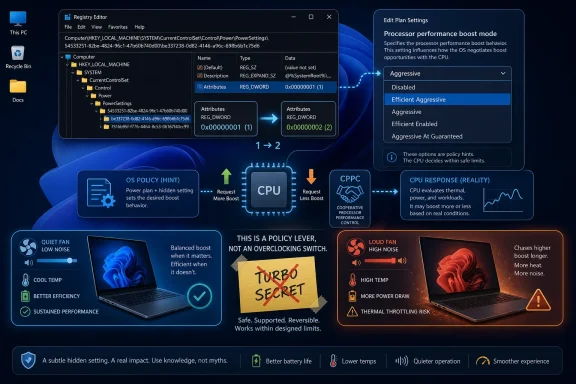
Attributes from 1 to 2 under Microsoft’s processor power-management GUID, revealing controls that affect how aggressively supported CPUs boost above nominal performance. The setting is real, documented by Microsoft, and old enough to predate this week’s viral discovery cycle. The story is not that Windows suddenly gained a secret overclocking switch. It is that Microsoft continues to bury meaningful power-policy controls in places where enthusiasts can find them, administrators must test them, and ordinary users probably should not wander without a rollback plan.
 The Registry Tweak Is Real, but the Hype Is Doing Too Much Work
The setting at the center of the latest round of coverage is called Processor performance boost mode, also known by Microsoft’s PERFBOOSTMODE alias. It lives under the processor power-management subgroup in Windows’ power settings, and the GUID being circulated matches Microsoft’s own documentation: be337238-0d82-4146-a960-4f3749d470c7.Changing the
Attributes value from 1 to 2 does not create a new capability in the CPU. It changes whether Windows shows the setting in the old Control Panel power-plan interface. That distinction matters, because a visible dropdown feels like a performance feature while the underlying mechanism is better understood as a policy knob.The available values sound dramatic: Disabled, Enabled, Aggressive, Efficient Enabled, Efficient Aggressive, Aggressive at Guaranteed, and Efficient Aggressive at Guaranteed. In plain English, these tell Windows how eagerly it should request boost performance when the processor and platform firmware say extra headroom is available. On systems using Collaborative Processor Performance Control, or CPPC, Windows and the processor cooperate over desired performance levels rather than treating frequency as a simple fixed ladder.
That makes the setting powerful enough to matter, but not magical enough to suspend physics. A CPU still has thermal limits, power limits, firmware rules, motherboard behavior, laptop vendor tuning, and silicon-level boosting algorithms. Windows can ask differently; it cannot repeal the cooling solution.
Microsoft Hid a Policy Lever, Not a Turbo Button
The most common misunderstanding is to treat Processor performance boost mode as if it were overclocking by another name. It is not. Overclocking changes operating conditions outside the vendor’s default envelope; this setting changes how Windows participates in boost behavior that the platform already supports.That is why the word boost is doing more than one job here. Intel Turbo Boost, AMD Precision Boost, CPPC preferred cores, Windows power plans, and OEM thermal profiles all intersect in the same user-visible symptom: the CPU clock rises or falls. But they are not the same control plane. A registry-exposed Windows power setting sits above firmware and silicon constraints, not beneath them.
For desktop users with strong cooling, the aggressive modes may help workloads ramp faster or hold elevated performance requests more readily. For laptop users, the same setting may mostly change fan noise, skin temperature, short-burst responsiveness, and battery drain. On some machines the practical difference may be obvious; on others it may disappear beneath firmware defaults or vendor utilities.
This is why the best reading of the tweak is conservative. It is a legitimate Windows power-policy setting that Microsoft hides by default, and exposing it can give technically confident users more control. It is not a universal “free performance” setting, and anyone promising that it will improve every benchmark on every Windows 11 PC is selling the registry-editing equivalent of a gym supplement.
The Old Control Panel Still Carries the Sharp Tools
There is a deliciously Windows quality to this story: the modern Settings app gets the polish, while the truly consequential knobs keep living in the fossil record of Control Panel. Windows 11 wants users to think in terms of Power Mode, battery saver, efficiency recommendations, and OEM companion apps. But under the surface, the operating system still contains a dense catalog of power settings that can be shown, hidden, scripted, and deployed.That duality is not accidental. Microsoft has to serve two audiences that want opposite things from the same operating system. Consumers want fewer confusing choices and fewer ways to ruin battery life. IT pros, OEMs, and performance-sensitive users want knobs that can be measured, automated, and tuned.
The
Attributes flag is the hinge between those worlds. A hidden setting is not necessarily unsupported, and a visible setting is not necessarily safe for casual experimentation. Microsoft’s power infrastructure has long included settings that are technically available but deliberately suppressed from the consumer UI.That design keeps the default interface manageable, but it also creates a recurring news cycle. Someone rediscovers a hidden GUID, posts the path, screenshots the dropdown, and a real but nuanced configuration option becomes a “secret Windows performance hack.” The cycle repeats because Windows is full of these buried seams.
CPPC Changed the Conversation About CPU Control
The reason this setting is more interesting in 2026 than it might have been in the old fixed-frequency era is that modern CPUs are increasingly autonomous. CPPC lets the operating system describe performance intent while the processor and platform decide how best to satisfy it. That is a cleaner model for heterogeneous cores, boost bins, thermal constraints, and mobile power budgets.On recent AMD, Intel, and Arm systems, the operating system is not simply choosing a frequency and ordering the CPU to obey. It is participating in a negotiation. Windows can request more performance, request it more aggressively, or try to balance that request against efficiency. The silicon then acts within the limits exposed by firmware and hardware telemetry.
That makes the wording of these modes important. “Aggressive” does not mean “ignore temperature.” “Efficient Aggressive” does not mean “high performance with no battery cost.” “At Guaranteed” refers to behavior above a guaranteed performance level, not a promise that every workload will run faster in a way users can feel.
The practical impact will also vary by workload. A lightly threaded application that benefits from quick frequency ramping may feel snappier. A sustained all-core render may already be locked against package power or thermal limits, leaving little room for a Windows policy change to help. A laptop on battery may show a very different result from the same laptop plugged in.
The Setting’s Best Use Case May Be Restraint
The most useful reason to expose Processor performance boost mode may not be to push a CPU harder. For many WindowsForum readers, the more interesting use is to tame a machine that boosts too eagerly.Anyone who has used a thin gaming laptop, ultrabook, or compact mini PC knows the pattern. A browser tab wakes up, the CPU spikes, fans surge, temperature jumps, and the system spends the next minute audibly recovering from work that did not feel important. Disabling or softening boost behavior can make such machines quieter and more predictable, even if peak benchmark numbers fall.
That is where this hidden setting becomes genuinely practical. A user who mostly writes, browses, streams, remotes into servers, or works in Office may prefer cooler operation over maximum burst speed. A laptop owner troubleshooting fan noise may find that efficient modes preserve enough responsiveness while avoiding constant high-frequency excursions.
The enthusiast framing focuses on “unlocking” performance, but the administrator framing is broader. Power policy is about choosing a curve, not just chasing the top of it. Sometimes the better configuration is the one that makes a fleet less annoying, less hot, and more consistent.
Registry Edits Are a Poor Substitute for a Real Interface
The problem is not that the setting exists. The problem is that Microsoft’s supported path to many of these options remains awkward, fragmented, and easy to miscommunicate.The registry path being passed around is long, opaque, and hostile to ordinary users. A single mistaken edit elsewhere in the registry can create unrelated problems. Even when the edit is correct, users may not understand whether they are changing the current power plan, exposing a UI option, or modifying behavior across AC and DC power states.
There is also the issue of reversibility. Technically, changing
Attributes back from 2 to 1 hides the setting again. But hiding the setting is not the same as remembering every value a user selected while experimenting. If someone changes boost mode for a power plan and later hides the UI, the policy value can remain in effect.For IT departments, the right tool is not a viral registry walk-through. It is documentation,
powercfg, configuration baselines, OEM guidance, telemetry, and staged deployment. For home users, the right tool would be a clear Settings page that explains the trade-off between performance, fan noise, heat, and battery life without pretending that every PC behaves identically.Microsoft has been modernizing Windows power UX for years, but the result still feels split-brained. The friendly surface is too simple for power users, while the deep controls are too obscure for anyone who is not already comfortable spelunking through GUIDs.
The June 2026 Performance Conversation Makes This Easier to Misread
The timing adds confusion. Windows 11’s recent performance chatter has also included Microsoft’s Low Latency Profile work, a separate effort aimed at improving responsiveness for certain shell and app interactions. That feature is not the same as exposing Processor performance boost mode, even though both stories involve CPU behavior, responsiveness, and hidden or semi-hidden performance machinery.This is how Windows performance myths compound. One article says a hidden registry setting exposes boost modes. Another says a Windows update improves low-latency responsiveness. A third folds both into a general “Windows 11 CPU boost” narrative. By the time the story reaches social media, distinctions between power policy, app-triggered responsiveness, and firmware boost behavior have blurred.
For readers, the useful separation is simple. Processor performance boost mode is a long-standing Windows power setting that can be made visible and adjusted per power policy. Low Latency Profile is a newer Windows behavior aimed at making certain experiences respond faster. They may both affect what monitoring tools show in the moment, but they are not one master switch.
That distinction matters because troubleshooting requires knowing which layer changed. If a system feels hotter after a cumulative update, if fans behave differently after an OEM utility update, or if a benchmark changes after exposing hidden power settings, those are three different investigative paths. Treating all of them as “the Windows boost feature” makes diagnosis worse.
OEMs Already Tune This, Whether Users See It or Not
Most Windows users never run a clean, Microsoft-only power policy. They run a machine shaped by firmware defaults, chipset drivers, vendor services, thermal profiles, and sometimes gaming-control-center software with names that promise performance, silence, intelligence, or all three at once. Those layers can override or obscure what a Windows dropdown appears to say.That is especially true on laptops. A vendor may expose “Silent,” “Balanced,” and “Performance” modes that alter fan curves, platform power limits, GPU behavior, and CPU boost policy together. In that environment, changing Processor performance boost mode inside Control Panel may interact with the vendor profile rather than replace it.
Desktop systems are usually more transparent, but they are not immune. Motherboard firmware settings, Windows power plans, chipset packages, and vendor utilities can all influence how a CPU boosts. Enthusiasts running monitoring tools may see the effect quickly; casual users may only notice that the room fan kicks on more often.
This is why one user’s “huge improvement” can coexist with another user’s “nothing changed.” Both may be telling the truth. Windows power settings are not applied into a vacuum; they are added to an already opinionated platform stack.
Security Is Not the Main Risk, but Operational Drift Is
This tweak is not primarily a security story. It does not require downloading an unsigned driver or bypassing kernel protections. It uses built-in Windows configuration plumbing. The risk is more mundane and, in enterprise environments, more familiar: configuration drift.When users make undocumented local changes, help desks inherit machines whose behavior no longer matches the expected baseline. A laptop may run hotter, drain faster, or throttle differently from the same model in the same department. A power plan exported from one machine may not produce the same result on another. A well-intentioned registry edit becomes one more hidden variable.
For individual enthusiasts, that is part of the fun. For administrators, it is a support tax. Any organization considering this setting should treat it as a policy change, not a tip. Test it on representative hardware, record baseline values, compare AC and battery behavior, and decide whether the gain is worth the variance.
There is also a warranty-adjacent concern, though not in the dramatic sense. Adjusting Windows boost policy should not by itself be equivalent to overclocking, but pushing a laptop into more aggressive boost behavior can increase heat and fan wear within normal operating limits. The CPU is still protecting itself, but comfort, acoustics, and battery longevity are user-visible costs.
Microsoft’s Documentation Is More Sober Than the Headlines
Microsoft’s description ofPERFBOOSTMODE is restrained: it determines how processors select a performance level when conditions allow boosting above nominal performance. That language is doing exactly what vendor documentation should do. It defines a mechanism without promising a specific performance outcome.The viral framing is less careful because “hidden setting allows fine-tune CPU performance” is more clickable than “documented hidden power policy changes boost request behavior on supported systems.” The first version suggests a broadly useful secret. The second version is what IT pros actually need to know.
The truth sits between them. This is not snake oil. The setting exists, the values are meaningful, and users have reported practical differences for years, particularly when disabling boost to reduce heat. But it is not a newly discovered Windows 11 feature, and it is not a guaranteed performance upgrade.
That nuance is worth defending because Windows power management is already confusing enough. If every legitimate low-level setting is marketed as a hack, users will either overtrust tweaks they do not understand or dismiss real controls as folklore. Neither outcome helps.
The Better Test Is Not a Screenshot, It Is a Workload
Anyone experimenting with Processor performance boost mode should measure the machine they actually use, not the myth they read about. Open a monitoring tool, record temperatures, clocks, package power, fan behavior, and battery discharge, then test the workloads that matter. A synthetic benchmark can be useful, but it should not be the only vote.For a gaming laptop, that may mean testing a game, a launcher, a browser, and the desktop idle state. For a developer workstation, it may mean compiling code, running containers, and observing responsiveness during background indexing. For a home theater PC, it may mean checking whether a quieter mode still handles playback without stutter.
The old Windows power-plan UI also separates plugged-in and battery behavior on mobile systems. That is not a detail. A profile that makes sense on AC power can be obnoxious on battery, and a boost-disabled battery profile can be a perfectly rational choice for travel.
The safest practical approach is to export or document the current power plan before experimenting. Change one thing at a time. Keep the vendor utility’s current mode in mind. If the result is more heat, more fan noise, or no measurable improvement, revert rather than assuming a more aggressive-sounding option must be better.
The Real Story Is Windows’ Unfinished Power-Control Deal With Users
Windows 11 increasingly asks users to trust automation. Let the scheduler pick the right cores. Let the processor choose the right boost state. Let power mode abstract the ugly details. Let the OEM utility decide whether the laptop should whisper or roar.That bargain works when the defaults are good. It breaks down when users experience lag, heat, fan noise, battery drain, or inconsistent performance and discover that the controls they need are hidden behind registry values. The existence of Processor performance boost mode is not embarrassing; the fact that users have to unhide it this way is.
Microsoft has a legitimate reason to avoid overwhelming the average user. Most people do not want seven boost modes in Settings. But Windows has never been only a consumer appliance. It is also the operating system of workstation builders, lab admins, gamers, developers, and people who know exactly why their laptop should stop boosting to the moon to open a web page.
A better interface would not need to expose every GUID. It could offer an advanced processor behavior panel with clear presets, warnings, and links to enterprise policy. It could show when OEM profiles are active. It could distinguish responsiveness, sustained performance, battery life, and acoustics as separate goals rather than pretending “Best performance” is self-explanatory.
Until then, hidden settings will keep becoming news. Not because each one is revolutionary, but because they reveal a mismatch between what Windows can do and what Windows is willing to show.
The Useful Lessons Before Anyone Touches Regedit
The smart reaction is neither panic nor blind enthusiasm. This is a real control, but it belongs in the category of power tuning rather than miracle performance work. If you decide to expose it, treat the change as an experiment with measurable trade-offs.- Processor performance boost mode is a documented hidden Windows power setting, not a new overclocking feature.
- Changing the
Attributesregistry value exposes the setting in the power-plan interface, but the selected boost policy still has to be tested on the actual machine. - Aggressive modes may improve short-burst responsiveness on some systems, but they can also increase heat, fan noise, and battery consumption.
- Efficient or disabled boost behavior may be more useful than aggressive boosting on laptops, mini PCs, and noise-sensitive systems.
- OEM power utilities, firmware settings, chipset drivers, and Windows updates can all affect whether this setting produces a visible result.
- Administrators should manage this through documented policy and testing rather than copying consumer registry edits into production fleets.
References
- Primary source: Wccftech
Published: Tue, 16 Jun 2026 20:34:00 GMT
This Hidden Windows 11 Setting Allows Fine-Tune CPU Performance Through A Simple Registry Modification
By default, these options are unavailable to users, but when exposed, Windows 11 can allow CPU fine-tuning for better performance or efficiency. Hidden Windows 11 Power Management Setting Called Processor Performance Boost Mode Can Be Enabled With a Simple Registry Change While modern CPUs have...wccftech.com
- Official source: learn.microsoft.com
PERFBOOSTMODE | Microsoft Learn
PERFBOOSTMODE determines how processors select a performance level when current operating conditions allow for boosting performance above the nominal level.learn.microsoft.com - Related coverage: windowslatest.com
Microsoft confirms release date of macOS-like Windows 11 CPU boost trick that critics tried to mock
Microsoft confirms Windows 11's Low Latency Profile CPU boost is rolling out in June 2026. Get ready for faster app and Start menu launches. www.windowslatest.com
- Related coverage: pcgamesn.com
Windows 11's new performance boosting Low Latency mode is now available, and here's what it does - PCGamesN
A new Low Latency Profile has been added to the latest Windows 11 update, providing a boost in performance for a range of apps and features.www.pcgamesn.com - Related coverage: windiscover.com
Windows 11 隐藏性能增强模式可通过注册表手动启用 - WinDiscover
Windows 11 隐藏了处理器性能增强模式设置,通过修改注册表可启用五种 P-State 模式,用于精细控制 CPU 频率与功耗表现。 windiscover.com
- Related coverage: tomshardware.com
Microsoft blocks registry trick that unlocked performance-boosting native NVMe driver on Windows 11 — workarounds still exist to enable support, however | Tom's Hardware
A ViVeTool workaround still works for now.www.tomshardware.com
- Related coverage: wisecleaner.com
How to Enable Processor Performance Boost Mode in Windows
Enabling Processor Performance Boost Mode in Windows.www.wisecleaner.com
- Related coverage: club386.com
Microsoft blocks the registry hack boosting NVMe SSD performance on Windows 11 | Club386
Microsoft silently disables the Windows 11 registry entry that boosts NVMe SSDs' IOPS performance, but a workaround may still be possible. www.club386.com
- Related coverage: fdaytalk.com
How to Check If Low Latency Profile Is Active on Windows 11
Learn how to check if Low Latency Profile is active on Windows 11 using HWiNFO and Task Manager. Watch for CPU spikes on Start menu, Search, Notification Centerwww.fdaytalk.com - Related coverage: hartware.de
- Related coverage: cordero.me
- Related coverage: cisco.com