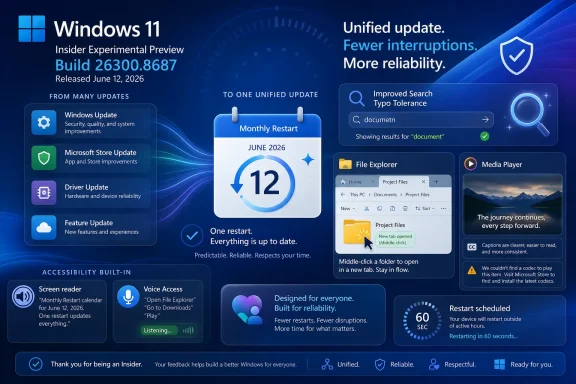
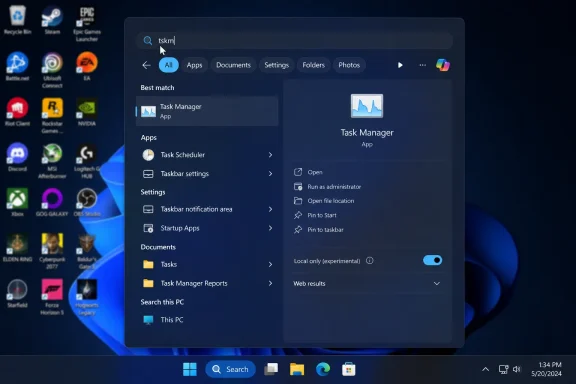
Microsoft released Windows 11 Insider Experimental Preview Build 26300.8687 on June 12, 2026, bringing a batch of gradual-rollout changes that include File Explorer tab improvements, a unified Windows Update restart experience, better Windows Search tolerance, GIPHY integration in the emoji panel, and several reliability fixes. The build is not a marquee Windows reinvention, and that is precisely why it matters. Microsoft is spending this flight on the parts of Windows people touch dozens of times a day, where small frictions become institutional habits. For home users and IT shops alike, this is the kind of preview build that reveals where Windows 11 is really being polished: not in the keynote demo, but in the click path.
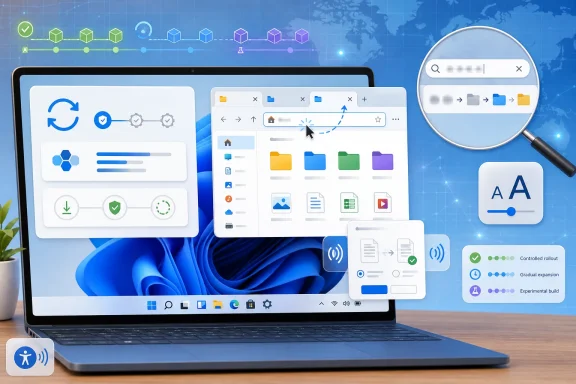
The headline change is modest enough to sound almost trivial: File Explorer now supports middle-clicking a folder to open it in a new tab from the Address Bar and Home page. That is not the sort of feature that sells a PC. It is, however, exactly the sort of feature that makes a PC feel less like it is arguing with you.
Tabs in File Explorer have always carried an implicit promise: Windows should let users manage folders with the same muscle memory they use in browsers. But until the interaction model is consistent, that promise remains half-kept. If middle-click works in one place but not another, the feature is technically present and practically incomplete.
This build closes one of those gaps. It tells power users that Microsoft is still sanding down the tabbed File Explorer experience rather than treating it as a checked box from an earlier Windows 11 release. The change matters most to people who live in folder trees: developers, photographers, administrators, modders, and anyone who routinely shuttles between local storage, network shares, OneDrive folders, and removable media.
The accessibility improvements around File Explorer are just as important, even if they are less likely to dominate enthusiast discussion. Microsoft says it has improved screen reader announcements in the conflict resolution dialog that appears when moving or copying files. That dialog — the familiar “Which files do you want to keep?” moment — is one of those mundane Windows surfaces where clarity is not optional. If the user cannot confidently distinguish overwrite, skip, replace, or keep-both behavior, the operating system has failed at a very basic task.
Text scaling improvements continue the same theme. Windows has spent years trying to reconcile a modern Fluent interface with legacy density, high-DPI screens, and the reality that not every user wants or can tolerate default text sizes. A File Explorer that breaks, clips, or becomes awkward under larger scaling is not merely ugly. It is a productivity and accessibility regression.
This is a familiar pain point for anyone responsible for more than one machine. Users do not merely dislike updates; they dislike unpredictable interruptions. IT departments can plan around Patch Tuesday, maintenance windows, and phased deployments. They have a much harder time planning around a scatter of restarts triggered by drivers, firmware, frameworks, and cumulative updates landing on different clocks.
The promise of a single monthly restart is therefore bigger than convenience. It is a trust play. Microsoft is trying to make Windows servicing feel less like a stream of unrelated demands and more like a coherent maintenance event.
There are caveats. The wording matters: Microsoft is “starting” by coordinating these update types, and the change is rolling out gradually. That means administrators should not assume every driver, firmware, and .NET event will suddenly collapse into one perfectly predictable reboot. Hardware ecosystems are messy, OEM pipelines vary, and urgent security fixes will always reserve the right to break the calendar.
Still, the direction is notable. Windows has become a living platform rather than a product that sleeps between service packs, and the cost of that model is update fatigue. Microsoft cannot eliminate updates without weakening security and reliability, so it is trying to make the experience feel less chaotic. If this sticks, it may do more for user goodwill than another round of Start menu cosmetics.
Microsoft’s example is simple: typing “utlook” can still find Outlook. That kind of correction sounds obvious until you remember how often local operating system search has behaved as though a single missing character were a moral failing. Users do not type into search boxes like database operators. They type fragments, approximations, brand memories, and hurried guesses.
This matters especially on Windows 11 because Microsoft has made search a front door to more of the system. Apps, settings, files, web suggestions, and increasingly AI-assisted surfaces all compete for attention. If local app search fails at typo tolerance, users learn not to trust the entry point at all.
The settings ranking improvements belong in the same bucket. Windows Settings has absorbed years of Control Panel migration, redesigned pages, renamed features, and new management surfaces. A search result that technically includes the right setting but buries it below less relevant matches is not much better than no result. Ranking is usability.
For administrators, better Settings search may seem like a consumer nicety, but it has operational consequences. Support documentation often instructs users to search for a setting by name. If Windows returns a sensible result despite a typo or partial phrase, fewer help desk interactions begin with “I don’t see that option.”
Users increasingly expect expressive input — emoji, GIFs, symbols, clipboard history, voice typing, and language tools — to be available everywhere. The operating system owns that convenience because no single app can provide a consistent experience across the entire desktop. When the provider behind a GIF library changes, Microsoft has to keep the user-facing surface from feeling broken.
The switch to GIPHY is also a reminder that seemingly local OS features often depend on external service relationships. A GIF panel is not just a panel. It is a content source, a moderation pipeline, a search experience, and a privacy consideration wrapped inside a keyboard shortcut.
Enterprise administrators may not care which GIF provider wins the panel wars, but they do care about consumer-facing services appearing in business environments. Windows 11 continues to blur those lines, particularly on devices that move between personal and work contexts. The best version of this feature is one that remains convenient for users while still being governable by policy where organizations need control.
The past several years have pushed more organizations toward cloud-based management and away from traditional domain-bound assumptions. Devices are remote, users are hybrid, and the person holding the laptop may be nowhere near an IT office. In that world, recovery cannot be treated as a purely local event.
A richer MDM story around WinRE could help bridge a painful gap between policy management and disaster recovery. If a device falls into recovery workflows, administrators need visibility and control without depending entirely on a user reading instructions over the phone. Microsoft’s changelog does not provide enough detail to declare victory, but the direction is right.
This also fits Microsoft’s larger pattern: moving more of Windows administration into cloud-manageable, policy-driven surfaces. The endpoint is not just a desktop anymore. It is a managed node with lifecycle states, compliance requirements, firmware dependencies, and recovery paths.
That language tells a familiar Windows 11 story. Microsoft modernized the taskbar, but in doing so it disrupted years of accumulated behavior. Some of that functionality has returned over time; some remains contested; some now lives in the liminal space between old expectation and new implementation.
Alternate taskbar positions and small icons are not fringe preferences in enthusiast and professional circles. They are workflow choices. When those configurations produce visual glitches, the message users hear is that Windows 11 still treats their preferred setup as an edge case.
To Microsoft’s credit, fixes are fixes. The company is clearly continuing to address the rough corners rather than pretending the default taskbar configuration represents all users. But the taskbar remains one of the clearest examples of Windows 11’s tension between simplified design and the platform’s historic promise of configurability.
There is a benign reading: families should understand available protections from the beginning, not after a problem occurs. Parental controls are more useful when they are presented clearly at device creation, account setup, and early configuration. If Windows can make those options easier to understand, that is a win for many households.
There is also a more skeptical reading: setup has become one of Microsoft’s most valuable real estate surfaces. It is where account sign-in, cloud services, backup prompts, privacy choices, subscriptions, and safety features all compete for attention. Every additional setup screen or explanation risks becoming part of the broader out-of-box-experience negotiation between user autonomy and platform steering.
The quality of this change will depend on execution. If the information is clear, optional, and respectful, it helps families. If it becomes another funnel into Microsoft account dependency or nagging, users will treat it as one more obstacle between unboxing and using the machine.
These are not minor if you are the Insider affected by them. A preview channel can tolerate unfinished features, but it cannot tolerate core interactions becoming unusable for too long. Search, Notepad, audio, and installed app management are not exotic surfaces. They are baseline expectations.
The mouse cursor fix is another example. Microsoft says it addressed a problem that could cause the cursor to move in the wrong direction on secondary monitors set to portrait mode. That is the sort of bug that sounds narrow until you imagine debugging it on a real workstation with a vertical monitor used for code, logs, chat, or documentation.
Even the dark mode fix for Task Manager’s “Run new task” dialog belongs in the same bucket. No one should pretend dark mode consistency is the most urgent engineering problem in Windows. But inconsistent theming makes the operating system feel unfinished, especially when the mismatched dialog appears inside a core system utility.
That should temper the usual Insider build excitement. The presence of a feature in Experimental does not mean it will arrive unchanged in the next general Windows release. It may move to Beta, appear later in Release Preview, merge into a cumulative update, or disappear into the warehouse of Windows ideas that almost shipped.
For enthusiasts, that uncertainty is part of the appeal. Insider builds are a way to see Microsoft’s product thinking before it hardens. For administrators, the uncertainty is the reason not to build operational assumptions on preview behavior. A feature flag is not a roadmap commitment.
The gradual rollout model complicates coverage too. Two users on the same build may not see the same features at the same time. That is sensible from a telemetry and risk-management standpoint, but it can make Windows feel opaque. The build number no longer tells the whole story; the server-side rollout state matters too.
That accumulation is also how Microsoft repairs trust. Windows 11’s roughest moments have often come when Microsoft seemed more interested in directing users toward a new model than in respecting the workflows they already had. The better moments come when the company makes Windows behave more predictably without demanding attention for it.
File Explorer middle-click support is a perfect example. It does not ask users to learn a new paradigm. It extends an existing one. It meets users where their habits already are.
The unified update experience is the more ambitious version of the same idea. Users do not want to become update strategists. They want their machines to stay secure and reliable without derailing the workday. If Microsoft can make that feel routine rather than disruptive, it earns room to do more controversial platform work elsewhere.
 File Explorer Gets the Kind of Fix Users Actually Notice
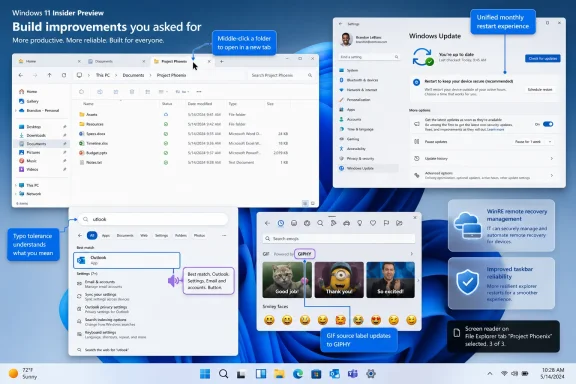
The headline change is modest enough to sound almost trivial: File Explorer now supports middle-clicking a folder to open it in a new tab from the Address Bar and Home page. That is not the sort of feature that sells a PC. It is, however, exactly the sort of feature that makes a PC feel less like it is arguing with you.Tabs in File Explorer have always carried an implicit promise: Windows should let users manage folders with the same muscle memory they use in browsers. But until the interaction model is consistent, that promise remains half-kept. If middle-click works in one place but not another, the feature is technically present and practically incomplete.
This build closes one of those gaps. It tells power users that Microsoft is still sanding down the tabbed File Explorer experience rather than treating it as a checked box from an earlier Windows 11 release. The change matters most to people who live in folder trees: developers, photographers, administrators, modders, and anyone who routinely shuttles between local storage, network shares, OneDrive folders, and removable media.
The accessibility improvements around File Explorer are just as important, even if they are less likely to dominate enthusiast discussion. Microsoft says it has improved screen reader announcements in the conflict resolution dialog that appears when moving or copying files. That dialog — the familiar “Which files do you want to keep?” moment — is one of those mundane Windows surfaces where clarity is not optional. If the user cannot confidently distinguish overwrite, skip, replace, or keep-both behavior, the operating system has failed at a very basic task.
Text scaling improvements continue the same theme. Windows has spent years trying to reconcile a modern Fluent interface with legacy density, high-DPI screens, and the reality that not every user wants or can tolerate default text sizes. A File Explorer that breaks, clips, or becomes awkward under larger scaling is not merely ugly. It is a productivity and accessibility regression.
The Monthly Reboot Is Becoming Microsoft’s New Servicing Promise
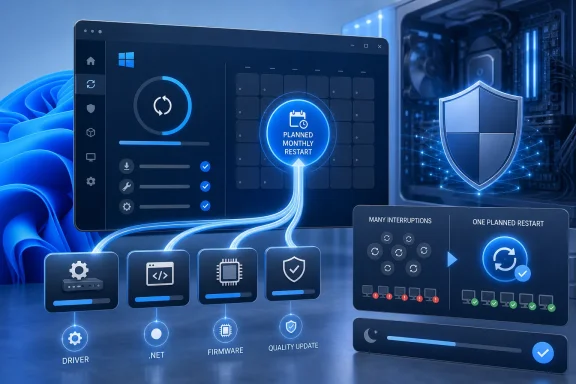
The most strategically important item in the changelog may be Windows Update, not File Explorer. Microsoft says it is starting to coordinate driver, .NET, and firmware updates with the monthly quality update to reduce the number of reboots users see each month. In plain English: Windows Update is being pushed toward a more unified monthly restart rhythm.This is a familiar pain point for anyone responsible for more than one machine. Users do not merely dislike updates; they dislike unpredictable interruptions. IT departments can plan around Patch Tuesday, maintenance windows, and phased deployments. They have a much harder time planning around a scatter of restarts triggered by drivers, firmware, frameworks, and cumulative updates landing on different clocks.
The promise of a single monthly restart is therefore bigger than convenience. It is a trust play. Microsoft is trying to make Windows servicing feel less like a stream of unrelated demands and more like a coherent maintenance event.
There are caveats. The wording matters: Microsoft is “starting” by coordinating these update types, and the change is rolling out gradually. That means administrators should not assume every driver, firmware, and .NET event will suddenly collapse into one perfectly predictable reboot. Hardware ecosystems are messy, OEM pipelines vary, and urgent security fixes will always reserve the right to break the calendar.
Still, the direction is notable. Windows has become a living platform rather than a product that sleeps between service packs, and the cost of that model is update fatigue. Microsoft cannot eliminate updates without weakening security and reliability, so it is trying to make the experience feel less chaotic. If this sticks, it may do more for user goodwill than another round of Start menu cosmetics.
Search Is Learning to Forgive the Human at the Keyboard
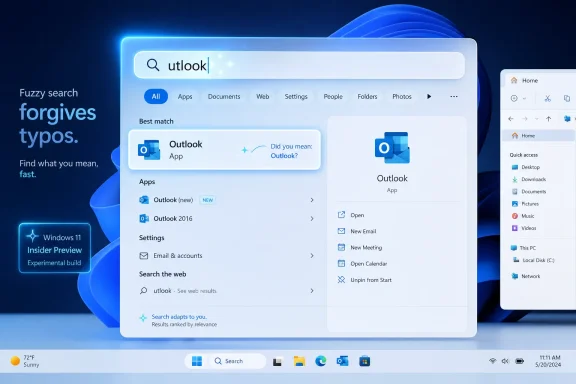
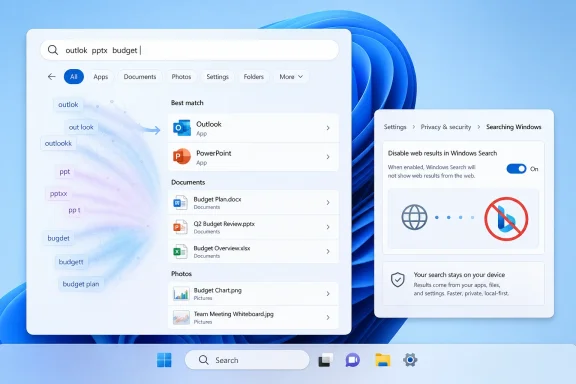
Windows Search has long suffered from a basic reputational problem: users expect it to be fast, forgiving, and obvious, because web search trained them that way. Windows has often been none of those things. Build 26300.8687 takes a small but meaningful step toward closing that expectation gap by improving app search tolerance for typos, missing letters, extra letters, and partial words.Microsoft’s example is simple: typing “utlook” can still find Outlook. That kind of correction sounds obvious until you remember how often local operating system search has behaved as though a single missing character were a moral failing. Users do not type into search boxes like database operators. They type fragments, approximations, brand memories, and hurried guesses.
This matters especially on Windows 11 because Microsoft has made search a front door to more of the system. Apps, settings, files, web suggestions, and increasingly AI-assisted surfaces all compete for attention. If local app search fails at typo tolerance, users learn not to trust the entry point at all.
The settings ranking improvements belong in the same bucket. Windows Settings has absorbed years of Control Panel migration, redesigned pages, renamed features, and new management surfaces. A search result that technically includes the right setting but buries it below less relevant matches is not much better than no result. Ranking is usability.
For administrators, better Settings search may seem like a consumer nicety, but it has operational consequences. Support documentation often instructs users to search for a setting by name. If Windows returns a sensible result despite a typo or partial phrase, fewer help desk interactions begin with “I don’t see that option.”
GIPHY Replaces Tenor, and the Emoji Panel Becomes Infrastructure
The emoji panel change is easy to dismiss as consumer fluff: Windows key plus period now uses GIPHY as the GIF provider following the deprecation of Tenor. But the built-in GIF picker is part of a broader story about how Windows is being asked to behave as a communications layer, not just an application launcher.Users increasingly expect expressive input — emoji, GIFs, symbols, clipboard history, voice typing, and language tools — to be available everywhere. The operating system owns that convenience because no single app can provide a consistent experience across the entire desktop. When the provider behind a GIF library changes, Microsoft has to keep the user-facing surface from feeling broken.
The switch to GIPHY is also a reminder that seemingly local OS features often depend on external service relationships. A GIF panel is not just a panel. It is a content source, a moderation pipeline, a search experience, and a privacy consideration wrapped inside a keyboard shortcut.
Enterprise administrators may not care which GIF provider wins the panel wars, but they do care about consumer-facing services appearing in business environments. Windows 11 continues to blur those lines, particularly on devices that move between personal and work contexts. The best version of this feature is one that remains convenient for users while still being governable by policy where organizations need control.
Remote Recovery Management Hints at a More Manageable Failure State
The new recovery remote management plug-in for extending Windows Recovery Environment management capabilities for MDM providers is buried deep in the changelog, but it deserves attention. WinRE is where Windows goes when normal Windows has failed. Making that environment more manageable through modern device management is not glamorous, but it is exactly the kind of work that matters when fleets break at scale.The past several years have pushed more organizations toward cloud-based management and away from traditional domain-bound assumptions. Devices are remote, users are hybrid, and the person holding the laptop may be nowhere near an IT office. In that world, recovery cannot be treated as a purely local event.
A richer MDM story around WinRE could help bridge a painful gap between policy management and disaster recovery. If a device falls into recovery workflows, administrators need visibility and control without depending entirely on a user reading instructions over the phone. Microsoft’s changelog does not provide enough detail to declare victory, but the direction is right.
This also fits Microsoft’s larger pattern: moving more of Windows administration into cloud-manageable, policy-driven surfaces. The endpoint is not just a desktop anymore. It is a managed node with lifecycle states, compliance requirements, firmware dependencies, and recovery paths.
The Taskbar Still Carries Windows 11’s Design Debt
The taskbar fixes in this build are small but revealing. Microsoft says it improved reliability when loading the system tray area and fixed an issue where tooltips could unexpectedly appear on top of the Start menu icon when the taskbar was used in an alternate position. It also cleaned up visual polish issues when using small icons.That language tells a familiar Windows 11 story. Microsoft modernized the taskbar, but in doing so it disrupted years of accumulated behavior. Some of that functionality has returned over time; some remains contested; some now lives in the liminal space between old expectation and new implementation.
Alternate taskbar positions and small icons are not fringe preferences in enthusiast and professional circles. They are workflow choices. When those configurations produce visual glitches, the message users hear is that Windows 11 still treats their preferred setup as an edge case.
To Microsoft’s credit, fixes are fixes. The company is clearly continuing to address the rough corners rather than pretending the default taskbar configuration represents all users. But the taskbar remains one of the clearest examples of Windows 11’s tension between simplified design and the platform’s historic promise of configurability.
Setup Becomes a Policy Surface for Family Safety
Microsoft is also improving information about parental controls during Windows setup, framing it as part of digital safety and family protections. This is not a flashy change, but it places another policy conversation earlier in the PC lifecycle. Setup is where Microsoft increasingly tries to shape user defaults before habits harden.There is a benign reading: families should understand available protections from the beginning, not after a problem occurs. Parental controls are more useful when they are presented clearly at device creation, account setup, and early configuration. If Windows can make those options easier to understand, that is a win for many households.
There is also a more skeptical reading: setup has become one of Microsoft’s most valuable real estate surfaces. It is where account sign-in, cloud services, backup prompts, privacy choices, subscriptions, and safety features all compete for attention. Every additional setup screen or explanation risks becoming part of the broader out-of-box-experience negotiation between user autonomy and platform steering.
The quality of this change will depend on execution. If the information is clear, optional, and respectful, it helps families. If it becomes another funnel into Microsoft account dependency or nagging, users will treat it as one more obstacle between unboxing and using the machine.
Reliability Fixes Are the Build’s Quiet Insurance Policy
The rest of the changelog is a patchwork of fixes, but taken together they tell us where the previous flights were hurting. Microsoft says it resolved freezes involving search, Notepad, and certain other scenarios. It fixed audio not working for some Insiders after recent flights. It addressed reliability in Settings under Apps > Installed Apps.These are not minor if you are the Insider affected by them. A preview channel can tolerate unfinished features, but it cannot tolerate core interactions becoming unusable for too long. Search, Notepad, audio, and installed app management are not exotic surfaces. They are baseline expectations.
The mouse cursor fix is another example. Microsoft says it addressed a problem that could cause the cursor to move in the wrong direction on secondary monitors set to portrait mode. That is the sort of bug that sounds narrow until you imagine debugging it on a real workstation with a vertical monitor used for code, logs, chat, or documentation.
Even the dark mode fix for Task Manager’s “Run new task” dialog belongs in the same bucket. No one should pretend dark mode consistency is the most urgent engineering problem in Windows. But inconsistent theming makes the operating system feel unfinished, especially when the mismatched dialog appears inside a core system utility.
Experimental Means Interesting, Not Guaranteed
Microsoft’s reminders for the Experimental Channel are worth taking seriously. Build 26300.8687 is based on Windows 11 version 25H2 via an enablement package, but the features in this channel are not a shipping contract. Microsoft explicitly treats these builds as a place to test concepts, ramp features gradually, and remove or replace work that does not land well.That should temper the usual Insider build excitement. The presence of a feature in Experimental does not mean it will arrive unchanged in the next general Windows release. It may move to Beta, appear later in Release Preview, merge into a cumulative update, or disappear into the warehouse of Windows ideas that almost shipped.
For enthusiasts, that uncertainty is part of the appeal. Insider builds are a way to see Microsoft’s product thinking before it hardens. For administrators, the uncertainty is the reason not to build operational assumptions on preview behavior. A feature flag is not a roadmap commitment.
The gradual rollout model complicates coverage too. Two users on the same build may not see the same features at the same time. That is sensible from a telemetry and risk-management standpoint, but it can make Windows feel opaque. The build number no longer tells the whole story; the server-side rollout state matters too.
Microsoft’s Real Windows 11 Strategy Is Accumulation
There is no single spectacular change in Build 26300.8687, and that may frustrate anyone waiting for Windows 11 to make a dramatic leap. But mature operating systems rarely improve through spectacle. They improve through accumulation: fewer restarts, fewer broken search queries, fewer inconsistent clicks, fewer inaccessible dialogs, fewer mystery freezes.That accumulation is also how Microsoft repairs trust. Windows 11’s roughest moments have often come when Microsoft seemed more interested in directing users toward a new model than in respecting the workflows they already had. The better moments come when the company makes Windows behave more predictably without demanding attention for it.
File Explorer middle-click support is a perfect example. It does not ask users to learn a new paradigm. It extends an existing one. It meets users where their habits already are.
The unified update experience is the more ambitious version of the same idea. Users do not want to become update strategists. They want their machines to stay secure and reliable without derailing the workday. If Microsoft can make that feel routine rather than disruptive, it earns room to do more controversial platform work elsewhere.
The Build’s Small Print Is Where the Practical Value Lives
This is not a build to install because you want a transformed desktop by dinner. It is a build to watch because it shows Microsoft investing in the daily seams of Windows 11, including the places where enthusiasts and IT pros have been loudest for years.- File Explorer is becoming more consistent by extending middle-click tab behavior to the Address Bar and Home page.
- Windows Update is moving toward a coordinated monthly restart model for quality, driver, .NET, and firmware updates.
- Windows Search is getting more tolerant of imperfect app queries and better at ranking Settings results.
- The emoji panel’s GIF backend is shifting to GIPHY after Tenor’s deprecation, keeping a small but widely used input surface alive.
- Microsoft is adding remote recovery management hooks for WinRE through MDM, a potentially important step for modern fleet recovery.
- Several fixes target the kinds of preview-build regressions that can quickly make Insider machines unpleasant, including freezes, audio failures, Settings reliability, and multi-monitor cursor behavior.
References
- Primary source: Neowin
Published: Fri, 12 Jun 2026 17:20:00 GMT
Windows 11 gets useful new File Explorer features in the latest build - Neowin
This week's Windows 11 builds are here, and the one in the Experimental Channel includes a couple of useful File Explorer features. www.neowin.net
- Official source: learn.microsoft.com
Experimental Preview Build 26300.8497 - Windows Insider Program | Microsoft Learn
Release notes for Experimental Preview Build 26300.8497learn.microsoft.com - Related coverage: notebookcheck.net
Windows 11 Insiders get screen tint and voice isolation - Notebookcheck News
Microsoft releases Windows 11 Experimental build 26300.8497 with screen tint, braille display support, and voice isolation improvements for Insiders. www.notebookcheck.net
- Related coverage: windowscentral.com
Windows 11’s February Insider update adds new features | Windows Central
February closes with a wave of changes, and here's all you need to know.www.windowscentral.com - Related coverage: notebookcheck.org
Los Insiders de Windows 11 obtienen tinte de pantalla y aislamiento de voz - NotebookCheck.org News
Microsoft publica la compilación experimental 26300.8497 de Windows 11 con tinte de pantalla, compatibilidad con la visualización braille y mejoras en el aislamiento de voz para Insiders. www.notebookcheck.org
- Related coverage: notebookcheck.info
Os usuários do Windows 11 Insiders recebem tonalidade de tela e isolamento de voz - NotebookCheck.info News
A Microsoft lança o Windows 11 Experimental build 26300.8497 com tonalidade de tela, suporte a exibição em braile e melhorias no isolamento de voz para Insiders. www.notebookcheck.info
- Official source: blogs.windows.com
We’re moving to Experimental and Beta! Announcing new builds for 24 April 2026
Hello Windows Insiders, Today is the day we’re beginning to move to the new Experimental and Beta channels as announced earlier this monthblogs.windows.com - Related coverage: computerworld.com
Windows 11 Insider Previews: What’s in the latest build? – Computerworld
Get the latest info on new preview builds of Windows 11 as they roll out to Windows Insiders. Now updated for the June 26, 2026 releases for the Beta, Beta 26H1, Experimental, Experimental 26H1, and Experimental Future Platforms Channels. www.computerworld.com
- Official source: download.microsoft.com
- Related coverage: windowsarchive.orangera.in