

Microsoft’s latest Windows 11 Insider builds are another reminder that the company’s current Windows strategy is as much about polish as it is about new features. In the Dev Channel build 26300.8276 and the Beta Channel build 26220.8271, the headlines are not flashy AI demos or sweeping interface redesigns; instead, they focus on privacy clarity, Windows Hello reliability, File Explorer usability, clipboard speed, and font quality for several Southeast Asian scripts. That may sound incremental, but these are the kinds of changes that shape how Windows feels every day, especially for enterprise users and multilingual households. It is also a sign that Microsoft is trying to tighten the screws on quality at a time when Insider feedback has often centered on stability rather than novelty.
The newest Windows 11 preview builds fit neatly into Microsoft’s recent messaging about quality, reliability, and trust. In March, the company said it was raising the bar across Windows Insider flights, with a stated focus on performance, app responsiveness, File Explorer, Windows Hello, and more consistent search behavior across the OS. The features in this week’s Dev and Beta releases read like a practical follow-through on that commitment: they are targeted, specific, and grounded in real usage pain points rather than demo-friendly spectacle.
That matters because Windows is now in a phase where users increasingly judge it by how quietly it works. A smoother wake-from-sleep fingerprint sign-in or a clearer privacy toggle in Settings does not generate the same buzz as an AI-powered task assistant, but it directly affects daily confidence in the platform. In the enterprise, these details influence support calls, desk-side troubleshooting, and end-user satisfaction. In consumer usage, they determine whether Windows feels dependable or merely busy.
Microsoft’s Insider cadence also helps explain why these changes arrive in preview first. Dev and Beta builds are still the company’s proving ground, and features can shift, vanish, or be replaced before they reach a mainstream release. That makes these builds useful not just as previews of what is coming, but as indicators of what Microsoft currently values: fewer rough edges, more transparent settings, and better baseline usability.
The timing is important too. Microsoft has spent the last year broadening the Windows 11 surface area with AI, passkey improvements, and design changes, but it has also had to acknowledge that many users want the fundamentals to improve. This week’s release feels like an answer to that feedback loop. It is not a pivot away from innovation; it is a reminder that innovation only lands if the operating system itself remains predictable, responsive, and understandable.
The builds also reinforce the distinction Microsoft now draws between feature work and quality work. That distinction is increasingly central to Windows 11’s identity. On one side are visible features that support Microsoft’s platform ambitions; on the other are the subtle tweaks that keep the platform feeling modern and trustworthy.
At the same time, the Dev and Beta channels remain separate experimentation tracks. Features can land in one channel before the other, and not every improvement is guaranteed to survive. For readers, that means the right way to think about these builds is as signals, not promises.
That kind of clarity is especially important in privacy settings. Users tend to interpret privacy pages as declarations of system behavior, not just configuration menus. If a setting looks clickable but cannot work, the experience can create doubt about whether Windows is actually honoring user intent. By greying out those options until location is turned back on, Microsoft is making the dependency more visible and more honest.
The company also improved reliability when navigating to Settings > Apps > Installed apps. On the surface, that sounds minor, but Installed apps is one of the most heavily used pages in Windows. It is where users troubleshoot storage issues, uninstall bundled software, and validate installed versions. Faster and more reliable navigation there can reduce friction throughout the whole Settings app.
This update also fits into a broader trend in Windows 11 toward making permission and privacy behavior more explicit. Microsoft has been refining the way the operating system explains access to sensitive features. The current change is narrower than a full permissions overhaul, but it points in the same direction.
The company has also been talking more openly about reliability as a core theme in the Windows experience. In that context, Windows Hello is not just a convenience feature; it is a trust anchor. It sits at the center of the login journey, and it often shapes the first impression users have after opening the lid of a laptop or resuming from sleep.
It is worth remembering that biometric login has implications beyond consumer convenience. In enterprise environments, Windows Hello underpins policy-driven authentication, conditional access, and the broader move away from passwords. Every improvement in recognition speed or wake recovery can have outsized value because it reduces the number of times users fall back to alternate sign-in paths.
Microsoft is not promising a reinvention of Windows Hello. Instead, it is refining the transition into the feature that users encounter most often. That kind of boring excellence is exactly what Windows needs more of.
The search box change may sound cosmetic, but visual consistency matters in a system UI used millions of times every day. Inconsistent icon placement can make an interface feel vaguely unfinished, even if the functional behavior is fine. Microsoft has been spending a lot of time trying to make Windows 11 feel more coherent across varying screen sizes, hardware types, and device classes, so a visual consistency change inside File Explorer is very much on theme.
The Voice Access improvement is arguably the more important accessibility story. File Explorer remains a complex navigation environment with multiple panes, folders, and controls. Any improvement that makes it easier to use with voice input helps widen access to the operating system and reduces reliance on pointing devices.
There is also an important psychological angle. If the user encounters a tidy, consistent search experience in File Explorer, they are more likely to perceive the app as reliable overall. That matters because File Explorer is still the place people go when they need something to just work.
Clipboard performance is also a good proxy for the health of background UI services. If a lightweight interface takes too long to open, users notice delays, even if they do not know what component is causing them. Faster response time suggests Microsoft is shaving overhead somewhere in the path from hotkey to visible UI.
This kind of change is particularly valuable for multitaskers. Writers, developers, analysts, and support staff all lean on clipboard history to reduce context switching. A quicker panel means less interruption, and less interruption means more flow.
Microsoft’s decision to optimize this area fits a larger productivity narrative across Windows 11: make the OS feel faster where users actually feel time slipping away. That includes search, login, file browsing, and copy-paste workflows.
The choice to focus on specific scripts is significant. It suggests Microsoft is still doing targeted refinements in areas where the default Windows type system does not yet feel fully polished. That is a reminder that operating system quality is global, not just English-centric. When glyphs position correctly and characters sequence properly, the platform feels native rather than adapted.
For users in the affected language communities, these improvements could meaningfully reduce visual inconsistencies and improve readability. For everyone else, it is a sign that Microsoft continues to invest in the less visible layers of Windows localization.
When Microsoft improves font behavior for multiple scripts at once, it is not just fixing a cosmetic issue. It is strengthening Windows’ ability to represent language accurately and respectfully. That has cultural as well as technical value.
That model is not unique to Microsoft, but it is especially consequential in Windows because the operating system is so heterogeneous. Hardware diversity, driver variation, and policy-managed enterprise environments all create different reliability surfaces. Rolling out features gradually lets Microsoft test how changes behave in the wild before they become broadly visible.
There is another wrinkle: Microsoft has indicated that it is ditching gradual rollouts soon, at least in the context referenced by the reporting here. If that shift continues, it could change how quickly users see changes and how Microsoft balances confidence against experimentation. For Insiders, that could mean a more straightforward preview model. For Microsoft, it could mean a clearer line between “available” and “not yet ready.”
At the same time, it can frustrate users who expect a build number to mean a consistent feature set. That tension is part of the reason Microsoft has spent so much effort explaining how Insider flighting works.
For enterprise users, the calculus is slightly different. Reliability improvements tend to matter more than visual ones because they scale across fleets. Windows Hello is critical in managed environments, and the more dependable it becomes, the more viable passwordless workflows are in practice. Likewise, improved Settings navigation and better multilingual font rendering matter in global deployments where support tickets and localization consistency are part of the operating cost.
The most interesting thing about this release is that it serves both audiences without making a big show of it. Consumer users get usability improvements they can feel. Enterprise customers get the kind of groundwork that reduces friction at scale. That overlap is a good sign for Windows 11, because it shows Microsoft does not have to choose between polish and productivity.
The next thing to watch is whether these quality-focused changes continue to pile up across Dev and Beta builds. If Microsoft keeps refining core surfaces while also streamlining how it stages features, Windows Insiders may begin to see a more disciplined release rhythm. That would be a meaningful shift after years of feature churn and occasional inconsistency.
It will also be worth watching whether Microsoft uses this quality push to smooth over the boundary between consumer polish and enterprise reliability. In the best case, the same changes that make Windows feel friendlier for everyday users also make it cheaper and easier to manage at scale. That is the rare Windows story that benefits everyone.
Source: Neowin Windows 11 gets improved privacy controls, better Windows Hello, and more in new builds
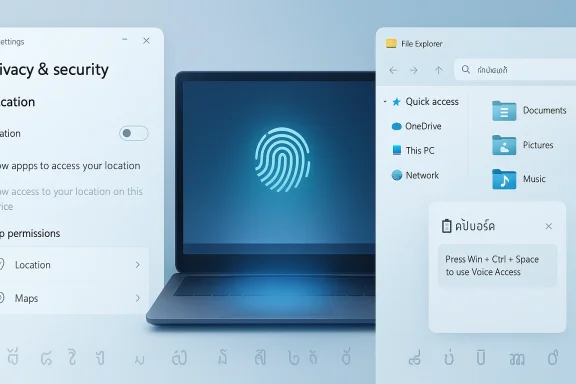 Overview
The newest Windows 11 preview builds fit neatly into Microsoft’s recent messaging about quality, reliability, and trust. In March, the company said it was raising the bar across Windows Insider flights, with a stated focus on performance, app responsiveness, File Explorer, Windows Hello, and more consistent search behavior across the OS. The features in this week’s Dev and Beta releases read like a practical follow-through on that commitment: they are targeted, specific, and grounded in real usage pain points rather than demo-friendly spectacle.That matters because Windows is now in a phase where users increasingly judge it by how quietly it works. A smoother wake-from-sleep fingerprint sign-in or a clearer privacy toggle in Settings does not generate the same buzz as an AI-powered task assistant, but it directly affects daily confidence in the platform. In the enterprise, these details influence support calls, desk-side troubleshooting, and end-user satisfaction. In consumer usage, they determine whether Windows feels dependable or merely busy.
Microsoft’s Insider cadence also helps explain why these changes arrive in preview first. Dev and Beta builds are still the company’s proving ground, and features can shift, vanish, or be replaced before they reach a mainstream release. That makes these builds useful not just as previews of what is coming, but as indicators of what Microsoft currently values: fewer rough edges, more transparent settings, and better baseline usability.
The timing is important too. Microsoft has spent the last year broadening the Windows 11 surface area with AI, passkey improvements, and design changes, but it has also had to acknowledge that many users want the fundamentals to improve. This week’s release feels like an answer to that feedback loop. It is not a pivot away from innovation; it is a reminder that innovation only lands if the operating system itself remains predictable, responsive, and understandable.
Why this build matters
These changes are small in isolation, but they hit areas that people notice every day. Privacy settings, login reliability, search affordances, clipboard access, and font rendering are all high-frequency interactions. When they get better, Windows feels better almost immediately.The builds also reinforce the distinction Microsoft now draws between feature work and quality work. That distinction is increasingly central to Windows 11’s identity. On one side are visible features that support Microsoft’s platform ambitions; on the other are the subtle tweaks that keep the platform feeling modern and trustworthy.
- Privacy settings clarity is about reducing confusion before it turns into mistrust.
- Windows Hello improvements address one of the most visible authentication paths in the OS.
- File Explorer polish matters because it remains one of the most-used Windows apps.
- Clipboard history speed helps power users and multitaskers.
- Font improvements show Microsoft still has room to improve basic internationalization.
The broader Insider context
Microsoft has been explicit that its Insider program is not just for shipping new toys. The March quality initiative described improvements across the OS and called out reliability in areas such as Windows Hello and wake behavior, plus more consistent search behavior across interfaces. That makes this week’s build easier to interpret: it is part of a coherent quality campaign, not a random grab bag of fixes.At the same time, the Dev and Beta channels remain separate experimentation tracks. Features can land in one channel before the other, and not every improvement is guaranteed to survive. For readers, that means the right way to think about these builds is as signals, not promises.
Settings and Privacy Controls
The most user-visible change in this flight is the adjustment to location settings. Microsoft is clarifying that when Location Services are off, related options such as Default location and Allow location override should appear disabled because apps and services are not receiving location data. This sounds simple, but it addresses a common interface problem: a control that appears active when the underlying feature is unavailable can make the UI feel inconsistent or misleading.That kind of clarity is especially important in privacy settings. Users tend to interpret privacy pages as declarations of system behavior, not just configuration menus. If a setting looks clickable but cannot work, the experience can create doubt about whether Windows is actually honoring user intent. By greying out those options until location is turned back on, Microsoft is making the dependency more visible and more honest.
The company also improved reliability when navigating to Settings > Apps > Installed apps. On the surface, that sounds minor, but Installed apps is one of the most heavily used pages in Windows. It is where users troubleshoot storage issues, uninstall bundled software, and validate installed versions. Faster and more reliable navigation there can reduce friction throughout the whole Settings app.
Why clarity matters more than novelty
Privacy controls do not need to be flashy to be meaningful. They need to be legible. If a user turns off location services, the rest of the interface should behave as though that choice matters. That is not just good UX; it is a trust signal.This update also fits into a broader trend in Windows 11 toward making permission and privacy behavior more explicit. Microsoft has been refining the way the operating system explains access to sensitive features. The current change is narrower than a full permissions overhaul, but it points in the same direction.
Practical user impact
For most users, the immediate benefit is reduced confusion. For power users and admins, the value is consistency across support scenarios. And for accessibility and IT documentation teams, the clearer presentation helps align user guidance with what the system actually shows.- Lower confusion when location is disabled.
- More predictable Settings behavior for support documentation.
- Better alignment between permission state and available options.
- Improved navigation reliability in a core administrative page.
- Fewer false assumptions about what Windows can and cannot access.
Windows Hello and Authentication
Microsoft says Windows Hello fingerprint sign-in is now more reliable and performant after waking from sleep. That is a meaningful detail because wake-from-sleep authentication is one of the most common points where biometric systems feel either seamless or frustrating. If fingerprint recognition stumbles at exactly the moment a user expects immediate access, the whole promise of passwordless convenience is weakened.The company has also been talking more openly about reliability as a core theme in the Windows experience. In that context, Windows Hello is not just a convenience feature; it is a trust anchor. It sits at the center of the login journey, and it often shapes the first impression users have after opening the lid of a laptop or resuming from sleep.
It is worth remembering that biometric login has implications beyond consumer convenience. In enterprise environments, Windows Hello underpins policy-driven authentication, conditional access, and the broader move away from passwords. Every improvement in recognition speed or wake recovery can have outsized value because it reduces the number of times users fall back to alternate sign-in paths.
Fingerprint reliability after sleep
The phrase “after your PC wakes from sleep” is doing a lot of work here. Wake transitions are a delicate phase for drivers, sensors, and power management. Even if a fingerprint reader is fine during a cold boot, it may behave differently after the system has been suspended, especially across diverse hardware stacks.Microsoft is not promising a reinvention of Windows Hello. Instead, it is refining the transition into the feature that users encounter most often. That kind of boring excellence is exactly what Windows needs more of.
Enterprise relevance
For organizations, authentication friction has a cost. Every failed biometric scan adds support overhead and slows employee workflow. That is why even modest quality improvements can be meaningful in enterprise deployments, particularly on managed laptops that are frequently docked, undocked, or resumed throughout the day.- Fewer retries at wake-up.
- More dependable sign-in for hybrid and mobile workers.
- Better perception of passwordless workflows.
- Reduced help desk burden tied to login problems.
- More confidence in biometric adoption across fleets.
Security and convenience balance
There is also a subtle security dimension here. When sign-in is smooth, users are less likely to adopt workarounds that weaken hygiene, such as disabling biometrics or favoring shorter authentication paths. The best authentication systems are the ones people want to use consistently, and that requires a combination of trust, speed, and low failure rates.File Explorer and Search UX
Microsoft is continuing to sand down some of File Explorer’s rougher edges, and that matters because File Explorer remains one of Windows’ most central utility apps. In this build, the company updated icon placement inside the File Explorer search box to be more consistent across PCs, improved File Explorer reliability, and improved navigation pane usage for Voice Access users. These are small tweaks, but they touch discoverability, consistency, and accessibility all at once.The search box change may sound cosmetic, but visual consistency matters in a system UI used millions of times every day. Inconsistent icon placement can make an interface feel vaguely unfinished, even if the functional behavior is fine. Microsoft has been spending a lot of time trying to make Windows 11 feel more coherent across varying screen sizes, hardware types, and device classes, so a visual consistency change inside File Explorer is very much on theme.
The Voice Access improvement is arguably the more important accessibility story. File Explorer remains a complex navigation environment with multiple panes, folders, and controls. Any improvement that makes it easier to use with voice input helps widen access to the operating system and reduces reliance on pointing devices.
Search and navigation as quality signals
Search is one of the first places users judge whether a product is organized or chaotic. Microsoft has been talking about more consistent search behavior across Windows, and File Explorer is a logical place to apply that principle. A search box should feel familiar regardless of the device in front of you.There is also an important psychological angle. If the user encounters a tidy, consistent search experience in File Explorer, they are more likely to perceive the app as reliable overall. That matters because File Explorer is still the place people go when they need something to just work.
Accessibility implications
Voice Access improvements should not be treated as a footnote. They reflect a larger expectation that core Windows shell apps need to support more interaction modes gracefully. That is especially relevant on laptops, convertible devices, and workplace systems that are shared across users with different abilities.- More consistent UI behavior across PCs.
- Better reliability in a heavily used shell app.
- Improved accessibility for voice-driven navigation.
- Reduced friction in common file-search tasks.
- A more polished feel inside the default file manager.
Clipboard History and Input Performance
The update to clipboard history is not glamorous, but it is exactly the kind of improvement that can reshape the feel of a system. Microsoft says clipboard history now opens faster, which may benefit users who regularly copy text, code snippets, links, or multi-step references between apps. Since clipboard history is one of those utilities people often discover only after they need it, improving its responsiveness raises the odds that it becomes part of everyday workflow.Clipboard performance is also a good proxy for the health of background UI services. If a lightweight interface takes too long to open, users notice delays, even if they do not know what component is causing them. Faster response time suggests Microsoft is shaving overhead somewhere in the path from hotkey to visible UI.
This kind of change is particularly valuable for multitaskers. Writers, developers, analysts, and support staff all lean on clipboard history to reduce context switching. A quicker panel means less interruption, and less interruption means more flow.
Why the clipboard still matters
It is easy to underestimate clipboard features because they feel basic. In reality, they are among the most important productivity accelerators in Windows. A small delay in clipboard history can be more annoying than a bigger delay in an app you use occasionally, simply because the clipboard is so deeply embedded in routine work.Microsoft’s decision to optimize this area fits a larger productivity narrative across Windows 11: make the OS feel faster where users actually feel time slipping away. That includes search, login, file browsing, and copy-paste workflows.
Practical workflow gains
For users who work in documents, spreadsheets, code editors, or browser-heavy environments, a faster clipboard panel can save seconds dozens of times per day. That adds up quickly in both consumer and enterprise use.- Less waiting for clipboard history to appear.
- Smoother multitasking across apps.
- Better support for power users and repetitive workflows.
- More confidence using clipboard utilities regularly.
- A small but tangible speed boost in everyday tasks.
Fonts and Multilingual Quality
Microsoft is also updating the Leelawadee UI font family for Thai, Lao, Khmer, and Lontara scripts to improve glyph sequencing, positioning, and rendering. This is one of the most technically important items in the build, even if it will not make headlines outside typography circles. Font rendering is one of those foundational quality layers that users only notice when it fails, and when it fails, it can damage the perception of the whole operating system.The choice to focus on specific scripts is significant. It suggests Microsoft is still doing targeted refinements in areas where the default Windows type system does not yet feel fully polished. That is a reminder that operating system quality is global, not just English-centric. When glyphs position correctly and characters sequence properly, the platform feels native rather than adapted.
For users in the affected language communities, these improvements could meaningfully reduce visual inconsistencies and improve readability. For everyone else, it is a sign that Microsoft continues to invest in the less visible layers of Windows localization.
Typography as platform quality
Font work is infrastructure work. It touches rendering, layout, browser experiences, document editing, and any app that relies on the system font stack. Small changes can ripple across the whole interface.When Microsoft improves font behavior for multiple scripts at once, it is not just fixing a cosmetic issue. It is strengthening Windows’ ability to represent language accurately and respectfully. That has cultural as well as technical value.
Localization and trust
International users often judge operating systems by the details that local markets care about most. If characters are clipped, uneven, or mispositioned, the impression is that the product was designed elsewhere and only partially adapted. Better rendering sends the opposite message: Windows is being maintained as a genuinely global platform.- Improved readability for supported scripts.
- Better glyph positioning in the UI.
- Stronger localization quality across language communities.
- More professional document and app rendering.
- Reduced visual inconsistency in multilingual contexts.
Gradual Rollouts and Insider Strategy
One of the quiet but important notes in this week’s reporting is Microsoft’s continued use of gradual feature rollouts. The company has been moving toward a model where features appear to subsets of Insiders first, then expand over time. That approach gives Microsoft more control, but it also makes the Insider experience less uniform. Two people on the same build can have different feature sets, which can be confusing unless you understand the mechanism.That model is not unique to Microsoft, but it is especially consequential in Windows because the operating system is so heterogeneous. Hardware diversity, driver variation, and policy-managed enterprise environments all create different reliability surfaces. Rolling out features gradually lets Microsoft test how changes behave in the wild before they become broadly visible.
There is another wrinkle: Microsoft has indicated that it is ditching gradual rollouts soon, at least in the context referenced by the reporting here. If that shift continues, it could change how quickly users see changes and how Microsoft balances confidence against experimentation. For Insiders, that could mean a more straightforward preview model. For Microsoft, it could mean a clearer line between “available” and “not yet ready.”
What gradual rollout gets right
The gradual model has obvious benefits. It reduces blast radius, helps Microsoft compare behavior across groups, and allows the company to catch regressions before they spread. It also provides a practical way to stage features that may depend on backend readiness or hardware compatibility.At the same time, it can frustrate users who expect a build number to mean a consistent feature set. That tension is part of the reason Microsoft has spent so much effort explaining how Insider flighting works.
The future of previewing Windows
If Microsoft really is moving away from gradual rollouts, the consequences could be broader than the feature list in one build. A more direct shipping model would make each flight easier to understand, but it could also reduce the company’s ability to hide unstable features behind staged exposure. That trade-off will be worth watching.- More predictable feature exposure if rollouts become less staggered.
- Less confusion about what a build should contain.
- Potentially faster feedback loops from Insiders.
- Greater pressure on Microsoft’s internal validation.
- More visible differences between Dev and Beta paths if the channels continue to diverge.
Consumer vs Enterprise Impact
For consumers, this build is all about comfort and confidence. Better Windows Hello fingerprint recovery after sleep means fewer annoying authentication hiccups. A clearer privacy display in Settings makes it easier to understand what location controls actually do. Faster clipboard history and more polished File Explorer behavior make daily use feel more fluid, even if the average buyer never reads release notes.For enterprise users, the calculus is slightly different. Reliability improvements tend to matter more than visual ones because they scale across fleets. Windows Hello is critical in managed environments, and the more dependable it becomes, the more viable passwordless workflows are in practice. Likewise, improved Settings navigation and better multilingual font rendering matter in global deployments where support tickets and localization consistency are part of the operating cost.
The most interesting thing about this release is that it serves both audiences without making a big show of it. Consumer users get usability improvements they can feel. Enterprise customers get the kind of groundwork that reduces friction at scale. That overlap is a good sign for Windows 11, because it shows Microsoft does not have to choose between polish and productivity.
Different users, different wins
Not every improvement will be equally visible to every audience. But the cumulative effect is clear: Windows is being tuned to work better in ordinary situations, not just showcase scenarios. That is often where operating systems win or lose long-term loyalty.- Consumers benefit from smoother daily interactions.
- Enterprises benefit from lower support overhead.
- Multilingual users benefit from better text rendering.
- Accessibility users benefit from better Voice Access support.
- Security-conscious users benefit from clearer privacy behavior.
Strengths and Opportunities
This build shows Microsoft doing what mature platform owners must eventually do: make the operating system feel more coherent, more legible, and more dependable. The opportunity is not just to add features but to make existing features worth trusting.- Improved trust through clearer privacy behavior.
- Better biometric reliability in a key sign-in flow.
- More polished shell UX in File Explorer and Settings.
- Faster everyday workflows through clipboard improvements.
- Stronger multilingual support through font updates.
- Better accessibility through Voice Access-related refinement.
- A clearer quality narrative for Windows Insider builds.
Risks and Concerns
The downside of incremental quality work is that users may not notice it if Microsoft does not communicate the value clearly. Small improvements can be dismissed as maintenance unless they are tied to visible real-world benefits. There is also the risk that gradual rollout complexity, build-specific differences, or later regressions could undermine the confidence these tweaks are meant to build.- Users may miss the value of subtle improvements.
- Rollout fragmentation can confuse Insiders.
- Quality gains may be offset by unrelated bugs in the same flight.
- Localization improvements may still leave edge cases unresolved.
- Windows Hello gains may vary depending on device hardware.
- Settings changes could create documentation drift for IT teams.
- Expectation gap if users want larger, more visible feature drops.
Looking Ahead
The clearest takeaway from this week’s builds is that Microsoft is still heavily invested in the fundamentals of Windows 11. That is encouraging, because operating systems live or die on the boring stuff: wake behavior, authentication, file navigation, settings clarity, and rendering quality. If those layers improve steadily, the whole platform feels more modern without needing a dramatic redesign.The next thing to watch is whether these quality-focused changes continue to pile up across Dev and Beta builds. If Microsoft keeps refining core surfaces while also streamlining how it stages features, Windows Insiders may begin to see a more disciplined release rhythm. That would be a meaningful shift after years of feature churn and occasional inconsistency.
It will also be worth watching whether Microsoft uses this quality push to smooth over the boundary between consumer polish and enterprise reliability. In the best case, the same changes that make Windows feel friendlier for everyday users also make it cheaper and easier to manage at scale. That is the rare Windows story that benefits everyone.
- Further privacy UI clarification in other Settings pages.
- More reliability work in Windows Hello and wake behavior.
- Additional File Explorer refinements for search and navigation.
- More clipboard and input responsiveness in future flights.
- Broader font and localization updates across other scripts and languages.
Source: Neowin Windows 11 gets improved privacy controls, better Windows Hello, and more in new builds
Last edited:
