

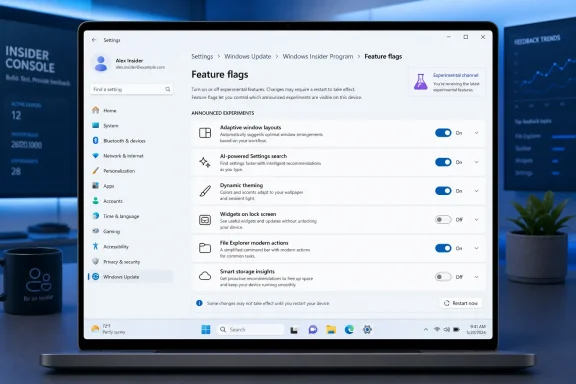
Microsoft announced on April 10, 2026 that Windows 11 Insiders in the Experimental channel will get a Feature flags page under Windows Insider Program settings, letting them enable or disable specific announced features instead of waiting for hidden controlled rollouts. The practical path is:
Settings > Windows Update > Windows Insider Program > Feature flags
On April 24, Microsoft also told Dev-channel users who had not yet received the new Experimental channel interface that they could manually enable it from that same Feature flags page.
That is the direct answer: this is a built-in Insider control surface for visible, announced experiments, not a master list of every hidden Windows feature. It gives Experimental-channel testers more control, gives Beta-channel testers a clearer promise, and gives WindowsForum readers a better way to compare what is actually enabled on one PC versus another.
If you are trying to find or test the new Windows 11 Feature flags page, start here:
That distinction matters because it changes what users should expect. Beta is supposed to be less ambiguous. Experimental is supposed to be more hands-on.
One WindowsForum report described the new Feature flags page as a built-in way for Insiders to access many newly announced experimental features under Windows Update and the Windows Insider Program. Another framed it as the native Settings control enthusiasts had been asking for: a page where experimental operating system capabilities could be toggled without hunting through hidden IDs. A separate report on the Dev Channel noted that build 26300.8155 revived the familiar debate over how much control testers should have when features appear, vanish, or change depending on rollout state.
That community context is important. The Feature flags page is not just a cosmetic Settings addition. It responds to a real testing problem WindowsForum users have documented repeatedly: controlled feature rollout made it hard to know whether a missing feature was absent because of the build, the channel, the rollout cohort, or something wrong with the PC.
The new page does not erase all of that complexity. It gives users a clearer official place to check first.
Microsoft’s controlled feature rollout system has an engineering purpose. It lets the company measure impact, reduce risk, and avoid exposing every tester to every unfinished change at once. But it also created confusion for a program built around volunteer feedback. If testers cannot access a feature, they cannot test it. If they cannot tell whether a feature is enabled, they cannot write useful bug reports.
The new model says that, at least for visible features Microsoft announces and chooses to expose, Experimental-channel users should be able to opt in or out from Settings. Testing becomes a deliberate state rather than a surprise.
The April 24 Dev-channel transition detail makes this more concrete. Microsoft did not merely announce a page for future experiments. It used Feature flags as a way for some users to enable the new Experimental channel interface manually when the rollout had not yet reached them. That is exactly the kind of ambiguity the page is meant to reduce.
Build 26300.8155, released to the Dev Channel on April 3, 2026, still came from the older pattern. Microsoft described many items in that build as using controlled feature rollout, meaning availability could vary even among users running the same build. That release structure may make sense for telemetry and risk management, but it complicates bug reproduction, documentation, and comparison between test machines.
For IT pros, this is more than an annoyance. If two lab PCs are on the same Insider build but behave differently, the question is no longer just “what changed?” It becomes:
Instead of “I’m on the same build and don’t have it,” the more useful report becomes: “I’m on the same build, in the same channel, and this flag is on or off.”
So the Feature flags page should not be treated as a complete inventory of Windows internals. It is not a supported control panel for every hidden feature ID, private experiment, compatibility mitigation, servicing change, or behind-the-scenes code path in the operating system.
That limitation is reasonable. Windows contains many internal switches that are not designed for manual testing. Some may depend on hardware, region, language, device class, account type, server-side configuration, or unfinished dependencies. Exposing every internal flag in Settings would create a support problem and could make test results less reliable rather than more reliable.
The real value is more focused: actionable transparency for announced experiences. If Microsoft publicly describes a visible Experimental-channel feature and exposes it through Feature flags, users have a supported place to enable it, disable it, and report feedback with clearer context.
That is the layer where opacity hurt most. A user could read about a Start menu change, File Explorer behavior, Settings update, or channel UI change and then spend days wondering why it was missing. The new page gives Microsoft a better answer than “wait and see,” when Microsoft chooses to list the feature there.
A built-in Feature flags page may reduce the need to use unofficial tools for announced, Microsoft-exposed Insider experiments. It does not mean Microsoft is replacing every use case for ViveTool or exposing every hidden capability that enthusiasts have discovered.
The factual contrast is this:
For most WindowsForum readers, that is the practical improvement. The page does not end feature archaeology. It gives ordinary Insider testing a safer first stop.
A visible feature flag model helps make test results reproducible. If a new behavior breaks a workflow, the tester can record not only the build and channel but also the feature state. That makes it easier to separate a bad build from a bad experiment.
A practical lab note might now include:
But it is still useful. In a lab, reproducibility is everything. If a help desk team is validating a new Windows behavior, the ability to say “this flag was enabled” is much better than guessing whether the machine happened to be selected by a hidden rollout.
That is where Feature flags becomes more than a convenience. It gives Microsoft a more motivated test population for visible experimental features. Users who go to the page and enable a feature are likely to understand that the feature is unfinished. They are also more likely to notice regressions, compare before-and-after behavior, and file targeted feedback.
There is a tradeoff. Self-selected testers are not the same as a randomized rollout cohort. They may be more technical, more tolerant of bugs, or more interested in edge cases than the average Windows user. Microsoft will still need staged exposure and telemetry for broader quality signals.
But Experimental is the right place for this kind of self-selection. If the channel is meant for earlier, rougher work, hiding announced experiments from the people most willing to test them defeats part of the purpose.
On April 3, 2026, build 26300.8155 arrived in the Dev Channel with controlled feature rollout still part of the release pattern. On April 10, Microsoft announced the channel overhaul, the end of gradual rollout for announced Beta features, and the Feature flags page for Experimental. On April 24, Microsoft began moving Dev users toward Experimental and told some users how to enable the new UI manually through Feature flags.
That three-week sequence shows the Insider Program crossing from one operating model into another. At the start of April, Dev still reflected the familiar ambiguity: same build, different available features. By the end of April, Microsoft was using a feature flag to help some users reach the new Insider interface itself.
WindowsForum’s earlier reports fit into that timeline. The community had already been watching a hidden or emerging Feature Flags area, discussing whether native toggles could make Insider builds more transparent, and asking whether Microsoft would give testers control over features that were previously subject to rollout selection. The April announcements supplied the official shape of that change.
The key questions are practical:
A poor implementation would simply move the mystery from hidden rollout logic into unexplained toggles.
This is where WindowsForum readers can be useful. The community’s role should not be limited to celebrating the existence of the page. It should document what appears there, what does not, which toggles work as described, and where Microsoft still leaves testers guessing.
If you enable an experimental feature, write it down before reporting bugs, comparing devices, or declaring that a build is broken. The point is not to make every Insider PC more chaotic. The point is to make controlled change visible.
Use this checklist when testing:
For Dev-channel users in the transition path, the Feature flags page may appear as part of the move toward Experimental. Microsoft’s April 24 guidance specifically matters here: if the new Experimental channel UI has not appeared automatically, the page may provide the manual path.
For Beta-channel users, the benefit is not a switchboard. The benefit is Microsoft’s promise that announced Beta features should no longer be held back by gradual rollout. That makes Beta a better fit for users who want preview builds with less feature availability ambiguity.
For IT pros, this is useful in labs but not a deployment control plane. Treat it as early signal. Use it to understand direction, identify compatibility problems, and produce better feedback. Do not treat an Experimental toggle as evidence that a feature is ready for broad organizational use.
For enthusiasts, the page gives a supported first step before reaching for unofficial tooling. It will not satisfy every curiosity, and it will not expose every hidden switch, but it should reduce the need to manipulate feature states just to test something Microsoft has already announced.
Settings > Windows Update > Windows Insider Program > Feature flags
If you do not see it, check your Insider channel and build context first. The page is associated with the Experimental channel, with a specific Dev transition use case noted by Microsoft on April 24.
If an Insider post announces a visible Experimental feature, users should be able to find the related flag quickly, understand what it changes, enable it, disable it, and report feedback with that state attached. If a feature is missing, Microsoft should be clear about whether it is not ready, not eligible, or still controlled by another rollout mechanism.
That is the standard WindowsForum readers should apply. The page does not need to expose everything. It does need to make the exposed things understandable.
The broader Windows story is that the operating system is becoming more continuous and more modular. Features arrive through channels, staged rollouts, app updates, server-side changes, and Insider flights. In that world, a build number alone is no longer enough to describe a Windows PC.
Feature flags are a practical answer to that problem. They are not glamorous, and they will not end Insider weirdness. Experimental software is supposed to be rough. But if Microsoft follows through, the weirdness becomes more visible, more reproducible, and more useful.
For WindowsForum readers, that is the real value: fewer mystery rollouts, better bug reports, clearer comparisons, and a supported place to start when Microsoft announces an experiment that your PC has not yet shown.
Settings > Windows Update > Windows Insider Program > Feature flags
On April 24, Microsoft also told Dev-channel users who had not yet received the new Experimental channel interface that they could manually enable it from that same Feature flags page.
That is the direct answer: this is a built-in Insider control surface for visible, announced experiments, not a master list of every hidden Windows feature. It gives Experimental-channel testers more control, gives Beta-channel testers a clearer promise, and gives WindowsForum readers a better way to compare what is actually enabled on one PC versus another.
 What To Do First
If you are trying to find or test the new Windows 11 Feature flags page, start here:- Make sure the PC is enrolled in the Windows Insider Program.
- The page is aimed at the Experimental channel.
- Open Settings > Windows Update > Windows Insider Program > Feature flags.
- If you are a Dev-channel user included in Microsoft’s April 24 transition guidance and the new Experimental channel UI has not appeared automatically, check the Feature flags page for the manual enablement option.
- If you are in Beta, do not expect the same experiment-switching model. The Beta change is different: Microsoft says announced Beta features should no longer be withheld by gradual rollout.
- When testing, record the build, channel, and which feature flags are enabled or disabled before filing feedback or comparing behavior with another machine.
How to verify it on your PC
Channel prerequisite: You need a Windows 11 Insider PC in the Experimental channel for the Feature flags page to act as the new experiment control surface. Dev-channel users in the April 24 transition path may also be told to use the page to enable the new Experimental channel interface if it has not appeared yet.
Where to look: Go to Settings > Windows Update > Windows Insider Program > Feature flags.
What you should see if it is available: A Feature flags page listing Microsoft-exposed, announced experimental features that can be turned on or off. Some changes may require a restart or sign-out depending on the feature.
What to expect if it is not available yet: You may not see the Feature flags page, or you may see the Windows Insider Program settings without the expected toggle. That does not necessarily mean your installation is broken. It may mean the PC is not in the required channel, the build does not include the visible page, Microsoft has not exposed that feature for your device, or the page itself is still part of a rollout or transition path.
Beta vs Experimental: What Changed
Microsoft’s April 10 announcement split the Insider story into two practical models. Beta gets more certainty. Experimental gets more choice.| Insider path | What changed | Who gets control | What remains rolled out or limited |
|---|---|---|---|
| Beta | Microsoft says announced Beta features will no longer depend on gradual feature rollout. | Microsoft controls what ships in the Beta update; users should not need to win a rollout lottery for announced Beta features. | Normal update availability, quality gates, fixes, and servicing behavior still remain Microsoft-controlled. |
| Experimental | A Feature flags page lets users enable or disable certain announced experimental features. | The tester gets direct control over Microsoft-exposed feature switches. | Not every internal Windows flag appears. Hidden plumbing, compatibility work, quality gates, servicing changes, and unannounced experiments may remain controlled by Microsoft. |
| Dev transition case | Some Dev users were told on April 24 that they could use Feature flags to enable the new Experimental channel UI manually if it had not appeared automatically. | Eligible testers can use the page as a bootstrap mechanism for the new channel interface. | The page still does not become a full inventory of every hidden Windows capability. |
WindowsForum Readers Saw the Same Pattern Before Microsoft Named It
WindowsForum coverage has been circling this shift from several angles: hidden rollout frustration, native Settings controls, feature IDs, Dev build behavior, and the long-running role of tools such as ViveTool. Across those reports, the recurring problem was simple: two people could install the same Windows 11 Insider build and still see different features.One WindowsForum report described the new Feature flags page as a built-in way for Insiders to access many newly announced experimental features under Windows Update and the Windows Insider Program. Another framed it as the native Settings control enthusiasts had been asking for: a page where experimental operating system capabilities could be toggled without hunting through hidden IDs. A separate report on the Dev Channel noted that build 26300.8155 revived the familiar debate over how much control testers should have when features appear, vanish, or change depending on rollout state.
That community context is important. The Feature flags page is not just a cosmetic Settings addition. It responds to a real testing problem WindowsForum users have documented repeatedly: controlled feature rollout made it hard to know whether a missing feature was absent because of the build, the channel, the rollout cohort, or something wrong with the PC.
The new page does not erase all of that complexity. It gives users a clearer official place to check first.
Microsoft Moves Part of Insider Testing From Waiting to Choosing
The Feature flags page changes the posture of Insider testing. Until now, much of the experience has been passive: install a build, read the release notes, then discover whether the feature you care about has reached your machine.Microsoft’s controlled feature rollout system has an engineering purpose. It lets the company measure impact, reduce risk, and avoid exposing every tester to every unfinished change at once. But it also created confusion for a program built around volunteer feedback. If testers cannot access a feature, they cannot test it. If they cannot tell whether a feature is enabled, they cannot write useful bug reports.
The new model says that, at least for visible features Microsoft announces and chooses to expose, Experimental-channel users should be able to opt in or out from Settings. Testing becomes a deliberate state rather than a surprise.
The April 24 Dev-channel transition detail makes this more concrete. Microsoft did not merely announce a page for future experiments. It used Feature flags as a way for some users to enable the new Experimental channel interface manually when the rollout had not yet reached them. That is exactly the kind of ambiguity the page is meant to reduce.
The Old Insider Bargain Was Always Messier Than the Build Number
Windows enthusiasts have long treated build numbers as shorthand for capability. If one machine was on a newer build than another, the assumption was that it had the newer Windows experience. Controlled feature rollout weakened that assumption.Build 26300.8155, released to the Dev Channel on April 3, 2026, still came from the older pattern. Microsoft described many items in that build as using controlled feature rollout, meaning availability could vary even among users running the same build. That release structure may make sense for telemetry and risk management, but it complicates bug reproduction, documentation, and comparison between test machines.
For IT pros, this is more than an annoyance. If two lab PCs are on the same Insider build but behave differently, the question is no longer just “what changed?” It becomes:
- Are they in the same Insider channel?
- Did both receive the same staged feature?
- Is a visible feature flag enabled on one and disabled on the other?
- Is the difference caused by Microsoft’s rollout logic rather than the installed build?
Instead of “I’m on the same build and don’t have it,” the more useful report becomes: “I’m on the same build, in the same channel, and this flag is on or off.”
The Feature Flags Page Is Not a Full Windows Control Room
The most important limitation is also the easiest to miss: Microsoft says the page starts with visible new features announced in Windows Insider Program posts. That is narrower than “every Windows feature flag.”So the Feature flags page should not be treated as a complete inventory of Windows internals. It is not a supported control panel for every hidden feature ID, private experiment, compatibility mitigation, servicing change, or behind-the-scenes code path in the operating system.
That limitation is reasonable. Windows contains many internal switches that are not designed for manual testing. Some may depend on hardware, region, language, device class, account type, server-side configuration, or unfinished dependencies. Exposing every internal flag in Settings would create a support problem and could make test results less reliable rather than more reliable.
The real value is more focused: actionable transparency for announced experiences. If Microsoft publicly describes a visible Experimental-channel feature and exposes it through Feature flags, users have a supported place to enable it, disable it, and report feedback with clearer context.
That is the layer where opacity hurt most. A user could read about a Start menu change, File Explorer behavior, Settings update, or channel UI change and then spend days wondering why it was missing. The new page gives Microsoft a better answer than “wait and see,” when Microsoft chooses to list the feature there.
The ViveTool Contrast Should Stay Narrow
WindowsForum has covered the Feature flags page partly because it overlaps with the enthusiast world around tools such as ViveTool. That comparison is understandable, but it needs to be kept precise.A built-in Feature flags page may reduce the need to use unofficial tools for announced, Microsoft-exposed Insider experiments. It does not mean Microsoft is replacing every use case for ViveTool or exposing every hidden capability that enthusiasts have discovered.
The factual contrast is this:
- Feature flags in Settings are Microsoft-provided and scoped to features Microsoft chooses to expose.
- Unofficial tools can reach hidden feature states that Microsoft may not consider ready, supported, or appropriate for broad manual testing.
- If a feature is not listed in Settings, that does not prove it does not exist in the build. It only means Microsoft has not exposed it through that supported page.
For most WindowsForum readers, that is the practical improvement. The page does not end feature archaeology. It gives ordinary Insider testing a safer first stop.
The Admin Value Is Reproducibility
For sysadmins, endpoint engineers, and serious testers, the most important word is not “experimental.” It is “specific.”A visible feature flag model helps make test results reproducible. If a new behavior breaks a workflow, the tester can record not only the build and channel but also the feature state. That makes it easier to separate a bad build from a bad experiment.
A practical lab note might now include:
- Windows 11 Insider build number
- Insider channel
- Whether the PC is in Experimental, Beta, or a Dev transition state
- Which Feature flags are enabled
- Which flags were changed before the bug appeared
- Whether disabling the flag changes the result
But it is still useful. In a lab, reproducibility is everything. If a help desk team is validating a new Windows behavior, the ability to say “this flag was enabled” is much better than guessing whether the machine happened to be selected by a hidden rollout.
Feedback Gets Better When Testers Can Reach the Feature
The Insider Program depends on feedback, but feedback quality drops when testers cannot access the feature being discussed. A user who reads about a new UI and never receives it can mostly report confusion. A user who can enable it deliberately can report behavior.That is where Feature flags becomes more than a convenience. It gives Microsoft a more motivated test population for visible experimental features. Users who go to the page and enable a feature are likely to understand that the feature is unfinished. They are also more likely to notice regressions, compare before-and-after behavior, and file targeted feedback.
There is a tradeoff. Self-selected testers are not the same as a randomized rollout cohort. They may be more technical, more tolerant of bugs, or more interested in edge cases than the average Windows user. Microsoft will still need staged exposure and telemetry for broader quality signals.
But Experimental is the right place for this kind of self-selection. If the channel is meant for earlier, rougher work, hiding announced experiments from the people most willing to test them defeats part of the purpose.
The April Timeline Shows a Real Transition
The chronology explains why this is more than a minor Settings change.On April 3, 2026, build 26300.8155 arrived in the Dev Channel with controlled feature rollout still part of the release pattern. On April 10, Microsoft announced the channel overhaul, the end of gradual rollout for announced Beta features, and the Feature flags page for Experimental. On April 24, Microsoft began moving Dev users toward Experimental and told some users how to enable the new UI manually through Feature flags.
That three-week sequence shows the Insider Program crossing from one operating model into another. At the start of April, Dev still reflected the familiar ambiguity: same build, different available features. By the end of April, Microsoft was using a feature flag to help some users reach the new Insider interface itself.
WindowsForum’s earlier reports fit into that timeline. The community had already been watching a hidden or emerging Feature Flags area, discussing whether native toggles could make Insider builds more transparent, and asking whether Microsoft would give testers control over features that were previously subject to rollout selection. The April announcements supplied the official shape of that change.
Boundary Cases Will Decide Whether the Page Is Actually Useful
The first version of the Feature flags page is less important than the rules Microsoft builds around it.The key questions are practical:
- Which announced features qualify for a toggle?
- How quickly do new Experimental features appear on the page?
- Does disabling a flag fully revert behavior or only hide the entry point?
- Does the page explain whether a restart is required?
- Are dependencies between flags clearly described?
- Does Feedback Hub capture the flag state when users submit reports?
- If a feature is missing, does Microsoft explain whether it is not ready, not eligible, or still controlled another way?
A poor implementation would simply move the mystery from hidden rollout logic into unexplained toggles.
This is where WindowsForum readers can be useful. The community’s role should not be limited to celebrating the existence of the page. It should document what appears there, what does not, which toggles work as described, and where Microsoft still leaves testers guessing.
The New Model Gives Testers Power, But Also Homework
The Feature flags page gives Experimental-channel users more agency. That also means testers need to be more disciplined.If you enable an experimental feature, write it down before reporting bugs, comparing devices, or declaring that a build is broken. The point is not to make every Insider PC more chaotic. The point is to make controlled change visible.
Use this checklist when testing:
- Confirm the PC’s Insider channel before comparing behavior.
- Use Settings > Windows Update > Windows Insider Program > Feature flags as the first place to check for announced Experimental features.
- Record the flag state before and after changing anything.
- Reproduce bugs with the flag enabled and, when possible, disabled.
- Do not assume a missing flag means the feature is gone from the build.
- Do not treat Experimental flags as production previews.
- For Beta, focus on whether announced features appear consistently after installing the update.
- When posting on WindowsForum or filing Feedback Hub reports, include the channel, build, and relevant flag state.
What This Means for Different Windows Users
For Experimental-channel Insiders, this is the most direct change. You get a Settings page for Microsoft-exposed experimental features, and you should use it as part of your normal testing workflow.For Dev-channel users in the transition path, the Feature flags page may appear as part of the move toward Experimental. Microsoft’s April 24 guidance specifically matters here: if the new Experimental channel UI has not appeared automatically, the page may provide the manual path.
For Beta-channel users, the benefit is not a switchboard. The benefit is Microsoft’s promise that announced Beta features should no longer be held back by gradual rollout. That makes Beta a better fit for users who want preview builds with less feature availability ambiguity.
For IT pros, this is useful in labs but not a deployment control plane. Treat it as early signal. Use it to understand direction, identify compatibility problems, and produce better feedback. Do not treat an Experimental toggle as evidence that a feature is ready for broad organizational use.
For enthusiasts, the page gives a supported first step before reaching for unofficial tooling. It will not satisfy every curiosity, and it will not expose every hidden switch, but it should reduce the need to manipulate feature states just to test something Microsoft has already announced.
Frequently Asked Questions
Where is the Windows 11 Feature flags page?
Microsoft’s stated path is:Settings > Windows Update > Windows Insider Program > Feature flags
If you do not see it, check your Insider channel and build context first. The page is associated with the Experimental channel, with a specific Dev transition use case noted by Microsoft on April 24.
Who gets the Feature flags page?
The new experiment control surface is for Windows 11 Insiders in the Experimental channel. Some Dev-channel users in Microsoft’s transition path were also told they could use the page to enable the new Experimental channel interface manually if it had not appeared automatically.Does Beta get Feature flags too?
Beta’s change is different. Microsoft said announced Beta features will no longer depend on gradual feature rollout. That means Beta is supposed to provide more consistent access to announced features after installing the relevant update, rather than giving users a page of experimental toggles.Is Feature flags a replacement for ViveTool?
Not completely. The built-in page is an official Settings surface for Microsoft-exposed, announced experiments. It may reduce reliance on unofficial tools for those supported cases, but it does not expose every hidden Windows feature ID or internal flag.Why do two PCs on the same Insider build show different features?
Controlled feature rollout can make feature availability vary even on the same build. Channel, rollout state, device eligibility, and now visible feature flag state can all affect what appears. That is why testers should record the build, channel, and enabled flags when comparing PCs.If the page is missing, is something wrong with my PC?
Not necessarily. The PC may not be in the Experimental channel, the build may not include the visible page, Microsoft may not have exposed the page or feature for that device, or the transition may not have reached the machine yet.Are all hidden Windows features listed there?
No. Microsoft’s stated starting point is visible new features announced in Windows Insider Program posts. Internal flags, servicing changes, compatibility mitigations, unannounced experiments, and other hidden code paths may remain unavailable from Settings.Should IT admins use Experimental flags for deployment planning?
Only cautiously. Experimental flags can help admins spot direction and test compatibility early, but they are not production guidance. Treat them as lab signals, not deployment controls.The Real Test Is Whether Microsoft Keeps It Legible
The Feature flags page will succeed or fail based on how clearly Microsoft maintains it.If an Insider post announces a visible Experimental feature, users should be able to find the related flag quickly, understand what it changes, enable it, disable it, and report feedback with that state attached. If a feature is missing, Microsoft should be clear about whether it is not ready, not eligible, or still controlled by another rollout mechanism.
That is the standard WindowsForum readers should apply. The page does not need to expose everything. It does need to make the exposed things understandable.
The broader Windows story is that the operating system is becoming more continuous and more modular. Features arrive through channels, staged rollouts, app updates, server-side changes, and Insider flights. In that world, a build number alone is no longer enough to describe a Windows PC.
Feature flags are a practical answer to that problem. They are not glamorous, and they will not end Insider weirdness. Experimental software is supposed to be rough. But if Microsoft follows through, the weirdness becomes more visible, more reproducible, and more useful.
For WindowsForum readers, that is the real value: fewer mystery rollouts, better bug reports, clearer comparisons, and a supported place to start when Microsoft announces an experiment that your PC has not yet shown.
References
- Primary source: support.microsoft.com
Experimental Agentic Features | Microsoft Support
Experimental Agentic Featuressupport.microsoft.com - Independent coverage: blogs.windows.com
Improving your Windows Insider experience
Hello Windows Insiders, Last month, Pavan shared our commitment to improving Windows quality, with a focus on performance, reliability and craft, iblogs.windows.com
