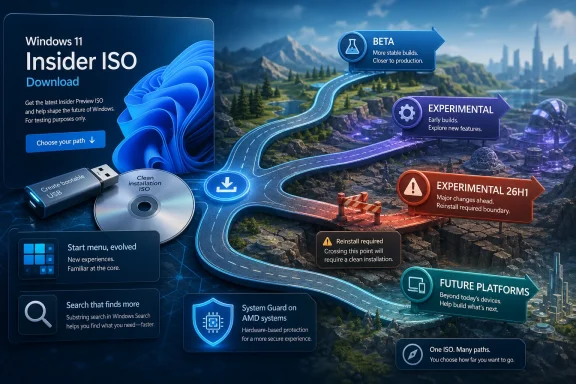
Microsoft has published fresh Windows 11 Insider Preview ISO files for recent preview builds, giving registered Windows Insiders a cleaner path to install or test the latest Beta and Experimental channel releases without waiting for Windows Update. The move is routine on paper, but it matters because Microsoft’s Insider program is no longer a simple ladder from risky to stable. It is now a multi-lane proving ground where feature delivery, platform work, silicon targeting, and release branding are increasingly separated. The ISO drop is therefore less about convenience than about making that new testing model usable.
Windows Update is the normal route for Insider builds, and for most testers it remains the right one. But ISO files have a different role: they let enthusiasts, administrators, and lab owners perform clean installs, repair broken test systems, build virtual machines, or run in-place upgrades without being held hostage by staged rollout timing.
That matters more now because Windows 11 preview builds are no longer just “next month’s cumulative update with a few toggles.” Microsoft is using Insider channels to test UI experiments, servicing mechanics, AI-adjacent shell behavior, feature flags, enablement packages, and platform transitions that may not all land in the same public release. A clean install gives testers a baseline. It removes months of upgrade residue, policy drift, driver leftovers, and registry archaeology from the equation.
For home enthusiasts, the practical benefit is speed. For IT pros, it is repeatability. A downloadable ISO lets a lab reproduce an issue, validate a driver, test provisioning, or snapshot a VM before and after a build lands. That is the kind of boring infrastructure that makes preview programs useful rather than merely exciting.
The catch is that the files are not public in the normal consumer sense. Microsoft still requires a Microsoft Account enrolled in the Windows Insider Program before download links are generated. That keeps the preview funnel tied to telemetry, program terms, and the company’s chosen audience, even if the files themselves are exactly the sort of thing power users want to archive, mount, and dissect.
Microsoft’s newer channel structure leans into segmentation. Beta remains the safer place to preview features closer to production. Experimental is where the company can expose features and platform changes earlier, sometimes under old Dev or Canary naming while the program transition completes. Separate lanes such as Experimental for 26H1 and Experimental for Future Platforms make the picture more complicated still.
That complication is not just branding churn. It reflects the fact that Windows development itself has fractured into overlapping streams. Some builds are based on Windows 11 version 25H2 with enablement-package behavior. Some are aligned with 26H1, a release track tied to newer hardware realities. Some Future Platforms builds are explicitly not mapped to a specific consumer Windows release at all.
This is the part casual readers miss when they see “new ISO files” and shrug. An ISO is a snapshot of a branch. In the old world, that branch was more likely to mean “the next Windows.” In the current world, it may mean “the next enablement wave,” “the next servicing foundation,” “the next silicon-targeted release,” or “a speculative platform experiment Microsoft reserves the right to abandon.”
That spread is meaningful. Build numbers are not merely trivia for forum signatures; they reveal where Microsoft is doing real platform work. When two channels share visible features but differ under the hood, administrators should treat them as different products for testing purposes. A shell feature that behaves on a 26220 build does not automatically validate the same feature on a 28020 or 29599 build.
This is also why Microsoft’s repeated caveats matter. Features shown to Insiders can change, disappear, ship late, or never ship at all. The company has said variations of this for years, but the warning carries more weight when the testing surface includes multiple platform families at once.
The result is a preview program that looks less like a queue and more like a dispatch board. The new ISOs make it easier to board any train, but they do not tell you where every train is ultimately going.
The new work reportedly includes the ability to resize the menu, control specific sections, and change how recommendations behave. Most importantly, Microsoft is separating the recommendation section from jump lists more intelligently, so users can disable recommendations without breaking other useful shell affordances. That sounds small until you remember how much Windows 11 criticism has centered on Microsoft blending local productivity with cloud prompts, recent files, suggested content, and account nudges.
The Start menu is not just a launcher. It is the emotional center of Windows. When Microsoft changes it, people read those changes as a statement about who controls the PC. Windows 8 learned that lesson catastrophically; Windows 11 learned it more slowly, through grumbling about taskbar rigidity, default app friction, and shell simplification that sometimes felt like subtraction.
Resizable Start is therefore more than a cosmetic concession. It is Microsoft acknowledging that one size does not fit desktop Windows. A compact laptop, a 49-inch ultrawide, a touch tablet, and a managed enterprise desktop do not need the same Start layout. The more Microsoft restores user agency without retreating into Windows 10 nostalgia, the healthier Windows 11 becomes.
That perception is hard to unwind because Microsoft has repeatedly blurred the line between helpful suggestion and business-driven placement across Windows. The company may see a Microsoft 365 reminder, OneDrive prompt, or account benefit card as user assistance. A skeptical Windows user sees another attempt to monetize the shell.
By allowing recommendations to be disabled without collateral damage to jump lists, Microsoft is making a healthier distinction. Jump lists are a productivity feature. Recommendations are a prediction layer. Users may reasonably want the former and reject the latter.
The broader lesson is that Windows customization is not merely fan service. It is a trust mechanism. When users can turn things off cleanly, they are less likely to assume every new feature is a trap.
That model gives Microsoft flexibility. It can test features with smaller cohorts, pull broken code paths without yanking an entire build, and gather telemetry before broad exposure. It also makes the Insider program maddening for anyone trying to compare notes.
ISO files do not eliminate that complexity, but they reduce one variable. A clean install from an official image gives testers a known starting point. From there, the remaining differences are more likely to come from feature rollout, hardware eligibility, region, account state, policy, or server-side enablement.
For sysadmins, that distinction is crucial. If a problem appears only after an in-place upgrade, the culprit may be upgrade migration. If it appears on a clean ISO install, the build itself becomes more suspect. If it appears only after a feature flag flips, the issue belongs to Microsoft’s rollout machinery rather than the base image.
That is why official ISOs remain valuable even in an era when Windows Update is theoretically seamless. They are diagnostic instruments.
This is especially important for builds in the Experimental and Future Platforms lanes. Microsoft is explicit that some of these builds are not tied to a particular Windows release. That makes them interesting for observation but dangerous as a primary operating system.
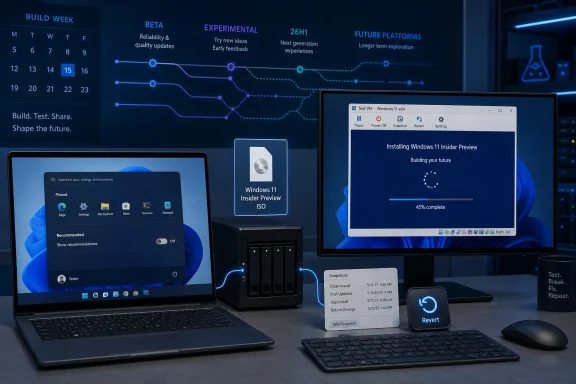
A fresh ISO lowers the barrier to sensible testing. Download the image, create a VM, install, snapshot, enroll, and observe. If the build breaks something fundamental, revert. If a feature is worth watching, keep the VM around. If Microsoft abandons the experiment, delete it.
That workflow is mundane, but it is the right way to engage with a preview channel whose entire purpose is controlled instability.
The old Insider assumption was that if your PC met the broad Windows 11 requirements, you could more or less choose how adventurous you wanted to be. The modern reality is narrower. Some builds may be intended for specific platform transitions, and some devices may be blocked from particular flights because of known issues or hardware capabilities.
That has consequences for ISO users. An ISO is not a magic bypass for eligibility, support, or driver readiness. It can make installation easier, but it cannot turn an unsupported configuration into a representative test bed. If Microsoft is using a build to validate platform work for a particular class of machines, installing it elsewhere may produce more noise than signal.
For WindowsForum readers, the best mental model is simple: channel choice is now part of hardware strategy. A Beta ISO is not just “safer” because it has fewer bugs. It may also be closer to the branch your fleet or home machine will actually see. A Future Platforms ISO may be fascinating, but it is not necessarily relevant to your next deployment.
When Microsoft blocks a subset of hardware, it is usually because the risk is known enough to justify intervention. That may involve boot reliability, security features, firmware interactions, virtualization-based security, driver behavior, or some other platform-level issue. The specifics are less important than the signal: this is not a normal cumulative update.
It also reinforces why official ISOs should be treated with respect. The availability of installation media does not mean Microsoft believes every enthusiast should install every build on every machine. It means Microsoft is providing a supported acquisition path for people who understand the preview bargain.
That bargain is: you get early access, Microsoft gets telemetry and feedback, and nobody gets to pretend the build is finished.
That is why even a humble ISO update fits the larger story. Microsoft is preparing developers and testers for a Windows ecosystem where AI features, shell changes, app model updates, hardware differentiation, and cloud-connected experiences move on overlapping schedules. The OS is becoming less like a monolithic annual release and more like a service fabric with a desktop attached.
That has advantages. Microsoft can iterate faster, target features more precisely, and avoid holding every improvement for a single fall update. It can test risky ideas in narrow populations before committing them to hundreds of millions of PCs.
It also has costs. Documentation grows harder. Version numbers grow less intuitive. Users lose confidence that “I’m on the latest build” means anything precise. Administrators must track not only Windows version and build, but also channel, enablement state, feature rollout status, policy configuration, and hardware lane.
The new ISOs are a relief valve for that complexity. They do not simplify the Windows roadmap, but they give serious testers a way to pin down specific moments in it.
If Microsoft is preparing new premium hardware around ARM and advanced AI acceleration, then Windows preview channels become the place where those assumptions are hardened. Setup, recovery, drivers, app compatibility, power management, security isolation, and shell responsiveness all have to work differently when the hardware baseline changes.
That makes the 26H1 and Future Platforms lanes more consequential. They may not tell us exactly what will ship to everyone, but they show where Microsoft expects Windows to stretch. Some of that stretching will benefit ordinary x64 desktops eventually. Some of it may remain tied to new silicon.
The important point is that Windows testing is no longer merely about “what feature did Microsoft add?” It is also about “what class of PC is Microsoft designing for?”
That distrust has history. Microsoft has made Windows setup increasingly account-driven. It has pushed online sign-in. It has promoted the Media Creation Tool for mainstream releases. It has sometimes made direct ISO acquisition feel more cumbersome than it needs to be. Enthusiasts respond by building tools, scripts, mirrors, and workarounds.
Official Insider ISOs are therefore a small but important act of détente. They say: if you are in the program, here is the image. You do not have to scrape, reconstruct, or wait for Windows Update to cooperate.
Still, Microsoft keeps control. The Insider website gates the download behind an enrolled account. The company can rotate links, limit availability, and steer users toward the builds it wants tested. This is not an open archive in the old MSDN sense. It is a managed preview distribution system.
That balance is probably inevitable. Microsoft wants telemetry and guardrails; power users want files. The healthier the official path becomes, the less incentive there is for risky unofficial behavior.
The most useful enterprise posture is selective curiosity. A lab should track Beta builds for likely near-term changes. It should sample Experimental builds when shell, policy, or platform changes appear relevant. It should approach 26H1 and Future Platforms builds with hardware context in mind.
Clean ISOs make that discipline easier. They allow repeatable imaging and controlled comparison. They also let administrators test the out-of-box experience, setup network requirements, account prompts, local account workarounds, BitLocker behavior, and default app state without inheriting the quirks of an upgraded machine.
The danger is over-reading. A Start menu experiment in an Experimental build is not a deployment plan. A Future Platforms fix is not a promise. A missing feature on one device is not proof Microsoft reversed course. In the current Insider model, absence and presence are both provisional.
That is not inherently bad. Mature software platforms need experimentation. Windows carries decades of compatibility baggage, and Microsoft cannot modernize it only through finished, polished, twice-yearly packages. The company needs places to test shell redesigns, security defaults, app behaviors, setup flows, and hardware assumptions before they reach the general public.
But controlled instability still needs control. That means clear channels, honest release notes, reliable ISOs, and plain warnings when builds are not tied to a specific release. It also means Microsoft must resist the temptation to turn every preview surface into a marketing surface. Enthusiasts and admins can tolerate bugs. They are less tolerant of ambiguity that feels strategic.
The latest ISO release is useful because it supports the serious side of the Insider program. It gives testers better materials. It gives labs cleaner baselines. It gives VM users a faster route. It gives Windows watchers a more concrete way to follow Microsoft’s branching roadmap.
Yet it also highlights the burden Microsoft has placed on its most engaged users. To understand Windows now, you must understand channels, branches, build numbers, feature flags, enablement packages, hardware lanes, and server-side rollout behavior. That is a lot to ask of the very people most willing to help Microsoft test the product.
Microsoft’s new Insider ISOs are not a blockbuster announcement, and they are not meant to be. They are scaffolding for a Windows development model that is becoming more fragmented, more hardware-aware, and more dependent on selective experimentation. For enthusiasts, that means easier access to the newest toys; for IT pros, it means cleaner labs and sharper caution. The future of Windows 11 will not arrive as one neat download, but the official ISO files at least give us fixed points from which to measure how fast—and how unevenly—it is moving.
 The ISO Is Still the Cleanest Way to See What Microsoft Is Really Shipping
Windows Update is the normal route for Insider builds, and for most testers it remains the right one. But ISO files have a different role: they let enthusiasts, administrators, and lab owners perform clean installs, repair broken test systems, build virtual machines, or run in-place upgrades without being held hostage by staged rollout timing.That matters more now because Windows 11 preview builds are no longer just “next month’s cumulative update with a few toggles.” Microsoft is using Insider channels to test UI experiments, servicing mechanics, AI-adjacent shell behavior, feature flags, enablement packages, and platform transitions that may not all land in the same public release. A clean install gives testers a baseline. It removes months of upgrade residue, policy drift, driver leftovers, and registry archaeology from the equation.
For home enthusiasts, the practical benefit is speed. For IT pros, it is repeatability. A downloadable ISO lets a lab reproduce an issue, validate a driver, test provisioning, or snapshot a VM before and after a build lands. That is the kind of boring infrastructure that makes preview programs useful rather than merely exciting.
The catch is that the files are not public in the normal consumer sense. Microsoft still requires a Microsoft Account enrolled in the Windows Insider Program before download links are generated. That keeps the preview funnel tied to telemetry, program terms, and the company’s chosen audience, even if the files themselves are exactly the sort of thing power users want to archive, mount, and dissect.
The Insider Program Is Becoming a Map, Not a Ladder
For years, many Windows watchers mentally sorted Insider channels by danger level: Canary was wild, Dev was early, Beta was closer to release, and Release Preview was the waiting room. That model was never perfect, but it was easy to understand. In 2026, it is increasingly inadequate.Microsoft’s newer channel structure leans into segmentation. Beta remains the safer place to preview features closer to production. Experimental is where the company can expose features and platform changes earlier, sometimes under old Dev or Canary naming while the program transition completes. Separate lanes such as Experimental for 26H1 and Experimental for Future Platforms make the picture more complicated still.
That complication is not just branding churn. It reflects the fact that Windows development itself has fractured into overlapping streams. Some builds are based on Windows 11 version 25H2 with enablement-package behavior. Some are aligned with 26H1, a release track tied to newer hardware realities. Some Future Platforms builds are explicitly not mapped to a specific consumer Windows release at all.
This is the part casual readers miss when they see “new ISO files” and shrug. An ISO is a snapshot of a branch. In the old world, that branch was more likely to mean “the next Windows.” In the current world, it may mean “the next enablement wave,” “the next servicing foundation,” “the next silicon-targeted release,” or “a speculative platform experiment Microsoft reserves the right to abandon.”
Build Numbers Now Tell a Story Microsoft’s Branding Tries to Smooth Over
The latest Windows 11 Insider build list has become a small taxonomy lesson. Beta builds in the 26220 range sit near the Windows 11 25H2 servicing world. Experimental builds in the 26300 range are closely related in user-facing feature terms but live in a different test lane. Experimental 26H1 builds in the 28020 range point at Microsoft’s first-half 2026 platform track. Future Platforms builds in the 29500 range are the most speculative of the bunch.That spread is meaningful. Build numbers are not merely trivia for forum signatures; they reveal where Microsoft is doing real platform work. When two channels share visible features but differ under the hood, administrators should treat them as different products for testing purposes. A shell feature that behaves on a 26220 build does not automatically validate the same feature on a 28020 or 29599 build.
This is also why Microsoft’s repeated caveats matter. Features shown to Insiders can change, disappear, ship late, or never ship at all. The company has said variations of this for years, but the warning carries more weight when the testing surface includes multiple platform families at once.
The result is a preview program that looks less like a queue and more like a dispatch board. The new ISOs make it easier to board any train, but they do not tell you where every train is ultimately going.
The Start Menu Is the Headline Because Microsoft Knows the Shell Is the Product
The most visible work in these recent builds is the Start menu overhaul being tested in the Experimental lane. Microsoft is trying to solve a problem it created for itself with Windows 11: the Start menu became cleaner, but also less flexible, less dense, and more opinionated than many users wanted.The new work reportedly includes the ability to resize the menu, control specific sections, and change how recommendations behave. Most importantly, Microsoft is separating the recommendation section from jump lists more intelligently, so users can disable recommendations without breaking other useful shell affordances. That sounds small until you remember how much Windows 11 criticism has centered on Microsoft blending local productivity with cloud prompts, recent files, suggested content, and account nudges.
The Start menu is not just a launcher. It is the emotional center of Windows. When Microsoft changes it, people read those changes as a statement about who controls the PC. Windows 8 learned that lesson catastrophically; Windows 11 learned it more slowly, through grumbling about taskbar rigidity, default app friction, and shell simplification that sometimes felt like subtraction.
Resizable Start is therefore more than a cosmetic concession. It is Microsoft acknowledging that one size does not fit desktop Windows. A compact laptop, a 49-inch ultrawide, a touch tablet, and a managed enterprise desktop do not need the same Start layout. The more Microsoft restores user agency without retreating into Windows 10 nostalgia, the healthier Windows 11 becomes.
Recommendations Were Always a Trust Problem
The recommendation area has been one of Windows 11’s most awkward design compromises. In theory, it helps users return to recent documents, installed apps, and useful files. In practice, many users see it as a beachhead for clutter, cloud integration, and promotional logic.That perception is hard to unwind because Microsoft has repeatedly blurred the line between helpful suggestion and business-driven placement across Windows. The company may see a Microsoft 365 reminder, OneDrive prompt, or account benefit card as user assistance. A skeptical Windows user sees another attempt to monetize the shell.
By allowing recommendations to be disabled without collateral damage to jump lists, Microsoft is making a healthier distinction. Jump lists are a productivity feature. Recommendations are a prediction layer. Users may reasonably want the former and reject the latter.
The broader lesson is that Windows customization is not merely fan service. It is a trust mechanism. When users can turn things off cleanly, they are less likely to assume every new feature is a trap.
Clean Installs Matter More When Features Arrive Behind Toggles
Modern Windows development is defined by staged rollout. Two people on the same build number may not see the same features at the same time. A setting such as “get the latest updates as soon as they’re available” can alter what a device receives. Feature flags can expose or hide capabilities independent of the build string.That model gives Microsoft flexibility. It can test features with smaller cohorts, pull broken code paths without yanking an entire build, and gather telemetry before broad exposure. It also makes the Insider program maddening for anyone trying to compare notes.
ISO files do not eliminate that complexity, but they reduce one variable. A clean install from an official image gives testers a known starting point. From there, the remaining differences are more likely to come from feature rollout, hardware eligibility, region, account state, policy, or server-side enablement.
For sysadmins, that distinction is crucial. If a problem appears only after an in-place upgrade, the culprit may be upgrade migration. If it appears on a clean ISO install, the build itself becomes more suspect. If it appears only after a feature flag flips, the issue belongs to Microsoft’s rollout machinery rather than the base image.
That is why official ISOs remain valuable even in an era when Windows Update is theoretically seamless. They are diagnostic instruments.
The Virtual Machine Crowd Is the Quiet Winner
Windows enthusiasts often talk about ISO files in the context of bare-metal installs, but the more practical audience may be people running virtual machines. A VM lets testers evaluate a new Start menu, provisioning flow, setup experience, policy change, or app compatibility issue without risking a daily driver.This is especially important for builds in the Experimental and Future Platforms lanes. Microsoft is explicit that some of these builds are not tied to a particular Windows release. That makes them interesting for observation but dangerous as a primary operating system.
A fresh ISO lowers the barrier to sensible testing. Download the image, create a VM, install, snapshot, enroll, and observe. If the build breaks something fundamental, revert. If a feature is worth watching, keep the VM around. If Microsoft abandons the experiment, delete it.
That workflow is mundane, but it is the right way to engage with a preview channel whose entire purpose is controlled instability.
26H1 Makes the ISO Story More Hardware-Sensitive
The 26H1 lane is one of the more interesting wrinkles in this cycle because Microsoft has tied it closely to newer device and silicon work. That shifts Windows preview testing from a purely software question into a hardware compatibility question.The old Insider assumption was that if your PC met the broad Windows 11 requirements, you could more or less choose how adventurous you wanted to be. The modern reality is narrower. Some builds may be intended for specific platform transitions, and some devices may be blocked from particular flights because of known issues or hardware capabilities.
That has consequences for ISO users. An ISO is not a magic bypass for eligibility, support, or driver readiness. It can make installation easier, but it cannot turn an unsupported configuration into a representative test bed. If Microsoft is using a build to validate platform work for a particular class of machines, installing it elsewhere may produce more noise than signal.
For WindowsForum readers, the best mental model is simple: channel choice is now part of hardware strategy. A Beta ISO is not just “safer” because it has fewer bugs. It may also be closer to the branch your fleet or home machine will actually see. A Future Platforms ISO may be fascinating, but it is not necessarily relevant to your next deployment.
The AMD Blocking Note Shows How Fragile Early Flights Can Be
Recent Future Platforms chatter has included warnings around certain AMD System Guard-capable PCs being blocked from a flight. That kind of detail is easy to skip, but it is precisely the sort of information that separates real testing from hobbyist roulette.When Microsoft blocks a subset of hardware, it is usually because the risk is known enough to justify intervention. That may involve boot reliability, security features, firmware interactions, virtualization-based security, driver behavior, or some other platform-level issue. The specifics are less important than the signal: this is not a normal cumulative update.
It also reinforces why official ISOs should be treated with respect. The availability of installation media does not mean Microsoft believes every enthusiast should install every build on every machine. It means Microsoft is providing a supported acquisition path for people who understand the preview bargain.
That bargain is: you get early access, Microsoft gets telemetry and feedback, and nobody gets to pretend the build is finished.
Microsoft’s Build Week Is About Developers, But Windows Is the Stage
The timing is notable because Microsoft’s annual Build developer conference is unfolding around the same period. Build is usually framed around Azure, AI, developer tools, Copilot infrastructure, Windows APIs, and hardware partner momentum. But Windows remains the stage on which many of those bets must become usable.That is why even a humble ISO update fits the larger story. Microsoft is preparing developers and testers for a Windows ecosystem where AI features, shell changes, app model updates, hardware differentiation, and cloud-connected experiences move on overlapping schedules. The OS is becoming less like a monolithic annual release and more like a service fabric with a desktop attached.
That has advantages. Microsoft can iterate faster, target features more precisely, and avoid holding every improvement for a single fall update. It can test risky ideas in narrow populations before committing them to hundreds of millions of PCs.
It also has costs. Documentation grows harder. Version numbers grow less intuitive. Users lose confidence that “I’m on the latest build” means anything precise. Administrators must track not only Windows version and build, but also channel, enablement state, feature rollout status, policy configuration, and hardware lane.
The new ISOs are a relief valve for that complexity. They do not simplify the Windows roadmap, but they give serious testers a way to pin down specific moments in it.
The Surface Rumor Mill Points to the Same Windows Future
The mention of new ARM PC hardware and NVIDIA-powered Surface speculation belongs in this conversation because Windows is increasingly being shaped by silicon. Microsoft’s Copilot+ PC push already made neural processing units a first-class platform concern. ARM performance, battery life, emulation quality, driver readiness, and AI workload placement are now Windows strategy issues, not side quests.If Microsoft is preparing new premium hardware around ARM and advanced AI acceleration, then Windows preview channels become the place where those assumptions are hardened. Setup, recovery, drivers, app compatibility, power management, security isolation, and shell responsiveness all have to work differently when the hardware baseline changes.
That makes the 26H1 and Future Platforms lanes more consequential. They may not tell us exactly what will ship to everyone, but they show where Microsoft expects Windows to stretch. Some of that stretching will benefit ordinary x64 desktops eventually. Some of it may remain tied to new silicon.
The important point is that Windows testing is no longer merely about “what feature did Microsoft add?” It is also about “what class of PC is Microsoft designing for?”
Official ISOs Also Close a Trust Gap Microsoft Helped Create
Earlier this year, third-party tools and download scripts drew attention after users reported trouble obtaining certain Insider ISOs through unofficial routes. The details were messy, and the motives were debated, but the broader issue was familiar: Windows enthusiasts want clean installation media, and they do not always trust Microsoft’s preferred paths to provide it conveniently.That distrust has history. Microsoft has made Windows setup increasingly account-driven. It has pushed online sign-in. It has promoted the Media Creation Tool for mainstream releases. It has sometimes made direct ISO acquisition feel more cumbersome than it needs to be. Enthusiasts respond by building tools, scripts, mirrors, and workarounds.
Official Insider ISOs are therefore a small but important act of détente. They say: if you are in the program, here is the image. You do not have to scrape, reconstruct, or wait for Windows Update to cooperate.
Still, Microsoft keeps control. The Insider website gates the download behind an enrolled account. The company can rotate links, limit availability, and steer users toward the builds it wants tested. This is not an open archive in the old MSDN sense. It is a managed preview distribution system.
That balance is probably inevitable. Microsoft wants telemetry and guardrails; power users want files. The healthier the official path becomes, the less incentive there is for risky unofficial behavior.
The Enterprise Lesson Is Discipline, Not Excitement
For managed environments, the correct reaction to new Insider ISOs is not “deploy this.” It is “test this properly.” Preview builds can reveal coming changes that affect help desks, scripts, imaging processes, security baselines, provisioning packages, accessibility workflows, and application compatibility. They can also waste time if treated as near-final releases.The most useful enterprise posture is selective curiosity. A lab should track Beta builds for likely near-term changes. It should sample Experimental builds when shell, policy, or platform changes appear relevant. It should approach 26H1 and Future Platforms builds with hardware context in mind.
Clean ISOs make that discipline easier. They allow repeatable imaging and controlled comparison. They also let administrators test the out-of-box experience, setup network requirements, account prompts, local account workarounds, BitLocker behavior, and default app state without inheriting the quirks of an upgraded machine.
The danger is over-reading. A Start menu experiment in an Experimental build is not a deployment plan. A Future Platforms fix is not a promise. A missing feature on one device is not proof Microsoft reversed course. In the current Insider model, absence and presence are both provisional.
The Real News Is Microsoft’s Growing Dependence on Controlled Instability
The Windows Insider Program has always been a bargain with instability, but the nature of that instability has changed. In the Windows 10 era, Insider builds often felt like rough drafts of the next release. Today, they feel more like controlled experiments running across multiple timelines.That is not inherently bad. Mature software platforms need experimentation. Windows carries decades of compatibility baggage, and Microsoft cannot modernize it only through finished, polished, twice-yearly packages. The company needs places to test shell redesigns, security defaults, app behaviors, setup flows, and hardware assumptions before they reach the general public.
But controlled instability still needs control. That means clear channels, honest release notes, reliable ISOs, and plain warnings when builds are not tied to a specific release. It also means Microsoft must resist the temptation to turn every preview surface into a marketing surface. Enthusiasts and admins can tolerate bugs. They are less tolerant of ambiguity that feels strategic.
The latest ISO release is useful because it supports the serious side of the Insider program. It gives testers better materials. It gives labs cleaner baselines. It gives VM users a faster route. It gives Windows watchers a more concrete way to follow Microsoft’s branching roadmap.
Yet it also highlights the burden Microsoft has placed on its most engaged users. To understand Windows now, you must understand channels, branches, build numbers, feature flags, enablement packages, hardware lanes, and server-side rollout behavior. That is a lot to ask of the very people most willing to help Microsoft test the product.
The Practical Reading of This ISO Drop Is Narrow but Important
The immediate action is straightforward, but the interpretation should be careful. These images are useful tools, not milestones by themselves.- Microsoft has made fresh Windows 11 Insider Preview ISO files available through the official Insider download path for registered program members.
- The images are most useful for clean installs, virtual machines, repair scenarios, and controlled in-place upgrade testing.
- The latest preview landscape spans Beta, Experimental, Experimental 26H1, and Experimental Future Platforms lanes, so build numbers matter more than channel names alone.
- The most user-visible recent work is in the Start menu, where Microsoft is testing more resizing and control, including a cleaner way to disable recommendations.
- Administrators should treat these ISOs as lab inputs rather than deployment candidates, especially for 26H1 and Future Platforms builds.
- The ISO release makes Insider testing easier, but it does not remove the uncertainty created by staged rollouts, feature flags, and hardware-specific blocks.
Microsoft’s new Insider ISOs are not a blockbuster announcement, and they are not meant to be. They are scaffolding for a Windows development model that is becoming more fragmented, more hardware-aware, and more dependent on selective experimentation. For enthusiasts, that means easier access to the newest toys; for IT pros, it means cleaner labs and sharper caution. The future of Windows 11 will not arrive as one neat download, but the official ISO files at least give us fixed points from which to measure how fast—and how unevenly—it is moving.
References
- Primary source: Neowin
Published: 2026-06-01T18:50:05.996016
Microsoft releases new ISO files for the latest Windows 11 preview builds - Neowin
Microsoft has released new Windows 11 images for those who want to clean-install one of the recent preview builds. www.neowin.net
- Official source: blogs.windows.com
Announcing new builds for 1 May 2026 and extending ISO support
Hello Windows Insiders, Today we are expanding the rollout of the new Windows Insider experience improvements to Canary Channel 28000 series devices, which will begin to move to Experimental (26H1). As a rblogs.windows.com - Official source: learn.microsoft.com
Release Preview Build 28000.2176 - Windows Insider Program | Microsoft Learn
release notes for release preview 28000.2176learn.microsoft.com - Related coverage: windowscentral.com
The 13 biggest Windows 11 changes from early May — and why these updates matter for how the OS evolves through the rest of 2026 | Windows Central
Microsoft is reshaping Windows 11 with practical fixes users have wanted for years.www.windowscentral.com - Related coverage: windowsreport.com
Microsoft Drops New Windows 11 Insider ISOs for Experimental and Beta Channels
Microsoft published fresh Windows 11 Insider ISOs that support clean installs, VMs, and in-place upgrades. windowsreport.com
- Related coverage: thewincentral.com
Microsoft Releases New Windows 11 Release Preview Builds - WinCentral
Microsoft rolls out new Windows 11 Release Preview builds with bug fixes and stability improvements. - Read in Windows 11 News on WinCentral thewincentral.com
- Related coverage: computerworld.com
Windows 11 Insider Previews: What’s in the latest build? – Computerworld
Get the latest info on new preview builds of Windows 11 as they roll out to Windows Insiders. Now updated for the June 26, 2026 releases for the Beta, Beta 26H1, Experimental, Experimental 26H1, and Experimental Future Platforms Channels. www.computerworld.com
- Related coverage: tomshardware.com
Rufus devs blame Microsoft for blocking latest Windows 11 ISOs, resulting in IP bans — Windows Insiders can't download latest Insider ISOs and are met with IP bans | Tom's Hardware
This is either a massive bug, or Microsoft is going to great lengths to stop everyone from accessing its Windows Insider Preview ISOs.www.tomshardware.com - Related coverage: pcgamer.com
Rufus developers have been blocked from downloading Windows ISOs, and believe there to be 'active intentional involvement from Microsoft' | PC Gamer
Microsoft has yet to comment on the issue.www.pcgamer.com - Related coverage: pureinfotech.com
Builds 29599 and 28020.2207 for Windows 11 26H1 and Feature Platforms with new improvements - Pureinfotech
Builds 29599 and 28020.2207 for Windows 11 bring bug fixes, platform changes, and Task Manager improvements for VMs. pureinfotech.com
- Related coverage: windowsforum.com
Windows 11 Insider May 22 Builds: New Channel System & Accessibility Upgrades | Windows Forum
Microsoft on May 22, 2026, released Windows 11 Insider Preview builds 26220.8491, 26300.8497, 28020.2149, and 29595.1000 across its Beta, Experimental...windowsforum.com - Related coverage: assets-global.website-files.com