

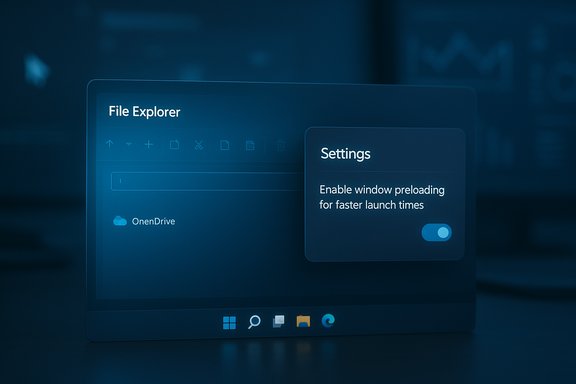
Microsoft has quietly begun preloading File Explorer in the background on Windows 11 as part of an Insider test — a pragmatic, reversible experiment designed to erase the familiar “cold‑start” pause and make opening folders feel instantaneous on a wider range of hardware. The change appears in Windows 11 Insider Preview Build 26220.7271 and is surfaced to testers with a user‑facing toggle labeled “Enable window preloading for faster launch times.” Microsoft frames the work as an exploration — a telemetry‑driven experiment that can be tuned or rolled back — and bundles it with a parallel cleanup of the Explorer context menu and several other preview features.
File Explorer remains one of Windows’ highest‑frequency user surfaces. Small delays when opening Explorer add up: every interrupted workflow, every second lost to a blank window that says “Working on it…” contributes to user frustration and perceptions that the platform feels sluggish. Microsoft has previously used warm‑start strategies in other products — notably Edge’s Startup Boost and Office prelaunch tasks — and the Explorer preload follows that same engineering pattern: use idle cycles to perform predictable initialization so the first user interaction finishes much faster. Why now? The Windows 11 shell layered modern UI elements on top of decades of legacy shell behavior, increasing the number of subsystems driving a cold start: UI composition, thumbnail and preview handlers, third‑party shell extensions, cloud placeholder resolution and network folder enumeration. Preloading targets the timing of those costs rather than attempting an immediate, broad architectural rewrite. Microsoft explicitly positions the feature as an experiment in the Insider build notes and asks Insiders to file feedback through the Feedback Hub while telemetry is collected.
Source: GIGAZINE Windows 11 Explorer now has a 'pre-load feature' to speed up startup
 Background
File Explorer remains one of Windows’ highest‑frequency user surfaces. Small delays when opening Explorer add up: every interrupted workflow, every second lost to a blank window that says “Working on it…” contributes to user frustration and perceptions that the platform feels sluggish. Microsoft has previously used warm‑start strategies in other products — notably Edge’s Startup Boost and Office prelaunch tasks — and the Explorer preload follows that same engineering pattern: use idle cycles to perform predictable initialization so the first user interaction finishes much faster. Why now? The Windows 11 shell layered modern UI elements on top of decades of legacy shell behavior, increasing the number of subsystems driving a cold start: UI composition, thumbnail and preview handlers, third‑party shell extensions, cloud placeholder resolution and network folder enumeration. Preloading targets the timing of those costs rather than attempting an immediate, broad architectural rewrite. Microsoft explicitly positions the feature as an experiment in the Insider build notes and asks Insiders to file feedback through the Feedback Hub while telemetry is collected. What Microsoft shipped in Build 26220.7271
The preload experiment (what users will see)
- The build introduces an optional background preload for File Explorer that keeps a lightweight portion of Explorer initialized during idle time.
- If the experiment appears on a device, the toggle is visible in File Explorer → View → Options → Folder Options → View as “Enable window preloading for faster launch times.”
- The toggle is reported as enabled by default for Insiders who receive the feature, but it can be unchecked to return to legacy cold‑start behavior.
Context‑menu reorganization
Alongside preloading, Microsoft has rearranged the File Explorer right‑click menu to reduce vertical clutter and make common commands quicker to find. Notable moves include:- Grouping Compress to ZIP, Copy as path, Set as desktop background, and Rotate left/right into a new Manage file flyout.
- Moving cloud provider actions (for example, OneDrive’s Always keep on this device and Free up space) into provider‑specific submenus.
- Repositioning Send to My Phone next to cloud provider options and moving Open folder location beside Open and Open with.
How the preload likely works (technical sketch and limits)
Microsoft’s release notes do not publish code‑level implementation details. Community analysis and hands‑on reporting, however, point to a plausible warm‑start model that mirrors previous Microsoft patterns:- A lightweight UI skeleton — address bar, command bar, and common controls — is instantiated or prepared in the background.
- Small in‑memory caches (icons, frequently used thumbnails and UI state) are primed to speed the first paint.
- A limited set of preview/thumbnail handlers or shell‑extension entry points may be pre‑registered to avoid first‑use stalls.
- The warmed instance is likely kept dormant or suspended to minimize CPU while reserving RAM for quick resume.
Practical benefits observed so far
Early hands‑on reports from Insiders and independent coverage show tangible, perceptual gains — especially on hardware where cold‑start times were previously most noticeable:- Near‑instant window paint on budget devices, older HDD systems, and machines with low RAM.
- Fewer visual stutters on first navigation after sign‑in.
- Faster visible response when opening Explorer from taskbar or Start.
The trade‑offs: memory, battery, compatibility
No warm‑start strategy is free. Key trade‑offs and concerns:- Memory footprint: Keeping a warmed portion of Explorer in memory consumes RAM. On modern systems this is usually insignificant; on machines with constrained memory or tightly provisioned VDI images it may be meaningful.
- Battery life: Background preloads may wake the CPU or keep a small process resident, with a potential — often small — impact on battery for mobile users. The overall cost is expected to be lower than continuous background services, but results will vary by device and activity patterns.
- Enterprise imaging and VDI: Non‑persistent provisioning, disk image refresh workflows, and session‑host scenarios should be validated. Preloads can interact unpredictably with image‑first provisioning, boot accelerators, and thin‑client resource policies. Test before wide deployment.
- Third‑party shell extensions and drivers: Because Explorer integrates many third‑party components, a warmed instance can surface compatibility issues earlier or in different patterns than cold starts. Microsoft specifically routes the change through Insider channels to monitor such regressions.
Enterprise and IT admin guidance
- Validate in a pilot ring: deploy Build 26220.7271 to a subset of test devices covering the breadth of hardware profiles (laptop, VDI, shared devices).
- Measure real‑world impact: collect telemetry for memory usage, boot time, battery drain (idle and active), and user‑reported regressions.
- Check provisioning workflows: verify that preloaded Explorer behavior doesn’t interfere with image capture, provisioning scripts, or startup automation.
- Educate power users: document the Folder Options path and the toggle name so users can opt out without IT help if needed.
- OS build and Insider settings validated.
- Representative hardware (HDD, SSD, low‑RAM, enterprise laptops).
- Scenarios: first sign‑in, cold start after sleep, frequent open/close cycles, VDI session host behavior.
- Regression reporting path: Feedback Hub, event logs, and any enterprise monitoring tools.
How to find and control the setting
If the experiment is present on your Insider device:- Open File Explorer → View → Options → Folder Options → View.
- Look for “Enable window preloading for faster launch times.”
- Uncheck to disable the preload and restore legacy behavior without registry edits.
Other notable features in the same preview flight
Build 26220.7271 includes additional, independently useful items that organizations and enthusiasts should evaluate:- Xbox Full Screen Experience (FSE) for PC: A console‑style, controller‑oriented interface that improves immersion on handheld and controller‑led workflows. Accessible from Task View and toggled with Win + F11.
- Point‑in‑time restore for Windows: A recovery feature that creates a system snapshot every 24 hours by default, enabling faster rollback to a recent state for troubleshooting. Useful for minimizing downtime in case of catastrophic failures.
- Fluid Dictation in Voice Typing: On NPU devices, voice typing receives an on‑device small language model that corrects grammar, punctuation, and filler words in real time. This is enabled by default and intended to improve dictation quality while preserving privacy through local processing.
- Stronger Android↔PC integration: New flows let select Android vendors resume browsing activity or transfer files opened in Microsoft apps from phone to PC (vivo, Honor, Oppo, Samsung, Xiaomi; notes indicate vendor set changed during the test window). Word/Excel/PowerPoint files opened via this flow will launch in local apps if installed, or in the default browser otherwise. Offline local phone files are not currently supported.
Timeline and rollout expectations
Microsoft has staged the change in the Dev and Beta channels for the 25H2 preview stream and characterizes the preload as an exploration that will be tuned with telemetry and Feedback Hub data. Multiple outlets and community threads report an early‑2026 target for a broader rollout, but that timetable should be treated as provisional until Microsoft confirms a public release schedule. Insiders and IT teams should plan pilots now and watch for staged rollouts over the coming months.Risks, unknowns, and red flags
- Implementation internals are not published: the exact memory budget, heuristics for when preloading happens (post‑boot, on idle, based on frequency), and precise suspend/resume semantics remain undocumented. Treat implementation specifics as inferred rather than definitive.
- Edge cases: enterprise image provisioning, thin clients, mixed‑vendor Android continuations, and VDI scenarios require hands‑on validation. Preloads can interact with session lifecycles in non‑obvious ways.
- Third‑party shell extensions: badly implemented extensions remain a root cause of slow behavior; preloading only hides the symptom on first open and may surface different compatibility issues sooner. There is no substitute for vendor updates to poorly behaved extensions.
- Battery and telemetry: while expected to be small for modern hardware, battery impacts and telemetry must be measured objectively in controlled tests before enabling the preload widely in mobile fleets.
Recommendations: who should enable, who should wait
- Enable early (Insider/dev testers): enthusiasts, testers, and IT pilots should enable the preload on representative devices to collect real‑world telemetry.
- Proceed with caution (enterprises): run pilot rings across device classes and provisioning workflows before broad deployment; ensure rollback instructions are documented (Folder Options toggle).
- Wait or opt out (constrained devices): devices with extremely low RAM, tight VDI resource caps, or strict battery SLAs should either keep the preload disabled until more data is available or test thoroughly in a controlled pilot.
Practical test plan (quick, repeatable checklist)
- Select 5–10 representative devices (laptop, desktop, VDI session host, HDD‑backed legacy laptop).
- Baseline measures (three cold starts): record time to first paint, memory usage after sign‑in, and idle battery drain.
- Enable preload via Folder Options; repeat measurements across same scenarios.
- Record variance in first‑open time, memory delta, and battery delta over a 24‑hour window.
- Test compatibility scenarios: shell extensions, mapped network drives, OneDrive placeholders, and image provisioning.
- Collect user feedback and file regressions using Feedback Hub with clear reproduction steps.
Conclusion
The File Explorer preload experiment is a practical, low‑risk attempt to remove a persistent UX irritant: the cold‑start pause that interrupts daily workflows. By warming a lightweight portion of Explorer during idle time and giving users a clear opt‑out, Microsoft has chosen a conservative and reversible path that mirrors prior successful warm‑start tactics. Early reports suggest meaningful gains on lower‑end hardware, while high‑end systems will see smaller benefits. Administrators should pilot the change, measure memory and battery impact, and verify compatibility with provisioning and shell extension ecosystems before wide deployment. The feature’s final form — whether it becomes a default system behavior or remains an optional optimization — will be decided by telemetry, Feedback Hub reports, and the wide variety of real‑world environments Windows must support.Source: GIGAZINE Windows 11 Explorer now has a 'pre-load feature' to speed up startup
