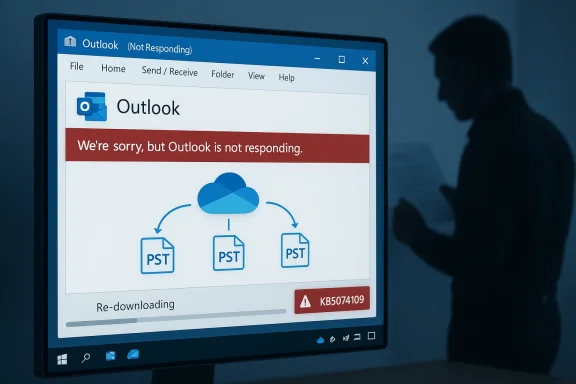
Microsoft’s January servicing wave has produced a messy and consequential regression: a cumulativetive update released on January 13, 2026 (KB5074109) introduced a file-access problem that can leave apps — most notably classic Microsoft Outlook when its PST files live in OneDrive or other cloud-synced folders — freezing, failing to save, or re-downloading messages, and Microsoft’s emergency responses and interim guidance have left administrators and users juggling security vs. stability decisions.
The monthly Patch Tuesday cumulative for Windows published on January 13, 2026 arrived as a combined package (SSU + LCU) that Microsoft shipped to multiple servicing branches. The package identified as KB5074109 corresponds to OS builds 26200.7623 and 26100.7623 for affected Windows 11 channels. Within days of deployment, telemetry and community reports converged on several serious regressions: Remote Desktop/Cloud PC credential failures, a Secure Launch configuration-specific shutdown/hibernate regression, and an application file-I/O problem that causes apps to hang when opening or saving files that reside in cloud-synced locations such as OneDrive or Dropbox.
Microsoft pushed targeted out-of-band (OOB) cumulative updates on January 17, 2026 to remediate the highest-impact platform regressions (for example, KB5077744 and KB5077797 depending on the branch), but the Outlook/PST-in-cloud hang remained listed as investigating and required distinct mitigations.
Source: How-To Geek Saving files is currently broken on Windows 11 and Windows 10
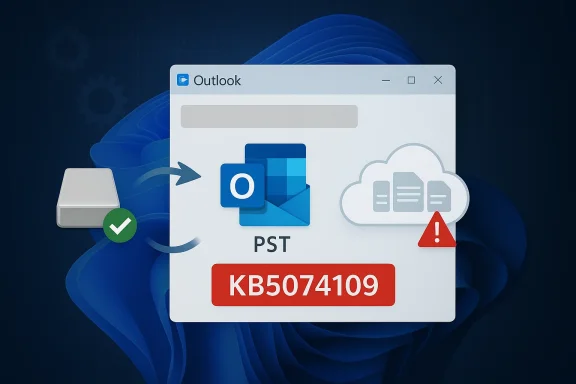 Background / Overview
The monthly Patch Tuesday cumulative for Windows published on January 13, 2026 arrived as a combined package (SSU + LCU) that Microsoft shipped to multiple servicing branches. The package identified as KB5074109 corresponds to OS builds 26200.7623 and 26100.7623 for affected Windows 11 channels. Within days of deployment, telemetry and community reports converged on several serious regressions: Remote Desktop/Cloud PC credential failures, a Secure Launch configuration-specific shutdown/hibernate regression, and an application file-I/O problem that causes apps to hang when opening or saving files that reside in cloud-synced locations such as OneDrive or Dropbox.Microsoft pushed targeted out-of-band (OOB) cumulative updates on January 17, 2026 to remediate the highest-impact platform regressions (for example, KB5077744 and KB5077797 depending on the branch), but the Outlook/PST-in-cloud hang remained listed as investigating and required distinct mitigations.
What exactly broke: Outlook, PSTs and cloud-synced storage
Symptoms users and admins are seeing
- Classic Outlook (Win32) with POP profiles or PSTs stored in OneDrive can hang or become unresponsive; Outlook windows may show “Not Responding,” and closing the UI can leave a lingering OUTLOOK.EXE process that prevents a normal restart.
- Sent messages may not appear in Sent Items, even though they were sent; message state and local indexes can be inconsistent.
- Previously-downloaded messages sometimes re-download, indicating local state or index corruption or a failure to persist write operations.
- Other apps that perform file I/O against cloud-backed folders (save/open operations in OneDrive/Dropbox) have reported timeouts or hangs in the same timeframe, pointing to a shared underlying surface.
The most frustrating practical outcome
For affected Outlook users the only reliable way to restore function is either to forcibly kill the Outlook process via Task Manager or to reboot the PC — neither of which is acceptable in production environments where data integrity and audit trails matter. Microsoft’s short-term guidance has included moving PST files out of OneDrive and using webmail as an alternative client, which is functionally a workaround but not a fix for users relying on local PST-based workflows.Scope: which Windows and Outlook configurations are impacted
- Windows branches affected include Windows 11 versions 25H2, 24H2 and 23H2 (the January cumulative/SSU packaging varies per branch) and reports indicate similar symptoms on Windows 10 22H2 and certain LTSC/ESU channels.
- Outlook surface: classic Outlook (Outlook for Microsoft 365 — Win32) using POP3 profiles or PST files stored in cloud-synced directories (OneDrive/Dropbox) is the principal surface Microsoft has acknowledged; other legacy flows (local PST access patterns) are implicated.
Timeline of events (concise)
- January 13, 2026 — Microsoft releases the January cumulative update KB5074109 (SSU + LCU) for Windows servicing branches. Administrators begin deployment via Windows Update, WSUS and Microsoft Update Catalog.
- Within hours–days — Community and enterprise telemetry report multiple regressions: Remote Desktop credential failures, Secure Launch shutdown/hibernate issues on select 23H2 devices, and application hangs when saving or opening files in cloud-synced locations; classic Outlook POP/PST hangs become widely reported.
- January 17, 2026 — Microsoft issues targeted out‑of‑band updates (for example KB5077744 and KB5077797) to remedy Remote Desktop and Secure Launch regressions; issues tied specifically to Outlook/PST-in-cloud remain under investigation and are subject to interim guidance.
Technical analysis: why PSTs plus OneDrive is fragile (and why the update likely exposed it)
The PST file format and local atomicity assumptions
PST is a legacy single-file mailbox store with tight expectations about local, synchronous file access. Outlook assumes it has exclusive, reliable file handles when writing indexes, updating message state, and performing transactional operations. Interference with those assumptions — for example, placeholder semantics, delayed write-through, or file-lock mediation by a sync client — can cause Outlook’s internal state machine to block, wait indefinitely, or write partially completed metadata.Cloud sync clients interpose on file streams
OneDrive and similar sync clients introduce layers that may implement placeholder files, delayed hydration, or on-demand streaming of content. Those behaviors change timing and locking characteristics for applications that expect a POSIX/Win32 atomic local file. A small timing change in the OS file system filter stack or associated APIs can push a previously acceptable interaction into deadlock, race or failure. The pattern reported (hangs, not saving, re-downloads) strongly implicates an interaction between PST I/O assumptions and the OneDrive sync driver / placeholder semantics.Why a cumulative update would surface this now
Large cumulative updates like KB5074109 bundle changes across the servicing stack, file system drivers, and user-mode components. When Microsoft combines an SSU and an LCU in a single payload the surface area for regressions increases: timing changes, new ordering of initialization routines, or subtle API behavior changes can expose previously unexercised code paths in both first-party and third-party software. Known Issue Rollback (KIR) exists precisely because uninstalling an entire SSU/LCU blend is operationally fraught; KIR lets Microsoft surgically disable the problematic change without fully removing security fixes. However, when the root cause spans app semantics, sync clients, and OS changes, KIR alone may not be sufficient.Microsoft’s public guidance and interim mitigations
Microsoft’s official, immediately actionable guidance included a set of expected but blunt mitigations:- Move PST files out of OneDrive (or any cloud‑synced folder) into a local folder that OneDrive does not manage; this restores Outlook’s direct local I/O semantics for many impacted users. Microsoft explicitly recommended this as a temporary workaround while engineering investigates.
- Use webmail as an alternate client when Outlook is locked up and you need to continue sending/receiving mail without the desktop client. Microsoft suggested contacting the application developer if other methods to open or save data are required — advice that is circular when Microsoft is both the OS and the application vendor.
- Known Issue Rollback (KIR) and Group Policy artifacts for enterprise fleets where Microsoft offered a targeted rollback that disables the underlying change causing some of the authentication/remote-access regressions. Administrators were directed to KIR where appropriate instead of uninstalling LCUs.
- Out-of-band updates for other regressions (Jan 17, 2026) such as KB5077744 and KB5077797 fixed Remote Desktop and Secure Launch issues but did not universally resolve the Outlook PST cloud access hang.
What Microsoft did not and could not recommend
Microsoft correctly avoided recommending uninstalling the entire cumulative for many organizations because that action can reintroduce the security vulnerabilities that the LCU was intended to address. Microsoft documented DISM-based removal approaches for LCUs where necessary and cautioned administrators about the tradeoffs — removing an LCU may be operationally possible, but doing so increases exposure to fixed vulnerabilities.Practical remediation checklist (for users and administrators)
Follow these prioritized steps based on environment and risk appetite:- Pause and pilot — Do not rush to broad rollout of KB5074109 across production rings until you validate in a pilot pool. Staged deployment remains the most reliable defense.
- If you see Outlook hangs and you use PSTs in OneDrive:
- Move PST files out of OneDrive to an unsynced local folder (for example C:\Users\<user>\Documents\PST‑Local) and update Outlook profile to point to the new location. This is the simplest immediate mitigation.
- If moving PSTs is not feasible, instruct users to use Outlook Web Access (webmail) until a permanent fix is available.
- Enterprise controls:
- Deploy Microsoft’s KIR Group Policy artifacts where KIR is provided for the specific regression instead of uninstalling the LCU. This provides targeted behavioral rollback without removing security fixes.
- Keep device drivers and sync client versions current; some regressions are mitigated by updated OneDrive clients or vendor drivers.
- If you must remove the LCU:
- Follow Microsoft’s documented DISM / Remove‑Package sequence carefully and be prepared to accept the security tradeoffs; collect CBS/DISM logs before and after for diagnostics. Example commands appeared in deployment guidance from Microsoft (use exact filenames from the Update Catalog when applying MSUs or when removing packages).
- Collect diagnostics:
- When reporting the issue, gather process dumps, OneDrive logs, Outlook crash/hang dumps, and Windows Event logs — these drastically reduce triage time for both vendor support and internal teams.
Risk analysis: security vs. operational stability
- Removing the cumulative (LCU) to regain application stability exposes systems to the security holes fixed by that update. For many organizations the risk of reintroducing known vulnerabilities is unacceptable, especially on internet-facing or regulated systems. Microsoft’s guidance reflects this tension and encourages KIR where possible.
- Forcing Outlook processes to terminate to recover a hung user session risks PST corruption if the process was mid-write. Recovered users who experience corrupted PSTs then require repair operations that cost time and sometimes data. Microsoft’s recommendation to avoid force-termination unless necessary is therefore prudent.
- Moving PSTs out of OneDrive preserves functionality but forces a change in established user workflows, storage policies, and backup patterns; many businesses place PSTs in OneDrive precisely because it centralizes and backs up those files. The workaround trades one operational convenience (cloud backup) for immediate availability.
Why this episode matters beyond a single bug
This is not merely an Outlook story. The incident exposes systemic tensions in modern OS servicing:- Large, combined update packages (SSU + LCU) change many moving parts at once; when millions of configurations exist in the wild even low-probability interactions will surface.
- Legacy application semantics (like PST’s expectation of local atomic writes) are fragile when layered with new platform features (on-demand file hydration, placeholder files, advanced power security features). The interaction between old and new code is a recurring source of regressions.
- Serviceability tools like KIR are necessary but not universally sufficient — they help address behavioral regressions, but when the root cause spans multiple components the path to a clean remediation is more complex and requires coordinated fixes across OS, sync client, and app teams.
Short‑ and medium‑term recommendations for organizations
- Prioritize pilot deployments and broaden telemetry coverage (collect process dumps, user-mode traces, OneDrive and Outlook logs) during the next Patch Tuesday cycle.
- Maintain golden images and WinRE images prior to injecting new SSUs/LCUs; have a pre-tested rollback plan for critical systems.
- Re-evaluate reliance on PST-based workflows: where possible, migrate data to server-hosted mailboxes (Exchange Online/On‑Prem Exchange with OST) that avoid PST file fragility and rely less on local file semantics.
- For managed fleets, adopt KIR-driven mitigations when Microsoft provides them rather than broad uninstall procedures.
What we still don’t know (and cautions about unverifiable claims)
- Public advisories and community reporting make the linkage between KB5074109 and Outlook/PST-in-cloud hangs clear, but the precise root-cause code paths (e.g., whether the regression is in the OS file system filter, OneDrive placeholder handling, or Outlook’s I/O path) remain part of Microsoft’s internal investigation and the engineering remediation. When vendor advisories mark an issue as investigating, absolute technical attribution should be treated as provisional.
- A widely circulated sidebar in industry commentary links the regression wave to broader quality-control concerns, and some pieces reference executive claims about AI-generated code (for example an unverifiable attribution that "30% of Microsoft’s code was written by AI"). That specific claim is not corroborated in the technical advisories examined here and should be treated cautiously until independently verified. Any attempt to blame a single organizational cause without direct evidence risks conflating correlation with causation. Treat such claims as anecdotal unless Microsoft or multiple primary sources explicitly confirm them.
Final assessment and takeaways
- The January 13, 2026 cumulative update (KB5074109) touched a broad set of platform components and — as sometimes happens with large, complex rollouts — exposed fragile interactions between legacy application semantics (Outlook PST) and modern cloud-file synchronization mechanics (OneDrive/Dropbox placeholder/hydration). The result was a serious productivity-impacting regression for a subset of users; Microsoft acknowledged the issue and provided interim mitigations while issuing targeted emergency updates for related regressions.
- The pragmatic response for administrators is conservative: pause and pilot, prefer KIR where available, and avoid uninstalling LCUs unless the organization explicitly accepts the re-exposure to fixed vulnerabilities. End users relying on PST-based workflows must consider moving PSTs out of cloud-synced folders or migrating to server-hosted mailboxes.
- This episode should prompt a renewed emphasis on cross-team testing that includes real-world sync clients and legacy application workflows as part of platform-level validation. The coexistence of legacy file formats and modern cloud services is a long‑term compatibility surface — not a one-time test case — and needs to be treated as such by vendors and IT teams alike.
Quick reference: actionable next steps (one-page)
- If you manage endpoints:
- Pause broad rollout of KB5074109.
- Pilot KB5074109 in a controlled ring with Office/OneDrive telemetry enabled.
- Deploy KIR artifacts where available instead of uninstalling LCUs.
- If you are an end user experiencing Outlook hangs:
- Move PSTs out of OneDrive to a local folder and update Outlook profile.
- Use webmail until a fix is published if moving PSTs is not possible.
- Avoid force-killing OUTLOOK.EXE unless absolutely necessary to reduce corruption risk.
- If you are a security/ops lead:
- Weigh the risk of uninstalling LCUs vs. the operational cost of the outage; treat removal as last resort.
- Ensure logging, process dump, and OneDrive diagnostic collection are available for triage.
Source: How-To Geek Saving files is currently broken on Windows 11 and Windows 10