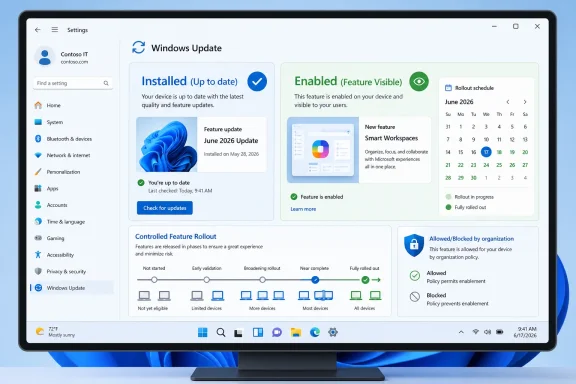
Microsoft’s June 2026 Windows 11 servicing story is straightforward: an installed update may make a device eligible for new features, but Controlled Feature Rollout decides when those features actually appear on that specific PC. In other words, “up to date” means patch-compliant; it does not always mean feature-complete.
For users, the practical answer is simple but unsatisfying: install the latest Windows 11 cumulative updates, keep Microsoft Store apps updated, reboot, and then check whether the feature actually appears in Settings, File Explorer, the taskbar, or the relevant app. If it does not, the update may still have succeeded. For IT, the answer is sharper: treat June 2026 Windows 11 changes as a phased-release event, not a single deployment milestone.
The strongest summary is this: Windows 11 now needs two checks, not one — update status and feature status. Windows Update can say a PC is current while Microsoft’s rollout system has not yet enabled every advertised experience on that device.
Windows veterans are used to thinking in builds. A machine is on one version, then it installs a cumulative update or a feature update, and the fleet moves forward. That model still exists for security fixes and servicing baselines, but it no longer fully explains the user-visible Windows 11 experience.
Microsoft’s current Windows 11 model divides feature delivery across annual feature updates, periodic servicing updates, Microsoft Store app updates, and Controlled Feature Rollout. Some features arrive in the operating system first and are enabled later. The machine may be patched, the build number may look right, and the feature may still be absent.
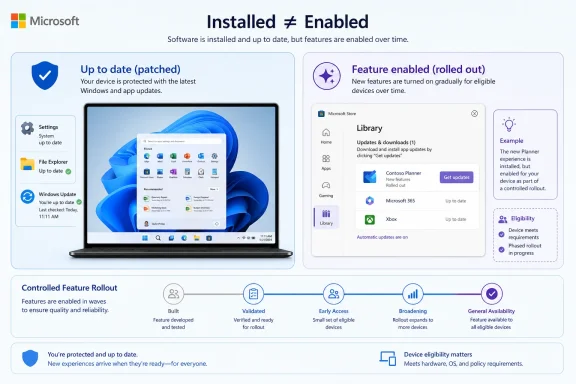
That is the distinction Windows users need to internalize in June 2026. “Installed” means the device has received the relevant update or baseline. “Enabled” means the rollout system, device eligibility checks, policy state, app dependencies, and timing have aligned.
WindowsForum readers have been describing this gap in practical terms for months. In discussions about Microsoft giving users more control over Windows 11 feature rollouts, the recurring complaint is that people install an update, read that a new feature is “available,” and then wait without a clear explanation. Other WindowsForum coverage has framed the issue as a reset of how Windows 11 delivers new experiences, because the old language of “released” and “installed” no longer tells users whether the feature will actually show up on their PC.
That is the user-facing problem: Windows Update still looks like a single switch, but the experience behind it is increasingly staged.
That is why June 2026 coverage of Windows 11 updates needs to be read carefully. A headline saying a feature is “rolling out” does not mean every supported PC receives it that day. It means Microsoft has begun a controlled distribution process, and devices may receive the feature at different points in that process.
This is familiar to anyone who follows web apps, mobile operating systems, or Microsoft 365. The difference is psychological. Windows users still expect the operating system to behave like a packaged product: install the update, reboot, see the change. Microsoft increasingly services Windows like a distributed platform: install the update, qualify for a staged rollout, then wait for enablement.
The gap between those two mental models is where the frustration lives. A user installs the update, reboots, checks Settings, and sees nothing new. From Microsoft’s perspective, the device may be healthy and correctly serviced. From the user’s perspective, the update feels incomplete.
WindowsForum’s own user-report coverage has repeatedly captured that “feature lottery” feeling. Reports about Controlled Feature Rollout have described users seeing newly announced Windows 11 features remain missing for months, while others receive them earlier on similar-looking systems. The point is not that every missing feature is a bug. The point is that Microsoft’s current interface does not always give users a clear reason for the difference.
That makes the June 2026 framing important. It is not an assumption that Windows 11 is being serviced in waves; it follows the way Microsoft has been presenting 2026 Windows 11 changes in release notes, where some features are explicitly described as gradual rollouts rather than universal day-one changes.
The 26H1 status page adds another anchor. Microsoft’s Windows 11 release information for version 26H1 identifies it as scoped for new devices rather than a broad feature update for existing PCs. That reinforces the broader 2026 pattern: Windows version labels, servicing baselines, device eligibility, and feature availability are no longer interchangeable.
For enthusiasts, this turns update watching into detective work. The build number is necessary evidence, but it is not sufficient proof that a visible feature should be present. The feature may depend on region, hardware capability, Store app version, account type, device management, or Microsoft’s rollout pacing.
For sysadmins, the problem is operational. Help desks cannot simply ask whether the June update is installed and assume the feature should be present. Asset inventory, user communications, testing plans, and support scripts all need a second column: whether the feature is actually enabled.
In the Controlled Feature Rollout era, “up to date” is narrower. It means the device has installed the applicable updates. It does not guarantee that every newly announced feature is active.
That matters because users often treat Windows Update as a promise of completeness. If the system says there are no updates available, they expect parity with screenshots, demos, and support articles. Controlled rollout breaks that expectation without always giving the user a clear explanation.
Microsoft’s argument is understandable. Phased delivery lets the company monitor problems, pause a rollout, and reduce the impact of bad changes. Windows runs across a hardware ecosystem no single vendor fully controls, so instant global enablement carries risk.
But the tradeoff is opacity. A safer rollout can look random when Windows does not clearly tell users why one PC has a feature and another does not.
WindowsForum’s coverage of Microsoft’s planned feature-rollout transparency improvements points directly at that tension. Users are not simply asking for faster features. They are asking for clearer status: has the feature not reached me yet, is my device blocked, is an app dependency missing, or is a policy preventing it?
Here is a practical example:
A pilot group can install the June 2026 update and still fail to represent the eventual production experience if the relevant features are not enabled on those test devices. Conversely, one test machine may receive a feature early and create the impression that the entire fleet is about to change. Neither assumption is safe.
IT teams should separate three states in their own language:
This affects change management. Release notes should be read as a map of possible behavior, not an immediate checklist of observed behavior. Internal communications should avoid saying “this feature arrives with the June update” unless the organization has verified that the feature is enabled in its environment.
It also affects incident response. If a user reports that a feature is missing after installing updates, the first answer should not be “your update failed.” The first answer should be that Windows 11 features may arrive in controlled waves even after servicing succeeds.
WindowsForum’s reporting on a possible Windows 11 update reset for Controlled Feature Rollout highlighted exactly this administrative pain point. The old distinction between “released update” and “available experience” has blurred. That matters in enterprises because users do not file tickets about servicing architecture; they file tickets because the thing they were told to expect is not there.
For buyers, that means two Windows 11 PCs in 2026 may both be current while following different availability paths. One may be on a broadly deployed annual feature update for existing devices. Another may ship with a hardware-scoped release intended for new systems.
That does not automatically mean one is better for every buyer. It means procurement teams and enthusiasts should stop reading the highest version label as the whole story. In 2026, the question is not just “what version of Windows 11 does this PC run?” It is “what servicing path is this device on, and which features are actually enabled on that path?”
OEMs benefit from hardware-specific enablement, especially when new silicon needs tailored platform support. But customers need plain language. If a version is scoped for new devices and not offered as an in-place feature update for existing PCs, that distinction should appear in purchase guidance, support scripts, and enterprise evaluation plans.
WindowsForum’s earlier coverage of Windows 11 version 24H2 and its phased rollout already pointed in this direction. The lesson from 24H2 was not merely that Microsoft can stagger a feature update. It was that Windows availability now has layers: device readiness, rollout pacing, update channel, hardware support, and Microsoft’s own release controls.
A user may install a cumulative update and still need updated inbox apps before the visible change appears. Another user may receive an app update but wait for OS-side enablement. A managed device may have Store access restricted, which can further complicate what “current” means.
This is not inherently bad engineering. Decoupling apps from the core OS lets Microsoft update components faster and avoid waiting for a full feature update cycle. It also matches the broader direction of Windows as a serviced platform.
The problem is that the user interface still often presents updating as one act. You click Windows Update, install what is offered, and expect the Windows experience to match the announcement. The underlying architecture is more fragmented than that ritual suggests.
This is why the Store check matters. For many user-facing features, especially those involving inbox apps or AI-assisted app experiences, Windows Update alone may not be enough. A practical support script should say: check Windows Update, reboot, check Store updates, reboot or relaunch the app, then verify whether the feature is visible.
Controlled rollout can make two similar PCs behave differently without giving either owner a satisfying reason. One device receives the new experience; another waits. Both may be patched. Both may be supported. Both may be doing what Microsoft’s rollout system expects.
That is why the most useful community reporting is not merely “I got it” or “I did not.” The more useful pattern is collecting device class, Windows version, update channel, Store app state, region, management status, and policy context. The CFR model rewards structured observation over build-number chasing.
WindowsForum’s articles on missing Windows 11 features and the “feature lottery” complaint have repeatedly made this point through user reports. The community pattern is consistent: people are not confused because they failed to install updates; they are confused because the system does not clearly say whether a missing feature is delayed, blocked, ineligible, app-dependent, or policy-controlled.
That is where Microsoft needs to improve the experience. Controlled rollout may be sensible engineering. But sensible engineering still needs visible status.
But those steps are not magic. They put a device in the best position to receive a feature; they do not guarantee immediate enablement.
For unmanaged home users, the main adjustment is expectation management. If the June 2026 update installs and a promised feature is absent, that absence may simply mean the device has not been included in the current rollout wave.
For administrators, the adjustment is documentation. Support teams need language that distinguishes missing features from failed updates. Pilot programs need enough time to observe rollout waves. Procurement teams need to understand that new-device releases such as 26H1 may not map onto in-place upgrade plans for existing fleets.
For enthusiasts, the adjustment is evidence-gathering. If a feature is missing, the useful question is not only “what build are you on?” It is also “what Store app version do you have, what update channel are you in, is the PC managed, what region is it set to, and has the device been rebooted since the update?”
Microsoft’s challenge over the next release cycle is not merely to keep refining Controlled Feature Rollout. It is to make rollout state visible enough that users, admins, OEMs, and support teams can trust what “up to date” is supposed to mean.
For users, the practical answer is simple but unsatisfying: install the latest Windows 11 cumulative updates, keep Microsoft Store apps updated, reboot, and then check whether the feature actually appears in Settings, File Explorer, the taskbar, or the relevant app. If it does not, the update may still have succeeded. For IT, the answer is sharper: treat June 2026 Windows 11 changes as a phased-release event, not a single deployment milestone.
The strongest summary is this: Windows 11 now needs two checks, not one — update status and feature status. Windows Update can say a PC is current while Microsoft’s rollout system has not yet enabled every advertised experience on that device.
 Windows Update Now Delivers Eligibility Before Experience
Windows veterans are used to thinking in builds. A machine is on one version, then it installs a cumulative update or a feature update, and the fleet moves forward. That model still exists for security fixes and servicing baselines, but it no longer fully explains the user-visible Windows 11 experience.Microsoft’s current Windows 11 model divides feature delivery across annual feature updates, periodic servicing updates, Microsoft Store app updates, and Controlled Feature Rollout. Some features arrive in the operating system first and are enabled later. The machine may be patched, the build number may look right, and the feature may still be absent.
That is the distinction Windows users need to internalize in June 2026. “Installed” means the device has received the relevant update or baseline. “Enabled” means the rollout system, device eligibility checks, policy state, app dependencies, and timing have aligned.
WindowsForum readers have been describing this gap in practical terms for months. In discussions about Microsoft giving users more control over Windows 11 feature rollouts, the recurring complaint is that people install an update, read that a new feature is “available,” and then wait without a clear explanation. Other WindowsForum coverage has framed the issue as a reset of how Windows 11 delivers new experiences, because the old language of “released” and “installed” no longer tells users whether the feature will actually show up on their PC.
That is the user-facing problem: Windows Update still looks like a single switch, but the experience behind it is increasingly staged.
The Real Release Date Is Now Different for Every PC
Microsoft’s gradual rollout model means availability can vary by device instead of arriving as a same-day global switch. That changes the practical meaning of a Windows release. A feature can be real, documented, and in flight without being available on the device in front of you.That is why June 2026 coverage of Windows 11 updates needs to be read carefully. A headline saying a feature is “rolling out” does not mean every supported PC receives it that day. It means Microsoft has begun a controlled distribution process, and devices may receive the feature at different points in that process.
This is familiar to anyone who follows web apps, mobile operating systems, or Microsoft 365. The difference is psychological. Windows users still expect the operating system to behave like a packaged product: install the update, reboot, see the change. Microsoft increasingly services Windows like a distributed platform: install the update, qualify for a staged rollout, then wait for enablement.
The gap between those two mental models is where the frustration lives. A user installs the update, reboots, checks Settings, and sees nothing new. From Microsoft’s perspective, the device may be healthy and correctly serviced. From the user’s perspective, the update feels incomplete.
WindowsForum’s own user-report coverage has repeatedly captured that “feature lottery” feeling. Reports about Controlled Feature Rollout have described users seeing newly announced Windows 11 features remain missing for months, while others receive them earlier on similar-looking systems. The point is not that every missing feature is a bug. The point is that Microsoft’s current interface does not always give users a clear reason for the difference.
June 2026 Makes the Split Impossible to Ignore
The June 2026 issue is not that Controlled Feature Rollout suddenly appeared. The issue is that Microsoft’s 2026 release-note pattern continues to separate changes that are broadly available from changes that are rolling out gradually. When release notes divide items into normal availability and gradual rollout, they are telling readers that the update package and the feature switch are not the same thing.That makes the June 2026 framing important. It is not an assumption that Windows 11 is being serviced in waves; it follows the way Microsoft has been presenting 2026 Windows 11 changes in release notes, where some features are explicitly described as gradual rollouts rather than universal day-one changes.
The 26H1 status page adds another anchor. Microsoft’s Windows 11 release information for version 26H1 identifies it as scoped for new devices rather than a broad feature update for existing PCs. That reinforces the broader 2026 pattern: Windows version labels, servicing baselines, device eligibility, and feature availability are no longer interchangeable.
For enthusiasts, this turns update watching into detective work. The build number is necessary evidence, but it is not sufficient proof that a visible feature should be present. The feature may depend on region, hardware capability, Store app version, account type, device management, or Microsoft’s rollout pacing.
For sysadmins, the problem is operational. Help desks cannot simply ask whether the June update is installed and assume the feature should be present. Asset inventory, user communications, testing plans, and support scripts all need a second column: whether the feature is actually enabled.
“Up to Date” Has Become a Compliance Statement, Not a Feature Statement
This is the core shift. In the classic Windows servicing model, “up to date” was a relatively complete phrase. It meant the machine had the latest supported operating system updates and, usually, the expected user-facing changes.In the Controlled Feature Rollout era, “up to date” is narrower. It means the device has installed the applicable updates. It does not guarantee that every newly announced feature is active.
That matters because users often treat Windows Update as a promise of completeness. If the system says there are no updates available, they expect parity with screenshots, demos, and support articles. Controlled rollout breaks that expectation without always giving the user a clear explanation.
Microsoft’s argument is understandable. Phased delivery lets the company monitor problems, pause a rollout, and reduce the impact of bad changes. Windows runs across a hardware ecosystem no single vendor fully controls, so instant global enablement carries risk.
But the tradeoff is opacity. A safer rollout can look random when Windows does not clearly tell users why one PC has a feature and another does not.
WindowsForum’s coverage of Microsoft’s planned feature-rollout transparency improvements points directly at that tension. Users are not simply asking for faster features. They are asking for clearer status: has the feature not reached me yet, is my device blocked, is an app dependency missing, or is a policy preventing it?
A Concrete Way to Check CFR Status on a Windows 11 PC
There is no single universal “CFR status” button in Windows 11 that explains every feature flag. But users can make the check more systematic instead of guessing.Here is a practical example:
- Check Windows Update first.
Go to Settings > Windows Update and install anything available. If the page says the device is up to date, note the date and time of the last check. If there is an optional preview update and you are comfortable testing preview-quality changes, you can evaluate it separately; otherwise, stay with regular cumulative updates. - Reboot even if Windows does not seem to demand it.
Many visible Windows changes do not appear until after a restart or sign-out/sign-in cycle. If you are checking for a specific feature, reboot before deciding it is missing. - Update Microsoft Store apps.
Open Microsoft Store > Library > Get updates. This matters because Windows 11 features increasingly depend on inbox apps such as Photos, Notepad, Paint, Snipping Tool, Phone Link, or components that Microsoft updates through the Store. A PC can have the OS update but still lack the app version needed to expose the new experience. - Check the actual feature location.
Do not stop at the build number. If the advertised change is a Settings feature, check Settings. If it is a File Explorer change, open File Explorer after reboot. If it is a taskbar or Start menu change, inspect those surfaces directly. If it is tied to an app, open that app and check its version or settings page. - Compare against management and eligibility.
If the PC is managed by work or school, go to Settings > Accounts > Access work or school and assume policy may affect rollout. If the feature depends on hardware, account type, region, or Copilot+ PC capability, the absence may be expected rather than a failed update. - Wait before declaring the installation broken.
If Windows Update is current, Store apps are current, the PC has been rebooted, and the feature still does not appear, the likely explanations are staged rollout, device eligibility, policy, or a paused rollout. That is different from an update failure.
Enterprise IT Should Stop Treating Feature Visibility as Proof of Deployment
For managed environments, the danger is not merely user confusion. It is false confidence.A pilot group can install the June 2026 update and still fail to represent the eventual production experience if the relevant features are not enabled on those test devices. Conversely, one test machine may receive a feature early and create the impression that the entire fleet is about to change. Neither assumption is safe.
IT teams should separate three states in their own language:
- Update installed
- Device eligible
- Feature enabled
This affects change management. Release notes should be read as a map of possible behavior, not an immediate checklist of observed behavior. Internal communications should avoid saying “this feature arrives with the June update” unless the organization has verified that the feature is enabled in its environment.
It also affects incident response. If a user reports that a feature is missing after installing updates, the first answer should not be “your update failed.” The first answer should be that Windows 11 features may arrive in controlled waves even after servicing succeeds.
WindowsForum’s reporting on a possible Windows 11 update reset for Controlled Feature Rollout highlighted exactly this administrative pain point. The old distinction between “released update” and “available experience” has blurred. That matters in enterprises because users do not file tickets about servicing architecture; they file tickets because the thing they were told to expect is not there.
OEMs Are Now Part of the Rollout Story, Not Just the Hardware Story
The 26H1 note on Microsoft’s Windows 11 release information page adds another layer. Microsoft says Windows 11 version 26H1 is scoped for new devices and is not designed as a feature update for existing devices. That is a clear signal that Windows versioning is being used not only for broad OS releases but also for hardware-scoped platform work.For buyers, that means two Windows 11 PCs in 2026 may both be current while following different availability paths. One may be on a broadly deployed annual feature update for existing devices. Another may ship with a hardware-scoped release intended for new systems.
That does not automatically mean one is better for every buyer. It means procurement teams and enthusiasts should stop reading the highest version label as the whole story. In 2026, the question is not just “what version of Windows 11 does this PC run?” It is “what servicing path is this device on, and which features are actually enabled on that path?”
OEMs benefit from hardware-specific enablement, especially when new silicon needs tailored platform support. But customers need plain language. If a version is scoped for new devices and not offered as an in-place feature update for existing PCs, that distinction should appear in purchase guidance, support scripts, and enterprise evaluation plans.
WindowsForum’s earlier coverage of Windows 11 version 24H2 and its phased rollout already pointed in this direction. The lesson from 24H2 was not merely that Microsoft can stagger a feature update. It was that Windows availability now has layers: device readiness, rollout pacing, update channel, hardware support, and Microsoft’s own release controls.
The Store App Layer Makes the OS Feel Even Less Atomic
Windows 11 is no longer only the operating system image. Microsoft Store app updates are part of the feature delivery system, and that makes the experience more modular but also harder to explain.A user may install a cumulative update and still need updated inbox apps before the visible change appears. Another user may receive an app update but wait for OS-side enablement. A managed device may have Store access restricted, which can further complicate what “current” means.
This is not inherently bad engineering. Decoupling apps from the core OS lets Microsoft update components faster and avoid waiting for a full feature update cycle. It also matches the broader direction of Windows as a serviced platform.
The problem is that the user interface still often presents updating as one act. You click Windows Update, install what is offered, and expect the Windows experience to match the announcement. The underlying architecture is more fragmented than that ritual suggests.
This is why the Store check matters. For many user-facing features, especially those involving inbox apps or AI-assisted app experiences, Windows Update alone may not be enough. A practical support script should say: check Windows Update, reboot, check Store updates, reboot or relaunch the app, then verify whether the feature is visible.
Windows Enthusiasts Are Right to Notice the Lottery Feeling
WindowsForum readers have been circling this issue for a while: features that are announced, installed in some form, and still missing from otherwise healthy systems. That frustration is not just impatience. It is a rational response to a release model that hides too much of its decision-making.Controlled rollout can make two similar PCs behave differently without giving either owner a satisfying reason. One device receives the new experience; another waits. Both may be patched. Both may be supported. Both may be doing what Microsoft’s rollout system expects.
That is why the most useful community reporting is not merely “I got it” or “I did not.” The more useful pattern is collecting device class, Windows version, update channel, Store app state, region, management status, and policy context. The CFR model rewards structured observation over build-number chasing.
WindowsForum’s articles on missing Windows 11 features and the “feature lottery” complaint have repeatedly made this point through user reports. The community pattern is consistent: people are not confused because they failed to install updates; they are confused because the system does not clearly say whether a missing feature is delayed, blocked, ineligible, app-dependent, or policy-controlled.
That is where Microsoft needs to improve the experience. Controlled rollout may be sensible engineering. But sensible engineering still needs visible status.
The Old Advice Still Helps, but It No Longer Solves Everything
There are still practical things users should do. Install available Windows updates. Reboot when required. Check Microsoft Store app updates. Avoid unsupported hacks that force hidden features on production machines. If the PC is managed by an organization, assume policy may affect what appears.But those steps are not magic. They put a device in the best position to receive a feature; they do not guarantee immediate enablement.
For unmanaged home users, the main adjustment is expectation management. If the June 2026 update installs and a promised feature is absent, that absence may simply mean the device has not been included in the current rollout wave.
For administrators, the adjustment is documentation. Support teams need language that distinguishes missing features from failed updates. Pilot programs need enough time to observe rollout waves. Procurement teams need to understand that new-device releases such as 26H1 may not map onto in-place upgrade plans for existing fleets.
For enthusiasts, the adjustment is evidence-gathering. If a feature is missing, the useful question is not only “what build are you on?” It is also “what Store app version do you have, what update channel are you in, is the PC managed, what region is it set to, and has the device been rebooted since the update?”
The June 2026 Windows Update Checklist Has Two Columns Now
The concrete takeaway for Windows 11 in June 2026 is that update status and feature status must be tracked separately.- A Windows 11 PC can be fully patched and still not show every feature mentioned in current release notes.
- Gradual rollout means feature availability varies by device instead of arriving as a same-day global switch.
- 2026 release notes that separate gradual rollout from normal rollout should be treated as evidence that Microsoft is still using wave-based enablement.
- Windows 11 version 26H1 should not be treated as the next broad feature update for existing PCs, because Microsoft has scoped it for new devices.
- IT teams should validate whether features are enabled in their own environment before promising users that an installed update will change their experience.
- Enthusiasts should check Windows Update, Store app updates, device eligibility, reboot state, and management status before concluding that a missing feature is a broken installation.
Microsoft’s challenge over the next release cycle is not merely to keep refining Controlled Feature Rollout. It is to make rollout state visible enough that users, admins, OEMs, and support teams can trust what “up to date” is supposed to mean.
Frequently Asked Questions
Does Windows Update saying “you’re up to date” mean I have every new Windows 11 feature?
No. It means your device has installed the applicable updates available to it through Windows Update. Some features may still be controlled by gradual rollout, Microsoft Store app updates, device eligibility, policy, or account requirements.How can I check whether a missing feature is really missing or just not rolled out yet?
Start with the basics: go to Settings > Windows Update, check for updates, install what is available, and reboot. Then open Microsoft Store > Library > Get updates and update all Store apps. After that, check the place where the feature should appear, such as Settings, File Explorer, Start, taskbar, or the relevant inbox app. If the PC is current and the feature still is not there, it may be waiting on Controlled Feature Rollout or eligibility.Is Controlled Feature Rollout the same as a failed update?
No. A failed update means the update did not install correctly. Controlled Feature Rollout means the update may be installed, but Microsoft has not yet enabled a particular feature on that device.Why does another PC have the feature while mine does not?
Two PCs can differ by rollout wave, hardware, region, Microsoft account state, Store app version, policy, update channel, or device management. They can both be supported and patched while showing different feature availability.Should I use third-party tools or registry hacks to force hidden Windows 11 features on?
Not on a production machine. Forcing hidden features can bypass Microsoft’s rollout safeguards and may create unstable or unsupported behavior. If you experiment, do it on a test device where failure will not affect work or data.What should IT departments tell users?
Use plain language: “The update is installed, but Microsoft is enabling some Windows 11 features in phases. We are tracking both update installation and feature availability.” That avoids blaming the user, the help desk, or Windows Update when the real issue is staged enablement.Does Windows 11 version 26H1 change the normal upgrade path for existing PCs?
The important point is that Microsoft has described Windows 11 version 26H1 as scoped for new devices, not as a broad feature update for existing devices. Existing-device planning should therefore focus on the servicing path Microsoft provides for those PCs, not simply on the highest version label seen on new hardware.What is the best short version of this whole issue?
A Windows 11 PC can be updated without having every newly announced feature enabled. In 2026, checking Windows Update is necessary, but it is not the final proof that every staged Windows feature has arrived.References
- Primary source: learn.microsoft.com
Windows 11 - release information | Microsoft Learn
Learn release information for Windows 11 releaseslearn.microsoft.com - Independent coverage: support.microsoft.com
- Independent coverage: blogs.windows.com
Releasing Windows 11 Builds 26100.7918 and 26200.7918 to the Release Preview Channel
[UPDATE 2/19] We are releasing Builds 26100.7921 and 26200.7921 (KBblogs.windows.com - Primary source: WindowsForum
Windows 11 Updates: Microsoft Plans More Control Over Feature Rollouts | Windows Forum
Microsoft is once again trying to answer one of the most persistent complaints about Windows 11: users install an update, hear that a new feature is...windowsforum.com