

Microsoft released KB5083631 on April 30, 2026, as an optional non-security preview update for Windows 11 versions 24H2 and 25H2, adding new File Explorer archive support, fixing several Explorer annoyances, and staging the same changes for wider Patch Tuesday delivery in May. The headline feature may be Xbox mode, but the more revealing story is that Microsoft is again treating File Explorer as a frontline measure of Windows quality. That is the right instinct. For most Windows users, the operating system is not judged in architectural diagrams or AI demos; it is judged in the moment a folder opens, a pane resizes, or a decades-old file format just works.
The new archive support in File Explorer is easy to undersell because it sounds like a footnote: Windows 11 can now work with
The four new formats are not equally mainstream.
For years, Windows users learned to install third-party archive tools almost by muscle memory. Some of those tools are excellent, and power users will keep them for advanced compression, scripting, password handling, repair features, and context-menu workflows. But the operating system should be competent at the first encounter. If Windows can preview, copy, extract, and inspect more of the files that land on a user’s desktop, it reduces friction in precisely the place where friction is most visible.
This is not glamorous work. It will not sell Copilot+ PCs by itself, and it will not make a keynote crowd applaud. But it is the kind of work that makes an operating system feel less brittle, especially to developers, sysadmins, and enthusiasts who live among vendor bundles, package files, logs, backups, and archives from machines that do not care what Microsoft’s current design language is called.
That distinction matters more in 2026 than it did a decade ago. Windows sits inside heterogeneous workflows: developers build on Windows and deploy to Linux containers; IT shops manage Windows endpoints while consuming packages from cloud services; gamers download mods, tools, launchers, and patches; ordinary users receive compressed bundles from institutions that may not standardize on Microsoft conventions. The old model, where Windows could act as if ZIP was the only archive format that mattered, has looked increasingly provincial.
The inclusion of
There is a security angle too, though it should not be overstated. Native handling does not automatically make an archive safe, and users should still be suspicious of unknown downloads. But relying on fewer random utilities for routine inspection can reduce a category of avoidable risk. The safest archive tool is not always the one with the longest feature list; sometimes it is the one already serviced through Windows Update.
These are not edge-case fixes in the way release notes often use that phrase. They address the sort of small betrayals that train users to distrust an interface. If a folder refuses to remember how it should be sorted, the computer feels forgetful. If dark mode suddenly blasts a white flash into the user’s eyes, the polish is not merely imperfect; it is visibly broken.
The dark-mode flash deserves special mention because it is such a perfect Windows 11 problem. Microsoft has spent years refining the visual language of the operating system, adding rounded corners, translucent materials, centered controls, and modernized surfaces. Yet the credibility of that design is undermined every time an old rendering path leaks through and turns a supposedly dark interface into a camera flash. A visual bug can feel more primitive than a missing feature because it suggests that the layers underneath the experience are still arguing with each other.
The View and Sort fix is just as important in a quieter way. Downloads is not a normal folder in practice; it is the chaotic inbox of modern computing. Users sort it by date, type, size, or name depending on what mess they are trying to solve. When an external app opens that folder and Explorer loses the user’s preferred view, Windows is not merely changing a cosmetic setting. It is disrupting a coping mechanism.
That dual role makes Explorer performance unusually consequential. A laggy third-party app is annoying; a laggy Explorer makes the whole PC feel sick. When
Microsoft’s release notes for KB5083631 also mention broader reliability improvements involving Explorer at sign-in, taskbar menus, Task View, Quick Access unpinning, and related surfaces. That is where the company’s challenge becomes clear. File Explorer is not a neat, isolated modern app that can be swapped out like a weather widget. It is an accumulation of decades of shell behavior, user habits, extension points, legacy assumptions, and performance-sensitive UI paths.
This is why every promise to make File Explorer faster and more reliable has to be judged cautiously. Microsoft can improve it, and this update suggests it is doing real work. But Explorer is also one of the hardest parts of Windows to modernize without breaking the tacit contract users have built around it. Every context menu, thumbnail handler, network path, cloud provider, pinned location, and shell extension is another chance for “simple” file management to become a systems problem.
For home users, the practical advice is simple: if File Explorer has been irritating you and you are comfortable installing preview updates, KB5083631 is tempting. If your machine is boring and stable, waiting for the May security update is the more conservative path. Optional updates exist partly so that not everyone has to be first.
For IT departments, the calculus is sharper. The archive support and Explorer fixes may be welcome, but KB5083631 also contains changes far beyond File Explorer: Xbox mode, haptic input behavior, taskbar agent monitoring, Enterprise State Roaming management changes, Microsoft Store fixes, driver trust hardening, batch-file processing controls, FAT32 formatting expansion from the command line, and more. A “File Explorer update” is really a cumulative Windows update with all the usual baggage that implies.
That is not a criticism of cumulative servicing so much as a reminder of its operational reality. Modern Windows updates arrive as bundles of user-facing features, under-the-hood fixes, policy changes, compatibility adjustments, and security-adjacent groundwork. The user may click “Download and install” because dark mode flashes less. The admin sees a package that also touches driver trust policy and Secure Boot certificate preparation.
There is a coherent strategy here. Microsoft wants Windows to be credible in living-room, handheld, and controller-first gaming contexts where the traditional desktop can feel like an awkward interloper. SteamOS and handheld gaming PCs have made the old Windows advantage less automatic. If a Windows gaming device requires constant trackpad poking, pop-up dismissing, and desktop wrangling, then Windows becomes the tax paid to access the game library rather than the best experience for playing it.
But Xbox mode is still a mode. File Explorer is the default reality. A console shell can hide Windows for a while, but eventually users install something, move a save file, extract a mod, troubleshoot a driver, clean up storage, or hunt down a screenshot. That is when the file manager re-enters the story.
This is why the Explorer work in KB5083631 may age better than the headline gaming feature. Xbox mode is a statement about where Windows wants to go. Explorer fixes are an admission of where Windows users still live. The operating system needs both, but only one of them touches nearly every PC, nearly every day.
This is the sort of change that security teams generally like in principle and operations teams fear in practice. Kernel driver trust is one of the most sensitive areas in Windows security because bad or vulnerable drivers can become a privileged path into the system. Tightening trust is part of the long arc of making Windows less permissive by default.
But drivers are also where ancient peripherals, specialized business hardware, industrial tools, security products, and niche utilities go to become someone else’s outage. The phrase “small number of cross-signed drivers” may be statistically true across the install base and still represent a very large headache for the unlucky environments that depend on them. Optional preview updates are therefore not just convenience releases; they are early warning systems.
This is where WindowsForum readers should pay attention. If you manage fleets, run unusual hardware, maintain old lab systems, or support users with business-critical peripherals, a cumulative update that includes both Explorer polish and driver trust changes deserves testing beyond “does the Start menu open.” The consumer story is smoother File Explorer. The enterprise story is whether Microsoft’s security ratchet catches something in your environment.
This is the kind of background maintenance that most users never want to think about, right up until a machine refuses to boot or BitLocker asks for a recovery key. In KB5083631, Microsoft lists a known issue affecting some devices with an unrecommended BitLocker Group Policy configuration. Under a specific combination of BitLocker, PCR7 validation settings, Secure Boot state, and certificate conditions, a device may require the BitLocker recovery key on the first restart after installing the update.
The conditions are narrow, and Microsoft says the scenario is unlikely on personal devices not managed by IT. Still, the warning is exactly the kind of note that separates casual update coverage from serious deployment planning. A one-time BitLocker recovery prompt may be manageable if the keys are escrowed and the help desk is ready. It is much less manageable if a remote user is staring at a blue recovery screen before a sales meeting.
This is also a reminder that Windows servicing in 2026 is not just about monthly bug fixes. It is a delivery mechanism for cryptographic transitions, hardware trust decisions, AI component updates, app policy changes, and shell improvements. A cumulative update is no longer a patch in the old narrow sense. It is a monthly negotiation between security, compatibility, usability, and Microsoft’s product roadmap.
This is classic 2026 Windows: even a release users notice because of File Explorer arrives with AI infrastructure threaded through it. Microsoft is trying to make agentic work visible at the shell level, not confined to a chat pane. The taskbar becomes a place where background AI labor can be monitored like a download, a sync, or a print job.
There is an interesting tension here. File Explorer improvements are about making the PC feel more directly under the user’s control. Agent monitoring is about making work performed elsewhere by software feel accountable enough to trust. One is tactile and old-school; the other is ambient and new. Both require the shell to be reliable, because the shell is where users decide whether the machine is behaving.
If Microsoft wants AI agents to become ordinary parts of Windows workflows, it cannot afford a flaky Explorer experience. The more Windows asks users to trust background processes, the more important it becomes that foreground basics feel solid. A PC that cannot remember folder views has a harder time convincing users that an agent quietly assembling a report should be trusted.
File Explorer has been central to that frustration. Users criticized performance, context menu behavior, dark-mode inconsistencies, search placement, folder rendering, and general sluggishness. Some complaints were subjective; others were measurable. Together, they created a perception problem: Windows 11 looked modern but too often felt less immediate than it should.
KB5083631 does not solve that entire history. No single cumulative update could. But it does represent the right category of work: fewer jarring visual bugs, better process cleanup, more archive competence, more stable folder preferences, and broader Explorer reliability. These are not novelty features bolted onto the OS for marketing. They are repairs to the surface area where users form their daily opinion of Windows.
That is why Microsoft should resist treating Explorer improvements as minor release-note filler. In a world of AI branding and gaming modes, file management can sound boring. But boring is where operating systems win. The best compliment a shell can receive is that users stop thinking about it because it stops getting in their way.
Source: Neowin Microsoft improves Windows 11 File Explorer with new archive format support and fixes
 File Explorer Becomes the Test of Whether Windows 11 Is Getting Serious
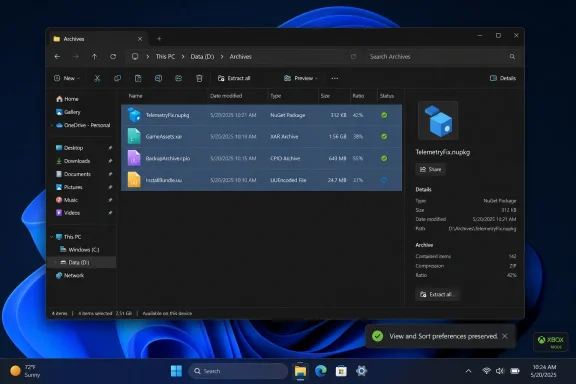
The new archive support in File Explorer is easy to undersell because it sounds like a footnote: Windows 11 can now work with .uu, .cpio, .xar, and .nupkg files without sending users hunting for another utility. But the change belongs to a broader pattern that began when Microsoft expanded native archive handling beyond ZIP into formats such as RAR and 7z. Windows is no longer pretending that basic compressed-file support begins and ends with the file formats office workers used in 2004.The four new formats are not equally mainstream.
.nupkg files matter to .NET developers and software supply-chain workflows; .cpio still turns up in Unix and Linux-adjacent tooling; .xar has Apple and packaging associations; .uu is a relic of binary-to-text encoding that survives because computing history has a habit of never fully dying. That is exactly the point. File Explorer is not just a pretty shell for opening vacation photos; it is the first tool many users reach for when they encounter an unfamiliar artifact from another platform, build system, backup process, or vendor download.For years, Windows users learned to install third-party archive tools almost by muscle memory. Some of those tools are excellent, and power users will keep them for advanced compression, scripting, password handling, repair features, and context-menu workflows. But the operating system should be competent at the first encounter. If Windows can preview, copy, extract, and inspect more of the files that land on a user’s desktop, it reduces friction in precisely the place where friction is most visible.
This is not glamorous work. It will not sell Copilot+ PCs by itself, and it will not make a keynote crowd applaud. But it is the kind of work that makes an operating system feel less brittle, especially to developers, sysadmins, and enthusiasts who live among vendor bundles, package files, logs, backups, and archives from machines that do not care what Microsoft’s current design language is called.
The Archive Feature Is Really About Trust
Native archive support is a promise about trust. When a user double-clicks a file, Windows is implicitly saying it knows what to do next, or at least knows enough not to be helpless. Every additional format Explorer handles narrows the gap between “this is a Windows PC” and “this is a machine that can participate in the wider computing world.”That distinction matters more in 2026 than it did a decade ago. Windows sits inside heterogeneous workflows: developers build on Windows and deploy to Linux containers; IT shops manage Windows endpoints while consuming packages from cloud services; gamers download mods, tools, launchers, and patches; ordinary users receive compressed bundles from institutions that may not standardize on Microsoft conventions. The old model, where Windows could act as if ZIP was the only archive format that mattered, has looked increasingly provincial.
The inclusion of
.nupkg is especially telling. NuGet packages are ordinary ZIP-based packages under the hood, but they are meaningful because of the ecosystem they represent. By making Explorer more comfortable with developer-facing formats, Microsoft acknowledges that the file manager is not merely consumer furniture. It is part of the developer experience, the admin experience, and the troubleshooting experience.There is a security angle too, though it should not be overstated. Native handling does not automatically make an archive safe, and users should still be suspicious of unknown downloads. But relying on fewer random utilities for routine inspection can reduce a category of avoidable risk. The safest archive tool is not always the one with the longest feature list; sometimes it is the one already serviced through Windows Update.
Microsoft Fixes the Bugs Users Actually Remember
The new formats are useful, but the bug fixes are the emotional core of KB5083631. File Explorer should now preserve View and Sort preferences in folders such as Downloads and Documents when those locations are opened directly from apps. Microsoft also says it has removed a white flash that could appear when opening This PC or resizing the Details pane in dark mode. Finally, the update improves the reliability of Explorer-related processes so they stop after File Explorer windows are closed.These are not edge-case fixes in the way release notes often use that phrase. They address the sort of small betrayals that train users to distrust an interface. If a folder refuses to remember how it should be sorted, the computer feels forgetful. If dark mode suddenly blasts a white flash into the user’s eyes, the polish is not merely imperfect; it is visibly broken.
The dark-mode flash deserves special mention because it is such a perfect Windows 11 problem. Microsoft has spent years refining the visual language of the operating system, adding rounded corners, translucent materials, centered controls, and modernized surfaces. Yet the credibility of that design is undermined every time an old rendering path leaks through and turns a supposedly dark interface into a camera flash. A visual bug can feel more primitive than a missing feature because it suggests that the layers underneath the experience are still arguing with each other.
The View and Sort fix is just as important in a quieter way. Downloads is not a normal folder in practice; it is the chaotic inbox of modern computing. Users sort it by date, type, size, or name depending on what mess they are trying to solve. When an external app opens that folder and Explorer loses the user’s preferred view, Windows is not merely changing a cosmetic setting. It is disrupting a coping mechanism.
Explorer.exe Is Still the Load-Bearing Wall
The reliability note aboutexplorer.exe stopping properly after File Explorer windows close may sound like housekeeping, but it points to the strange role Explorer still plays in Windows. Explorer is both an app and a piece of the shell’s nervous system. It is a file manager, a desktop component, a taskbar neighbor, and a process that users blame for everything from sluggish folders to weird shell behavior.That dual role makes Explorer performance unusually consequential. A laggy third-party app is annoying; a laggy Explorer makes the whole PC feel sick. When
explorer.exe hangs around, misbehaves, or fails to shut down cleanly, it is not perceived as one process having a lifecycle issue. It is perceived as Windows itself being sloppy.Microsoft’s release notes for KB5083631 also mention broader reliability improvements involving Explorer at sign-in, taskbar menus, Task View, Quick Access unpinning, and related surfaces. That is where the company’s challenge becomes clear. File Explorer is not a neat, isolated modern app that can be swapped out like a weather widget. It is an accumulation of decades of shell behavior, user habits, extension points, legacy assumptions, and performance-sensitive UI paths.
This is why every promise to make File Explorer faster and more reliable has to be judged cautiously. Microsoft can improve it, and this update suggests it is doing real work. But Explorer is also one of the hardest parts of Windows to modernize without breaking the tacit contract users have built around it. Every context menu, thumbnail handler, network path, cloud provider, pinned location, and shell extension is another chance for “simple” file management to become a systems problem.
Optional Updates Are Microsoft’s Public Rehearsal
KB5083631 is an optional preview update, not a mandatory security release. That distinction matters. Microsoft’s late-month preview updates are effectively a public rehearsal for the following month’s broader cumulative update, giving enthusiasts, admins, and early adopters a chance to absorb fixes before they ride along with Patch Tuesday.For home users, the practical advice is simple: if File Explorer has been irritating you and you are comfortable installing preview updates, KB5083631 is tempting. If your machine is boring and stable, waiting for the May security update is the more conservative path. Optional updates exist partly so that not everyone has to be first.
For IT departments, the calculus is sharper. The archive support and Explorer fixes may be welcome, but KB5083631 also contains changes far beyond File Explorer: Xbox mode, haptic input behavior, taskbar agent monitoring, Enterprise State Roaming management changes, Microsoft Store fixes, driver trust hardening, batch-file processing controls, FAT32 formatting expansion from the command line, and more. A “File Explorer update” is really a cumulative Windows update with all the usual baggage that implies.
That is not a criticism of cumulative servicing so much as a reminder of its operational reality. Modern Windows updates arrive as bundles of user-facing features, under-the-hood fixes, policy changes, compatibility adjustments, and security-adjacent groundwork. The user may click “Download and install” because dark mode flashes less. The admin sees a package that also touches driver trust policy and Secure Boot certificate preparation.
Xbox Mode Steals the Headline, Explorer Owns the Daily Grind
Xbox mode is the splashier addition in KB5083631, and it makes sense that Microsoft wants to talk about it. The company is extending a console-like, full-screen gaming interface to Windows 11 PCs, including laptops, desktops, and tablets. It can be entered through the Xbox app, Game Bar settings, or the Windows key plus F11 shortcut.There is a coherent strategy here. Microsoft wants Windows to be credible in living-room, handheld, and controller-first gaming contexts where the traditional desktop can feel like an awkward interloper. SteamOS and handheld gaming PCs have made the old Windows advantage less automatic. If a Windows gaming device requires constant trackpad poking, pop-up dismissing, and desktop wrangling, then Windows becomes the tax paid to access the game library rather than the best experience for playing it.
But Xbox mode is still a mode. File Explorer is the default reality. A console shell can hide Windows for a while, but eventually users install something, move a save file, extract a mod, troubleshoot a driver, clean up storage, or hunt down a screenshot. That is when the file manager re-enters the story.
This is why the Explorer work in KB5083631 may age better than the headline gaming feature. Xbox mode is a statement about where Windows wants to go. Explorer fixes are an admission of where Windows users still live. The operating system needs both, but only one of them touches nearly every PC, nearly every day.
The Cross-Signed Driver Change Raises the Stakes for Admins
One of the more consequential items in KB5083631 has little to do with File Explorer: Microsoft is changing how the Windows kernel trusts third-party drivers. The update removes default trust for cross-signed drivers while continuing to allow drivers from the Windows Hardware Compatibility Program and a trusted legacy allow list. Microsoft says Windows audits driver compatibility for at least 100 hours and three reboots before enabling enforcement.This is the sort of change that security teams generally like in principle and operations teams fear in practice. Kernel driver trust is one of the most sensitive areas in Windows security because bad or vulnerable drivers can become a privileged path into the system. Tightening trust is part of the long arc of making Windows less permissive by default.
But drivers are also where ancient peripherals, specialized business hardware, industrial tools, security products, and niche utilities go to become someone else’s outage. The phrase “small number of cross-signed drivers” may be statistically true across the install base and still represent a very large headache for the unlucky environments that depend on them. Optional preview updates are therefore not just convenience releases; they are early warning systems.
This is where WindowsForum readers should pay attention. If you manage fleets, run unusual hardware, maintain old lab systems, or support users with business-critical peripherals, a cumulative update that includes both Explorer polish and driver trust changes deserves testing beyond “does the Start menu open.” The consumer story is smoother File Explorer. The enterprise story is whether Microsoft’s security ratchet catches something in your environment.
Secure Boot Certificate Work Turns the Calendar Into a Risk
KB5083631 also arrives in the shadow of Secure Boot certificate expiration. Microsoft has warned that Secure Boot certificates used by most Windows devices are set to expire starting in June 2026, and the company is using Windows updates to expand delivery of newer certificates to eligible devices. The update notes describe a controlled rollout based on device targeting and successful update signals.This is the kind of background maintenance that most users never want to think about, right up until a machine refuses to boot or BitLocker asks for a recovery key. In KB5083631, Microsoft lists a known issue affecting some devices with an unrecommended BitLocker Group Policy configuration. Under a specific combination of BitLocker, PCR7 validation settings, Secure Boot state, and certificate conditions, a device may require the BitLocker recovery key on the first restart after installing the update.
The conditions are narrow, and Microsoft says the scenario is unlikely on personal devices not managed by IT. Still, the warning is exactly the kind of note that separates casual update coverage from serious deployment planning. A one-time BitLocker recovery prompt may be manageable if the keys are escrowed and the help desk is ready. It is much less manageable if a remote user is staring at a blue recovery screen before a sales meeting.
This is also a reminder that Windows servicing in 2026 is not just about monthly bug fixes. It is a delivery mechanism for cryptographic transitions, hardware trust decisions, AI component updates, app policy changes, and shell improvements. A cumulative update is no longer a patch in the old narrow sense. It is a monthly negotiation between security, compatibility, usability, and Microsoft’s product roadmap.
The AI Pieces Are There, Even When Explorer Gets the Applause
KB5083631 includes AI component updates and a new taskbar monitoring experience for agents, with Microsoft 365 Copilot’s Researcher described as the first adopter. When an agent is working on a report, Windows can show progress from the taskbar and notify the user when the work is ready. Microsoft is also updating AI components, though those components apply to Copilot+ PCs and not to every Windows system.This is classic 2026 Windows: even a release users notice because of File Explorer arrives with AI infrastructure threaded through it. Microsoft is trying to make agentic work visible at the shell level, not confined to a chat pane. The taskbar becomes a place where background AI labor can be monitored like a download, a sync, or a print job.
There is an interesting tension here. File Explorer improvements are about making the PC feel more directly under the user’s control. Agent monitoring is about making work performed elsewhere by software feel accountable enough to trust. One is tactile and old-school; the other is ambient and new. Both require the shell to be reliable, because the shell is where users decide whether the machine is behaving.
If Microsoft wants AI agents to become ordinary parts of Windows workflows, it cannot afford a flaky Explorer experience. The more Windows asks users to trust background processes, the more important it becomes that foreground basics feel solid. A PC that cannot remember folder views has a harder time convincing users that an agent quietly assembling a report should be trusted.
Microsoft’s Best Windows 11 Argument Is Competence, Not Novelty
The most persuasive case for Windows 11 in 2026 is not that it is more futuristic than Windows 10. It is that it can become a more competent version of the Windows people already use. That distinction matters because Windows 11’s early reputation was shaped by hardware requirements, taskbar regressions, interface churn, and a sense that Microsoft had rearranged familiar furniture while leaving some old leaks in the roof.File Explorer has been central to that frustration. Users criticized performance, context menu behavior, dark-mode inconsistencies, search placement, folder rendering, and general sluggishness. Some complaints were subjective; others were measurable. Together, they created a perception problem: Windows 11 looked modern but too often felt less immediate than it should.
KB5083631 does not solve that entire history. No single cumulative update could. But it does represent the right category of work: fewer jarring visual bugs, better process cleanup, more archive competence, more stable folder preferences, and broader Explorer reliability. These are not novelty features bolted onto the OS for marketing. They are repairs to the surface area where users form their daily opinion of Windows.
That is why Microsoft should resist treating Explorer improvements as minor release-note filler. In a world of AI branding and gaming modes, file management can sound boring. But boring is where operating systems win. The best compliment a shell can receive is that users stop thinking about it because it stops getting in their way.
The Real Upgrade Is a Less Fragile Shell
The concrete lesson from KB5083631 is that Microsoft’s Windows work is becoming more useful when it is less theatrical. The changes worth watching are the ones that remove an irritation, reduce a dependency, or make an old workflow behave as expected.- Windows 11 KB5083631 is an optional April 30, 2026 preview update for versions 24H2 and 25H2, moving systems to OS builds 26100.8328 and 26200.8328.
- File Explorer now supports additional archive formats, including
.uu,.cpio,.xar, and.nupkg, reducing the need for separate tools in more everyday and developer-adjacent scenarios. - The update fixes Explorer behavior that could reset View and Sort preferences when apps opened folders such as Downloads or Documents directly.
- Microsoft has addressed a white-flash problem in dark mode when opening This PC or resizing the Details pane, a small visual fix with outsized quality-of-life value.
- The same cumulative update also carries broader platform changes, including Xbox mode, driver trust hardening, Secure Boot certificate preparation, taskbar agent monitoring, and enterprise policy improvements.
- Cautious users can wait for the May 2026 Patch Tuesday rollout, while admins should test the update with special attention to BitLocker policy, driver compatibility, and Secure Boot readiness.
Source: Neowin Microsoft improves Windows 11 File Explorer with new archive format support and fixes
