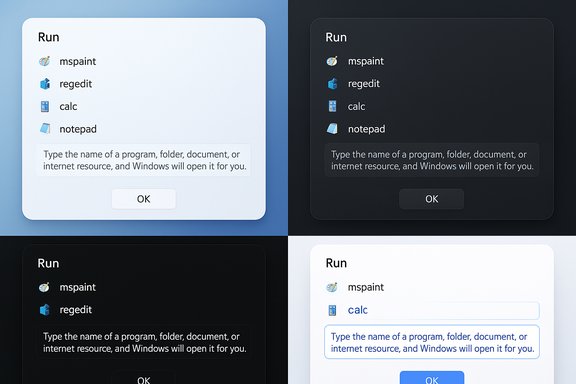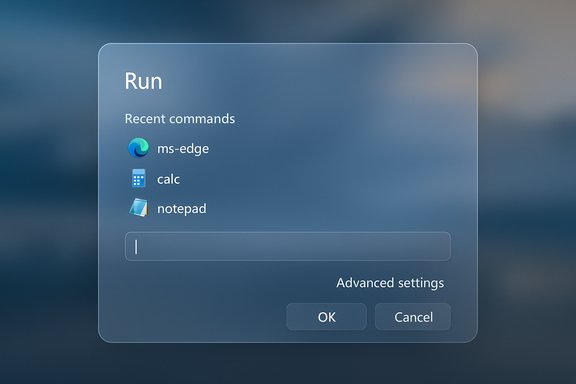
After more than three decades of near‑identical presentation, the Run dialog in Windows has finally been given a visual and functional refresh in recent preview builds of Windows 11, introducing a modern, Fluent‑aligned overlay while leaving the classic Win32 Run box available for those who need full backward compatibility.
Background
The Run dialog has been a tiny, indispensable utility for power users and administrators since the days of early Windows shells. Its simple purpose — accept a typed command or path, launch the target — has kept it stable and predictable across generations. That longevity is now colliding with an era in which Microsoft is systematically migrating legacy surfaces to newer UI technologies and a more consistent Fluent look and feel.What’s emerging in Insider preview builds is an opt‑in “Modern Run” overlay: a larger, more open UI with rounded corners, a prominent text field, inline app icons, and a list of recent entries positioned above the input. The experience appears designed for both faster discoverability and better touch/pen targeting, and is deliberately behind an advanced Settings toggle so testers can try it without being forced into a new workflow.
This change is not merely cosmetic. It signals how Microsoft is approaching the long tail of legacy dialogs: preserve function, modernize form, and gate changes so they can be evaluated by power users and organizations before broader rollout.
What’s changing: a visual and interaction rundown
A redesigned overlay, not a replacement
The Modern Run presents as an overlay rather than the compact modal that Windows users have known for years. Key visual and interaction changes include:- Larger, more prominent text entry field to improve discoverability and typing accuracy.
- Recent commands list shown above the input, turning Run into a quick history launcher as well as a command runner.
- Inline app icons and richer match feedback when typed entries resolve to installed executables or Store apps.
- Fluent Design affordances — rounded corners, softened shadows, tone‑aware backgrounds and spacing that align visually with Windows 11.
- Optional opt‑in toggle in Settings so the classic Run box remains the default for users and organizations that require the old behavior.
Where to find and enable it
The Modern Run is gated and not enabled by default in preview builds. The pathway testers report is:- Open Settings → System → Advanced.
- Locate the experimental toggle for the Run dialog (present in preview builds).
- Enable the toggle to have the Modern Run appear when pressing Win+R.
Small but meaningful interaction changes
The addition of a visible recent list and inline icons changes how users interact with the tool. Instead of retyping long commands or paths, a single click on a recent item suffices. Inline icons reduce ambiguity when multiple candidates share similar names. These changes convert Run from a pure text box into a lightweight launcher with history and visual confirmation.Technical context and implementation notes
Likely implementation path
Hands‑on previews and UI metadata observed in early builds strongly suggest the Modern Run is implemented with newer UI frameworks consistent with Microsoft’s ongoing Windows App SDK and WinUI migration strategy. The overlay’s appearance and behavior are consistent with apps built on WinUI 3 and the Windows App SDK, though official engineering notes confirming the exact framework have not been published. Treat the specific implementation detail (WinUI 3) as plausible and consistent with Microsoft’s broader migration path, but not yet explicitly confirmed by engineering documentation.Why this matters technically
Moving a simple Win32 dialog to a modern UI framework is non‑trivial for several reasons:- Compatibility preservation. Many scripts, automation tools, and enterprise policies expect the legacy Win32 behavior and return values. Microsoft must ensure the Modern Run maintains identical command parsing, quoting, and environment behavior.
- Accessibility. The legacy Run dialog is heavily used by keyboard‑first and screen‑reader users. Any modern implementation must preserve keyboard focus order, keyboard shortcuts, and ARIA/automation compatibility for assistive technologies.
- Localization and input methods. Run handles international input, special characters, UNC paths, and quoted paths — all of which must behave exactly as before.
- Enterprise controls. Group Policy and kiosk/locked shells that remove or modify Run must still function when the Modern Run is present; enterprise management needs predictable controls.
Verification and what remains unconfirmed
Multiple independent preview reports and community screenshots confirm the visual refresh, presence in a particular Insider build series, and the Settings toggle placement. These cross‑checking signals make the overall story robust: a modern overlay exists in preview artifacts and is being tested as opt‑in.However, some technical specifics remain unverified or are in flux:
- The precise internal implementation — while very likely aligned with WinUI 3 and the Windows App SDK — has not been confirmed by an official engineering post. This means claims that Modern Run is built on WinUI 3 should be framed as highly probable but not officially documented at this time.
- Minor affordances observed in screenshots (for example, whether the traditional Browse... button is present) vary between builds. Microsoft may add, remove, or reintroduce such elements before general availability.
- Dark mode rendering and full accessibility telemetry have been shown partially; full accessibility behavior across assistive technologies requires testing in later builds to confirm parity.
Practical implications for everyday users
Power users and developers
For power users and developers who rely on Run daily, the changes are likely to be welcome if they work as expected:- Faster recall of prior commands reduces typing.
- Icon feedback reduces accidental launches of similarly named programs.
- Larger input area improves accuracy, especially on touch‑first or pen devices.
Administrators and enterprise environments
Enterprises should treat the change cautiously:- Group Policy and device configuration will need to be tested against the Modern Run to ensure organizational policies that disable or manage Run remain effective.
- IT departments that use scripting or automation relying on the legacy dialog should perform validation on test images before rolling preview builds into broader testing rings.
- Microsoft’s default of keeping the classic Run available should buy enterprises time to validate behavior and, if necessary, block preview builds on production endpoints.
Accessibility community
Maintaining accessibility parity is essential. If the Modern Run shifts focus handling or changes automation properties, screen reader users and keyboard‑only users could experience regression. The opt‑in nature permits accessibility teams to test and report issues before any forced migration takes place.Risks and potential downsides
Modernizing a long‑standing utility brings both UX benefits and potential risks. Below are the most important considerations.- Regression in scripting and automation. Some legacy scripts assume specific behavior of the Run dialog. Any subtle change in how the input is parsed (quotes, environment variables, forward/backslash handling) could break automation. Thorough compatibility testing is required.
- Accessibility regressions. New UI frameworks can change how elements are exposed to assistive technologies. Even small changes in accessibility tree structure can create large usability regressions for screen reader users.
- Enterprise management gaps. If Group Policy or configuration options don’t map cleanly to the new UI, administrators could see gaps in control. Policies that previously removed or disabled Run must still be enforceable.
- Feature drift and surprises. Screenshots in preview builds show that Microsoft may iterate on features like the presence (or absence) of Browse... and other affordances. Users who rely on those features should test preview builds cautiously.
- Reliance on unofficial tools. Community tools that flip hidden flags (for example, to force the Modern Run to appear) are unsupported and can destabilize systems. They should be avoided on production machines.
- Perception risk. Small, widely used but low‑visibility utilities like Run often have vocal communities; changes that appear to make the tool less direct or more “search‑like” risk criticism. Microsoft’s opt‑in approach helps mitigate backlash, but communication and documentation will be important.
How to try it (safely) — recommended test workflow
For testers and enthusiasts who want to experiment with the Modern Run without risking production stability, follow a cautious path:- Use a non‑production device or virtual machine. Never enable preview/experimental flags on a primary work machine.
- Join the Windows Insider Program and enroll the test device in the Beta or Dev channel as appropriate.
- Update to the preview build series that contains the Modern Run artifacts (reported in recent preview builds).
- Look for the toggle in Settings → System → Advanced and enable it there if present.
- Test workflows that rely on Run: scripts, UNC paths, quoted paths, environment variables, and accessibility tools (screen readers, keyboard navigation).
- If the toggle is not available, avoid using unsupported third‑party tools to flip hidden flags on production devices.
- Report any regressions or accessibility issues through the Feedback Hub.
What this signals about Microsoft’s broader modernization strategy
The Modern Run is small but instructive. It demonstrates three strategic approaches Microsoft is applying to Windows UI modernization:- Preserve functionality first. Run’s core behavior remains intact. Microsoft is prioritizing compatibility while changing the presentation layer.
- Gate changes and iterate with Insiders. The opt‑in toggle in Advanced Settings mirrors how Microsoft prefers staged rollouts and feedback‑driven refinements.
- Incremental migration to modern UI frameworks. The Modern Run’s look and likely WinUI lineage show Microsoft continues shifting legacy surfaces to the Windows App SDK and WinUI, aligning disparate parts of the OS visually and technically.
UX tradeoffs worth watching
There are design tradeoffs that will matter to different user groups:- Visibility vs minimalism. The new overlay provides clarity and history, but a larger UI could be perceived as overkill for users who appreciated the compactness of the original Run.
- Discovery vs speed. Recent commands and icons improve discovery, but keyboard‑centric users who simply expect to type and press Enter must retain an equally fast, no‑friction experience.
- Modern styling vs enterprise control. Fluent aesthetics make the OS feel cohesive, but enterprises expect predictable controls. Any stylistic change that affects behavior will raise support costs.
Conclusion
The Modern Run dialog in Windows 11 is a small but meaningful example of how Microsoft is modernizing legacy pieces of Windows without breaking them. The overlay brings Fluent polish, better discoverability, and modest productivity gains (recent command recall, inline icons) while keeping the classic behavior available as the safe default.This conservative rollout — opt‑in, gated under Settings → System → Advanced, and present in preview builds — acknowledges the Run dialog’s outsized importance to power users, administrators, and accessibility workflows. Implementation details such as the exact UI framework (likely the Windows App SDK / WinUI 3) remain plausible but not fully confirmed, and certain UI affordances may change as Microsoft iterates.
For testers: the Modern Run is worth trying in a controlled environment. For enterprises: validate Group Policy and automation scripts before broad adoption. For accessibility teams: early testing will help ensure the new overlay maintains parity with the legacy experience.
Ultimately, this small refresh could be the opening move in a broader campaign to replace decades‑old dialogs imported from early Windows builds with a modern, consistent UI surface — a slow, cautious migration that prioritizes compatibility while improving the visual and interaction consistency of Windows 11.
Source: TechPowerUp Microsoft Brings Modern Run Dialog in Windows 11 After 30 Years