

Microsoft’s November Patch Tuesday for Windows 11 ships as KB5068861 (build family in the 26200 series) and delivers a compact but consequential mix of user-facing polish and reliability fixes—most notably a redesigned, more customizable Start menu, a refreshed taskbar battery icon with an optional on‑tray percentage, and a long-awaited repair to a Task Manager shutdown bug that could leave background processes running after the window was closed. These changes arrive as part of Microsoft’s staged, telemetry‑driven rollout model and are available via Windows Update or as offline .msu installers from the Microsoft Update Catalog.
Microsoft continues to deliver Windows 11 updates through monthly cumulative updates (Patch Tuesday) combined with optional preview releases that let the company validate user‑facing features before enabling them broadly. The November 2025 cumulative—packaged as KB5068861 for many devices—folds fixes that first appeared in preview packages (for example, KB5067036) into the mainstream servicing pipeline. Because some UI changes are controlled by server‑side feature flags, installing the cumulative is necessary but not always sufficient to see every visual or behavioral change immediately.
This staged approach reduces the risk of large‑scale regressions but also creates short‑term variability: two otherwise identical machines on the same build may display different Start layouts or Copilot integrations depending on device eligibility, region, or licensing. Administrators and power users should therefore test on pilot hardware and avoid assuming universal visibility immediately after installation.
The delivery model—install binaries but wait for server‑side gating to enable features—remains the central caveat: installing the cumulative is necessary but not sufficient to guarantee immediate visibility of every new UI element. For most users, installing KB5068861 via Windows Update is recommended; administrators should pilot the update, validate critical workflows, and maintain rollback plans. Finally, remain cautious with community claims about internal payload sizes or implementation formats until Microsoft confirms them in official engineering notes.
Source: Windows Central Windows 11's November Patch Tuesday update brings new Start, battery icon improvements, and important Task Manager fix — download now
 Background / Overview
Microsoft continues to deliver Windows 11 updates through monthly cumulative updates (Patch Tuesday) combined with optional preview releases that let the company validate user‑facing features before enabling them broadly. The November 2025 cumulative—packaged as KB5068861 for many devices—folds fixes that first appeared in preview packages (for example, KB5067036) into the mainstream servicing pipeline. Because some UI changes are controlled by server‑side feature flags, installing the cumulative is necessary but not always sufficient to see every visual or behavioral change immediately.This staged approach reduces the risk of large‑scale regressions but also creates short‑term variability: two otherwise identical machines on the same build may display different Start layouts or Copilot integrations depending on device eligibility, region, or licensing. Administrators and power users should therefore test on pilot hardware and avoid assuming universal visibility immediately after installation.
What KB5068861 Actually Delivers
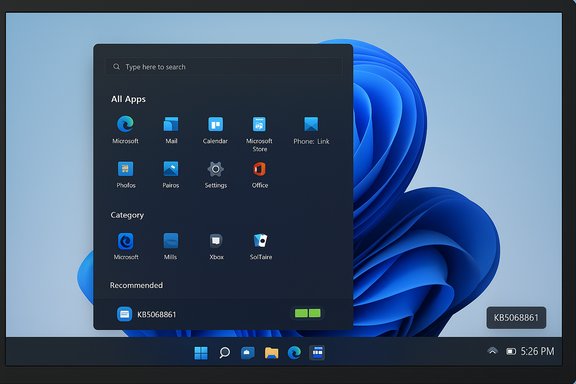
The November cumulative is pragmatic rather than revolutionary: small, widely requested usability improvements plus important reliability fixes. The highlights most users and admins will care about are:- A redesigned, more customizable Start menu — single scrollable surface, new All apps views (Category, Grid, List), ability to pin more apps, and a visible Phone Link companion toggle.
- A refreshed Taskbar battery icon — larger glyphs, color‑coded states (charging/healthy, low‑battery, critical), and the long‑requested ability to enable a persistent battery percentage next to the icon.
- A reliability fix for Task Manager that ensures closing the app truly ends the process instead of leaving background instances that can draw resources over time. This fix was initially validated in preview builds and folded into the Patch Tuesday cumulative.
Deep Dive: The New Start Menu
What changed, technically and visually
The reworked Start menu collapses previously separated pages into a single, vertically scrollable canvas where pinned apps, Recommended items, and the All apps listing live together. Microsoft introduces three All apps view modes:- Category view — groups apps into topical buckets like Productivity, Games, and Creativity.
- Grid view — a tile-like alphabetic grid for fast scanning on wide screens.
- List view — the traditional alphabetical list for users who prefer classic ordering.
Why it matters
For users with large app libraries or multiple monitors, the single-scroll model speeds discovery and reduces friction. For organizations, the change has limited manageability impact but does require checking any scripts or automation that assume the older Start layout. IT pros should validate Start pins and layout policies in a pilot ring before broad deployment.What to watch — unverified or flagged claims
Some early reports claimed implementation details—such as a locally stored JSON used to map apps into categories and a specific 15 MB size for that file. Those numeric claims are not confirmed in Microsoft’s official notes and should be treated cautiously until Microsoft publishes a formal engineering note or KB entry that verifies the payload and format. This is an example where community discovery flagged a behavior but the precise technical artifacts remain unverified.Deep Dive: Battery Icon and Taskbar UX
The visual and behavioral changes
The battery icon in the taskbar receives practical polish:- Color‑coded state: green while charging/healthy, yellow when battery saver or low, red at critical levels.
- Larger glyph: improved visibility across display sizes and scaling levels.
- Optional battery percentage: a toggle in Settings → System → Power & battery allows a persistent numeric battery percentage adjacent to the icon. This toggle is off by default.
Practical impact
For laptop users, a persistent battery percentage and color cues reduce the friction of checking battery state and help avoid surprises—particularly for users who frequently rely on the “Update and shut down” path or who use battery-constrained devices like handheld gaming PCs. IT teams will value clearer visual signals during maintenance windows.Deep Dive: Task Manager Fix — Why It Matters
The bug and the fix
A known regression caused Task Manager to continue running in the background when the user closed it with the Close (X) button, leaving background taskmgr.exe instances that could accumulate and consume system resources. That bug was reproduced by community testers and first appeared in preview packages; KB5068861 contains the fix that ensures Task Manager terminates when closed, eliminating the background process leakage that could degrade performance over time.Broader implications
Although the symptom appears small, the bug impacted battery life on mobile devices, interfered with automation scripts that rely on predictable process counts, and undermined user confidence in the UX. By returning Task Manager to deterministic behavior, Microsoft removes a low-level, high‑impact source of instability for power users and administrators. Still, because the underlying servicing orchestration interacts with drivers, Fast Startup, and multiple shutdown phases, administrators should validate behavior in representative environments. Some edge cases tied to specific drivers or firmware may persist until those components are updated.Other Notable Fixes and Quality Improvements
- Gaming handheld behavior: fixes for devices that couldn’t remain in low‑power states and a controller response delay after sign-in.
- Storage Spaces: fixes addressing scenarios where Storage Spaces could become inaccessible or Storage Spaces Direct could fail when creating clusters.
- Voice Access: improved initial setup behavior when no microphone is present and the voice model isn’t installed.
- Window management: fixes where selecting the desktop inadvertently opened Task View.
- HTTP parsing: a correctness fix for HTTP.sys request parsing to better conform to RFC 9112 chunk termination rules—important for server components that rely on precise HTTP parsing.
Deployment Options: How to Get KB5068861
There are three primary ways to obtain the update:- Windows Update (recommended for most users): Settings → Windows Update → Check for updates. This delivers an express/differential payload that is typically much smaller than the offline MSU.
- Microsoft Update Catalog (manual/offline): download the combined SSU+LCU .msu installers (x64/ARM64) and install via double-click or DISM. Catalog MSUs are larger—community checks put combined sizes in the multi‑gigabyte range (roughly 3.7–3.9 GB for some families). Plan bandwidth and disk space accordingly.
- Enterprise channels: WSUS, ConfigMgr, Intune, or image with DISM. For offline deployments, place all MSUs in a single folder and use DISM /Online /Add-Package /PackagePath:<path> to apply them; reboot when prompted.
- DISM /Online /Add-Package /PackagePath:C:\Packages\Windows11.0-KB5068861-x64.msu
Enterprise Guidance and Risk Mitigation
Pilot, test, and stage
Microsoft’s staged rollout model means feature visibility can differ by device. Enterprises should adopt a conservative path:- Create a pilot ring covering representative hardware and driver stacks.
- Validate key workflows: Update-and-shutdown sequences, imaging, scheduled reboots, and critical vendor drivers.
- Monitor telemetry for 48–72 hours after pilot deployment and be ready to roll back if necessary.
Known caveats and regressions to monitor
Optional preview packages have previously introduced regressions—most notably the Task Manager backgrounding bug discovered after the October preview. Although the November mainstream cumulative contains a fix, preview installs can carry unrelated changes that cause intermittent regressions in areas like Storage Spaces, USB devices, or DRM playback. Administrators should pay attention to logs, Event Viewer entries, and vendor advisories.Deployment checklist for admins
- Inventory devices by hardware and driver version.
- Validate on a pilot ring that includes laptops, desktops, and any handheld or thin‑client devices.
- Stage SSUs and LCUs together for offline installs; verify package integrity.
- Confirm Update-and-shutdown now performs as expected across devices.
- Maintain rollback plans (system images, restore points) and patch windows.
Recommendations for Home and Power Users
- If you rely on Update-and-shutdown or noticed Task Manager duplications, install the November cumulative via Windows Update or the offline MSU once you’ve backed up critical files. If you prefer maximum stability, wait at least a week after wide release to monitor community reports.
- If you use experimental feature‑flipping tools (ViVeTool) to force UI changes, be aware these bypass Microsoft safeguards and may expose you to unfinished features and stability regressions. Use such tools only on non‑critical devices.
- If you need the Task Manager fix immediately but want to avoid the larger cumulative, the October optional preview (KB5067036) delivered the change earlier—install only on test hardware first. Otherwise, the November Patch Tuesday cumulative provides the safer mainstream path.
Community Response and Early Signals
Early hands‑on reports from insiders and press aggregates show a mix of enthusiasm and caution. The Start menu and battery UI are broadly welcomed as practical fixes that improve daily usability. However, the rollout’s staged nature produced inconsistency: some users saw changes immediately, others did not. Community testers also helped surface regressions (notably the Task Manager issue), which Microsoft addressed in the cumulative—an example of the preview‑to‑mainstream feedback loop working as intended. Still, the brevity of Microsoft’s KB notes leaves some technical details opaque, which complicates forensic analysis for enterprise teams.Critical Analysis — Strengths and Potential Risks
Strengths
- Practical UX wins: The Start menu refinements and battery percentage toggle respond directly to long-standing user feedback and improve day‑to‑day productivity.
- Targeted reliability fixes: Repairing the Task Manager backgrounding bug and Update-and-shutdown behavior addresses real operational pain points that affected battery life and maintenance workflows.
- Measured rollout: Insider validation, optional previews, and staged server gating reduce the chance of mass regression. The path Microsoft followed—validate in dev/preview, fold fixes into cumulative—aligns with best practices for large-scale OS servicing.
Risks and open questions
- Staged feature visibility: Server‑side gating produces inconsistent experiences and can complicate troubleshooting across fleets. Administrators must avoid assuming uniformity after a single update.
- Opaque changelog details: Microsoft’s terse “addressed underlying issue” language lacks forensic detail, which forces IT teams to rely on their own telemetry rather than public post‑mortems. This complicates risk assessments for mission‑critical environments.
- Preview regressions: Past optional previews have introduced unrelated issues; installing previews on production systems carries risk. Use pilot rings and robust rollback plans.
Practical How‑To: Quick Steps to Check and Install
- Open Settings → Windows Update.
- Click Check for updates. If KB5068861 is offered, click Download and install.
- Reboot when prompted. Verify your build via Win+R → winver. You should see a 26200‑family build (25H2) or a corresponding 26100‑family build (24H2) on updated devices.
- Download the matching KB5068861 .msu for your architecture from the Microsoft Update Catalog.
- Place the .msu files in one folder.
- Open an elevated Command Prompt and run: DISM /Online /Add-Package /PackagePath:C:\Packages\Windows11.0-KB5068861-x64.msu
- Reboot and verify with winver.
Conclusion
KB5068861 is a pragmatic Patch Tuesday: a bundled set of interface polishes and reliability fixes that together improve usability and predictability in everyday Windows 11 workflows. The Start menu’s increased customizability and the taskbar battery enhancements are modest but meaningful wins for end users. More importantly for administrators and power users, the Task Manager fix and Update‑and‑shutdown reliability improvements remove subtle but consequential failure modes that previously caused battery drain and automation headaches.The delivery model—install binaries but wait for server‑side gating to enable features—remains the central caveat: installing the cumulative is necessary but not sufficient to guarantee immediate visibility of every new UI element. For most users, installing KB5068861 via Windows Update is recommended; administrators should pilot the update, validate critical workflows, and maintain rollback plans. Finally, remain cautious with community claims about internal payload sizes or implementation formats until Microsoft confirms them in official engineering notes.
Source: Windows Central Windows 11's November Patch Tuesday update brings new Start, battery icon improvements, and important Task Manager fix — download now

 ackage_for_KB5068861~31bf3856ad364e35~amd64~~10.0.1.0