

If you use an OLED Windows 11 laptop or monitor for static work, change taskbar, brightness, background, and screen-timeout habits now; if your days are mostly video, games, browsing, and short sessions with the display already turning off quickly, burn-in risk is real but probably lower than the panic suggests.
That is the practical answer hiding underneath the OLED anxiety cycle. Windows 11 is not uniquely “causing” burn-in. As a matter of analysis, there also is not one obvious, universal “anti-burn-in” switch in Windows 11 that solves the whole problem for every OLED device and every workflow. The issue is simpler and more stubborn: OLED pixels age unevenly when the same bright interface elements sit in the same place for hours, day after day. Windows can help, but only if you use it to reduce static, bright, persistent content.
The fastest OLED-safe Windows 11 setup is not exotic. Hide the taskbar if your desktop sits open for hours. Let Windows manage brightness where your hardware supports it. Lower sustained brightness when you do not need it. Avoid treating one fixed desktop image as a permanent billboard. Keep screen timeout short enough that the panel is not showing an idle desktop while you are away.
WindowsForum readers have already been circling this exact pattern. In one user-facing discussion about “3 Windows 11 Settings to Prevent OLED Burn-In,” the anxiety was framed plainly: the fear is understandable because burn-in is a real risk on self-emissive panels, especially when static UI elements sit on screen. That is the right starting point. The useful advice is not “panic.” It is “reduce the static load.”
Start with the taskbar, because it is the most obvious Windows-specific offender. Right-click an empty area of the taskbar, choose Taskbar settings, expand Taskbar behaviors, and enable Automatically hide the taskbar. You can also reach the same place through Settings > Personalization > Taskbar > Taskbar behaviors > Automatically hide the taskbar.
Next, adjust brightness behavior. Open Settings > System > Display > Brightness. On compatible devices, Windows may offer automatic brightness behavior based on lighting conditions. Microsoft’s own Surface support language is careful here: automatic brightness adjustment depends on compatible hardware such as devices with the necessary light-sensing capability. In other words, do not assume every Windows 11 desktop, external monitor, or laptop has the same options. If your device offers content-adaptive brightness or contrast controls, treat those as device-dependent features, not universal Windows guarantees.
Then rethink the desktop background. Use a changing or rotating background if that fits your workflow, but do not rely on unsupported step-by-step folklore. The practical point is simple: avoid leaving one bright, high-contrast image in the same position indefinitely on an OLED panel.
Here is the decision version:
Those changes do not make an OLED panel immortal. They do something more realistic: they reduce the amount of time that bright, high-contrast, static content remains on the same pixels. That is the part Windows users can actually control.
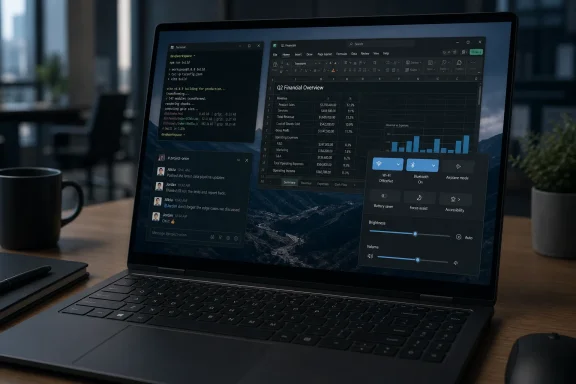
The taskbar, Start button, pinned app icons, notification area, browser chrome, spreadsheet grids, terminal windows, dashboards, and bright desktop backgrounds all share the same bad habit. They sit still. On an OLED display, stillness matters because the pixels doing the most work age faster than surrounding pixels.
That does not mean every OLED Windows machine is doomed. It means usage pattern matters more than brand mythology. A laptop used for movies, games, rotating documents, and short bursts of browsing is not living the same life as a trading desk display, coding monitor, kiosk dashboard, or office laptop showing the same Teams, Outlook, browser, and taskbar layout for ten hours a day.
This is why the right recommendation is conditional. If your OLED device is a mixed-use entertainment machine, reasonable defaults may be enough. If it is a work machine with static layouts, you should treat burn-in prevention as setup hygiene, not superstition.
Auto-hide is not glamorous. It can feel fussy, especially on multi-monitor desks, remote sessions, and systems where users rely on glanceable tray icons. But from an OLED perspective, it attacks one of the most predictable static zones on the Windows desktop.
This does not mean everyone should pretend auto-hide is a perfect user experience. IT pros know the tradeoff immediately: fewer persistent pixels, more user friction. Some people dislike waiting for the taskbar to reappear; others find that it misbehaves with full-screen apps, remote desktop sessions, or multi-display arrangements.
Still, for static work, this is the highest-value Windows setting because it removes a bright, repeated interface strip without asking users to change their applications. You are not telling accountants to stop using Excel, developers to stop using terminals, or analysts to stop using dashboards. You are removing one constant from the display equation.
The WindowsForum discussion about OLED-focused Windows 11 settings put the taskbar in the right company: taskbar behavior, brightness, and dynamic desktop habits are not separate superstitions. They are different ways of attacking the same problem — repeated bright elements that occupy fixed locations.
The important word is sustained. Brief high brightness is not the same as running a static desktop at high brightness for an entire workday. OLED risk management is less about never enjoying the display and more about avoiding hours of unnecessary pixel load.
On compatible laptops and tablets with the right sensors, Windows can automatically adjust brightness based on lighting around you. On some compatible systems, Windows may also adjust brightness or contrast based on displayed content. Keep the limitation clear: these features are not broadly guaranteed across all Windows 11 PCs, all external monitors, or all GPU/display combinations. They depend on the device.
That device-dependent reality lines up with WindowsForum’s broader brightness coverage. In the forum’s practical guidance on Windows 11 brightness fixes for laptops and external monitors, brightness is treated as a hardware-and-driver-specific control path, not a single universal slider that behaves identically everywhere. Another WindowsForum report on customizable on-screen display positions for brightness and volume underscores the same theme from a user-experience angle: brightness controls are becoming more visible and flexible, but the exact behavior still depends on the device, display path, and Windows build.
There is also a user-experience caveat. Some people dislike brightness changes that appear to “breathe” while they work, particularly during photo editing, video grading, design review, or any task where display consistency matters. In those cases, the better compromise is manual discipline: choose a comfortable lower brightness for static work, then raise it when color-critical or HDR content actually needs it.
For WindowsForum readers who followed the discussion of Windows 11 Adaptive Energy Saver, this fits a larger pattern. Microsoft has been pushing Windows toward smarter energy behavior without making the machine feel obviously dimmed or compromised. That matters for battery life and eye comfort, and it can also support OLED-friendly habits. But the connection should be stated carefully: energy-saving display behavior is not the same thing as a dedicated burn-in guarantee.
The WindowsForum customization guide for Windows 11 captured the broader user motivation: many people get tired of predictable static wallpapers and familiar taskbar layouts, especially when Windows offers more personalization than the default desktop suggests. For OLED users, that customization argument has a practical side. A background that changes over time is less likely to pin the same bright pattern to the same pixels day after day.
That does not mean the wallpaper needs to become a science project. The principle is enough: avoid making one bright, high-contrast image the permanent foundation of your OLED workday. If you use a rotating collection, choose images that do not all place the same bright logo, sky band, white shape, or high-contrast object in the same part of the display.
This is especially relevant for people who use minimalist desktops. A black background may sound safest, and on OLED it does reduce pixel output in those regions. But many users do not actually leave the desktop empty; they use bright logos, high-contrast art, wallpapers with fixed light areas, widgets, docks, or productivity layouts with static zones.
The better principle is not “never use a wallpaper you like.” It is “do not make one bright, high-contrast image a permanent OLED fixture.” A changing background is a low-friction improvement, and unlike taskbar auto-hide, it rarely changes how people work.
A dark desktop with a bright taskbar, fixed browser chrome, pinned app icons, and a spreadsheet open all day is still a static workload. The color palette is better, but the pattern remains. OLED care is cumulative; no single setting carries the whole burden.
The same caution applies to screen timeout, but in the opposite direction: if your display turns off quickly when idle, you have already removed a large class of unnecessary static exposure. That is one reason the burn-in headline may be overblown for some users. A machine that sleeps the display after short idle periods and spends most of its active time on changing content is in a different risk category than a display showing the same dashboard from breakfast to dinner.
The smart setup combines small protections instead of chasing one miracle option. Hide the taskbar where it makes sense. Moderate brightness. Avoid permanent bright backgrounds. Use dark themes where they fit. Let the screen turn off when you walk away. None of these steps is dramatic. Together, they change the panel’s daily workload.
If you write, code, trade, monitor alerts, manage tickets, edit spreadsheets, run dashboards, or keep communication apps open in fixed layouts, change the settings now. Your work style is exactly the kind that makes static UI relevant. You do not need to panic, but you should not shrug either.
If your OLED system is mainly a media laptop, gaming monitor, or personal device with mixed browsing, video, and frequent app changes, the risk tradeoff is lower. You should still use sane defaults, especially screen timeout and reasonable brightness. But the case for aggressive taskbar hiding is less urgent if the display rarely shows one static desktop for long.
External OLED monitors deserve extra caution because they are often used like office infrastructure. A laptop display may sleep when the lid closes or the machine moves. A desk monitor can become a persistent canvas for the same windows, the same taskbar, and the same background every weekday.
That is where enthusiasts and sysadmins should draw the line. OLED as a premium display is not the problem. Treating it like a cheap static signage panel is.
Fleet administrators do not need to ban OLED. They do need to recognize which teams are likely to stress it. Finance, operations centers, development groups, help desks, design teams, and executives with docked OLED laptops may all have very different usage profiles.
The practical first step is guidance. Tell users with OLED panels why taskbar auto-hide, screen timeout, changing backgrounds, and moderate brightness matter. Do not frame it as fear; frame it as matching the device to the workload.
The second step is standardization where possible. If your organization already manages power settings, display timeout, wallpaper policy, or taskbar behavior, OLED systems may justify a different baseline. Not every organization will want auto-hide forced on users, but shorter screen timeouts are easier to defend. Non-static desktop guidance may also be easier to explain than a strict ban on user personalization.
The third step is procurement honesty. OLED displays look excellent in demos, but static-heavy work may still be better served by other panel types. That is not anti-OLED; it is workload-aware buying. A gorgeous display is only a good business purchase if it survives the way employees actually use it.
WindowsForum’s OLED, brightness, and customization threads all point toward the same operational lesson: display behavior is now part of the Windows experience, not just a monitor spec sheet. Brightness, taskbar persistence, background choices, and energy behavior affect usability, battery life, comfort, and panel wear. They should be discussed before devices are deployed, not after users complain.
The better approach is probability management. Windows 11 gives users enough control to reduce static exposure without turning the desktop into a miserable experience. The taskbar can hide. Brightness can come down or adapt on compatible hardware. Backgrounds can change. The display can time out.
What Windows 11 cannot do is know your whole workflow. It cannot tell whether your laptop is used for two hours of Netflix or ten hours of accounting software. It cannot decide whether a fixed background is visible all day on a secondary OLED monitor. It cannot infer whether auto-hide is a minor inconvenience or a productivity tax for a specific user.
That is why the answer is not one-size-fits-all. The user with static work should act now because the cost of prevention is low. The user with mixed-motion media, dark themes, and short screen timeout already has a lower-risk profile, so the urgency is lower even though the underlying issue still exists.
Here is the short version worth applying before the next long workday:
That is the practical answer hiding underneath the OLED anxiety cycle. Windows 11 is not uniquely “causing” burn-in. As a matter of analysis, there also is not one obvious, universal “anti-burn-in” switch in Windows 11 that solves the whole problem for every OLED device and every workflow. The issue is simpler and more stubborn: OLED pixels age unevenly when the same bright interface elements sit in the same place for hours, day after day. Windows can help, but only if you use it to reduce static, bright, persistent content.
 Change These Windows 11 Settings Before You Argue About Burn-In
The fastest OLED-safe Windows 11 setup is not exotic. Hide the taskbar if your desktop sits open for hours. Let Windows manage brightness where your hardware supports it. Lower sustained brightness when you do not need it. Avoid treating one fixed desktop image as a permanent billboard. Keep screen timeout short enough that the panel is not showing an idle desktop while you are away.WindowsForum readers have already been circling this exact pattern. In one user-facing discussion about “3 Windows 11 Settings to Prevent OLED Burn-In,” the anxiety was framed plainly: the fear is understandable because burn-in is a real risk on self-emissive panels, especially when static UI elements sit on screen. That is the right starting point. The useful advice is not “panic.” It is “reduce the static load.”
Start with the taskbar, because it is the most obvious Windows-specific offender. Right-click an empty area of the taskbar, choose Taskbar settings, expand Taskbar behaviors, and enable Automatically hide the taskbar. You can also reach the same place through Settings > Personalization > Taskbar > Taskbar behaviors > Automatically hide the taskbar.
Next, adjust brightness behavior. Open Settings > System > Display > Brightness. On compatible devices, Windows may offer automatic brightness behavior based on lighting conditions. Microsoft’s own Surface support language is careful here: automatic brightness adjustment depends on compatible hardware such as devices with the necessary light-sensing capability. In other words, do not assume every Windows 11 desktop, external monitor, or laptop has the same options. If your device offers content-adaptive brightness or contrast controls, treat those as device-dependent features, not universal Windows guarantees.
Then rethink the desktop background. Use a changing or rotating background if that fits your workflow, but do not rely on unsupported step-by-step folklore. The practical point is simple: avoid leaving one bright, high-contrast image in the same position indefinitely on an OLED panel.
Here is the decision version:
| If this sounds like you | Do this now | You can probably skip this |
|---|---|---|
| OLED laptop or monitor used for coding, spreadsheets, dashboards, chat, tickets, finance apps, or fixed browser layouts for hours | Enable taskbar auto-hide, lower sustained brightness, use a changing background, and shorten screen timeout | Do not obsess over every minute of mixed-use content |
| OLED gaming/media laptop with frequent full-screen video, games, browsing, and short sessions | Keep reasonable brightness and screen timeout; consider dark mode | Aggressive taskbar hiding is less urgent if the desktop rarely sits unchanged |
| Docked OLED laptop or external OLED monitor used like an office display | Treat it as higher risk because it may show the same desktop all day | Do not assume laptop-style mobility will protect a stationary monitor |
| Color-critical work such as photo, video, or design review | Use stable manual brightness while working, then lower it afterward | Avoid adaptive brightness if it interferes with accuracy |
The Burn-In Story Is About Static Pixels, Not Windows 11 Villainy
OLED burn-in discussions often start in the wrong place. They make the operating system sound guilty, as if Windows 11 itself were chemically attacking the panel. The better framing is that OLED is a self-emissive display technology, and static UI is the kind of workload that exposes its weakness.The taskbar, Start button, pinned app icons, notification area, browser chrome, spreadsheet grids, terminal windows, dashboards, and bright desktop backgrounds all share the same bad habit. They sit still. On an OLED display, stillness matters because the pixels doing the most work age faster than surrounding pixels.
That does not mean every OLED Windows machine is doomed. It means usage pattern matters more than brand mythology. A laptop used for movies, games, rotating documents, and short bursts of browsing is not living the same life as a trading desk display, coding monitor, kiosk dashboard, or office laptop showing the same Teams, Outlook, browser, and taskbar layout for ten hours a day.
This is why the right recommendation is conditional. If your OLED device is a mixed-use entertainment machine, reasonable defaults may be enough. If it is a work machine with static layouts, you should treat burn-in prevention as setup hygiene, not superstition.
Auto-Hiding the Taskbar Is Annoying Because It Works
The Windows taskbar is small, but it is persistent. That is what makes it useful, and that is what makes it an OLED concern. The same icons, the same system tray, and the same bright edge line can sit at the bottom of the display for an entire session.Auto-hide is not glamorous. It can feel fussy, especially on multi-monitor desks, remote sessions, and systems where users rely on glanceable tray icons. But from an OLED perspective, it attacks one of the most predictable static zones on the Windows desktop.
This does not mean everyone should pretend auto-hide is a perfect user experience. IT pros know the tradeoff immediately: fewer persistent pixels, more user friction. Some people dislike waiting for the taskbar to reappear; others find that it misbehaves with full-screen apps, remote desktop sessions, or multi-display arrangements.
Still, for static work, this is the highest-value Windows setting because it removes a bright, repeated interface strip without asking users to change their applications. You are not telling accountants to stop using Excel, developers to stop using terminals, or analysts to stop using dashboards. You are removing one constant from the display equation.
The WindowsForum discussion about OLED-focused Windows 11 settings put the taskbar in the right company: taskbar behavior, brightness, and dynamic desktop habits are not separate superstitions. They are different ways of attacking the same problem — repeated bright elements that occupy fixed locations.
Brightness Is the Multiplier Nobody Wants to Talk About
Burn-in prevention often gets framed around images and icons, but brightness is the multiplier. A static white taskbar at low brightness is not the same workload as a static white taskbar at retina-searing brightness. Lower sustained brightness reduces panel stress, and Windows 11 exposes brightness controls where the display hardware supports them.The important word is sustained. Brief high brightness is not the same as running a static desktop at high brightness for an entire workday. OLED risk management is less about never enjoying the display and more about avoiding hours of unnecessary pixel load.
On compatible laptops and tablets with the right sensors, Windows can automatically adjust brightness based on lighting around you. On some compatible systems, Windows may also adjust brightness or contrast based on displayed content. Keep the limitation clear: these features are not broadly guaranteed across all Windows 11 PCs, all external monitors, or all GPU/display combinations. They depend on the device.
That device-dependent reality lines up with WindowsForum’s broader brightness coverage. In the forum’s practical guidance on Windows 11 brightness fixes for laptops and external monitors, brightness is treated as a hardware-and-driver-specific control path, not a single universal slider that behaves identically everywhere. Another WindowsForum report on customizable on-screen display positions for brightness and volume underscores the same theme from a user-experience angle: brightness controls are becoming more visible and flexible, but the exact behavior still depends on the device, display path, and Windows build.
There is also a user-experience caveat. Some people dislike brightness changes that appear to “breathe” while they work, particularly during photo editing, video grading, design review, or any task where display consistency matters. In those cases, the better compromise is manual discipline: choose a comfortable lower brightness for static work, then raise it when color-critical or HDR content actually needs it.
For WindowsForum readers who followed the discussion of Windows 11 Adaptive Energy Saver, this fits a larger pattern. Microsoft has been pushing Windows toward smarter energy behavior without making the machine feel obviously dimmed or compromised. That matters for battery life and eye comfort, and it can also support OLED-friendly habits. But the connection should be stated carefully: energy-saving display behavior is not the same thing as a dedicated burn-in guarantee.
Dynamic Backgrounds Help, but Do Not Need Unsupported Rituals
Desktop backgrounds are easy to dismiss because they feel decorative. On an OLED panel, decoration can become workload. A fixed background may sit behind windows for long stretches, and on ultrawide monitors, secondary screens, or machines left at the desktop, it can become a persistent image in its own right.The WindowsForum customization guide for Windows 11 captured the broader user motivation: many people get tired of predictable static wallpapers and familiar taskbar layouts, especially when Windows offers more personalization than the default desktop suggests. For OLED users, that customization argument has a practical side. A background that changes over time is less likely to pin the same bright pattern to the same pixels day after day.
That does not mean the wallpaper needs to become a science project. The principle is enough: avoid making one bright, high-contrast image the permanent foundation of your OLED workday. If you use a rotating collection, choose images that do not all place the same bright logo, sky band, white shape, or high-contrast object in the same part of the display.
This is especially relevant for people who use minimalist desktops. A black background may sound safest, and on OLED it does reduce pixel output in those regions. But many users do not actually leave the desktop empty; they use bright logos, high-contrast art, wallpapers with fixed light areas, widgets, docks, or productivity layouts with static zones.
The better principle is not “never use a wallpaper you like.” It is “do not make one bright, high-contrast image a permanent OLED fixture.” A changing background is a low-friction improvement, and unlike taskbar auto-hide, it rarely changes how people work.
Dark Mode Helps, but It Is Not a Force Field
Dark themes are useful on OLED because darker pixels generally work less. They also make Windows more comfortable in many indoor environments. But dark mode can create a false sense of completion if users leave every other static element unchanged.A dark desktop with a bright taskbar, fixed browser chrome, pinned app icons, and a spreadsheet open all day is still a static workload. The color palette is better, but the pattern remains. OLED care is cumulative; no single setting carries the whole burden.
The same caution applies to screen timeout, but in the opposite direction: if your display turns off quickly when idle, you have already removed a large class of unnecessary static exposure. That is one reason the burn-in headline may be overblown for some users. A machine that sleeps the display after short idle periods and spends most of its active time on changing content is in a different risk category than a display showing the same dashboard from breakfast to dinner.
The smart setup combines small protections instead of chasing one miracle option. Hide the taskbar where it makes sense. Moderate brightness. Avoid permanent bright backgrounds. Use dark themes where they fit. Let the screen turn off when you walk away. None of these steps is dramatic. Together, they change the panel’s daily workload.
Static Workloads Are the Real Divide Between “Do It Now” and “Probably Fine”
The most useful way to decide is to ignore the word OLED for a moment and audit your day. How often does the same interface sit in the same place? How bright is the panel while that happens? How long does the screen remain on when nobody is using it?If you write, code, trade, monitor alerts, manage tickets, edit spreadsheets, run dashboards, or keep communication apps open in fixed layouts, change the settings now. Your work style is exactly the kind that makes static UI relevant. You do not need to panic, but you should not shrug either.
If your OLED system is mainly a media laptop, gaming monitor, or personal device with mixed browsing, video, and frequent app changes, the risk tradeoff is lower. You should still use sane defaults, especially screen timeout and reasonable brightness. But the case for aggressive taskbar hiding is less urgent if the display rarely shows one static desktop for long.
External OLED monitors deserve extra caution because they are often used like office infrastructure. A laptop display may sleep when the lid closes or the machine moves. A desk monitor can become a persistent canvas for the same windows, the same taskbar, and the same background every weekday.
That is where enthusiasts and sysadmins should draw the line. OLED as a premium display is not the problem. Treating it like a cheap static signage panel is.
Sysadmins Should Treat OLED as a Policy Conversation, Not a Help Desk Surprise
For home users, this is a Settings tour. For IT departments, OLED introduces a support question: who owns display longevity when premium laptops enter static office workflows? The answer cannot be “hope users read display care advice.”Fleet administrators do not need to ban OLED. They do need to recognize which teams are likely to stress it. Finance, operations centers, development groups, help desks, design teams, and executives with docked OLED laptops may all have very different usage profiles.
The practical first step is guidance. Tell users with OLED panels why taskbar auto-hide, screen timeout, changing backgrounds, and moderate brightness matter. Do not frame it as fear; frame it as matching the device to the workload.
The second step is standardization where possible. If your organization already manages power settings, display timeout, wallpaper policy, or taskbar behavior, OLED systems may justify a different baseline. Not every organization will want auto-hide forced on users, but shorter screen timeouts are easier to defend. Non-static desktop guidance may also be easier to explain than a strict ban on user personalization.
The third step is procurement honesty. OLED displays look excellent in demos, but static-heavy work may still be better served by other panel types. That is not anti-OLED; it is workload-aware buying. A gorgeous display is only a good business purchase if it survives the way employees actually use it.
WindowsForum’s OLED, brightness, and customization threads all point toward the same operational lesson: display behavior is now part of the Windows experience, not just a monitor spec sheet. Brightness, taskbar persistence, background choices, and energy behavior affect usability, battery life, comfort, and panel wear. They should be discussed before devices are deployed, not after users complain.
The Headline Risk Is Real, but the Panic Is Lazy
The worst version of OLED advice tells users either to ignore burn-in entirely or to obsess over every pixel. Both positions are unserious. Burn-in is real enough to plan around, but not so immediate that every OLED Windows device should be treated like fragile lab equipment.The better approach is probability management. Windows 11 gives users enough control to reduce static exposure without turning the desktop into a miserable experience. The taskbar can hide. Brightness can come down or adapt on compatible hardware. Backgrounds can change. The display can time out.
What Windows 11 cannot do is know your whole workflow. It cannot tell whether your laptop is used for two hours of Netflix or ten hours of accounting software. It cannot decide whether a fixed background is visible all day on a secondary OLED monitor. It cannot infer whether auto-hide is a minor inconvenience or a productivity tax for a specific user.
That is why the answer is not one-size-fits-all. The user with static work should act now because the cost of prevention is low. The user with mixed-motion media, dark themes, and short screen timeout already has a lower-risk profile, so the urgency is lower even though the underlying issue still exists.
Frequently Asked Questions
Is Windows 11 causing OLED burn-in?
No. The more accurate answer is that Windows 11 can display static interface elements — taskbar, icons, browser chrome, app layouts, widgets, and backgrounds — that may contribute to uneven pixel wear on OLED panels if they remain bright and unmoving for long periods. The operating system is not the villain; the workload pattern is the issue.Is there a single Windows 11 setting that prevents OLED burn-in?
Not in any practical, universal sense. As analysis, Windows 11 does not appear to offer one magic switch that makes every OLED panel immune to burn-in across every laptop, monitor, and workflow. The better approach is layered: reduce persistent static UI, lower sustained brightness, use sensible timeout behavior, and avoid fixed bright desktop imagery.Should I enable taskbar auto-hide?
If your OLED screen shows the Windows desktop for long work sessions, yes, it is one of the highest-value changes. The taskbar is a persistent strip of repeated icons and system elements. Hiding it reduces one predictable static zone. If you mostly game, watch video, or use full-screen apps with frequent content changes, it is less urgent.Should I use automatic brightness?
Use it if your device supports it and if you like the behavior. Windows brightness features vary by hardware, sensors, display connection, and drivers. Compatible Surface-style devices may support automatic brightness adjustment based on lighting conditions, and some systems may expose content-adaptive behavior. Do not assume those options exist on every Windows 11 PC or external OLED monitor.What if adaptive brightness bothers me?
Turn it off or use manual brightness discipline. For photo editing, video grading, design work, or any task where consistent luminance matters, automatic changes can be distracting or inappropriate. In that case, use a stable brightness while working, then reduce brightness afterward for normal static desktop use.Does dark mode prevent burn-in?
Dark mode helps reduce the amount of bright content on an OLED screen, but it is not a force field. A dark desktop can still have static bright elements, pinned icons, white app panels, browser bars, spreadsheets, and dashboards. Use dark mode as one layer, not the whole plan.Is a black wallpaper best for OLED?
A mostly black background can reduce pixel output in those areas, but it is not automatically the best full answer. If your desktop also has bright icons, widgets, logos, or fixed app windows, those elements still matter. The safer general habit is to avoid a permanent bright, high-contrast image that sits in the same position every day.Do changing wallpapers really matter?
They can help, especially on systems that often sit at the desktop or use large visible desktop areas. A changing background is not a professional burn-in prevention system, but it reduces the chance that one image pattern becomes a permanent part of the panel’s daily workload.Are external OLED monitors riskier than OLED laptops?
They can be, depending on usage. External monitors are often used as fixed work displays for long sessions with the same windows, taskbar, and desktop arrangement. A laptop may move between contexts, sleep more often, or be used for more mixed content. The panel type matters, but the daily pattern matters more.Should businesses avoid OLED laptops?
Not necessarily. OLED may be a good choice for executives, creatives, travelers, and users who benefit from excellent contrast and color. But organizations should be honest about static-heavy roles. Finance desks, operations dashboards, help desks, and docked office setups may need stricter display guidance or a different panel choice.The Sensible OLED Setup Is Boring, Which Is Why It Will Last
The practical lesson is not that Windows 11 needs a giant “OLED mode” button, though such a mode would be welcome. The lesson is that OLED care is mostly a set of boring defaults that reduce unnecessary sameness.Here is the short version worth applying before the next long workday:
- Enable taskbar auto-hide if your OLED screen often shows the Windows desktop for hours.
- Use Windows brightness controls to lower sustained brightness, and enable automatic brightness only where your hardware supports it and the behavior does not interfere with your work.
- Avoid leaving one bright, high-contrast desktop background in place indefinitely.
- Keep dark themes and screen timeout enabled if they fit your workflow.
- Treat docked OLED laptops and external OLED monitors as higher-risk systems when they are used for spreadsheets, dashboards, terminals, or communication apps all day.
- Do not overcorrect if your OLED use is mostly mixed video, games, browsing, and short sessions, because the risk profile is lower when content changes frequently.
References
- Primary source: support.microsoft.com
Change display brightness and color in Windows - Microsoft Support
Learn how to change display brightness and color in Windows.support.microsoft.com - Primary source: WindowsForum
3 Windows 11 Settings to Prevent OLED Burn-In (Taskbar, Brightness, Dynamic Wallpaper) | Windows Forum
I was terrified of OLED burn-in until I found these three settings, and the fear is understandable because burn-in is a real risk on self-emissive panels...windowsforum.com
