Microsoft has acknowledged a persistent Windows 11 bug that makes the password icon disappear from the lock‑screen sign‑in options, and — crucially for many users — there is no immediate, widely distributed fix: the icon is invisible but still functional, and Microsoft’s public guidance for affected devices is limited to a crude workaround while an official correction is developed.
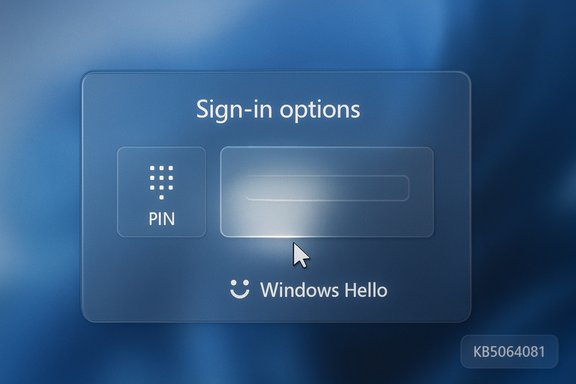
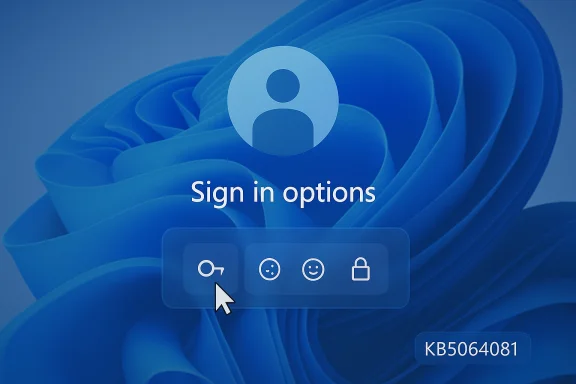
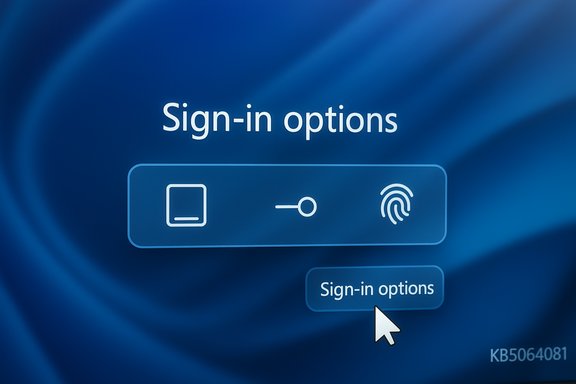
Since the August 29, 2025 optional preview update identified as KB5064081, a rendering regression has been tracked across multiple Windows 11 servicing releases. Microsoft’s own release‑health / KB pages list the symptom: after installing the August preview or later updates, “you might notice that the password icon is not visible in the sign‑in options on the lock screen.” Hovering over the blank space reveals the hidden control; clicking it opens the password entry field and sign‑in proceeds normally. Microsoft says it is working to resolve the issue but has not provided a public ETA. Independent reporting and community threads documented the problem across updates released in September, October and November 2025 — including KB5065789, KB5067036, KB5066835, KB5070773 and KB5068861 — and traced the regression back to the August preview. Coverage from BleepingComputer, Windows Latest, and other outlets confirmed Microsoft’s KB entries and reproduced the same hover/click workaround.
At the same time, Microsoft’s broader push toward passwordless sign‑in (passkeys, Windows Hello enhancements, and third‑party passkey support) reduces long‑term exposure to UI glitches affecting password selection. Industry coverage shows Microsoft expanding native passkey support and defaulting new accounts toward passwordless methods — a strategic direction that mitigates this specific class of problems over time. However, the transition is incomplete: many users and enterprise systems still depend on passwords, making reliable UI behavior important for months or years to come.
Source: Forbes Microsoft Confirms Windows Password Failure—No Fix Available
 Background
Since the August 29, 2025 optional preview update identified as KB5064081, a rendering regression has been tracked across multiple Windows 11 servicing releases. Microsoft’s own release‑health / KB pages list the symptom: after installing the August preview or later updates, “you might notice that the password icon is not visible in the sign‑in options on the lock screen.” Hovering over the blank space reveals the hidden control; clicking it opens the password entry field and sign‑in proceeds normally. Microsoft says it is working to resolve the issue but has not provided a public ETA. Independent reporting and community threads documented the problem across updates released in September, October and November 2025 — including KB5065789, KB5067036, KB5066835, KB5070773 and KB5068861 — and traced the regression back to the August preview. Coverage from BleepingComputer, Windows Latest, and other outlets confirmed Microsoft’s KB entries and reproduced the same hover/click workaround. What happened (concise technical summary)
- The visible UI element for the password sign‑in option (the small key icon inside “Sign‑in options” on the lock screen) fails to render on affected Windows 11 systems.
- The underlying control remains present and clickable; the visual asset is not displayed, producing an apparent absence of a password option even when multiple sign‑in methods (PIN, fingerprint, security key, password) are configured.
- The bug is a UI rendering / sign‑in options component regression, not a change to authentication logic. Signing in by selecting the (invisible) control still invokes the password textbox. Microsoft categorizes it as a Known Issue in their update documentation.
Affected OS branches and updates
Microsoft’s support pages and subsequent cumulative/preview KBs that reference the issue include, but are not necessarily limited to, the following releases:- KB5064081 — August 29, 2025 (preview) — regression origin.
- KB5065426 — September 9, 2025.
- KB5068221 — September 22, 2025 (out‑of‑band).
- KB5065789 — September 29, 2025 (preview).
- KB5066835 — October 14, 2025 (cumulative).
- KB5070773 — October 20, 2025 (out‑of‑band) — Microsoft used an OOB update to remediate other October regressions (e.g., WinRE input), but the password icon rendering remained referenced in later KB notes.
- KB5067036 — October 28, 2025 (preview) — listed as addressing other regressions; Microsoft notes the password icon can still be invisible on affected machines.
- KB5068861 — November 11, 2025 (cumulative) — Known Issue entry persists.
How to check if your PC is affected
Follow these concise steps to confirm whether the invisible password icon issue could affect you:- Check your Windows version and build:
- Open Settings → System → About, and confirm Windows 11 version 24H2 or 25H2 and the OS build. Or run in PowerShell:
- Get-ComputerInfo | Select WindowsVersion, OsBuildNumber
- If you installed the August 29, 2025 preview (KB5064081) or any cumulative updates released afterward, you may be within the impacted servicing path.
- Inspect installed updates:
- Settings → Windows Update → Update history, or run PowerShell:
- Get-HotFix | Where-Object {$_.InstalledOn -gt (Get-Date).AddMonths(-6)} | Sort-Object InstalledOn -Descending
- Look for KB5064081 or the subsequent KBs listed above. Microsoft’s KB pages list the specific builds that include Known Issue entries.
- Reproduce the symptom on the lock screen:
- At the lock screen, click “Sign‑in options” (the chevron or links beneath the PIN box). If the password icon is not visible but clicking the blank area triggers a password field, your system shows the symptom Microsoft described. Hovering over the blank spot normally reveals a clickable area.
Practical workarounds — what to do now
Microsoft’s temporary guidance is light: the password button is present but invisible, and hovering or clicking the correct blank area opens the password box. That is the default official workaround until a fix is released. Beyond that, here are practical steps to reduce friction.- Use Windows Hello PIN or biometric sign‑in as your primary method. The PIN box remains visible and is unaffected. If you already use Windows Hello, this reduces the need to expose the password option on the lock screen.
- If you occasionally need password sign‑in and cannot reliably click the invisible control:
- Sign in with your PIN, then switch to Settings → Accounts → Sign‑in options to temporarily remove other methods (e.g., security keys) so Windows will show the password field directly — but be cautious: changing sign‑in options impacts device security posture and convenience.
- If you are locked out because you do not have Windows Hello enabled:
- At the lock screen, try clicking different parts of the Sign‑in options area — the control is present and will accept clicks even if invisible. Microsoft confirms hovering reveals the active zone.
- Use the on‑screen keyboard (Ease of Access) if a physical keyboard isn’t available; that still allows entry once the password field is active.
Impact analysis — usability, accessibility, and security
Usability and support burden
This regression is primarily a usability problem: casual users who rely on seeing the password icon may be confused, repeatedly clicking, or assuming the password option was removed. For consumer help desks and enterprise service desks, expect a spike in support tickets and help calls that are avoidable but time‑consuming. Community reporting showed exactly that pattern in forums and on social platforms after August’s preview wave.Accessibility risks
The bug is disproportionately harmful to users with assistive needs. Screen magnifiers, reduced motor control, and other assistive technologies rely on consistent visual cues; an invisible control creates a real access barrier. Microsoft’s workaround (hover/click the invisible area) is not an accessibility‑friendly solution and should be treated as an interim mitigation only. Accessibility regressions are taken seriously by organizations and can have legal and operational consequences.Security considerations
From a technical security standpoint the regression is cosmetic: the authentication flow remains intact and the password control is functional even if not visible. There is no indication that this regression changes authentication logic, weakens encryption, or opens a new remote attack surface. Major independent outlets and Microsoft’s KB notes characterize the issue as a rendering bug rather than a security defect. However, human factors matter: confused users might adopt insecure workarounds (e.g., storing passwords in clear text on sticky notes) or disable strong sign‑in methods — these human responses can create material security risk.Why this likely happened (technical hypothesis)
Community analysis and third‑party writeups point to a UI rendering regression in the sign‑in options component introduced by the August 2025 preview (KB5064081) that propagated into subsequent cumulative builds. The symptom — the control exists but the graphical asset is missing — matches a rendering or resource‑lookup failure rather than a credential provider or authentication subsystem change. Several community posts and bug breakdowns suggest a missing icon asset, style change, or a conditional rendering path that fails for certain build/driver combinations. Microsoft’s KBs describe it as a rendering/invisible icon symptom consistent with that interpretation. Caveat: Microsoft has not published a detailed root‑cause postmortem publicly, so any detailed cause analysis is an informed hypothesis based on symptomology and community forensics. Treat the exact root cause as unverified until Microsoft publishes technical details.Microsoft’s response and timeline so far
- Microsoft added Known Issue entries to multiple KB pages starting in September and repeated the symptom in cumulative entries through November, confirming the company is tracking the regression.
- For other high‑impact regressions from the same August preview wave (for example, WinRE USB input failures after the October cumulative), Microsoft issued out‑of‑band cumulative updates (e.g., KB5070773) to restore functionality. That demonstrates Microsoft will push emergency fixes when the regression blocks recovery scenarios, but the password icon issue (while usability‑affecting) has so far remained a lower severity Known Issue with no immediate OOB patch.
- Microsoft’s public guidance has been limited to the hover/click workaround and assurances that the company is “working to resolve” the issue. There is no published ETA for a fix as of the latest KB entries.
Recommendations — consumers and power users
- Do not skip security updates: Uninstalling or deferring cumulative security fixes to avoid the visual bug can introduce real security risk. Keep devices patched and use temporary ergonomics workarounds.
- Enable and rely on Windows Hello (PIN or biometrics) where possible. A PIN tied to the device reduces reliance on the password icon. If you haven’t already, set up Windows Hello in Settings → Accounts → Sign‑in options.
- If you need password access infrequently, use the visible PIN, sign in, then adjust Sign‑in options temporarily if you understand the security tradeoffs. Document any changes and revert them when the fix is installed.
- For single‑user machines without Windows Hello: create a local recovery USB or ensure you have a secondary login path so you aren’t trapped if sign‑in options misbehave. Keep a secure record of account recovery options (Microsoft account recovery phone/email).
Recommendations — IT administrators and enterprise teams
- Inventory and triage:
- Use management tooling (SCCM/Intune/WSUS) to identify devices that installed KB5064081 or later servicing. Audit sign‑in options across endpoints to evaluate the operational impact.
- Pilot and ring testing:
- Continue to test updates in a staged ring model. For critical endpoints that require password sign‑in workflows (kiosk devices, specialized access), hold updates in the outer rings until fixes are confirmed. Use Microsoft’s Release Health dashboard and KB entries to track Known Issues and KIR (Known Issue Rollback) availability.
- Support guidance:
- Prepare clear internal KBs instructing support staff to advise the hover/click workaround, to use Windows Hello where feasible, and to avoid uninstalling security updates. Train help desk staff to assist users with temporary sign‑in adjustments and recovery USB creation.
- Accessibility accommodation:
- Identify users with assistive needs and provide targeted remediation (enable alternative sign‑in methods, assign IT‑assisted sign‑in changes) until Microsoft ships a proper fix. Failing to do so may create compliance or accessibility liabilities.
- Monitor for KIR:
- If Microsoft issues a Known Issue Rollback (KIR) for this issue, prioritize its deployment to affected rings. KIRs offer a reversible path to undo a specific regression without wholesale update rollbacks.
Broader implications: trust in update quality and the push to passwordless
This regression sits within a larger pattern of update friction observed in the August–November 2025 servicing wave. That cycle included multiple tracked regressions (DRM playback issues, WinRE input failures, HTTP.sys regressions, and the invisible password icon). Microsoft’s handling has been mixed: rapid OOB fixes for some high‑impact problems and slower remediation for cosmetic/usability issues. The sum of these incidents affects user confidence in update reliability and increases the operational cost for enterprise update management.At the same time, Microsoft’s broader push toward passwordless sign‑in (passkeys, Windows Hello enhancements, and third‑party passkey support) reduces long‑term exposure to UI glitches affecting password selection. Industry coverage shows Microsoft expanding native passkey support and defaulting new accounts toward passwordless methods — a strategic direction that mitigates this specific class of problems over time. However, the transition is incomplete: many users and enterprise systems still depend on passwords, making reliable UI behavior important for months or years to come.
Critical appraisal — strengths and shortcomings in Microsoft’s approach
- Strengths:
- Transparent tracking: Microsoft publicly listed the symptom as a Known Issue across multiple KB pages and provided guidance rather than leaving customers uninformed. That transparency is important for IT teams and support desks.
- Rapid response on high‑impact regressions: Microsoft issued out‑of‑band fixes (e.g., KB5070773 for WinRE USB) when user recovery functionality was at risk, demonstrating the ability to act quickly when severity demands it.
- Shortcomings and risks:
- Limited mitigation for accessibility: the official workaround (hover/click) is inadequate for people reliant on assistive technologies. This shortfall should have triggered escalated severity and a faster fix.
- Perception and update fatigue: repeated regressions in a short period erode trust in the update cadence and encourage some users and admins to withhold updates — a risky response that trades short‑term convenience for long‑term security exposure.
- Communication gaps: Microsoft’s advisories mention the issue but have not, at the time of the KB entries we inspected, published a detailed root‑cause analysis or a committed patch date. That leaves organizations uncertain about when they can safely revert any temporary mitigations.
Final verdict and takeaways
- The invisible password icon is a verified, documented regression introduced after the August 29, 2025 preview (KB5064081) and carried through subsequent servicing updates; Microsoft acknowledges the symptom and lists it in Known Issues for multiple KBs.
- Functionally, authentication remains intact — the control is present but visually missing — so the immediate security impact is low. However, usability and accessibility impacts are material, and poor user responses (insecure workarounds) could increase real security risk.
- Microsoft has fixed other, more disruptive regressions with out‑of‑band patches, showing the capability to respond quickly where severity demands it; this particular issue, while annoying and accessibility‑harmful, has been treated as a lower severity Known Issue so far. Expect a fix in an upcoming servicing release, but do not rely on an ETA until Microsoft publishes one.
- Short term — keep devices patched for security, enable Windows Hello/passkeys where possible, prepare help‑desk guidance for the hover/click workaround, and prioritize accessibility accommodations for affected users. For enterprise environments, stage updates, inventory impacted devices, and watch the Release Health/Known Issue channels for KIRs or hotfixes.
Source: Forbes Microsoft Confirms Windows Password Failure—No Fix Available