

Microsoft has quietly moved the way Windows 11 exposes photos from Android phones: the Phone Link app’s once‑handy, gallery‑style “Photos” view is being redirected into File Explorer, and Microsoft now recommends using File Explorer as the primary place to view, manage and transfer mobile photos and videos.
For several years Phone Link (formerly “Your Phone”) provided a simple, aggregated gallery inside the app that surfaced recent screenshots and camera photos from a paired Android handset. That view was a convenience for quick grabs, clipboard transfers and one‑off screenshots without digging through folders on the phone.
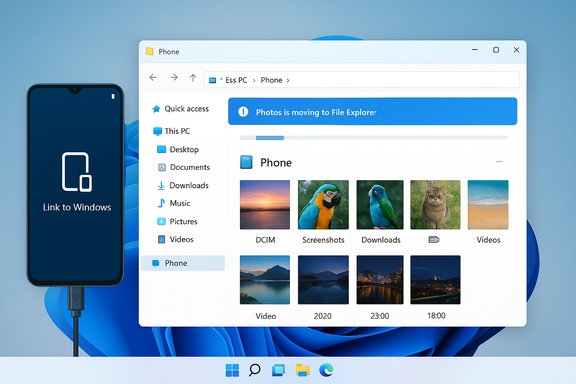
Over the last 12–18 months Microsoft has added a different integration: mounting a paired Android device inside Windows 11’s File Explorer so the phone appears like a connected storage device and exposes a folder tree (DCIM, Screenshots, Downloads, app folders). The new approach lets you perform full file operations — multi‑select, copy/paste, drag‑and‑drop, rename and delete — and also gives access to videos and other media File Link’s gallery didn’t always show. Microsoft now says the Photos feature has been moved from Phone Link to File Explorer and that File Explorer will be the place to view mobile photos on Windows 11. This change is presented by Microsoft as a consolidation: one powerful, maintainable surface (File Explorer) rather than the company maintaining two separate places that show the same mobile images. Independent reporting and community testing have confirmed that Phone Link will show a redirect message — “Photos is moving to File Explorer” — and that tapping the banner opens File Explorer’s mounted phone view when the feature is enabled.
Several community threads also document oddities such as saved search files (.search-ms) being presented as folder aliases and interoperability issues with third‑party file managers; Microsoft and plugin vendors are addressing some of these edge cases in updates.
The change is already visible to many users as an in‑app redirect in Phone Link and is documented by Microsoft in its support pages. However, it is being rolled out in stages, OEM behavior varies, SD card access may be different, and Microsoft has not published a single removal date for the old Photos view — so users and IT teams should prepare, test and adapt their practices now. Overall, this is a sensible technical consolidation with meaningful trade‑offs: more power and consistency for file‑centric use cases, but a loss of the lightweight, human‑friendly gallery that many users came to rely on for impromptu workflows.
Source: Windows Latest Microsoft wants you to use Windows 11 File Explorer for viewing Android phone's photos, not Phone Link app. No iPhone support for now
 Background / Overview
For several years Phone Link (formerly “Your Phone”) provided a simple, aggregated gallery inside the app that surfaced recent screenshots and camera photos from a paired Android handset. That view was a convenience for quick grabs, clipboard transfers and one‑off screenshots without digging through folders on the phone.Over the last 12–18 months Microsoft has added a different integration: mounting a paired Android device inside Windows 11’s File Explorer so the phone appears like a connected storage device and exposes a folder tree (DCIM, Screenshots, Downloads, app folders). The new approach lets you perform full file operations — multi‑select, copy/paste, drag‑and‑drop, rename and delete — and also gives access to videos and other media File Link’s gallery didn’t always show. Microsoft now says the Photos feature has been moved from Phone Link to File Explorer and that File Explorer will be the place to view mobile photos on Windows 11. This change is presented by Microsoft as a consolidation: one powerful, maintainable surface (File Explorer) rather than the company maintaining two separate places that show the same mobile images. Independent reporting and community testing have confirmed that Phone Link will show a redirect message — “Photos is moving to File Explorer” — and that tapping the banner opens File Explorer’s mounted phone view when the feature is enabled.
What changed — the facts you need to know
- The Photos viewer in Phone Link is being moved to File Explorer. Microsoft’s updated support documentation now states explicitly that “Photos feature moved from Phone Link to File Explorer.” That wording is in the Phone Link/Photos support pages and in the broader guidance for mobile device access in File Explorer.
- How Microsoft advertises the change. Phone Link will show an in‑app banner that reads (in affected builds) “Photos is moving to File Explorer. Enjoy a better Photos experience in File Explorer.” The banner directs users to Settings → Bluetooth & devices → Mobile devices → Manage devices, where the toggle “Show mobile device in File Explorer” enables the File Explorer mount.
- Minimum requirements and setup basics. Microsoft documents that the File Explorer integration is supported on Windows 11 and works best with Android 11+ and a modern Link to Windows build on the phone. The support pages list Link to Windows minimum versions and step‑by‑step instructions to pair devices and turn on the File Explorer toggle.
- Not all phone storage may be visible. Several community reports and Microsoft Q&A clarifications note that the File Explorer mount uses MTP/Link to Windows remote file access and may only expose internal storage, not secondary volumes like an SD card. If your photos live on an SD card, File Explorer’s mounted view may not show them while Phone Link’s gallery sometimes did. In these cases a wired USB connection still provides full access to both internal and removable storage.
- No official deprecation date published. Microsoft has not published a firm timeline for when the Phone Link Photos tab will be fully disabled for everyone. Microsoft Q&A threads show Microsoft staff acknowledging the staged rollout and the lack of a single removal date. Treat claims about exact removal dates as unverified unless Microsoft publishes them in release notes.
Why Microsoft is making this change (their stated rationale)
Microsoft frames the move as an effort to deliver a “better and more consistent experience” by consolidating photo and media workflows into File Explorer. The company points to pragmatic benefits:- Single surface for file operations (File Explorer already supports bulk actions).
- Access to more media types (videos, audio, deeper app folders).
- Reduced duplication of features across two Windows surfaces, lowering engineering and support overhead.
What Phone Link keeps doing (what doesn’t change)
The move affects only the in‑app Photos viewer. Phone Link continues to provide other cross‑device features:- Messages (read and reply to SMS/MMS).
- Notification mirroring.
- Call routing and management.
- App streaming/mirroring on supported Android devices.
- Cross‑device clipboard and sharing flows.
Practical trade‑offs: benefits and regressions
The benefits (what File Explorer does better)
- Full file operations: File Explorer supports multi‑select, drag‑and‑drop, copy/paste, rename and delete in ways Phone Link’s gallery didn’t. That matters for users who move large batches of images or work with videos.
- Access to deeper folders and video files: File Explorer exposes the phone’s folder tree, giving access to app folders and videos that Phone Link’s gallery sometimes did not surface.
- Single integrated Windows workflow: Your phone’s storage appears as another node in the File Explorer tree; desktop apps and Windows search can interact with it as if it were removable storage.
The regressions (what Phone Link did better)
- Instant, unified gallery view lost: Phone Link’s Photos pane aggregated recent images (camera roll, screenshots, WhatsApp images, etc. in a recency‑sorted grid. That single‑pane, recency‑first UX made grabbing the latest screenshot or camera shot fast. File Explorer exposes folders, not a single unified timeline, so finding the newest capture may require hunting for the right folder.
- Reliability and speed differences reported: Many users reported Phone Link’s gallery showed new images nearly instantly (or refreshed quickly when needed). File Explorer’s wireless mount can be slower to sync or display a “syncing” status, and experiences vary by phone model, OEM Link to Windows implementation and Wi‑Fi conditions. Expect variability.
- SD card and multi‑storage complications: Phone Link sometimes showed images saved on SD cards where File Explorer’s mount (using MTP) may only surface internal storage. That difference can leave some media invisible without a cable.
Technical verification — what to check on your PC and phone
Before you switch workflows, verify these items; the steps and minimums below are confirmed in Microsoft documentation and community guidance:- Windows 11 on the PC. File Explorer mounting and the Mobile Devices management flow are documented for Windows 11.
- Android 11 or later is recommended for reliable access. Microsoft recommends Android 11+ for the best compatibility of the File Explorer mobile mount.
- Link to Windows on the phone updated to a modern build (Microsoft lists minimum Link to Windows versions for some features). If you rely on vendor preinstalled builds (Samsung etc., those often provide the smoothest experience.
- Enable the feature: Settings → Bluetooth & devices → Mobile devices → Manage devices → pair your phone → toggle Show mobile device in File Explorer. Only one mobile device can be shown at a time.
How to reproduce the Phone Link gallery experience (workarounds)
If you prefer the gallery‑first behavior Phone Link provided, here are practical options:- Use the Phone Link app while the Photos pane still works on your device (some users report the gallery remains available transiently until the redirect is forced). Back up your workflow in case the feature disappears.
- Use cloud sync (OneDrive, Google Photos) on the phone to ensure every new capture is immediately available in a single PC view. Cloud sync gives you a unified, recency‑sorted gallery on the PC outside of Phone Link.
- Create a saved search or Smart Folder in File Explorer that surfaces recent images across multiple mobile folders (this can approximate a MediaStore‑style view). Pin that saved search to Quick Access for fast access. Community power‑user guides describe how to build these saved searches using Windows’ search index.
- For photographers or heavy video users, consider using a wired USB‑C connection for faster, full‑storage transfers (and reliable metadata retention) when you need all files including SD card content.
Security, privacy and enterprise considerations
- Broader file access equals broader surface for data leakage. Exposing a phone’s folder tree inside File Explorer creates a stronger parity with removable storage; this is powerful, but it also means sensitive files on a mobile device could be more easily moved to, or from, a PC. IT teams should update documentation and policies, and educate users on what the File Explorer mount exposes.
- Audit and MDM implications. Organizations that control device workflows with MDM or conditional access should consider whether Link to Windows or the Cross‑Device Experience host should be allowed on managed endpoints. The shift increases the potential for local data transfer that may bypass existing guarded workflows. Enterprise help desks should test the feature across representative phone models.
- Local cache and file deletion warning. Microsoft notes that files accessed via File Explorer are “online‑only” and that deleting a file there will remove it from the phone. Take care: accidental deletes in File Explorer will remove originals from your handset unless you explicitly copy them to the PC first. Microsoft documents the recovery behavior and a “Recycle bin – Connected device” folder on the phone for recent deletes.
Real‑world behavior and community reports
Multiple community reports and tech outlets show the rollout is staged and behaviour varies by vendor and OS build. Samsung devices (Link to Windows preinstalled) often get the deepest functionality first, while other OEMs vary. Users report mixed performance: some find the File Explorer mount fast and reliable; others see “syncing” states or slower update propagation compared with Phone Link’s gallery. The difference commonly maps to Link to Windows version, Wi‑Fi reliability, and OEM-specific Link implementations.Several community threads also document oddities such as saved search files (.search-ms) being presented as folder aliases and interoperability issues with third‑party file managers; Microsoft and plugin vendors are addressing some of these edge cases in updates.
Recommendations — what Windows users should do now
- Update your software:
- Update Windows 11 to the latest stable build.
- Update Phone Link/Link to Windows on both PC and phone.
- Ensure Cross‑Device Experience Host and related store packages are up to date.
- Enable and test:
- Enable Show mobile device in File Explorer (Settings → Bluetooth & devices → Mobile devices → Manage devices).
- Test the mount with typical tasks: grabbing a recent screenshot, copying a video, and bulk renaming to verify performance and metadata handling.
- Protect your workflow:
- If you rely on instant gallery access, set up a cloud backup (OneDrive or Google Photos) as a fallback.
- If SD card access is required, test wired USB first because the wireless mount may only expose internal storage.
- For IT admins:
- Pilot the change on a sample of phones used in your org (Samsung, Pixel, vendor models in your fleet).
- Update help desk scripts and security guidance to reflect the File Explorer mount and any local caching concerns.
Risks and unknowns — what to watch for
- No firm retirement date for the Phone Link gallery. Microsoft has not published a formal end‑of‑life date for Phone Link’s Photos viewer; community moderators on Microsoft Q&A note a staged rollout and have not stated a fixed removal date. Users should assume the gallery may disappear with limited notice.
- OEM variance and inconsistent user experience. Expect different behavior across phone brands and Android versions. What works instantly on one vendor’s handset may be slower or limited on another.
- Metadata and file property differences. Some users report metadata (Date Taken, EXIF) and other file attributes behave differently when moving files via different paths (Phone Link gallery, File Explorer mount, USB transfer, cloud sync). Monitor any workflow that depends on metadata fidelity.
- Third‑party file manager compatibility. File Explorer‑first workflows may break some third‑party file managers or plugins that expect classic removable‑drive semantics — there are community reports of .search‑ms alias handling and compatibility patches being required.
Conclusion
Microsoft’s decision to centralize mobile photos in Windows 11 File Explorer is a pragmatic consolidation that favors power, capability and maintainability over the curated immediacy Phone Link once provided. For users who perform heavy file work, video handling and bulk operations, the File Explorer mount is a clear functional upgrade. For people who relied on Phone Link’s instant, single‑pane gallery for quick grabs and clipboard work, the change is a usability regression that will require workflow adjustments — cloud sync, saved searches, or wired transfers.The change is already visible to many users as an in‑app redirect in Phone Link and is documented by Microsoft in its support pages. However, it is being rolled out in stages, OEM behavior varies, SD card access may be different, and Microsoft has not published a single removal date for the old Photos view — so users and IT teams should prepare, test and adapt their practices now. Overall, this is a sensible technical consolidation with meaningful trade‑offs: more power and consistency for file‑centric use cases, but a loss of the lightweight, human‑friendly gallery that many users came to rely on for impromptu workflows.
Source: Windows Latest Microsoft wants you to use Windows 11 File Explorer for viewing Android phone's photos, not Phone Link app. No iPhone support for now
