

For Windows 11 PCs that need to be sold, recycled, reassigned, or truly cleaned, Microsoft’s supported path is Reset this PC with Remove everything, reached from Settings, Windows Recovery Environment, a recovery drive, installation media, or a manufacturer factory image when the standard reset path fails. The important shift is not that Windows has a reset button; it is that the reset button now sits inside a maze of encryption, cloud reinstall choices, OEM recovery images, and device-management controls. Treating every wipe as “factory reset” hides the real question: whose factory, whose image, and whose authority controls the machine after the wipe?
The practical answer is simpler than the ecosystem around it. If Windows 11 still opens, start in Settings. If sign-in is blocked, use Windows Recovery Environment. If the boot chain is broken, force Automatic Repair or use external media. If the PC belongs to a school or employer, stop pretending it is a personal machine and have an authorized admin wipe or release it properly.
Technobezz’s walkthrough gets the hierarchy right: start with Reset this PC, choose Remove everything, and only move to heavier tools when the normal path is blocked. Microsoft’s own reset documentation describes Remove everything as the option that reinstalls Windows and removes personal files, apps, and settings, with Clean data available when the goal is sale or recycling rather than a quick personal refresh. That distinction matters because Windows reset is not one operation; it is a family of operations with similar names and very different consequences.
For Windows 11 Home, Pro, Enterprise, and Education desktop editions, Reset this PC is Microsoft’s primary consumer path. In ordinary cases, the route is Settings, then System, then Recovery, then Reset PC. From there, Windows asks whether to Keep your files or Remove everything, and then whether to use Cloud download or Local reinstall.
The dangerous mistake is choosing based on what sounds comfortable rather than what the job requires. Keep your files is a repair-adjacent option. Remove everything is the wipe-adjacent option. If the PC is leaving your control, changing users, or being cleaned after suspected compromise, Keep your files is not the answer.
Cloud download and Local reinstall are secondary choices, not the core privacy decision. Cloud download pulls Windows through Microsoft’s recovery path, while Local reinstall uses what is already on the device. Both can continue the reset; neither changes the basic meaning of Remove everything. The choice that determines whether your personal profile, apps, and settings are supposed to go away is Remove everything.
Clean data is the setting users most often miss because it appears late in the process and sounds optional. It is optional if the machine is staying in your house and you simply want a fresh Windows installation. It is not optional in spirit when the machine is being sold, recycled, donated, or handed to someone you do not control. When Windows shows Clean data, turn it on for disposal scenarios.
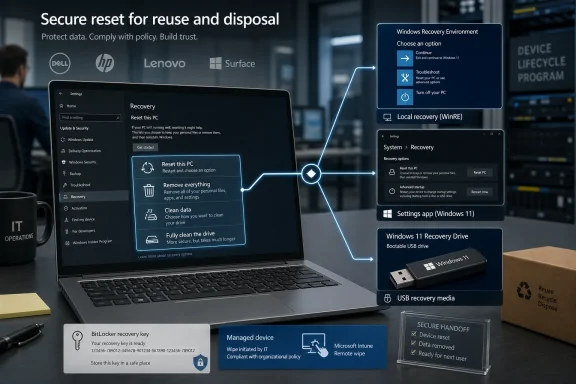
The table exposes the central problem: “factory reset” is too vague to be a safe instruction. A Windows reset that removes everything is not the same as restoring a Dell factory image. A Surface USB recovery drive is not the same thing as a generic Windows installation USB. An Intune Wipe is not the same as clicking Reset PC as a local user.
That ambiguity is why old forum advice ages badly. A one-line command, a boot-menu trick, or a vague “just reinstall Windows” answer may be technically possible and still be the wrong operational guidance. The modern Windows reset decision tree is about preserving the correct licensing, firmware, encryption, recovery, and management state while removing the wrong user data.
That route is not glamorous, but it has the virtue of being the one Microsoft is actively steering consumers toward. It knows the existing installation, understands the current activation state, and can carry the user through the reset without requiring a separate machine or bootable media. For ordinary resale or hand-me-down scenarios, it is the least error-prone starting point.
The wrong instinct is to jump immediately to bootable USB media because it feels more “complete.” Installation media has its place, especially when Windows is damaged or when a truly clean installation is the goal. But it also creates opportunities to delete the wrong disk, pick the wrong edition, miss a driver, or strand a device that previously had a working recovery path.
There is also an important difference between removing Windows clutter and removing identity. Reset this PC with Remove everything is meant to clear the user’s local presence and reinstall Windows. It does not magically cancel device enrollment, remove a PC from an organization’s inventory, revoke cloud licenses, or erase backups stored elsewhere. A wipe is not an account-security program.
That path is useful when the user cannot sign in, has forgotten a password, or inherited a machine that reaches Windows but not a usable desktop. It is also a reminder that Windows recovery is not merely a repair console. It is a controlled environment for resetting the operating system when normal sign-in cannot be trusted or completed.
BitLocker changes the emotional temperature of this step. On BitLocker-encrypted devices, have the BitLocker recovery key ready before continuing. Microsoft’s BitLocker documentation is clear that recovery operations can require the key, and Microsoft Support cannot recreate a lost one for you.
For home users, that often means checking the Microsoft account associated with the device. For work or school devices, it may mean contacting the organization that manages the PC. For admins, it means the recovery key is not paperwork; it is a prerequisite for safe service, redeployment, and incident response.
The deeper issue is that encryption makes the PC safer until the moment you need to recover it. Then it makes preparation visible. If a user has never confirmed where the BitLocker recovery key is stored, the first reset attempt may become the first time they discover they do not control the machine as much as they thought.
This is a crude-looking procedure, but the goal is precise: force Windows to load recovery tools when it cannot complete normal startup. It should not be treated as a superstition or repeated indefinitely. If recovery loads, use the documented path. If it does not, move to external media or the manufacturer’s recovery system.
Some PCs also include a hardware recovery button or a manufacturer key combination that opens Windows Recovery Environment. That does not change the Windows part of the instructions. Once the recovery menu opens, the path is still Troubleshoot, Reset this PC, and Remove everything.
The danger in this failure mode is impatience. Users tend to mix procedures: one forced shutdown, then a BIOS setting, then a random command, then a USB stick made years ago for a different machine. Every added variable makes the reset harder to reason about. The right escalation is linear: built-in reset, Windows Recovery Environment, Automatic Repair, recovery drive, installation media, OEM image.
The creation flow is straightforward. Select Start, search for Recovery Drive, open it, keep Back up system files to the recovery drive selected, choose the USB drive, and select Create. The “Back up system files” checkbox matters because the drive is supposed to be useful for recovery, not merely a token boot device.
When booting from that USB recovery drive, select Recover from a drive. Windows then offers Just remove my files or Fully clean the drive. The first is faster and more appropriate for a machine staying under your control; the second is the disposal-minded choice. After selecting one, choose Recover and let the wipe proceed.
The annual recreation recommendation deserves more attention than it gets. A recovery drive made years ago may not reflect the device’s current Windows state, security posture, or driver expectations. In a home setting, that may be an inconvenience. In a small business, it can become a preventable outage.
A recovery drive also does not replace a backup. Microsoft’s recovery-drive guidance separates system recovery media from personal data backup for a reason. If your only copy of an important file lives on the PC you are about to wipe, you do not have a recovery plan; you have a countdown.
If Windows still opens and you run setup from the media, the less destructive clean-reinstall path begins inside File Explorer. Open the installation media drive, run setup.exe, select Yes, choose Change what to keep, pick Keep nothing, select Next, then Install on the Ready to install screen. Keep nothing removes personal data, settings, and apps.
The more destructive path is booting from the USB or DVD. In Windows 11 Setup, choose language and keyboard settings, select Next, then Install Windows 11. If asked for a product key, select I don’t have a product key, choose the appropriate edition, and in Applicable notices and license terms select Accept.
The disk step is where casual confidence becomes dangerous. The instructions call for deleting every partition on Disk 0 that is not listed as Unallocated Space, then selecting Disk 0 Unallocated Space. That is not a suggestion to click around until the list looks tidy. It is a destructive instruction tied to a specific disk name and installer state.
On a single-drive consumer laptop, Disk 0 is usually the internal system drive. On a desktop, workstation, or machine with multiple storage devices, the assumption can be riskier. Anyone using installation media should disconnect nonessential external drives and verify the target before deleting partitions. A clean install is refreshingly final when aimed correctly and brutally final when aimed at the wrong disk.
Installation media can also be used only for recovery. Boot from it, choose language preferences, select Next, then Repair my PC. Continue through Troubleshoot, Reset this PC, and Remove everything. That path uses the media as a way to reach recovery rather than as a full manual reinstall.
Dell’s route is SupportAssist OS Recovery. In that environment, the reset tile leads to Start Reset or START RESET, then Reset to factory settings. Dell’s flow includes the explicit confirmation text: I understand that the reset will delete all of my system data and personal files. That sentence is not decoration; it is the boundary between a repair attempt and a wipe.
HP splits its cloud recovery tooling by market. HP consumer PCs use HP Cloud Recovery Tool to create a recovery USB. HP business PCs use HP Cloud Recovery Client instead, or the support page for the exact model. The boot flow uses Esc repeatedly to open Startup Menu, then F9 Boot Device Options to select the USB drive.
Inside HP Recovery Manager, the recovery path is Run program from media, then Factory Reset, then Recover without backing up your files. The phrasing is blunt because it needs to be. If you select that route before backing up data, the point is not recovery of files; the point is returning the PC to a factory-style state.
Lenovo’s consumer recovery route often revolves around the Novo Button on supported IdeaPad or idea devices. Power off the PC, press the Novo Button with a paper clip or use the model-specific Novo key, then select System Recovery. From there, the path may lead back through Troubleshoot, Reset this PC, and Remove everything, or into the model’s factory recovery option.
ASUS uses MyASUS in WinRE on supported models. The WinRE hotkey is usually F12, but F9 applies on some models. The recovery flow goes through Troubleshoot, MyASUS in WinRE, and Cloud Recovery, with network and backup prompts before the reset proceeds.
Surface has its own cleanly documented USB recovery process. Insert the Surface USB recovery drive, press and hold Volume Down, press and release Power, then release Volume Down when the Surface logo appears. Select Recover from a drive, or Troubleshoot and Recover from a drive, then choose Just remove my files or Fully clean the drive.
The common thread across Dell, HP, Lenovo, ASUS, and Surface is not brand convenience. It is model specificity. Recovery availability depends on the supported model and recovery image. If the tool does not match the PC, return to the Windows 11 reset, recovery drive, or installation media paths instead of forcing a vendor flow onto the wrong hardware.
Windows 10 had a legacy Reset this PC path through Settings, Update & Security, and Recovery. Windows 11’s current consumer reset documentation points users toward Settings, Windows Recovery Environment, a recovery drive, or installation media. The conceptual overlap is real; the procedural details are not identical enough to trust blindly.
That is why the old Command Prompt advice to run systemreset -factoryreset should be skipped. It may linger in search results, forum replies, and technician muscle memory, but current Microsoft consumer reset guidance does not need that shortcut. A reset procedure that starts with an outdated command is already telling you it may not be aligned with the current operating system.
This is not merely pedantry. Recovery instructions are high-consequence documentation. A slightly wrong browser setting is annoying; a slightly wrong disk wipe is data loss. Once a PC crosses from troubleshooting into removal of files, apps, settings, or partitions, “it worked for me on Windows 10” is not a sufficient standard.
For managed devices, Microsoft Intune provides device actions including Wipe. The admin path is Microsoft Intune admin center, then Devices, then All devices, select the device, and choose Wipe. That is the enterprise version of a clean handoff: not just removing the user’s files, but applying the organization’s intended lifecycle action.
Fresh Start is another managed-device path, but it has a privacy-relevant option: Retain user data on this device. When the goal is to remove user data, the admin should leave Retain user data on this device unselected. Checking the wrong box can turn a supposed wipe into a redeployment that still preserves the very user profiles someone meant to remove.
This matters for offboarding, resale, returns, and employee-purchased devices. A user who resets a managed PC from Settings may still find the device trying to enroll back into the old organization during setup. Conversely, an organization that casually hands off hardware without wiping or releasing it can strand the next owner in a setup loop that looks like a Windows problem but is really an ownership problem.
The right advice for managed PCs is therefore less exciting and more absolute: ask the IT admin to wipe or release the device before selling, returning, or personally reusing it. If you are the admin, document the lifecycle action. If you are the recipient, do not accept a “wiped” business PC until it completes setup without trying to rejoin someone else’s tenant.
For sale or recycling, Clean data and Fully clean the drive exist because merely removing file references is not the same as making recovery harder. Microsoft’s Surface guidance draws the same practical line: a quicker remove-files option is suitable when keeping the device, while cleaning the drive is the more secure disposal choice. The names vary by flow, but the logic is consistent.
For modern SSDs, the old mental model of overwriting a spinning disk sector by sector is not always a perfect description of what the hardware is doing underneath. But from the user’s standpoint, Windows is still exposing a simple policy choice: quick removal for reuse under your control, deeper cleaning for transfer outside your control. Choose based on who gets the PC next, not based on how long you want to wait.
There is also a backup trap hidden in every reset article. “Back up first” is easy to skim past until the reset has done exactly what it promised. A proper pre-wipe checklist includes documents, photos, browser exports where needed, app installers, license information, recovery keys, and any files stored outside the obvious user folders.
The same goes for multiple drives. Reset and installation flows are usually focused on the Windows drive, but desktops and workstations often contain secondary disks. If the machine is leaving your control, inspect every internal and external storage device attached to it. A pristine Windows reinstall on Disk 0 does not sanitize an old data drive left mounted as another volume.
That sequence avoids both underreaction and overreaction. Underreaction is choosing Keep your files when the machine is being sold. Overreaction is deleting partitions from installation media when a normal reset would have preserved a cleaner activation and driver path. Good recovery work is not about maximum destruction; it is about minimum sufficient certainty.
There is a repair-versus-disposal split running through every choice. Keep your files, Just remove my files, and some local reinstall paths are sensible when the PC remains yours and the goal is to make Windows behave. Remove everything, Clean data, Fully clean the drive, Keep nothing, and factory reset flows belong to the world of transfer, compromise recovery, or redeployment.
Technobezz’s useful contribution is its laddered approach: start with the Windows 11 reset, then move down only when that route is blocked. Microsoft’s own support material reinforces that ladder by presenting multiple supported entry points rather than one magic reset incantation. OEM documentation then fills in the cases where the brand image matters.
The result is a more adult version of the old factory-reset advice. The answer is no longer “press this key and wipe it.” The answer is “choose the least risky supported path that actually removes the data and ownership state you intend to remove.”
The practical answer is simpler than the ecosystem around it. If Windows 11 still opens, start in Settings. If sign-in is blocked, use Windows Recovery Environment. If the boot chain is broken, force Automatic Repair or use external media. If the PC belongs to a school or employer, stop pretending it is a personal machine and have an authorized admin wipe or release it properly.
 The Reset Button Is Now the Main Consumer Escape Hatch
Technobezz’s walkthrough gets the hierarchy right: start with Reset this PC, choose Remove everything, and only move to heavier tools when the normal path is blocked. Microsoft’s own reset documentation describes Remove everything as the option that reinstalls Windows and removes personal files, apps, and settings, with Clean data available when the goal is sale or recycling rather than a quick personal refresh. That distinction matters because Windows reset is not one operation; it is a family of operations with similar names and very different consequences.For Windows 11 Home, Pro, Enterprise, and Education desktop editions, Reset this PC is Microsoft’s primary consumer path. In ordinary cases, the route is Settings, then System, then Recovery, then Reset PC. From there, Windows asks whether to Keep your files or Remove everything, and then whether to use Cloud download or Local reinstall.
The dangerous mistake is choosing based on what sounds comfortable rather than what the job requires. Keep your files is a repair-adjacent option. Remove everything is the wipe-adjacent option. If the PC is leaving your control, changing users, or being cleaned after suspected compromise, Keep your files is not the answer.
Cloud download and Local reinstall are secondary choices, not the core privacy decision. Cloud download pulls Windows through Microsoft’s recovery path, while Local reinstall uses what is already on the device. Both can continue the reset; neither changes the basic meaning of Remove everything. The choice that determines whether your personal profile, apps, and settings are supposed to go away is Remove everything.
Clean data is the setting users most often miss because it appears late in the process and sounds optional. It is optional if the machine is staying in your house and you simply want a fresh Windows installation. It is not optional in spirit when the machine is being sold, recycled, donated, or handed to someone you do not control. When Windows shows Clean data, turn it on for disposal scenarios.
“Factory Reset” Is a Sloppy Phrase for Several Different Wipes
The consumer phrase “factory reset” once meant something more literal: return the device to the OEM image it shipped with. On a modern Windows 11 PC, it can mean a Microsoft reset, a cloud download, a local reinstall, a recovery drive restore, a clean installation from installation media, an OEM factory image, or a remote management action. Those paths overlap, but they are not interchangeable.| Path | Best use case | Starting point | Data-removal choice | Practical caveat |
|---|---|---|---|---|
| Reset this PC | Windows still opens | Settings > System > Recovery | Remove everything; optionally Clean data | Fastest supported consumer route |
| Windows Recovery Environment | Sign-in is blocked or desktop is unavailable | Troubleshoot | Reset this PC > Remove everything | BitLocker devices may need the recovery key |
| Automatic Repair | Windows will not start normally | Advanced options | Troubleshoot > Reset this PC > Remove everything | Requires recovery tools to load successfully |
| Recovery drive | Built-in reset path is damaged | USB recovery drive | Just remove my files or Fully clean the drive | Intended for the device it was created for |
| Installation media | Clean reinstall or external recovery path | Windows 11 setup USB or DVD | Keep nothing or delete Disk 0 partitions | More destructive; demands attention to disk selection |
| Manufacturer factory image | OEM drivers, tools, or factory state are required | Dell, HP, Lenovo, ASUS, or Surface recovery flow | Brand-specific reset or drive-clean option | Availability depends on supported model and image |
That ambiguity is why old forum advice ages badly. A one-line command, a boot-menu trick, or a vague “just reinstall Windows” answer may be technically possible and still be the wrong operational guidance. The modern Windows reset decision tree is about preserving the correct licensing, firmware, encryption, recovery, and management state while removing the wrong user data.
The Cleanest Path Starts in Settings, Not at the Command Prompt
If the PC still opens Windows 11, the supported first move is the boring one: open Settings, go to System, then Recovery, and select Reset PC. Choose Remove everything, then choose Cloud download or Local reinstall. When Clean data appears, enable it before selling or recycling the PC, then follow the prompts.That route is not glamorous, but it has the virtue of being the one Microsoft is actively steering consumers toward. It knows the existing installation, understands the current activation state, and can carry the user through the reset without requiring a separate machine or bootable media. For ordinary resale or hand-me-down scenarios, it is the least error-prone starting point.
The wrong instinct is to jump immediately to bootable USB media because it feels more “complete.” Installation media has its place, especially when Windows is damaged or when a truly clean installation is the goal. But it also creates opportunities to delete the wrong disk, pick the wrong edition, miss a driver, or strand a device that previously had a working recovery path.
There is also an important difference between removing Windows clutter and removing identity. Reset this PC with Remove everything is meant to clear the user’s local presence and reinstall Windows. It does not magically cancel device enrollment, remove a PC from an organization’s inventory, revoke cloud licenses, or erase backups stored elsewhere. A wipe is not an account-security program.
Windows Recovery Environment Is the Door Behind the Locked Door
When the desktop is unavailable but the PC can reach the sign-in screen, Windows Recovery Environment becomes the preferred route. Hold Shift while selecting Power, choose Restart, then move through Troubleshoot, Reset this PC, and Remove everything. This is the same reset idea reached from a different door.That path is useful when the user cannot sign in, has forgotten a password, or inherited a machine that reaches Windows but not a usable desktop. It is also a reminder that Windows recovery is not merely a repair console. It is a controlled environment for resetting the operating system when normal sign-in cannot be trusted or completed.
BitLocker changes the emotional temperature of this step. On BitLocker-encrypted devices, have the BitLocker recovery key ready before continuing. Microsoft’s BitLocker documentation is clear that recovery operations can require the key, and Microsoft Support cannot recreate a lost one for you.
For home users, that often means checking the Microsoft account associated with the device. For work or school devices, it may mean contacting the organization that manages the PC. For admins, it means the recovery key is not paperwork; it is a prerequisite for safe service, redeployment, and incident response.
The deeper issue is that encryption makes the PC safer until the moment you need to recover it. Then it makes preparation visible. If a user has never confirmed where the BitLocker recovery key is stored, the first reset attempt may become the first time they discover they do not control the machine as much as they thought.
Automatic Repair Is a Recovery Path, Not a Ritual
When Windows fails before the desktop or sign-in screen appears, the supported escalation is Automatic Repair. Turn on the PC, wait for the Windows logo or manufacturer logo, then hold Power until the computer shuts down. Repeat once, then turn it on a third time. At Automatic Repair, select Advanced options, then choose Troubleshoot, Reset this PC, and Remove everything.This is a crude-looking procedure, but the goal is precise: force Windows to load recovery tools when it cannot complete normal startup. It should not be treated as a superstition or repeated indefinitely. If recovery loads, use the documented path. If it does not, move to external media or the manufacturer’s recovery system.
Some PCs also include a hardware recovery button or a manufacturer key combination that opens Windows Recovery Environment. That does not change the Windows part of the instructions. Once the recovery menu opens, the path is still Troubleshoot, Reset this PC, and Remove everything.
The danger in this failure mode is impatience. Users tend to mix procedures: one forced shutdown, then a BIOS setting, then a random command, then a USB stick made years ago for a different machine. Every added variable makes the reset harder to reason about. The right escalation is linear: built-in reset, Windows Recovery Environment, Automatic Repair, recovery drive, installation media, OEM image.
Recovery Drives Are Useful, but They Are Not Universal Keys
A Windows recovery drive gives a stubborn PC another way back when the built-in reset path is damaged. Microsoft describes the recovery drive as media intended for the device it was created for and recommends recreating it annually. That is a quiet but important limitation: a recovery drive is not a generic family heirloom to be passed among unrelated PCs.The creation flow is straightforward. Select Start, search for Recovery Drive, open it, keep Back up system files to the recovery drive selected, choose the USB drive, and select Create. The “Back up system files” checkbox matters because the drive is supposed to be useful for recovery, not merely a token boot device.
When booting from that USB recovery drive, select Recover from a drive. Windows then offers Just remove my files or Fully clean the drive. The first is faster and more appropriate for a machine staying under your control; the second is the disposal-minded choice. After selecting one, choose Recover and let the wipe proceed.
The annual recreation recommendation deserves more attention than it gets. A recovery drive made years ago may not reflect the device’s current Windows state, security posture, or driver expectations. In a home setting, that may be an inconvenience. In a small business, it can become a preventable outage.
A recovery drive also does not replace a backup. Microsoft’s recovery-drive guidance separates system recovery media from personal data backup for a reason. If your only copy of an important file lives on the PC you are about to wipe, you do not have a recovery plan; you have a countdown.
Installation Media Is the Scalpel—and the Chainsaw
Windows installation media is the right tool when the built-in reset flow is not enough, when external media is required to reach recovery, or when the goal is a clean reinstall rather than a reset. Microsoft’s Windows 11 download page provides the Media Creation Tool route; the file name in the process is MediaCreationTool.exe. That tool creates installation media for Windows 11.If Windows still opens and you run setup from the media, the less destructive clean-reinstall path begins inside File Explorer. Open the installation media drive, run setup.exe, select Yes, choose Change what to keep, pick Keep nothing, select Next, then Install on the Ready to install screen. Keep nothing removes personal data, settings, and apps.
The more destructive path is booting from the USB or DVD. In Windows 11 Setup, choose language and keyboard settings, select Next, then Install Windows 11. If asked for a product key, select I don’t have a product key, choose the appropriate edition, and in Applicable notices and license terms select Accept.
The disk step is where casual confidence becomes dangerous. The instructions call for deleting every partition on Disk 0 that is not listed as Unallocated Space, then selecting Disk 0 Unallocated Space. That is not a suggestion to click around until the list looks tidy. It is a destructive instruction tied to a specific disk name and installer state.
On a single-drive consumer laptop, Disk 0 is usually the internal system drive. On a desktop, workstation, or machine with multiple storage devices, the assumption can be riskier. Anyone using installation media should disconnect nonessential external drives and verify the target before deleting partitions. A clean install is refreshingly final when aimed correctly and brutally final when aimed at the wrong disk.
Installation media can also be used only for recovery. Boot from it, choose language preferences, select Next, then Repair my PC. Continue through Troubleshoot, Reset this PC, and Remove everything. That path uses the media as a way to reach recovery rather than as a full manual reinstall.
OEM Factory Images Still Matter When Windows Is Not Enough
The manufacturer route exists because a PC is more than a Windows license. It may need a storage driver, a firmware-tuned image, a support partition, a vendor diagnostics environment, or a recovery bundle that restores a known brand-specific state. Use the manufacturer option when you specifically need that brand’s factory image or when the Windows reset path is not the right fit.Dell’s route is SupportAssist OS Recovery. In that environment, the reset tile leads to Start Reset or START RESET, then Reset to factory settings. Dell’s flow includes the explicit confirmation text: I understand that the reset will delete all of my system data and personal files. That sentence is not decoration; it is the boundary between a repair attempt and a wipe.
HP splits its cloud recovery tooling by market. HP consumer PCs use HP Cloud Recovery Tool to create a recovery USB. HP business PCs use HP Cloud Recovery Client instead, or the support page for the exact model. The boot flow uses Esc repeatedly to open Startup Menu, then F9 Boot Device Options to select the USB drive.
Inside HP Recovery Manager, the recovery path is Run program from media, then Factory Reset, then Recover without backing up your files. The phrasing is blunt because it needs to be. If you select that route before backing up data, the point is not recovery of files; the point is returning the PC to a factory-style state.
Lenovo’s consumer recovery route often revolves around the Novo Button on supported IdeaPad or idea devices. Power off the PC, press the Novo Button with a paper clip or use the model-specific Novo key, then select System Recovery. From there, the path may lead back through Troubleshoot, Reset this PC, and Remove everything, or into the model’s factory recovery option.
ASUS uses MyASUS in WinRE on supported models. The WinRE hotkey is usually F12, but F9 applies on some models. The recovery flow goes through Troubleshoot, MyASUS in WinRE, and Cloud Recovery, with network and backup prompts before the reset proceeds.
Surface has its own cleanly documented USB recovery process. Insert the Surface USB recovery drive, press and hold Volume Down, press and release Power, then release Volume Down when the Surface logo appears. Select Recover from a drive, or Troubleshoot and Recover from a drive, then choose Just remove my files or Fully clean the drive.
The common thread across Dell, HP, Lenovo, ASUS, and Surface is not brand convenience. It is model specificity. Recovery availability depends on the supported model and recovery image. If the tool does not match the PC, return to the Windows 11 reset, recovery drive, or installation media paths instead of forcing a vendor flow onto the wrong hardware.
The Windows 10 Era Is Over, and So Is Its Reset Advice
One of the most useful warnings in the source material is also the least flashy: do not treat Windows 10 reset instructions as current Windows guidance. Windows 10 support ended on October 14, 2025. That date does not mean every Windows 10 PC vanished, but it does mean old how-to answers now carry more risk than authority.Windows 10 had a legacy Reset this PC path through Settings, Update & Security, and Recovery. Windows 11’s current consumer reset documentation points users toward Settings, Windows Recovery Environment, a recovery drive, or installation media. The conceptual overlap is real; the procedural details are not identical enough to trust blindly.
That is why the old Command Prompt advice to run systemreset -factoryreset should be skipped. It may linger in search results, forum replies, and technician muscle memory, but current Microsoft consumer reset guidance does not need that shortcut. A reset procedure that starts with an outdated command is already telling you it may not be aligned with the current operating system.
This is not merely pedantry. Recovery instructions are high-consequence documentation. A slightly wrong browser setting is annoying; a slightly wrong disk wipe is data loss. Once a PC crosses from troubleshooting into removal of files, apps, settings, or partitions, “it worked for me on Windows 10” is not a sufficient standard.
Managed PCs Change the Question from “Can I Wipe It?” to “Am I Allowed To?”
A school or work-managed Windows PC is a different class of object. It may look like a personal laptop and sit on your kitchen table, but the authority over its reset state can live in Microsoft Intune, Windows Autopilot, organizational policy, or the device inventory of a company you no longer work for. Resetting Windows locally may not remove that relationship.For managed devices, Microsoft Intune provides device actions including Wipe. The admin path is Microsoft Intune admin center, then Devices, then All devices, select the device, and choose Wipe. That is the enterprise version of a clean handoff: not just removing the user’s files, but applying the organization’s intended lifecycle action.
Fresh Start is another managed-device path, but it has a privacy-relevant option: Retain user data on this device. When the goal is to remove user data, the admin should leave Retain user data on this device unselected. Checking the wrong box can turn a supposed wipe into a redeployment that still preserves the very user profiles someone meant to remove.
This matters for offboarding, resale, returns, and employee-purchased devices. A user who resets a managed PC from Settings may still find the device trying to enroll back into the old organization during setup. Conversely, an organization that casually hands off hardware without wiping or releasing it can strand the next owner in a setup loop that looks like a Windows problem but is really an ownership problem.
The right advice for managed PCs is therefore less exciting and more absolute: ask the IT admin to wipe or release the device before selling, returning, or personally reusing it. If you are the admin, document the lifecycle action. If you are the recipient, do not accept a “wiped” business PC until it completes setup without trying to rejoin someone else’s tenant.
Action checklist for admins
- Confirm whether the device is personally owned, organization-owned, Intune-managed, or tied to Windows Autopilot before choosing a wipe path.
- For a managed Windows PC, use Microsoft Intune admin center > Devices > All devices, select the device, and choose Wipe when a full organizational wipe is required.
- For Fresh Start, leave Retain user data on this device unselected when the goal is to remove user data.
- Verify BitLocker recovery key availability before sending a user into Windows Recovery Environment or a reset flow.
- Use the manufacturer factory image only when the exact model requires OEM recovery, drivers, or factory state.
- Confirm the device reaches a clean setup state before resale, reassignment, or disposal.
Data Removal Is Not the Same as Security Closure
Reset this PC with Remove everything is a strong consumer default, but it is not a complete security program. It does not change passwords, revoke browser sessions, delete cloud files, cancel Microsoft account access, invalidate stolen tokens, or prove that a compromised device was free of persistence before the wipe. It removes the local Windows installation state according to the chosen reset path.For sale or recycling, Clean data and Fully clean the drive exist because merely removing file references is not the same as making recovery harder. Microsoft’s Surface guidance draws the same practical line: a quicker remove-files option is suitable when keeping the device, while cleaning the drive is the more secure disposal choice. The names vary by flow, but the logic is consistent.
For modern SSDs, the old mental model of overwriting a spinning disk sector by sector is not always a perfect description of what the hardware is doing underneath. But from the user’s standpoint, Windows is still exposing a simple policy choice: quick removal for reuse under your control, deeper cleaning for transfer outside your control. Choose based on who gets the PC next, not based on how long you want to wait.
There is also a backup trap hidden in every reset article. “Back up first” is easy to skim past until the reset has done exactly what it promised. A proper pre-wipe checklist includes documents, photos, browser exports where needed, app installers, license information, recovery keys, and any files stored outside the obvious user folders.
The same goes for multiple drives. Reset and installation flows are usually focused on the Windows drive, but desktops and workstations often contain secondary disks. If the machine is leaving your control, inspect every internal and external storage device attached to it. A pristine Windows reinstall on Disk 0 does not sanitize an old data drive left mounted as another volume.
The Best Reset Path Is the One That Matches the Failure
The decision tree is easier to use if you stop asking, “How do I factory reset?” and start asking, “What still works?” If Windows opens, use Settings. If only sign-in works, use Windows Recovery Environment. If normal boot is dead, force Automatic Repair. If recovery is damaged, use a recovery drive or installation media. If the device needs the vendor’s factory image, use the OEM route.That sequence avoids both underreaction and overreaction. Underreaction is choosing Keep your files when the machine is being sold. Overreaction is deleting partitions from installation media when a normal reset would have preserved a cleaner activation and driver path. Good recovery work is not about maximum destruction; it is about minimum sufficient certainty.
There is a repair-versus-disposal split running through every choice. Keep your files, Just remove my files, and some local reinstall paths are sensible when the PC remains yours and the goal is to make Windows behave. Remove everything, Clean data, Fully clean the drive, Keep nothing, and factory reset flows belong to the world of transfer, compromise recovery, or redeployment.
Technobezz’s useful contribution is its laddered approach: start with the Windows 11 reset, then move down only when that route is blocked. Microsoft’s own support material reinforces that ladder by presenting multiple supported entry points rather than one magic reset incantation. OEM documentation then fills in the cases where the brand image matters.
The result is a more adult version of the old factory-reset advice. The answer is no longer “press this key and wipe it.” The answer is “choose the least risky supported path that actually removes the data and ownership state you intend to remove.”
The Wipe That Actually Matches the Job
The concrete guidance is short, but the consequences are large: use the reset path that matches the device’s condition, and do not confuse a Windows reinstall with a complete ownership transfer. For most personal Windows 11 PCs, Reset this PC with Remove everything is the right start; for disposal, Clean data is the setting that turns a casual reset into a more appropriate handoff.- If Windows 11 opens, use Settings > System > Recovery, select Reset PC, and choose Remove everything.
- If you cannot sign in, use Windows Recovery Environment through the restart recovery path and then Troubleshoot > Reset this PC > Remove everything.
- If the PC will not boot, use Automatic Repair’s Advanced options path before jumping to USB media.
- If built-in recovery is broken, use a recovery drive or Windows 11 installation media.
- If the model needs OEM recovery, use the correct Dell, HP, Lenovo, ASUS, or Surface factory image path.
- If the PC is managed by work or school, have the admin wipe or release it rather than relying on a local reset.
References
- Primary source: Technobezz
Published: 2026-07-08T17:20:08.948518
How to Factory Reset This PC and Remove Everything in Windows 11 | Technobezz
Factory reset this PC remove everything in Windows 11 with Reset this PC, WinRE, recovery USB, or installation media.www.technobezz.com - Related coverage: windowscentral.com
Windows 11 will soon be able to reinstall itself and your drivers without a USB drive via new 'Cloud Rebuild' recovery method | Windows Central
A new recovery option coming to Windows 11 will let you reinstall the OS and your drivers using the internet without a USB key, even when Windows itself is unbootable.www.windowscentral.com - Related coverage: techradar.com
Sick of trying to find a USB and Windows key? Microsoft has just made reinstalling Windows 11 less painful | TechRadar
The more convenient, the betterwww.techradar.com - Official source: support.microsoft.com
Reinstall Windows with the installation media | Microsoft Support
Learn how to use the installation media to reinstall Windows on your PC.support.microsoft.com - Official source: learn.microsoft.com
- Official source: techcommunity.microsoft.com
- Official source: answers.microsoft.com
[Article] How to Create a System Image in Windows 11 and Windows 10 - 2021 Edition - Microsoft Q&A
📌 Note: This article was originally created by Andre Da Costa on Answers Support Community. It provided meaningful insights and proved helpful to many. We're recreating it here to preserve its value and ensure continued access for others. For many…answers.microsoft.com - Related coverage: support.lenovo.com
- Related coverage: digitalcitizen.life
Dell SupportAssist OS Recovery: How to Restore Dell Windows PCs Safely
Dell SupportAssist OS Recovery is a built-in recovery environment that helps you repair or reinstall Windows when your Dell PC fails to boot properly. It is designed for Dell laptops and desktops and works even when Windows cannot load. This guide explains what Dell SupportAssist OS Recovery is...www.digitalcitizen.life
