

Microsoft is testing Screen Tint in Windows 11 Insider Experimental Preview Build 29617.1000, released June 26, 2026, giving testers a system-wide color overlay under Accessibility settings to soften bright displays and reduce visual strain. The feature is not another blue-light toggle dressed up for the Settings app. It is Microsoft acknowledging that comfort, accessibility, and display control are becoming everyday operating-system concerns rather than niche accommodations. For Windows users who live inside spreadsheets, browsers, IDEs, games, and white-background productivity apps, that distinction matters.
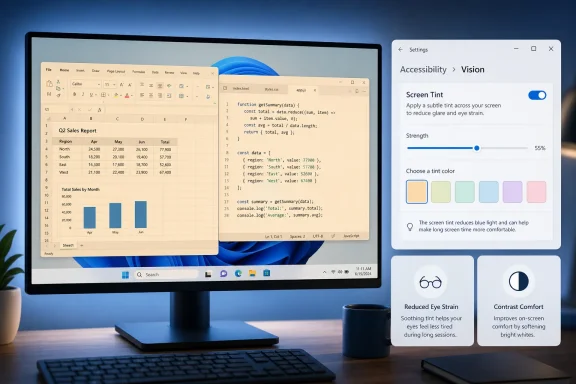
Screen Tint sounds almost too small to deserve attention. It does not launch a new AI assistant, rewrite the Start menu, or ask users to learn a new workflow. It simply lets Windows place a color wash over the whole display, with preset colors, a custom color option, and a strength slider.
That modesty is exactly why it is interesting. Windows has spent years accumulating grand, sometimes intrusive, layers of intelligence and personalization. Screen Tint moves in the opposite direction: it gives users a direct, comprehensible control over a physical annoyance that nearly everyone who works at a PC understands.
The feature lives in Settings > Accessibility, inside the Vision area. Microsoft says it is intended for people who find bright, saturated screens tiring or uncomfortable, especially over long sessions. That makes it an accessibility feature by placement and purpose, but in practice it is likely to have a much wider audience than users who think of themselves as needing accessibility accommodations.
This is a familiar pattern in computing. Captions, dark mode, keyboard navigation, voice dictation, and text scaling all began or matured through accessibility thinking, then became mainstream convenience features. Screen Tint may follow the same path because it addresses a problem that is both medical-adjacent and mundane: modern screens are simply a lot to look at for eight, ten, or twelve hours.
That makes Screen Tint less about the clock and more about the session. A user working on a glaring document at 10 a.m. may not want a sunset-orange display, but may want a slight amber, green, or grayish overlay that takes the edge off a white canvas. Someone gaming in a dark room may want intensity reduced without relying entirely on monitor controls or in-game gamma sliders.
Microsoft’s own framing is careful: Night Light and Screen Tint are designed for different problems, and the two can run together. That matters because users often treat every display-comfort feature as a variant of “make it warmer.” In reality, eye comfort is more complicated than color temperature alone.
A warmer image can still be too bright. A dimmer monitor can still feel harsh if the content is high contrast. A dark theme can help in some apps and make others worse. Screen Tint gives Windows a blunt but useful system-level tool: soften the whole image, not just the blue component of it.
That is the right call, even if some users will initially miss the feature because they do not browse Accessibility settings. Screen fatigue is not merely an aesthetic preference. For users with light sensitivity, migraines, low vision, neurological conditions, or post-concussion symptoms, the difference between a harsh display and a tolerable one can determine whether a PC is usable for long stretches.
But the same setting will likely be adopted by people who have no diagnosis and no formal accessibility need. That is not a contradiction. Good accessibility work often succeeds precisely because it removes friction for everyone.
The old model treated accessibility as a set of special-case features for special-case users. The newer model treats the operating system as something that must adapt to the human body, not the other way around. Screen Tint is not revolutionary, but it fits that evolution neatly.
Color Filters are important for users with color vision deficiencies and other visual needs. If Screen Tint and Color Filters cannot run together, some of the people most likely to benefit from display customization may be forced to choose which accommodation matters more. For casual users, that is a minor inconvenience. For users who rely on Color Filters daily, it may make Screen Tint irrelevant until Microsoft finds a way to reconcile the two.
This is where accessibility features become harder than they look. A feature that helps one group can interfere with another. A system-wide overlay may make text more comfortable for one user and reduce necessary contrast for another. A color wash that makes the screen gentler may distort the very color distinctions someone else depends on.
Microsoft deserves credit for noting the limitation clearly in the build notes, but the limitation also shows why Screen Tint should be seen as a first pass rather than a finished accessibility story. If this feature reaches general availability, the next question will be whether Windows can compose multiple visual accommodations intelligently instead of treating them as mutually exclusive modes.
Still, Screen Tint has already appeared across multiple Insider discussions and previews, which suggests it is more than a one-off experiment hiding in a random branch. It has a defined Settings interface, Microsoft-authored wording, six presets, a custom option, and a strength control. That is not proof of imminent release, but it is a sign that the concept has moved beyond a buried flag for enthusiasts.
The same build includes other improvements that speak to Microsoft’s current Windows priorities. The company is working on a more unified update experience intended to reduce restarts by coordinating driver, .NET, firmware, and monthly quality updates. Magnifier is gaining more precise zoom controls. Voice Access is adding support for Portuguese and Korean. Sound Settings continues to absorb functions that once required the old Control Panel.
This is Windows 11 in its current, restless phase: not one monolithic annual release, but a rolling set of small interventions. Some are cosmetic. Some are deeply technical. Some, like Screen Tint, are tiny quality-of-life features that may mean more in daily use than another round of Start menu experiments.
The problem is fragmentation. A user with a laptop panel, two external monitors, a dock, HDR enabled in one context, and vendor utilities in another can end up with a messy stack of display adjustments. Some settings apply globally, some per monitor, some per app, and some vanish after driver updates.
A Windows-level Screen Tint does not solve all of that, but it provides a baseline. It gives the OS a native way to say: regardless of what the app is doing, soften the output. That is especially useful for users who move between devices or who cannot rely on consistent monitor menus and vendor software.
The trade-off is that system-wide overlays must be predictable. If Screen Tint distorts color-sensitive work, causes odd behavior with HDR, interferes with screenshots, or behaves inconsistently across multiple displays, power users will notice quickly. The feature’s success will depend less on whether the Settings page looks polished and more on whether it behaves invisibly when users need it most.
That does not mean Screen Tint is bad for creative users. In fact, many creative professionals spend long hours in tools with bright panels, timelines, inspectors, and document canvases. A tint may be useful during writing, organizing, rough editing, or late-night administrative work. But when color accuracy matters, it must be easy to disable and obvious when enabled.
Windows has sometimes struggled with these state signals. Focus Assist became Do Not Disturb. HDR can be confusing. Color profiles are better than they once were, but still opaque to many users. If Screen Tint ships broadly, Microsoft should make its state discoverable without making it annoying.
The ideal version is a feature that can be toggled quickly, perhaps surfaced through Quick Settings or an accessibility shortcut, while still living properly in the Accessibility hierarchy. If users have to dig through Settings every time their eyes get tired, many will simply forget it exists.
Game developers already provide brightness sliders, HDR calibration screens, colorblind modes, and sometimes reduced-flash settings. But those controls vary by title. A system-level tint gives players an option that follows them across games, launchers, chat overlays, browsers, and desktop transitions.
The challenge is latency and presentation. Gamers are unusually sensitive to anything that touches the display pipeline. If Screen Tint introduces performance overhead, breaks exclusive fullscreen behavior, affects capture tools, or interacts poorly with HDR and variable refresh rate, the enthusiast community will test it mercilessly.
Still, the existence of such edge cases should not obscure the broader point. Gaming is no longer a separate activity from everyday computing; it is one more long-duration screen environment. If Windows wants to be the platform that mediates between users and displays, it has to think about comfort in games as well as comfort in Word.
Help desks may eventually receive tickets that begin with “my screen looks wrong” and end with discovering Screen Tint is enabled. Training teams may need to explain the difference between Night Light, Color Filters, display calibration, HDR, and Screen Tint. Accessibility coordinators may want the feature available for employees with light sensitivity, while security or compliance teams may care about how overlays interact with screen capture and remote support tools.
The policy story is not yet clear from the preview alone. If Screen Tint becomes part of stable Windows, administrators will want to know whether it can be configured, disabled, or documented through existing management channels. They will also want predictable behavior across local sessions, Remote Desktop, virtual desktops, and cloud PCs.
That may sound like overthinking a color overlay, but Windows at enterprise scale turns every toggle into a governance object. A feature that is delightful for one user can become mysterious for a technician supporting thousands of endpoints. Microsoft’s best move would be to treat Screen Tint not as a novelty, but as an accessibility setting worthy of the same management clarity as other vision features.
Build 29617.1000 is a good example. Screen Tint arrives alongside Magnifier improvements and expanded Voice Access language support. Those are not headline-grabbing changes for most consumers, but they are meaningful refinements for users who depend on the PC adapting to them.
There is a lesson here for Microsoft. The company’s most persuasive Windows improvements are often the ones that ask least of the user. A better zoom control, a more comfortable display, fewer unnecessary restarts, and settings that finally migrate out of the old Control Panel all make Windows feel less hostile without demanding a new habit or subscription pitch.
Screen Tint fits that category. It is not trying to transform computing. It is trying to make the next hour at the computer less physically irritating. In an era when operating systems often behave as if every surface must become a feed, a prompt, or an assistant, that restraint is refreshing.
Users should treat Screen Tint as one tool among several. Brightness, contrast, ambient lighting, font size, monitor distance, refresh rate, glare, prescription accuracy, sleep, breaks, and workload all matter. A color overlay can make a bad setup more tolerable, but it cannot make twelve uninterrupted hours at a monitor a good idea.
That distinction is important because tech companies sometimes benefit when personal health problems are reframed as settings problems. If your eyes hurt after a day of work, the answer may be a tint. It may also be a better monitor, different lighting, larger text, more breaks, or an eye exam.
The strongest case for Screen Tint does not require exaggerated claims. It is enough to say that many people find bright screens uncomfortable, that Windows currently offers only partial tools for that discomfort, and that a customizable overlay is a sensible addition.
The feature needs a fast path. Win + U gets users into Accessibility settings, but that is still a settings journey. Quick Settings integration would make sense. So would an accessibility flyout shortcut or a simple keyboard command for users who rely on it throughout the day.
Microsoft should also consider scheduling and profiles eventually, though cautiously. A user may want one tint during daytime office work, another at night, and none while editing photos. But too much automation can turn a simple feature into another confusing rules engine. The first priority should be reliability and visibility, not cleverness.
The best Windows features often become muscle memory. Snapping windows, changing volume, toggling Wi-Fi, switching desktops, launching Task Manager — these actions work because they are close at hand. If Screen Tint is meant for moments when fatigue starts to build, it should be reachable at the moment the user notices the fatigue.
 Microsoft Turns Eye Comfort Into an Operating-System Setting
Screen Tint sounds almost too small to deserve attention. It does not launch a new AI assistant, rewrite the Start menu, or ask users to learn a new workflow. It simply lets Windows place a color wash over the whole display, with preset colors, a custom color option, and a strength slider.That modesty is exactly why it is interesting. Windows has spent years accumulating grand, sometimes intrusive, layers of intelligence and personalization. Screen Tint moves in the opposite direction: it gives users a direct, comprehensible control over a physical annoyance that nearly everyone who works at a PC understands.
The feature lives in Settings > Accessibility, inside the Vision area. Microsoft says it is intended for people who find bright, saturated screens tiring or uncomfortable, especially over long sessions. That makes it an accessibility feature by placement and purpose, but in practice it is likely to have a much wider audience than users who think of themselves as needing accessibility accommodations.
This is a familiar pattern in computing. Captions, dark mode, keyboard navigation, voice dictation, and text scaling all began or matured through accessibility thinking, then became mainstream convenience features. Screen Tint may follow the same path because it addresses a problem that is both medical-adjacent and mundane: modern screens are simply a lot to look at for eight, ten, or twelve hours.
Night Light Was Never Built for This Job
The easy comparison is Windows Night Light, but that comparison also explains why Screen Tint exists. Night Light warms the display to reduce blue light exposure, a feature aimed largely at evening use and sleep disruption. Screen Tint instead changes the overall visual character of the display by applying a color overlay across the screen.That makes Screen Tint less about the clock and more about the session. A user working on a glaring document at 10 a.m. may not want a sunset-orange display, but may want a slight amber, green, or grayish overlay that takes the edge off a white canvas. Someone gaming in a dark room may want intensity reduced without relying entirely on monitor controls or in-game gamma sliders.
Microsoft’s own framing is careful: Night Light and Screen Tint are designed for different problems, and the two can run together. That matters because users often treat every display-comfort feature as a variant of “make it warmer.” In reality, eye comfort is more complicated than color temperature alone.
A warmer image can still be too bright. A dimmer monitor can still feel harsh if the content is high contrast. A dark theme can help in some apps and make others worse. Screen Tint gives Windows a blunt but useful system-level tool: soften the whole image, not just the blue component of it.
Accessibility Is Becoming the Control Panel for Human Limits
The most important thing about Screen Tint is not that it exists, but where Microsoft put it. By placing it under Accessibility rather than Personalization or Display, Microsoft is treating visual comfort as part of the same continuum as magnification, color filters, Narrator, captions, and voice access.That is the right call, even if some users will initially miss the feature because they do not browse Accessibility settings. Screen fatigue is not merely an aesthetic preference. For users with light sensitivity, migraines, low vision, neurological conditions, or post-concussion symptoms, the difference between a harsh display and a tolerable one can determine whether a PC is usable for long stretches.
But the same setting will likely be adopted by people who have no diagnosis and no formal accessibility need. That is not a contradiction. Good accessibility work often succeeds precisely because it removes friction for everyone.
The old model treated accessibility as a set of special-case features for special-case users. The newer model treats the operating system as something that must adapt to the human body, not the other way around. Screen Tint is not revolutionary, but it fits that evolution neatly.
The Color Filters Trade-Off Is the Catch
There is one immediate limitation: enabling Screen Tint disables Windows Color Filters, and enabling Color Filters disables Screen Tint. That is a practical implementation detail, but it is not a trivial one.Color Filters are important for users with color vision deficiencies and other visual needs. If Screen Tint and Color Filters cannot run together, some of the people most likely to benefit from display customization may be forced to choose which accommodation matters more. For casual users, that is a minor inconvenience. For users who rely on Color Filters daily, it may make Screen Tint irrelevant until Microsoft finds a way to reconcile the two.
This is where accessibility features become harder than they look. A feature that helps one group can interfere with another. A system-wide overlay may make text more comfortable for one user and reduce necessary contrast for another. A color wash that makes the screen gentler may distort the very color distinctions someone else depends on.
Microsoft deserves credit for noting the limitation clearly in the build notes, but the limitation also shows why Screen Tint should be seen as a first pass rather than a finished accessibility story. If this feature reaches general availability, the next question will be whether Windows can compose multiple visual accommodations intelligently instead of treating them as mutually exclusive modes.
The Insider Build Tells a Bigger Story Than One Toggle
Screen Tint arrives in Build 29617.1000, part of Microsoft’s Experimental Future Platforms channel language as the Windows Insider Program continues its latest reshuffling. That placement matters because Microsoft is warning users not to assume every feature in these builds maps neatly to a specific future Windows release. Insider features can change, disappear, or ship later in altered form.Still, Screen Tint has already appeared across multiple Insider discussions and previews, which suggests it is more than a one-off experiment hiding in a random branch. It has a defined Settings interface, Microsoft-authored wording, six presets, a custom option, and a strength control. That is not proof of imminent release, but it is a sign that the concept has moved beyond a buried flag for enthusiasts.
The same build includes other improvements that speak to Microsoft’s current Windows priorities. The company is working on a more unified update experience intended to reduce restarts by coordinating driver, .NET, firmware, and monthly quality updates. Magnifier is gaining more precise zoom controls. Voice Access is adding support for Portuguese and Korean. Sound Settings continues to absorb functions that once required the old Control Panel.
This is Windows 11 in its current, restless phase: not one monolithic annual release, but a rolling set of small interventions. Some are cosmetic. Some are deeply technical. Some, like Screen Tint, are tiny quality-of-life features that may mean more in daily use than another round of Start menu experiments.
A Small Overlay Challenges the Monitor Utility Mess
Screen Tint also fills a gap that Windows has historically left to hardware vendors, GPU control panels, and third-party tools. Many monitors include low-blue-light modes, reading presets, color temperature options, and brightness controls. Laptop vendors often add their own display comfort utilities. GPU software can adjust color settings. Apps such as f.lux built a following because Windows itself was slow to provide flexible display comfort controls.The problem is fragmentation. A user with a laptop panel, two external monitors, a dock, HDR enabled in one context, and vendor utilities in another can end up with a messy stack of display adjustments. Some settings apply globally, some per monitor, some per app, and some vanish after driver updates.
A Windows-level Screen Tint does not solve all of that, but it provides a baseline. It gives the OS a native way to say: regardless of what the app is doing, soften the output. That is especially useful for users who move between devices or who cannot rely on consistent monitor menus and vendor software.
The trade-off is that system-wide overlays must be predictable. If Screen Tint distorts color-sensitive work, causes odd behavior with HDR, interferes with screenshots, or behaves inconsistently across multiple displays, power users will notice quickly. The feature’s success will depend less on whether the Settings page looks polished and more on whether it behaves invisibly when users need it most.
Creative Workflows Will Need Clear Boundaries
For office work, coding, browsing, and reading, Screen Tint is easy to understand. For creative work, it gets complicated. Designers, photographers, video editors, and anyone doing color-sensitive review need to know whether what they see is the content or the overlay.That does not mean Screen Tint is bad for creative users. In fact, many creative professionals spend long hours in tools with bright panels, timelines, inspectors, and document canvases. A tint may be useful during writing, organizing, rough editing, or late-night administrative work. But when color accuracy matters, it must be easy to disable and obvious when enabled.
Windows has sometimes struggled with these state signals. Focus Assist became Do Not Disturb. HDR can be confusing. Color profiles are better than they once were, but still opaque to many users. If Screen Tint ships broadly, Microsoft should make its state discoverable without making it annoying.
The ideal version is a feature that can be toggled quickly, perhaps surfaced through Quick Settings or an accessibility shortcut, while still living properly in the Accessibility hierarchy. If users have to dig through Settings every time their eyes get tired, many will simply forget it exists.
Gaming Is an Unexpected but Plausible Use Case
Digital Trends points to marathon gaming sessions as one of the scenarios where Screen Tint might help, and that is not far-fetched. PC gaming often combines high brightness, saturated color, fast motion, dark-room play, and long sessions. Those conditions can be visually punishing even when a game is well calibrated.Game developers already provide brightness sliders, HDR calibration screens, colorblind modes, and sometimes reduced-flash settings. But those controls vary by title. A system-level tint gives players an option that follows them across games, launchers, chat overlays, browsers, and desktop transitions.
The challenge is latency and presentation. Gamers are unusually sensitive to anything that touches the display pipeline. If Screen Tint introduces performance overhead, breaks exclusive fullscreen behavior, affects capture tools, or interacts poorly with HDR and variable refresh rate, the enthusiast community will test it mercilessly.
Still, the existence of such edge cases should not obscure the broader point. Gaming is no longer a separate activity from everyday computing; it is one more long-duration screen environment. If Windows wants to be the platform that mediates between users and displays, it has to think about comfort in games as well as comfort in Word.
IT Departments Will See a Policy Question Coming
For enterprise administrators, Screen Tint may sound too personal to matter. It is not. Any Windows feature that changes the visual output of managed PCs can become a support, training, compliance, or accessibility issue.Help desks may eventually receive tickets that begin with “my screen looks wrong” and end with discovering Screen Tint is enabled. Training teams may need to explain the difference between Night Light, Color Filters, display calibration, HDR, and Screen Tint. Accessibility coordinators may want the feature available for employees with light sensitivity, while security or compliance teams may care about how overlays interact with screen capture and remote support tools.
The policy story is not yet clear from the preview alone. If Screen Tint becomes part of stable Windows, administrators will want to know whether it can be configured, disabled, or documented through existing management channels. They will also want predictable behavior across local sessions, Remote Desktop, virtual desktops, and cloud PCs.
That may sound like overthinking a color overlay, but Windows at enterprise scale turns every toggle into a governance object. A feature that is delightful for one user can become mysterious for a technician supporting thousands of endpoints. Microsoft’s best move would be to treat Screen Tint not as a novelty, but as an accessibility setting worthy of the same management clarity as other vision features.
Microsoft’s Quiet Accessibility Work Is Outpacing Its Flashier Windows Messaging
The public conversation around Windows 11 is often dominated by AI, ads, account prompts, Recall, Copilot placement, and the long tail of Start menu grievances. Those topics matter because they affect trust. But they can also obscure the quieter work Microsoft continues to do in accessibility.Build 29617.1000 is a good example. Screen Tint arrives alongside Magnifier improvements and expanded Voice Access language support. Those are not headline-grabbing changes for most consumers, but they are meaningful refinements for users who depend on the PC adapting to them.
There is a lesson here for Microsoft. The company’s most persuasive Windows improvements are often the ones that ask least of the user. A better zoom control, a more comfortable display, fewer unnecessary restarts, and settings that finally migrate out of the old Control Panel all make Windows feel less hostile without demanding a new habit or subscription pitch.
Screen Tint fits that category. It is not trying to transform computing. It is trying to make the next hour at the computer less physically irritating. In an era when operating systems often behave as if every surface must become a feed, a prompt, or an assistant, that restraint is refreshing.
The Health Claims Should Stay Modest
It is tempting to turn Screen Tint into a wellness story. That would be a mistake. Microsoft says the feature can help with tired or sensitive eyes by softening screen intensity, but that is not the same as claiming it prevents eye strain, treats migraines, or solves the ergonomic problems of long screen sessions.Users should treat Screen Tint as one tool among several. Brightness, contrast, ambient lighting, font size, monitor distance, refresh rate, glare, prescription accuracy, sleep, breaks, and workload all matter. A color overlay can make a bad setup more tolerable, but it cannot make twelve uninterrupted hours at a monitor a good idea.
That distinction is important because tech companies sometimes benefit when personal health problems are reframed as settings problems. If your eyes hurt after a day of work, the answer may be a tint. It may also be a better monitor, different lighting, larger text, more breaks, or an eye exam.
The strongest case for Screen Tint does not require exaggerated claims. It is enough to say that many people find bright screens uncomfortable, that Windows currently offers only partial tools for that discomfort, and that a customizable overlay is a sensible addition.
The Real Test Is Whether Microsoft Makes It Easy to Reach
Windows has no shortage of useful features buried three levels deep in Settings. Screen Tint could become one of them. If it remains something users discover only through Insider release notes or accessibility deep dives, its impact will be smaller than it should be.The feature needs a fast path. Win + U gets users into Accessibility settings, but that is still a settings journey. Quick Settings integration would make sense. So would an accessibility flyout shortcut or a simple keyboard command for users who rely on it throughout the day.
Microsoft should also consider scheduling and profiles eventually, though cautiously. A user may want one tint during daytime office work, another at night, and none while editing photos. But too much automation can turn a simple feature into another confusing rules engine. The first priority should be reliability and visibility, not cleverness.
The best Windows features often become muscle memory. Snapping windows, changing volume, toggling Wi-Fi, switching desktops, launching Task Manager — these actions work because they are close at hand. If Screen Tint is meant for moments when fatigue starts to build, it should be reachable at the moment the user notices the fatigue.
The Screen Tint Bet Is Bigger Than Its Settings Page
The practical read is simple: Screen Tint is a preview feature, not a guarantee, and users should not install experimental builds on primary machines just to get it. But the direction is worth watching because it shows Microsoft giving Windows a more humane set of defaults and adjustments.- Screen Tint is currently being tested in Windows 11 Insider Preview builds, including Experimental Future Platforms Build 29617.1000 released on June 26, 2026.
- The feature applies a customizable color overlay across the display rather than merely warming the screen like Night Light.
- Users can choose from six preset colors, create a custom tint, and adjust the strength of the overlay.
- Screen Tint can run alongside Night Light, but it cannot currently run at the same time as Windows Color Filters.
- The feature is most promising for long reading, office work, coding, gaming, and other sessions where brightness and saturation become tiring.
- Its broader success will depend on discoverability, enterprise manageability, multi-monitor reliability, and predictable behavior with color-sensitive workflows.
References
- Primary source: Digital Trends
Published: Sat, 27 Jun 2026 18:30:00 GMT
Windows 11 is getting a new Screen Tint mode, and your eyes might thank Microsoft - Digital Trends
Microsoft is testing a new Screen Tint accessibility feature in Windows 11 that helps reduce eye strain with customizable color overlays.www.digitaltrends.com - Related coverage: windowscentral.com
Windows 11’s huge July 14 update is loaded with new features — these are the 13 that matter most | Windows Central
Windows 11's July 2026 update is bigger than expected, bringing a new recovery feature, long-requested update controls, and many improvements.www.windowscentral.com - Official source: learn.microsoft.com
Windows 11 Insider Experimental (Future Platforms) Preview Build 29617.1000 - Windows Insider Program | Microsoft Learn
Release notes for Windows 11 Insider Experimental (Future Platforms) Preview Build 29617.1000learn.microsoft.com - Related coverage: allthings.how
Windows 11 Build 29617 Brings One Monthly Restart and Screen Tint (Future Platforms)
The Experimental (Future Platforms) flight bundles fewer reboots, a new Screen tint overlay, and sharper Magnifier zoom controls.allthings.how - Official source: support.microsoft.com
Discover Windows accessibility features | Microsoft Support
Learn about Windows accessibility features and tools for people with vision, hearing, mobility, or focus disabilities.support.microsoft.com - Official source: blogs.windows.com
Announcing new builds for 26 June 2026, retail launch of new WIP improvements
Hello Windows Insiders, We have new releases today with builds across Beta and Experimental, and are excited to begin rolling out the new Windows Insider experience to retail Windows 11 builds this week! New Windows Insider Program changesblogs.windows.com
- Related coverage: windowslatest.com
Windows 11’s hidden Screen Tint feature lets you soften your display with amber, blue, green, and more colors
Windows 11 is testing a new feature called 'Screen Tint,' which adds a subtle color overlay to make your screen more comfortable to view. www.windowslatest.com
- Related coverage: notebookcheck.net
Windows 11 Insiders get screen tint and voice isolation - Notebookcheck News
Microsoft releases Windows 11 Experimental build 26300.8497 with screen tint, braille display support, and voice isolation improvements for Insiders. www.notebookcheck.net
- Official source: microsoft.com
Windows 11 Accessibility Features | Microsoft
Explore Windows 11 accessibility features from Microsoft. Learn the different ways Windows 11’s inclusive design and built-in features empower every user.www.microsoft.com
- Related coverage: guidingtech.com
How to Use New Windows 11 Screen Tint Feature - Guiding Tech
Windows 11 Screen Tint lets you add a customizable color overlay to reduce eye strain and improve screen comfort. Here's how to enable and use it.www.guidingtech.com
- Related coverage: techradar.com
New screen tint feature discovered in Windows 11 is designed to help with eye strain and even combating migraines | TechRadar
This isn't a substitute for healthy screen habits, mindwww.techradar.com - Official source: download.microsoft.com
- Related coverage: content-static.olybet.dev
How to use the colour filters to adjust screen colour in Windows 11
PDF documentcontent-static.olybet.dev
- Related coverage: sightforsurrey.org.uk
