

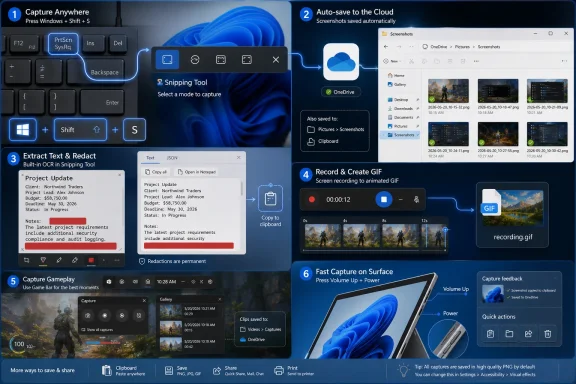
Windows 11 gives users at least seven practical screenshot paths in 2026, spanning the old Print Screen clipboard trick, OneDrive auto-save, Windows-PrtScn, the modern Snipping Tool, third-party utilities, Game Bar capture, and Surface tablet button shortcuts. The interesting part is not that Microsoft has many ways to grab the screen; Windows has always accumulated workflows like sediment. The interesting part is that screenshots have quietly become a miniature productivity platform. What used to be a panic key for pasting into Paint is now a pipeline for OCR, redaction, screen recording, GIF creation, cloud sync, and AI-assisted selection.
For decades, the Print Screen key was one of the least glamorous but most dependable parts of the PC keyboard. Press it, paste somewhere else, move on. It was not elegant, discoverable, or especially modern, but it was universal enough that nearly every Windows user eventually learned the ritual.
Windows 11 changes the social contract around that key. On current systems, pressing Print Screen commonly opens Snipping Tool instead of silently copying the full screen to the clipboard. Microsoft did not remove the old behavior entirely, but it did demote it from the default path into a setting buried under keyboard accessibility options.
That sounds like a tiny interface change, but it says a lot about how Microsoft now thinks about capture. A screenshot is no longer treated as a raw dump of pixels. It is treated as the first step in an editing, sharing, extracting, or recording workflow.
The old method still matters because it is frictionless. If you only need to capture a full desktop or the active window and paste it into Paint, Photoshop, Teams, Word, Outlook, or a ticketing system, Print Screen and Alt-Print Screen remain fast. They also have one subtle advantage over more interactive shortcuts: they are less likely to dismiss the menu, tooltip, dropdown, or transient state you are trying to document.
But Windows 11’s default move toward Snipping Tool is the correct bet for most users. The original Print Screen behavior assumed the user already knew where the image had gone and what to do with it. The Snipping Tool assumes the user wants to choose a region, annotate it, save it, redact it, or turn it into something more useful than a clipboard ghost.
That matters in enterprise life more than feature checklists usually admit. Help desk technicians do not always need a carefully named PNG; they need a screenshot pasted into a chat thread before a user closes the error dialog. Developers filing bugs do not always need an image library; they need the wrong rendering state pasted directly into an issue tracker.
Windows 11’s clipboard history deepens that workflow. With clipboard history enabled, Windows-V becomes a small recovery layer for recent captures and copied content. It is not a full media management system, but it reduces the cost of taking several screenshots in sequence and deciding later which one belongs in an email, ticket, or document.
That is also where the traditional Print Screen method still earns its keep. For users who already live inside applications that accept pasted images, the file system can be unnecessary ceremony. The fastest screenshot is still the one that never has to be named.
The risk is discoverability. Microsoft has made the richer tools easier to invoke, but clipboard behavior remains oddly invisible. The OS does not always make clear whether a capture was saved, copied, both, or neither, and that ambiguity is where ordinary users get lost.
That is powerful in the exact situations where manual saving is annoying. During a presentation, a remote troubleshooting session, a software demo, or a fast-moving configuration change, the user may not want to stop and paste into an editor. A silent auto-save workflow lets the screenshots pile up for later triage.
It also solves a cross-device problem. A screenshot taken on one PC can become available on another machine signed into the same OneDrive account. For people who move between a desktop, laptop, and tablet, that is more useful than it sounds.
There is a privacy tradeoff, of course. Auto-saving screenshots to a cloud-synced folder is convenient precisely because it is automatic, and automatic capture is where sensitive information can travel farther than intended. Password managers, admin consoles, HR portals, medical records, customer data, and internal dashboards all become accidental cloud material if users forget what they are capturing.
For consumers, that may be a minor nuisance. For businesses, it is a policy question. IT departments that already manage OneDrive known-folder backup, retention, data loss prevention, and endpoint controls should treat screenshot auto-save as part of the same governance conversation.
That simplicity makes it especially good for repeat captures. If a user needs to document a sequence of screens during setup, reproduce a bug, or capture before-and-after configuration states, Windows-PrtScn creates a predictable local trail. It is not elegant, but it is reliable.
The local save location matters. Unlike OneDrive auto-save, Windows-PrtScn does not inherently turn every capture into a cloud-synced file unless the Pictures folder itself is being backed up or redirected. That can be preferable for users working with sensitive content or for administrators who want a lower-risk default.
Still, Windows-PrtScn is blunt. It captures everything visible across the screen, including notifications, secondary windows, personal information, and browser tabs. The tool is fast because it does not ask questions, and that is exactly why it can produce messy or risky screenshots.
The best way to think about Windows-PrtScn is as a capture dump. It is excellent when the goal is to preserve the state of the machine quickly. It is less ideal when the screenshot is destined for publication, escalation, or external sharing.
The Windows-Shift-S shortcut opens a capture bar with options for rectangular selection, freeform selection, window capture, and full-screen capture. That alone covers the majority of practical screenshot needs. The capture is copied to the clipboard, and depending on settings, it can also be saved automatically.
The app’s editor gives users the expected basics: pen, highlighter, crop, save, print, share, and open-with options. Those tools are not a replacement for a serious image editor, but they are enough for the everyday work of circling an error, trimming away irrelevant desktop clutter, or marking up an interface element for a colleague.
The more important shift is that Snipping Tool now treats screenshots as data. OCR support can extract text from an image, which turns an error dialog, PDF fragment, screenshot of a web page, or remote desktop capture into copyable text. Redaction features add another layer, helping users remove names, email addresses, phone numbers, and other sensitive details before sharing.
That is a big deal for IT pros. Many support workflows still begin with a user sending a screenshot instead of text. OCR inside the capture tool reduces the distance between “here is a picture of an error” and “here is the exact error string we can search, log, translate, or paste into a ticket.”
That collapses a workflow that used to involve multiple apps. A user might have recorded with Xbox Game Bar, trimmed in Photos or Clipchamp, converted through a web tool, and then uploaded the result somewhere else. Snipping Tool does not make Windows a professional screencasting suite, but it does make the common five-second “look what happens when I click this” recording much easier.
For administrators and support teams, that is more than convenience. A short screen recording can capture timing, transitions, and UI behavior that a still screenshot cannot. Many bugs are not static; they are animations, flickers, delays, disappearing menus, or sequences that fail only after a user takes two or three steps.
GIF export is particularly useful because it fits into places where full video remains awkward. Many ticketing systems, documentation platforms, and chat tools handle animated GIFs more casually than MP4 files. A small loop can communicate a UI problem quickly without forcing everyone into a media player.
The limitation is that native capture still does not replace purpose-built tools for advanced workflows. If you need multi-source recording, webcam overlay, audio mixing, cursor effects, chaptering, or polished instructional output, Snipping Tool is not the finish line. It is the new floor.
Consider a sysadmin looking at a screenshot of a failed installer. Without OCR, the admin retypes the error code or asks the user to send text. With OCR, the string can be copied directly from the capture. That makes searching documentation, querying logs, or pasting into a support case faster and less error-prone.
Redaction belongs in the same conversation. Screenshots are among the most common ways sensitive information leaks in otherwise ordinary workflows. People share too much of the screen because cropping takes effort, and they forget that sidebars, browser profiles, email addresses, tenant names, file paths, and internal hostnames can all be visible.
A screenshot tool with built-in redaction does not solve data handling policy by itself. But it lowers the effort required to do the right thing. When privacy-preserving behavior is one click closer, more people will actually perform it.
This is where Microsoft’s design direction makes sense. The company is not merely modernizing an old accessory. It is turning capture into a safer, more useful input method for the rest of the Windows environment.
That is a subtler strategy than putting Copilot branding everywhere. Screenshots are already a moment when the user points Windows at something specific. If AI can help select, interpret, extract, or act on that region, it has a clearer job than a general-purpose assistant waiting for a prompt.
There is also a reason Microsoft is tying some of this to Copilot+ PCs. On-device AI processing is now part of the Windows hardware story, and features like intelligent capture selection are a practical way to justify neural processing units to normal users. “Your laptop can crop a screenshot better” is not a moonshot, but it is more understandable than abstract TOPS benchmarks.
The concern is predictability. A screenshot tool should be exact. Users, especially technical users, need to trust that the capture includes what they intended and excludes what they did not. AI assistance is useful when it speeds up selection, but it becomes dangerous if users stop checking the boundary of what was captured.
That is why these features should be treated as assistive rather than authoritative. The human still owns the screenshot. The machine can suggest the crop.
For games, that placement is natural. For ordinary desktop work, it is strange but occasionally handy. Game Bar capture can be more convenient for users who already rely on it for recordings, and it keeps screenshots grouped with video captures rather than the Pictures folder.
The naming is part of the problem. “Game Bar” sounds irrelevant to a sysadmin recording a software bug or a power user capturing a GPU settings panel. Microsoft has gradually stretched the feature beyond gaming, but the branding still narrows who thinks to use it.
There are also workflow differences that can trip people up. A screenshot saved to Videos > Captures is easy to lose if the user expects everything under Pictures > Screenshots. Windows now has several capture destinations, and Microsoft has not fully solved the problem of explaining which shortcut sends files where.
Still, Game Bar deserves a place in the toolbox. It is not the first recommendation for most screenshots, but it is a reliable fallback for capture and recording, especially when users want a video-oriented workflow.
That shortcut produces a result similar to Windows-PrtScn, saving into the Pictures > Screenshots folder. It is simple once known, but not obvious if the user comes from desktop Windows rather than phones or tablets. Older Surface models and attached keyboards had their own combinations, which adds some historical confusion.
The Surface Pen adds another route by opening Snipping Tool through pen interaction. That makes sense for a device where annotation is part of the appeal. A screenshot on a pen-first device is often not just a capture; it is something to mark up immediately.
This is a small example of a larger Windows challenge. The OS supports desktops, laptops, tablets, convertibles, pen devices, cloud PCs, and remote sessions, but capture muscle memory does not transfer perfectly across all of them. Microsoft has improved the common Snipping Tool layer, but hardware shortcuts still vary.
For users, the practical lesson is simple: know at least two screenshot paths on every device you use. One should be the modern software path, usually Windows-Shift-S or Snipping Tool. The other should be the hardware fallback for moments when the keyboard is missing, detached, or uncooperative.
But “good enough” is not the same as complete. Third-party tools still matter for serious capture workflows, especially scrolling screenshots. Windows 11’s native screenshot tools still do not provide a universal scrolling capture feature for long web pages, documents, settings panes, or application windows.
Browsers partially fill that gap. Microsoft Edge can capture a full web page, and Firefox has long offered full-page screenshot features. Chrome can do it through developer tools or extensions, but that is less friendly for ordinary users and raises the usual extension trust concerns.
Dedicated utilities also tend to be better at capture libraries, custom naming, automated workflows, upload destinations, advanced annotation, hotkey control, and enterprise-standard documentation. A technical writer producing dozens of marked-up screenshots per day will still outgrow the built-in tool. A support engineer who needs consistent arrows, callouts, stamps, step numbering, and storage rules may do the same.
The lesson is not that third-party screenshot tools are obsolete. It is that they have been pushed upmarket. They now need to justify themselves with workflow depth, not basic capture.
This is the one area where Microsoft’s design still feels like an accumulation rather than a system. The OS has grown new capture paths without fully unifying the user’s mental model. A person may know how to take a screenshot but not where it went, whether it was saved, whether it synced, or whether it is still only on the clipboard.
For IT support, that confusion creates predictable tickets. Users say they “lost” screenshots that were never saved. Others unknowingly sync sensitive captures to OneDrive. Some expect Game Bar captures to appear under Pictures, while others take Snipping Tool captures and assume a file exists when only the clipboard contains the image.
A better Windows capture system would make destination state more obvious. It would show, consistently and briefly, whether the capture was copied, saved locally, synced, recorded, or opened for editing. Notifications help, but they are not yet a coherent capture history.
Until Microsoft fixes that, power users should build their own rules. Use Windows-Shift-S when precision matters. Use Windows-PrtScn when you want a local full-screen archive. Use OneDrive auto-save only when cloud access is worth the sensitivity risk. Use third-party tools when repeatable documentation matters more than native simplicity.
That does not mean users should be afraid of screenshots. It means organizations should stop pretending they are harmless. Screenshots are one of the easiest ways for information to leave controlled systems because they convert structured data into an image that can be pasted, uploaded, emailed, synced, or messaged with little friction.
Windows 11’s redaction features help, but they are not policy. OCR can make screenshots more useful, but it can also make sensitive content easier to extract. OneDrive sync can preserve work, but it can also move captures into places governed by different retention or sharing rules.
This is where administrator education matters. Users should know which shortcuts save automatically, which ones only copy, which folders sync, and how to redact before sharing externally. Security teams should care less about banning screenshots outright and more about making safe screenshot behavior normal.
The most realistic posture is pragmatic. Screenshots are unavoidable in support, training, documentation, and collaboration. The goal is to make the safe path faster than the careless path.
Windows 11’s screenshot sprawl is easy to mock, but it also reflects the reality of how people use PCs now: a screenshot can be evidence, documentation, a support artifact, a training asset, a text source, a privacy risk, or a quick visual message. Microsoft’s challenge is not adding yet another capture button; it is making the existing system feel less accidental. If the company can unify destination awareness, keep AI assistance transparent, and treat redaction as a first-class habit rather than an afterthought, the humble screenshot may become one of Windows 11’s most quietly important productivity surfaces.
 Print Screen Survived by Becoming Something Else
For decades, the Print Screen key was one of the least glamorous but most dependable parts of the PC keyboard. Press it, paste somewhere else, move on. It was not elegant, discoverable, or especially modern, but it was universal enough that nearly every Windows user eventually learned the ritual.Windows 11 changes the social contract around that key. On current systems, pressing Print Screen commonly opens Snipping Tool instead of silently copying the full screen to the clipboard. Microsoft did not remove the old behavior entirely, but it did demote it from the default path into a setting buried under keyboard accessibility options.
That sounds like a tiny interface change, but it says a lot about how Microsoft now thinks about capture. A screenshot is no longer treated as a raw dump of pixels. It is treated as the first step in an editing, sharing, extracting, or recording workflow.
The old method still matters because it is frictionless. If you only need to capture a full desktop or the active window and paste it into Paint, Photoshop, Teams, Word, Outlook, or a ticketing system, Print Screen and Alt-Print Screen remain fast. They also have one subtle advantage over more interactive shortcuts: they are less likely to dismiss the menu, tooltip, dropdown, or transient state you are trying to document.
But Windows 11’s default move toward Snipping Tool is the correct bet for most users. The original Print Screen behavior assumed the user already knew where the image had gone and what to do with it. The Snipping Tool assumes the user wants to choose a region, annotate it, save it, redact it, or turn it into something more useful than a clipboard ghost.
The Clipboard Is Still the Fastest Capture Tool Nobody Notices
The clipboard remains the hidden backbone of Windows screenshotting. Whether a user presses Print Screen, Windows-Shift-S, or Windows-PrtScn, the most useful outcome is often not the saved image file but the fact that the capture is immediately available for pasting.That matters in enterprise life more than feature checklists usually admit. Help desk technicians do not always need a carefully named PNG; they need a screenshot pasted into a chat thread before a user closes the error dialog. Developers filing bugs do not always need an image library; they need the wrong rendering state pasted directly into an issue tracker.
Windows 11’s clipboard history deepens that workflow. With clipboard history enabled, Windows-V becomes a small recovery layer for recent captures and copied content. It is not a full media management system, but it reduces the cost of taking several screenshots in sequence and deciding later which one belongs in an email, ticket, or document.
That is also where the traditional Print Screen method still earns its keep. For users who already live inside applications that accept pasted images, the file system can be unnecessary ceremony. The fastest screenshot is still the one that never has to be named.
The risk is discoverability. Microsoft has made the richer tools easier to invoke, but clipboard behavior remains oddly invisible. The OS does not always make clear whether a capture was saved, copied, both, or neither, and that ambiguity is where ordinary users get lost.
OneDrive Turns Print Screen Into a Cloud Workflow
The OneDrive screenshot setting is the most underrated capture feature in Windows because it changes the meaning of Print Screen without changing the muscle memory. Once configured, pressing the key can automatically create a PNG file in a OneDrive-backed screenshots folder. The user still performs the same action, but the output becomes a synced artifact rather than an ephemeral clipboard item.That is powerful in the exact situations where manual saving is annoying. During a presentation, a remote troubleshooting session, a software demo, or a fast-moving configuration change, the user may not want to stop and paste into an editor. A silent auto-save workflow lets the screenshots pile up for later triage.
It also solves a cross-device problem. A screenshot taken on one PC can become available on another machine signed into the same OneDrive account. For people who move between a desktop, laptop, and tablet, that is more useful than it sounds.
There is a privacy tradeoff, of course. Auto-saving screenshots to a cloud-synced folder is convenient precisely because it is automatic, and automatic capture is where sensitive information can travel farther than intended. Password managers, admin consoles, HR portals, medical records, customer data, and internal dashboards all become accidental cloud material if users forget what they are capturing.
For consumers, that may be a minor nuisance. For businesses, it is a policy question. IT departments that already manage OneDrive known-folder backup, retention, data loss prevention, and endpoint controls should treat screenshot auto-save as part of the same governance conversation.
Windows-PrtScn Is the Sensible Middle Ground
Windows-PrtScn occupies a useful middle lane between raw clipboard capture and OneDrive automation. It takes a full-screen screenshot, briefly dims the display, saves a PNG locally under Pictures > Screenshots, and also leaves the image available for pasting. There is no region selection, no annotation step, and no need to open Snipping Tool.That simplicity makes it especially good for repeat captures. If a user needs to document a sequence of screens during setup, reproduce a bug, or capture before-and-after configuration states, Windows-PrtScn creates a predictable local trail. It is not elegant, but it is reliable.
The local save location matters. Unlike OneDrive auto-save, Windows-PrtScn does not inherently turn every capture into a cloud-synced file unless the Pictures folder itself is being backed up or redirected. That can be preferable for users working with sensitive content or for administrators who want a lower-risk default.
Still, Windows-PrtScn is blunt. It captures everything visible across the screen, including notifications, secondary windows, personal information, and browser tabs. The tool is fast because it does not ask questions, and that is exactly why it can produce messy or risky screenshots.
The best way to think about Windows-PrtScn is as a capture dump. It is excellent when the goal is to preserve the state of the machine quickly. It is less ideal when the screenshot is destined for publication, escalation, or external sharing.
Snipping Tool Became the Center of Gravity
The modern Snipping Tool is no longer a small utility that merely replaced Snip & Sketch. It is now the primary interface for screen capture in Windows 11, and Microsoft is steadily packing it with the kinds of features that used to justify installing third-party software.The Windows-Shift-S shortcut opens a capture bar with options for rectangular selection, freeform selection, window capture, and full-screen capture. That alone covers the majority of practical screenshot needs. The capture is copied to the clipboard, and depending on settings, it can also be saved automatically.
The app’s editor gives users the expected basics: pen, highlighter, crop, save, print, share, and open-with options. Those tools are not a replacement for a serious image editor, but they are enough for the everyday work of circling an error, trimming away irrelevant desktop clutter, or marking up an interface element for a colleague.
The more important shift is that Snipping Tool now treats screenshots as data. OCR support can extract text from an image, which turns an error dialog, PDF fragment, screenshot of a web page, or remote desktop capture into copyable text. Redaction features add another layer, helping users remove names, email addresses, phone numbers, and other sensitive details before sharing.
That is a big deal for IT pros. Many support workflows still begin with a user sending a screenshot instead of text. OCR inside the capture tool reduces the distance between “here is a picture of an error” and “here is the exact error string we can search, log, translate, or paste into a ticket.”
Screen Recording Is Now a Native Windows Expectation
The Snipping Tool’s screen recording feature is one of those additions that feels obvious only after it exists. Users can select an area of the screen, record activity, stop the recording, and save or share the result. Recent versions also integrate trimming and GIF creation, turning short recordings into lightweight loops suitable for documentation, chat, or bug reports.That collapses a workflow that used to involve multiple apps. A user might have recorded with Xbox Game Bar, trimmed in Photos or Clipchamp, converted through a web tool, and then uploaded the result somewhere else. Snipping Tool does not make Windows a professional screencasting suite, but it does make the common five-second “look what happens when I click this” recording much easier.
For administrators and support teams, that is more than convenience. A short screen recording can capture timing, transitions, and UI behavior that a still screenshot cannot. Many bugs are not static; they are animations, flickers, delays, disappearing menus, or sequences that fail only after a user takes two or three steps.
GIF export is particularly useful because it fits into places where full video remains awkward. Many ticketing systems, documentation platforms, and chat tools handle animated GIFs more casually than MP4 files. A small loop can communicate a UI problem quickly without forcing everyone into a media player.
The limitation is that native capture still does not replace purpose-built tools for advanced workflows. If you need multi-source recording, webcam overlay, audio mixing, cursor effects, chaptering, or polished instructional output, Snipping Tool is not the finish line. It is the new floor.
OCR and Redaction Are the Real Productivity Story
The most consequential screenshot feature in Windows 11 may not be capture at all. It may be text extraction. OCR changes screenshots from dead images into semi-structured information, and that is exactly the kind of small productivity improvement that compounds over hundreds of daily interactions.Consider a sysadmin looking at a screenshot of a failed installer. Without OCR, the admin retypes the error code or asks the user to send text. With OCR, the string can be copied directly from the capture. That makes searching documentation, querying logs, or pasting into a support case faster and less error-prone.
Redaction belongs in the same conversation. Screenshots are among the most common ways sensitive information leaks in otherwise ordinary workflows. People share too much of the screen because cropping takes effort, and they forget that sidebars, browser profiles, email addresses, tenant names, file paths, and internal hostnames can all be visible.
A screenshot tool with built-in redaction does not solve data handling policy by itself. But it lowers the effort required to do the right thing. When privacy-preserving behavior is one click closer, more people will actually perform it.
This is where Microsoft’s design direction makes sense. The company is not merely modernizing an old accessory. It is turning capture into a safer, more useful input method for the rest of the Windows environment.
AI Enters Through the Smallest Door
The Copilot+ PC additions to Snipping Tool are a preview of how Microsoft wants AI to enter Windows: not necessarily through a grand chatbot window, but through tiny assistive features embedded in old workflows. Perfect Screenshot can use on-device AI to infer the content a user likely wants to capture. Click To Do extends the idea by analyzing what is on screen and suggesting actions.That is a subtler strategy than putting Copilot branding everywhere. Screenshots are already a moment when the user points Windows at something specific. If AI can help select, interpret, extract, or act on that region, it has a clearer job than a general-purpose assistant waiting for a prompt.
There is also a reason Microsoft is tying some of this to Copilot+ PCs. On-device AI processing is now part of the Windows hardware story, and features like intelligent capture selection are a practical way to justify neural processing units to normal users. “Your laptop can crop a screenshot better” is not a moonshot, but it is more understandable than abstract TOPS benchmarks.
The concern is predictability. A screenshot tool should be exact. Users, especially technical users, need to trust that the capture includes what they intended and excludes what they did not. AI assistance is useful when it speeds up selection, but it becomes dangerous if users stop checking the boundary of what was captured.
That is why these features should be treated as assistive rather than authoritative. The human still owns the screenshot. The machine can suggest the crop.
Game Bar Remains the Odd but Useful Capture Detour
The Xbox Game Bar is still an unexpected place to find a screenshot workflow, but it remains useful. Windows-G opens the overlay, and the Capture widget can take screenshots or record video, saving output under the user’s Videos > Captures folder by default. Windows-Alt-PrtScn can bypass the overlay and capture the active window through the same system.For games, that placement is natural. For ordinary desktop work, it is strange but occasionally handy. Game Bar capture can be more convenient for users who already rely on it for recordings, and it keeps screenshots grouped with video captures rather than the Pictures folder.
The naming is part of the problem. “Game Bar” sounds irrelevant to a sysadmin recording a software bug or a power user capturing a GPU settings panel. Microsoft has gradually stretched the feature beyond gaming, but the branding still narrows who thinks to use it.
There are also workflow differences that can trip people up. A screenshot saved to Videos > Captures is easy to lose if the user expects everything under Pictures > Screenshots. Windows now has several capture destinations, and Microsoft has not fully solved the problem of explaining which shortcut sends files where.
Still, Game Bar deserves a place in the toolbox. It is not the first recommendation for most screenshots, but it is a reliable fallback for capture and recording, especially when users want a video-oriented workflow.
Surface Tablets Expose the Keyboard Assumption
The Surface tablet screenshot shortcut is a reminder that Windows still carries a keyboard-first heritage. On a standard PC, Print Screen is a physical key. On a tablet, that assumption breaks. Microsoft’s answer on newer Surface devices is the familiar mobile-style shortcut: press volume up and power together to save a screenshot.That shortcut produces a result similar to Windows-PrtScn, saving into the Pictures > Screenshots folder. It is simple once known, but not obvious if the user comes from desktop Windows rather than phones or tablets. Older Surface models and attached keyboards had their own combinations, which adds some historical confusion.
The Surface Pen adds another route by opening Snipping Tool through pen interaction. That makes sense for a device where annotation is part of the appeal. A screenshot on a pen-first device is often not just a capture; it is something to mark up immediately.
This is a small example of a larger Windows challenge. The OS supports desktops, laptops, tablets, convertibles, pen devices, cloud PCs, and remote sessions, but capture muscle memory does not transfer perfectly across all of them. Microsoft has improved the common Snipping Tool layer, but hardware shortcuts still vary.
For users, the practical lesson is simple: know at least two screenshot paths on every device you use. One should be the modern software path, usually Windows-Shift-S or Snipping Tool. The other should be the hardware fallback for moments when the keyboard is missing, detached, or uncooperative.
Third-Party Tools Still Win Where Windows Refuses to Go
The stronger Snipping Tool gets, the harder it is to recommend a third-party screenshot utility to everyone. For many users, Windows 11 now covers capture, annotation, OCR, redaction, video recording, trimming, GIF creation, clipboard copying, and file saving well enough. That is an enormous change from the era when installing SnagIt, Greenshot, ShareX, or another utility felt almost mandatory.But “good enough” is not the same as complete. Third-party tools still matter for serious capture workflows, especially scrolling screenshots. Windows 11’s native screenshot tools still do not provide a universal scrolling capture feature for long web pages, documents, settings panes, or application windows.
Browsers partially fill that gap. Microsoft Edge can capture a full web page, and Firefox has long offered full-page screenshot features. Chrome can do it through developer tools or extensions, but that is less friendly for ordinary users and raises the usual extension trust concerns.
Dedicated utilities also tend to be better at capture libraries, custom naming, automated workflows, upload destinations, advanced annotation, hotkey control, and enterprise-standard documentation. A technical writer producing dozens of marked-up screenshots per day will still outgrow the built-in tool. A support engineer who needs consistent arrows, callouts, stamps, step numbering, and storage rules may do the same.
The lesson is not that third-party screenshot tools are obsolete. It is that they have been pushed upmarket. They now need to justify themselves with workflow depth, not basic capture.
The Messy Part Is Not Capture, It Is Destination
Windows 11’s screenshot ecosystem is powerful, but it is also fragmented. Different methods send images to the clipboard, Pictures > Screenshots, OneDrive folders, Videos > Captures, Snipping Tool’s editor, or some combination of those places. That flexibility is useful once mastered and maddening before then.This is the one area where Microsoft’s design still feels like an accumulation rather than a system. The OS has grown new capture paths without fully unifying the user’s mental model. A person may know how to take a screenshot but not where it went, whether it was saved, whether it synced, or whether it is still only on the clipboard.
For IT support, that confusion creates predictable tickets. Users say they “lost” screenshots that were never saved. Others unknowingly sync sensitive captures to OneDrive. Some expect Game Bar captures to appear under Pictures, while others take Snipping Tool captures and assume a file exists when only the clipboard contains the image.
A better Windows capture system would make destination state more obvious. It would show, consistently and briefly, whether the capture was copied, saved locally, synced, recorded, or opened for editing. Notifications help, but they are not yet a coherent capture history.
Until Microsoft fixes that, power users should build their own rules. Use Windows-Shift-S when precision matters. Use Windows-PrtScn when you want a local full-screen archive. Use OneDrive auto-save only when cloud access is worth the sensitivity risk. Use third-party tools when repeatable documentation matters more than native simplicity.
The Screenshot Tool Has Become a Security Tool
It is tempting to treat screenshots as a convenience feature, but in modern Windows they are part of the security and compliance surface. Every screenshot is a potential data export. Every screen recording is a potential record of credentials, customer details, infrastructure names, access tokens, internal chats, or confidential documents.That does not mean users should be afraid of screenshots. It means organizations should stop pretending they are harmless. Screenshots are one of the easiest ways for information to leave controlled systems because they convert structured data into an image that can be pasted, uploaded, emailed, synced, or messaged with little friction.
Windows 11’s redaction features help, but they are not policy. OCR can make screenshots more useful, but it can also make sensitive content easier to extract. OneDrive sync can preserve work, but it can also move captures into places governed by different retention or sharing rules.
This is where administrator education matters. Users should know which shortcuts save automatically, which ones only copy, which folders sync, and how to redact before sharing externally. Security teams should care less about banning screenshots outright and more about making safe screenshot behavior normal.
The most realistic posture is pragmatic. Screenshots are unavoidable in support, training, documentation, and collaboration. The goal is to make the safe path faster than the careless path.
The Seven Shortcuts Tell the Story of Windows 11
Windows 11’s screenshot features look like a grab bag until you line them up by intent. Each method answers a different version of the same problem: how much control, automation, editing, and permanence does the user need at the moment of capture?- Pressing Print Screen or Alt-Print Screen remains the fastest clipboard-first method when the user wants to paste immediately into another app.
- Enabling OneDrive screenshot backup turns Print Screen into a cloud-synced capture workflow, which is convenient but requires privacy awareness.
- Pressing Windows-PrtScn is the cleanest local full-screen archive shortcut because it saves a PNG and keeps the image available for pasting.
- Pressing Windows-Shift-S opens the modern Snipping Tool path, which is now the best default for precise capture, annotation, OCR, redaction, and recording.
- Installing a third-party utility still makes sense for scrolling screenshots, heavy documentation, custom workflows, and advanced capture management.
- Using Game Bar capture is useful when screenshots and recordings belong with video captures, though its storage location can surprise users.
- Pressing volume up and power on newer Surface tablets gives keyboard-free devices a hardware screenshot fallback comparable to mobile platforms.
Windows 11’s screenshot sprawl is easy to mock, but it also reflects the reality of how people use PCs now: a screenshot can be evidence, documentation, a support artifact, a training asset, a text source, a privacy risk, or a quick visual message. Microsoft’s challenge is not adding yet another capture button; it is making the existing system feel less accidental. If the company can unify destination awareness, keep AI assistance transparent, and treat redaction as a first-class habit rather than an afterthought, the humble screenshot may become one of Windows 11’s most quietly important productivity surfaces.
References
- Primary source: PCMag
Published: Sun, 31 May 2026 13:33:11 GMT
7 Powerful Screenshot Features Hidden in Windows 11 | PCMag
From quick keyboard shortcuts to AI-powered OCR and GIF creation, Windows 11 includes far more screenshot tools than most people realize.www.pcmag.com - Official source: support.microsoft.com
Use Snipping Tool to capture screenshots | Microsoft Support
Learn how to use Snipping Tool to capture a screenshot, or snip, of any object on your screen, and then annotate, save, or share the image.support.microsoft.com - Related coverage: tomshardware.com
Windows 11 Will Make Print Screen Key Open Snipping Tool | Tom's Hardware
The Print Screen key has maintained the same behavior for nearly two decades.www.tomshardware.com - Related coverage: pcworld.com
How to open Windows' Snipping Tool with the Print Screen key | PCWorld
The screenshot app Snipping Tool integrated in Windows 10 and 11 can be set so that it's called up by pressing the print key. We show you how to do this.www.pcworld.com - Related coverage: makeuseof.com
How to Use Text Actions in the Snipping Tool on Windows 11
Want to copy or redact text from your screenshots? Windows 11's Snipping Tool has you covered. www.makeuseof.com
- Related coverage: windowscentral.com
Microsoft is CHANGING what the 'Print Screen' key does on Windows 11 — here's how to change it back | Windows Central
Microsoft is changing the default behavior of the Print Screen button on Windows 11. Don't like it? Here's how to change it back.www.windowscentral.com
- Related coverage: pureinfotech.com
How to enable (or disable) Snipping Tool Print Screen key on Windows 11 - Pureinfotech
Enable or disable the Print Screen key for Snipping Tool on Windows 11 and restore the classic shortcut or assign it to another app. pureinfotech.com
- Official source: intowindows.com
How To Open Snipping Tool With Print Screen Key In Windows 11
Snipping Tool is the default screen-capturing tool in Windows 11. With default settings, the Snipping Tool can be launched with the help of the Windowswww.intowindows.com - Related coverage: arstechnica.com
Windows 11 beta changes what the Print Screen button does after 33 years - Ars Technica
Key now opens the Snipping Tool by default rather than copying to the clipboard.arstechnica.com - Official source: news.microsoft.com
