

Microsoft’s latest Windows 11 Insider activity points to a very different kind of spring update: not a flashy feature drop, but a broad reliability push aimed at the parts of the operating system people touch all day. File Explorer, explorer.exe, startup apps, clipboard history, Settings, Windows Hello, input, and even driver policy are all getting attention, and many of those fixes are already in Release Preview, which is usually the last stop before broad rollout. That makes the next cumulative update cycle far more interesting than it first sounds, because it suggests Microsoft is finally treating responsiveness and stability as headline features rather than background maintenance.
The timing matters. In March, Microsoft publicly framed its Windows quality work around performance, reliability, and well-crafted experiences, signaling that the company wanted to spend 2026 tightening the product rather than piling on visible interface changes. By mid-April, that plan had turned into concrete changes in Release Preview, where Microsoft listed improvements for startup app launching, explorer.exe reliability, File Explorer behavior, and more.
That is an important shift in tone for Windows 11. For several release cycles, the platform has often been criticized for the feeling that even basic workflows carried too much friction: slow File Explorer openings, flaky taskbar interactions, Settings pages that lagged on heavily populated systems, and input or biometric features that worked well most of the time but not consistently enough. Microsoft is now acknowledging, implicitly and explicitly, that those are not small annoyances. They are the operating system.
The latest Release Preview build for Windows 11 24H2 and 25H2 is especially revealing because it mixes user-facing polish with lower-level reliability corrections. Microsoft says it is improving startup app performance after boot and fixing explorer.exe reliability after File Explorer windows close. It also mentions improvements to the taskbar, File Explorer, and the broader shell experience, which suggests the company is working on the glue that holds the desktop together, not just cosmetic features on top.
At the same time, the company is pushing forward on a stronger Windows driver policy. Microsoft now says new drivers must be signed through WHCP, while previously trusted cross-signed drivers are no longer trusted by default in the April 2026 security update, with an audit-to-enforcement model used to ease the transition. That change has obvious security value, but it also underlines how much of Windows quality is tied to the health of the driver ecosystem. A smoother shell is only half the story if hardware trust remains inconsistent.
The practical consequence is bigger than a speed tweak. When the shell becomes more reliable, the entire desktop feels more predictable, because the shell is where users spend the most time moving between apps, files, and system controls. In this update cycle, Microsoft is also working to improve system tray loading, which matters because failed tray icons or delayed tray rendering can make a healthy machine feel broken even when the underlying system is fine.
Microsoft also appears to have improved the dark mode experience by eliminating the white flash seen when File Explorer loads, based on testing in Release Preview. Even when that detail is not emphasized in the changelog, it matters, because it is a sign that the company is paying attention to transition quality rather than only to feature completeness. That kind of refinement usually does more for perceived polish than a new settings toggle ever will.
This kind of state preservation is where Windows 11 has often felt less dependable than Windows 10. The operating system is not only competing on design language anymore; it is competing on memory of user preference. When the shell remembers your working context correctly, it feels more mature, and that maturity matters to both consumers and enterprises.
The Installed apps fix is important because that page is one of the heaviest in the app. It has to enumerate installed software, fetch icons, and often compute size information, which makes it a common source of lag. Making that path more reliable does not just save a few seconds; it reduces the sense that Settings is constantly one step behind the user. That lag is a trust problem as much as a performance problem.
This is also the kind of detail that helps in enterprise environments, where policy-driven configurations can become difficult to explain if the interface does not mirror the policy logic. When a user sees disabled controls that match the system’s actual state, support calls become easier to triage and less likely to turn into guesswork. Microsoft is not just polishing UI here; it is reducing ambiguity.
Input system changes go beyond the clipboard. Microsoft is improving keyboard navigation in the emoji panel, tightening support for the ADLaM keyboard, and fixing custom tooling under Settings > Bluetooth & Devices > Wheel. Voice typing also gets attention, including better persistence for Fluid Dictation settings and a new touch keyboard voice typing design that removes the full-screen overlay in favor of in-place animations. Those changes point to a broader principle: if an input path is going to exist, it must behave predictably under pressure.
That same logic applies to voice typing. The move away from a full-screen overlay is likely to make dictation feel less intrusive and more context-aware. It also suggests that Microsoft is trying to reduce the gap between accessibility features and everyday productivity tools, which is a smart move for both adoption and perception.
Microsoft is also making Delivery Optimization less memory-hungry, which may not sound glamorous but matters a great deal on systems where RAM is already under pressure. Delivery Optimization helps manage Windows and Microsoft Store updates in the background, so any improvement in its memory footprint can free up resources for active workloads. In a year when memory prices are high and many systems run with limited headroom, that is a welcome practical fix.
Microsoft Store reliability is also being improved, with known installation failure codes such as 0x80070057, 0x80240008, and 0x80073d28 specifically called out in the broader reliability push. That is another sign that Microsoft is trying to tighten the gaps between consumer app distribution, OS servicing, and everyday reliability. If the ecosystem is going to be one platform, its update paths need to feel unified.
That makes Windows Hello feel less like a nice-to-have and more like a core OS service. The best authentication experience is one that users trust enough to stop thinking about it, and that only happens when wake-from-sleep behavior, upgrade persistence, and sensor initialization all work together. Authentication cannot afford to be fickle.
On the visual side, color profile persistence is being improved, which is especially important for photo and video professionals who depend on calibrated monitors. If the OS quietly reverts to a default profile, the user may not immediately know why colors look wrong, and the downstream cost can be substantial. Microsoft’s color-profile fix is therefore not just a display tweak but a trust repair for creative work.
Microsoft says the Windows Driver policy uses an audit phase before enforcement, and only after the evaluation criteria are met does the system block noncompliant drivers. That gradual rollout is a sensible compromise, because driver policy changes can cause real compatibility fallout if pushed too aggressively. Still, the direction is clear: Microsoft wants the kernel trust model to be narrower, cleaner, and less dependent on old signing conventions.
The script-processing change is similarly notable. Microsoft is introducing a secure mode that prevents batch files from being modified while they are actively running, with control available through registry configuration or business policy. That is a targeted mitigation, but it reflects the same philosophy: protect the runtime from interference, not just the file system from external attack. It is a small feature with a large security mindset behind it.
For enterprises, the story is even more significant because reliability multiplies across fleets. A slightly faster Settings page or a more stable explorer.exe process is not just a convenience when deployed across hundreds or thousands of endpoints; it becomes a measurable support and productivity issue. Meanwhile, stricter driver policy and more robust script protection help reduce risk, which is exactly the sort of change that matters when security teams are balancing standardization against user demands.
If Microsoft can sustain this cadence, Windows 11 could recover some of the confidence it lost by shipping too many half-finished experiences too quickly. The challenge is that reliability gains are harder to market than new features, so the company will need to keep proving that this is a strategy, not a one-off cleanup sprint. Consistency is the real product here.
What to watch next is not just whether the features arrive, but whether they arrive with enough consistency to change habits. That means paying attention to explorer.exe stability, startup latency, Windows Hello wake behavior, and whether the new driver policy causes compatibility surprises in the field. Those are the metrics that will tell us whether Windows 11 is becoming genuinely better, or merely better described. The difference will be obvious to users long before it is obvious in a changelog.
Source: Windows Latest Microsoft confirms Windows 11 speed boost for May with faster clipboard, startup apps, Explorer, and more
 Overview
The timing matters. In March, Microsoft publicly framed its Windows quality work around performance, reliability, and well-crafted experiences, signaling that the company wanted to spend 2026 tightening the product rather than piling on visible interface changes. By mid-April, that plan had turned into concrete changes in Release Preview, where Microsoft listed improvements for startup app launching, explorer.exe reliability, File Explorer behavior, and more.That is an important shift in tone for Windows 11. For several release cycles, the platform has often been criticized for the feeling that even basic workflows carried too much friction: slow File Explorer openings, flaky taskbar interactions, Settings pages that lagged on heavily populated systems, and input or biometric features that worked well most of the time but not consistently enough. Microsoft is now acknowledging, implicitly and explicitly, that those are not small annoyances. They are the operating system.
The latest Release Preview build for Windows 11 24H2 and 25H2 is especially revealing because it mixes user-facing polish with lower-level reliability corrections. Microsoft says it is improving startup app performance after boot and fixing explorer.exe reliability after File Explorer windows close. It also mentions improvements to the taskbar, File Explorer, and the broader shell experience, which suggests the company is working on the glue that holds the desktop together, not just cosmetic features on top.
At the same time, the company is pushing forward on a stronger Windows driver policy. Microsoft now says new drivers must be signed through WHCP, while previously trusted cross-signed drivers are no longer trusted by default in the April 2026 security update, with an audit-to-enforcement model used to ease the transition. That change has obvious security value, but it also underlines how much of Windows quality is tied to the health of the driver ecosystem. A smoother shell is only half the story if hardware trust remains inconsistent.
File Explorer and the Shell Get the Biggest Share of Attention
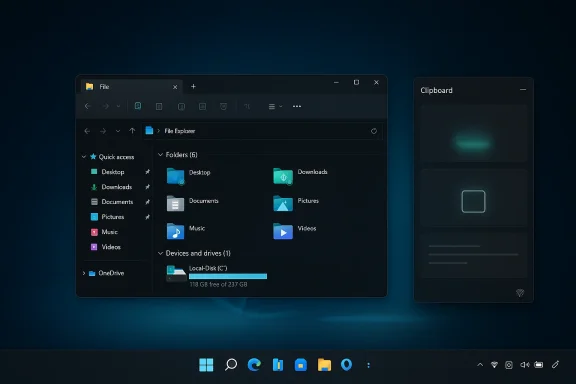
File Explorer remains the clearest symbol of Windows 11’s quality problem, because it is one of the most frequently opened apps in the operating system and one of the easiest places for users to notice lag, flicker, or state loss. Microsoft’s Release Preview notes confirm reliability improvements for explorer.exe and File Explorer, including better behavior after closing windows, during login, with taskbar flyouts, in Task View, and when unpinning Quick Access items. Those are exactly the kinds of shell-edge interactions that tend to create the impression that Windows is either polished or brittle.The practical consequence is bigger than a speed tweak. When the shell becomes more reliable, the entire desktop feels more predictable, because the shell is where users spend the most time moving between apps, files, and system controls. In this update cycle, Microsoft is also working to improve system tray loading, which matters because failed tray icons or delayed tray rendering can make a healthy machine feel broken even when the underlying system is fine.
Why the shell matters more than flashy features
Shell regressions are disproportionately damaging because they are visible and repetitive. A user may forgive a single missed animation or a one-off crash in an obscure tool, but they will not forgive a File Explorer window that opens slowly every day or a taskbar flyout that fails to appear at login. That is why these fixes are more strategically important than they look on paper. Reliability is user experience.Microsoft also appears to have improved the dark mode experience by eliminating the white flash seen when File Explorer loads, based on testing in Release Preview. Even when that detail is not emphasized in the changelog, it matters, because it is a sign that the company is paying attention to transition quality rather than only to feature completeness. That kind of refinement usually does more for perceived polish than a new settings toggle ever will.
- File Explorer reliability now extends beyond opening folders to shell integration.
- explorer.exe fixes should reduce odd desktop behavior after login and window closure.
- The system tray remains a critical point of failure for perceived stability.
- Dark mode flash fixes improve the first impression of the desktop.
- These changes are cumulative, so small wins can add up quickly.
Folder view state is finally being treated seriously
One especially useful fix is the improved retention of customized folder views when a folder is opened from another app. That may sound trivial, but it reflects a real pain point for anyone who organizes file views by project, media type, or workflow. Losing the expected layout and dropping back to a list view breaks continuity and wastes time, especially for power users.This kind of state preservation is where Windows 11 has often felt less dependable than Windows 10. The operating system is not only competing on design language anymore; it is competing on memory of user preference. When the shell remembers your working context correctly, it feels more mature, and that maturity matters to both consumers and enterprises.
Settings Is Becoming Less Frustrating
The Settings app has long been the paradox of Windows 11: more modern visually, but often less efficient than the Control Panel and legacy tools it was meant to replace. Microsoft is now tackling two of the most obvious pain points: navigation to Installed apps and the clarity of the Privacy & Security > Location page. Even though these specific refinements are still in Dev rather than Release Preview, they fit the same quality-first strategy.The Installed apps fix is important because that page is one of the heaviest in the app. It has to enumerate installed software, fetch icons, and often compute size information, which makes it a common source of lag. Making that path more reliable does not just save a few seconds; it reduces the sense that Settings is constantly one step behind the user. That lag is a trust problem as much as a performance problem.
Better UI state is a quality signal
The Location settings change is a smaller but smarter improvement. If the master Location toggle is off, then subordinate options such as Default location and Allow location override are now disabled, which better reflects the real state of the system. That seems obvious, but UI inconsistency is one of the fastest ways to make a settings screen feel untrustworthy.This is also the kind of detail that helps in enterprise environments, where policy-driven configurations can become difficult to explain if the interface does not mirror the policy logic. When a user sees disabled controls that match the system’s actual state, support calls become easier to triage and less likely to turn into guesswork. Microsoft is not just polishing UI here; it is reducing ambiguity.
- Installed apps navigation is a high-traffic path with real performance costs.
- Better toggle behavior improves state coherence across the app.
- Settings credibility depends on matching visuals to actual system state.
- Enterprise admins benefit when policy and UI are aligned.
- These fixes support the broader move away from legacy tools.
Clipboard History and Input Are Being Treated as Productivity Features
Clipboard history is one of those features that becomes indispensable once it is reliable. Microsoft’s work to make the Win + V panel open more responsively should improve the flow for users who copy and paste frequently, especially writers, developers, support agents, and anyone moving between multiple apps. The improvement may seem small on a spec sheet, but in daily work it can change whether the feature feels practical or merely promising.Input system changes go beyond the clipboard. Microsoft is improving keyboard navigation in the emoji panel, tightening support for the ADLaM keyboard, and fixing custom tooling under Settings > Bluetooth & Devices > Wheel. Voice typing also gets attention, including better persistence for Fluid Dictation settings and a new touch keyboard voice typing design that removes the full-screen overlay in favor of in-place animations. Those changes point to a broader principle: if an input path is going to exist, it must behave predictably under pressure.
Why responsiveness matters more than raw capability
A lot of Windows features are technically useful but psychologically brittle. Clipboard history is a good example because a delay of even a few hundred milliseconds can break the rhythm of typing and make the feature feel like an interruption rather than an aid. Microsoft appears to understand that the real benchmark is not whether a feature exists, but whether it disappears into the workflow gracefully. Good utilities feel almost invisible.That same logic applies to voice typing. The move away from a full-screen overlay is likely to make dictation feel less intrusive and more context-aware. It also suggests that Microsoft is trying to reduce the gap between accessibility features and everyday productivity tools, which is a smart move for both adoption and perception.
- Clipboard history should feel faster and less disruptive.
- Emoji and symbol navigation becomes more reliable under keyboard control.
- Voice dictation is shifting toward a less intrusive visual model.
- Custom input tools benefit from more predictable state handling.
- Small latency reductions can have outsized productivity impact.
Startup Performance and Memory Behavior Get Practical Fixes
One of the most user-friendly changes in the Release Preview build is the improvement in startup app performance after boot. Anyone who has watched Windows gradually settle down after login knows how much startup bloat can shape the first five minutes of a session. Better handling of apps configured under Settings > Apps > Startup should reduce that slow, awkward transition from boot to productive use.Microsoft is also making Delivery Optimization less memory-hungry, which may not sound glamorous but matters a great deal on systems where RAM is already under pressure. Delivery Optimization helps manage Windows and Microsoft Store updates in the background, so any improvement in its memory footprint can free up resources for active workloads. In a year when memory prices are high and many systems run with limited headroom, that is a welcome practical fix.
Why this matters to both consumers and IT teams
Consumers feel startup slowness as annoyance; IT departments feel it as friction multiplied across fleets. If startup apps initialize more gracefully and background update services stay leaner, the result can be a more consistent boot experience across thousands of devices. That is the kind of improvement that rarely makes headlines but can quietly improve support metrics.Microsoft Store reliability is also being improved, with known installation failure codes such as 0x80070057, 0x80240008, and 0x80073d28 specifically called out in the broader reliability push. That is another sign that Microsoft is trying to tighten the gaps between consumer app distribution, OS servicing, and everyday reliability. If the ecosystem is going to be one platform, its update paths need to feel unified.
- Faster startup apps improve the early-session experience.
- Lower memory use in Delivery Optimization helps constrained systems.
- Store installation fixes reduce routine failure pain.
- Better boot behavior matters more on older or heavily managed PCs.
- The gains are small individually but meaningful in aggregate.
Windows Hello, Audio, and Display Quality Are Getting Sharper
Windows Hello reliability is a particularly important fix because authentication is one of the first things users encounter after sleep, restart, or wake. Microsoft says fingerprint recognition is now more dependable after sleep, while face recognition has also been improved. It also says biometric enrollment data is more persistent across upgrades, which should reduce the irritating experience of re-enrolling after a feature update.That makes Windows Hello feel less like a nice-to-have and more like a core OS service. The best authentication experience is one that users trust enough to stop thinking about it, and that only happens when wake-from-sleep behavior, upgrade persistence, and sensor initialization all work together. Authentication cannot afford to be fickle.
Multimedia reliability reaches beyond consumer entertainment
Microsoft is also addressing audio reliability through improved third-party driver compatibility with the midisrv.exe process, which should help users with external audio hardware or MIDI-heavy creative workflows. That is significant because audio glitches are notoriously hard to diagnose and often get misattributed to apps when the real fault is in the interaction between Windows and a driver stack.On the visual side, color profile persistence is being improved, which is especially important for photo and video professionals who depend on calibrated monitors. If the OS quietly reverts to a default profile, the user may not immediately know why colors look wrong, and the downstream cost can be substantial. Microsoft’s color-profile fix is therefore not just a display tweak but a trust repair for creative work.
- Windows Hello improvements reduce login friction after sleep.
- Biometric enrollment persistence prevents re-setup after updates.
- Audio fixes matter most for hardware-rich professional setups.
- Color profile stability supports creative and color-managed workflows.
- Reliability in these areas lowers hidden support costs.
Security Changes Signal a Deeper Platform Shift
The most consequential backend change in this wave may be Microsoft’s new driver trust posture. According to Microsoft, Windows previously trusted drivers signed by the cross-signed program, but with the April 2026 security update those drivers are no longer trusted by default. Going forward, WHCP-signed drivers are the standard, while an allow list exists for certain legacy drivers during the transition.Microsoft says the Windows Driver policy uses an audit phase before enforcement, and only after the evaluation criteria are met does the system block noncompliant drivers. That gradual rollout is a sensible compromise, because driver policy changes can cause real compatibility fallout if pushed too aggressively. Still, the direction is clear: Microsoft wants the kernel trust model to be narrower, cleaner, and less dependent on old signing conventions.
Security hardening and compatibility are now inseparable
This policy change matters because drivers are not abstract software; they are the foundation of hardware behavior. A stricter signing model should reduce exposure to malware, instability, and misbehaving vendor code, but it also means legacy peripherals and niche professional tools may face more friction. That tradeoff is unavoidable, and Microsoft is trying to manage it by auditing behavior before full enforcement.The script-processing change is similarly notable. Microsoft is introducing a secure mode that prevents batch files from being modified while they are actively running, with control available through registry configuration or business policy. That is a targeted mitigation, but it reflects the same philosophy: protect the runtime from interference, not just the file system from external attack. It is a small feature with a large security mindset behind it.
- WHCP signing is becoming the default trust path for new drivers.
- Cross-signed legacy drivers are moving into a more restricted position.
- Audit mode softens compatibility risk before enforcement begins.
- Batch-file hardening improves script integrity during execution.
- Security is increasingly being enforced through policy and lifecycle controls.
What It Means for Consumers and Enterprises
For consumers, the headline is straightforward: Windows 11 should feel smoother. Faster shell interactions, better clipboard responsiveness, cleaner startup behavior, and more dependable login authentication all add up to a desktop that wastes less time. None of these improvements is dramatic on its own, but together they target the exact moments when Windows tends to feel most fragile.For enterprises, the story is even more significant because reliability multiplies across fleets. A slightly faster Settings page or a more stable explorer.exe process is not just a convenience when deployed across hundreds or thousands of endpoints; it becomes a measurable support and productivity issue. Meanwhile, stricter driver policy and more robust script protection help reduce risk, which is exactly the sort of change that matters when security teams are balancing standardization against user demands.
Why this update feels different from a feature release
There is a reason Microsoft’s “quality” messaging matters now. Windows 11 has already had enough feature-heavy cycles to prove that the market no longer rewards novelty alone. Users want faster, steadier behavior in the parts of the system they use every hour, not more surface-level complexity that looks good in screenshots and then disappears into the background.If Microsoft can sustain this cadence, Windows 11 could recover some of the confidence it lost by shipping too many half-finished experiences too quickly. The challenge is that reliability gains are harder to market than new features, so the company will need to keep proving that this is a strategy, not a one-off cleanup sprint. Consistency is the real product here.
- Consumers gain day-to-day smoothness.
- Enterprises gain lower support burden and better policy alignment.
- Security teams benefit from stricter driver and script controls.
- Creative users gain stronger color and audio consistency.
- The update improves trust in routine Windows workflows.
Strengths and Opportunities
Microsoft’s current approach is smart because it focuses on the places where dissatisfaction is most visible and most frequent. If the company executes well, this update wave could help Windows 11 feel more mature without forcing users to relearn the platform.- File Explorer improvements are high-impact because they affect core daily navigation.
- explorer.exe stability can improve the entire desktop shell experience.
- Clipboard history responsiveness makes an already useful feature more practical.
- Startup app performance directly improves post-boot usability.
- Windows Hello reliability reduces friction at login and resume.
- Color profile persistence supports professional creative workflows.
- Driver policy hardening strengthens the platform’s long-term security posture.
- Settings navigation fixes reduce frustration in routine administration.
Risks and Concerns
The biggest risk is that Microsoft may overpromise a general quality improvement while only partially fixing the most painful edge cases. Windows users have learned to be skeptical, and a few build notes do not automatically translate into durable improvement across the huge variety of PC configurations in the wild.- Release Preview improvements may not all survive unchanged to broad release.
- Dev channel fixes can take longer than expected to ship to everyone.
- Driver policy changes may break older or niche hardware.
- Script hardening could complicate some enterprise automation workflows.
- Settings improvements may be masked by slower performance on low-end systems.
- User perception can remain negative if even one visible shell bug survives.
- Legacy compatibility remains a concern as Microsoft tightens trust rules.
Looking Ahead
The next few weeks will show whether this is the beginning of a sustained quality campaign or just a concentrated pre-update cleanup. If the April optional update and the May security update land with the kinds of improvements Microsoft is previewing now, Windows 11 could enter the summer looking noticeably more polished in the places that matter most.What to watch next is not just whether the features arrive, but whether they arrive with enough consistency to change habits. That means paying attention to explorer.exe stability, startup latency, Windows Hello wake behavior, and whether the new driver policy causes compatibility surprises in the field. Those are the metrics that will tell us whether Windows 11 is becoming genuinely better, or merely better described. The difference will be obvious to users long before it is obvious in a changelog.
- Whether Release Preview fixes hold through the April optional update.
- How broadly the May security update inherits these reliability changes.
- Whether third-party driver compatibility remains smooth under the new policy.
- If clipboard and startup gains are noticeable on older hardware.
- Whether Microsoft keeps the quality-first message going into later 2026 builds.
Source: Windows Latest Microsoft confirms Windows 11 speed boost for May with faster clipboard, startup apps, Explorer, and more
