

Windows 11’s Start interface has evolved into a larger, more configurable launcher in recent builds, combining pinned apps, recommendations, an integrated all-apps view, account controls, power options, search, and optional Phone Link-powered mobile-device access in one centered panel. That sounds like a tidy modernization of a familiar surface. In practice, it is also Microsoft’s clearest statement yet about what it thinks the Windows desktop is for: not just opening programs, but steering users through cloud files, subscriptions, phones, Store apps, and Microsoft services. The Start menu is no longer just a menu; it is the front desk of the operating system.
The old Start menu was a launcher with ambitions. The new Windows 11 Start experience is closer to a dashboard with a launcher embedded inside it. That difference matters because Windows users have spent three decades building muscle memory around Start as the shortest route between intent and action.
The modern Start panel still opens from the Start button, the Windows key, or Ctrl+Esc, which is good. Microsoft has not broken the oldest contract. But everything after that first click has been reshaped around a more curated hierarchy: search first, pinned apps next, recommendations below, all apps folded into the same experience, and account, folder, phone, and power controls along the bottom or side.
That arrangement reflects a company trying to reconcile two competing truths. Windows remains the world’s most important general-purpose desktop operating system, but the way many people use PCs now looks more like a hybrid of local apps, synced files, web services, messaging, and mobile handoff. Start is where Microsoft is trying to make that hybrid feel natural.
The question is whether Windows users asked for Start to become quite this busy. Enthusiasts and administrators tend to value predictability, density, and control. Microsoft increasingly values discoverability, telemetry-informed defaults, and surfaces that can promote features. The redesigned Start menu sits directly in the friction zone between those priorities.
The move to the center was never merely aesthetic. It signaled that Microsoft wanted the Taskbar and Start to behave less like legacy Windows chrome and more like a fixed focal point. On ultrawide monitors or multi-display setups, the centered default can feel more balanced. On traditional enterprise desktops, it can feel like needless relocation of a control that had been reliably anchored to the lower-left corner since the Clinton administration.
Microsoft’s concession is that users can still left-align Start and Taskbar icons. That option is important because it preserves institutional muscle memory for fleets, training materials, and support desks. It also proves that Microsoft understands the emotional weight of Start, even when its defaults suggest the company would rather move the platform forward than preserve every old habit.
The more significant change, however, is not where Start appears. It is what Start now contains. A floating panel can be ignored; a launcher that increasingly mixes local actions with cloud suggestions, web search, mobile integration, and account nudges is harder to dismiss as a cosmetic tweak.
For power users, search-first computing is not new. Press Windows, type the first few letters of an app, hit Enter, and move on. That pattern is faster than browsing a menu, and Microsoft has wisely kept it intact.
The complication is that Windows Search is no longer just a local index. Depending on settings, it can include documents, Microsoft account content, work or school account material, OneDrive files, web suggestions, and “search highlights.” That makes it more capable, but also more opinionated. A user looking for Device Manager or a local PDF does not necessarily want the operating system to decorate the experience with online content.
This is where Microsoft’s service instincts become visible. Search highlights, web results, account-aware search, and cloud-file integration can be useful in the right context. They can also turn a crisp local command surface into a promotional and network-dependent experience.
The best version of Windows Search is the one users intentionally configure. If a PC is tied closely to OneDrive, Microsoft 365, and enterprise identity, cloud search may be a productivity feature. If the machine is a gaming rig, a lab workstation, a privacy-sensitive laptop, or a domain-joined device with strict data boundaries, narrowing Start search to local content may be the more rational choice.
The trouble is that the default pinned layout is rarely yours. Microsoft and PC makers can prepopulate the grid with apps, Store links, and shortcuts that reflect business relationships as much as user needs. On a clean retail PC, the first act of personalization is often removal.
That cleanup ritual is more than cosmetic. It is a small but telling reminder that Windows is both a product you use and a distribution channel other parties want to occupy. Start is prime desktop real estate, and every pinned shortcut is a claim on attention.
Fortunately, Microsoft has given users reasonable control once they get past the defaults. Apps can be pinned from several places, unpinned with a context menu, moved around, pushed to the front, and grouped into folders. Those folders are especially useful on small screens or work machines where the number of necessary apps exceeds the space Microsoft’s simplified layout wants to give them.
The Pinned grid works best when treated ruthlessly. Keep daily apps visible, group secondary tools by task, and remove anything that opens a store page rather than a tool you already use. Start becomes dramatically better when it stops being a showroom.
There is a defensible version of Recommended. Recently installed apps are useful because Windows still does a poor job of making new software feel discoverable after installation. Recent documents can also help users resume work, especially on laptops shared across office, home, and travel contexts.
The problem is bundling. Microsoft’s settings do not always map cleanly to how people want to use Windows. A user may want recent files in File Explorer and Jump Lists, but not in Start. An administrator may want users to find newly installed business apps, but not see consumer-style suggestions. A privacy-conscious user may not want sensitive document names appearing the moment Start opens during a meeting.
That makes Recommended less a feature than a negotiation. Users can remove individual items, and settings can reduce what appears there. But the broader design choice is still Microsoft’s: the lower half of Start is treated as an adaptive surface, not a fully user-owned zone.
For many enthusiasts, the right move is to disable recommendations for tips, shortcuts, new apps, and similar content immediately. That does not make Start perfect, but it removes the most obvious promotional pressure. In enterprise environments, policy and provisioning should do the same wherever possible.
The newer Start design improves this by exposing an “All” section that can present installed apps in Category, Grid, or List views. That is a meaningful change because it acknowledges that no single app list works for everyone. Some users think in categories, some in alphabetized names, and some simply want density.
Category view is Microsoft’s most modern interpretation. It groups apps into buckets such as productivity, utilities, developer tools, creativity, and similar clusters. This can help casual users, but it also depends heavily on classification quality. If the system guesses wrong, the user must mentally search twice: once for the app, and once for Microsoft’s idea of what kind of app it is.
Grid view is a compromise between visual scanning and alphabetic order. It can display more apps horizontally and reduce scrolling, which makes sense on larger panels. List view remains the most traditional and arguably the most legible for administrators, support technicians, and longtime Windows users.
The important win is not that Microsoft picked the right view. It is that Microsoft stopped pretending one view could satisfy every desktop workflow. The Start menu is one of the few interfaces used equally by accountants, gamers, developers, students, lawyers, field technicians, and retired relatives. Flexibility here is not bloat; it is respect for the diversity of Windows itself.
Account surfaces are powerful because they feel administrative. If a notification appears near your identity, many users will assume it matters. That makes account prompts a tempting vehicle for subscription reminders, backup nudges, security notices, and service upsells.
Some of those notices may be useful. A password problem, storage issue, or account security warning belongs somewhere prominent. But Windows has a long record of mixing operationally important prompts with promotional nudges, and users have learned to distrust anything that looks like a Microsoft 365 ad wearing a system badge.
That is why the ability to disable account-related notifications matters. It is not just a preference toggle; it is a boundary. Users should not have to wonder whether the Start menu is informing them or selling to them.
In managed environments, this deserves attention. A Start menu that trains users to click account prompts can become noise at best and a support problem at worst. In security-conscious organizations, fewer ambiguous prompts usually means fewer bad clicks.
This is old-school Windows thinking in the best sense. Users do not always want to search, browse categories, or interpret recommendations. Sometimes they want Downloads because they just grabbed a driver, or Settings because they need Bluetooth, or File Explorer because a local folder matters more than anything in the cloud.
The fact that these buttons are off by default is understandable. Microsoft wants a clean first-run experience, and too many icons along the bottom would make Start look cluttered. But for real users, especially those who manage files directly, enabling a few of these buttons makes Start more useful immediately.
There is a lesson here for Microsoft. Not every improvement needs to be intelligent, personalized, or cloud-connected. Sometimes a small static shortcut, placed consistently, beats a panel full of adaptive suggestions.
This is a logical feature in 2026. PCs and phones are no longer separate computing lives for most users. People copy photos from phones into documents, answer texts while working, take calls from laptops, and expect device boundaries to be porous.
Microsoft has spent years trying to make Phone Link feel essential, especially for Android users, and more recently more useful for iPhone owners as well. Putting phone status and activity beside Start is a way of making that integration feel native rather than optional. It is also a way of making Start visually and behaviorally more like a cross-device hub.
The risk is that Start becomes a place for everything. A mobile panel may be helpful for users who live in Phone Link. For users who do not, it can feel like yet another Microsoft-controlled slab of interface area waiting to be configured, dismissed, or hidden.
There is also a privacy dimension. Recent photos, messages, call indicators, and phone notifications are not neutral UI elements. They can expose personal context on a shared screen. Microsoft gives users personalization controls, but the feature should be approached deliberately, not casually enabled because Windows offered it during setup.
The contrast with the main Start menu is striking. Start is increasingly adaptive, promotional, visual, and service-aware. The Quick Link menu is blunt, text-heavy, and practical. It does not try to predict your intent; it gives you a list of powerful places to go.
That is why administrators and enthusiasts keep using it. Windows may rework Start, Settings, search, widgets, Copilot integrations, and account surfaces, but the Quick Link menu still feels like an escape hatch from consumer UX. It is not beautiful, but it is trustworthy.
Microsoft should treat that trust as a design asset. The more Start becomes a blended dashboard, the more valuable it is to preserve a separate, low-noise route to system tools. Not every surface needs to be friendly. Some need to be dependable.
Administrators care about what appears by default, what can be removed, what can be enforced, and what changes after monthly updates. Pre-pinned apps, recommendations, account prompts, search behavior, and mobile-device integration are not merely UI preferences when the devices belong to a business. They are policy decisions.
The new all-apps views may help reduce support friction if users can more easily find installed software. The Pinned grid can be useful if provisioned cleanly for role-based workflows. Folder buttons can reduce training overhead. But Recommended content, consumer suggestions, and account notifications may need to be disabled or tightly managed.
There is also the question of consistency. Windows 11 now spans multiple servicing stages, hardware classes, and rollout rings. A help desk script that says “click All apps” or “open the Recommended section” can become less precise when Microsoft changes labels, layouts, and default views over time. The more dynamic Start becomes, the more documentation and support material must chase it.
The most successful enterprise deployments will treat Start as part of the desktop image, not as a default to be accepted. That means deciding what belongs in Pinned, whether recommendations should exist, how search should behave, whether Phone Link is appropriate, and which folder buttons should be exposed. Microsoft gives enough controls to make Start sane, but not enough reason to assume the out-of-box layout is optimal.
The better critique is that Microsoft often confuses integration with intrusion. Search can be excellent without web clutter. Recommendations can be useful without app promotion. Account status can be helpful without subscription nagging. Phone Link can be powerful without claiming permanent visual territory.
This is the core tension of Windows 11 Start. Its architecture is more flexible than early Windows 11 critics sometimes admit. But its defaults still reflect Microsoft’s platform ambitions more than a purist’s idea of a launcher.
The practical path is not to wait for Microsoft to rediscover Windows 7. It is to make the current Start menu less Microsoft-authored and more user-authored. Left-align it if that improves muscle memory. Turn off noisy recommendations. Clean the pinned grid. Choose the all-apps view that matches how you think. Add folder buttons. Hide the phone slice unless it genuinely helps.
A configured Start menu can be good. The problem is that users must configure it to escape the gravitational pull of Microsoft’s defaults.
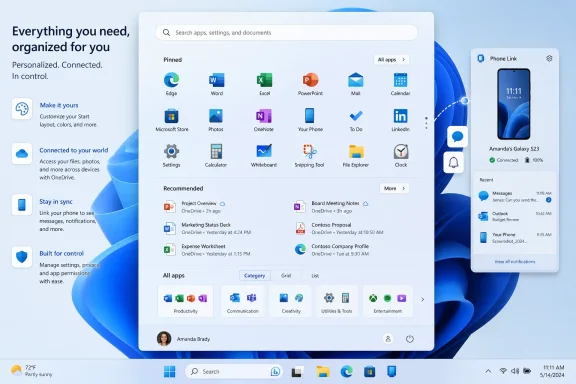 Microsoft Turns the Start Menu Into a Dashboard
The old Start menu was a launcher with ambitions. The new Windows 11 Start experience is closer to a dashboard with a launcher embedded inside it. That difference matters because Windows users have spent three decades building muscle memory around Start as the shortest route between intent and action.The modern Start panel still opens from the Start button, the Windows key, or Ctrl+Esc, which is good. Microsoft has not broken the oldest contract. But everything after that first click has been reshaped around a more curated hierarchy: search first, pinned apps next, recommendations below, all apps folded into the same experience, and account, folder, phone, and power controls along the bottom or side.
That arrangement reflects a company trying to reconcile two competing truths. Windows remains the world’s most important general-purpose desktop operating system, but the way many people use PCs now looks more like a hybrid of local apps, synced files, web services, messaging, and mobile handoff. Start is where Microsoft is trying to make that hybrid feel natural.
The question is whether Windows users asked for Start to become quite this busy. Enthusiasts and administrators tend to value predictability, density, and control. Microsoft increasingly values discoverability, telemetry-informed defaults, and surfaces that can promote features. The redesigned Start menu sits directly in the friction zone between those priorities.
The Centered Panel Was Only the First Compromise
When Windows 11 arrived, its centered Start button and floating Start panel were the most visible symbols of Microsoft’s design reset. The company moved away from the full-width, tile-heavy personality of Windows 10 and toward something more restrained, more touch-friendly, and more visually aligned with modern app launchers. That made Windows 11 look cleaner, but it also made Start feel less like a deeply personal workspace.The move to the center was never merely aesthetic. It signaled that Microsoft wanted the Taskbar and Start to behave less like legacy Windows chrome and more like a fixed focal point. On ultrawide monitors or multi-display setups, the centered default can feel more balanced. On traditional enterprise desktops, it can feel like needless relocation of a control that had been reliably anchored to the lower-left corner since the Clinton administration.
Microsoft’s concession is that users can still left-align Start and Taskbar icons. That option is important because it preserves institutional muscle memory for fleets, training materials, and support desks. It also proves that Microsoft understands the emotional weight of Start, even when its defaults suggest the company would rather move the platform forward than preserve every old habit.
The more significant change, however, is not where Start appears. It is what Start now contains. A floating panel can be ignored; a launcher that increasingly mixes local actions with cloud suggestions, web search, mobile integration, and account nudges is harder to dismiss as a cosmetic tweak.
Search Is the Real Front Door Now
The most powerful part of the modern Start menu is not the pinned grid. It is the search box at the top, which turns Start into a query interface the moment you begin typing. This is the fastest way to launch apps, find settings, open documents, and trigger web-connected results, and it is arguably the most efficient workflow in Windows 11 when it behaves.For power users, search-first computing is not new. Press Windows, type the first few letters of an app, hit Enter, and move on. That pattern is faster than browsing a menu, and Microsoft has wisely kept it intact.
The complication is that Windows Search is no longer just a local index. Depending on settings, it can include documents, Microsoft account content, work or school account material, OneDrive files, web suggestions, and “search highlights.” That makes it more capable, but also more opinionated. A user looking for Device Manager or a local PDF does not necessarily want the operating system to decorate the experience with online content.
This is where Microsoft’s service instincts become visible. Search highlights, web results, account-aware search, and cloud-file integration can be useful in the right context. They can also turn a crisp local command surface into a promotional and network-dependent experience.
The best version of Windows Search is the one users intentionally configure. If a PC is tied closely to OneDrive, Microsoft 365, and enterprise identity, cloud search may be a productivity feature. If the machine is a gaming rig, a lab workstation, a privacy-sensitive laptop, or a domain-joined device with strict data boundaries, narrowing Start search to local content may be the more rational choice.
Pinned Apps Restore Control, But Only After Cleanup
The Pinned section is Microsoft’s answer to the disappearance of Live Tiles and the shrinking of the old app list. It is a customizable grid for the things users launch most often, and it is the part of Start that most closely resembles a traditional launcher. Done well, it can be clean, fast, and personal.The trouble is that the default pinned layout is rarely yours. Microsoft and PC makers can prepopulate the grid with apps, Store links, and shortcuts that reflect business relationships as much as user needs. On a clean retail PC, the first act of personalization is often removal.
That cleanup ritual is more than cosmetic. It is a small but telling reminder that Windows is both a product you use and a distribution channel other parties want to occupy. Start is prime desktop real estate, and every pinned shortcut is a claim on attention.
Fortunately, Microsoft has given users reasonable control once they get past the defaults. Apps can be pinned from several places, unpinned with a context menu, moved around, pushed to the front, and grouped into folders. Those folders are especially useful on small screens or work machines where the number of necessary apps exceeds the space Microsoft’s simplified layout wants to give them.
The Pinned grid works best when treated ruthlessly. Keep daily apps visible, group secondary tools by task, and remove anything that opens a store page rather than a tool you already use. Start becomes dramatically better when it stops being a showroom.
Recommended Remains the Most Contested Strip of Real Estate
No part of Windows 11 Start has attracted more justified suspicion than Recommended. In theory, it is a convenience surface for recently installed apps and recently opened files. In practice, it is also the place where Microsoft’s ideas about suggestions, tips, shortcuts, new apps, and service promotion collide with users’ desire for a quiet launcher.There is a defensible version of Recommended. Recently installed apps are useful because Windows still does a poor job of making new software feel discoverable after installation. Recent documents can also help users resume work, especially on laptops shared across office, home, and travel contexts.
The problem is bundling. Microsoft’s settings do not always map cleanly to how people want to use Windows. A user may want recent files in File Explorer and Jump Lists, but not in Start. An administrator may want users to find newly installed business apps, but not see consumer-style suggestions. A privacy-conscious user may not want sensitive document names appearing the moment Start opens during a meeting.
That makes Recommended less a feature than a negotiation. Users can remove individual items, and settings can reduce what appears there. But the broader design choice is still Microsoft’s: the lower half of Start is treated as an adaptive surface, not a fully user-owned zone.
For many enthusiasts, the right move is to disable recommendations for tips, shortcuts, new apps, and similar content immediately. That does not make Start perfect, but it removes the most obvious promotional pressure. In enterprise environments, policy and provisioning should do the same wherever possible.
“All” Finally Stops Feeling Like an Afterthought
One of the strangest early decisions in Windows 11 was making the full app list feel secondary. Windows has always needed a place where every installed program can be found, even when search fails or the user cannot remember the exact name. A launcher without a good all-apps view is like a toolbox with no inventory.The newer Start design improves this by exposing an “All” section that can present installed apps in Category, Grid, or List views. That is a meaningful change because it acknowledges that no single app list works for everyone. Some users think in categories, some in alphabetized names, and some simply want density.
Category view is Microsoft’s most modern interpretation. It groups apps into buckets such as productivity, utilities, developer tools, creativity, and similar clusters. This can help casual users, but it also depends heavily on classification quality. If the system guesses wrong, the user must mentally search twice: once for the app, and once for Microsoft’s idea of what kind of app it is.
Grid view is a compromise between visual scanning and alphabetic order. It can display more apps horizontally and reduce scrolling, which makes sense on larger panels. List view remains the most traditional and arguably the most legible for administrators, support technicians, and longtime Windows users.
The important win is not that Microsoft picked the right view. It is that Microsoft stopped pretending one view could satisfy every desktop workflow. The Start menu is one of the few interfaces used equally by accountants, gamers, developers, students, lawyers, field technicians, and retired relatives. Flexibility here is not bloat; it is respect for the diversity of Windows itself.
The Account Button Is Small, but the Upsell Risk Is Large
The account manager in Start looks harmless: a profile picture, a name, a way to sign out, and account-related notifications. For consumers using Microsoft accounts and Microsoft 365, that may be a reasonable consolidation. For others, it is another place where Windows can blur the line between operating system status and commercial messaging.Account surfaces are powerful because they feel administrative. If a notification appears near your identity, many users will assume it matters. That makes account prompts a tempting vehicle for subscription reminders, backup nudges, security notices, and service upsells.
Some of those notices may be useful. A password problem, storage issue, or account security warning belongs somewhere prominent. But Windows has a long record of mixing operationally important prompts with promotional nudges, and users have learned to distrust anything that looks like a Microsoft 365 ad wearing a system badge.
That is why the ability to disable account-related notifications matters. It is not just a preference toggle; it is a boundary. Users should not have to wonder whether the Start menu is informing them or selling to them.
In managed environments, this deserves attention. A Start menu that trains users to click account prompts can become noise at best and a support problem at worst. In security-conscious organizations, fewer ambiguous prompts usually means fewer bad clicks.
Folder Buttons Are the Quiet Feature Microsoft Got Right
One of the most practical Start customizations is also one of the least flashy: adding folder and system-app buttons along the bottom of Start. Settings, File Explorer, Documents, Downloads, Music, Pictures, Network, and similar shortcuts can turn the lower edge of the panel into a compact command strip.This is old-school Windows thinking in the best sense. Users do not always want to search, browse categories, or interpret recommendations. Sometimes they want Downloads because they just grabbed a driver, or Settings because they need Bluetooth, or File Explorer because a local folder matters more than anything in the cloud.
The fact that these buttons are off by default is understandable. Microsoft wants a clean first-run experience, and too many icons along the bottom would make Start look cluttered. But for real users, especially those who manage files directly, enabling a few of these buttons makes Start more useful immediately.
There is a lesson here for Microsoft. Not every improvement needs to be intelligent, personalized, or cloud-connected. Sometimes a small static shortcut, placed consistently, beats a panel full of adaptive suggestions.
Phone Link Moves From Companion App to Start Menu Tenant
The optional mobile-device slice is the newest and most revealing addition to Start. If configured through Windows mobile-device settings and Phone Link, the Start menu can show access to phone-related content such as messages, calls, notifications, and recent photos. It can also expose a toggle to show or hide the mobile panel.This is a logical feature in 2026. PCs and phones are no longer separate computing lives for most users. People copy photos from phones into documents, answer texts while working, take calls from laptops, and expect device boundaries to be porous.
Microsoft has spent years trying to make Phone Link feel essential, especially for Android users, and more recently more useful for iPhone owners as well. Putting phone status and activity beside Start is a way of making that integration feel native rather than optional. It is also a way of making Start visually and behaviorally more like a cross-device hub.
The risk is that Start becomes a place for everything. A mobile panel may be helpful for users who live in Phone Link. For users who do not, it can feel like yet another Microsoft-controlled slab of interface area waiting to be configured, dismissed, or hidden.
There is also a privacy dimension. Recent photos, messages, call indicators, and phone notifications are not neutral UI elements. They can expose personal context on a shared screen. Microsoft gives users personalization controls, but the feature should be approached deliberately, not casually enabled because Windows offered it during setup.
The Quick Link Menu Remains the Adult in the Room
Right-clicking the Start button still opens the Quick Link menu, the compact administrative shortcut list that many users call the power user menu. It remains one of the most useful pieces of Windows interface design because it has a narrow job and mostly sticks to it. Device Manager, Computer Management, Task Manager, Settings, File Explorer, Search, Run, Terminal, and shutdown options are exactly the kind of tools experienced users want close at hand.The contrast with the main Start menu is striking. Start is increasingly adaptive, promotional, visual, and service-aware. The Quick Link menu is blunt, text-heavy, and practical. It does not try to predict your intent; it gives you a list of powerful places to go.
That is why administrators and enthusiasts keep using it. Windows may rework Start, Settings, search, widgets, Copilot integrations, and account surfaces, but the Quick Link menu still feels like an escape hatch from consumer UX. It is not beautiful, but it is trustworthy.
Microsoft should treat that trust as a design asset. The more Start becomes a blended dashboard, the more valuable it is to preserve a separate, low-noise route to system tools. Not every surface needs to be friendly. Some need to be dependable.
Enterprises Will See a Configuration Problem, Not a Design Refresh
For home users, the modern Start menu is a matter of taste and tolerance. For IT departments, it is a configuration surface that affects onboarding, support, privacy, compliance, and user productivity. A small Start change multiplied across thousands of machines becomes operational work.Administrators care about what appears by default, what can be removed, what can be enforced, and what changes after monthly updates. Pre-pinned apps, recommendations, account prompts, search behavior, and mobile-device integration are not merely UI preferences when the devices belong to a business. They are policy decisions.
The new all-apps views may help reduce support friction if users can more easily find installed software. The Pinned grid can be useful if provisioned cleanly for role-based workflows. Folder buttons can reduce training overhead. But Recommended content, consumer suggestions, and account notifications may need to be disabled or tightly managed.
There is also the question of consistency. Windows 11 now spans multiple servicing stages, hardware classes, and rollout rings. A help desk script that says “click All apps” or “open the Recommended section” can become less precise when Microsoft changes labels, layouts, and default views over time. The more dynamic Start becomes, the more documentation and support material must chase it.
The most successful enterprise deployments will treat Start as part of the desktop image, not as a default to be accepted. That means deciding what belongs in Pinned, whether recommendations should exist, how search should behave, whether Phone Link is appropriate, and which folder buttons should be exposed. Microsoft gives enough controls to make Start sane, but not enough reason to assume the out-of-box layout is optimal.
Enthusiasts Should Stop Arguing About the Old Menu and Start Pruning the New One
There is a temptation among longtime Windows users to compare every Start menu to Windows 7 and declare the old model superior. That argument is emotionally satisfying but increasingly incomplete. The Windows desktop of 2026 is not the desktop of 2009, and a Start menu that ignores search, cloud files, mobile devices, and modern app packaging would be nostalgic rather than useful.The better critique is that Microsoft often confuses integration with intrusion. Search can be excellent without web clutter. Recommendations can be useful without app promotion. Account status can be helpful without subscription nagging. Phone Link can be powerful without claiming permanent visual territory.
This is the core tension of Windows 11 Start. Its architecture is more flexible than early Windows 11 critics sometimes admit. But its defaults still reflect Microsoft’s platform ambitions more than a purist’s idea of a launcher.
The practical path is not to wait for Microsoft to rediscover Windows 7. It is to make the current Start menu less Microsoft-authored and more user-authored. Left-align it if that improves muscle memory. Turn off noisy recommendations. Clean the pinned grid. Choose the all-apps view that matches how you think. Add folder buttons. Hide the phone slice unless it genuinely helps.
A configured Start menu can be good. The problem is that users must configure it to escape the gravitational pull of Microsoft’s defaults.
The Start Menu’s New Contract Is Written in Toggles
The modern Start experience rewards users and administrators who spend ten minutes making choices Microsoft did not make for them. That is both a strength and an indictment. Start is powerful because it is configurable; it is frustrating because so much of that configuration is needed to restore calm.- Start is now a centered dashboard that combines launching, search, recommendations, account controls, power options, all-apps browsing, and optional mobile-device access.
- The search box is the fastest way to use Start, but it should be tuned carefully if users want local results instead of Microsoft account, cloud, web, or highlight-driven content.
- The Pinned area becomes useful only after removing unwanted defaults and organizing the apps that actually matter.
- The Recommended section is defensible for recent apps and files, but its tips, shortcuts, app suggestions, and promotional potential make it the first place many users should prune.
- The new All section with Category, Grid, and List views is a real improvement because it admits that Windows users do not all navigate software the same way.
- Phone Link integration in Start is convenient for cross-device workflows, but it deserves privacy scrutiny before messages, photos, calls, and notifications become part of the desktop’s most visible panel.
References
- Primary source: thurrott.com
Published: Mon, 15 Jun 2026 22:30:53 GMT
Start - Thurrott.com
Start is the primary interface for launching apps and recent documents in Windows 11, but it's been simplified and now appears centered.www.thurrott.com - Official source: support.microsoft.com
Mobile device in Start Menu - Microsoft Support
 support.microsoft.com
- Related coverage: windowscentral.com
Microsoft confirms new Start menu experience for Windows 11 | Windows Central
The Windows 11 Start menu is getting a more customizable layout with a collapsible Phone Link panel.www.windowscentral.com - Official source: learn.microsoft.com
Customize the Windows 11 Start menu | Microsoft Learn
How to pin OEM apps in the Windows 11 start menulearn.microsoft.com - Related coverage: windowslatest.com
Windows 11's new Start menu released. Is it better than old Start?
The Windows 11 Start menu has received a major update for versions 24H2 and 25H2, with single page, category based All apps view and more. www.windowslatest.com
- Related coverage: slashgear.com
Windows 11 Is Getting An All-New Start Menu – Here's How You Can Try It Out
While Windows 11 still doesn't let you manually resize the Start menu, this new iteration does automatically adjust based on the screen size.www.slashgear.com
- Related coverage: pcworld.com
Windows 11's new Start menu adds a nifty 'phone companion' panel | PCWorld
The new Start menu is expected to roll out next month, along with several AI-driven features.www.pcworld.com - Official source: intowindows.com
How To Turn Off "Access Your Mobile Device Here" Pane In Windows 11 Start Menu
By default, Windows 11 opens the Start menu when you press the Windows logo key on the keyboard or click the Windows logo icon on the taskbar. However,www.intowindows.com - Related coverage: techradar.com
Windows 11 is finally getting the Start menu changes we all wanted — and a surprise bonus | TechRadar
The new Start menu looks excellent, and Microsoft is tackling issues with rusty old parts of the Windows 11 interfacewww.techradar.com - Related coverage: tomsguide.com
Microsoft reportedly redesigning Start Menu in Windows 11 after actually listening to user complaints | Tom's Guide
Microsoft is reportedly working on yet another redesign of the Start Menu in Windows.www.tomsguide.com - Related coverage: support.waspbarcode.com
