

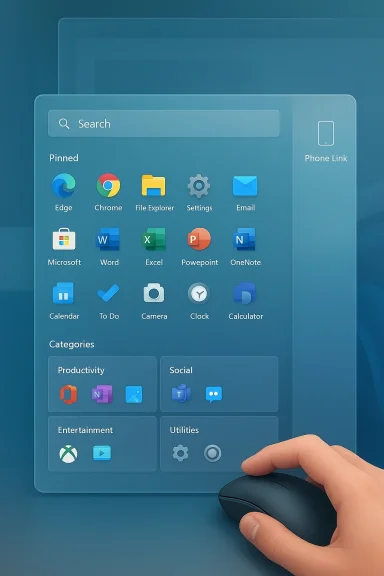
Microsoft has begun widening the rollout of the biggest Start menu overhaul Windows 11 has seen since the OS launched, delivering a single‑page, mobile‑inspired launcher, a denser app grid for large monitors, an automatically generated “Category” app view, and an integrated Phone Link sidebar — all arriving as part of the January cumulative update (KB5074109) that shipped on January 13, 2026 (OS Builds 26100.7623 and 26200.7623).
For years, the Windows Start menu has been a tension point between traditional desktop workflows and modern mobile patterns. Windows 11’s initial design simplified the menu compared with Windows 10, but it also split discoverability across pinned tiles, a Recommended list, and a separate All apps pane — a structure many users found fiddly on large, high‑DPI displays.
Microsoft began testing a consolidated, scrollable Start in preview channels during late 2025, packaged in the October non‑security preview (enablement preview) and iterated through Insider flights. The January 2026 cumulative update, KB5074109, is the first broadly distributed cumulative that explicitly notes the redesigned Start is “available to more devices.” That language, and Microsoft’s continued use of staged, server‑side feature gates, means the UX will appear for some machines automatically while others remain on the old Start until Microsoft flips the internal enablement flag.
This article explains what changed, why it matters, how it behaves today, and what IT teams and power users should watch for — with technical verification of the most load‑bearing claims and caution where Microsoft’s staged deployment or UI experimentation leaves details fluid.
This mirrors modern mobile launchers and aims to make app discovery faster on desktops with large vertical space. The single‑canvas model also simplifies mental models: you don’t “switch into All apps” anymore — everything is in one place.
New Start personalization options let users turn off:
Caveat on counts: some outlets reported the Recommended area shows up to six suggestions on wide displays; other reporting simplified that into row counts or two‑row behavior depending on the layout setting. Because layout is device‑dependent, expect recommendation density to vary by monitor size and scaling.
Platform notes: Phone Link continues to work best with Android; iPhone support is constrained by platform limitations and remains more limited for some mirroring features. Availability is phased regionally and may be gated in certain markets.
For enterprises, it signals an ongoing need to keep policy and manageability tooling current: as Microsoft layers new discovery features and AI integrations into the shell, admins will have to balance user convenience with control, compliance, and predictable supportability.
For most users on modern hardware, the redesign will feel like progress: fewer clicks, smarter layouts, and faster access. For power users and IT administrators, the experience will demand testing, policy updates, and clear communication because staged enablement and global toggle behaviors can introduce surprises.
If you’re an IT pro or an invested power user, pilot the change, verify the implications for recent‑item workflows, and be prepared to counsel colleagues on where to find the new controls. If you’re a casual user, explore Category and Grid views — one of them will probably make your day‑to‑day app launching noticeably faster.
Source: fakti.bg Windows 11 gets a redesigned Start menu
 Background / Overview
For years, the Windows Start menu has been a tension point between traditional desktop workflows and modern mobile patterns. Windows 11’s initial design simplified the menu compared with Windows 10, but it also split discoverability across pinned tiles, a Recommended list, and a separate All apps pane — a structure many users found fiddly on large, high‑DPI displays.Microsoft began testing a consolidated, scrollable Start in preview channels during late 2025, packaged in the October non‑security preview (enablement preview) and iterated through Insider flights. The January 2026 cumulative update, KB5074109, is the first broadly distributed cumulative that explicitly notes the redesigned Start is “available to more devices.” That language, and Microsoft’s continued use of staged, server‑side feature gates, means the UX will appear for some machines automatically while others remain on the old Start until Microsoft flips the internal enablement flag.
This article explains what changed, why it matters, how it behaves today, and what IT teams and power users should watch for — with technical verification of the most load‑bearing claims and caution where Microsoft’s staged deployment or UI experimentation leaves details fluid.
What’s new: the redesign explained
A single, vertically scrollable surface
The most fundamental change is structural: the Start menu is now a single, vertically scrollable canvas where Search → Pinned apps → Recommended → All apps appear in a strict vertical order. Instead of toggling or switching panes, you now scroll through the combined surface, reducing the number of clicks for discovery.This mirrors modern mobile launchers and aims to make app discovery faster on desktops with large vertical space. The single‑canvas model also simplifies mental models: you don’t “switch into All apps” anymore — everything is in one place.
Multiple All apps views: Category, Grid, List
The traditional All apps list has been promoted into the main Start surface and gained three view modes:- Category view — The system automatically groups apps into topical buckets (for example, Productivity, Creativity, Social/Gaming). Frequently used apps are surfaced within each bucket.
- Grid view — A denser, tile‑style icon grid optimized for horizontal scanning.
- List view — The classic alphabetical list for users who prefer the historic behavior.
Denser pinned grid and responsive columns
The Start surface adapts to your screen’s resolution and DPI. On larger displays the pinned area and category rows will expand to show more content. Example behavior observed across preview and production releases shows:- Desktop/large monitors can display up to eight columns of pinned apps.
- Category rows expand to multiple columns (commonly four on wide screens).
- Smaller laptops and tablets receive compressed layouts — fewer columns and smaller grids.
Recommendations: more control, hidden consequences
The Recommended area (recent files and suggested apps) has been updated in two ways: it can now surface more recent items in a denser layout, and Microsoft has exposed explicit toggles to hide those recommendations entirely.New Start personalization options let users turn off:
- Show recently added apps
- Show recommended files in Start (recently opened files)
- Show websites from browsing history
- Show recommendations for tips and tips/promotions
Caveat on counts: some outlets reported the Recommended area shows up to six suggestions on wide displays; other reporting simplified that into row counts or two‑row behavior depending on the layout setting. Because layout is device‑dependent, expect recommendation density to vary by monitor size and scaling.
Phone Link: mobile content lives inside Start
A small Phone Link (mobile device) icon appears beside the Start search box and expands a collapsible sidebar inside the Start surface. The Phone Link panel gives quick access to:- Phone battery status and charging indicator
- Recent messages and notifications
- Recent calls and call controls (where supported)
- Recent phone photos with quick transfer actions
Platform notes: Phone Link continues to work best with Android; iPhone support is constrained by platform limitations and remains more limited for some mirroring features. Availability is phased regionally and may be gated in certain markets.
Why Microsoft did this: goals and tradeoffs
Microsoft’s design goals are pragmatic and explainable:- Discoverability — With more installed apps and complex workflows, a single‑canvas Start reduces the clicks required to find an app or recent file.
- Screen‑awareness — High‑DPI, ultrawide, and multi‑monitor setups benefit from denser grids. The UI now scales to the screen rather than constraining large displays to a cramped, phone‑sized interface.
- Cross‑device continuity — Surfacing Phone Link in Start supports Microsoft’s long‑term push for better mobile‑to‑PC flows.
- User control — Giving explicit toggles for recommendations addresses a long‑standing complaint from users who wanted a less noisy Start menu.
- The single‑surface model makes Start taller and more prominent. Users on smaller screens may feel overwhelmed by vertical density.
- The global toggle for “recent items” breaks the expectation that you can hide recommendations in Start without affecting File Explorer and jump lists. That coupling can disrupt workflows that rely on recent‑document lists.
- Auto‑generated categories are convenient but limit fine‑grained user control: you cannot (yet) drag apps between system‑created categories or create your own custom buckets in many builds. Power users and admins who rely on deterministic Start layouts may find the automated behavior unpredictable.
Hands‑on behavior: what users actually see
Typical interactions
- Open Start: Search field remains at the top. The pinned grid appears prominently under search, followed by the Recommended section and the All apps area below.
- Change All apps view: A view selector (Category / Grid / List) switches the All apps section’s layout. The Start menu remembers the selected view on subsequent openings.
- Use Phone Link: Click the mobile icon near Search to expand a side panel with phone content; collapse when finished.
- Hide recommendations: Settings → Personalization → Start exposes toggles to hide recommendation types. Turning off “Show recently opened items in Start, Jump Lists, and File Explorer” clears recent items everywhere.
Shortcomings reported in previews
- Some testers reported occasional layout glitches — empty categories, inconsistent view labels after a reboot, or the Start menu temporarily reverting to the legacy surface. These are expected during staged rollouts.
- Touch gestures and drag‑and‑drop behaviors vary; certain preview builds limit drag‑and‑drop to pinned area changes only.
- Because Microsoft uses staged enablement flags, installing KB5074109 will not guarantee the redesigned Start appears on every device; some machines will get the update and remain on the older Start until server‑side activation.
Enterprise and IT considerations
Deployment mechanics and enablement packaging
The Start redesign is delivered as an enablement‑style experience: parts of the UI land inside servicing updates, but Microsoft may flip server‑side gates to activate the new experience for subsets of devices. That means:- Installing KB5074109 or the underlying servicing stack updates does not necessarily guarantee immediate exposure to the new Start UI.
- Staged activation makes A/B testing and telemetry‑driven rollouts possible; Microsoft can disable or delay the feature if issues surface.
- Imaging and validation teams should test both the presence and absence of the redesigned Start when building images or baselines.
Policy and manageability
Microsoft provides policy controls and Configuration Service Provider (CSP) settings to manage Start behavior at scale. Relevant enterprise controls include:- Settings to hide the Recommended section and remove personalized website recommendations.
- Policy to hide recent items / jump lists, which maps to the same global toggle available in Settings.
- The Start layout can still be provisioned via Intune/Settings catalog with layout JSON or via Group Policy in many scenarios, though the new category‑driven behaviors may not honor custom, per‑user grouping expectations until Microsoft provides explicit CSP or ADMX counterparts.
- Pilot the new Start with representative users before broad rollout.
- Validate that DLP, e‑discovery, and file‑sharing workflows behave as expected when the Recommended area is disabled (remember: Recent items in File Explorer may disappear when you toggle that setting).
- Update internal documentation and screenshots used for training, onboarding, and helpdesk knowledge bases.
Security/performance impact
The change is primarily UI and discoverability focused — it does not materially alter core security behavior. However, any update that changes system shell surfaces can create ephemeral usability or compatibility issues (for example, custom shell extensions or third‑party start‑menu utilities). IT teams should monitor support queues after deployment and ensure that feature gating does not mask larger compatibility problems.What this means for end users and power users
- If you value quick access to many pinned apps on a large monitor, the new Start is likely an immediate win: more pins, fewer clicks, and better density.
- If you rely on File Explorer’s Quick Access recents and taskbar jump lists, do not presume you can hide Start’s recommended feed without side effects — the “recent items” toggle is system‑wide.
- If you prefer full control over how apps are arranged, the current Category view may feel constraining because categories are auto‑generated and not yet user‑editable in many builds.
- If you dislike phone notifications on the desktop, the Phone Link sidebar is collapsible and can be hidden entirely.
- Try the new view modes and pick whichever fits your mental model — List keeps the old behavior, Grid is compact, Category is discovery‑focused.
- To hide recommended items but keep Explorer recents (if that is important), test the toggles on a non‑critical machine first — the options are linked by design in current builds.
- Power users who want the earliest exposure can join the Windows Insider channels or use third‑party tools to toggle experimental flags — but be aware of stability risks and lack of official support.
Strengths, risks, and long‑term implications
Notable strengths
- Discoverability and scale — The single canvas and responsive layout are meaningful improvements for users with large app libraries and multi‑monitor setups.
- User control — The addition of explicit toggles for recommendations answers one of the most common user complaints about Windows 11’s Start.
- Cross‑device continuity — The Phone Link sidebar is a clean, friction‑reducing integration for mobile content that fits within the existing Start context.
Potential risks and downsides
- Global toggle coupling — The linkage between Start recommendations and system‑wide recent‑items lists can produce surprising behavior and break workflows that depend on jump lists or Explorer recents.
- Auto categorization limits — Automated categories sacrifice user determinism. For users and admins who want deterministic Start layouts, the lack of manual category editing is a legitimate pain point.
- Staged activation complexity — The enablement gating model means IT teams must plan for mixed environment states and account for both UIs during training and troubleshooting.
- Hidden UI regressions — Shell updates have a high surface area; even cosmetic changes can reveal compatibility issues with third‑party extensions, accessibility tools, or custom enterprise shells.
Long‑term implications
This Start redesign indicates Microsoft’s willingness to move Windows shell components toward mobile‑style paradigms and tighter mobile integration. The redesign also suggests Microsoft expects Windows to be more contextually aware of devices, content, and AI‑driven actions — a direction that will shape future iterations of Copilot and on‑device assistant hooks in the shell.For enterprises, it signals an ongoing need to keep policy and manageability tooling current: as Microsoft layers new discovery features and AI integrations into the shell, admins will have to balance user convenience with control, compliance, and predictable supportability.
What to watch next
- Adoption telemetry: watch Microsoft’s release health and update‑history notices to track how quickly the redesigned Start is enabled across devices in different channels.
- Category customization: Microsoft will likely expose finer controls for categories if feedback from power users and enterprises remains loud — look for CSP/ADMX updates or explicit “manage categories” settings.
- Policy parity: ensure Intune and ADMX receive updated settings that map to the new UI toggles so organizations can manage Start behavior centrally without relying on per‑device toggles.
- Phone Link parity: check for improved iPhone parity and expanded region availability as the Phone Link panel matures.
- Bug and regression reports: major shell updates can surface edge issues. Administrators should monitor support channels for reports tied to the KB5074109 install.
Practical checklist for rolling this out in an organization
- Inventory: Identify machines where the new Start’s responsive layout might change user workflows (ultrawide monitors, kiosks, shared devices).
- Pilot: Enable the update and staged activation on a pilot cohort; capture screenshots and update internal training materials.
- Policy: If you want to control recommendations or recent item visibility centrally, deploy the relevant Start CSP/GPO settings during pilot.
- Monitor: Track helpdesk tickets for recent‑files complaints, Start layout questions, and phone‑integration queries.
- Communicate: Inform users about the change and document the Settings path to toggle Recommended items so they can self‑service.
Final verdict
Microsoft’s redesigned Start is a pragmatically ambitious attempt to modernize the OS launcher for the realities of larger screens, more installed apps, and cross‑device continuity. It solves persistent discoverability and density challenges while adding useful mobile integrations — but the approach is interim and experimental in parts. The most meaningful friction today is not the look of the new Start but the behavioral choices Microsoft made: automated categories that reduce manual control, and a global “recent items” toggle that ties Start to File Explorer and jump lists.For most users on modern hardware, the redesign will feel like progress: fewer clicks, smarter layouts, and faster access. For power users and IT administrators, the experience will demand testing, policy updates, and clear communication because staged enablement and global toggle behaviors can introduce surprises.
If you’re an IT pro or an invested power user, pilot the change, verify the implications for recent‑item workflows, and be prepared to counsel colleagues on where to find the new controls. If you’re a casual user, explore Category and Grid views — one of them will probably make your day‑to‑day app launching noticeably faster.
Source: fakti.bg Windows 11 gets a redesigned Start menu
