

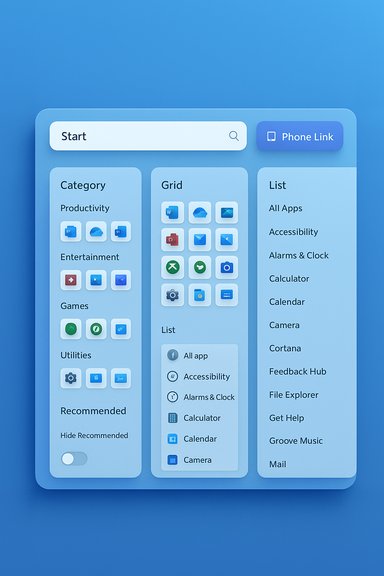
Microsoft’s long-maligned Start menu has quietly been rebuilt into something significantly more flexible and functional — a single, vertically scrollable launcher that promotes the full “All apps” index to the main surface, adds Category, Grid and List presentation modes, tightens Phone Link integration, and gives users explicit controls to hide the Recommended feed — changes arriving to Windows 11 via the optional October preview (KB5067036) and the November cumulative update (KB5068861) for 24H2 and 25H2 systems.
The Start menu has been the emotional center of Windows UI debates for decades. Windows 11’s centered, minimalist Start introduced in 2021 traded density and customization for a cleaner aesthetic, separating pinned shortcuts from a separate All apps page and including a prominent Recommended area. That simplicity left many users frustrated with extra clicks and limited layout control.
Microsoft’s most recent redesign responds to that feedback by reorganizing Start around discoverability, adaptive layout, and user control. The new Start is being delivered as part of Microsoft’s servicing pipeline: the redesigned UI first appeared in Release Preview (KB5067036) and was folded into the November Patch Tuesday cumulative update (KB5068861). Both Microsoft and independent coverage confirm the same core behaviors: a single scrollable Start surface, three All apps views (Category / Grid / List), responsive column and density scaling, and explicit toggles to hide the Recommended area.
For most users the upgrade will feel like a thoughtful practical refinement — a cleaner, more functional app drawer that respects choice and display diversity. For power users and admins, the next round of iterations should add deterministic grouping controls and clearer enterprise controls to close the remaining gaps. The new Start is a substantial step forward; the details of its adoption and the pace of follow‑up features will determine whether it becomes the definitive Start menu many users have longed for.
Source: Pocket-lint 3 Start Menu upgrades every Windows 11 user will love
 Background / Overview
The Start menu has been the emotional center of Windows UI debates for decades. Windows 11’s centered, minimalist Start introduced in 2021 traded density and customization for a cleaner aesthetic, separating pinned shortcuts from a separate All apps page and including a prominent Recommended area. That simplicity left many users frustrated with extra clicks and limited layout control.Microsoft’s most recent redesign responds to that feedback by reorganizing Start around discoverability, adaptive layout, and user control. The new Start is being delivered as part of Microsoft’s servicing pipeline: the redesigned UI first appeared in Release Preview (KB5067036) and was folded into the November Patch Tuesday cumulative update (KB5068861). Both Microsoft and independent coverage confirm the same core behaviors: a single scrollable Start surface, three All apps views (Category / Grid / List), responsive column and density scaling, and explicit toggles to hide the Recommended area.
What changed: the headline features
1) A single, vertically scrollable Start surface
- The Start menu’s main page now contains the All apps inventory, pinned apps, and Recommended content in one continuous vertical canvas. That eliminates the two-step flow (open Start → open All apps) and aligns the experience with modern mobile app drawers and third-party launchers.
- Practical effect: fewer clicks to reach less frequently used apps, better app discovery for users with long software catalogs, and smoother touch interactions on tablets and convertible devices. Independent hands‑on reporting and Microsoft’s preview notes both highlight this design shift.
2) Three ways to browse “All apps” — Category, Grid, List
- Category view: apps are auto-grouped into topical buckets (Productivity, Games, Creativity, Communication, etc., with frequently used apps surfaced inside each group.
- Grid view: an alphabetized, denser tile grid optimized for horizontal scanning and quick visual lookup.
- List view: the classic alphabetical list for keyboard-driven power users.
3) Better control over Recommended and pinned content
- Microsoft added explicit toggles in Settings → Personalization → Start that let users hide Recommended files and adjust how pinned apps behave. You can expand/collapse the pinned area and choose to show more or fewer rows of pins. This moves Start toward being user-configurable rather than a fixed presentation.
4) Responsive layout and use of screen real estate
- Start adapts automatically to screen size, DPI, and resolution: larger monitors show more pinned app columns, more recommendation slots, and additional category columns; smaller screens compress the layout. Media hands‑on coverage captured illustrative column counts and density options on different displays, while Microsoft keeps the description more general in official notes. These adaptive behaviors are intended to make Start feel appropriately scaled on handheld Windows devices, laptops, and desktop monitors.
5) Phone Link integration folded into Start
- A small mobile-device / Phone Link button now sits beside the Start search field; clicking it expands a collapsible Phone Link pane inside Start that surfaces calls, messages, photos, and simple continuity actions for a paired Android or iOS device. Microsoft and The Verge documented this continuity addition during Insider experiments.
Why this is a meaningful upgrade (what users gain)
- Faster app discovery. With All apps promoted to the main canvas and a scrollable surface, you can reach every installed program with one press of the Windows key and a scroll — fewer clicks, fewer context switches.
- Choice of discovery models. Not everyone finds the same layout intuitive. Category view helps find things by task; Grid favors visual scanning; List favors predictable alphabetical searching.
- Real screen-aware behavior. The Start menu now uses extra pixels on big monitors instead of leaving them underutilized, which is welcome for multi-monitor and high‑DPI setups.
- More control. The ability to hide Recommended content and adjust pinned rows addresses long-standing complaints that Start felt cluttered or too opinionated.
- Cross-device convenience. Embedding Phone Link shortcuts directly in Start reduces friction for phone-to-PC tasks like grabbing a recent photo or checking a text.
What didn’t change — and user trade-offs
- No manual app grouping like Windows 10. The new Category buckets are system-generated; there’s no built-in UI to create custom app groups exactly the way Windows 10 Live Folders or explicit groups worked. That’s a notable omission for power users who relied on manual grouping. Multiple reports confirm categories are auto-generated and not user-editable in the initial rollout.
- No free-form resize handle. Unlike Windows 10, the Start menu still doesn’t offer arbitrary drag-to-resize in both axes — the layout is adaptive, not manually resizable. Media coverage notes the menu adapts to display size and scaling but cannot be freely resized like older versions.
- Gradual rollout means inconsistency. Microsoft uses staged, server-side feature flags (controlled feature rollout) so even if the KB is installed, some devices may not see the new Start immediately. That leads to inconsistent experiences across machines and fleets while the flip is in progress. Microsoft’s documentation and reporting from outlets and community threads emphasize staged enablement.
Technical verification: the facts and the KBs
- The Start redesign was delivered in Release Preview via KB5067036 (builds 26100.7015 / 26200.7015) as an optional preview that contains the new Start experience. Microsoft explicitly documents the scrollable All section and Category/Grid views in the preview notes.
- The November Patch Tuesday cumulative update, KB5068861 (build families 26100.7171 / 26200.7171), folded fixes and some of the preview’s behavior into the mainstream servicing channel. The KB release notes list Start improvements and mention quality fixes addressing issues observed in October’s preview. The KB entry also includes build numbers and distribution guidance.
- Phone Link behavior and EEA rollout: Microsoft’s Insider announcement describes Phone Link being available inside Start and notes phased regional rollouts (EEA mentioned in preview notes). Independent reporting tracked the Phone Link tests.
- View persistence and toggles: Microsoft and coverage state the Start menu remembers the last All apps view and exposes settings to hide Recommended content via Settings > Personalization > Start.
Critical analysis: strengths, UX wins, and where Microsoft still needs to improve
Strengths (what Microsoft got right)
- Design that reflects real user workflows. Users rarely navigate to an All apps page intentionally; bringing everything to one surface reduces friction and matches modern launcher mental models.
- Options, not directives. Introducing multiple views and persistent preferences respects user choice. Remembering the last view reduces toggling friction and supports varied workflows.
- Better scaling for modern hardware. By responding to DPI and display size, Start is more useful on large monitors and handheld PCs where density matters.
- Privacy and control improvements. Easier toggles to hide Recommended files and sites reduce unwanted surface-level suggestions that irked privacy‑conscious users.
Weaknesses and risks (what still concerns power users and IT admins)
- Auto-grouping without manual control. Automatic categories are convenient for many users but unpredictable for those who want deterministic folder-like control. Admins and power users who build curated Start layouts will find the lack of manual grouping limiting.
- Staged enablement creates a fragmented experience. During a staged rollout, support teams and regular users may describe different Start behavior depending on whether the feature flag is active. That inconsistency complicates documentation, training, and helpdesk workflows.
- Stability concerns tied to update delivery. Recent coverage has flagged issues where updates affected Start/Taskbar/Explorer reliability on some systems; Microsoft acknowledged and fixed multiple issues across preview and cumulative updates. Administrators should pilot these updates in constrained rings before broad deployment. The community and news reports highlight a non-zero risk of UI breakage tied to the servicing mechanism.
- Accessibility and muscle memory. Long-time Windows users have entrenched muscle memory for prior Start interactions (resizing, grouping, classic menu behavior). While the redesign benefits most users, there’s an adjustment cost and some features (like drag-to-resize or manual app group creation) that are still missing.
Deployment and management guidance (for enthusiasts, IT pros, and everyday users)
- Enthusiasts who want the new Start now can join the Release Preview/Insider channels or install the optional KB preview package (KB5067036). Be aware: Microsoft may still gate the experience via server-side flags. Independent communities documented methods (ViVeTool) to toggle features, but using third‑party tooling carries risk and may void support expectations.
- IT administrators should:
- Pilot KB5067036 / KB5068861 in a small set of devices (pilot ring) to confirm behavior across hardware mixes.
- Validate any group policy or management tasks that depend on Start menu pins or layout—Microsoft added a Boolean option to Configure Start Pins policy in KB5068861 to allow admins to apply pins once and let users modify them thereafter. Use this to avoid fighting user personalization.
- Monitor Microsoft’s update health dashboard and known‑issue lists for post-deployment regressions.
- Users who prefer classic grouping or absolute control should continue to evaluate third‑party tools (Start11, Explorer alternatives) until Microsoft introduces manual grouping options. Community tools can fill gaps but carry trade-offs for stability and supportability.
Privacy, telemetry, and policy considerations
- The Recommended area pulls from recent files, documents, and web suggestions. Hiding Recommended is straightforward, but the underlying telemetry that surfaces suggestions still exists for features that rely on activity history. Organizations with strict data policies should verify feature behavior and consider applying enterprise controls or retention policies that limit the signals used for recommendations. Microsoft’s rollout guidance includes settings that are manageable via MDM and group policy for many of these behaviors.
- The auto-categorization engine uses app metadata; it does not expose file contents to external services beyond typical Windows telemetry channels. Still, admins managing sensitive environments will want to validate whether auto-grouping reveals any unexpected app relationships or labels that could confuse users.
Real-world takeaways and practical tips
- If you’ve been frustrated by Windows 11’s split Start, this update is the most user-visible correction to that design choice yet: expect a more coherent, app-drawer–like experience and more control over clutter.
- To hide Recommended quickly: Settings → Personalization → Start and toggle off recommendations and “show recently added / most used” options. That leaves a compact pinned + apps experience similar to classic launchers.
- If you administrate fleets, treat KB5067036 and KB5068861 as feature-bearing updates — pilot, measure, and stage them rather than broad immediate deployment.
- If you need deterministic Start layouts in enterprise images, test the Configure Start Pins policy variant introduced in KB5068861 that allows admins to apply pins once and let users preserve changes.
What remains uncertain or unverifiable today
- Exact column counts and the precise number of pins shown on every device vary by display size, resolution, scaling, and Microsoft’s adaptive thresholds. Published examples in media are useful guides but not definitive specs for every configuration; treat those as illustrative rather than absolute.
- Microsoft’s staged, server-gated enablement means who gets the new Start on day X is not fully predictable; installing the preview KB may be necessary but not sufficient. That gating is intentional for telemetry-driven rollouts and can make timelines fuzzy for individual users.
- Any claim that a single KB or build will produce identical Start behavior across all hardware is false in practice during staged rollouts. Expect variation until Microsoft completes its gradual activation.
Conclusion
The redesigned Windows 11 Start menu is a rare UI update that meaningfully improves daily workflows without erasing the platform’s modern aesthetic. By collapsing All apps, pins, and recommendations into a single, scrollable canvas and adding Category / Grid / List views plus stronger personalization toggles, Microsoft has addressed the core discoverability problems that frustrated many users since 2021. At the same time, the rollout model, missing manual grouping controls, and the usual risks that accompany large servicing changes mean this isn’t a frictionless win for every audience immediately.For most users the upgrade will feel like a thoughtful practical refinement — a cleaner, more functional app drawer that respects choice and display diversity. For power users and admins, the next round of iterations should add deterministic grouping controls and clearer enterprise controls to close the remaining gaps. The new Start is a substantial step forward; the details of its adoption and the pace of follow‑up features will determine whether it becomes the definitive Start menu many users have longed for.
Source: Pocket-lint 3 Start Menu upgrades every Windows 11 user will love
