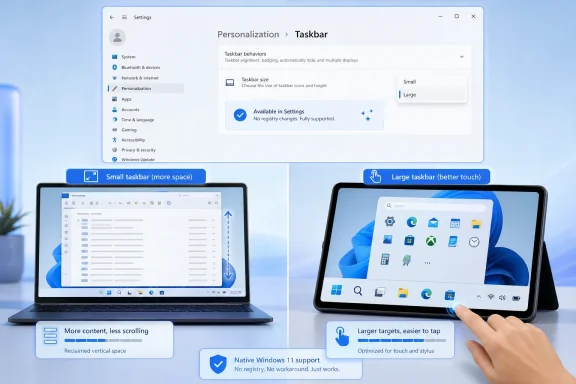
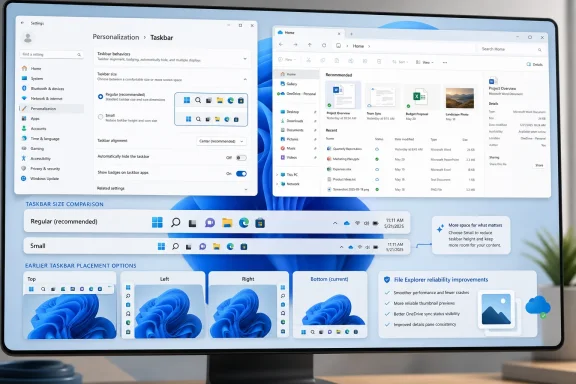
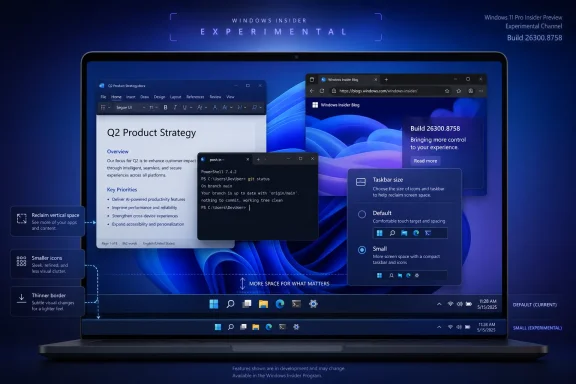
Microsoft is testing a dedicated Taskbar Size setting for Windows 11 preview users, giving Insiders a visible Settings control for making the taskbar more compact or larger instead of relying on registry edits, hidden flags, or third-party customization tools. The change is small in the way a light switch is small: obvious only after you have spent years fumbling in the dark. It also says something important about the current Windows 11 moment. Microsoft is no longer merely defending the simplified desktop it shipped in 2021; it is slowly admitting that control is part of polish.
The new Taskbar Size control matters because Windows 11’s taskbar has spent much of its life as a symbol of subtraction. When Microsoft launched Windows 11, it did not just center icons and redesign Start. It removed or limited familiar affordances that had accumulated over decades: moving the taskbar to another edge, changing its size in expected ways, and generally treating the desktop shell as something users could bend to their own habits.
That tradeoff was not irrational. Windows 11 was intended to feel cleaner, more predictable, and more touch-friendly than the sprawling desktop Windows had become. But the cost was obvious to anyone using a cramped laptop screen, a vertical monitor, a multi-display setup, or a workflow built around keeping many apps visible at once. The taskbar became less of a workbench and more of a fixture.
A dedicated Taskbar Size setting is Microsoft’s latest attempt to rebalance that equation. Instead of expecting users to know which registry value to create, which Explorer restart to trigger, or which utility to trust, the company is putting the choice where it belongs: Settings, under Personalization. That is not just a convenience improvement. It is a tacit acknowledgment that a desktop operating system should not require folklore to perform basic personalization.
The important distinction is that Microsoft is not simply restoring the Windows 10 model wholesale. The company appears to be rebuilding customization through controlled Settings surfaces rather than bringing back every old direct-manipulation behavior. That may disappoint users who want the full classic taskbar, but it also explains why the new approach feels more deliberate than nostalgic.
That makes taskbar sizing more than an aesthetic preference. On a 13-inch laptop, a shorter taskbar can return usable vertical space to documents, browsers, terminals, and IDEs. On a high-DPI desktop monitor, larger buttons can make targets easier to hit. On touch devices, bigger controls are not decoration; they are usability. On remote sessions and virtual desktops, compact UI can be the difference between a workable environment and a constant scroll-and-resize fight.
Microsoft’s earlier taskbar icon-scaling work gestured at this problem by allowing icons to shrink when the taskbar became crowded. The newer size setting pushes further by making size a deliberate user choice rather than merely an automatic overflow response. That difference matters. Automation helps when the system guesses correctly; a visible setting helps when the user already knows what they need.
The likely audience is broader than the usual enthusiast crowd. Sysadmins care because visible, supported settings are easier to document than registry hacks. Accessibility-minded users care because control over target size can reduce friction. Developers care because vertical pixels are precious. Ordinary users care because a setting with a plain label is less intimidating than a web search that ends in the registry editor.
The backlash to Windows 11’s taskbar reflected that history. Users were not merely upset that a button moved or that icons were centered. They were reacting to the feeling that Microsoft had taken away long-standing options without giving them a credible replacement. The company’s design language improved, but the social contract weakened.
That is why a Taskbar Size setting carries more symbolic weight than its line item suggests. It is a small control that answers a larger criticism: Windows 11 too often made preferences feel like violations. Want a smaller taskbar? Hack it. Want a different position? Wait. Want Start to show less recommended content? Toggle around several places and hope the behavior matches the label.
Microsoft now appears to be changing tactics. Recent preview work around taskbar positioning, smaller taskbar modes, Start menu sizing, and Start section controls suggests a shift from one-size-fits-most design toward constrained personalization. The constraint is still real, but the direction is healthier.
But this model also centralizes control. The old Windows desktop often let users discover unofficial paths because the shell was loose enough to be prodded into different shapes. The new Windows 11 shell is more curated. If Microsoft does not expose a behavior, users may have fewer reliable ways to achieve it.
That tension is visible in the taskbar work. A dedicated size setting is better than an unsupported tweak, but it is not the same as fully free resizing. A controlled taskbar position selector is cleaner than dragging an unlocked bar around the screen, but it is less tactile and less permissive. Windows 11 is giving back customization, but mostly on Microsoft’s terms.
For enterprise IT, that may be acceptable or even preferable. A documented Settings control is easier to explain to help desks and easier to incorporate into support guidance. For enthusiasts, it may feel like getting the keys back to only a few rooms in a house they used to own.
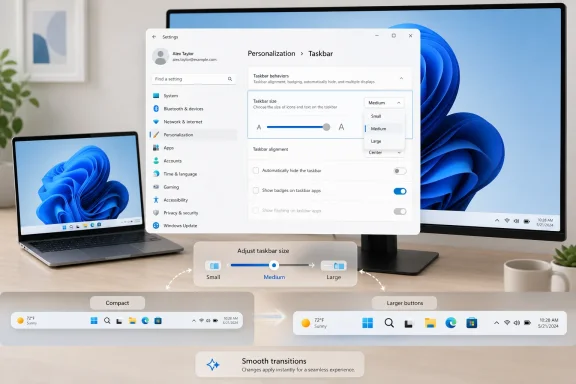
Abrupt UI changes make a desktop feel fragile. A taskbar that snaps between sizes without graceful movement can make users wonder whether Explorer restarted, whether a display setting glitched, or whether something broke. Smooth transitions communicate continuity. They tell the user: this is a supported state, not a trick.
That is especially important for Windows 11, whose biggest shell changes have often lived under a microscope. Every stutter, missing option, and inconsistent flyout becomes evidence for the argument that the modern shell is less mature than the classic one. If Microsoft wants users to accept a redesigned taskbar rather than pine for the old implementation, it has to make the new one feel solid.
The animation work also fits Microsoft’s broader “craft” language around Windows quality. Performance, reliability, and visual coherence are not separate concerns for the shell. A customization option that technically works but feels awkward still reads as unfinished.
That is not a reason to ignore it. Insider builds are where Microsoft tests not only code but product intent. A dedicated taskbar sizing surface shows that Microsoft sees this as a mainstream customization problem, not just an enthusiast complaint. The company may still adjust the UI, default behavior, available choices, or rollout timing, but the direction is visible.
For IT departments, the right posture is cautious attention. Do not build deployment guidance around a preview feature before it lands in a supported channel. Do watch how Microsoft describes the setting, whether policies appear, whether it affects multi-monitor behavior, and whether it introduces layout issues with pinned apps, system tray elements, touch mode, or vertical taskbar positions.
For individual enthusiasts, the advice is simpler: test it if you are already comfortable living in Insider builds, but do not move a production machine onto unstable code just to resize a taskbar. The feature is interesting because it is becoming ordinary. Chasing it through preview risk undercuts that point.
But trust in an operating system is cumulative. Users notice when the system takes liberties with defaults, when recommendations appear where files used to be, when settings move, and when familiar workflows vanish. They also notice when Microsoft fixes small irritants without demanding applause.
The dedicated Taskbar Size setting belongs to the second category. It does not transform Windows 11. It does not answer every complaint about the Start menu, system tray, widgets, search, or Microsoft account pressure. But it removes a needless source of friction and does so in a way that feels legible.
That is the kind of work Windows 11 needs more of. Not every improvement has to be a platform bet. Sometimes the operating system earns goodwill by letting users make the thing they stare at all day a little smaller, a little larger, or simply more suited to the way they work.
 Microsoft Turns a Power-User Hack Into a Normal Setting
The new Taskbar Size control matters because Windows 11’s taskbar has spent much of its life as a symbol of subtraction. When Microsoft launched Windows 11, it did not just center icons and redesign Start. It removed or limited familiar affordances that had accumulated over decades: moving the taskbar to another edge, changing its size in expected ways, and generally treating the desktop shell as something users could bend to their own habits.That tradeoff was not irrational. Windows 11 was intended to feel cleaner, more predictable, and more touch-friendly than the sprawling desktop Windows had become. But the cost was obvious to anyone using a cramped laptop screen, a vertical monitor, a multi-display setup, or a workflow built around keeping many apps visible at once. The taskbar became less of a workbench and more of a fixture.
A dedicated Taskbar Size setting is Microsoft’s latest attempt to rebalance that equation. Instead of expecting users to know which registry value to create, which Explorer restart to trigger, or which utility to trust, the company is putting the choice where it belongs: Settings, under Personalization. That is not just a convenience improvement. It is a tacit acknowledgment that a desktop operating system should not require folklore to perform basic personalization.
The important distinction is that Microsoft is not simply restoring the Windows 10 model wholesale. The company appears to be rebuilding customization through controlled Settings surfaces rather than bringing back every old direct-manipulation behavior. That may disappoint users who want the full classic taskbar, but it also explains why the new approach feels more deliberate than nostalgic.
The Taskbar Was Always Bigger Than the Taskbar
Windows users argue about the taskbar because it is one of the few parts of the operating system that is always present. File Explorer may be replaced, Edge may be ignored, Copilot may be disabled or avoided, but the taskbar is there every time a user switches apps, checks the clock, opens Start, launches Search, or tries to find the window that disappeared behind six others.That makes taskbar sizing more than an aesthetic preference. On a 13-inch laptop, a shorter taskbar can return usable vertical space to documents, browsers, terminals, and IDEs. On a high-DPI desktop monitor, larger buttons can make targets easier to hit. On touch devices, bigger controls are not decoration; they are usability. On remote sessions and virtual desktops, compact UI can be the difference between a workable environment and a constant scroll-and-resize fight.
Microsoft’s earlier taskbar icon-scaling work gestured at this problem by allowing icons to shrink when the taskbar became crowded. The newer size setting pushes further by making size a deliberate user choice rather than merely an automatic overflow response. That difference matters. Automation helps when the system guesses correctly; a visible setting helps when the user already knows what they need.
The likely audience is broader than the usual enthusiast crowd. Sysadmins care because visible, supported settings are easier to document than registry hacks. Accessibility-minded users care because control over target size can reduce friction. Developers care because vertical pixels are precious. Ordinary users care because a setting with a plain label is less intimidating than a web search that ends in the registry editor.
Windows 11’s Original Sin Was Not Minimalism, But Inflexibility
The early Windows 11 taskbar was often described as simplified, but the deeper problem was that it was simplified for everyone at once. A desktop used by gamers, accountants, developers, teachers, nurses, students, kiosk operators, and administrators cannot assume one ideal layout. Windows became dominant in part because it tolerated messy differences in how people worked.The backlash to Windows 11’s taskbar reflected that history. Users were not merely upset that a button moved or that icons were centered. They were reacting to the feeling that Microsoft had taken away long-standing options without giving them a credible replacement. The company’s design language improved, but the social contract weakened.
That is why a Taskbar Size setting carries more symbolic weight than its line item suggests. It is a small control that answers a larger criticism: Windows 11 too often made preferences feel like violations. Want a smaller taskbar? Hack it. Want a different position? Wait. Want Start to show less recommended content? Toggle around several places and hope the behavior matches the label.
Microsoft now appears to be changing tactics. Recent preview work around taskbar positioning, smaller taskbar modes, Start menu sizing, and Start section controls suggests a shift from one-size-fits-most design toward constrained personalization. The constraint is still real, but the direction is healthier.
The Settings App Becomes the New Registry Editor, For Better and Worse
There is a quiet governance story here. By moving taskbar sizing into Settings, Microsoft is deciding which forms of customization become legitimate. That has advantages: settings can be tested, localized, explained, managed, animated, and supported. They can survive updates more reliably than undocumented registry values. They can also be exposed gradually to Insiders, refined through telemetry and feedback, and eventually shipped to mainstream users without pretending the feature is a side effect.But this model also centralizes control. The old Windows desktop often let users discover unofficial paths because the shell was loose enough to be prodded into different shapes. The new Windows 11 shell is more curated. If Microsoft does not expose a behavior, users may have fewer reliable ways to achieve it.
That tension is visible in the taskbar work. A dedicated size setting is better than an unsupported tweak, but it is not the same as fully free resizing. A controlled taskbar position selector is cleaner than dragging an unlocked bar around the screen, but it is less tactile and less permissive. Windows 11 is giving back customization, but mostly on Microsoft’s terms.
For enterprise IT, that may be acceptable or even preferable. A documented Settings control is easier to explain to help desks and easier to incorporate into support guidance. For enthusiasts, it may feel like getting the keys back to only a few rooms in a house they used to own.
Animation Polish Is the Tell
The reported refinement of animations and transitions around taskbar size changes is easy to dismiss as visual sugar. It is not. Animation is where operating systems reveal whether a feature has been bolted on or integrated into the design.Abrupt UI changes make a desktop feel fragile. A taskbar that snaps between sizes without graceful movement can make users wonder whether Explorer restarted, whether a display setting glitched, or whether something broke. Smooth transitions communicate continuity. They tell the user: this is a supported state, not a trick.
That is especially important for Windows 11, whose biggest shell changes have often lived under a microscope. Every stutter, missing option, and inconsistent flyout becomes evidence for the argument that the modern shell is less mature than the classic one. If Microsoft wants users to accept a redesigned taskbar rather than pine for the old implementation, it has to make the new one feel solid.
The animation work also fits Microsoft’s broader “craft” language around Windows quality. Performance, reliability, and visual coherence are not separate concerns for the shell. A customization option that technically works but feels awkward still reads as unfinished.
The Insider Channel Is a Promise, Not a Release Date
The practical caveat is that this remains preview-channel work. Windows Insider features can change names, move locations, roll out to subsets of testers, disappear temporarily, or arrive in stable builds later than expected. Anyone treating the dedicated Taskbar Size setting as a guaranteed immediate consumer feature is getting ahead of the release train.That is not a reason to ignore it. Insider builds are where Microsoft tests not only code but product intent. A dedicated taskbar sizing surface shows that Microsoft sees this as a mainstream customization problem, not just an enthusiast complaint. The company may still adjust the UI, default behavior, available choices, or rollout timing, but the direction is visible.
For IT departments, the right posture is cautious attention. Do not build deployment guidance around a preview feature before it lands in a supported channel. Do watch how Microsoft describes the setting, whether policies appear, whether it affects multi-monitor behavior, and whether it introduces layout issues with pinned apps, system tray elements, touch mode, or vertical taskbar positions.
For individual enthusiasts, the advice is simpler: test it if you are already comfortable living in Insider builds, but do not move a production machine onto unstable code just to resize a taskbar. The feature is interesting because it is becoming ordinary. Chasing it through preview risk undercuts that point.
The Real Competition Is User Trust
Microsoft’s taskbar changes are arriving in a Windows era crowded by bigger headlines: AI integration, Recall controversies, cloud account nudges, ads and recommendations, Arm PCs, security baselines, and the long shadow of Windows 10’s end of support. Against that backdrop, taskbar sizing looks almost quaint.But trust in an operating system is cumulative. Users notice when the system takes liberties with defaults, when recommendations appear where files used to be, when settings move, and when familiar workflows vanish. They also notice when Microsoft fixes small irritants without demanding applause.
The dedicated Taskbar Size setting belongs to the second category. It does not transform Windows 11. It does not answer every complaint about the Start menu, system tray, widgets, search, or Microsoft account pressure. But it removes a needless source of friction and does so in a way that feels legible.
That is the kind of work Windows 11 needs more of. Not every improvement has to be a platform bet. Sometimes the operating system earns goodwill by letting users make the thing they stare at all day a little smaller, a little larger, or simply more suited to the way they work.
A Smaller Taskbar Carries a Larger Message
The most concrete reading of this update is also the most encouraging one: Microsoft is bringing more desktop personalization back into supported UI. That is a meaningful course correction after years in which Windows 11 often seemed more interested in tidiness than adaptability.- The dedicated Taskbar Size setting gives users a discoverable way to adjust the taskbar without relying on registry edits or third-party tools.
- The change is currently tied to preview Windows builds, so mainstream availability and final behavior may still change before broad release.
- Smaller taskbar modes matter most on laptops, compact displays, developer workstations, and other environments where vertical space is valuable.
- Larger or clearer taskbar sizing options can also help users who prioritize accessibility, touch interaction, or easier visual targets.
- The feature fits a broader Windows 11 shift toward restoring customization through controlled Settings surfaces rather than recreating every Windows 10-era behavior.
References
- Primary source: thewincentral.com
Published: 2026-06-26T19:10:15.698867
Windows Adds Dedicated Taskbar Size Setting - WinCentral
Windows gets a dedicated Taskbar Size setting with smoother transitions and easier customization. - Read in Windows 11 News on WinCentral thewincentral.com
- Related coverage: windowscentral.com
Windows 11 is finally rethinking the Start menu and Taskbar, and it might win back people who gave up on it | Windows Central
Microsoft rebalances Windows 11, adding more flexibility to the Taskbar and Start menu.www.windowscentral.com - Official source: blogs.windows.com
Announcing Windows 11 Insider Preview Build 27898 (Canary Channel)
Hello Windows Insiders, today we are releasing Windows 11 Insider Preview Build 27898 to the Canary Channel. We are also not planning to release SDKs for 27xxx series builds for the time being. What’sblogs.windows.com - Related coverage: techradar.com
Windows 11 is getting some much-wanted features for the Start menu and taskbar, and that's great to see — but it's not the change I really want | TechRadar
The thing that tops my wish-list won't ever happen...www.techradar.com - Related coverage: pcgamer.com