Windows 11 Taskbar Speed Test: A Browser Based Shortcut Not Native

  • Thread Author
Microsoft’s new one‑click internet speed test on the Windows 11 Taskbar is not a native diagnostic at all — it simply launches your default browser and opens Bing’s speed‑test widget (which, in practice, delegates measurement work to the Speedtest/Ookla backend), a convenience‑first design that raises practical questions about accuracy, privacy, and enterprise manageability.

3D blue UI of the Speedtest app showing a large 'Perform speed test' button and a pointer cursor.Background​

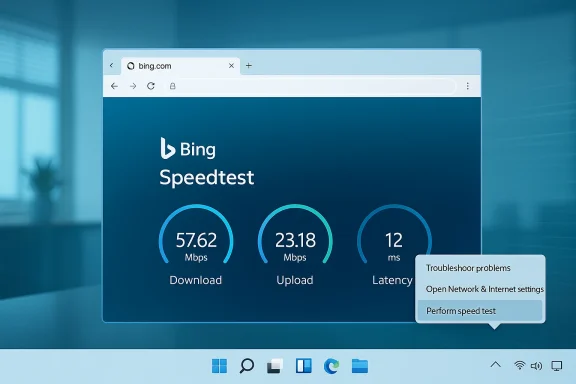
Microsoft shipped the Taskbar shortcut as part of the February 2026 optional preview update KB5077241 (preview builds in the 26100–26200 family), and the broader staged rollout began with the March 10, 2026 Patch Tuesday servicing wave. The change places a Perform speed test (or localized variant) control in two obvious places: the right‑click context menu for the network icon in the system tray and as a button inside the Wi‑Fi/Cellular Quick Settings flyout. Clicking it opens the default browser and navigates to Bing with a ready‑to‑run speed test.
This is not Microsoft inventing a new in‑OS measurement engine. Instead, the company chose a browser‑hosted approach — a short, discoverable launcher that funnels users to an already‑available web tool. The Bing page then runs the download/upload/latency measurements, producing the familiar metrics most people expect when they “run a speed test.” Multiple independent previews and hands‑on reports from Insider builds confirm this flow.

What Microsoft shipped (technical overview)​

Where you’ll find the control​

  • Right‑click the network icon in the system tray and look for Perform speed test.
  • Left‑click the network icon, open the Wi‑Fi quick settings flyout, and look for a Test internet speed button near the other quick actions.
The label you see depends on locale and exact build; the placement is intentionally discoverable because users already visit these surfaces when troubleshooting connectivity. The control is packaged in KB5077241, the February 2026 non‑security preview update for Windows 11, which Microsoft distributed to Release Preview and other servicing channels before broader rollout.

What happens when you click​

  • Windows opens your default browser (Edge, Chrome, Firefox, etc.) — the shortcut respects your default browser settings.
  • The browser navigates to Bing’s speed‑test widget (the page is prepopulated and ready to run).
  • The web widget performs file upload/download exchanges with a selected test server to measure latency, download throughput, and upload throughput.
  • Results are shown on the page; the browser context and any installed extensions influence the experience.
Because the Taskbar control hands off the work to a web page, the operating system itself does not run local kernel‑level measurement code or store a native history of tests. That means there is no built‑in log file accessible via Windows diagnostics that captures repeated measurements the way a native app might.

Verification and provenance​

I verified the key technical claims across multiple independent outlets and primary sources:
  • The KB5077241 preview update and its release window are documented in Microsoft’s preview release materials and were covered in detail by Windows‑focused outlets reporting the Feb. 24, 2026 optional preview and the March 10, 2026 staged servicing plan. These references confirm the update packaging and build numbers where testers first saw the feature.
  • Multiple hands‑on articles and Insider captures show the Taskbar control opens Bing’s web speed test rather than running a native measurement. That behavior was observed across Release Preview builds and described consistently by outlets that tested it.
  • The web widget exposed by Bing aligns with Speedtest (Ookla)‑style measurements. Independent reporting over time — and the widget’s behavior and outputs — point to Speedtest/Ookla backends being used for the measurements that Bing surface. Those observations were consistent across tests and technical write‑ups.
  • Historical context is important: Microsoft previously published a native “Network Speed Test” app back in 2013 via Microsoft Research for Windows 8 and Windows Phone, which included connection type, network name display, and a local history of results. That older app shows Microsoft has shipped native speed‑testing tools in the past.
Where claims were speculative — for example, suggesting Microsoft’s motive was to drive additional Bing traffic rather than serve user needs — I flagged them as opinion and evaluated them in the context of product design trade‑offs rather than as confirmed motive. Multiple sources independently corroborate the technical facts above; motives are inferred and should be treated with caution.

Why Microsoft likely chose a browser‑hosted approach​

There are practical engineering and product reasons this design is defensible:
  • Low maintenance, fast updates. A web widget can be updated server‑side without shipping OS updates. That lets measurement UI, wording, and back‑end endpoints evolve quickly without waiting for Windows servicing cycles.
  • Reuses existing infrastructure. Bing already exposes a speed tester; Microsoft avoids duplicating server‑side measurement endpoints and the operational complexity of running a global server fleet.
  • Discoverability for non‑technical users. Putting a one‑click check in the Taskbar removes friction for everyday users who only need a quick sanity check.
  • Smaller local footprint. There’s no extra native code surface area to maintain or secure inside Windows.
These are valid product trade‑offs, and for many users the convenience will be the dominant benefit. However, the trade‑off is not neutral — it intentionally pushes testing into a browser and onto third‑party measurement infrastructure, opening a set of trade‑offs that matter to power users and enterprise IT.

Notable strengths (what works)​

  • Immediate accessibility. The Taskbar is the logical place to check connectivity; surfacing the test there reduces steps and the cognitive load of remembering a URL or installing a third‑party tool.
  • Consistent, familiar metrics. The Bing/Speedtest widget displays the same trio of metrics most users want: ping (latency), download, and upload speeds. That familiarity reduces support friction for help desks and households alike.
  • Centralized updates. Bug fixes and UI tweaks to the test can be performed server‑side, keeping the OS lean and minimizing update churn for Windows servicing teams.

Material risks and shortcomings​

1) Measurement accuracy and comparability​

Browser‑hosted tests are convenient, but they introduce variables that can distort numbers:
  • Browser extensions, tab activity, and client‑side throttling can affect results.
  • HTML5/browser timing and socket behavior differ from native clients, meaning results may not match a native Speedtest desktop client or iperf3 measurement.
  • Test server selection and routing policies used by the web widget may change independently of Windows, producing differences across runs.
If you need reproducible diagnostic data for an ISP dispute or SLA verification, a native, scriptable client (e.g., Speedtest CLI, iperf3, or PowerToys wrappers) is still the right tool.

2) Privacy and telemetry concerns​

Because the taskbar flow opens a web page, data collected during the test is governed by the Bing and Speedtest/Ookla privacy policies and your browser’s behavior (cookies, local storage, extensions). That raises questions for:
  • Privacy‑conscious consumers who prefer local diagnostics that avoid third‑party telemetry.
  • Regulated organizations that must control external data flows and audit telemetry capture.
Microsoft has not published a bespoke privacy model for this Taskbar launcher — largely because the launcher does not itself collect data; the web page does. This distinction matters in regulated or enterprise environments.

3) Manageability for enterprises​

At the time of reporting there is no documented Group Policy or MDM control specifically to remove or redirect the Perform speed test menu entry. That makes it harder for IT administrators to block the behavior inside locked‑down images or to redirect the action to an approved internal diagnostics page. Enterprises can mitigate by delaying the optional preview update (KB5077241) or controlling the browser’s ability to reach the target pages via network policies, but those are blunt instruments.

4) Third‑party dependency and commercial risk​

The tool ultimately relies on Speedtest infrastructure (now part of the larger corporate moves in the measurement ecosystem). In March 2026, Ookla and its Speedtest assets were reported acquired by Accenture, which reshapes who controls the back‑end infrastructure many users rely on. Dependency on third parties means changes in ownership, licensing, or pricing could alter the user experience or the cost model for commercial integrations.

5) UX regression relative to historical native tools​

Microsoft shipped a fuller native experience in the past (the Network Speed Test app published by Microsoft Research in 2013 included connection type, network name display, and a history of results). The current shortcut does not preserve these features, and some users see the change as a regression away from richer local tools. If Microsoft wants to satisfy power users and network teams, a hybrid approach (lightweight launcher plus optional native diagnostics module) would be superior.

Practical guidance — what Windows users and admins should know​

For everyday users​

  • Expect the Taskbar option to open whatever browser you’ve set as default and then launch Bing’s web test. Use it for quick sanity checks (e.g., is my connection obviously slow right now?).
  • For reproducible measurements, use a native client (Speedtest desktop, Speedtest CLI) or a command‑line tool like iperf3 if you’re comfortable with it.
  • If you’re privacy‑conscious, run the test in a private browser window with extensions disabled, or use a native tool that doesn’t involve third‑party web scripts.

For power users and IT professionals​

  • Don’t rely on the Taskbar shortcut for forensics or SLA validation. Use scripted, repeatable tools instead:
  • Speedtest CLI (Ookla)
  • iperf3 for internal path testing
  • PowerToys wrappers that call the Speedtest CLI for automation
  • If you need to prevent exposure to the web widget in managed images:
  • Delay or block the optional KB5077241 preview update in your servicing pipeline until Microsoft provides explicit policies.
  • Use browser/URL filtering to block or redirect the Bing speed‑test endpoint in managed networks.
  • Watch Microsoft’s enterprise guidance and policy catalog for a dedicated Group Policy or MDM control to hide the menu entry; historically Microsoft adds such controls when an OS surface becomes a common enterprise pain point.

Alternatives and workarounds​

  • Use the Speedtest desktop client or Speedtest CLI for more consistent measurements and scripting abilities.
  • Use iperf3 for controlled, point‑to‑point throughput tests inside your own network.
  • Use browser‑based alternatives (Fast.com, Cloudflare speed test) when you want to compare different measurement engines.
  • PowerToys or other third‑party utilities: Tools in the PowerToys ecosystem have begun wrapping Speedtest CLI for convenience and scriptability, which can be useful in both consumer and enterprise deployments.

What Microsoft should (and could) do next​

  • Expose management controls: Add Group Policy and MDM settings to:
  • Hide the Perform speed test control.
  • Redirect the action to a customizable URL (e.g., an enterprise diagnostics page).
  • Allow disabling of the launcher entirely in managed images.
  • Offer a native optional diagnostics module: Provide an optional, lightweight native tool for users who want local logging, exportable results, and a history of tests. This could run in the background and feed into Windows diagnostic logs without shipping a heavy native server footprint.
  • Document privacy and telemetry: Publish a short, clear privacy note describing what the Taskbar launcher does and what data the web widget will see so users and admins can make informed choices.
  • Allow provider choice: Let users or organizations choose the default speed‑test provider (Bing/Speedtest, Fast.com, ISP tool, or a custom URL).
These changes would preserve convenience while improving transparency and manageability for organizations and power users alike. The current approach is quick and low‑risk for Microsoft, but it leaves usability and policy gaps that are straightforward to address.

Bigger picture: platform design trends and the web‑first OS​

This Taskbar change is a clear example of Microsoft’s broader product posture in recent years: prioritize discoverable, lightweight conveniences in the shell while delegating richer experiences to web or cloud services. That pattern has trade‑offs:
  • Pros: Faster iteration, smaller OS surface, and unified experiences across platforms.
  • Cons: Reduced offline capability, greater reliance on third‑party services and corporate relationships, and an erosion of some traditional “native” functionality.
For many users this is a reasonable trade — the average person cares less about implementation details than about getting a quick answer. For power users, enterprises, and privacy‑sensitive customers, however, the move feels like a retreat from the richer in‑OS tools of the past. Microsoft can reconcile those perspectives with targeted native options for the latter groups and better policy controls for IT.

Final assessment and recommendations​

Microsoft’s Taskbar internet speed test is a practical convenience designed for the mainstream Windows user: it is discoverable, frictionless, and leverages existing web infrastructure so Microsoft doesn’t need to run global measurement servers inside Windows. That design decision explains the architecture — but it does not excuse the lack of immediate enterprise controls, the privacy ambiguity for regulated environments, or the loss of a richer local experience some users remember from earlier Microsoft tools.
Recommendations:
  • If you are an everyday user: use the Taskbar shortcut for quick checks but rely on a native client for any evidence you’ll share with support or an ISP.
  • If you are an enterprise admin: delay optional preview updates until policy support appears; use browser filtering and internal diagnostics tools for managed verification.
  • If you are a power user or network engineer: continue using scripted, native tools (Speedtest CLI, iperf3) for repeatable results, and ask Microsoft to offer an optional local diagnostics module or management policies.
The Taskbar shortcut is a textbook UX convenience — small, visible, and useful for casual checks — yet it spotlights a persistent tension in modern OS design: balancing convenience and control. Microsoft has shipped the former; now it should deliver the latter.
In short: Windows 11’s new Taskbar speed test solves a common friction point with a single click, but it is a web shortcut, not a native improvement — and that matters whether you care about accuracy, privacy, or manageability.

Source: FilmoGaz Windows 11 Taskbar’s Internet Speed Test Links Directly to Bing, Not Native
 

Microsoft quietly slipped an internet speed test into the Windows 11 taskbar this spring — but the convenience is less a new diagnostic engine and more a fast path to Bing’s web-based Speedtest widget, a design choice that has practical benefits but also important implications for accuracy, privacy, and enterprise control. doved small, high-frequency utilities to places where users already look: the taskbar, the network flyout, and Quick Settings. In the Release Preview updates packaged under KB5077241 (builds 26100.7918 and 26200.7918), Microsoft added a “Perform speed test” / “Test internet speed” control that appears in the network icon’s right‑click menu and the Wi‑Fi quick‑settings flyout. The control launches your default browser and opens Bing’s speed-test experience, rather than running a locally embedded measurement engine.
Several outlets that covered the rollout have reached the same basic conclusion: the taskbar button is a shortcut to Bing’s speed-test widget. That widget, in turn, is powered by widely used Speedtest infrastructure (Ookla) rather than a Windows-native measurement stack. Reporting and hands‑on coverage confirm the same behavior across Insider and Release Preview builds.

Bing Speedtest: 57.62 Mbps down, 23.18 Mbps up, 12 ms latency.What Microsoft shipped (exactly)​

Where you’ll find it​

  • Right‑click the network/system‑tray icon and look for “Perform speed test” / “Test internet speed.”
  • Open the Quick Settings flyout (Wi‑Fi or Cellular) and you may see a “Test internet speed” button in the panel.
These affordances began appearing in Insider builds during late 2025 and were bundled into the Release Preview channel update KB5077241 in early 2026; Microsoft’s Release Preview announcement and multiple update trackers list builds 26100.7918 and 26200.7918 as the versions that deliver the taskbar speed-test shortcut.

What happens when you click it​

  • Windows launches the system’s default web browser.
  • Bing opens with the search or the speed-test widget already visible.
  • The widget performs the measurement using the online speed-test backend (reported to be Ookla’s Speedtest), and then displays download, upload, and latency metrics inside the browser UI.

Quick summary of coverage and reaction​

  • Early hands‑on reviews and site reports described the feature as a convenience-first addition — a quality‑of‑life improvement for everyday users who need a quick sanity check. (windowscentral.com)
  • Other commentators criticized the implementation as a marketing-friendly shortcut that promotes Bing and Edge rather than delivering a proper native tool. That sentiment is echoed across multiple outlets and community threads.
  • Technical observers noted that leveraging Bing/Ookla offloads measurement complexity to an established backend, which reduces Windows’ maintenance burden but also constrains control over measurement parameters and telemetry.
Both the PCWorld and PC Guide pieces provided by readers reflect these two central takes: practical convenience for everyday troubleshooting, and legitimate disappointment from users expecting a true in‑OS diagnostic.

Why Microsoft likely chose a web-hosted test​

There are several pragmatic engineering and product reasons Microsoft would ship a browser-launched test instead of a fully native utility:
  • Proven backend: Integrating the Bing speed-test widget (which uses Speedtest/Ookla technology) gives access to a mature, globally distributed measurement network without Microsoft having to operate or maintain the server fleet or measurement algorithms itself. This reduces development and ops cost.
  • Update cadence: A web-hosted widget can be iterated quickly by Bing/Ookla teams without requiring Windows servicing cycles, enabling faster fixes and improvements.
  • Cross-platform consistency: Using Bing’s widget assures that users get a consistent experience across devices and browsers — the numbers shown on Bing will match those a user sees on another machine that uses Bing’s Speedtest widget.
  • Low friction to ship: Adding a launcher to the taskbar UI is a small surface change compared with building a new native tool that needs integration with networking subsystems, drivers, and enterprise management policy.
These are practical engineering rationales. But they produce trade‑offs, and that’s where the debate begins.

Strengths and user benefits​

  • Immediate discoverability: Placing a speed‑test launcher where users already look for connectivity — the system tray — reduces friction for non‑technical users. That helps quickly answer the common question: “Is my internet slow, or is this app?”
  • No extra installs: Users don’t need to hunt for Speedtest, Fast.com, or another website. The tool is just one click away.
  • Leverages established measurement methodology: By using Ookla’s infrastructure, the test benefits from tested server selection, multi‑stream throughput measurement, and latency sampling that most consumers already regard as authoritative.
  • Browser integration enables richer troubleshooting: Once the browser opens, users can access context, server details, or further diagnostics available on the Bing/Speedtest page without being constrained by a narrow native UI.

Risks, limitations, and technical caveats​

1. Not a native diagnostic — accuracy and reproducibility concerns​

A web-launched test is reliant on the browser, the widget, and the remote backend. That introduces variables that make strict, repeatable diagnostics harder to guarantee:
  • Browser behavior (TCP stack tweaks, HTTP/2 vs HTTP/3, caching) can affect throughput measurements.
  • The widget’s server selection and testing parameters (parallel streams, test duration) are controlled by the web backend, not by Windows or local admins.
  • Results may differ from native clients or command-line tools (iperf, libspeedtest) that can be scripted and run under controlled conditions.
For pro or enterprise troubleshooting — where reproducibility and control of test parameters matter — the taskbar shortcut is not a substitute for dedicated tools. Multiple outlets highlighted that the taskbar button simply brings you to a web-based measurement, not an in-OS engine you can control or automate.

2. Telemetry, privacy, and third‑party backend​

Because the test runs in a browser and contacts an external provider, it subjects users to the privacy policies and telemetry practices of Bing and the backend provider (e.g., Ookla). Important points:
  • The test involves outbound network traffic to third‑party servers; logs and metadata (IP, approximate location, timestamps) will likely be visi- Microsoft has not published fine‑grained documentation in the Windows update notes about what telemetry, if any, is collected locally when the launcher is used — because the measurement itself executes outside the OS. This is an area where enterprises should take calicy controls.

3. Enterprise manageability and offline scenarios​

  • System administrators who prefer to control diagnostics inside an air‑gapped environment or to route tests through internal proxies will find the browser-based approach limiting.
  • There’s no obvious group‑policy toggle (yet) that replaces the Bing widget with another provider or forces a native fallback. If Microsoft exposes such controls later, administrators will need clear documentation. At present, public reporting has not identified a built‑in method to redirect or disable the shortcut centrally. That claim is subject to change as Microsoft documents policy options.

4. Product messaging and trust​

Users who expected a "built-in" Windows tool — one that executes within the OS — feel misled when a taskbar button opens a browser. That can erode trust, especially among power users and IT pros who prefer deterministic, auditable tools.

What the coverage says: a clearer picture​

  • PCWorld’s coverage and hands‑on context emphasize the user convenience but confirm that the implementation is essentially a web launcher; readers should not expect an embedded measurement engine. That article points out the same practical limits reporters observed in Insider testing.
  • PC Guide echoed the “shortcut, not a native tool” interpretation and reiterated that the Bing test relies on Speedtest/Ookla technology — confirming that the taskbar change is more about discoverability than a change in the measurement engine.
  • Independent hands‑on writeups and reporting (Tom’s Hardware, WindowsLatest, Windows Central) consistently show the same behavior and point to KB5077241 builds in Release Preview where the feature first appeared. Those sources also discuss Microsoft’s earlier decisions to integrate Ookla into Bing’s speed-test experience, which explains the current backend relationship.

Practical guidance for users and admins​

For everyday users​

  • Use the taskbar button for a quick sanity check: it is fast and convenient for casual troubleshooting.
  • When you need more context (server selection, test settings, historical comparisons), open the Speedtest/Ookla site or another trusted meter and run comparisons.
  • If privacy is a concern, be mindful that the test contacts an external provider; consider using a VPN or your preferred testing site that respects your privacy preferences.

For power users and IT pros​

  • Don’t treat the taskbar button as a forensics-grade test. Use scripted tools like iperf3, dedicated Speedtest clients, or centrally managed measurement systems for reproducible diagnostics.
  • If you manage devices at scale, check for Microsoft documentation or a Group Policy/MDM setting to control the feature’s visibility or to block access to the Bing test if required. As of writing, public notes do not list a dedicated policy — monitor Microsoft’s enterprise documentation for updates.
  • Where telemetry and logging matter, direct tests through internal measurement platforms or collect logs locally to ensure compliance with company policies.

A technical detour: What actually differs between web and native tests?​

When you compare a browser-hosted Speedtest run to a native app or command-line tool, differences arise in at least three areas:
  • Connection setup and transport behaviors: Different browsers and client stacks have subtle differences in TCP/QUIC behavior, handshake times, and HTTP transport. Those can slightly affect the measured throughput and latency.
  • Parallelism and stream configuration: High-quality speed-test backends typically open multiple parallel streams to better saturate modern connections. The web widget’s chosen configuration is opaque to Windows; a native tool might expose or allow control of stream count.
  • Server selection heuristics: The backend decides which test server is used. Server proximity, peering relationships, and current load affect the result. For tightly controlled testing, fixing the server and parameters is essential — something a simple taskbar shortcut won’t give you.
For non-critical checks, these differences are minor. For SLA validation, capacity benchmarking, or forensic troubleshooting, they matter.

Alternatives and recommendations​

  • If you want a native utility that integrates with Windows and supports scripting:
  • Use command-line tools (iperf3, curl-based tests for smaller workloads).
  • Install the official Speedtest client (where supported) or run Speedtest via a scriptable API if you require automation.
  • If you want privacy‑friendly options:
  • Choose test providers with transparent data handling or deploy an internal test server and use iperf3 to exercise the path.
  • If you are an enterprise admin:
  • Document acceptable testing methods for your support teams.
  • Consider blocking uncontrolled external tests on managed networks if that suits policy.
  • Rep Policy or MDM controls for the taskbar test launcher if centralized control is required. Microsoft may provide such controls in future updates — track official release notes for KB5077241 and subsequent patches.

What Microsoft could (and should) improve​

  • Embed a lightweight native fallback: A compact, privacy‑aware native test that runs inside Windows and supports scripted automation would satisfy power users and enterprises while preserving convenience for consumers.
  • Expose policy controls: Provide clear Group Policy / MDM settings to enable, disable, or redirect the taskbar test to an alternative provider or internal server.
  • Document telemetry and data flow: Publish a short technical note explaining what data is transmitted when the speed test runs (IPs, server choices, CDN hops), and what, if any, telemetry Microsoft retains locally on the device when the button is used.
  • Offer a small in-shell preview: Instead of opening the full browser, a compact web view (with clear privacy notice and sandboxing) could preserve discoverability while keeping the experience contained.
These changes would reconcile the convenience of a one‑click test with the control, privacy, and repeatability that many Windows users — especially IT professionals — expect.

Final analysis: convenience vs. control​

Microsoft’s taskbar speed‑test launcher is emblematic of a broader design trend: surfacing lightweight, web‑backed utilities inside the desktop shell to reduce duplication and speed delivery. For most users, the one‑click access to Bing’s Speedtest is a net positive — it lowers friction for a common troubleshooting step and aligns with how many people already check their connection.
But the decision to rely on a browser-hosted, third‑party‑backed widget rather than a native measurement engine is not neutral. It trades local control, reproducibility, and enterprise manageability for reduced development cost and faster iteration. That trade‑off will matter most to power users, administrators, and privacy-conscious organizations.
The rollout under KB5077241 (builds 26100.7918 and 26200.7918) makes the feature broadly discoverable; independent reporting confirms the behavior and the reliance on Speedtest/Ookla via Bing. If you need deterministic, auditable network tests, treat the taskbar shortcut as a convenience shortcut — not a replacement for structured diagnostics.

Conclusion​

The Windows 11 taskbar internet speed test is a tidy, discoverable convenience that puts a widely‑used web speed test one click away — and that simplicity will be welcome to many users who only need a fast sanity check. However, because the implementation launches a browser and leans on Bing’s embedded Speedtest widget (powered by Ookla), it falls short of offering the native control, privacy guarantees, and automation capabilities IT pros expect from a built‑in diagnostic tool.
In short: it’s useful, it’s deliberate, and it’s limited. Use it for quick checks. Don’t rely on it for formal diagnostics or enterprise compliance until Microsoft publishes clearer controls and documentation — and keep a scriptable, auditable tool in your toolbox for anything more than a casual verification.

Source: PCWorld Windows 11's new internet speed test is just a shortcut to Bing
Source: PC Guide Microsoft adds internet speed test tool to taskbar in Windows 11, but it's no different from a desktop shortcut
 

Back
Top