

Microsoft’s latest Windows Update redesign marks a meaningful shift in how Windows 11 balances security, reliability, and user control. The new experience gives users clearer choices for pausing updates, skipping updates during first-run setup, and restarting or shutting down without being unexpectedly pulled into an installation cycle. For a feature that has frustrated Windows users for more than a decade, this is not just a settings-page refresh; it is a philosophical correction.
Windows Update has long been one of the most important and most disliked parts of the Windows experience. Since the Windows 10 era, Microsoft has moved toward cumulative updates, tighter servicing schedules, and more aggressive patch delivery to reduce fragmentation and keep PCs protected against fast-moving security threats.
That strategy made sense from a security standpoint, especially after years in which unpatched Windows machines became easy targets for ransomware, worms, and opportunistic malware. But the cost was trust. Users often felt that Windows treated their time as secondary to Microsoft’s servicing calendar, particularly when a restart arrived during travel, gaming, exams, presentations, or production work.
Windows 11 improved some of the update plumbing with smaller packages, better background work, and more predictable monthly servicing. Yet the perception problem remained: too many users still associated Windows Update with surprise restarts, confusing driver entries, and power-menu choices that seemed to disappear when they were needed most.
Microsoft’s new design directly addresses that pain. The company says the changes were shaped by feedback from Windows Insiders and are already beginning to roll out in preview channels, including the Dev Channel and the new Experimental channel.
The new model reframes Windows Update as a managed background service rather than an unavoidable interruption. That distinction matters because users tend to accept maintenance when it feels predictable and reject it when it feels imposed.
Key changes include:
A user can now pause updates around a conference, vacation, field deployment, studio session, or deadline week. That gives Windows Update a social context: maintenance happens when the user is ready, not merely when the system timer expires.
The repeatable pause option is even more significant. Microsoft is effectively allowing users to keep deferring updates in 35-day blocks, although it still recommends installing security updates soon after release.
This introduces a new balance:
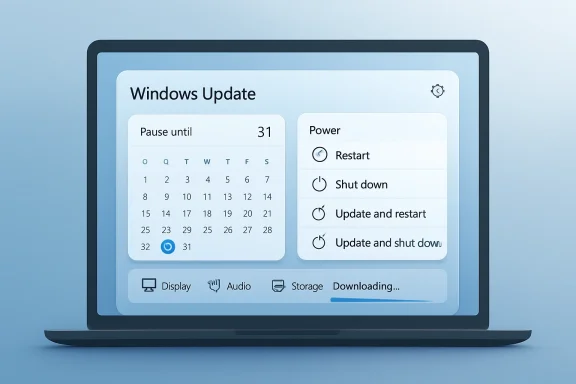
Under the new model, standard power options remain visible. If updates are pending, update-specific choices such as Update and restart and Update and shut down can still appear, but they no longer replace the basic commands.
That makes Windows behavior easier to understand:
For mobile workers, gamers, developers, and anyone managing time-sensitive tasks, this change may be more valuable than the pause extension. It restores semantic honesty to the user interface: a button should do what its label says.
Skipping updates during setup gives users a cleaner path to the desktop. That is especially useful when someone is unboxing a machine in a hotel, classroom, office, or retail environment where connectivity may be slow or time-limited.
There is a tradeoff. A device that skips setup updates may not immediately have the latest features, fixes, or protections. Microsoft is explicit that taking updates remains important, especially for security.
This option is best understood as a timing control, not a recommendation to avoid patching. It is about letting a user finish setup before asking them to enter the maintenance cycle.
Important caveats remain:
Historically, Windows Update driver titles could be cryptic, repetitive, or nearly identical. That made it hard for users and support technicians to judge whether an update was relevant or risky.
Adding device categories does not solve every driver problem, but it improves decision-making. A user who sees that an update affects display hardware can plan differently than one installing a battery or audio component.
For troubleshooting, this matters. If an issue appears after an update, clearer naming helps users connect symptoms to likely causes more quickly.
The benefits include:
If Microsoft can reduce the experience to something closer to a single monthly restart for typical retail users, the psychological impact could be substantial. Users can plan around one maintenance event far more easily than several loosely related prompts.
This also aligns with Microsoft’s broader move toward unified update orchestration. Windows is increasingly expected to coordinate operating system updates, drivers, firmware, runtime components, and eventually more application update flows.
The challenge is that not every update has the same urgency. A critical security fix may need immediate deployment, while a driver update can usually wait for a safer maintenance window.
A smarter update system must classify urgency correctly:
Microsoft says it has been working to reduce download and overall update time. That is especially important for devices that spend less time online, operate on metered or weak connections, or are frequently suspended before maintenance can complete.
Automatic recovery from update failures is another important piece. If Windows can detect a failed installation and take corrective steps without forcing users into manual troubleshooting, update success rates should improve.
Still, this area requires caution. Automatic recovery must be transparent enough that advanced users and administrators can understand what happened. A system that silently retries too aggressively could create confusion if performance drops, battery drains, or disk activity spikes.
A better recovery model should provide:
With standard power options preserved, that user can simply shut down. The update can wait until a better moment, which is exactly how most people expect personal technology to behave.
The same applies to gamers, creators, students, and home users. A gaming session should not be interrupted by a surprise reboot. A video export should not compete with background servicing. A student should not discover a major update minutes before an online exam.
The most visible consumer benefits are straightforward:
Enterprises already use tools such as Microsoft Intune, Windows Update for Business, Autopatch-style services, Group Policy, and deployment rings to control update timing. The new user-facing model must coexist with those frameworks.
The most interesting question is how much flexibility administrators will be able to delegate. Some organizations may want users to choose restart timing inside a defined compliance window. Others may disable repeatable pauses entirely for regulated devices.
Potential enterprise scenarios include:
But the security implications are equally real. If unmanaged deferral becomes too easy, organizations could see devices drift from compliance. Microsoft’s enterprise implementation will need strong reporting, policy enforcement, and exception handling.
Linux varies widely by distribution, but advanced users often praise the transparency and control they receive from package managers. Windows, by contrast, has had to support an enormous hardware ecosystem while also serving consumers, gamers, enterprises, schools, kiosks, and industrial systems.
That breadth explains why Windows Update is difficult. It does not excuse poor user experience, but it makes the engineering challenge more complex than simply copying a rival’s model.
Microsoft’s latest redesign suggests it wants Windows to compete not only on compatibility and security, but on maintenance dignity. Users should not feel punished for staying current.
Competitive advantages Microsoft can claim if this works include:
A repeatable 35-day pause could be helpful for a traveling user or production workstation, but dangerous if treated as a permanent lifestyle choice. The interface must therefore communicate risk without returning to fear-based nagging.
Microsoft should avoid two extremes. It should not hide pause controls behind confusing menus, but it also should not make indefinite deferral feel consequence-free.
A healthy model would include:
Microsoft also needs to prove that standard Restart and Shut down commands remain reliable across edge cases. If users choose a normal shutdown and Windows unexpectedly begins installing updates anyway, the trust gains from this redesign will evaporate quickly.
Watch for several practical signals over the coming months:
If Microsoft delivers consistently, this Windows Update redesign could become one of the most user-friendly changes to Windows 11 in years. It will not eliminate the tension between security and convenience, but it finally acknowledges that users are more likely to keep systems secure when the operating system respects their time.
Source: Petri IT Knowledgebase Microsoft Redesigns Windows Update With New Pause and Restart Controls
 Background
Windows Update has long been one of the most important and most disliked parts of the Windows experience. Since the Windows 10 era, Microsoft has moved toward cumulative updates, tighter servicing schedules, and more aggressive patch delivery to reduce fragmentation and keep PCs protected against fast-moving security threats.That strategy made sense from a security standpoint, especially after years in which unpatched Windows machines became easy targets for ransomware, worms, and opportunistic malware. But the cost was trust. Users often felt that Windows treated their time as secondary to Microsoft’s servicing calendar, particularly when a restart arrived during travel, gaming, exams, presentations, or production work.
Windows 11 improved some of the update plumbing with smaller packages, better background work, and more predictable monthly servicing. Yet the perception problem remained: too many users still associated Windows Update with surprise restarts, confusing driver entries, and power-menu choices that seemed to disappear when they were needed most.
Microsoft’s new design directly addresses that pain. The company says the changes were shaped by feedback from Windows Insiders and are already beginning to roll out in preview channels, including the Dev Channel and the new Experimental channel.
A New Philosophy: Control Without Abandoning Security
The core of this redesign is user agency. Microsoft is not abandoning automatic updates, nor is it telling users that patches no longer matter. Instead, it is acknowledging that security works better when people are not fighting the system.The trust problem Windows Update had to solve
For years, Windows users have asked for one deceptively simple thing: the ability to decide when their PC is unavailable. A laptop might technically be more secure after a restart, but that does not help if the restart interrupts a client call or delays a student before an exam.The new model reframes Windows Update as a managed background service rather than an unavoidable interruption. That distinction matters because users tend to accept maintenance when it feels predictable and reject it when it feels imposed.
Key changes include:
- Calendar-based pause controls for choosing a specific resume date.
- Repeatable 35-day pause windows with no stated fixed limit.
- Standard restart and shutdown options even when updates are pending.
- Clearer driver update labels showing device categories.
- Coordinated update installation to reduce reboot frequency.
Repeatable 35-Day Pauses Change the Conversation
The headline feature is the ability to pause updates until a specific date up to 35 days in the future, then extend that pause again as needed. That may sound like a small interface tweak, but it changes the practical meaning of pausing updates on consumer Windows systems.Why the calendar matters
The old pause model was blunt. Users could delay updates for a preset window, but the experience often felt like a countdown to an unavoidable installation. A calendar-based pause is more understandable because it maps update control to human planning.A user can now pause updates around a conference, vacation, field deployment, studio session, or deadline week. That gives Windows Update a social context: maintenance happens when the user is ready, not merely when the system timer expires.
The repeatable pause option is even more significant. Microsoft is effectively allowing users to keep deferring updates in 35-day blocks, although it still recommends installing security updates soon after release.
This introduces a new balance:
- Short-term flexibility for users who need stability during critical work.
- Long-term responsibility because delayed updates can increase exposure.
- Better transparency because the resume date is visible and intentional.
- Less resentment because Windows is asking rather than cornering the user.
Restart and Shutdown Finally Mean What They Say
Perhaps the most emotionally resonant change is the redesigned Power menu. Microsoft says Windows will clearly separate normal power actions from update-related actions, so users can choose Restart or Shut down without triggering an update installation.The end of ambiguous power choices
This addresses a long-running frustration: users open the Start menu expecting to power off quickly, only to see update-labeled options dominate the menu. In the worst cases, people have felt forced to choose between leaving a machine running or starting an update they did not have time to complete.Under the new model, standard power options remain visible. If updates are pending, update-specific choices such as Update and restart and Update and shut down can still appear, but they no longer replace the basic commands.
That makes Windows behavior easier to understand:
- Choose Restart when you simply want to reboot.
- Choose Shut down when you simply want to power off.
- Choose Update and restart when you are ready to install.
- Choose Update and shut down when maintenance can happen before power-off.
For mobile workers, gamers, developers, and anyone managing time-sensitive tasks, this change may be more valuable than the pause extension. It restores semantic honesty to the user interface: a button should do what its label says.
Skipping Updates During Setup Reduces First-Run Friction
Microsoft is also allowing users to skip updates during the out-of-box experience, commonly known as OOBE. That means a new PC can reach the desktop faster, with updates installed later when the user chooses.Why first impressions matter
The first hour with a new Windows PC sets the tone for the entire device experience. If setup stalls on downloads, drivers, cumulative updates, or repeated reboots, users often blame the PC maker, the network, or Windows itself.Skipping updates during setup gives users a cleaner path to the desktop. That is especially useful when someone is unboxing a machine in a hotel, classroom, office, or retail environment where connectivity may be slow or time-limited.
There is a tradeoff. A device that skips setup updates may not immediately have the latest features, fixes, or protections. Microsoft is explicit that taking updates remains important, especially for security.
This option is best understood as a timing control, not a recommendation to avoid patching. It is about letting a user finish setup before asking them to enter the maintenance cycle.
Important caveats remain:
- Commercially managed devices may not receive the same skip behavior.
- Some updates may still be required if the device needs them to function correctly.
- Enterprises may enforce setup policies through provisioning and management tools.
- Users who skip updates should install them soon after reaching a stable network.
- OEM recovery images may still need substantial post-setup servicing.
Driver Updates Become Easier to Understand
Microsoft is improving driver update titles by adding the relevant device class, such as display, audio, battery, extension, or storage-related categories. This is a small but useful transparency improvement for anyone who has stared at a vague driver entry and wondered what it might break.From mystery packages to readable signals
Driver updates are uniquely sensitive because they sit between Windows and the hardware. A bad graphics driver can affect gaming, video editing, external displays, or GPU acceleration. A problematic audio driver can break conferencing. A firmware or battery-related update can affect sleep, charging, and thermal behavior.Historically, Windows Update driver titles could be cryptic, repetitive, or nearly identical. That made it hard for users and support technicians to judge whether an update was relevant or risky.
Adding device categories does not solve every driver problem, but it improves decision-making. A user who sees that an update affects display hardware can plan differently than one installing a battery or audio component.
For troubleshooting, this matters. If an issue appears after an update, clearer naming helps users connect symptoms to likely causes more quickly.
The benefits include:
- Faster triage when a device behaves differently after patching.
- Better user confidence before installing optional drivers.
- Improved support conversations with help desks and OEM vendors.
- Less guesswork when reviewing update history.
- Cleaner documentation for IT teams tracking device changes.
Microsoft’s Bigger Goal: Fewer Monthly Reboots
Beyond controls and labels, Microsoft is trying to coordinate update types so users see fewer restart prompts each month. The company says it is starting by aligning driver, .NET, and firmware updates with the regular monthly quality update.Reboot fatigue is a real productivity cost
Windows servicing has always involved a tension between urgency and disruption. Security updates need to arrive quickly, but restarts interrupt work, consume attention, and sometimes trigger application recovery problems.If Microsoft can reduce the experience to something closer to a single monthly restart for typical retail users, the psychological impact could be substantial. Users can plan around one maintenance event far more easily than several loosely related prompts.
This also aligns with Microsoft’s broader move toward unified update orchestration. Windows is increasingly expected to coordinate operating system updates, drivers, firmware, runtime components, and eventually more application update flows.
The challenge is that not every update has the same urgency. A critical security fix may need immediate deployment, while a driver update can usually wait for a safer maintenance window.
A smarter update system must classify urgency correctly:
- Security updates should remain fast and reliable.
- Firmware updates should be carefully staged because failures can be serious.
- Driver updates should avoid destabilizing known-good configurations.
- .NET updates should align with application compatibility needs.
- Optional updates should remain clearly user-initiated.
Background Downloads and Automatic Recovery Raise the Stakes
Microsoft says updates will continue downloading quietly in the background and will install automatically if users take no action. The company is also improving update speed, behavior on poor connections, and recovery from installation failures.Reliability is the quiet foundation
Control features get attention, but reliability determines whether the new Windows Update experience succeeds. A pause calendar is useful only if updates install cleanly when the pause ends. A power menu is reassuring only if Windows behaves exactly as promised.Microsoft says it has been working to reduce download and overall update time. That is especially important for devices that spend less time online, operate on metered or weak connections, or are frequently suspended before maintenance can complete.
Automatic recovery from update failures is another important piece. If Windows can detect a failed installation and take corrective steps without forcing users into manual troubleshooting, update success rates should improve.
Still, this area requires caution. Automatic recovery must be transparent enough that advanced users and administrators can understand what happened. A system that silently retries too aggressively could create confusion if performance drops, battery drains, or disk activity spikes.
A better recovery model should provide:
- Clear status messages during retry and repair operations.
- Actionable error reporting when automatic recovery fails.
- Minimal background resource impact on battery-powered devices.
- Respect for metered connections and constrained environments.
- Reliable rollback behavior when an update cannot be safely completed.
Consumer Impact: Less Anxiety, More Predictability
For everyday users, this redesign is about reducing anxiety. Windows Update becomes less of a looming interruption and more of a scheduled maintenance system that can be negotiated around real-world needs.The laptop-in-a-backpack problem
Consider a user who needs to shut down before boarding a flight. Under the old mental model, a pending update could turn that moment into a gamble: will the PC shut down quickly, or will it begin a process that takes longer than expected?With standard power options preserved, that user can simply shut down. The update can wait until a better moment, which is exactly how most people expect personal technology to behave.
The same applies to gamers, creators, students, and home users. A gaming session should not be interrupted by a surprise reboot. A video export should not compete with background servicing. A student should not discover a major update minutes before an online exam.
The most visible consumer benefits are straightforward:
- Fewer surprise restarts during active use.
- More confidence when shutting down quickly.
- Better planning with calendar-based pause dates.
- Clearer update descriptions for drivers.
- Faster setup for new PCs when users skip initial updates.
- Reduced frustration from repeated monthly restart prompts.
Enterprise Impact: Promise With Unanswered Questions
For enterprises, the redesign has obvious appeal but also unresolved complexity. Microsoft says more details about commercial devices and administrative controls are coming, which means IT departments should treat the consumer preview as a signal rather than a finished enterprise policy model.Managed devices need different rules
Business PCs operate under compliance requirements, maintenance windows, security baselines, and help-desk workflows. A consumer pause button cannot simply override corporate patch policy without creating risk.Enterprises already use tools such as Microsoft Intune, Windows Update for Business, Autopatch-style services, Group Policy, and deployment rings to control update timing. The new user-facing model must coexist with those frameworks.
The most interesting question is how much flexibility administrators will be able to delegate. Some organizations may want users to choose restart timing inside a defined compliance window. Others may disable repeatable pauses entirely for regulated devices.
Potential enterprise scenarios include:
- User-controlled restarts within IT-approved deadlines.
- Role-based pause permissions for executives, developers, or field staff.
- Maintenance-window alignment across Windows, firmware, and drivers.
- Better update history for help-desk diagnostics.
- Coordinated reboot reduction across large device fleets.
But the security implications are equally real. If unmanaged deferral becomes too easy, organizations could see devices drift from compliance. Microsoft’s enterprise implementation will need strong reporting, policy enforcement, and exception handling.
Competitive Implications for Windows, macOS, ChromeOS, and Linux
Microsoft’s move also has competitive significance. Update experience has become part of the broader operating-system value proposition, especially as users compare Windows with macOS, ChromeOS, and Linux distributions.Windows is trying to close a perception gap
ChromeOS built much of its reputation on silent, fast, background updates that rarely demand attention. macOS still requires restarts for many system updates, but Apple benefits from tighter hardware control and a more vertically integrated ecosystem.Linux varies widely by distribution, but advanced users often praise the transparency and control they receive from package managers. Windows, by contrast, has had to support an enormous hardware ecosystem while also serving consumers, gamers, enterprises, schools, kiosks, and industrial systems.
That breadth explains why Windows Update is difficult. It does not excuse poor user experience, but it makes the engineering challenge more complex than simply copying a rival’s model.
Microsoft’s latest redesign suggests it wants Windows to compete not only on compatibility and security, but on maintenance dignity. Users should not feel punished for staying current.
Competitive advantages Microsoft can claim if this works include:
- Better hardware ecosystem coverage than more closed platforms.
- Improved user control without abandoning security defaults.
- A clearer path for coordinated firmware and driver servicing.
- Reduced restart friction for productivity and gaming users.
- More transparent update information than many consumer platforms provide.
The Security Tradeoff: Flexibility Can Become Exposure
The most important concern is obvious: making updates easier to pause can leave devices unpatched for longer. Microsoft’s challenge is to offer flexibility without encouraging risky behavior.A better pause button still needs guardrails
Security teams know that unpatched endpoints are among the most common paths into networks. Attackers move quickly after vulnerabilities become public, and monthly security updates often close flaws that are already under active scrutiny.A repeatable 35-day pause could be helpful for a traveling user or production workstation, but dangerous if treated as a permanent lifestyle choice. The interface must therefore communicate risk without returning to fear-based nagging.
Microsoft should avoid two extremes. It should not hide pause controls behind confusing menus, but it also should not make indefinite deferral feel consequence-free.
A healthy model would include:
- Plain-language reminders when security updates are delayed.
- Escalating warnings for users who repeatedly defer critical patches.
- Separate treatment for actively exploited vulnerabilities.
- Clear distinction between security, feature, driver, and optional updates.
- Enterprise override controls for regulated or high-risk devices.
Strengths and Opportunities
Microsoft’s redesign has real potential because it targets the moments where Windows Update has historically damaged user trust. The strongest aspect is not any single control, but the combination of predictability, transparency, and coordination across the update lifecycle.- Power-menu clarity should reduce one of the most common daily frustrations with pending updates.
- Repeatable pause controls give users flexibility during travel, deadlines, exams, and critical work.
- Calendar-based scheduling makes update management easier to understand than abstract pause windows.
- Driver category labels improve troubleshooting and help users understand what an update affects.
- Coordinated monthly servicing could reduce reboot fatigue across consumer and business devices.
- Faster background updating may help low-connectivity devices stay protected with less manual effort.
- Automatic recovery could reduce failed-update support incidents if Microsoft implements it transparently.
Risks and Concerns
The redesign also creates risks that Microsoft will need to manage carefully. More control is welcome, but update systems exist because many users do not have the time, expertise, or habit to assess patch urgency on their own.- Repeated pauses could leave consumer PCs exposed to known vulnerabilities for extended periods.
- Unclear enterprise policy behavior may worry administrators until Microsoft publishes commercial guidance.
- Background recovery attempts could confuse users if they affect performance, battery life, or restart timing.
- Driver update coordination may still cause issues if problematic drivers are bundled into broader maintenance events.
- Security messaging could become either too soft to matter or too intrusive to preserve trust.
- Preview-channel behavior may not perfectly reflect what ships broadly to stable Windows 11 devices.
- OEM differences could create inconsistent experiences across laptops, desktops, and custom-built PCs.
What to Watch Next
The next milestone is Microsoft’s explanation of how these controls will work for managed and enterprise devices. IT administrators will want to know which settings are user-accessible, which are policy-controlled, and how reporting tools will reflect pauses, restart choices, and coordinated update bundles.Microsoft also needs to prove that standard Restart and Shut down commands remain reliable across edge cases. If users choose a normal shutdown and Windows unexpectedly begins installing updates anyway, the trust gains from this redesign will evaporate quickly.
Watch for several practical signals over the coming months:
- Whether the feature moves smoothly from Insider channels to stable Windows 11 releases.
- How Microsoft handles urgent security updates when a user has repeatedly paused updates.
- Whether enterprises receive granular policy controls for pause, restart, and update grouping.
- Whether driver category labels become detailed enough to help real troubleshooting.
- Whether monthly reboot reduction is noticeable on typical consumer PCs.
If Microsoft delivers consistently, this Windows Update redesign could become one of the most user-friendly changes to Windows 11 in years. It will not eliminate the tension between security and convenience, but it finally acknowledges that users are more likely to keep systems secure when the operating system respects their time.
Source: Petri IT Knowledgebase Microsoft Redesigns Windows Update With New Pause and Restart Controls
