

A Windows user who saw Wi‑Fi performance collapse after several Windows updates says the culprit was an automatically installed wireless driver, not the router or ISP. In a report published by MakeUseOf, the user traced the problem to a driver-version change recorded in Device Manager and Windows Update history, then restored the laptop maker’s previous driver and blocked driver packages from arriving with normal quality updates.
The symptoms were familiar: a strong Wi‑Fi signal but erratic downloads, stuttering calls, and bursty local network transfers. Resetting networking equipment appeared to help temporarily, but the pattern returned after later updates. Comparing the wireless adapter’s provider, date, and version against the known-good package exposed the change.
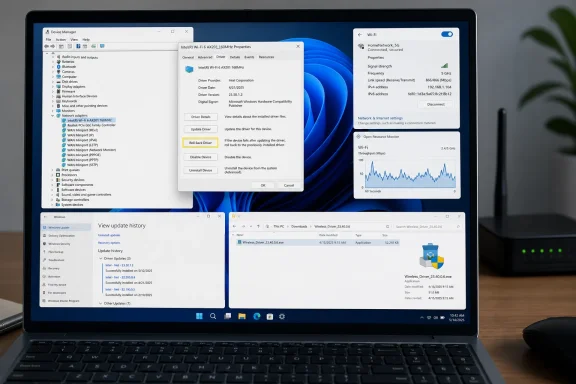
For affected PCs, the sensible first move is not disabling driver updates system-wide. Check Device Manager > Network adapters > [adapter] > Properties > Driver and compare the installed version with the OEM package supplied for that exact laptop model. Windows Update history can also show whether a driver update landed on the same day the fault started.
If the previous package remains on the machine, Roll Back Driver may restore it. Otherwise, obtain the driver from the laptop or adapter manufacturer rather than using a random third-party driver archive. A reboot and repeatable throughput or call-quality test should follow before assigning blame to Windows Update.
Microsoft says hardware partners can publish certified drivers through Windows Update, and Windows normally installs newer drivers automatically. That does not guarantee every newer package is the best fit for every OEM configuration, particularly where wireless firmware, BIOS revisions, power settings, and vendor customizations interact.
The policy maps to the
That distinction matters because this is a broad control, not a Wi‑Fi-driver lock. It can prevent automatic Windows Update delivery of graphics, Bluetooth, audio, chipset, and other driver packages alongside quality updates. It also does not stop every possible driver replacement: feature upgrades can install drivers needed to complete setup, while OEM update tools, manual installations, and management software can still change them.
Microsoft notes that driver updates may still be available through Windows Update > Advanced options > Optional updates, allowing administrators and enthusiasts to review and install individual packages deliberately.
Users who take this route should keep the working OEM installer, record the driver version, and establish a review process for security and stability updates that now require manual attention.
The symptoms were familiar: a strong Wi‑Fi signal but erratic downloads, stuttering calls, and bursty local network transfers. Resetting networking equipment appeared to help temporarily, but the pattern returned after later updates. Comparing the wireless adapter’s provider, date, and version against the known-good package exposed the change.
 Roll back first, then prove the fix
For affected PCs, the sensible first move is not disabling driver updates system-wide. Check Device Manager > Network adapters > [adapter] > Properties > Driver and compare the installed version with the OEM package supplied for that exact laptop model. Windows Update history can also show whether a driver update landed on the same day the fault started.If the previous package remains on the machine, Roll Back Driver may restore it. Otherwise, obtain the driver from the laptop or adapter manufacturer rather than using a random third-party driver archive. A reboot and repeatable throughput or call-quality test should follow before assigning blame to Windows Update.
Microsoft says hardware partners can publish certified drivers through Windows Update, and Windows normally installs newer drivers automatically. That does not guarantee every newer package is the best fit for every OEM configuration, particularly where wireless firmware, BIOS revisions, power settings, and vendor customizations interact.
The policy blocks more than Wi‑Fi
Microsoft’s documented Do not include drivers with Windows Updates policy excludes packages with the Driver classification from Windows quality updates. On Windows Pro, Enterprise, and Education, it is available in Group Policy under Computer Configuration > Administrative Templates > Windows Components > Windows Update > Manage updates offered from Windows Update.The policy maps to the
ExcludeWUDriversInQualityUpdate value under HKLM\SOFTWARE\Policies\Microsoft\Windows\WindowsUpdate. MakeUseOf recommends setting that DWORD to 1 manually on Windows Home, though Microsoft’s policy documentation formally lists the supported editions as Pro, Enterprise, Education, and IoT Enterprise.That distinction matters because this is a broad control, not a Wi‑Fi-driver lock. It can prevent automatic Windows Update delivery of graphics, Bluetooth, audio, chipset, and other driver packages alongside quality updates. It also does not stop every possible driver replacement: feature upgrades can install drivers needed to complete setup, while OEM update tools, manual installations, and management software can still change them.
Microsoft notes that driver updates may still be available through Windows Update > Advanced options > Optional updates, allowing administrators and enthusiasts to review and install individual packages deliberately.
Users who take this route should keep the working OEM installer, record the driver version, and establish a review process for security and stability updates that now require manual attention.
References
- Primary source: MakeUseOf
Published: 2026-07-14T14:00:15+00:00
I disabled automatic driver updates and my Wi-Fi speeds finally stopped disappearing after each Windows update
Windows meant well, which is usually how my network problems begin. www.makeuseof.com
- Official source: support.microsoft.com
- Official source: learn.microsoft.com
Programmatic controls for drivers and firmware - Windows Autopatch | Microsoft Learn
Use programmatic controls to deploy driver and firmware updates to devices.learn.microsoft.com
