

Microsoft has quietly added a Digital Signage mode to Windows that deliberately hides crash screens and most error dialogs on unattended public displays after a brief diagnostic window — a change that will fix a long-standing embarrassment for venues using Windows-powered media players, but also introduces new operational and security considerations for IT teams.
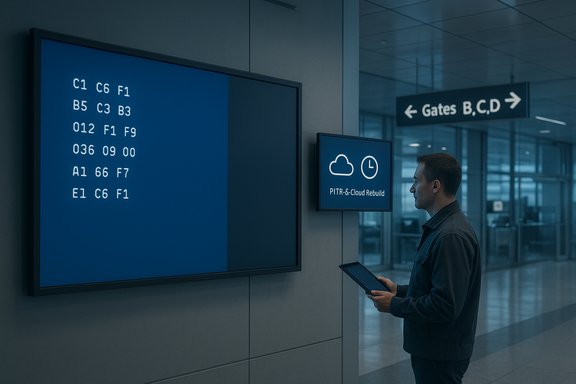
Microsoft announced a package of resiliency and manageability features at Ignite that aim to make Windows easier to recover and less visible when things go wrong on public-facing devices. The most eye-catching item for the general public is the new Digital Signage mode: when enabled on a non-interactive display, Windows will show an error screen (including what would traditionally be a Blue Screen of Death) for a short period — reported as roughly 15 seconds — and then blank the display until physical input (keyboard or mouse) is detected. This behavior applies not only to full bugcheck screens but also to persistent error dialogs that would otherwise remain visible on a showpiece in an airport, retail outlet, or transit hub. At the same time Microsoft previewed a trio of enterprise-focused recoverability improvements that change how administrators will repair or reimage problem machines at scale:
Microsoft’s Digital Signage mode solves a visible problem with an elegantly simple UX rule: let the screen talk briefly, then go quiet. The real win will be measured by whether IT teams pair that silence with the visibility, telemetry, and recovery controls it demands — so the next time a public display goes dark, it won’t stay dark because nobody knew it had failed.
Source: theregister.com Windows Digital Signage mode hides BSoDs after 15 seconds
 Background / Overview
Microsoft announced a package of resiliency and manageability features at Ignite that aim to make Windows easier to recover and less visible when things go wrong on public-facing devices. The most eye-catching item for the general public is the new Digital Signage mode: when enabled on a non-interactive display, Windows will show an error screen (including what would traditionally be a Blue Screen of Death) for a short period — reported as roughly 15 seconds — and then blank the display until physical input (keyboard or mouse) is detected. This behavior applies not only to full bugcheck screens but also to persistent error dialogs that would otherwise remain visible on a showpiece in an airport, retail outlet, or transit hub. At the same time Microsoft previewed a trio of enterprise-focused recoverability improvements that change how administrators will repair or reimage problem machines at scale:- Point-in-Time Restore (PITR) — a fast rollback feature that keeps short-term snapshots so a PC can be restored to a recent working state from WinRE (Windows Recovery Environment). Administrators and users can pick among snapshots organized by timestamp; preview settings show configurable snapshot frequency and short retention windows.
- Cloud Rebuild (preview) — an Intune-driven full reinstall that reprovisions the device through Autopilot and rehydrates apps and user data via Windows Backup / OneDrive, intended for machines too corrupted to repair locally.
- Windows cryptography and storage advances — early Post‑Quantum Cryptography (PQC) APIs and SymCrypt updates for quantum‑resistant algorithms, and hardware‑accelerated BitLocker on “next‑generation” devices to both strengthen encryption and speed encryption operations.
What Digital Signage mode actually does
How it behaves in the field
Digital Signage mode aims to preserve the on-screen experience of public displays by suppressing persistent UI that would otherwise be visible to passersby. The key behaviors reported in previews are:- When an error occurs that would normally create a visible fault screen, Windows still surfaces diagnostic information briefly (about 15 seconds) so on-site operators can see what happened.
- After that diagnostic window the display turns dark/blank and remains off until local input is received (mouse, keyboard).
- The mode is intended solely for non-interactive digital signage and does not replace Kiosk mode or interactive point-of-sale software. Kiosk-mode devices continue to behave as before.
What it does not change
Digital Signage mode is not a fix for root-cause reliability issues. The underlying failure remains: the OS or a driver has crashed, and a device that repeatedly hits this state still needs investigation and remediation. The mode simply hides the visible consequences after a short window; it does not automatically remediate the fault or reimage the machine. For those outcomes Microsoft is shipping PITR and Cloud Rebuild.Why Microsoft added this feature now
Digital signage is a special-case deployment model: devices are often headless, remote, and user‑facing; the visibility of a Blue Screen or persistent pop-up can cause reputational damage and customer confusion. High-profile incidents driven by faulty third‑party updates in recent years demonstrated the downstream cost of public device crashes and the limitations of remote troubleshooting when displays remain visually “frozen.” Microsoft’s approach is pragmatic: make public displays stop showing raw, technical errors by default while preserving short diagnostic visibility for operators. This design sits alongside efforts to make recovery faster and more remote-friendly.Point‑in‑Time Restore: short‑term snapshots for quick recovery
What PITR looks like in practice
Point‑in‑Time Restore is a targeted rollback feature aimed at repairing recent regressions without a full reimage. Preview interfaces show admins and users can configure:- Frequency of snapshots: options in the preview include every 4, 6, 12, 16, or 24 hours.
- Retention windows: selectable retention spanning 6, 12, 16, 24, or 72 hours — the preview commonly shows a default of 24‑hour snapshots retained for 72 hours, giving up to three recent restore points.
Pros and limits
Benefits:- Fast rollback for regressions caused by recent driver updates, misapplied policies, or feature flights.
- Lower operational cost than a full reimage: shorter RTO, fewer helpdesk hours.
- Administrators can configure cadence to match operational needs; denser snapshot cadence gives finer-grained restore points.
- Short retention windows mean PITR is not a long‑term archival solution.
- Restores can erase locally saved content — cloud‑staged backups (OneDrive, Windows Backup for Organizations) remain essential.
- Some device states — firmware changes, certain kernel‑level driver writes, or hardware corruption — may not be fully reversible. Treat PITR as a fast repair tool for recent logical regressions, not a cure for all outages.
Cloud Rebuild and WinRE/Intune integration
What Cloud Rebuild promises
Cloud Rebuild is a remote, managed reinstall workflow surfaced through Intune and Autopilot. Typical Cloud Rebuild flow:- Administrator triggers Cloud Rebuild from the management console.
- The device boots into WinRE and downloads install media and provisioning instructions.
- Windows reinstalls, installs hardware drivers, enrolls the device in Autopilot/Intune, and restores user data/settings via Windows Backup and OneDrive where configured.
Operational realities and constraints
Cloud Rebuild is powerful but has prerequisites and caveats:- Network dependence: the device must be able to reach Microsoft services, Intune, and driver repositories from WinRE. Sites with constrained WAN or air‑gapped environments will need alternate recovery methods.
- Backup hygiene: Cloud Rebuild assumes that user files were synchronized to OneDrive or Windows Backup; local-only files risk loss.
- Driver coverage: some machines require OEM drivers not present in Windows Update catalogs — those devices may need manual driver injection or local intervention.
Cryptography and disk encryption: PQC, SymCrypt, and hardware‑accelerated BitLocker
Post‑Quantum Cryptography (PQC) support
Microsoft is rolling PQC capabilities into SymCrypt and the Cryptography API: Next Generation (CNG) to enable early experimentation with quantum‑resistant algorithms such as ML‑KEM and ML‑DSA in Insider builds. The goal is to help enterprises start the migration work and to reduce "harvest now, decrypt later" risk by beginning a phased transition to quantum-safe key exchange and signatures. This capability is being introduced in Windows Insider channels and gradually extended to broader stacks (TLS, AD CS, Intune certificate flows). Standards and interoperability work is ongoing, so expect changes as the ecosystem matures.Hardware‑accelerated BitLocker
Microsoft announced that “next‑generation” Windows PCs will support BitLocker hardware acceleration, offloading bulk cryptographic operations to dedicated SoC crypto engines. The outcome is both faster encryption/decryption and less CPU load during onboarding and full-disk encryption operations, and the ability to protect keys in hardware-protected stores to reduce their exposure in system memory. This is a platform advantage for new devices but depends on OEM system support.New Copilot and accessibility features (end‑user impact)
Windows is increasingly integrating Copilot and on-device AI. Notable preview features announced include:- Writing Assistance that plugs Copilot composition features into arbitrary text boxes across Windows, with offline capability on Copilot+ devices.
- Fluid dictation in Voice Access: an on‑device transcription experience that corrects grammar, removes filler words, and polishes text in real time, available on Copilot+ PCs.
- Smart Outlook summaries and automatic alt‑text generation for images added to Word documents, improving accessibility and productivity.
Critical analysis — strengths, blind spots, and risks
Practical strengths
- Improved public UX: Digital Signage mode reduces brand damage and customer confusion caused by visible crash screens on large public displays. That alone addresses a persistent operational pain for signage integrators.
- Faster, managed recovery: PITR and Cloud Rebuild offer a continuum between quick rollback and full reprovisioning, reducing MTTR and on‑site work for distributed fleets.
- Future‑proofing crypto: PQC APIs and hardware‑backed BitLocker demonstrate Microsoft’s focus on forward security posture and performance improvements for encryption workloads.
Operational blind spots and security risks
- Hidden failures complicate telemetry and incident response. Digital Signage mode hides the visible symptoms of failure after 15 seconds. If monitoring relies on manual visual inspection by staff, silent failures can go unreported for longer. Robust telemetry and remote health checks must accompany the mode.
- False sense of resilience. A blank screen looks acceptable, but the underlying device can continue to fail repeatedly; masking the symptom may delay root‑cause remediation and lead to protracted outages at scale.
- Network and backup dependencies. Cloud Rebuild and PITR rely on network connectivity and cloud backups. If the network is the failure domain, remote rebuilds and restores may be hampered. Organizations with restrictive networking or regulated data flows must plan for offline recovery options.
- Telemetry and privacy concerns. The new recovery flows depend on diagnostic telemetry and remote remediation. Regulated industries must review data flows and contractual protections before enabling automated recovery that sends diagnostics externally.
- PQC is early access. Integrations are preview-level and standards are still evolving. Early PQC adoption needs careful testing for interoperability (TLS headers, certificate sizes, legacy clients). Expect trade-offs in performance and compatibility during the transition.
Practical checklist for administrators
- Pilot before wide rollout
- Run Digital Signage mode and PITR/Cloud Rebuild in a controlled pilot that mirrors your signage hardware and network topology.
- Strengthen remote management
- Ensure out‑of‑band consoles (iKVM, vPro, or vendor OOBM) and monitoring agents are available for signage boxes; do not rely solely on visual inspection.
- Validate WinRE networking and drivers
- Test WinRE connectivity for your NICs and enterprise Wi‑Fi (802.1X) flows; include driver injection steps for chipsets that require it.
- Vault BitLocker keys and test pre‑boot access
- Cloud Rebuild and PITR often require BitLocker recovery access. Ensure key escrow (Azure AD/Intune/MBAM equivalent) is consistent and tested.
- Configure snapshot cadence sensibly
- Use 4–6 hour snapshots for highly dynamic environments; increase retention only as disk space permits. Balance the need for fine RPO with storage usage.
- Harden governance for remote remediation
- Add RBAC, approvals, and audit trails for recovery actions in Intune; require manual approval for destructive actions in production.
- Maintain offline recovery paths
- Keep bootable WinRE media, local images, and manual rebuild SOPs for air‑gapped or high‑risk devices.
- Prepare monitoring and alerting
- Add heartbeat monitoring and screenshot capture for signage endpoints so a blank screen triggers a handled alert, not silent acceptance.
What operators of public displays should change now
- Treat Digital Signage mode as a UX safety measure, not a substitute for proper monitoring.
- Add automated screenshot or “heartbeat” capture and remote notifications for displays that enter a darkened state.
- Ensure the on-site frequency of operator checks includes procedures to physically wake the screen and capture the transient diagnostic window if needed.
- If your signage software vendor offers watchdog or auto‑reboot features, validate them against Digital Signage mode to ensure the desired recovery behavior occurs and that reboots do not create a loop where the device continually cycles to the 15‑second diagnostic window.
Final assessment
Microsoft’s changes mark a pragmatic and multi-pronged shift: hide the embarrassment, make fast rollbacks possible, and enable remote reprovisioning — all while beginning the long march toward quantum-resistant cryptography and improved encryption performance. For Windows operators and IT teams this is a welcome evolution in manageability and recoverability, but it does not remove the need for disciplined operations:- Digital Signage mode reduces visible failure noise, but raises the imperative for automated monitoring and out‑of‑band management.
- Point‑in‑Time Restore and Cloud Rebuild shorten repair timelines, but depend on network, backup hygiene, and driver compatibility.
- PQC and hardware BitLocker advances prepare organizations for future threats and faster encryption, yet demand testing and migration roadmaps.
Microsoft’s Digital Signage mode solves a visible problem with an elegantly simple UX rule: let the screen talk briefly, then go quiet. The real win will be measured by whether IT teams pair that silence with the visibility, telemetry, and recovery controls it demands — so the next time a public display goes dark, it won’t stay dark because nobody knew it had failed.
Source: theregister.com Windows Digital Signage mode hides BSoDs after 15 seconds
