

Fast Startup is one of those small Windows optimizations that quietly speeds your next boot by saving the kernel and loaded drivers to disk instead of tearing everything down — but that convenience comes with concrete trade‑offs. This feature can be left on for the majority of single‑OS users on modern SSD machines, yet it is frequently the first setting to disable when troubleshooting stubborn shutdown problems, cross‑OS filesystem errors, firmware/BIOS access issues, or update failures.
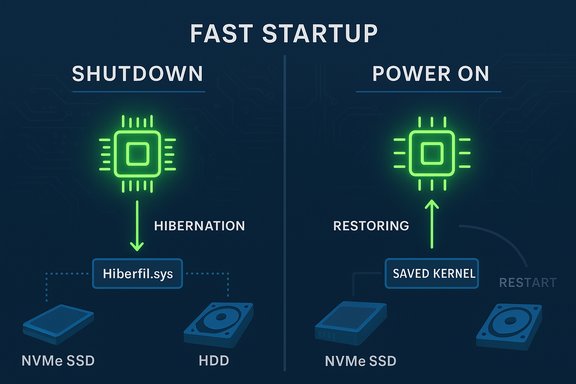
Fast Startup (sometimes called hybrid shutdown) was introduced in Windows 8 and continues to be available in Windows 10 and Windows 11. Instead of doing a full kernel teardown at shutdown, Windows logs off interactive users and hibernates the kernel session to a reduced hibernation file (Hiberfil.sys). On the next power‑on Windows reloads that saved kernel image, skipping some of the work a cold boot would perform — and that’s where the time savings come from. Because Fast Startup leverages the hibernation infrastructure, the feature is normally enabled on systems that support hibernation. Importantly, the Restart path in Windows is intentionally different: a Restart triggers a full, cold boot (so many updates and driver installs still require Restart rather than Shutdown→Power On). Microsoft documents this behavior and recommends caution when interactions with drivers, firmware, or multi‑boot setups are possible.
The practical guidance above synthesizes Microsoft’s technical documentation on Fast Startup and hibernation behavior with community and vendor troubleshooting experience; it gives a concise decision tree, safe how‑tos, and verification steps so users can choose the setting that best fits their workflows while avoiding common pitfalls.
Source: baonghean.vn https://baonghean.vn/en/fast-startup-windows-11-khi-nao-nen-tat-va-lam-the-nao-10310798.html
 Background / Overview
Fast Startup (sometimes called hybrid shutdown) was introduced in Windows 8 and continues to be available in Windows 10 and Windows 11. Instead of doing a full kernel teardown at shutdown, Windows logs off interactive users and hibernates the kernel session to a reduced hibernation file (Hiberfil.sys). On the next power‑on Windows reloads that saved kernel image, skipping some of the work a cold boot would perform — and that’s where the time savings come from. Because Fast Startup leverages the hibernation infrastructure, the feature is normally enabled on systems that support hibernation. Importantly, the Restart path in Windows is intentionally different: a Restart triggers a full, cold boot (so many updates and driver installs still require Restart rather than Shutdown→Power On). Microsoft documents this behavior and recommends caution when interactions with drivers, firmware, or multi‑boot setups are possible. What Fast Startup actually does (technical summary)
- On Shutdown with Fast Startup enabled:
- Windows logs off user sessions (session 1+ are closed).
- The kernel session (session 0) and loaded kernel‑mode drivers are written to the hibernation file (Hiberfil.sys).
- The machine enters a power‑off state that is functionally closer to hibernation (S4) than a true OS teardown (S5).
- On Power‑on after such a shutdown:
- Windows restores the saved kernel image instead of rebuilding it from scratch.
- This removes part of kernel initialization and device re‑enumeration work, shaving seconds — more on HDDs, less on NVMe/SSDs.
- On Restart:
- Windows performs a full cold boot; Fast Startup does not apply. This is why many update installers or driver installers insist you choose Restart.
When to turn Fast Startup off: practical scenarios
Fast Startup is safe and useful in many everyday desktop cases, but there are distinct situations where disabling it is strongly recommended.1) Dual‑boot systems (Windows + Linux or other OS)
When Windows uses Fast Startup it leaves NTFS volumes in a hibernated‑like state. Other operating systems — notably Linux — will refuse to mount a Windows NTFS partition read/write to avoid corrupting a volume that Windows considers suspended. That makes disabling Fast Startup effectively mandatory for any stable multi‑boot workflow.2) Firmware/BIOS access, flashing, or frequent boot‑menu use
Fast Startup compresses the time window available to interrupt POST and enter firmware setup or one‑time boot menus. If you regularly enter BIOS/UEFI, change boot order, or flash firmware, disable Fast Startup temporarily to ensure consistent firmware access.3) Troubleshooting shutdown/restart/driver update problems
If you see strange shutdown loops, drivers that persist in misbehaving across boots, updates that appear not to apply after a shutdown, or devices that do not initialize correctly, a true cold boot (Fast Startup off) gives you a guaranteed clean kernel initialization and is the first low‑risk troubleshooting step recommended across vendor forums and Microsoft guidance.4) Unexpected wakeups or battery drain on some laptops
A small set of device drivers and firmware implement power transitions poorly. In these edge cases Fast Startup’s use of hibernation infrastructure can lead to machines that look “off” but draw power or wake unexpectedly. These reports are hardware‑specific and largely anecdotal, so treat them as empirical observations to be tested on your device — but many users have resolved such behavior by disabling Fast Startup.5) Enterprise or managed environments that need deterministic boots
Large‑scale firmware rollouts, driver deployment, imaging, and update orchestration often require a deterministic cold boot state. In managed fleets, test changes in pilots — Group Policy, MDM, or SCCM can enforce settings, and disabling Fast Startup may be necessary to ensure updates and imaging operations behave predictably.When you can safely leave Fast Startup enabled
- You run a single‑OS machine and rarely change firmware or kernel drivers.
- Your storage is a modern NVMe/SSD and the boot‑time savings are negligible (often only a few seconds).
- You value the convenience of slightly faster cold boots and don’t do cross‑OS work or firmware tinkering.
How to turn Fast Startup off (step‑by‑step)
There are two mainstream approaches: the Control Panel GUI (recommended for most users who want to preserve hibernation functionality) and the command line which disables hibernation entirely (and therefore Fast Startup).Method A — Recommended: Control Panel (preserves hibernate)
- Open Control Panel (press Windows and type “Control Panel”).
- Choose Hardware and Sound → Power Options.
- Click “Choose what the power buttons do” on the left.
- Click “Change settings that are currently unavailable” (admin privilege required).
- Under Shutdown settings, uncheck Turn on fast startup (recommended).
- Click Save changes and perform a full shutdown to test.
Method B — Command line: disable hibernation (also removes Fast Startup)
- Open an elevated Command Prompt or PowerShell (Run as administrator).
- Run: powercfg /hibernate off
- To re‑enable later: powercfg /hibernate on
Method C — Enterprise / scripted control
- Use Group Policy or MDM to manage Fast Startup across devices. For Group Policy, the relevant setting lives under Computer Configuration → Administrative Templates → System → Shutdown (Require use of fast startup). Pilot before wide rollout.
Verifying the change and troubleshooting after disabling
After you disable Fast Startup, confirm your system is performing a full cold shutdown and that the reason you disabled it is resolved.Quick verification checklist
- Shutdown the PC and observe whether LEDs/fans power down and stay off after ~30 seconds. If the machine still restarts or wakes, further investigation is needed.
- If you were troubleshooting dual‑boot access, boot into the other OS and confirm the NTFS partitions mount read/write as expected. If not, run a complete power cycle and recheck.
- If updates didn’t apply before, install them and perform a full Shutdown → power‑on sequence and then check update history (Restart is still the canonical route to apply many system updates).
If the machine still misbehaves
- Disable automatic restart on system failure to capture any stop codes: Control Panel → System → Advanced System Settings → Startup and Recovery → uncheck “Automatically restart.”
- Inspect Device Manager → device → Properties → Power Management to disable “Allow this device to wake the computer” for suspicious NICs/USB devices.
- Check Event Viewer (Windows Logs → System and Diagnostics‑Performance) for Kernel‑Power events and BootDuration metrics (Event ID 100) to measure boot time before/after.
BitLocker and other special considerations
- BitLocker and measured boot: Because Fast Startup preserves a kernel image, changes to firmware or boot order sometimes trigger BitLocker recovery prompts in systems where the TPM’s measurements differ between boots. If you plan to change firmware or perform operations that alter boot measurements, consider suspending BitLocker before the change — and ensure recovery keys are available. The interaction is not usually direct, but it’s a known point of friction that organizations and power users should plan for.
- Missing checkbox in Control Panel: If the Fast Startup option is greyed out or absent, hibernation may be disabled or the platform may not support the necessary ACPI S4 state. Use powercfg /availablesleepstates and powercfg /hibernate on to investigate and re‑enable the GUI control if desired.
Measuring the boot‑time cost: how much slower is a full shutdown?
Boot‑time impact depends mainly on storage speed and firmware behavior:- HDD systems: disabling Fast Startup can add a significant penalty — tens of seconds in many community tests.
- Modern NVMe/SSD systems: the penalty is frequently a few seconds, often not worth the trade if convenience matters more than determinism.
- Open Event Viewer → Applications and Services Logs → Microsoft → Windows → Diagnostics‑Performance → Operational.
- Note Event ID 100 BootDuration values for cold boot (after a full shutdown) and compare with boots after Fast Startup shutdowns. This gives an objective measurement rather than subjective impressions.
Decision tree: a short checklist to decide on Fast Startup
- Dual‑booting with Linux/other OS? → Disable Fast Startup now.
- Frequently change firmware, flash BIOS, or need reliable firmware menus? → Disable while working, re‑enable later if desired.
- Experiencing shutdown/restart oddities, updates not applying, or drivers persisting across boots? → Disable and retest; if it fixes the problem, keep it off.
- Single‑OS, stable system, SSD and you value slight speed advantage? → Keep Fast Startup enabled but document the caveats and know how to disable it quickly.
Risks, caveats, and unverifiable claims
- Many reports about battery drain or wake‑from‑shutdown behaviors are anecdotal and highly hardware/driver dependent. Quantitative battery‑drain claims are not uniformly verifiable across devices; they should be tested on the specific hardware in question before being treated as fact. When community posts or forum threads assert a fixed percentage of battery loss due to Fast Startup, treat those numbers as empirical observations, not universal truths.
- Disabling hibernation (powercfg /hibernate off) removes hiberfil.sys and also removes the hibernate option from power menus. If you rely on hibernate for session persistence, prefer the Control Panel toggle which only disables Fast Startup but leaves hibernation intact.
- Enterprise impact: Group Policy or device management may override local changes. Coordinate with IT and pilot changes before mass deployment. Enforcing Fast Startup changes across diverse hardware can create unexpected support churn.
Practical tips and safe workflow
- Keep the change reversible: toggle Fast Startup in Control Panel rather than deleting hibernation unless you absolutely do not use hibernate.
- When performing firmware or driver work:
- Suspend BitLocker (if present).
- Disable Fast Startup.
- Perform firmware update or driver installation.
- Reboot using Restart to ensure the new kernel state is loaded.
- Re‑enable BitLocker and Fast Startup only after verifying success.
- If you’re an advanced user who prefers scripts, use Group Policy or PowerShell to control and document the change across devices, but always pilot on a representative sample.
Final analysis: balance convenience and determinism
Fast Startup is an engineering trade‑off: it reduces perceived cold boot time by saving kernel state to disk, but it preserves state in ways that create predictable pitfalls for multi‑boot systems, firmware operations, and certain driver/update workflows. For the average consumer who runs a single Windows install on a fast SSD, the convenience often wins. For power users, IT pros, and anyone who needs deterministic, repeatable system behavior, disabling Fast Startup is a low‑risk, reversible step that removes an entire class of intermittent, hard‑to‑diagnose problems. Turning Fast Startup off is quick, reversible, and usually the most effective first step when troubleshooting shutdowns, update issues, or cross‑OS file access. Measure before and after if boot time matters; otherwise, favor predictability over shaving a few seconds from boot time.The practical guidance above synthesizes Microsoft’s technical documentation on Fast Startup and hibernation behavior with community and vendor troubleshooting experience; it gives a concise decision tree, safe how‑tos, and verification steps so users can choose the setting that best fits their workflows while avoiding common pitfalls.
Source: baonghean.vn https://baonghean.vn/en/fast-startup-windows-11-khi-nao-nen-tat-va-lam-the-nao-10310798.html
