

Screen flickering is one of those maddening Windows problems that interrupts work, stresses your eyes, and can hint at anything from a misbehaving app to a failing display connector — but most of the time it’s fixable at the software level. Microsoft’s official guidance for Windows 11 frames the troubleshooting sequence around a simple diagnostic — check whether Task Manager flickers — and then apply targeted fixes: reset the graphics subsystem, roll back or update the display driver, or remove an incompatible app. This article expands that guidance into a comprehensive, step‑by‑step troubleshooting and prevention guide that walks you from fast, safe checks to advanced repairs, explains risks and tradeoffs, and clarifies when the problem is likely hardware rather than software.
Screen flickering in Windows can present in many ways: intermittent strobe-like flashes across the whole display, localized bands of repeating pixels, or persistent stutter that makes text and UI elements jump. The most common causes are:
Important: Manufacturer programs and coverage periods vary widely; check warranty status with the vendor and provide clear documentation of the issue (photos, videos, whether it occurs in UEFI) when requesting service.
Source: Microsoft Support Troubleshoot screen flickering in Windows - Microsoft Support
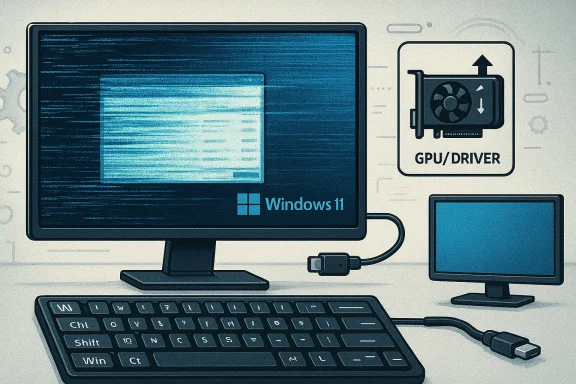 Background
Screen flickering in Windows can present in many ways: intermittent strobe-like flashes across the whole display, localized bands of repeating pixels, or persistent stutter that makes text and UI elements jump. The most common causes are:- Display driver problems — corrupted, incompatible, or newly updated drivers.
- Incompatible applications — programs that interact with rendering pipelines, overlays, or display services.
- Display settings and refresh‑rate mismatches — incorrect resolution, refresh rate, or scaling.
- Hardware faults — loose display cable, failing panel, or GPU/hardware controller problems (more likely when flicker appears outside the OS, such as in UEFI/BIOS).
Quick triage: the first 60 seconds
These quick checks often restore a usable screen and are safe to try without administrative privileges.1. Reset the graphics subsystem (keyboard shortcut)
- Press Win + Ctrl + Shift + B simultaneously.
- Expect a brief screen blink and a short beep; Windows will attempt to reinitialize the graphics pipeline.
- This does not reinstall drivers — it forces the Desktop Window Manager and GPU subsystem to refresh and is safe to try while apps are open.
2. Open Task Manager and observe
- Press Ctrl + Shift + Esc (or Ctrl + Alt + Delete then choose Task Manager).
- Watch whether Task Manager flickers with the rest of the screen.
- If Task Manager flickers, focus on display driver fixes (see next section).
- If Task Manager does not flicker while other UI elements do, focus on applications and overlays (skip ahead to the app troubleshooting section).
Fix your display driver: roll back, update, or reinstall
When Task Manager flickers, the display driver or GPU subsystem is very often at fault. Follow this prioritized sequence.1. Roll back the display driver (if a recent update likely caused the issue)
- Open Device Manager (type Device Manager in the taskbar search).
- Expand Display adapters.
- Right‑click your adapter, choose Properties, then the Driver tab.
- Click Roll Back Driver (if available), confirm, and restart.
2. Update the display driver
- From Device Manager, right‑click the adapter and choose Update driver.
- Choose to search automatically or install a downloaded driver package from the OEM (Intel, NVIDIA, AMD) or your PC manufacturer (Dell, HP, Lenovo).
- After updating, restart and re‑test.
3. Uninstall and let Windows reinstall the driver
- In Device Manager, right‑click the display adapter → Properties → Driver tab → Uninstall Device.
- Select Attempt to remove the driver for this device if the option appears, then click OK.
- Restart. Windows will typically re‑detect the adapter and reinstall a compatible driver.
4. Advanced: Clean driver removal with DDU (Display Driver Uninstaller)
When normal uninstalls fail or persistent artifacts remain after updates, use Display Driver Uninstaller (DDU) in Safe Mode to perform a cleaner driver removal and then reinstall the correct driver.- DDU is a third‑party tool designed to remove leftover driver files, registry keys, and driver store entries.
- Use DDU only if you are comfortable with more advanced troubleshooting; always download it from its official distribution and follow the author’s instructions.
- Before using DDU:
- Download the driver package you intend to install afterward.
- Disconnect from the internet (optional but recommended on Windows 10/11) to prevent automatic driver reinstallation.
- Boot to Safe Mode and run DDU for best results.
App compatibility: when Task Manager does not flicker
If Task Manager looks fine, an app or background process is likely interfering with rendering. The most common app culprits are overlays, screen‑capture and streaming software, and UI utilities (RGB control, system enhancers).Steps to isolate and remove an incompatible app
- Try a quick disable of suspect overlay apps:
- Exit apps like Discord overlay, Steam In‑Game overlay, NVIDIA GeForce Experience overlay, Xbox Game Bar, and screen recorders.
- Use Task Manager to identify the offender:
- Sort by CPU or GPU usage and end tasks one at a time, watching for flicker to stop.
- Boot to Safe Mode to confirm:
- Safe Mode loads minimal drivers and services. If flicker stops in Safe Mode, a third‑party app or driver is likely responsible.
- Use a Clean Boot to find the exact service:
- Press Win + R, enter
msconfig. - On General, choose Selective startup and uncheck Load startup items.
- On Services, check Hide all Microsoft services, then disable half of the remaining services and reboot.
- If flicker stops, re-enable services in smaller groups to isolate the culprit.
Disable full‑screen optimizations and per‑app settings
- For apps that only flicker in full screen, right‑click the app or executable, choose Properties → Compatibility, and check Disable full‑screen optimizations.
- For games, test toggling V‑Sync, G‑Sync/FreeSync, or changing the refresh rate.
Display settings and external hardware checks
Sometimes flicker is caused by a mismatch between the display’s native refresh rate and Windows settings, or by physical connection issues.Confirm resolution and refresh rate
- Right‑click the desktop → Display settings → Advanced display → make sure the resolution and refresh rate match the monitor’s native specifications.
- Using an unsupported refresh rate can cause flicker, especially on high‑refresh gaming panels.
Test with an external monitor
- Attach a second monitor or TV. If the external display is stable while the internal panel flickers, the problem is more likely the internal screen or connection (hardware). If both flicker, suspect the GPU/driver.
Inspect cables and connectors
- For desktops: reseat or replace the DisplayPort/HDMI cable, try a different port, and test with a different monitor.
- For laptops: internal display cables can work loose or the panel controller can fail. If flicker occurs in BIOS/UEFI or during boot menus, hardware is likely failing.
Firmware, BIOS/UEFI, and graphics firmware updates
- Check for UEFI/BIOS firmware updates from your PC vendor. Some flicker issues have been resolved by vendor firmware that improves display controller handling.
- For Surface and some OEM devices, vendor‑supplied firmware bundles often include display/graphics firmware and driver packages; applying these from the manufacturer can resolve flicker that generic drivers don’t fix.
Surface devices and hardware replacement programs
Some device families have had known hardware programs for specific display faults. For example, certain Surface Pro 4 units exhibited a persistent “scramble” or flicker that Microsoft handled via a limited replacement program in the past. If a device shows the same symptoms outside of Windows (for instance, flicker appears in UEFI/BIOS), that strongly suggests a hardware defect; contact your device vendor for warranty or replacement options.Important: Manufacturer programs and coverage periods vary widely; check warranty status with the vendor and provide clear documentation of the issue (photos, videos, whether it occurs in UEFI) when requesting service.
Step‑by‑step recovery checklist (ordered, actionable)
- Save your work and try Win + Ctrl + Shift + B.
- Open Task Manager:
- If Task Manager flickers → proceed to driver steps.
- If Task Manager is stable → proceed to app troubleshooting.
- Driver path (Task Manager flickers):
- Try rolling back the driver via Device Manager.
- Update the driver using the OEM / GPU vendor package.
- Uninstall the driver in Device Manager and reboot.
- If still broken, use DDU in Safe Mode and reinstall the vendor driver.
- App path (Task Manager stable):
- Close overlays and recording/streaming apps.
- Disable startup items or perform a Clean Boot to isolate the app.
- Disable full‑screen optimizations for the troubled app.
- Display and hardware checks:
- Connect an external monitor to compare behavior.
- Confirm resolution and refresh rate settings.
- Test alternate cables/ports (desktop).
- Firmware:
- Update BIOS/UEFI and device firmware if the vendor recommends it.
- If flicker persists in UEFI/boot screens → escalate to hardware repair or replacement.
Risks, cautions, and what to back up
- Always back up important data before attempting firmware or system‑level changes.
- Using DDU or uninstalling drivers can temporarily leave the display without hardware acceleration and may require connecting via remote tools or safe mode to recover drivers.
- Avoid unverified “fixes” posted on forums that involve physical manipulation (the “freezer trick” or bending connectors) — these can permanently damage the device and void warranty.
- When updating drivers, favor official OEM or GPU vendor packages. Windows Update provides a baseline driver, but vendor packages sometimes include critical fixes or firmware.
Prevention and maintenance to reduce future flicker
- Keep Windows updated and review optional driver updates before installing them en masse.
- For mission‑critical machines, defer non‑security driver updates by a few days to monitor early reports of regressions.
- Create a System Restore point before installing new GPU drivers.
- Maintain a small library of stable driver packages for your hardware — so you can quickly roll back if a new driver causes issues.
- Avoid running multiple overlay/monitoring apps concurrently (game overlays, RGB controllers, streaming software).
When it’s time to seek repair or replacement
- Flicker that appears in BIOS/UEFI or before Windows loads is almost certainly hardware (panel, flex cable, or GPU controller). Software fixes will not help.
- Intermittent, localized repeating bands or “scramble” that persists across OS and firmware typically requires vendor servicing or panel replacement.
- For devices still under warranty or covered by a vendor program, document the problem (video of flicker in UEFI is especially persuasive) and escalate to vendor support.
Advanced diagnostics for technicians
- Use vendor diagnostic utilities (Intel Graphics Command Center, NVIDIA Control Panel) to log GPU usage and driver errors.
- Check Windows Event Viewer for display driver errors (display‑driver‑datetime or WHEA errors) and note faulting module names.
- Use Safe Mode with Networking to test vendor driver downloads and offline installers.
- For desktops, test the GPU in another known‑good system to isolate the GPU vs motherboard issue.
What we can’t verify and cautionary notes
Some community posts claim specific driver versions or Windows builds universally cause flicker on certain models. While isolated cases do occur, broad claims associating every flicker incident with a single driver number are unreliable without reproducible evidence on the specific hardware involved. When encountering such claims, treat them as user reports rather than definitive facts; reproduce the problem on your device and consult manufacturer change logs or advisories for confirmed problematic versions before taking risky recovery actions.Conclusion
Screen flickering in Windows is disruptive but usually diagnosable with a methodical approach: use the Task Manager flicker test to determine whether the driver or an app is likely responsible; try the quick driver reset with Win + Ctrl + Shift + B; then follow the prioritized path of rolling back, updating, or clean‑installing display drivers. For app‑related flicker, isolate and remove overlays or perform a Clean Boot. Reserve DDU and firmware updates for advanced troubleshooting, and escalate to vendor repair when flicker appears across boot environments (UEFI/BIOS) or after hardware checks. With a measured process and the right tools, most flicker problems can be resolved without hardware replacement — and when replacement is necessary, clear evidence (like flicker in UEFI) gives you the strongest case with support.Source: Microsoft Support Troubleshoot screen flickering in Windows - Microsoft Support
