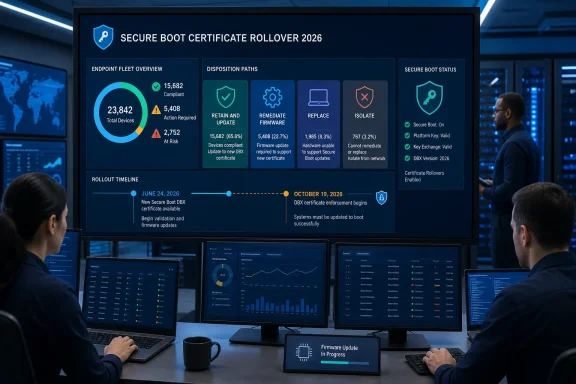
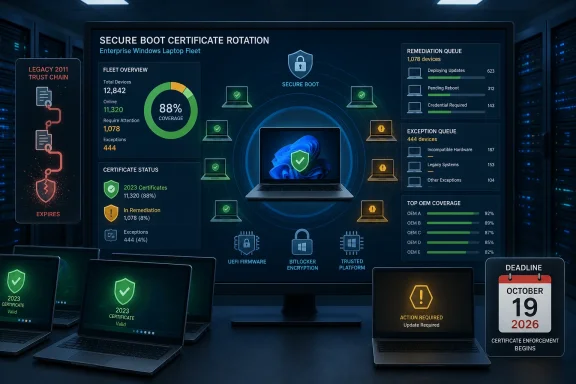
Microsoft’s July 15 OEM Secure Boot Office Hours did not move the remaining deadline: Microsoft Windows Production PCA 2011 is scheduled to expire on October 19, 2026. The practical task for administrators is to identify which devices are ready for the 2023 Secure Boot certificate transition, protect recovery access before making changes, and use a staged deployment method rather than treating the work as an ordinary monthly patch.
The session, reported by Windows Latest, brought Microsoft engineers and representatives from major PC and firmware vendors into a Tech Community discussion that remained open for 12 hours. Its most useful outcome was not a universal promise that every device will follow the same path. It was a clearer separation between Windows servicing, management-policy deployment, firmware readiness, and the exceptions that require device-level investigation.
For enterprise teams, the safe approach is straightforward: confirm BitLocker recovery-key escrow, install applicable Windows updates, test representative hardware cohorts, use the local detection material included with updated Windows installations, and deploy through the documented Group Policy or Microsoft Intune method. The Office Hours discussion provides context for those steps; it does not eliminate the need for pilots.
The Microsoft Corporation KEK CA 2011 and Microsoft UEFI CA 2011 certificates have already expired. The remaining Microsoft Windows Production PCA 2011 certificate is scheduled to expire on October 19, 2026.
That date should be treated as a planning deadline for organizations still working through the Secure Boot certificate transition. It is not a substitute for checking the actual state of individual devices, their firmware versions, and their management configuration. A device inventory that only records Windows edition and patch level is not enough for this work; firmware cohorts and recovery readiness matter as well.
The July Office Hours discussion is particularly relevant because it placed the transition in an operational context. The task is not simply “install an update.” Administrators must establish whether the endpoint is receiving applicable Windows servicing, whether the device can be managed through the organization’s chosen deployment channel, and whether any OEM-specific limitations affect the planned rollout.
July 15, 2026: Microsoft’s OEM Secure Boot Office Hours session is held through a Tech Community discussion.
July 18, 2026: Windows Latest publishes its account of the Office Hours discussion and the responses from Microsoft and participating OEMs.
October 19, 2026: Microsoft Windows Production PCA 2011 is scheduled to expire.
Windows updates released after May 12 place example Secure Boot rollout scripts in:
The supplied local detection script is named:
Its presence gives administrators a local, Microsoft-provided starting point for checking a device before and after a planned deployment. The Office Hours discussion also referenced
Still, a local script result should be treated as one piece of rollout evidence. It does not, by itself, establish that every device in the same product family has identical firmware, Secure Boot configuration, encryption state, or management-policy history.
That distinction is important for organizations with mixed fleets. Two devices sold under the same commercial model name may have different BIOS releases, different disk-encryption histories, or different policy assignment states. For that reason, the most useful inventory groups are usually more specific than “Dell laptops,” “Lenovo desktops,” or “Surface devices.” A workable grouping includes at least:
One of the most important administrative distinctions discussed around the rollout is the difference between the
The safe conclusion is not that administrators should immediately write
Accordingly, do not use direct registry deployment as a shortcut until a representative pilot has succeeded. Do not manually edit
The practical difference is simple: one value may be associated with deployment configuration, while the other is policy-related reference state. Confusing the two creates unnecessary risk because it can turn a managed rollout into an unsupported manual change.
That does not mean management reporting will always provide a complete diagnosis. The Office Hours discussion included reports of Intune results such as
When such an error occurs, the appropriate next step is to preserve evidence from the affected endpoint and compare it with the pilot cohort:
For the same reason, organizations should avoid declaring a policy method defective based on one generic status code, just as they should avoid declaring a firmware family ready based on one successful device. The meaningful unit of analysis is the tested hardware and configuration cohort.
A Windows device may be current on operating-system servicing while still requiring separate evaluation of its BIOS or UEFI state. That is why an inventory should record firmware version alongside Windows patch level and certificate-detection results.
The safest OEM guidance in the supplied discussion is specific to Surface shipping status:
This is especially important for older hardware. A legacy endpoint may remain part of the environment because it supports a specialized application, a peripheral, or a line-of-business workflow. That does not make it suitable for an untested Secure Boot deployment. It makes its exception status more important to document.
A practical legacy-device register should include:
This approach is less dramatic than declaring every older device a failure or every newer device ready. It is also more useful. The goal is to turn uncertain endpoints into documented decisions: proceed through the standard policy path, hold for OEM review, isolate for further testing, or place on a retirement plan.
Those reports matter because a recovery event has operational consequences regardless of the ultimate technical cause. It consumes support time, interrupts users, and can become a serious incident if recovery keys are not available. That is why recovery-key escrow belongs at the beginning of the deployment plan rather than at the end.
The supplied facts do not establish that Microsoft identified BitLocker recovery as normal or abnormal for this transition, nor do they establish a Microsoft-confirmed explanation involving firmware behavior, PCR configuration, or any other specific cause. They also do not provide a Microsoft remediation workflow for affected devices. Administrators should therefore avoid presenting any single explanation as settled.
What can be said safely is that a recovery event should trigger a pause and investigation for the affected cohort. A team should record what changed, what policy was applied, what firmware the device was running, what the local detection script reported, and whether comparable devices exhibit the same behavior.
The same discipline applies to generic Intune failures. A management error may be the first signal that a cohort needs attention, but it is not a complete diagnosis. The correct response is to gather endpoint facts and compare them against successful pilots, not to assume that a broad redeployment will improve the result.
That boundary matters. Secure Boot work is sensitive enough that unsupported certainty can be as risky as inaction.
The report also says some older HP models may be constrained by limited NVRAM space for the new certificate set, while another HP cohort reportedly installed Secure Boot database certificates but repeatedly failed to update the KEK. Separately, some devices reportedly display an “Unknown” Secure Boot status even where the newer certificates appear installed; Microsoft recommended using the more detailed rollout-status script for diagnosis.
Dell fleet results were similarly mixed: most systems reportedly completed the transition, but some OptiPlex 5000 devices did not apply the required rollout registry state. WindowsReport also cites ASUS, MSI, and ASRock-specific firmware behaviors, reinforcing that rollout outcomes can vary by exact model and BIOS release.
For IT teams, these reports strengthen the case for treating failed cohorts as firmware-specific exceptions rather than retrying deployment broadly. They do not establish a Microsoft-confirmed cause, safeguard hold, or remediation for the affected hardware.
The session, reported by Windows Latest, brought Microsoft engineers and representatives from major PC and firmware vendors into a Tech Community discussion that remained open for 12 hours. Its most useful outcome was not a universal promise that every device will follow the same path. It was a clearer separation between Windows servicing, management-policy deployment, firmware readiness, and the exceptions that require device-level investigation.
For enterprise teams, the safe approach is straightforward: confirm BitLocker recovery-key escrow, install applicable Windows updates, test representative hardware cohorts, use the local detection material included with updated Windows installations, and deploy through the documented Group Policy or Microsoft Intune method. The Office Hours discussion provides context for those steps; it does not eliminate the need for pilots.
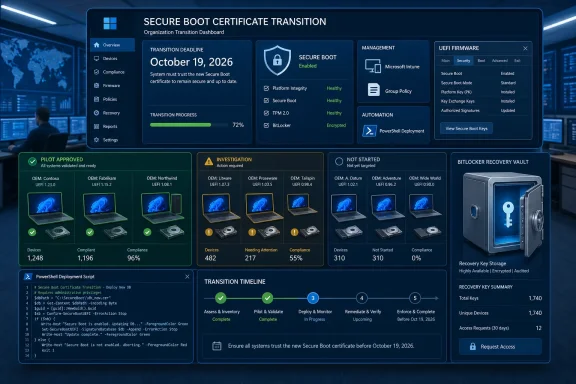 The October Deadline Requires a Fleet Plan
The Microsoft Corporation KEK CA 2011 and Microsoft UEFI CA 2011 certificates have already expired. The remaining Microsoft Windows Production PCA 2011 certificate is scheduled to expire on October 19, 2026.That date should be treated as a planning deadline for organizations still working through the Secure Boot certificate transition. It is not a substitute for checking the actual state of individual devices, their firmware versions, and their management configuration. A device inventory that only records Windows edition and patch level is not enough for this work; firmware cohorts and recovery readiness matter as well.
The July Office Hours discussion is particularly relevant because it placed the transition in an operational context. The task is not simply “install an update.” Administrators must establish whether the endpoint is receiving applicable Windows servicing, whether the device can be managed through the organization’s chosen deployment channel, and whether any OEM-specific limitations affect the planned rollout.
Timeline
After May 12, 2026: Applicable Windows updates include Secure Boot PowerShell example material in%systemroot%\SecureBoot\ExampleRolloutScripts.July 15, 2026: Microsoft’s OEM Secure Boot Office Hours session is held through a Tech Community discussion.
July 18, 2026: Windows Latest publishes its account of the Office Hours discussion and the responses from Microsoft and participating OEMs.
October 19, 2026: Microsoft Windows Production PCA 2011 is scheduled to expire.
Start With Recovery Readiness and Local Detection
The most defensible first step is not a registry edit or a broad policy assignment. It is verifying that recovery keys are available and that representative devices can be assessed locally.Windows updates released after May 12 place example Secure Boot rollout scripts in:
%systemroot%\SecureBoot\ExampleRolloutScriptsThe supplied local detection script is named:
Detect-SecureBootCertUpdateStatus.ps1Its presence gives administrators a local, Microsoft-provided starting point for checking a device before and after a planned deployment. The Office Hours discussion also referenced
Get-SecureBootRolloutStatus.ps1, but organizations should rely on the documentation accompanying the scripts and the documented deployment guidance for their intended use rather than assuming that either script is interchangeable with a complete fleet-management workflow.Cautious example: minimum pilot procedure
The following is a cautious example for a representative pilot device or hardware cohort. It is not a replacement for the organization’s approved change process.- Confirm recovery-key escrow before making Secure Boot deployment changes.
Verify that the BitLocker recovery key for the pilot device is present in the organization’s approved escrow location and can be retrieved by the support staff who would handle a recovery event. - Install applicable Windows updates released after May 12, 2026.
Confirm that the device has received the applicable Windows servicing needed to provide the Secure Boot example scripts. - Open an elevated PowerShell session.
Use an administrator PowerShell window. The procedure should be performed under the organization’s normal endpoint-administration controls. - Move to the local script directory and run the detection script.
Code:Set-Location "$env:SystemRoot\SecureBoot\ExampleRolloutScripts" .\Detect-SecureBootCertUpdateStatus.ps1 - Record the result with device context.
For each pilot system, record the OEM, model, BIOS or UEFI version, Windows version, the detection-script result, and whether BitLocker recovery-key escrow was confirmed. Treat each meaningful firmware version as a potentially distinct pilot cohort. - Use the documented Group Policy or Microsoft Intune deployment method.
After the pilot result is reviewed, deploy using Microsoft’s documented policy-based method for the environment. Do not substitute unverified settings paths, copied registry fragments, or ad hoc scripts for the documented deployment process. - Validate after deployment according to the documented process.
Record the post-deployment state and any user-impacting result, including unexpected recovery prompts or management errors. Pause expansion for the affected cohort if the pilot produces results that cannot be explained from the available device evidence.
The Scripts Are Useful Evidence, Not a Complete Rollout Strategy
The example scripts matter because they give Windows administrators a local point of reference. They also reduce the temptation to rely on old forum posts, copied commands, or third-party packages whose assumptions may not match the current transition.Still, a local script result should be treated as one piece of rollout evidence. It does not, by itself, establish that every device in the same product family has identical firmware, Secure Boot configuration, encryption state, or management-policy history.
That distinction is important for organizations with mixed fleets. Two devices sold under the same commercial model name may have different BIOS releases, different disk-encryption histories, or different policy assignment states. For that reason, the most useful inventory groups are usually more specific than “Dell laptops,” “Lenovo desktops,” or “Surface devices.” A workable grouping includes at least:
- OEM and exact model
- BIOS or UEFI version
- Windows release and servicing level
- Secure Boot status and local detection result
- BitLocker state and recovery-key escrow confirmation
- Management channel, such as Group Policy or Intune
- Any observed deployment or recovery outcome
AvailableUpdates and AvailableUpdatesPolicy Are Not Interchangeable
One of the most important administrative distinctions discussed around the rollout is the difference between the AvailableUpdates and AvailableUpdatesPolicy registry values.AvailableUpdates is associated with direct deployment configuration. Microsoft documentation identifies 0x5944 as the value associated with the full 2023 transition. AvailableUpdatesPolicy, by contrast, is documented as a reference value that should not be manually edited through the registry.| Deployment approach | Administrative control point | Direct registry editing? | Practical use |
|---|---|---|---|
| Direct/manual configuration | AvailableUpdates | Documented as a deployment value | Only after a representative pilot and an approved procedure |
| Group Policy deployment | Secure Boot policy configuration | No manual editing of AvailableUpdatesPolicy | Centrally managed deployment |
| Microsoft Intune deployment | Documented Intune Secure Boot policy method | No manual editing of AvailableUpdatesPolicy | Cloud-managed deployment |
| OEM firmware servicing | OEM BIOS or UEFI process | Not applicable | Platform-specific firmware maintenance |
0x5944 into production devices. This article retains the value as a documented-value reference, not as a copy-and-paste registry deployment procedure. A direct registry deployment requires verified command semantics, elevated execution, and a documented reboot and validation process; those details should come from Microsoft’s current documentation and the organization’s approved rollout plan.Accordingly, do not use direct registry deployment as a shortcut until a representative pilot has succeeded. Do not manually edit
AvailableUpdatesPolicy. For managed estates, use the documented Group Policy Objects or Microsoft Intune deployment method rather than attempting to reproduce policy behavior through hand-edited registry state.The practical difference is simple: one value may be associated with deployment configuration, while the other is policy-related reference state. Confusing the two creates unnecessary risk because it can turn a managed rollout into an unsupported manual change.
Policy Deployment Should Be Deliberate, Not Reverse-Engineered
A Group Policy or Intune deployment is not merely a way to avoid touching the registry. It is the mechanism for applying an approved configuration consistently, tracking its assignment, and aligning the rollout with normal enterprise change controls.That does not mean management reporting will always provide a complete diagnosis. The Office Hours discussion included reports of Intune results such as
State Error, Error Type 2, and Error Code 0. Those labels identify a management outcome, but they do not by themselves identify the device condition, firmware state, or policy interaction responsible for the result.When such an error occurs, the appropriate next step is to preserve evidence from the affected endpoint and compare it with the pilot cohort:
- OEM, model, and BIOS or UEFI version
- Local Secure Boot detection-script result
- Windows servicing level
- Policy assignment and deployment timing
- BitLocker status and recovery-key availability
- Any user-visible boot, recovery, or configuration result
For the same reason, organizations should avoid declaring a policy method defective based on one generic status code, just as they should avoid declaring a firmware family ready based on one successful device. The meaningful unit of analysis is the tested hardware and configuration cohort.
Firmware Readiness Is an OEM Question
The Office Hours format was valuable because OEM participation underscored a basic operational reality: Windows deployment and firmware support are related, but they are not the same responsibility.A Windows device may be current on operating-system servicing while still requiring separate evaluation of its BIOS or UEFI state. That is why an inventory should record firmware version alongside Windows patch level and certificate-detection results.
The safest OEM guidance in the supplied discussion is specific to Surface shipping status:
- Surface devices released since 2024 ship with the 2023 certificates.
- Surface Pro 3, Surface 3, and earlier hardware that shipped with Windows 8 are excluded.
This is especially important for older hardware. A legacy endpoint may remain part of the environment because it supports a specialized application, a peripheral, or a line-of-business workflow. That does not make it suitable for an untested Secure Boot deployment. It makes its exception status more important to document.
A practical legacy-device register should include:
| Field | Why it matters |
|---|---|
| OEM and exact model | Identifies the applicable vendor guidance |
| BIOS or UEFI version | Separates potentially different firmware cohorts |
| Secure Boot detection result | Records the local pre-deployment condition |
| BitLocker recovery-key status | Confirms recoverability before change |
| Management method | Shows whether the device is targeted through GPO, Intune, or another approved process |
| Exception owner | Makes responsibility visible |
| Next review date | Prevents unsupported or deferred systems from disappearing from the project |
BitLocker Recovery and Intune Errors Must Be Treated as Exceptions
The Office Hours discussion included a report from an administrator managing a large Dell and Lenovo fleet. The report described Intune configuration failures and a smaller number of devices reaching BitLocker recovery during processing.Those reports matter because a recovery event has operational consequences regardless of the ultimate technical cause. It consumes support time, interrupts users, and can become a serious incident if recovery keys are not available. That is why recovery-key escrow belongs at the beginning of the deployment plan rather than at the end.
The supplied facts do not establish that Microsoft identified BitLocker recovery as normal or abnormal for this transition, nor do they establish a Microsoft-confirmed explanation involving firmware behavior, PCR configuration, or any other specific cause. They also do not provide a Microsoft remediation workflow for affected devices. Administrators should therefore avoid presenting any single explanation as settled.
What can be said safely is that a recovery event should trigger a pause and investigation for the affected cohort. A team should record what changed, what policy was applied, what firmware the device was running, what the local detection script reported, and whether comparable devices exhibit the same behavior.
The same discipline applies to generic Intune failures. A management error may be the first signal that a cohort needs attention, but it is not a complete diagnosis. The correct response is to gather endpoint facts and compare them against successful pilots, not to assume that a broad redeployment will improve the result.
The Office Hours Facts and the Operational Analysis
The Office Hours session established several concrete facts that administrators can use now:- The remaining stated deadline is October 19, 2026, for Microsoft Windows Production PCA 2011.
- Applicable Windows updates after May 12 include Secure Boot example scripts in
%systemroot%\SecureBoot\ExampleRolloutScripts. Detect-SecureBootCertUpdateStatus.ps1is available locally as part of that example material.- Microsoft documentation distinguishes
AvailableUpdatesfromAvailableUpdatesPolicyand says not to manually updateAvailableUpdatesPolicy. - The documented value reference for the full 2023 transition is
0x5944forAvailableUpdates. - Surface devices released since 2024 ship with the 2023 certificates, while Surface Pro 3, Surface 3, and earlier Windows 8-era Surface hardware are excluded.
- Administrators reported both BitLocker recovery and generic Intune error states during deployment activity.
That boundary matters. Secure Boot work is sensitive enough that unsupported certainty can be as risky as inaction.
Action box: a source-bounded plan for the remaining window
- Treat October 19, 2026 as the remaining planning deadline.
- Confirm BitLocker recovery-key escrow and retrieval before changing pilot devices.
- Install applicable post-May 12 Windows updates.
- Run
Detect-SecureBootCertUpdateStatus.ps1from%systemroot%\SecureBoot\ExampleRolloutScriptsin elevated PowerShell. - Record OEM, model, BIOS or UEFI version, Windows servicing level, recovery readiness, and the script result.
- Pilot by meaningful firmware cohort, not by broad product label alone.
- Use Microsoft’s documented Group Policy or Intune deployment method for managed rollout.
- Do not manually edit
AvailableUpdatesPolicy; treatAvailableUpdates=0x5944as a documented reference unless the organization has verified Microsoft instructions for a direct deployment procedure. - Pause and investigate cohorts that show BitLocker recovery or generic management errors before expanding the rollout.
- Maintain a documented exception list for excluded, legacy, or OEM-dependent systems.
Update: Reports flag model-specific HP and Dell rollout failures (July 20, 2026)
WindowsReport now describes more granular issues reported during the July 15 Office Hours discussion, including repeated BitLocker recovery prompts on some HP EliteBook and ZBook systems after certificate deployment. One administrator said that reverting an HP EliteBook 640 G10 to an earlier BIOS stopped the prompts, despite current firmware and HP guidance having been used initially. Neither Microsoft nor HP had confirmed a root cause or permanent fix during the session.The report also says some older HP models may be constrained by limited NVRAM space for the new certificate set, while another HP cohort reportedly installed Secure Boot database certificates but repeatedly failed to update the KEK. Separately, some devices reportedly display an “Unknown” Secure Boot status even where the newer certificates appear installed; Microsoft recommended using the more detailed rollout-status script for diagnosis.
Dell fleet results were similarly mixed: most systems reportedly completed the transition, but some OptiPlex 5000 devices did not apply the required rollout registry state. WindowsReport also cites ASUS, MSI, and ASRock-specific firmware behaviors, reinforcing that rollout outcomes can vary by exact model and BIOS release.
For IT teams, these reports strengthen the case for treating failed cohorts as firmware-specific exceptions rather than retrying deployment broadly. They do not establish a Microsoft-confirmed cause, safeguard hold, or remediation for the affected hardware.
References
- Primary source: Windows Latest
Published: 2026-07-18T01:20:31+00:00
Windows 11 Secure Boot certificates have expired, and Microsoft says what to do next
Microsoft and OEMs fixed key Secure Boot certificate issues for IT admins at a live office hours event, covering BIOS updates and KEK errors www.windowslatest.com
- Related coverage: techradar.com
Watch out Windows users, a Secure Boot update has been blocked on Windows 11 PCs due to failing on some devices — here's how to check if you're affected | TechRadar
Microsoft blocked a Secure Boot updates because of an issue on some deviceswww.techradar.com - Official source: learn.microsoft.com
Update Secure Boot Certificates for Windows Devices - Windows Client | Microsoft Learn
Update your Windows devices to maintain Secure Boot protection with 2023 certificates before they expire in June 2026.learn.microsoft.com - Related coverage: dell.com
Secure Boot Transition FAQ | Dell US
This article provides information about commonly asked questions around the Secure Boot Certificates expiration.www.dell.com - Official source: support.microsoft.com
Windows Secure Boot certificate expiration and CA updates | Microsoft Support
Windows Secure Boot certificate expiration and CA updatessupport.microsoft.com - Official source: blogs.windows.com
Refreshing the root of trust: industry collaboration on Secure Boot certificate updates
Secure Boot is a foundational security feature of the Windows and Windows Server experience, providing protection from the moment a device powers on. Introduced in 2011, Secure Boot runs at startup – before Windows loads – and hblogs.windows.com
Last edited: