

WinToHDD 7.0.2.2 arrived this week as a freemium Windows deployment utility for installing, reinstalling, cloning, or building multi-ISO Windows installation media without relying on a traditional optical disc or single-purpose USB installer. The release is small in file size but large in implication: it sits squarely in the long-running gap between how Microsoft wants Windows deployed and how enthusiasts actually keep old machines alive. Its changelog is not yet public, which makes the feature list rather than the version number the real story. WinToHDD is less a flashy new app than a reminder that Windows installation has become a policy battlefield.
For decades, installing Windows meant arranging a ritual: obtain installation media, boot from it, step outside the running operating system, and let Setup take over the machine. WinToHDD collapses much of that ritual into a familiar desktop workflow. Feed it an ISO, WIM, ESD, or related image file, choose a target, and the tool prepares the installation without demanding that the user first create a separate bootable USB drive.
That sounds mundane until you remember how many Windows maintenance jobs are blocked not by technical impossibility but by friction. A missing USB stick, a locked-down BIOS, an aging DVD drive, or a machine with unreliable ports can turn a reinstall into a scavenger hunt. Tools like WinToHDD exist because the Windows ecosystem is full of edge cases that Microsoft’s clean, official paths do not always cover.
The app’s pitch is broad: reinstall Windows on the current machine, install Windows onto another disk, clone an existing installation, and create a USB installer that can carry multiple Windows installation ISO files. It supports Windows Vista and Windows Server 2008 onward, which tells you immediately who the product is really for. This is not just about shiny Windows 11 laptops; it is about the messy continuum of old desktops, lab machines, refurb projects, and small-office boxes that refuse to disappear.
The new 7.0.2.2 listing says the changelog is not yet available, so the safest reading is conservative. This is a point update to a mature utility, not proof of a major architectural shift. But the presence of “improved” tags around cloning, Windows 11 requirement bypassing, and BitLocker-related deployment features is enough to show where the developer believes user demand is strongest.
That world exists, and for many organizations it is the correct one. But it is not the whole Windows world. Home users still rescue old hardware. Technicians still clone disks because a client’s accounting application cannot be reinstalled. Enthusiasts still test Windows builds on spare SSDs. Small businesses still run machines that sit somewhere between “unsupported” and “too expensive to replace this quarter.”
WinToHDD’s appeal comes from speaking to that second world. It does not ask whether the deployment model is elegant; it asks whether the job can be done. That is why the ability to install from an ISO without preparing external media matters. It changes Windows installation from a boot-media operation into something closer to disk management.
There is a cost to that convenience. Any tool that makes deployment easier also makes it easier to make the wrong deployment easier. Installing to the wrong disk, cloning stale configurations, bypassing hardware checks, or forgetting recovery keys can all turn an afternoon shortcut into a week of support pain. WinToHDD lowers the barrier, but it does not remove the need for judgment.
Microsoft’s official position remains clear: Windows 11 has minimum system requirements, including TPM 2.0, and installing it on devices that do not meet those requirements is not recommended. The company has repeatedly framed those requirements as part of the operating system’s security baseline. For administrators, that matters because supportability is not a vibe; it is a contract with consequences.
Still, the persistence of bypass tools shows that Microsoft’s line is not universally accepted by users. A PC that runs Windows 10 well may feel wasteful to retire just because it lacks a blessed CPU generation or enabled firmware TPM. With Windows 10’s consumer support window now closed, the pressure on older but functional hardware is only stronger. Users who once postponed the decision now have to choose between buying new hardware, paying for extended coverage where available, moving to another OS, or forcing Windows 11 onto machines Microsoft would rather leave behind.
WinToHDD’s bypass feature is therefore not just a technical checkbox. It is a consumer signal. It says there is still a market for tools that treat Microsoft’s requirements as obstacles rather than endpoints. Whether that is wise depends heavily on the machine, the user, and the environment.
For a hobbyist test bench, bypassing requirements may be a reasonable experiment. For a business fleet, it is a compliance headache waiting to become an incident report. The same feature can be empowerment in one context and malpractice in another.
Since Windows 11 version 24H2, Microsoft has broadened the conditions under which automatic device encryption can be enabled. That shift is good for stolen-laptop scenarios and bad for users who do not understand where their recovery key lives. The more Windows normalizes encryption, the more reinstall and cloning utilities must treat it as a first-class deployment concern.
This is where the enthusiast instinct to bypass and the security instinct to encrypt can collide. TPM 2.0 is not just a Windows 11 gatekeeping token; it is also part of how modern Windows devices protect encryption material and verify the boot path. Running Windows 11 on hardware outside Microsoft’s preferred security model may work, but it can change the assumptions around recovery, authentication, and manageability.
That does not mean BitLocker is unusable without the cleanest possible hardware story. Windows has supported various configurations for years, and administrators have long dealt with startup PINs, recovery keys, and policy-driven encryption. But the average user who clicks through a deployment wizard may not distinguish between “Windows installed successfully” and “Windows is recoverable after firmware changes, disk migration, or account loss.”
WinToHDD’s BitLocker support is useful precisely because encryption belongs in the deployment conversation. But it also raises the stakes. A clone that boots is a success; a clone that boots, encrypts correctly, stores recovery material safely, and survives the next firmware reset is a better success.
WinToHDD’s cloning feature speaks to that reality. Moving an existing Windows installation to another disk without reinstalling Windows and applications can be the difference between a quick SSD upgrade and a full rebuild. For consumers, that may mean extending the life of a laptop. For technicians, it may mean preserving a fragile but operational setup long enough to plan a proper migration.
The danger is that cloning can preserve problems as faithfully as it preserves productivity. Driver cruft, malware remnants, broken update states, partition oddities, and misconfigured bootloaders all come along for the ride. A clone is not a cleanse; it is a photograph. Sometimes that is exactly what you want, and sometimes it is exactly what you should avoid.
This is why deployment tools occupy a strange moral space in Windows support. They are neither inherently reckless nor inherently professional. Their value depends on whether the operator understands the difference between recovery, migration, testing, and long-term platform hygiene.
This matters because the Windows repair ecosystem is still fragmented by age. Some machines boot only in legacy BIOS mode. Others expect UEFI and GPT. Some environments still need Server 2012-era recovery paths. Others are moving toward Windows 11 and Server 2025. A single-purpose installer assumes a tidy world; a multi-ISO deployment drive admits the real one.
For Windows enthusiasts, this is also part of the culture. The well-stocked USB drive is the modern equivalent of the binder full of driver CDs. It is not glamorous, but it is the thing you reach for when a relative’s PC will not boot, a lab machine needs to be rebuilt, or a used workstation arrives with a mystery partition layout.
WinToHDD’s value here is consolidation. It does not invent Windows installation media, but it packages the convenience of having several install sources available from one place. That is especially useful for people who straddle old and new Windows generations.
The caveat is licensing. A tool can make installation media easier to manage, but it does not grant rights to install Windows editions where you are not licensed to run them. In enthusiast circles, that distinction is sometimes waved away. In business environments, it should not be.
A Windows deployment tool touches disks, boot configuration, partitions, image files, and sometimes encryption. It may be asked to operate on the only copy of a user’s working system. That means trust is not merely about malware scanning; it is about reliability, transparency, support, and predictable failure modes.
The absence of a published changelog for 7.0.2.2 is therefore mildly frustrating. Point releases often fix small bugs, update compatibility logic, or refine edge cases, and those are exactly the details a cautious administrator wants to know before using the tool on anything important. “Improved” is not a changelog; it is a hint.
For casual users, the practical advice is simple: do not treat any deployment tool as a backup. If you are reinstalling, cloning, or repartitioning, the backup comes first, and it should be tested enough that you know how to restore it. If BitLocker is involved, recovery keys should be verified before disk operations begin. If the machine matters, assume the migration can fail.
For IT professionals, the bar is higher. Test the specific version, document the workflow, confirm licensing, and decide whether unofficial Windows 11 bypass deployments are acceptable under your organization’s risk model. A tool may work beautifully and still be the wrong tool for a governed fleet.
Windows itself has become more opaque in some deployment moments. Setup requirements change. Account requirements shift. Device encryption behavior evolves. Unsupported hardware warnings appear, disappear, or move depending on the install path. Users then turn to third-party utilities not only for convenience but for predictability.
That creates an ironic loop. Microsoft tightens the official path to improve security and consistency. Users who fall outside that path adopt tools that loosen it. Those tools then need to track Microsoft’s changes, sometimes faster than formal documentation can explain them. The result is a permanent cat-and-mouse dynamic around installation.
WinToHDD is not alone here. Rufus, Ventoy, imaging suites, backup tools, and partition managers all live in the same ecosystem of practical workaround. The demand for them is not proof that Microsoft is wrong about security. It is proof that Windows runs on a hardware and user base too diverse to be governed only by the cleanest official story.
The best outcome would be more transparency from all sides. Microsoft should keep explaining not just what it blocks, but why and with what operational consequences. Third-party vendors should publish clear changelogs and sharper warnings when users step outside supported configurations. Users should stop confusing “possible” with “supported.”
That makes it useful for technicians, hobbyists, refurbishers, and advanced home users. It may also be useful in smaller IT shops that need a pragmatic tool for one-off recovery or migration tasks. But it should not be mistaken for a replacement for enterprise deployment infrastructure, endpoint management, or backup strategy.
The Windows 11 bypass capability is the dividing line. If your goal is to experiment, revive hardware, or test compatibility, it is a powerful convenience. If your goal is to maintain a supported, auditable, secure production environment, it is a warning label. Microsoft’s requirements may be unpopular, but they are still the basis for official support.
The BitLocker features push the tool into more serious territory. Encryption during install or clone is not a toy feature. It has real security benefits, but it also demands recovery discipline. The more Windows leans into automatic encryption, the more users must understand that a successful install is only one part of a resilient system.
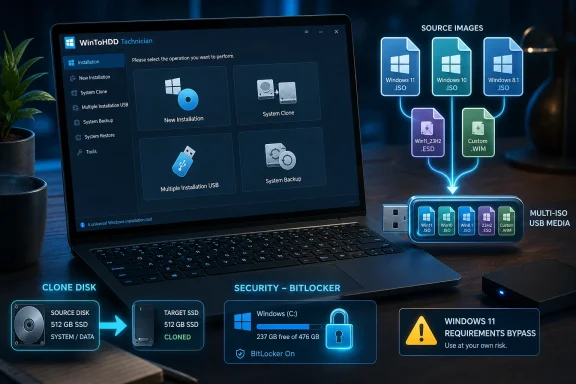 WinToHDD Turns Setup Into an App, Not an Event
For decades, installing Windows meant arranging a ritual: obtain installation media, boot from it, step outside the running operating system, and let Setup take over the machine. WinToHDD collapses much of that ritual into a familiar desktop workflow. Feed it an ISO, WIM, ESD, or related image file, choose a target, and the tool prepares the installation without demanding that the user first create a separate bootable USB drive.That sounds mundane until you remember how many Windows maintenance jobs are blocked not by technical impossibility but by friction. A missing USB stick, a locked-down BIOS, an aging DVD drive, or a machine with unreliable ports can turn a reinstall into a scavenger hunt. Tools like WinToHDD exist because the Windows ecosystem is full of edge cases that Microsoft’s clean, official paths do not always cover.
The app’s pitch is broad: reinstall Windows on the current machine, install Windows onto another disk, clone an existing installation, and create a USB installer that can carry multiple Windows installation ISO files. It supports Windows Vista and Windows Server 2008 onward, which tells you immediately who the product is really for. This is not just about shiny Windows 11 laptops; it is about the messy continuum of old desktops, lab machines, refurb projects, and small-office boxes that refuse to disappear.
The new 7.0.2.2 listing says the changelog is not yet available, so the safest reading is conservative. This is a point update to a mature utility, not proof of a major architectural shift. But the presence of “improved” tags around cloning, Windows 11 requirement bypassing, and BitLocker-related deployment features is enough to show where the developer believes user demand is strongest.
The Real Competitor Is Microsoft’s Idealized Upgrade Path
Microsoft’s preferred story for Windows deployment is increasingly centralized, cloud-aware, and compliance-driven. A new PC ships with modern firmware, TPM 2.0, Secure Boot, device encryption readiness, and a Microsoft account or Entra identity waiting at the end of setup. Enterprise IT gets Autopilot, Intune, Configuration Manager, deployment rings, and image-management discipline.That world exists, and for many organizations it is the correct one. But it is not the whole Windows world. Home users still rescue old hardware. Technicians still clone disks because a client’s accounting application cannot be reinstalled. Enthusiasts still test Windows builds on spare SSDs. Small businesses still run machines that sit somewhere between “unsupported” and “too expensive to replace this quarter.”
WinToHDD’s appeal comes from speaking to that second world. It does not ask whether the deployment model is elegant; it asks whether the job can be done. That is why the ability to install from an ISO without preparing external media matters. It changes Windows installation from a boot-media operation into something closer to disk management.
There is a cost to that convenience. Any tool that makes deployment easier also makes it easier to make the wrong deployment easier. Installing to the wrong disk, cloning stale configurations, bypassing hardware checks, or forgetting recovery keys can all turn an afternoon shortcut into a week of support pain. WinToHDD lowers the barrier, but it does not remove the need for judgment.
Windows 11 Bypass Features Are the Spark, Not the Whole Fire
The most politically charged part of the feature list is not cloning or multi-ISO media. It is the claim that WinToHDD can help bypass Windows 11 system requirements such as TPM 2.0, RAM, and internet connection checks. That puts the utility in the same broad category of enthusiast deployment tools that respond to Microsoft’s hardware line in the sand with a shrug and a workaround.Microsoft’s official position remains clear: Windows 11 has minimum system requirements, including TPM 2.0, and installing it on devices that do not meet those requirements is not recommended. The company has repeatedly framed those requirements as part of the operating system’s security baseline. For administrators, that matters because supportability is not a vibe; it is a contract with consequences.
Still, the persistence of bypass tools shows that Microsoft’s line is not universally accepted by users. A PC that runs Windows 10 well may feel wasteful to retire just because it lacks a blessed CPU generation or enabled firmware TPM. With Windows 10’s consumer support window now closed, the pressure on older but functional hardware is only stronger. Users who once postponed the decision now have to choose between buying new hardware, paying for extended coverage where available, moving to another OS, or forcing Windows 11 onto machines Microsoft would rather leave behind.
WinToHDD’s bypass feature is therefore not just a technical checkbox. It is a consumer signal. It says there is still a market for tools that treat Microsoft’s requirements as obstacles rather than endpoints. Whether that is wise depends heavily on the machine, the user, and the environment.
For a hobbyist test bench, bypassing requirements may be a reasonable experiment. For a business fleet, it is a compliance headache waiting to become an incident report. The same feature can be empowerment in one context and malpractice in another.
BitLocker Makes Convenience More Dangerous and More Necessary
The feature list’s BitLocker language is just as important as the Windows 11 bypass language, though it is less likely to grab headlines. WinToHDD advertises the ability to encrypt the Windows partition with BitLocker when installing or cloning. That reflects where Windows deployment is heading: encryption is no longer an exotic enterprise add-on but an expected part of a modern Windows system.Since Windows 11 version 24H2, Microsoft has broadened the conditions under which automatic device encryption can be enabled. That shift is good for stolen-laptop scenarios and bad for users who do not understand where their recovery key lives. The more Windows normalizes encryption, the more reinstall and cloning utilities must treat it as a first-class deployment concern.
This is where the enthusiast instinct to bypass and the security instinct to encrypt can collide. TPM 2.0 is not just a Windows 11 gatekeeping token; it is also part of how modern Windows devices protect encryption material and verify the boot path. Running Windows 11 on hardware outside Microsoft’s preferred security model may work, but it can change the assumptions around recovery, authentication, and manageability.
That does not mean BitLocker is unusable without the cleanest possible hardware story. Windows has supported various configurations for years, and administrators have long dealt with startup PINs, recovery keys, and policy-driven encryption. But the average user who clicks through a deployment wizard may not distinguish between “Windows installed successfully” and “Windows is recoverable after firmware changes, disk migration, or account loss.”
WinToHDD’s BitLocker support is useful precisely because encryption belongs in the deployment conversation. But it also raises the stakes. A clone that boots is a success; a clone that boots, encrypts correctly, stores recovery material safely, and survives the next firmware reset is a better success.
Cloning Is Still the Dirty Secret of Windows Maintenance
Microsoft has spent years encouraging cleaner provisioning models, but cloning remains stubbornly useful. It is easy to dismiss cloning as a relic of the imaging era, yet anyone who has supported real users knows why it persists. A machine is not just Windows plus drivers; it is line-of-business software, activation states, local data, obscure utilities, printer settings, VPN clients, and years of accumulated user expectations.WinToHDD’s cloning feature speaks to that reality. Moving an existing Windows installation to another disk without reinstalling Windows and applications can be the difference between a quick SSD upgrade and a full rebuild. For consumers, that may mean extending the life of a laptop. For technicians, it may mean preserving a fragile but operational setup long enough to plan a proper migration.
The danger is that cloning can preserve problems as faithfully as it preserves productivity. Driver cruft, malware remnants, broken update states, partition oddities, and misconfigured bootloaders all come along for the ride. A clone is not a cleanse; it is a photograph. Sometimes that is exactly what you want, and sometimes it is exactly what you should avoid.
This is why deployment tools occupy a strange moral space in Windows support. They are neither inherently reckless nor inherently professional. Their value depends on whether the operator understands the difference between recovery, migration, testing, and long-term platform hygiene.
Multi-ISO USB Media Is the Feature for People Who Fix Other People’s PCs
The ability to create a Windows installation USB that contains multiple Windows installation ISO files sounds almost quaint next to TPM bypassing, but it may be the most practical feature in the bundle. A technician with one drive that can install Windows 7, Windows 10, Windows 11, and Server variants across BIOS and UEFI systems has a much easier day than one carrying a pocketful of single-purpose sticks.This matters because the Windows repair ecosystem is still fragmented by age. Some machines boot only in legacy BIOS mode. Others expect UEFI and GPT. Some environments still need Server 2012-era recovery paths. Others are moving toward Windows 11 and Server 2025. A single-purpose installer assumes a tidy world; a multi-ISO deployment drive admits the real one.
For Windows enthusiasts, this is also part of the culture. The well-stocked USB drive is the modern equivalent of the binder full of driver CDs. It is not glamorous, but it is the thing you reach for when a relative’s PC will not boot, a lab machine needs to be rebuilt, or a used workstation arrives with a mystery partition layout.
WinToHDD’s value here is consolidation. It does not invent Windows installation media, but it packages the convenience of having several install sources available from one place. That is especially useful for people who straddle old and new Windows generations.
The caveat is licensing. A tool can make installation media easier to manage, but it does not grant rights to install Windows editions where you are not licensed to run them. In enthusiast circles, that distinction is sometimes waved away. In business environments, it should not be.
Freemium Deployment Tools Live on Trust
WinToHDD is listed as freemium, which is common in the Windows utility world. The free tier draws in home users and hobbyists; paid editions unlock more advanced or commercial features. There is nothing inherently wrong with that model, but deployment software deserves more scrutiny than a screenshot tool or ZIP utility.A Windows deployment tool touches disks, boot configuration, partitions, image files, and sometimes encryption. It may be asked to operate on the only copy of a user’s working system. That means trust is not merely about malware scanning; it is about reliability, transparency, support, and predictable failure modes.
The absence of a published changelog for 7.0.2.2 is therefore mildly frustrating. Point releases often fix small bugs, update compatibility logic, or refine edge cases, and those are exactly the details a cautious administrator wants to know before using the tool on anything important. “Improved” is not a changelog; it is a hint.
For casual users, the practical advice is simple: do not treat any deployment tool as a backup. If you are reinstalling, cloning, or repartitioning, the backup comes first, and it should be tested enough that you know how to restore it. If BitLocker is involved, recovery keys should be verified before disk operations begin. If the machine matters, assume the migration can fail.
For IT professionals, the bar is higher. Test the specific version, document the workflow, confirm licensing, and decide whether unofficial Windows 11 bypass deployments are acceptable under your organization’s risk model. A tool may work beautifully and still be the wrong tool for a governed fleet.
The Changelog Gap Is a Small Symptom of a Larger Windows Problem
The note that WinToHDD 7.0.2.2’s changelog is not yet available may seem like trivia, but it captures a recurring tension in the Windows utility ecosystem. Many third-party tools move quickly because users need fixes now. Documentation often follows later, if it follows at all. That rhythm is understandable, but it is uncomfortable when the tool’s job is to rewrite bootable disks.Windows itself has become more opaque in some deployment moments. Setup requirements change. Account requirements shift. Device encryption behavior evolves. Unsupported hardware warnings appear, disappear, or move depending on the install path. Users then turn to third-party utilities not only for convenience but for predictability.
That creates an ironic loop. Microsoft tightens the official path to improve security and consistency. Users who fall outside that path adopt tools that loosen it. Those tools then need to track Microsoft’s changes, sometimes faster than formal documentation can explain them. The result is a permanent cat-and-mouse dynamic around installation.
WinToHDD is not alone here. Rufus, Ventoy, imaging suites, backup tools, and partition managers all live in the same ecosystem of practical workaround. The demand for them is not proof that Microsoft is wrong about security. It is proof that Windows runs on a hardware and user base too diverse to be governed only by the cleanest official story.
The best outcome would be more transparency from all sides. Microsoft should keep explaining not just what it blocks, but why and with what operational consequences. Third-party vendors should publish clear changelogs and sharper warnings when users step outside supported configurations. Users should stop confusing “possible” with “supported.”
Where This Release Actually Fits
WinToHDD 7.0.2.2 is best understood as a maintenance-era release for a maintenance-era Windows problem. The app is not trying to reinvent Windows deployment for Azure-first enterprises. It is trying to help people install, reinstall, clone, and carry Windows installers in situations where the official workflow is inconvenient or insufficient.That makes it useful for technicians, hobbyists, refurbishers, and advanced home users. It may also be useful in smaller IT shops that need a pragmatic tool for one-off recovery or migration tasks. But it should not be mistaken for a replacement for enterprise deployment infrastructure, endpoint management, or backup strategy.
The Windows 11 bypass capability is the dividing line. If your goal is to experiment, revive hardware, or test compatibility, it is a powerful convenience. If your goal is to maintain a supported, auditable, secure production environment, it is a warning label. Microsoft’s requirements may be unpopular, but they are still the basis for official support.
The BitLocker features push the tool into more serious territory. Encryption during install or clone is not a toy feature. It has real security benefits, but it also demands recovery discipline. The more Windows leans into automatic encryption, the more users must understand that a successful install is only one part of a resilient system.
The Version Number Matters Less Than the Line It Crosses
WinToHDD 7.0.2.2 is a modest release on paper, but the practical lessons are concrete. The tool is valuable because it compresses several Windows deployment jobs into one interface, yet the same convenience can hide decisions that deserve deliberate attention.- WinToHDD 7.0.2.2 can install or reinstall Windows from image files without requiring a separate CD, DVD, or USB installer.
- The utility can clone an existing Windows installation to another disk, which is useful for SSD upgrades and rescue work but can also preserve old system problems.
- Its Windows 11 requirement-bypass features are attractive for unsupported hardware, but they do not turn unsupported deployments into supported ones.
- Its BitLocker-related options are timely because modern Windows increasingly treats device encryption as normal rather than exceptional.
- The missing public changelog makes caution appropriate, especially before using this version on production or irreplaceable systems.
- The safest workflow remains unchanged: back up first, verify recovery keys, test on noncritical hardware, and treat deployment shortcuts as tools rather than guarantees.
References
- Primary source: Neowin
Published: Thu, 04 Jun 2026 23:00:00 GMT
WinToHDD 7.0.2.2 - Neowin
Install, Reinstall, Clone Windows 11/10/8/7/Vista & Windows Server Without CD/DVD/USB Drive! www.neowin.net
- Related coverage: easyuefi.com
How to clean install Windows without using a CD/DVD or USB drive?
WinToHDD is a All-in-One Windows Deployment Tool which allows you to install Windows 11/10/8.1/8/7/vista onto disks other than the one where your Windows operating system is installed without using a CD/DVD or USB drive!www.easyuefi.com
- Related coverage: wintohdd.software.informer.com
WinToHDD: All versions - Software Informer
WinToHDD (WinToHDD.exe) - all versions. WinToHDD is a free software which can help you install...wintohdd.software.informer.com
- Related coverage: thewindowsclub.com
Install, Reinstall, Clone Windows without DVD/USB - WinToHDD
WinToHDD is a free download that lets you Install, Reinstall & Clone Windows system, without a CD/DVD/USB Drive or any bootable media.www.thewindowsclub.com - Related coverage: chip.de
WinToHDD - Download - CHIP
WinToHDD 7.02.2 Englisch: Mit WinToHDD installieren Sie Windows ohne USB-Stick oder DVD neu.www.chip.de - Related coverage: nonameno.com
скачать WinToHDD 7.0 Release 2 Technician Portable - Repack
WinToHDD Technician — инструмент предназначен для быстрого развертывания, восстановления или клонирования Windows.nonameno.com
- Official source: intowindows.com
WinToHDD: Install/Reinstall Windows 10 Without DVD or USB
There are quite a few free tools around to configure and personalize Windows 10, but it’s hard to come across a useful tool that assists you in installingwww.intowindows.com - Related coverage: hasleo-wintohdd.en.uptodown.com
Download WinToHDD 7.0.2.2 for Windows | Uptodown.com
Download the latest version of WinToHDD for Windows. Install, reinstall or clone Windows without CD, DVD or USB. WinToHDD is an incredibly useful tool to...hasleo-wintohdd.en.uptodown.com - Related coverage: wangfuchao.com
- Related coverage: windowscentral.com
Windows 11 is being offered to unsupported PCs that don't meet minimum requirements (Update) | Windows Central
Windows 11 has a bug right now that causes the operating system to be offered to unsupported PCs.www.windowscentral.com - Related coverage: tomshardware.com
Microsoft allows Windows 11 to be installed on older, unsupported hardware but specifically nixes official support — minimum requirements for full compatibility remain unchanged | Tom's Hardware
Can they still be considered "minimum requirements" if they are easily circumvented?www.tomshardware.com - Related coverage: pcgamer.com
