

Start with the player itself before changing browser settings. A title may not include captions in every language, and a selected subtitle track can be lost after a playback, profile, or browser-session change.
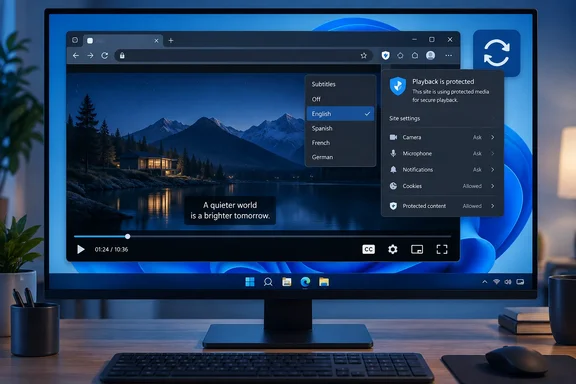 Confirm that the Prime Video title has subtitles
- Open Prime Video in Microsoft Edge and start the affected episode or film.
- Move the pointer over the video so that the playback controls appear.
- Select the Subtitles or Closed Caption icon in the playback controls.
- Choose an available subtitle or caption language.
- Resume playback and wait through a few lines of dialogue.
If the menu has no subtitle or closed-caption choices, test a different Prime Video title before changing Edge. Caption availability varies by title, language, region, and device. A browser repair will not add a caption track that the selected title does not offer.
If subtitles appear on another title, the original title, audio language, or selected profile is the likely cause. Check the title’s available audio and subtitle options again rather than resetting Edge.
Refresh the Prime Video player session
A stale tab can retain an old player state even after you select subtitles.
- Pause the video.
- Press Ctrl+Shift+R in Edge to reload the current page while bypassing the normal cache.
- Sign in again if Prime Video asks you to do so.
- Start the video, open the Subtitles or Closed Caption menu, and select the required language again.
- If captions still do not appear, close the Prime Video tab completely, open a new tab, sign in to Prime Video, and test the same title.
Do not use an InPrivate window as your permanent workaround. It is useful for testing because it starts with a separate temporary browsing session, but you will need to sign in again and its data is removed when all InPrivate windows are closed.
Update Microsoft Edge and restart it
Prime Video relies on browser media components and protected-content support. Updating Edge is a low-risk first repair because it updates the browser and its supported components without deleting your saved passwords, favorites, or normal browsing data.
- In Edge, select Settings and more — the three dots in the upper-right corner.
- Select Settings.
- Select About Microsoft Edge.
You can also enteredge://settings/helpin the address bar and press Enter. - Wait while Edge checks for and downloads any available update.
- If Edge displays a Restart button, select it.
- If no restart button appears, close every Edge window manually, then reopen Edge.
- Return to Prime Video, start a title with known subtitles, and select the subtitle track again.
A restart matters. Edge may download an update while it is still using the older browser process. Simply closing the Prime Video tab is not always enough.
Turn on protected-content playback in Edge
Streaming services use protected media technology, commonly called DRM, to play licensed video. In Edge, the relevant controls are under Protected content IDs. If protected-content playback is disabled, video playback and related player functions may not work correctly.
Warning: Do not disable DRM or protected-content settings to troubleshoot Prime Video. The repair is to make sure the two protected-content options are enabled. If they are already enabled, leave them enabled.
- In Edge, select Settings and more > Settings.
- Select Privacy, search, and services.
- Select Site permissions.
- Select All permissions.
- Select Protected content IDs.
- Turn on Allow sites to play protected content (recommended).
- Turn on Allow identifiers for protected content (computer restart may be required).
- Close all Edge windows.
- Restart the PC if you changed the second setting or if Edge continues to show a protected-content error.
- Open Edge, return to Prime Video, and test subtitles again.
The first option allows DRM systems such as PlayReady and Widevine to play protected content. The second allows Widevine to obtain updates it may need for protected playback. Neither setting exposes your saved Prime Video password.
If the protected-content setting is unavailable or locked
A work, school, or family-managed PC can enforce Edge settings through policy. If a toggle is grayed out, marked as managed, or changes back after you enable it:
- Enter
edge://policyin the Edge address bar. - Review the page for policies related to protected content, browser components, or extensions.
- Do not edit the Windows Registry or remove organization policies simply to restore Prime Video subtitles.
- Contact the PC administrator if the device is managed by an employer, school, or another organization.
An administrator can confirm whether an Edge policy, application-control rule, or security baseline is blocking the browser media component required for protected streaming.
Clear Prime Video cache data without deleting saved passwords
Clearing cached files can fix an outdated player script, subtitle asset, or corrupted page resource. This method deliberately leaves Passwords unchecked, so Edge does not remove passwords saved in Microsoft Password Manager.
Start with cached files only. This is the least disruptive option.
- In Edge, select Settings and more > Settings.
- Select Privacy, search, and services.
- Under Clear browsing data, select Choose what to clear beside Clear browsing data now.
You can also press Ctrl+Shift+Delete to open this dialog directly. - Under Time range, select All time if the issue has persisted through multiple sessions. Choose a shorter period only if the problem began recently.
- Select Cached images and files.
- Leave Passwords unchecked.
- Leave Autofill form data (includes forms and cards) unchecked.
- For the first attempt, also leave Cookies and other site data unchecked. This avoids signing you out of Prime Video and other websites.
- Select Clear now.
- Close every Edge window, reopen Edge, and test Prime Video.
If clearing cached files does not help, clear Prime Video’s cookies and site data next.
Warning: Clearing Cookies and other site data can sign you out of Prime Video and other websites. It does not remove saved passwords unless you also select Passwords, but you may need to complete sign-in or verification prompts again. Cookies can also contain site preferences and media-license information.
- Return to Settings > Privacy, search, and services > Clear browsing data > Choose what to clear.
- Choose the required Time range.
- Select Cookies and other site data and Cached images and files.
- Confirm that Passwords remains unchecked.
- Select Clear now.
- Close all Edge windows and reopen Edge.
- Sign in to Prime Video.
- Start a subtitle-enabled title and choose the required caption language from the player controls.
Verify that Edge’s Widevine component is present
Use this check only if Prime Video playback is failing, the player reports a protected-content problem, or subtitles remain missing alongside other unusual playback behavior. It is not normally necessary when video and subtitles work correctly.
- Enter
edge://componentsin Edge’s address bar and press Enter. - Look for Widevine Content Decryption Module.
- If it is present, return to Prime Video and test again after restarting Edge.
- If it is not present, update Edge from Settings > About Microsoft Edge, restart the browser, and check the Components page again.
On a managed PC, security software or application-control rules can prevent Widevine from loading correctly. If Widevine is missing or protected video reports an error after an Edge update, capture the exact error message and contact the device administrator rather than changing security settings yourself.
Reset the local Widevine component only for a confirmed DRM failure
Microsoft documents a targeted repair for an Edge profile in which Widevine is present but fails to load protected content. Use it only when Prime Video reports a protected-content problem or other DRM-protected sites fail similarly. It is not the first fix for one missing subtitle track.
Warning: This deletes Edge’s local Widevine component folder for the current Windows user. It does not delete Edge favorites or saved passwords, but it can remove locally stored protected-media information. Close Edge before continuing.
- Close every Microsoft Edge window.
- Open Windows PowerShell from the Start menu.
- Enter the following command exactly, then press Enter:
Remove-Item -Path "$env:LOCALAPPDATA\Microsoft\Edge\User Data\WidevineCdm" -Recurse -Force - Restart Microsoft Edge.
- Return to
edge://componentsand confirm that Widevine Content Decryption Module is listed. - Open Prime Video, sign in if required, and test playback and subtitles.
If PowerShell reports that the folder does not exist, do not create it manually. Restart Edge, update it, and test playback again. If the command reports that a file is in use, Edge was not completely closed; close all Edge windows and retry.
Troubleshoot the remaining common causes
Video plays, but only one title has no subtitles
This is usually not an Edge DRM problem.
- Test another episode and another title.
- Open the subtitle menu during playback and look for an alternate caption or subtitle language.
- Check whether the title uses a different audio track than expected.
- Switch to another Prime Video profile temporarily and test again.
- If subtitles are absent only for that one title, report the title-specific issue through Prime Video support rather than resetting Windows or reinstalling Edge.
Subtitles appear in another browser but not in Edge
Work through these checks in order:
- Update Edge and restart it.
- Confirm both Protected content IDs settings are enabled.
- Clear cached images and files without selecting Passwords.
- Clear cookies and site data only if the cache-only reset did not work.
- Check
edge://componentsfor Widevine. - Check
edge://policyif Edge is managed.
This pattern points to the Edge profile, an Edge setting, or an enforced policy—not to the Prime Video title itself.
The subtitle menu opens, but the selected language never displays
- Reload the page with Ctrl+Shift+R.
- Turn subtitles off in the player, resume playback briefly, then turn the preferred subtitle language back on.
- Clear cached images and files.
- Sign out of Prime Video, close Edge, reopen it, sign in, and retry.
- Test a different subtitle-enabled title.
If the issue follows one Prime Video account or profile across browsers and devices, the browser is unlikely to be the cause.
Protected-content playback is disabled every time Edge starts
Do not keep toggling the setting. Check edge://policy for management controls. On a work or school PC, Edge policies can override personal settings and prevent changes from sticking. The correct rollback is to leave the managed configuration intact and ask the administrator to review the protected-content and browser-component policies.
Clearing data removed your Prime Video session
This is expected if you selected Cookies and other site data. Reopen Prime Video and sign in again. Your saved Edge password remains available if Passwords was not selected in the Clear browsing data dialog.