


Microsoft’s current domain-join documentation confirms that Windows can join a local Active Directory domain through Settings > Accounts > Access work or school > Connect > Join this device to a local Active Directory domain, or through the older System Properties dialog. But the menu path is only the last step. The join process first uses DNS service-location records to discover a domain controller, then contacts that controller for LDAP, Kerberos, RPC, SMB, and related directory operations.
This guide concerns traditional Active Directory Domain Services, such as corp.example.com, not Microsoft Entra ID. The two join types have different prerequisites and different failure modes. Selecting “Join this device to Microsoft Entra ID” will not repair a failed on-premises domain join.
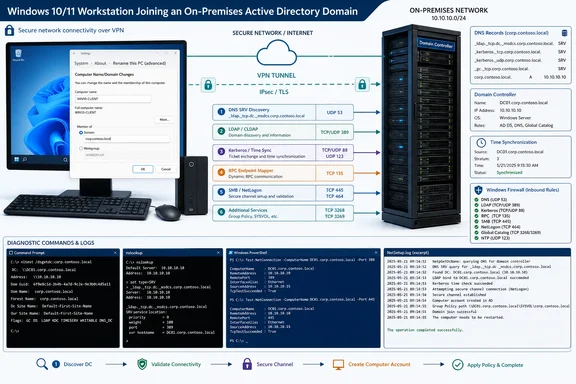 Confirm the Windows edition and the intended join type
Check the installed edition before touching networking. Open Settings > System > About, or run this from an elevated Command Prompt:
DISM /Online /Get-CurrentEdition
Windows Home does not support joining an on-premises Active Directory domain. Microsoft’s Windows upgrade documentation lists domain join as a Windows Pro capability; Pro, Enterprise, and Education are the editions normally used for this task. A Windows 10 or 11 Home machine can connect a work account to individual apps and may be registered with an organization, but that is not the same as becoming a domain member.
The machine also needs a local administrator account. The domain credentials used during the join must be allowed to create or reuse the computer object in Active Directory. Those are separate permissions: a user can have delegated rights in the domain while still lacking permission to change the local PC’s membership.
Before proceeding, verify that the computer is not already joined to another Active Directory domain and that the name you intend to use is correct. Enter the DNS domain name, such as contoso.com, rather than only the NetBIOS short name, such as CONTOSO. Microsoft specifically calls out this distinction in its domain-join troubleshooting guidance.
Check the network before diagnosing DNS
A join cannot succeed from a network that has no route to the domain controller. This is common with remote devices connected to a VPN that only carries general internet traffic, guest Wi-Fi with client isolation, or split-tunnel configurations that omit internal DNS and directory-service routes.
First, inspect the active interface:
ipconfig /all
Record the IPv4 or IPv6 address, default gateway, connection-specific DNS suffix, and—most importantly—the DNS server addresses. Then test whether the workstation can reach the known domain controller by name and address:
ping dc01.contoso.com
ping 10.10.10.10
A failed ping alone does not prove that the controller is unavailable; many environments block ICMP. It is useful only as a quick route and name-resolution check. Test the services that the join actually needs with PowerShell instead:
Test-NetConnection dc01.contoso.com -Port 53
Test-NetConnection dc01.contoso.com -Port 88
Test-NetConnection dc01.contoso.com -Port 389
Test-NetConnection dc01.contoso.com -Port 445
Test-NetConnection dc01.contoso.com -Port 135
Microsoft’s Active Directory troubleshooting material identifies DNS on TCP and UDP 53, Kerberos on TCP 88, LDAP on TCP and UDP 389, RPC endpoint mapping on TCP 135, SMB on TCP 445, and dynamic RPC ports as part of the path a domain join may require. A successful LDAP check does not guarantee that every subsequent RPC call will work, but a failed port test gives the network or firewall team something concrete to fix.
Do not “solve” this by temporarily exposing all ports between every client and server. Confirm the client subnet, VPN policy, firewall rules, and domain controller IP address. The least disruptive repair is to restore the intended routes and required Active Directory service access.
Point the PC at Active Directory-aware DNS
DNS is the most frequent cause of the familiar join error: “An attempt to resolve the DNS name of a domain controller in the domain being joined has failed.” The message is more precise than it first appears. Windows does not merely need a DNS resolver that can look up public websites or resolve a domain controller’s host name; it needs a resolver that can answer Active Directory’s internal service-location queries.
For a normal AD deployment, configure the joining PC’s network adapter to use the organization’s internal DNS servers—the servers that host the AD-integrated zone or can correctly resolve it through the organization’s DNS design. Do not configure public resolvers such as Google Public DNS, Cloudflare, or an ISP DNS server directly on the client and expect an AD domain join to work.
Microsoft’s DNS client guidance makes the reason clear: a resolver can respond successfully yet authoritatively return the wrong answer for an internal AD name. Windows will not necessarily abandon that resolver simply because it does not know about corp.example.com. Put public DNS servers on the DNS server’s forwarder configuration when external resolution is needed; keep domain members pointing to internal DNS.
In Windows 11, open Settings > Network & internet > Wi-Fi or Ethernet > Hardware properties > DNS server assignment > Edit. In Windows 10, use Settings > Network & Internet > Change adapter options, open the adapter’s properties, and edit Internet Protocol Version 4 (TCP/IPv4) or IPv6 properties. In a managed environment, correct the DHCP scope option or VPN configuration rather than making a one-off static change that will disappear at the next lease renewal.
After changing DNS, clear stale client data and inspect the result:
ipconfig /flushdns
ipconfig /all
Then query the records that matter. Substitute the actual DNS server if you want to test a particular resolver:
nslookup -type=SRV _ldap._tcp.dc._msdcs.contoso.com
nslookup dc01.contoso.com
The SRV query should return domain-controller service records, not merely an address for the domain name. Microsoft’s latest DNS failure guidance identifies missing _msdcs zones, absent LDAP SRV records, missing or incorrect host records, and inaccessible network interfaces registered in DNS as common server-side causes.
A valid response for dc01.contoso.com paired with an empty or failed _ldap._tcp.dc._msdcs.contoso.com response points away from the client. Check the DNS zone and Netlogon registration on the domain controller, then verify that AD replication has carried those records to every DNS server clients may use.
Use DC Locator instead of guessing which server is healthy
Once DNS has been corrected, ask Windows to perform the same fundamental discovery work used by domain-aware components:
nltest /dsgetdc:contoso.com /force
A successful response identifies the selected DC, its address, domain and forest name, site, and capability flags. Microsoft’s Windows Client documentation uses this command to validate that a PC can locate an LDAP-capable domain controller. It is a much better test than browsing to a file share or pinging one server by IP address.
If nltest returns ERROR_NO_SUCH_DOMAIN, focus on the DNS suffix and SRV-record path. If it finds a DC but joining still fails, test the returned DC—not a preferred or historical controller—from the client:
Test-NetConnection dc01.contoso.com -Port 389
Test-NetConnection dc01.contoso.com -Port 88
Test-NetConnection dc01.contoso.com -Port 445
This sequence narrows the problem cleanly. DNS discovery failing means the join UI cannot reliably choose a controller. Discovery succeeding but LDAP or Kerberos failing means the network path or a firewall is blocking the controller Windows selected. Both succeeding shifts attention toward time, credentials, computer-account policy, or the directory itself.
Correct the clock before treating a Kerberos failure as a password problem
Kerberos authentication relies on timestamps. A workstation whose time is materially different from the domain controller’s can locate the domain and still be denied during authentication. This is especially common after a dead CMOS battery, a paused virtual machine, a device that has been off-network for months, or a VPN that connects after Windows has already attempted time synchronization.
Check the current state from an elevated Command Prompt:
w32tm /query /status
w32tm /query /source
Confirm the date, time, time zone, and source. If the system is visibly wrong, correct the time zone first; manually setting the clock to a plausible value is acceptable as a recovery step, but the lasting fix is a working Windows Time configuration.
Try rediscovering a time source and resynchronizing:
w32tm /resync /rediscover
If Windows returns “The computer did not resync because no time data was available,” do not assume that the command itself is broken. Microsoft’s troubleshooting guidance treats that result as evidence that the system cannot obtain time from its configured source. Recheck the network path, the Windows Time service, and the time configuration on the domain controller. A domain member should normally synchronize through the domain hierarchy after the join; before joining, it may need an accessible, approved time source.
Do not disable time synchronization, widen clock-skew tolerances, or build a deployment process around manually changing system time. Those moves hide an infrastructure fault and weaken Kerberos protections rather than repairing the cause.
Read the join error and NetSetup.log before retrying
After DNS discovery, reachability, and time are sound, retry the join once using the DNS domain name. If it fails, save the exact text and inspect:
notepad %windir%\debug\NetSetup.log
Microsoft says NetSetup.log is enabled by default and contains the most useful client-side account of a join attempt. Read from the bottom upward immediately after reproducing the failure. The log often identifies the selected DC and returns a hex status code that distinguishes a discovery failure from a permissions or account-reuse block.
Several common messages point to different owners:
Quick walkthrough
- “An attempt to resolve the DNS name of a DC” means the client DNS settings, AD DNS zones, SRV records, or network access to DNS need attention.
- “The network path was not found” or a failure after DC selection usually means firewall, routing, SMB, RPC, LDAP, or VPN policy is blocking the client.
- “Access is denied” can mean the supplied identity lacks delegated rights, the target organizational unit differs from the expected one, or a domain-controller policy denies the account the required network logon rights.
- “The account already exists” may mean the join is attempting to reuse an existing computer object under rules changed by domain-join hardening.
The last case deserves care. Microsoft’s KB5020276 domain-join hardening, introduced in updates beginning October 2022 to address CVE-2022-38042, restricts reuse of an existing computer account unless the joiner is appropriately trusted—for example, the account creator, a domain administrator, or an allowed principal under the documented policy. This is a security control, not a DNS problem. Deleting a computer object indiscriminately or applying legacy compatibility settings may get a deployment moving, but it can also discard the ownership model the protection is enforcing.
For an individual rebuild, have an AD administrator verify the computer object’s owner, location, and delegated permissions. For SCCM, MDT, Autopilot hybrid deployment, or other automated provisioning, review which account creates the object and which account performs the join. Those are frequently different service accounts, and that separation is where previously working task sequences can now fail.
A successful nltest /dsgetdc, reachable LDAP and Kerberos ports, corrected time, and a clear NetSetup.log entry turn a vague “domain join failed” report into a specific infrastructure or identity task. Fix that named failure before trying again; a domain join should be a final confirmation of a healthy AD path, not the test used to discover that it is broken.