

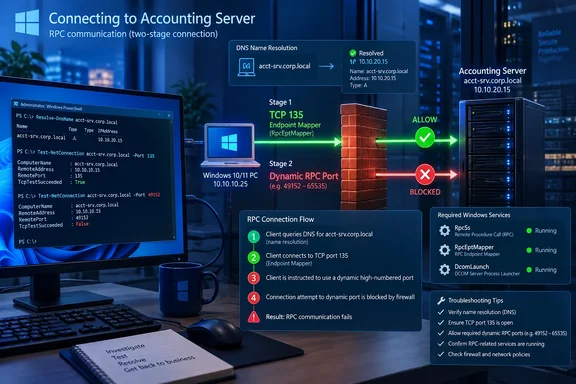
Microsoft’s current RPC troubleshooting guidance describes a two-stage connection. A client first reaches the remote computer’s RPC Endpoint Mapper on TCP port 135, then receives a dynamically assigned port for the actual application or service. A firewall rule that permits port 135 but blocks the second connection can therefore produce the same “RPC server is unavailable” message as a stopped service. That is the failure pattern to isolate before changing registry settings or disabling security controls.
 Separate a local RPC failure from a remote connection failure
First identify whether the error names the PC you are using or another computer. A local failure can affect Windows consoles themselves: Services may open without listing services, Device Manager may not populate hardware, or a local application may fail to start a COM or DCOM component. A remote failure normally occurs when connecting to PC-ACCOUNTING, a server, a shared printer, WMI, Remote Registry, Event Viewer, or Services on another system.
Do not use a successful ping as proof that RPC works. Ping tests ICMP, whereas remote RPC typically begins over TCP 135 and then moves to a dynamic TCP endpoint. Likewise, an open TCP 135 port proves only that the initial Endpoint Mapper connection is reachable; it does not prove that the service-specific port handed back by the mapper is reachable.
Microsoft documents that the following core services are central to local RPC and DCOM operation:
RpcSs— Remote Procedure Call (RPC).RpcEptMapper— RPC Endpoint Mapper.DcomLaunch— DCOM Server Process Launcher.
Open an elevated PowerShell window on the machine showing the error and check all three:
Get-CimInstance Win32_Service -Filter "Name='RpcSs' OR Name='RpcEptMapper' OR Name='DcomLaunch'" |
    Select-Object Name, State, StartMode, StartName
All three should be running, and their startup mode should normally be Automatic. Microsoft advises against disabling RpcSs; Windows components and dependent services rely on it extensively. DcomLaunch and RpcEptMapper are similarly core infrastructure, so do not attempt to “restart RPC” casually from a remote session or by ending svchost.exe processes. On a healthy Windows installation, those changes can make the machine less usable before they solve anything.
If one of these services is stopped or disabled, restart the computer before changing it. If it remains disabled afterward, treat that as a configuration problem: check local Group Policy, device-management policy, security baselines, and any “debloat” or service-tuning utility used on the system. A core RPC service being disabled is not a normal condition to work around by opening ports.
For an RPC error that happens only when contacting a remote system, run the same check on the target computer. Checking the client’s services alone cannot repair a stopped Endpoint Mapper or DCOM launcher on the server being contacted.
Verify the name resolves to the intended computer
Remote administration often begins with a computer name, not an IP address. If DNS returns an obsolete address after a DHCP change, a VPN connection, a device replacement, or a stale record, Windows may be attempting RPC against the wrong host. Microsoft’s RPC guidance explicitly calls out successful name resolution as part of a working endpoint lookup.
From the client, resolve the fully qualified name you actually use:
Resolve-DnsName -Name PC-ACCOUNTING.contoso.com -DnsOnly
Then test the RPC Endpoint Mapper:
Test-NetConnection -ComputerName PC-ACCOUNTING.contoso.com -Port 135 -InformationLevel Detailed
The output should show the expected RemoteAddress and TcpTestSucceeded : True. If the name resolves to an unexpected address, correct DNS or the hostname being used rather than creating firewall exceptions for a machine that is not the intended target.
Testing the IP address can help separate name resolution from reachability:
Test-NetConnection -ComputerName 192.0.2.25 -Port 135 -InformationLevel Detailed
Interpret that comparison carefully. A name failure paired with an IP success strongly points to DNS or name-resolution trouble. But an IP-based test is not a substitute for a normal domain-based remote management connection: Kerberos authentication is designed around host names, and some tools may behave differently when pointed directly at an IP address.
If both tests fail, verify that the target is powered on, connected to the correct network or VPN, and reachable through the expected route. If port 135 works but the administration tool still returns the RPC error, move to the firewall analysis instead of declaring the network healthy.
Why opening TCP 135 alone does not fix RPC
RPC Endpoint Mapper uses TCP 135 to direct a client to the dynamic endpoint registered by the requested application. Microsoft’s guidance identifies the blocked dynamic endpoint as the most common reason the error persists after a client has reached port 135. In a packet trace, this often appears as a successful port 135 exchange followed by repeated TCP connection attempts to the assigned high-numbered port.
This is why broad “open RPC port 135” advice is incomplete. It can fix only the first stage. For a remote Services console, WMI query, DCOM program, or other RPC-aware management tool, the receiving computer and any firewall between the two systems must allow the service’s endpoint traffic as well.
On the Windows Firewall side, prefer Microsoft’s built-in, service-scoped rule groups over a custom inbound rule that opens an arbitrary high-port range to every network. The predefined rules know which service executable is receiving traffic and can be limited to the appropriate network profile and remote addresses.
For WMI-based tools, including many inventory, monitoring, and administrative scripts, Microsoft documents this command on the remote target:
netsh advfirewall firewall set rule group="windows management instrumentation (wmi)" new enable=yes
Run it in an elevated Command Prompt only when remote WMI is genuinely required. It enables the WMI rule group, including the firewall allowances WMI needs for its DCOM/RPC communication. Review the rules afterward in Windows Defender Firewall with Advanced Security (wf.msc) and ensure they apply only to the Domain or Private profile appropriate to the environment.
For other remote-management tasks, inspect the predefined inbound rules on the target computer. Relevant groups commonly include Windows Management Instrumentation, Remote Service Management, and Remote Event Log Management. The exact display names can vary with Windows language and installed features, so use the firewall console or inventory the active rules rather than copying a rule name from another PC:
Get-NetFirewallRule -PolicyStore ActiveStore |
    Where-Object DisplayName -match 'WMI|Remote Service|Remote Event Log' |
    Select-Object DisplayName, Enabled, Direction, Action, Profile
A domain administrator should make persistent changes through Group Policy or endpoint-management policy, not as an untracked local exception. If policy has disabled a required rule, local changes may be overwritten at the next refresh; that is evidence of the actual cause, not a reason to keep re-enabling it manually.
Check the network firewall after checking Windows Firewall
A local Windows Firewall rule can be correct while traffic is still dropped by a router ACL, VLAN firewall, VPN concentrator, endpoint security agent, or network inspection device. This is especially common when a management workstation can reach a server on one subnet but not from another.
Microsoft recommends PortQry for examining the RPC Endpoint Mapper response because it can identify the dynamic port supplied by the remote computer. From the client, if PortQry is available, run:
Portqry.exe -n 192.0.2.25 -e 135
A useful result shows TCP 135 listening and lists an endpoint with a dynamic port number. If the tool identifies a dynamic endpoint but cannot establish the follow-up connection, the problem is not simply that “RPC is off.” It is a filtering or routing problem on the path to that endpoint, or a target-side packet filtering problem.
At that point, capture the source IP, destination IP, TCP 135 result, dynamic port returned, timestamp, and failing application. Those details give a network or security team something actionable. “Open all high ports” does not.
Windows supports restricting RPC to a defined port range for environments that must traverse tightly controlled firewalls, but Microsoft warns that an undersized or malformed range can prevent services from registering endpoints and can cause broader failures. That is an infrastructure design change for administrators who can document every dependent application, not a first-line desktop repair.
Treat DCOM, printers, and remote services as separate layers
DCOM is built on the RPC infrastructure but adds activation, launch, access, and identity permissions. A successful TCP 135 test does not prove that the user has rights to remotely activate a DCOM component. Conversely, changing global DCOM settings will not fix a blocked dynamic port or an incorrect DNS record.
For remote WMI, Microsoft notes that Windows Firewall, DCOM permissions, and User Account Control token filtering can all affect the connection. In a workgroup, a local administrator account on the target can be restricted by remote UAC filtering even when the transport is working. In a domain, use an appropriately delegated domain account and verify WMI namespace permissions before weakening UAC or DCOM-wide security settings.
Printers require the same discipline. A shared-printer connection can show an RPC error when the print server, Print Spooler, SMB access, name resolution, or firewall rules are unavailable. Check that the target print server is reachable by name and that its Print Spooler service is running; do not assume a printer error means the three core RPC services should be reconfigured. If the problem affects one printer queue only, compare that queue’s server path and driver deployment with a working queue before touching RPC controls.
For remote Services, Event Viewer, and Device Manager-style tools, also distinguish an RPC transport failure from authorization. An “access denied” result means the connection got far enough to authenticate and evaluate permissions. “RPC server unavailable” means the session generally failed earlier, during endpoint discovery or connectivity.
Use the result to make the smallest safe repair
The practical repair depends on where the test fails:
- If
RpcSs,RpcEptMapper, orDcomLaunchis not running locally, restore the supported service configuration through the system’s policy owner or repair process, then restart Windows. - If DNS returns the wrong host or no record, correct the name-resolution problem and retest using the fully qualified name.
- If TCP 135 fails, repair the target’s reachability, Windows Firewall profile and rules, VPN path, or intervening firewall policy.
- If TCP 135 succeeds but PortQry or tracing identifies a blocked dynamic endpoint, repair the service-scoped Windows Firewall rule or the network policy that blocks the assigned endpoint.
- If connectivity succeeds but the task is rejected, investigate DCOM, WMI, share, printer, or administrative permissions rather than expanding firewall access.
The key outcome is not merely making the error disappear. It is establishing whether Windows cannot find the right machine, cannot reach the Endpoint Mapper, cannot reach the assigned service port, or has reached the service but lacks permission. Once that boundary is known, the correct fix is usually narrow—and it does not require exposing RPC or DCOM broadly to an untrusted network.