

Microsoft defines the code as CERT_E_UNTRUSTEDROOT. Microsoft’s Windows Update troubleshooting guidance also documents a safe reset of the update download and catalog caches when an update component is damaged or stale. The steps below apply to Windows 10 and Windows 11, but managed work or school PCs need an important exception: an organization may deliberately control trusted certificates, Windows Update servers, proxies, or root-certificate updates.
Do not work around this error by disabling signature checks, turning off security protections, or importing a root certificate obtained from a random website. Those actions weaken the trust system that is preventing the update from installing.
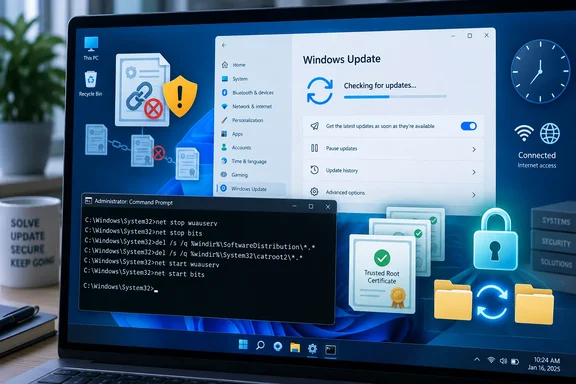 Start with the clock and connection
Certificate validation depends on the current date, time, and time zone. A badly incorrect clock can make a valid certificate appear expired or not yet valid.
Quick walkthrough

- Open Settings.
- In Windows 11, select Time & language > Date & time. In Windows 10, select Time & Language > Date & time.
- Turn on Set time automatically and Set time zone automatically if those choices are appropriate for the PC.
- Confirm that the displayed date, time, and time zone are correct.
- Select Sync now where Windows displays that option, then restart the PC.
On a domain-joined work PC, do not configure a public time server to bypass company policy. Domain members normally synchronize time through the Active Directory domain hierarchy. If the clock repeatedly changes back after a restart, the underlying time-source or firmware-clock issue needs to be resolved before retrying Windows Update.
Also confirm that the PC has a normal internet connection. A captive portal, SSL-inspecting proxy, security appliance, or enterprise update server can present certificates that the client does not trust. If browsers also report certificate warnings for ordinary secure sites, treat this as a broader trust or network problem rather than a Windows Update cache problem.
Let Windows obtain current trust information
Windows maintains certificate stores locally, including the Trusted Root Certification Authorities store. Microsoft’s Root Certificate Program can distribute trusted and disallowed certificate information through Windows’ automatic update mechanisms.
For a personal PC that normally updates directly from Microsoft:
- Connect to the internet without a captive portal.
- Restart Windows after correcting the clock.
- Open Settings > Windows Update and select Check for updates.
- If 0x800B0109 returns, continue with the cache reset below.
Avoid manually importing a root certificate merely because it appears to match an error message. A root certificate grants broad trust: adding the wrong one can allow an attacker or misconfigured network device to impersonate otherwise secure services.
Administrators can confirm whether policy has disabled automatic root updates. Microsoft documents DisableRootAutoUpdate under the computer certificate-policy path; with no policy value present, trusted-root automatic update is enabled by default. That is an administrative policy decision, not a registry tweak for ordinary users.
For diagnosis on an unmanaged PC, an elevated Command Prompt can test whether Windows can retrieve certificate trust-list material through its automatic update mechanism:
mkdir C:\Temp\RootUpdate
certutil -syncWithWU C:\Temp\RootUpdate
This command downloads certificate trust-list files into the specified folder. It does not make it safe to import every certificate in that folder, and it is not a substitute for an organization’s certificate deployment process. A connection, DNS, or proxy failure from this command is useful evidence that the machine cannot reach the services used for automatic certificate updates.
On a company-managed PC, stop here and report the exact error, the update name or KB number, whether browsers show certificate warnings, and whether the device is on-site, on VPN, or on a home connection. The IT team may need to repair a WSUS, Configuration Manager, proxy, inspection certificate, or Group Policy deployment instead of changing the client’s public root store.
Reset the Windows Update download and catalog caches
If the clock is correct and the PC can reach the expected network, reset the Windows Update cache. Microsoft’s supported troubleshooting procedure renames, rather than permanently deletes, the existing cache directories. Windows recreates them when the relevant services start.
This requires an administrator account.
- Save work and close Settings.
- Search for Command Prompt.
- Select Run as administrator and approve the User Account Control prompt.
- Run these commands one at a time:
net stop bits
net stop wuauserv
ren %systemroot%\softwaredistribution softwaredistribution.bak
ren %systemroot%\system32\catroot2 catroot2.bak
net start bits
net start wuauserv- Restart the PC.
- Return to Settings > Windows Update and select Check for updates.
SoftwareDistribution holds Windows Update’s downloaded content and local update data. catroot2 is used by Windows’ cryptographic catalog processing, so resetting it is relevant when an update’s signature or catalog validation is involved. Renaming the folders preserves a fallback copy while allowing Windows to build fresh working folders.
A successful reset does not mean the issue was caused by corruption. It simply removes stale downloaded files and local catalog data from the equation. If the update installs afterward, Windows Update will create new SoftwareDistribution and catroot2 folders automatically.
Repair Windows components if the error persists
If 0x800B0109 returns after the cache reset, repair the component store and protected system files before trying more invasive changes. Microsoft lists both commands in its Windows Update troubleshooting guidance.
Open an elevated Command Prompt and run:
DISM.exe /Online /Cleanup-image /RestoreHealth
sfc /scannow
Wait for each command to finish. DISM repairs the Windows component store used to service the operating system, while sfc /scannow verifies protected system files against known-good versions. Restart Windows after both complete, then retry Windows Update.
If DISM cannot complete because it cannot download repair content, do not assume the command itself is faulty. The same certificate, proxy, update-source, or network trust problem may be preventing Windows from obtaining the files it needs.
When cache and time fixes are the wrong answer
0x800B0109 describes a trust failure, but it does not identify a single cause. The next action depends on where the certificate chain became untrusted.
- If the error occurs only on a corporate network or only while connected to VPN, an enterprise proxy, update server, or internally deployed root certificate is a likely factor. IT should inspect certificate and update-service configuration.
- If the PC is disconnected from the internet by design, it may be unable to receive the automatic certificate trust updates Windows normally retrieves. An administrator needs to provide certificate trust material through an approved offline or managed process.
- If a third-party security product performs HTTPS inspection, temporarily removing or disabling it may help isolate the issue. Microsoft notes that third-party security software can interfere with updating, but it should be restored or replaced with a compatible product after testing.
- If normal websites display certificate warnings as well as Windows Update, investigate the network and system trust store before attempting to install updates manually.
- If only one update fails and its KB number is known, record that identifier. A specific failed package can point to a servicing issue distinct from a general root-certificate problem.
For Windows 11 PCs with persistent Windows Update component damage, Microsoft also provides a recovery option that reinstalls the current Windows version while preserving apps, files, and settings. It is a later-stage repair option, not the first response to 0x800B0109.
The safe order is straightforward: correct the clock, ensure the device can reach its legitimate update and trust services, reset the Windows Update caches, repair system components, and escalate managed-certificate issues to the administrator responsible for the organization’s update infrastructure.