

The key is to adjust the balance on the output device currently in use. Windows treats built-in speakers, wired headphones, USB audio devices, HDMI displays, and Bluetooth earbuds as separate endpoints—so correcting one does not automatically change the others.
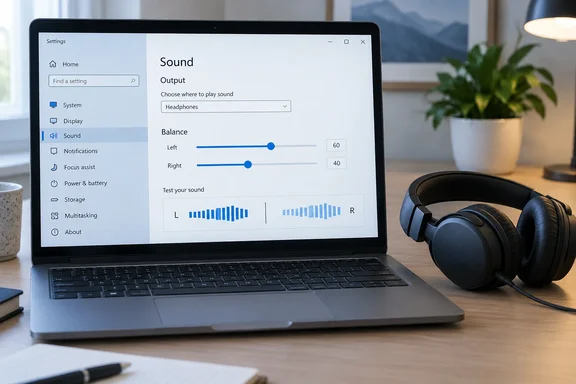 Adjust left and right balance in Windows 11
- Press Windows + I to open Settings.
- Select System > Sound.
- Under Output, select the device you are listening through.
- For example: Speakers, Headphones, your monitor’s audio output, or a paired Bluetooth headset.
- Open Output settings and find Volume.
- Adjust the Left and Right channel controls independently.
For a normal centered stereo setup, set both channels to the same value—typically 100. To compensate for one side sounding quieter to you, lower the stronger side rather than immediately pushing the quieter side to its maximum. That preserves some headroom and can help avoid distortion at high overall volume.
Microsoft’s current Windows 11 Bluetooth troubleshooting guidance uses this same per-device Sound settings page and recommends confirming that Left and Right are set equally when sound is unexpectedly limited to one channel.
What success looks like
Play a familiar stereo track, video, or podcast after changing the sliders:
- Voices should sound centered rather than pulled hard left or right.
- Music should feel more evenly distributed.
- Both earbuds or speakers should remain audible.
- The setting should stay in effect when you reconnect that same device.
A tiny imbalance can be useful for comfort. A dramatic imbalance is more likely to be a clue that hardware, a cable, pairing, or the recording itself needs attention.
Adjust audio balance in Windows 10
Windows 10’s Settings layout varies somewhat by version and by audio driver, but the usual route is:
- Press Windows + I.
- Select System > Sound.
- Under Output, choose the playback device you want to adjust.
- Open Device properties.
- Look for Balance.
- Set the Left and Right values to the levels you prefer.
If the Balance controls are not exposed on that Settings page, use the classic Sound panel:
- Go to Settings > System > Sound.
- Select More sound settings or the related Sound control-panel option.
- On the Playback tab, select the active speakers or headphones.
- Choose Properties.
- Open the Levels tab.
- Select Balance beside the main volume control.
- Change the L and R levels, then select OK and Apply.
The classic panel remains a valuable fallback in Windows 11, too, particularly with older audio drivers or devices whose manufacturer software does not surface channel controls in the modern Settings app.
Important: Windows 10 reached end of support on October 14, 2025. These audio controls can still work on an existing installation, but a supported Windows 11 PC is the safer long-term choice for ongoing security updates.
Bluetooth headphones and earbuds: check the right device first
Bluetooth is where channel problems like to put on a little theater. You may have a headset listed as a general Bluetooth device, but the balance adjustment belongs to its active audio output entry in System > Sound.
Before changing anything:
- Confirm the Bluetooth headphones or speakers are connected.
- Start playing audio so Windows is actively using them.
- In System > Sound, select the Bluetooth device under Output—not the laptop speakers.
- Set Left and Right to equal values first, then make any personal comfort adjustment.
If one earbud is completely silent, balance may not be the real culprit. Microsoft advises checking the device charge, inspecting the hardware, and re-pairing Bluetooth devices that behave as though only one side connected. For compatible devices, also verify that the selected output format is stereo rather than a one-channel format.
Do not confuse balance with Mono audio
Balance changes the relative loudness of the existing left and right stereo channels.
Mono audio combines left and right content into a single channel and sends that combined sound to both sides. It is an accessibility feature, especially useful when listening with one earbud or when one ear cannot comfortably hear one side of a stereo mix.
In Windows 11:
- Open Settings > Accessibility > Audio.
- Turn Mono audio on or off.
In Windows 10, the path is generally:
- Open Settings > Ease of Access > Audio.
- Turn on Mono audio.
If your objective is to make the right side slightly louder than the left, leave Mono audio off and use balance controls. If you are missing entire instruments, voices, or effects because they exist only on one stereo channel, Mono audio may be the better answer. Microsoft documents Mono audio as a way to hear all sound through either side rather than losing content limited to a single channel.
When changing balance does not fix one-sided audio
An uneven balance setting is an easy fix. A dead channel is a different beast. Work through these checks before assuming Windows is at fault.
1. Confirm the selected playback device
Windows may be sending audio to a monitor, docking station, controller, Bluetooth headset, or virtual audio device instead of the speakers you expected.
Open Settings > System > Sound and make sure the intended device is selected under Output.
2. Test the hardware somewhere else
Try the headphones or speakers with another phone, PC, or audio source.
- If the same side fails elsewhere, the headset, cable, speaker, or adapter is likely at fault.
- If it works elsewhere, revisit Windows settings, Bluetooth pairing, and drivers.
For wired headphones, fully reseat the plug. A partly inserted 3.5 mm connector can produce weak, missing, or oddly separated channels—the audio equivalent of a door that is technically closed but absolutely not latched.
3. Turn off Mono audio when testing stereo
Mono audio should not ordinarily mute one side, but it changes how stereo content is delivered. Turn it off while diagnosing channel separation.
4. Disable audio enhancements temporarily
Audio enhancements from Windows, the PC manufacturer, or a third-party sound application can alter channel processing.
In Settings > System > Sound, select the output device, then set Audio enhancements to Off if that option is available. Test again before deciding whether to leave enhancements disabled.
5. Re-pair Bluetooth audio
For wireless earbuds and speakers:
- Disconnect the device.
- Remove it from Settings > Bluetooth & devices.
- Put the accessory into pairing mode.
- Pair it again.
- Return to System > Sound and check Left and Right balance.
This is particularly worthwhile when only one earbud appears connected, or when the problem began after an update or after using the earbuds with another device.
6. Run Windows audio troubleshooting
Windows includes a built-in audio troubleshooter for cases where the expected output device is missing, muted, disabled, or misconfigured. In Windows 11, go to Settings > System > Troubleshoot > Other troubleshooters, then run the audio troubleshooter.
A sensible starting point
For most people, start with both channels equal:
| Situation | Recommended starting point |
|---|---|
| Normal speakers or headphones | Left 100 / Right 100 |
| One side feels slightly louder | Reduce the stronger side a little |
| One earbud has no sound | Equalize balance, then inspect, charge, re-pair, and test hardware |
| Listening with one earbud | Consider enabling Mono audio |
| Bluetooth headset becomes mono during microphone use | Check its output format and device compatibility |
Balance is a personal setting, not a pass/fail calibration exam. If a modest left/right adjustment makes calls, games, music, and Windows notifications clearer, that is the correct setting for you. But when a channel vanishes outright or must be pushed dramatically higher than the other, treat it as a diagnostic signal—not merely a slider problem.