

Microsoft still supports File History in Windows 11 as a local versioned backup feature for libraries such as Documents, Pictures, Music, Videos, Desktop, and custom libraries. It writes changed files to an external drive or network location, then makes those earlier versions available through File Explorer’s Restore previous versions command.
The important distinction is between a backup destination that is unavailable and a File History configuration that has lost track of a perfectly healthy destination. Treat the backup drive as evidence first: confirm that the existing FileHistory folder and your prior data are intact before changing configuration or selecting a new destination.
Microsoft also documented a short-lived Windows 11 problem in September 2026 that produced misleading “Reconnect your drive” messages, stale timestamps, and missing previous versions even when the backup disk was working. The issue affected Windows 11 24H2 and 25H2 systems that installed KB5124008; Microsoft says it is fixed by the September 22, 2026 KB5124010 preview update and later updates. If the failure began immediately after that security update, install a later cumulative update before rebuilding a working File History setup.
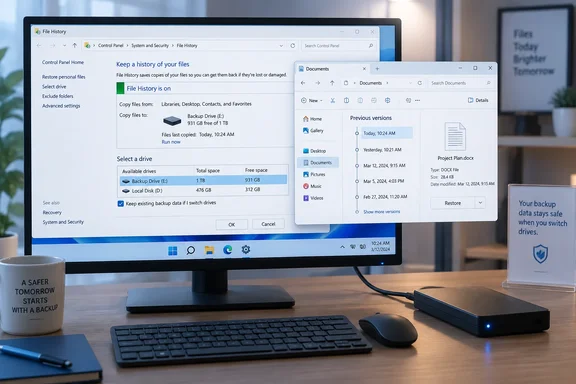 Windows 11 File History troubleshooting starts with the backup destination
File History needs a destination Windows can reach consistently: an external drive connected to the PC or a network location configured in its Control Panel interface. A drive appearing in File Explorer is a necessary first check, but File History also needs to be able to use the same destination it was configured for.
Open File Explorer and confirm that the backup drive is visible, has free space, and opens normally. If it is a USB drive, reconnect it directly to the PC rather than through an unreliable hub or dock while troubleshooting. If Windows assigns it a different letter, do not assume that this alone has destroyed the backup; use File History’s own drive-selection interface to reconnect it.
Then open the legacy File History control panel:
- Open Start and search for
Control Panel. - Select System and Security.
- Open File History.
- Check whether Windows reports that File History is on, whether it shows a recent backup time, and whether it displays a reconnect warning.
- Select Select drive if the expected destination is missing or a different destination is listed.
If the original drive appears, choose it and confirm the selection. Windows may offer to move existing files when changing destinations; do not treat that prompt as a routine repair step. If the old backup drive already contains prior File History data, selecting the existing destination is safer than creating a second, unrelated backup set elsewhere.
A network target deserves a separate check. Confirm that the share opens in File Explorer using the same Windows account that runs File History. A mapped drive that opens only after an interactive sign-in, or a share with changed credentials or permissions, can make File History look broken even though the local configuration is sound.
File History backs up libraries, not every folder on a PC
“No previous version available” is sometimes a restore problem, but it can also mean the file was never inside File History’s backup scope. Microsoft documents that File History automatically protects libraries, including the standard Documents, Pictures, Music, and Videos libraries, plus Desktop. Other folders must be included in a library before File History will capture them.
That means a project stored in a random folder such as C:\Work or on a secondary internal disk is not automatically protected merely because File History is enabled. In File Explorer, right-click the folder, choose Show more options, and select Include in library. A custom library can then bring that folder into File History’s backup set.
For a file that should already have history, restore it from its original location rather than from a library shortcut:
- In File Explorer, browse to the folder where the file normally lives.
- Right-click the file or folder and select Restore previous versions.
- Select an earlier version from the list.
- Use Open in File History to inspect it before replacing anything.
- Use Restore to if you want to recover a copy to another folder rather than overwrite the current file.
Microsoft warns that ordinary Restore replaces the current version and cannot be undone. Restoring to a separate location is the sensible first move when the current file may still contain work you need.
The File History Service needs to be available, but a stopped state is not always a fault
The Windows service behind the feature is named File History Service and uses the service name fhsvc. It is normally trigger-started: it may not remain running continuously when File History is idle. A stopped service therefore is not, by itself, proof of a failure.
It becomes relevant when File History cannot start a manual backup, cannot select a destination, or reports a service-related error. To refresh it:
- Press
Windows + R, typeservices.msc, and press Enter. - Find File History Service.
- If it is running, right-click it and select Restart.
- If it is stopped, right-click it and select Start.
- Return to Control Panel > System and Security > File History and run or re-enable the backup.
Do not set the service to Disabled, and avoid changing unrelated Windows services based on generic backup advice. File History has its own service; changing startup settings for other components can complicate diagnosis without repairing the selected destination or the user-level File History configuration.
For more evidence, Event Viewer can separate an operational failure from a drive-detection issue. Open Event Viewer and browse to Applications and Services Logs > Microsoft > Windows > FileHistory-Engine. Recent errors recorded at the time of a failed manual backup are more useful than old warnings. Microsoft’s September 2026 issue, for example, could log crashes that referenced FileHistory.exe and KERNELBASE.dll.
Reset File History configuration without erasing the backup drive
If the destination is healthy, the service can start, and File History still refuses to reconnect or begin a backup, reset the local configuration as a last repair step. The configuration is stored per user profile under:
%LocalAppData%\Microsoft\Windows\FileHistory
This reset should change Windows’ local record of the backup setup. It should not begin by deleting the FileHistory folder on the external disk or network share. That backup data may contain the only older versions available for restoration.
Archive the configuration before rebuilding it
- Disconnect no drives yet; keep the existing backup destination available.
- In Control Panel > File History, turn File History off if Windows allows it.
- Open
services.mscand stop File History Service if it is running. - In File Explorer, paste
%LocalAppData%\Microsoft\Windows\into the address bar. - Rename the
FileHistoryfolder to something such asFileHistory.oldinstead of deleting it. - Restart Windows.
- Return to Control Panel > System and Security > File History.
- Select the existing backup drive or network location again, then turn File History on.
Renaming gives Windows a clean location in which to recreate its local catalog and settings while preserving the old configuration files for rollback or inspection. If the rebuilt configuration works, confirm that a new backup completes and that its timestamp advances. Then test one harmless file: edit it, let File History run, and check whether a previous version appears from the file’s original folder.
If the rebuilt setup cannot use the existing backup set, do not erase that set in frustration. Restore any required files from it first, using File Explorer’s previous-versions interface where available. A fresh File History configuration may need time to build a new history, and it cannot recreate versions that were never captured.
What this means for you
Start with the least destructive fix: verify the drive and reconnect it, then check the File History Service, and reset the local configuration only after preserving both the destination and the current configuration folder.
- If File History began failing immediately after Windows 11 KB5124008, install KB5124010 or a later cumulative update before rebuilding the backup configuration.
- If the backup drive is detected but File History says “Reconnect your drive,” select the known-good destination again through Control Panel rather than reformatting or deleting its FileHistory folder.
- If previous versions are missing for only some folders, verify that those folders belong to a Windows library included in File History.
- If the File History Service is stopped while no backup is running, start it for a manual test, but do not assume its idle state is the root cause.
- If a configuration reset is necessary, rename
%LocalAppData%\Microsoft\Windows\FileHistoryand preserve the external or network backup data. - If a restore could overwrite a current file, use Restore to and recover a separate copy first.
File History remains useful precisely because it preserves earlier copies rather than simply mirroring today’s files. The repair process should respect that purpose: preserve the old destination, prove that Windows can reach it, and rebuild only the local state that tells Windows how to use it.