

NET.EXE LOCALGROUP, and the Microsoft.PowerShell.LocalAccounts cmdlets all manage the same class of local group membership. The important limitation is scope: a local group exists on one Windows PC, not across every PC in an organization.That makes local groups ideal for a shared workstation, a small office file server, a lab machine, or a standalone PC hosting an SMB share. It is less appropriate for a domain-joined fleet already managed through Active Directory or Microsoft Entra ID and Intune, where centrally managed groups avoid duplicating membership on each endpoint.
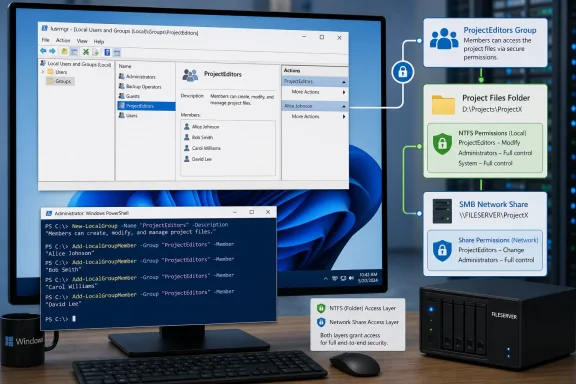
The useful pattern is simple. Create a group such as ProjectEditors, put the appropriate accounts in it, and grant ProjectEditors Modify permission to a working folder. When someone joins or leaves the project, change group membership rather than editing the folder’s access control list for every individual account.
 Check the Windows edition before opening Computer Management
On supported Windows 10 and Windows 11 editions, right-click Start and choose Computer Management, then expand System Tools. The graphical Local Users and Groups node can also be opened directly with lusrmgr.msc.
Microsoft documents Computer Management as the MMC console for managing local accounts. In practice, the Local Users and Groups snap-in is normally present on Windows Pro, Enterprise, and Education editions. It is deliberately absent from Windows Home. If lusrmgr.msc reports that the snap-in cannot be used, or the node is missing from Computer Management, that is usually an edition limitation rather than a damaged Windows installation.
Before proceeding, confirm the edition in Settings > System > About. Administrators must also use an account with local administrative rights to create groups, change membership, or alter permissions on protected folders.
There is another boundary worth keeping clear: do not use Local Users and Groups to administer accounts on a domain controller. Microsoft’s documentation explicitly excludes that scenario. On a member PC, a local group can contain local accounts and, depending on the environment, domain, Microsoft Entra, or Microsoft account identities—but the group itself remains local to that machine.
Create a group in Local Users and Groups
In Computer Management, open System Tools > Local Users and Groups > Groups. The pane already contains built-in groups such as Administrators, Users, Remote Desktop Users, and Backup Operators. Those groups can grant powerful operating-system rights, so a custom group is the safer choice when the only goal is access to a particular project folder or share.
Right-click an empty area in the Groups pane and select New Group. Give it a descriptive, role-based name, such as ProjectEditors, AccountingReadOnly, or LabShareUsers. Add a short description that says what access the group is meant to control and who approves membership. That small bit of documentation prevents a common administrative failure months later: nobody knows whether an old group is still needed, so it retains access indefinitely.
Select Add to choose users or other principals. If the Select Users dialog is ambiguous, use Locations to make sure the local computer is selected, then type the account name and choose Check Names. A local identity can be written as COMPUTERNAME\username; qualifying it this way is particularly useful on a domain-joined PC where a domain user has the same short name.
After saving the new group, open its Properties page and use the Members tab to verify the result. Do not assume that adding a person to a group grants access immediately. The group still needs a permission entry on the resource, and a user already signed in may need to sign out and back in before a newly assigned token membership is reflected consistently.
Avoid treating custom groups as a shortcut into the built-in Administrators group. Microsoft warns that Administrators members receive Full Control over the local computer. A folder-access group should be granted access to the folder, not elevated rights across Windows.
Grant the group folder access instead of individual access
To apply the group to an NTFS folder, right-click the folder, select Properties, and open the Security tab. Choose Edit, then Add, enter the local group name, and confirm it resolves to the local computer’s group. Assign the least privilege that meets the job:
- Read & execute works for users who only need to open files and run permitted content.
- Modify is usually the practical choice for a collaborative data folder because it allows users to create, change, and delete files.
- Full control should be reserved for administrators or owners who must change permissions and take ownership.
For a normal shared working directory, grant ProjectEditors Modify and retain Full Control for local Administrators and SYSTEM. Then test with a standard account that belongs to the group. A permissions dialog that looks correct is not proof that the intended workflow works, especially when inheritance or older user-specific entries are involved.
The Advanced button is where administrators should check whether the group’s access applies to “This folder, subfolders and files.” A permission assigned only to the top-level folder can allow users to browse it but fail when they attempt to create or edit files in child folders. Conversely, inherited permissions can expose more than intended if the group is added too high in the directory tree.
Use explicit deny entries sparingly. Windows evaluates access control entries in a defined order, and an explicit denial can override a broad allow inherited through another group. In most small deployments, it is clearer and safer to remove an unnecessary allow permission than to build a tangle of denies.
Microsoft’s icacls documentation identifies it as the supported command-line tool for viewing and modifying NTFS discretionary access control lists. This is a useful verification step after GUI changes:
icacls 'D:\TeamFiles'
To grant a local group Modify rights recursively to the folder, files, and subfolders, run an elevated 64-bit Windows PowerShell session:
$Group = "$env:COMPUTERNAME\ProjectEditors"
icacls 'D:\TeamFiles' /grant "${Group}:(OI)(CI)M"
(OI)(CI) makes the permission inherit to files and child folders; M means Modify. Use this deliberately: inheritance is powerful, and applying it to an existing folder tree changes the security posture of everything beneath it.
An SMB share has two permission layers
A group can also control a network share, but Windows has two separate checks: the SMB share permission and the NTFS permission on the underlying folder. Network users must satisfy both. Granting Modify on the folder alone does not help if the share permission allows only Read; granting Change on the share alone does not bypass a restrictive NTFS ACL.
For a folder such as D:\TeamFiles, create or review the SMB share in Computer Management > Shared Folders > Shares, or through the folder’s Sharing tab. At the share layer, grant the local group the appropriate access—typically Change for contributors or Read for viewers. At the Security tab, grant the same group the corresponding NTFS permission, usually Modify for contributors.
PowerShell can add an allow entry to an existing SMB share:
Grant-SmbShareAccess -Name 'TeamFiles' `
  -AccountName "$env:COMPUTERNAME\ProjectEditors" `
  -AccessRight Change -Force
Microsoft’s SMB documentation defines Grant-SmbShareAccess as adding an allow access-control entry to an SMB share. Check the existing share rules first with Get-SmbShareAccess -Name 'TeamFiles'; broad entries such as Everyone may still grant access that defeats the purpose of creating a restricted group.
This local-group approach does not make the share remotely reachable on its own. File and Printer Sharing must be enabled, the Windows Firewall rules must permit the connection for the active network profile, and the connecting user must authenticate with an account Windows can recognize on the host.
Use PowerShell when the console is unavailable
Windows Home users and administrators automating several machines can use the LocalAccounts cmdlets rather than attempting to install an unsupported MMC snap-in. Microsoft documents New-LocalGroup, Add-LocalGroupMember, Get-LocalGroupMember, and Remove-LocalGroupMember for this work.
Run the following in an elevated 64-bit Windows PowerShell session:
New-LocalGroup -Name 'ProjectEditors' `
  -Description 'Users permitted to modify D:\TeamFiles'

Add-LocalGroupMember -Group 'ProjectEditors' `
  -Member "$env:COMPUTERNAME\alex"

Get-LocalGroupMember -Group 'ProjectEditors'
To remove a departed user later:
Remove-LocalGroupMember -Group 'ProjectEditors' `
  -Member "$env:COMPUTERNAME\alex"
Use the computer-qualified account name when possible. Microsoft notes a subtle but consequential behavior on domain-joined systems: if a local account has the same name as a domain identity, an unqualified Add-LocalGroupMember request can select the domain member instead. Qualification makes the intended identity clear.
The LocalAccounts module has one practical trap: Microsoft says it is unavailable in 32-bit PowerShell on a 64-bit system. If the cmdlets appear missing, launch the normal 64-bit Windows PowerShell executable rather than a 32-bit host. The older built-in fallback remains available from an elevated Command Prompt:
net localgroup ProjectEditors /add
net localgroup ProjectEditors COMPUTERNAME\alex /add
net localgroup ProjectEditors
The final check should be operational, not cosmetic: sign in as a non-administrator member of the group, create a test file through the local path and, if applicable, through \\COMPUTERNAME\TeamFiles. Once that succeeds, future access changes reduce to adding or removing a member from ProjectEditors—without rewriting permissions across the folder tree for each person.