

 Identify which kind of rename failure you have
Try the rename once in File Explorer before changing anything:
Quick walkthrough
- Open File Explorer and browse to the file or folder.
- Select it and press
F2, or right-click it and select Rename. - Enter the new name and press
Enter.
The exact wording of the error helps identify the cause:
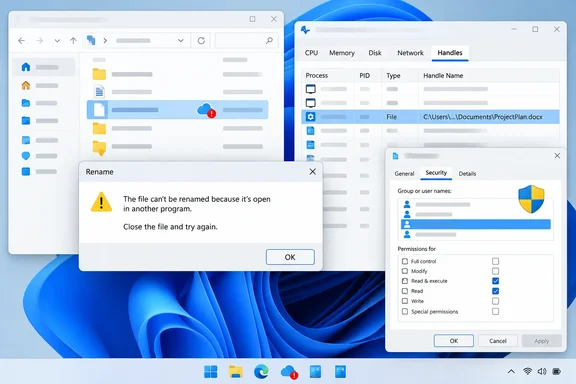
- “The action can’t be completed because the file or folder is open in another program” usually means a process has an open handle, often an Office app, media player, terminal, preview pane, antivirus scanner, backup tool, or cloud-sync client.
- “Access is denied,” “You need permission,” or a UAC prompt usually points to NTFS permissions, ownership, or a protected location.
- A network-related error can mean the item is on a shared folder and the server’s share permissions or NTFS permissions do not allow the rename.
- No useful error, but the name changes back can indicate a sync service or another application is restoring the original name.
Before troubleshooting, note the file’s current full path and choose the exact new name you want. Do not work on the only copy of important data without first making a backup.
Rule out simple locks before using Resource Monitor
Many rename problems clear after the application using the item is closed properly.
- Close the file in every app that might have opened it.
- Close Word, Excel, Adobe Acrobat, image editors, media players, archive tools, and any command prompt or PowerShell window currently working in that folder.
- If you are renaming a folder, close programs that may be using a file inside that folder.
- Close extra File Explorer windows displaying the affected folder.
- Also turn off the Preview pane temporarily if it is enabled: in File Explorer, select View and turn off Preview pane.
- If the item is stored in OneDrive, Dropbox, Google Drive, or another synchronized location, allow the service to finish current activity first.
- Look for sync status icons beside the file or folder.
- If the name repeatedly reverts, pause the relevant sync client briefly, rename the item, then resume syncing and check whether a conflict is reported.
- Try the rename again.
If the item is still reported as open in another program, use Resource Monitor to find the process rather than repeatedly forcing File Explorer to retry.
Warning: Do not end an unfamiliar process merely because it appears in a handle search. Ending a process can discard unsaved work or interrupt a backup, synchronization, database, or security operation. First close the corresponding application normally.
Find the locking process with Resource Monitor

Resource Monitor is included with Windows 10 and Windows 11. Its Associated Handles search can show processes that have files or folders open.
- Save your work in all open applications.
- Press
Windows + R. - Type
resmonand pressEnter. - If Windows asks for permission, approve the prompt.
- In Resource Monitor, select the CPU tab.
- In the lower part of the window, expand Associated Handles if it is collapsed.
- In the Search Handles box, enter a distinctive part of the affected item’s name.
- Start with the file name without the extension, such as
Budget-2026. - For a folder, search for its unique folder name.
- If the name is common, use a more distinctive word from the file or folder name to avoid unrelated results.
- Wait for the results to update. Check the Image column to see the executable holding the handle and the handle’s path to confirm it is the correct item.
Common results include:
WINWORD.EXE,EXCEL.EXE, or another app process: save and close that application.OneDrive.exeor another sync client: let it complete activity, or pause sync briefly and retry.explorer.exe: close File Explorer windows showing the folder. If that does not work, restart Explorer as described below.- Security, backup, indexing, or archive software: wait for the operation to complete. Do not disable security software just to rename a file unless your organization’s administrator specifically directs it.
- Close the corresponding app normally and return to File Explorer.
- Try the rename again.
If the application has no visible window and you are certain it is safe to stop, open Task Manager with Ctrl + Shift + Esc, locate the matching app under Processes, select it, and choose End task. Use this only for a known non-critical application and expect unsaved changes in that app to be lost.
Restart File Explorer when Explorer itself holds the item
If Resource Monitor identifies explorer.exe, or File Explorer appears stuck after an interrupted copy or preview operation, restart Explorer:
- Press
Ctrl + Shift + Escto open Task Manager. - Find Windows Explorer under Processes.
- Select it.
- Select Restart.
The taskbar and open File Explorer windows will disappear briefly, then return. Try the rename again after Explorer reloads.
If you cannot identify the process or the lock immediately returns, restart Windows. A restart closes normal user-session processes and is safer than randomly ending processes. After the restart, rename the item before reopening the application that may be locking it.
Check whether the name itself is invalid
A file can also fail to rename because Windows does not accept the proposed name.
When creating the new name:
- Do not use these characters:
\ / : * ? " < > | - Do not end a name with a period or space.
- Avoid reserved device names such as
CON,PRN,AUX,NUL,COM1, orLPT1, even when an extension is added. - Keep folder names reasonably short, especially in deeply nested folders or shared locations.
If the problem is a very long folder path, rename a parent folder nearer the root of the drive to shorten the path, then retry the rename of the affected item. Be careful when shortening paths used by applications, scripts, backups, or shortcuts; those references may need to be updated afterward.
Check NTFS permissions before changing them
A rename requires delete-related rights on the file or folder, or on its parent folder. This surprises many users because renaming does not look like deleting, but Windows treats changing the directory entry as an operation that needs those rights.
First inspect permissions without altering them:
- Right-click the file or folder and select Properties.
- Select the Security tab.
- If there is no Security tab, the item may be on a file system or location that does not expose NTFS permissions in File Explorer, such as certain removable drives or network locations.
- Under Group or user names, select your account or a group you belong to, such as Users or Administrators.
- Review the permissions shown below.
For a normal personal data folder, your account generally needs Modify permission to rename files and folders. Read & execute alone is not enough.
If the file is on a network share, local NTFS permissions are only part of the picture. The share’s permissions on the server can also limit what you can do. Contact the share owner or IT administrator rather than changing permissions on a business file server yourself.
Grant permission only on data you own or administer
Warning: Changing permissions or taking ownership can weaken protection, break application assumptions, or create an audit issue on a managed PC. Do not change permissions onC:\Windows,C:\Program Files,C:\Program Files (x86), application folders, another user’s profile, or an organization-managed folder merely to rename an item. For those locations, use the application’s supported workflow or contact the administrator.
If this is a personal file or folder you own and the Security tab shows that your account does not have Modify permission:
- Right-click the item and select Properties.
- Select Security.
- Select Edit.
- Select your user account. If it is not listed, select Add.
- Enter your Windows account name, select Check Names, then select OK.
- With your account selected, select Allow for Modify.
- Select Apply, then OK.
- Close the Properties dialog box and try the rename again.
For a folder, apply a permission change only as broadly as necessary. If you only need to rename the folder itself, avoid granting broad rights to every file beneath it.
Take ownership only when you cannot edit permissions
Taking ownership is a last resort for personal data that you are authorized to manage, such as files restored from an old PC or drive. An administrator can take ownership of a file or folder, and an owner can change its permissions.
- Right-click the affected file or folder and select Properties.
- Select Security > Advanced.
- At the top of Advanced Security Settings, find Owner and select Change.
- Enter your account name, select Check Names, then select OK.
- If you are repairing a folder and must manage its contents too, select Replace owner on subcontainers and objects. Leave this unchecked when you only need to repair ownership of the selected item.
- Select Apply and approve any prompt.
- Return to the Permissions section, select Add, then select Select a principal.
- Enter your account name, select Check Names, then select OK.
- Grant Modify rather than Full control unless you have a specific administrative reason to need broader access.
- Select Apply, then OK until all dialogs close.
- Rename the item.
Afterward, remove any temporary permission entry you added if it is no longer needed. Return to Properties > Security, select the added account entry, choose Edit or Remove as appropriate, and apply the change. Do not remove inherited entries or permissions for SYSTEM, application service accounts, or other users unless you understand why they are present.
Verify that the rename completed safely
After the rename succeeds:
- Press
F5in File Explorer to refresh the folder. - Confirm the new name appears and the old name is gone.
- Open the renamed file or folder to confirm it remains accessible.
- If it is in a synced location, wait for the sync-status icon to show completion and check for duplicate or conflicted copies.
- If shortcuts, scripts, backups, media libraries, or applications referred to the old path, update those references before deleting any old shortcut or link.
When the problem persists
Use the symptom to choose the next safe action:
- The file is still “in use” after closing the app: Search Resource Monitor again using part of the full name. A different process may have opened it after the first one was closed. Restart Windows if the holder cannot be safely stopped.
- The Security tab shows Modify, but renaming still gives Access denied: Check the parent folder’s Security settings as well. Rename rights can depend on delete-related access to the item or its containing folder.
- The item is on a company network share: Ask the share owner or IT administrator to check both share and NTFS permissions. Do not take ownership of corporate data locally.
- The name reverts after a short delay: Pause sync temporarily, check the web or other device copy for a conflicting name, then resume sync after resolving the conflict.
- Only one folder fails and its path is extremely deep: Shorten names higher in the folder tree first.
- Many unrelated files suddenly fail to rename or other disk errors appear: Back up accessible data and have the drive checked. Widespread rename failures can indicate a file-system or storage problem rather than a single lock or permission entry.