

📎 AI Summary:
The thread discusses how to disable the on-screen keyboard icon in Windows 8. The original poster finds that unchecking the icon in the taskbar only removes it temporarily, but disabling the "HID-compliant touch screen" in Device Manager permanently removes the keyboard icon and functionality. Ultimately, they confirm disabling this device effectively solves their issue, though they express hope for future options to hide the icon without disabling the touch features. The overall sentiment is practical and solution-focused.
The thread discusses how to disable the on-screen keyboard icon in Windows 8. The original poster finds that unchecking the icon in the taskbar only removes it temporarily, but disabling the "HID-compliant touch screen" in Device Manager permanently removes the keyboard icon and functionality. Ultimately, they confirm disabling this device effectively solves their issue, though they express hope for future options to hide the icon without disabling the touch features. The overall sentiment is practical and solution-focused.
Solution

Right click the Taskbar and select "Toolbars" at the top of the list.
You will then see a picture like mine. I think it would be wise to RE- enable the function you disabled in the Device manager.
You should see, after this, that the item "Touch Keyboard" is ticked. Untick it - done.
You will then see a picture like mine. I think it would be wise to RE- enable the function you disabled in the Device manager.
You should see, after this, that the item "Touch Keyboard" is ticked. Untick it - done.

Member details
- Joined
- Oct 16, 2009
- Messages
- 15,153
On my system, deselecting the option for the Taskbar removed the icon, even after a reboot.
Do you have other users on the system, or some other utility related to the touchscreen? Do you even have a touchscreen?
You might check the Task Manger for startup items, maybe something there is keeping it selected after a reboot.
Do you have other users on the system, or some other utility related to the touchscreen? Do you even have a touchscreen?
You might check the Task Manger for startup items, maybe something there is keeping it selected after a reboot.

g2c
Member
Member details
- Joined
- Jun 28, 2014
- Messages
- 33
Thanks for bothering.
I am the only user and the machine has a touchscreen. Could you please have a look at the startup list?
Thanks again
 Microsoft Defender: No threats detected
Scan details
Microsoft Defender: No threats detected
Scan details
I am the only user and the machine has a touchscreen. Could you please have a look at the startup list?
Thanks again
Last edited by a moderator:

g2c
Member
Member details
- Joined
- Jun 28, 2014
- Messages
- 33
Oh, this is the Classic Shall. It allows me to keep sound despite win8. I warmly recommendedI don't know what a couple of those are, but one which would seem to be relevant is the Classic Start Menu. It may very well have some connection to your problem.
g2c
Member
Member details
- Joined
- Jun 28, 2014
- Messages
- 33
Go to Device Manager, open click on Human interface devices and look for touch screen. Right click and disable.
BINGO! Thank you very much.
And since i owe you - I am not to*o* old neither
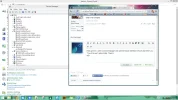
Hold up here, I went to Device Manager and opened Human Interface Devices but there's no "Touch Screen" option listed. There's HID-compliant touch screen but no sub option specifically for the onscreen keyboard.
Attachments
-
 Microsoft Defender: No threats detected Scan detailsupload_2014-7-20_15-18-12.webp110.5 KB · Views: 340
g2c
Member
Member details
- Joined
- Jun 28, 2014
- Messages
- 33
I disabled the HID-compliant touch screen and it removed the keyboard. I believe that one day there will be a mean to disable the on screen keyboard logo from being stuck on the task bar w/o being invited. Meanwhile i don't mind using the mouse (it's a laptop)
Eh, seems a little overboard to have to disable the entire touch screen just to stop the onscreen keyboard from popping up all the time. There has to be a way to turn off the OS keyboard without turning off the whole touch screen.

Member details
- Joined
- May 1, 2008
- Messages
- 5,546
I have a touchscreen. IOn a reinstall, or whatever, I do the same as saltgrass. Works for me even after a reboot.?
 Microsoft Defender: No threats detected
Scan details
Microsoft Defender: No threats detected
Scan details
Last edited by a moderator:
g2c
Member
Member details
- Joined
- Jun 28, 2014
- Messages
- 33
Can you please explain?IOn a reinstall, or whatever
Member details
- Joined
- May 1, 2008
- Messages
- 5,546
Right click the Taskbar and select "Toolbars" at the top of the list.
You will then see a picture like mine. I think it would be wise to RE- enable the function you disabled in the Device manager.
You should see, after this, that the item "Touch Keyboard" is ticked. Untick it - done.
You will then see a picture like mine. I think it would be wise to RE- enable the function you disabled in the Device manager.
You should see, after this, that the item "Touch Keyboard" is ticked. Untick it - done.
g2c
Member
Member details
- Joined
- Jun 28, 2014
- Messages
- 33
Very strange: after having disabled and re-enabled the touch screen, it now DOES retain the configuration (ticked / unticked) on screen keyboard) after restart
So the bottom line for me is:
disable the touchscreen -> [maybe restart] -> enable the touch screen; wait till windows confirm it did re-enable -> untick the OS KB (toolbar / taskbar) -> done
Creech, does this work for you?
Thanks everybody
So the bottom line for me is:
disable the touchscreen -> [maybe restart] -> enable the touch screen; wait till windows confirm it did re-enable -> untick the OS KB (toolbar / taskbar) -> done
Creech, does this work for you?
Thanks everybody


