
Solution

Try this:
1. Click Start, Run and type regedit.exe
2. Navigate to the following location:
4. Exit the Registry Editor.
Now go try to unpin the item in the start menu by right clicking and hitting unpin.
1. Click Start, Run and type regedit.exe
2. Navigate to the following location:
HKEY_CLASSES_ROOT \ Folder \ shellex \ ContextMenuHandlers
3. Create a sub-key named {a2a9545d-a0c2-42b4-9708-a0b2badd77c8}
4. Exit the Registry Editor.
Now go try to unpin the item in the start menu by right clicking and hitting unpin.
I tried to drag my recycle bin to the taskbar without success.. just right click on the desktop and go to personalize and that should let you change what's on your desktop. if you right click the libraries link(which is just windows explorer) you can go to unpin.
Yeah, but these are on my start menu, right clicking them on my start menu does not show anything on how to get them off.
if you right click on them, the very last item in the list should be "unpin this program from taskbar". hopefully that helps.
DUH, sorry, wasn't paying attention... right click on the taskbar--> properties-->start menu--> customize
Last edited:
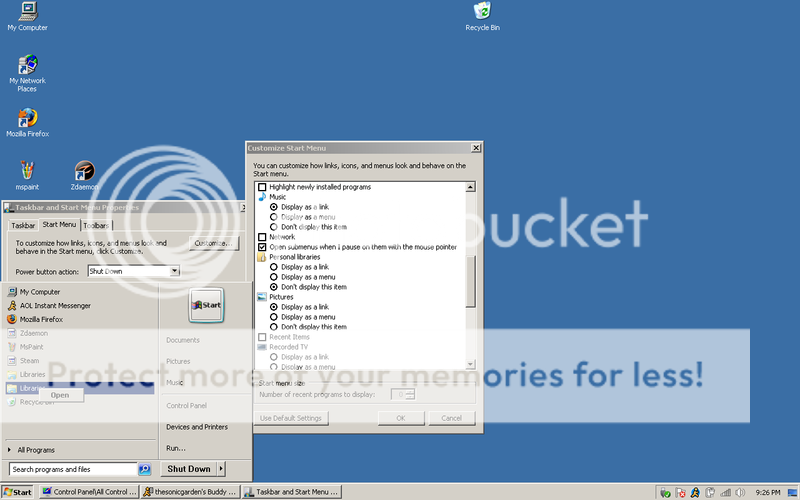
NARF! that IS a problem isn't it lol.. did you try just hitting "use default settings"? if, of course you haven't changed anything else in that window..... that MIGHT work, other than that... i've been spewing pure BS for the last half hour 
- Thread Author
- #8
I'm sorry to say, but this has been brought up in two prior posts and was never solved.
Do you have a restore point you could go back to?
That's the only way you'll ever remove it.
Damn, damn, damn I don't.
I have an idea, I am going to try some things...

- Joined
- Nov 10, 2008
- Messages
- 1,634
Try this:
1. Click Start, Run and type regedit.exe
2. Navigate to the following location:
4. Exit the Registry Editor.
Now go try to unpin the item in the start menu by right clicking and hitting unpin.
1. Click Start, Run and type regedit.exe
2. Navigate to the following location:
HKEY_CLASSES_ROOT \ Folder \ shellex \ ContextMenuHandlers
3. Create a sub-key named {a2a9545d-a0c2-42b4-9708-a0b2badd77c8}
4. Exit the Registry Editor.
Now go try to unpin the item in the start menu by right clicking and hitting unpin.

reghakr
Essential Member
- Joined
- Jan 26, 2009
- Messages
- 14,185
iroken22,
I just saw it didn't work for Computer. I know there was a CLSID assigned to MY Computer in previous versions of Windows, but I search the complete registry and was unable to locate it.
I'm firing up my Win98 machine to try to get the CLSID for Computer.
I just saw it didn't work for Computer. I know there was a CLSID assigned to MY Computer in previous versions of Windows, but I search the complete registry and was unable to locate it.
I'm firing up my Win98 machine to try to get the CLSID for Computer.
Last edited by a moderator:
- Thread Author
- #11
Try this:
1. Click Start, Run and type regedit.exe
2. Navigate to the following location:HKEY_CLASSES_ROOT \ Folder \ shellex \ ContextMenuHandlers3. Create a sub-key named {a2a9545d-a0c2-42b4-9708-a0b2badd77c8}
4. Exit the Registry Editor.
Now go try to unpin the item in the start menu by right clicking and hitting unpin.
Dude, you are god. That worked! Thanks a ton!

Similar threads

- Article
- Replies
- 0
- Views
- 516
- Article
- Replies
- 0
- Views
- 299
- Article
- Replies
- 0
- Views
- 449
- Article
- Replies
- 0
- Views
- 1K
- Article
- Replies
- 0
- Views
- 697