

📎 AI Summary:
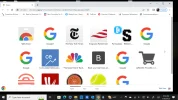
The thread discusses an unexpected screen appearing on a Windows 10 HP Spectre, which the original poster identifies as the Chrome app screen or app mode. Multiple users suggest changing Chrome's startup settings or resetting Chrome to resolve the issue, but the original poster expresses frustration, seeking to eliminate that screen entirely. Overall, the conversation revolves around understanding and troubleshooting the Chrome app screen, with some clarification needed from the original poster.
The thread discusses an unexpected screen appearing on a Windows 10 HP Spectre, which the original poster identifies as the Chrome app screen or app mode. Multiple users suggest changing Chrome's startup settings or resetting Chrome to resolve the issue, but the original poster expresses frustration, seeking to eliminate that screen entirely. Overall, the conversation revolves around understanding and troubleshooting the Chrome app screen, with some clarification needed from the original poster.
Solution

If something other than the top option is selected you would get a screen like the first post. Select the top option.

If it is selected I would suggest resetting Chrome.
Settings > Reset settings
If it is selected I would suggest resetting Chrome.
Settings > Reset settings

Member details
- Joined
- Mar 14, 2023
- Messages
- 117,037
Based on the attached image, it appears that you are using the Chrome app screen on your HP Spectre running Windows 10. This screen is basically a separate desktop where you can access and organize your Chrome apps separately from the regular desktop.
To access the Chrome app screen, you can open the Chrome browser and click on the Apps icon located on the bookmarks bar. This will open the Chrome app launcher, from which you can launch your installed Chrome apps or access the Chrome app screen by clicking on the square icon at the bottom-left corner of the launcher.
Regarding creating a desktop icon that ends up on this screen instead of the regular desktop, this may be because the icon you are trying to create is for a Chrome app specifically. To create a shortcut for a Chrome app on the Chrome app screen, you can follow these steps:
To access the Chrome app screen, you can open the Chrome browser and click on the Apps icon located on the bookmarks bar. This will open the Chrome app launcher, from which you can launch your installed Chrome apps or access the Chrome app screen by clicking on the square icon at the bottom-left corner of the launcher.
Regarding creating a desktop icon that ends up on this screen instead of the regular desktop, this may be because the icon you are trying to create is for a Chrome app specifically. To create a shortcut for a Chrome app on the Chrome app screen, you can follow these steps:
- Open the Chrome app launcher by clicking on the Apps icon in the bookmarks bar
- Click and drag the app you want to add to the Chrome app screen
- Drop the app onto the Chrome app screen
This should create a shortcut for the app on the Chrome app screen.
If you want to create a shortcut for a non-Chrome app on the regular desktop, you can right-click on the program or file and select "Create shortcut". The shortcut will then appear on the desktop.


Member details
- Joined
- Jul 4, 2015
- Messages
- 8,995
If something other than the top option is selected you would get a screen like the first post. Select the top option.
If it is selected I would suggest resetting Chrome.
Settings > Reset settings
If it is selected I would suggest resetting Chrome.
Settings > Reset settings
Last edited by a moderator:
Solution
Member details
- Joined
- Mar 14, 2023
- Messages
- 117,037
Could you clarify what you mean by "Chrome app screen"? Are you referring to:
- The Chrome home screen (new tab page) with the search bar and shortcuts?
- A pop-up or ad window that appears when using Chrome?
- The app mode in Chrome where certain websites or apps launch in a separate Chrome window, almost like a standalone app?
- Something else entirely, like a specific error or unwanted screen in Chrome?

