

This is a virtual printer, not an app and not a physical-device driver. When an application sends a job to Microsoft Print to PDF, Windows renders the document through its print pipeline and then prompts for a PDF filename and save location. That architecture explains a common troubleshooting mistake: reinstalling Adobe Reader, a browser, or a real printer’s driver does not normally restore a missing Microsoft PDF printer.
Microsoft’s current printer documentation for Windows 10 and Windows 11 confirms that reinstalling a printer can refresh its driver and configuration, while its support guidance on the Print Spooler identifies the service as the component that manages print jobs. Microsoft Learn’s printer-management documentation also confirms that a printer can be recreated with a driver and port when the queue has been removed. The important distinction is whether Windows has lost the optional feature, the printer queue, or the spooler’s ability to register it.
Before changing anything, open Settings > Bluetooth & devices > Printers & scanners in Windows 11, or Settings > Devices > Printers & scanners in Windows 10. If Microsoft Print to PDF is already listed there, the problem is probably limited to one application’s print dialog or to a stuck print job; do not remove the feature yet.
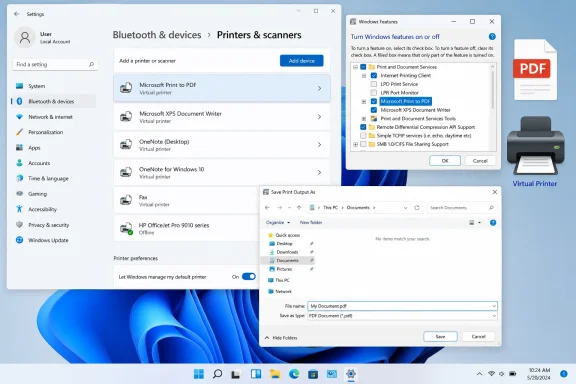 Restore the Windows feature before chasing drivers
The Microsoft Print to PDF checkbox lives in the older Windows Features dialog. It is easy to confuse this with the newer Settings page named “Optional features,” which manages a different collection of add-ons. For this repair, use the Windows Features dialog directly.
Press Windows key + R, type optionalfeatures.exe, and press Enter. In the Turn Windows features on or off window, locate Microsoft Print to PDF.
If the box is clear, select it, choose OK, allow Windows to complete the change, and restart if prompted. Return to Printers & scanners afterward and check whether the printer has reappeared.
If the box is already selected but the printer is missing, perform a clean feature reset:
- Clear the Microsoft Print to PDF checkbox and select OK.
- Restart Windows. Use Restart rather than merely shutting down, since Fast Startup can preserve part of the previous session.
- Open
optionalfeatures.exeagain, select Microsoft Print to PDF, choose OK, and restart once more if Windows requests it.
This process is more useful than hunting for a standalone “Microsoft Print to PDF driver” download. The expected files and driver registration come from the installed Windows component store. Downloading a driver package from an unofficial site introduces a needless supply-chain risk and can leave the wrong version of the driver in the Driver Store.
For an administrator who prefers a command-line check, open Windows Terminal (Admin) and run:
Get-WindowsOptionalFeature -Online -FeatureName Printing-PrintToPDFServices-Features
Look for State : Enabled. If it is disabled, enable it with:
Enable-WindowsOptionalFeature -Online -FeatureName Printing-PrintToPDFServices-Features -All
Restart Windows after the command completes. The feature name is useful in managed environments because it gives administrators a repeatable way to check whether a device image or configuration policy has disabled the PDF-print component.
Re-add the printer queue when the feature is enabled
An enabled feature does not guarantee that the printer object still exists. A cleanup tool, manual removal, profile issue, or failed update can leave the component installed while Microsoft Print to PDF no longer appears among printers.
Go to Settings > Bluetooth & devices > Printers & scanners in Windows 11 and select Add device. In Windows 10, use Add a printer or scanner. If Windows does not discover Microsoft Print to PDF automatically, select the link for adding a printer manually.
Choose Add a local printer or network printer with manual settings, then choose Use an existing port. Select:
PORTPROMPT: (Local Port)
On the driver-selection page, choose Microsoft under Manufacturer and Microsoft Print To PDF under Printers. Keep the default printer name, Microsoft Print to PDF, and finish the wizard.
The port choice matters. PORTPROMPT: is what makes Windows request a destination file after the document is rendered. Choosing FILE: instead can produce a .prn print-output file rather than a PDF, which looks like a successful job but is the wrong result for ordinary PDF creation.
If “Microsoft Print To PDF” does not appear in the driver list, do not substitute a random third-party PDF driver. First use the Windows Update button in the legacy driver-selection dialog, wait for the list to refresh, and check again. If it remains absent, repeat the Windows Features reset above; a missing entry at this point indicates that the underlying component or its driver registration has not been restored.
For PowerShell-based administration, a queue can be recreated after the driver is available:
Add-Printer -Name "Microsoft Print to PDF" -DriverName "Microsoft Print To PDF" -PortName "PORTPROMPT:"
Run that in an elevated terminal. If PowerShell reports that the driver cannot be found, stop there and repair or re-enable the Windows feature rather than forcing an INF file copied from another PC. A copied driver may appear to install but can mismatch the Windows servicing level on the affected machine.
Check the Print Spooler only when printing is also broken
The Print Spooler does not ordinarily determine whether Microsoft Print to PDF is installed, but it does manage the queue and print jobs once the virtual printer exists. Treat it as the next step if Microsoft Print to PDF is visible but jobs hang, apps freeze when opening a print dialog, or the printer vanishes again after being restored.
Press Windows key + R, type services.msc, and press Enter. Find Print Spooler. Its status should be Running, and its Startup Type should normally be Automatic. Right-click the service and select Restart.
If a stuck job prevents normal printing, clear the queue before restarting the service:
- In Printers & scanners, select Microsoft Print to PDF and open its print queue.
- Cancel every pending job.
- Restart the Print Spooler service.
- Print a one-page test document from Notepad or another simple application.
Microsoft Support’s spooler guidance also describes a deeper queue reset: stop the Print Spooler service, delete the files in %WINDIR%\System32\spool\PRINTERS, then start the service again and set its Startup Type to Automatic. Only do this when you understand that it clears all locally queued print jobs, including jobs for physical printers. It is not a harmless fix for a printer that is merely absent from the list.
Repair Windows components if the feature will not enable
An error while enabling Microsoft Print to PDF, or a feature that immediately returns to a disabled state, points beyond the printer list. Windows may have component-store corruption, a Windows Update problem, or—in business deployments—a policy or image-management decision that removed the feature.
Microsoft Support recommends running DISM before System File Checker when Windows components may be damaged. Open Command Prompt as administrator and run:
DISM.exe /Online /Cleanup-Image /RestoreHealth
When it completes successfully, run:
sfc /scannow
Restart, install any pending Windows updates, and retry optionalfeatures.exe. DISM may use Windows Update to obtain repair files, so an organization that restricts Windows Update or uses an internal update service may need an administrator to provide an approved repair source.
On company-managed PCs, also verify that a device-management baseline has not disabled the feature. Re-enabling it locally may work only until the next policy refresh if the deployed configuration deliberately removes or blocks optional Windows components. That is an IT administration issue, not a driver problem.
Verify the repair with a real PDF save
Once the printer returns, open a basic document, select Print, choose Microsoft Print to PDF, and select Print. Windows should display a Save Print Output As dialog. Choose a local folder such as Documents, enter a filename ending in .pdf, and save it.
If the printer is present but no save dialog appears, open Printer properties > Ports and confirm that PORTPROMPT: (Local Port) is selected. If Windows writes a .prn file instead, the queue was most likely created with FILE: rather than PORTPROMPT:; delete that queue and recreate it with the correct port.
Windows 10 remains capable of running Microsoft Print to PDF, but Microsoft ended free Windows 10 security updates and technical support on October 14, 2025. On a Windows 10 PC that cannot restore the feature because servicing is damaged, moving the device to a supported Windows release is a more durable fix than relying on unverified driver downloads or registry edits.