

.pdf file without installing a separate PDF creator or connecting a physical printer. Open the item, invoke its print command—usually Ctrl+P or File > Print—then choose Microsoft Print to PDF from the printer list instead of your office or home printer.The important limitation is in the word printable. Microsoft’s documentation describes this as a virtual printer: it receives a normal print job and writes electronic output rather than sending pages to hardware. If an app has no Print command, or its publisher blocks printing for protected content, Microsoft Print to PDF cannot force an export.
Microsoft’s own Office documentation also makes clear that print preview and the available controls are owned largely by the app creating the job. The printer selection is the same, but page ranges, orientation, margins, scaling, and whether comments or backgrounds appear can differ between Word, Outlook, a browser, Photos, and a note-taking app. The reliable workflow is to configure the document first, inspect the preview, and only then send it to the PDF printer.
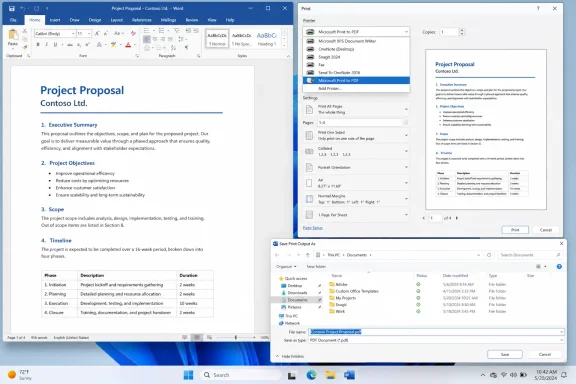 The basic Microsoft Print to PDF workflow
Start by opening the exact item you want to preserve. That might be a Word document, a browser page, an Outlook message, a scanned image in Photos, or a page of notes. If the app supports it, use Ctrl+P; otherwise look for Print in the File menu, a three-dot menu, or a share menu.
In the print window, open the printer drop-down list and select Microsoft Print to PDF. Do not select an entry such as “Print to File” unless you specifically understand that application’s workflow; it is a different option and can produce files that are not usable PDFs.
Before selecting Print, use the application’s preview pane. Microsoft’s Office guidance places the preview beside the printing controls for a reason: it is where you can catch a missing page, a cropped spreadsheet column, a web page that breaks badly, or an email header that you did not intend to include. A PDF preserves the printed result, including mistakes made before the job is created.
When the preview looks right, select Print. Windows will not feed paper through a printer. Instead, it opens a Save Print Output As window, where you choose a folder and file name, then select Save. The PDF now exists as a regular file that can be opened, attached to an email, copied to cloud storage, or printed later.
Choose the page range and layout before saving
The page controls in a print window determine what becomes part of the PDF. “All” is fine for a short document, but it is often the wrong choice for a long report, a web article with comments, or an email thread. Choose a custom range when you need only selected pages—for example, 1-3 for a short extract or 3-6, 10, 14 for separate pages in applications that accept comma-separated ranges.
For a browser page, look for controls such as Pages, Layout, Scale, More settings, Headers and footers, and Background graphics. Browser wording changes from one browser to another, but the principle does not: preview the printed rendition instead of assuming the screen view will become the PDF unchanged. A web page can have sidebars, cookie banners, ads, navigation bars, or print-specific styling that alters the final pages.
Orientation deserves a deliberate choice. Use Portrait for letters, articles, receipts, ordinary documents, and most emails. Use Landscape for wide spreadsheets, dashboards, presentations, tables, or screenshots where portrait orientation would shrink text to an unreadable size.
Do not use “Fit to page” or a very low scaling percentage as a universal repair for awkward layouts. It can prevent an unwanted second page, but it also makes text and tables smaller. If a spreadsheet still looks cramped in landscape mode, consider changing the sheet’s print area, reducing unnecessary columns, or splitting the content into more pages before creating the PDF.
Some print windows expose paper size and margins. For documents intended for US printing, Letter is commonly appropriate; for international recipients or formal workflows, A4 may be required. The paper size changes the PDF’s page dimensions, so make the choice before distribution rather than expecting a recipient’s printer to solve it later.
Saving web pages, email, images, and notes
Web pages are one of the most useful cases for Microsoft Print to PDF, especially when you need a stable copy of instructions, an order record, an article, or a confirmation page. First make sure the content you need has loaded and expanded. If an article is split across pages, a comment thread is collapsed, or a receipt is still showing a loading placeholder, the PDF will faithfully preserve that incomplete state.
Emails need more care because the printed result may include the sender, recipient list, timestamp, subject line, attachments list, and quoted replies. In Outlook, Microsoft documents that the Print view combines settings and preview, so use that preview to confirm whether you are saving a single message or an entire conversation. Remove confidential recipients or irrelevant reply history before creating a PDF you plan to share.
For images, Microsoft Print to PDF is useful when a recipient needs a fixed-page document rather than a loose .jpg, .png, or .heic image file. Check the preview for unwanted white borders and for cropping caused by the selected page size. If preserving image quality is the primary goal, keep the original image too; a printed PDF is a convenient document wrapper, not a substitute for your source photograph.
Notes and app content can be more variable. Microsoft OneNote, for example, offers print preview, while other note apps may print only the current note, current section, or visible selection. Read the print scope carefully before selecting Microsoft Print to PDF, particularly when you are trying to archive a meeting note or a notebook page with sensitive material.
Use names and folders that make the PDF usable later
The Save window is the last chance to prevent a future filing problem. Avoid names like document.pdf, scan.pdf, or final-final.pdf; they tell you almost nothing when the file appears in a Downloads folder six months later. Use a sortable name based on date, subject, and version, such as 2026-08-23_ExpenseReport_August.pdf or ProjectA_MeetingNotes_2026-08-23.pdf.
Use the ISO-style YYYY-MM-DD date format when dates matter. It sorts correctly in File Explorer and avoids the ambiguity between US-style month/day/year and day/month/year dates. If the PDF is a revision, add a meaningful suffix such as Draft, Reviewed, or Approved rather than relying on Windows to append (1) or (2).
Save deliberately, not automatically to Downloads. A folder such as Documents, a named project folder, or an approved OneDrive or SharePoint location makes the file easier to locate and back up. The correct location depends on whether the PDF is personal, business-related, temporary, or subject to your organization’s retention rules.
Remember that the PDF can contain every piece of visible print output, including names, account information, internal comments, address details, and screenshots. A PDF is not automatically private or password-protected merely because it has a .pdf extension. Treat it with the same care as the printed document it replaces.
Verify the file before you send or delete the original
Open the newly saved PDF immediately in Microsoft Edge or another trusted PDF reader. Confirm the page count, read the beginning and end of the document, and inspect any page where a table, image, chart, or page break looked close to the margin in preview. Search for an important word or phrase if the PDF is meant to remain selectable text rather than a flattened image.
Check the most common failure points:
- Confirm that the file opens from the folder where you intended to save it, rather than only from a recent-files list.
- Confirm that the selected page range is complete and that no blank trailing page has been added.
- Confirm that wide content remains readable at normal zoom and has not been reduced into tiny text.
- Confirm that private headers, email recipients, comments, or browser-added details are not included by accident.
- Confirm that hyperlinks, bookmarks, forms, tagging, password controls, or other advanced PDF features are present only if you specifically tested them.
This last check matters because Microsoft Print to PDF creates the printed view, not a full document-export workflow. For many ordinary tasks, that is exactly what you need. But Microsoft’s Office support guidance identifies direct PDF export or Save As PDF as the better route when you need application-specific PDF options, including items such as bookmarks, output settings, or—in Word—password encryption.
If you are working in Word, Excel, PowerPoint, Visio, or another desktop Office application, look for File > Save As, Save a Copy, or Export and choose PDF before defaulting to Print to PDF. Use Microsoft Print to PDF when the application does not provide a suitable export route, when you need the exact print layout, or when you are saving content from a browser, email client, or other printable interface.
If Microsoft Print to PDF is missing
First check whether Microsoft Print to PDF appears under Settings > Bluetooth & devices > Printers & scanners in Windows 11, or Settings > Devices > Printers & scanners in Windows 10. Microsoft’s printer-installation documentation uses those locations to confirm whether a printer is present, although the PDF destination is a Windows feature rather than a physical device.
If it is missing, open the Windows Features dialog by searching for “Turn Windows features on or off,” then look for Microsoft Print to PDF. Enable it, apply the change, and restart if Windows requests it. If the feature is already enabled but the printer does not appear, disable it, restart, and enable it again before moving to more disruptive printer repairs.
Windows 10 can still use the feature on existing installations, but Microsoft ended free Windows 10 security updates and technical support on October 14, 2025. For an internet-connected PC handling current documents, the PDF workflow is one small reason to maintain Windows—but it is not a reason to keep an unsupported operating system in service.
The finished PDF is only as good as the print preview you approved. Take the extra minute to set the correct range, orientation, layout, folder, and name; that is what turns Microsoft Print to PDF from a quick workaround into a dependable Windows document workflow.